

Overview
ProductContent AI generates Magento 2 product descriptions, SEO metadata, and product images at scale. Moogento AI is included and ready to use without an API key. You can choose your own AI provider in advanced settings. The module scores products, generates drafts, and sends every draft through review before it goes live.
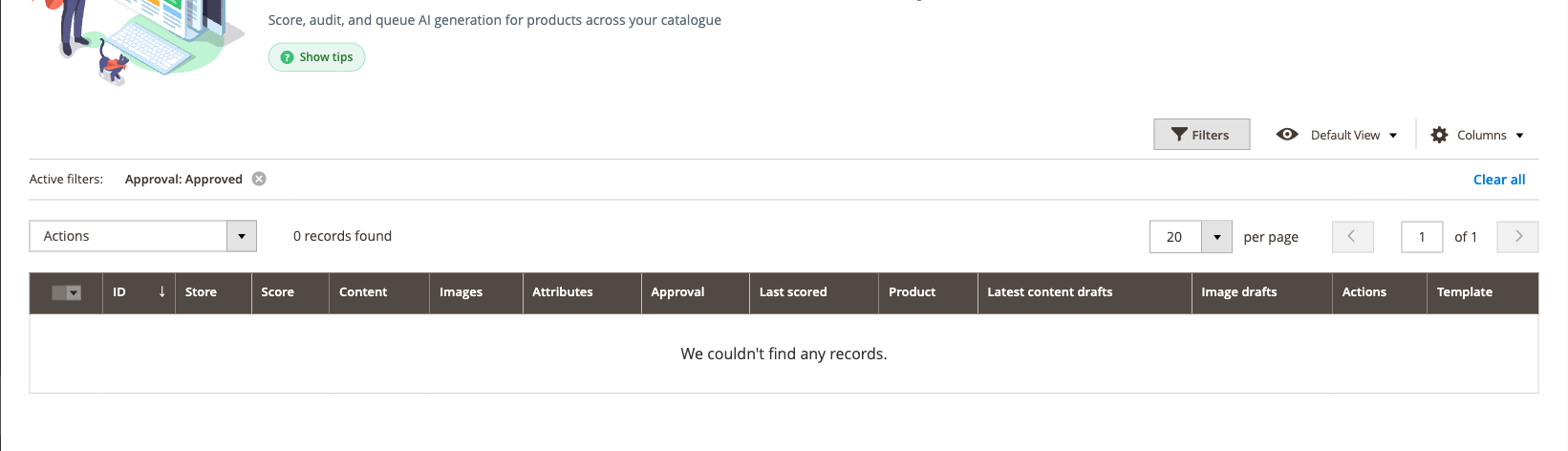
This module helps you:
- Generate PDP copy, SEO metadata, FAQ content, and product images with the included Moogento AI service
- Score every product for content quality and identify which products need attention first
- Review AI-generated drafts side-by-side with existing content, approve what you want, and roll back anything you don't
- Prioritise high-traffic, low-scoring products automatically when ProfitEasy data is available
- Keep content consistent across your catalogue with store-level tone, voice, and prompt rules
When to use this
Use ProductContent AI when you want to:
- Launch a large import of supplier-fed products that arrive with thin or inconsistent descriptions
- Identify which products in an existing catalogue are dragging down SEO performance
- Generate product photography-style images without a photo studio, for product lines where you own the brand
- Maintain a regular content-refresh cycle on high-traffic product pages
- Enforce brand voice and forbidden claims rules across all AI-generated copy
Key capabilities
- Content scoring - rates each product 0-100 across description quality, SEO metadata, attribute completeness, structured page sections, copy uniqueness, AI-shopping readiness, product images, feed consistency, fact-check findings, and SmartListings signal; shows live chiclets in the grid
- AI content generation - generates short description, long description, meta title, meta description, FAQ, and a one-line tiny description per product using Moogento AI or your chosen provider and store prompts
- AI image generation - creates product images from your store's own product photos in up to three configurable visual styles, up to 4 held per product on Growth and Pro (1 on Seed); drafts sit in a staging area until you approve them
- Product Page Workflows - a guided, one-product-at-a-time flow that takes a single product from generation through review to publish, opened by Create product page on the Products & Drafts grid or Create with ProductContent on the product edit page
- Draft review workflow - approve, reject, inline-edit, and rollback all content and image drafts from a single panel on the Products & Drafts grid
- Attribute rules - define per-attribute audit and generation rules so the AI knows which fields to check, generate, or flag
- Template Studio - build reusable product page templates that control which sections to generate and at what word count; map templates to categories for automatic resolution. Five maintained best-practice presets (Balanced Commerce, Concise Catalogue, Detailed Buyer Guide, AI Search and Answer-Ready, Technical and Specification-led) give you a starting structure with no AI call and no cost
- AI attribute suggestions (Pro) - the AI proposes values for attributes you have left empty, with its own monthly token budget and per-run product cap
- AI Fact Check (Pro) - audits product copy against that product's own catalogue attributes and lists what disagrees, with optional online research; see the AI Fact Check guide
- SmartListings priority bridge - products in boosted SmartListings rules move to the front of the AI generation queue
- ProfitEasy feedback loop - high-velocity, low-scoring products are automatically re-queued for optimisation
Installation
ProductContent AI installs via Composer, then activates with a license key from your Moogento.com account. The whole flow takes about 5 minutes.
Prefer a hands-off setup? Our team can install and configure the extension for you - see the paid install service.
Step 1: Get your Composer keys from Moogento.com
- Sign in at https://www.moogento.com and open My Plugins in your account menu.
- Find ProductContent AI in the list of plugins you own.
- Generate (or reveal) the Composer access keys for that plugin - a public key and a private key.
- Add your install domain to the key. Each Composer key is tied to a specific domain - if you're installing on
yourstore.com, addyourstore.comto the key's allowed domains. The Composer download will be rejected on any other domain.
If you run staging and production on different domains, add both - separate keys per environment are fine too.
Step 2: Install the module with Composer
From your Magento 2 root directory:
composer require moogento/m2-productcontent
When Composer asks for credentials, paste the public key as the username and the private key as the password. They'll be cached in ~/.composer/auth.json for future runs.
Step 3: Enable the module in Magento
php bin/magento setup:upgrade
php bin/magento setup:di:compile
php bin/magento cache:clean
If you run php bin/magento module:status Moogento_Productcontent you should see it listed as enabled.
Step 4: Add your license key in the Moogento admin
- For a direct purchase, copy the ProductContent AI license key from My Plugins at moogento.com. For a Marketplace purchase, check your Moogento account for an issued key and contact Moogento support if it is missing.
- Open Stores > Configuration > Moogento > License in Magento Admin. Add the Installation Domain shown on this page to the key in your Moogento account.
- Paste the key into the key field and click Add key.
- Under Registered Keys for this Installation, confirm that ProductContent AI appears with the correct plan.
The license validates within a few seconds. You should see the module's status flip to active. If it stays inactive, double-check the domain on the license matches where you've installed - domain mismatch is the most common cause.
Step 5: Turn the module on
ProductContent AI ships switched off so it cannot touch your catalogue before you have configured it.
- Go to Stores > Configuration > Moogento > ProductContent AI > Setup: General.
- Set Enable to
Yes. - Click Save Config, then run
php bin/magento cache:clean config.
Until this is Yes, the cron jobs, the storefront view counter and every generation action stay dormant.
Extra steps for ProductContent AI
ProductContent AI uses Magento's cron queue to run generation jobs. After setup:upgrade, verify that Magento cron is running on your server. Without cron, content and image jobs will sit in the queue and never process.
# Confirm cron is set up (should return active job lines)
php bin/magento cron:run --group=default
All twelve job schedules start automatically at their default intervals once cron is running. There is no admin screen for them - adjust a schedule with bin/magento config:set if needed (see "Advanced configuration" below).
Setup overview
Most setup happens in:
Stores > Configuration > Moogento > ProductContent AI
You'll mainly work with:
- Setup: General - enable/disable the module and logging, and set the monthly AI token budgets
- AI service - use included Moogento AI, or choose Use your own AI provider (advanced) to connect OpenAI, Gemini or OpenRouter
- Generation: Content - choose which fields (short description, long description, meta title, meta description, FAQ, tiny description) the AI generates, whether existing merchant copy is preserved, and whether low-risk drafts publish without review
- Generation: Images - enable image generation and set images per style, model, size and generation mode
- Generation: Store Prompts - set the brand voice, tone, forbidden claims, allowed HTML, and image style prompts applied to every product
- Setup: AI Attribute Suggestions - choose which attributes the AI may propose values for, and cap the monthly spend (Pro plan)
- Setup: AI Fact Check - audit product copy against catalogue attributes, with optional online research (Pro plan)
- Setup: Integrations - connect SmartListings and AnalyticsEasy/ProfitEasy for priority-based queue ordering, and set the GTIN/MPN attribute codes
Queue behaviour and cron schedules have no admin fields - they are defaults in the module's config.xml, changed with bin/magento config:set. See "Advanced configuration" below.
Common setups
Start generating with Moogento AI
Moogento AI is included by default. Once your ProductContent AI subscription is active, no separate API key is required. The guided setup provider step reads Moogento AI is ready. On first use, the service may briefly show Setting up while its key is provisioned.
How to set it up
-
Go to Stores > Configuration > Moogento > ProductContent AI and check that AI service is set to Moogento AI.
-
Choose the fields you want the AI to produce: Go to Stores > Configuration > Moogento > ProductContent AI > Generation: Content and pick them in Fields to generate (
moogento_productcontent/content_generation/generate_fields). Hold Ctrl (Cmd on a Mac) to select more than one. The options are Short description, Long description, Meta title, Meta description, FAQ and Tiny description; the first five are on by default. Leave nothing selected and generation falls back to the short and long descriptions. -
Save Config.
-
On Growth and Pro, complete the online research step before using Create product page. In Connections, either configure a supported Online research source or set Research products online to
Noif you do not want online research. -
Go to ProductContent AI > Products & Drafts in the admin left nav. Select one or more products, open Actions, and either:
- choose Create product page to run the guided one-product-at-a-time workflow, or
- choose Actions > Advanced > Regenerate content drafts to queue a fresh generation pass in the background.
The queue cron processes the jobs within a minute. Bulk actions and background queue processing need a Growth or Pro plan; on Seed, generate one product at a time from the product row's own actions.
Notes
- The usage panel shows product and image generations remaining this month, the reset date, and an as of time if the latest usage snapshot is stale.
- If the included allowance is exhausted, use Upgrade or select Use your own AI provider. A temporary service interruption is shown separately from exhausted usage.
- An active ProductContent AI subscription is required for generation.
Use your own AI provider (advanced)
Choose this when you already manage an AI account or want the higher ProductContent AI generation limits. Your provider bills AI usage directly. Switching AI service does not remove drafts, history, revisions, reservations, or counters.
-
Go to Stores > Configuration > Moogento > ProductContent AI and select Use your own AI provider (advanced) under AI service.
-
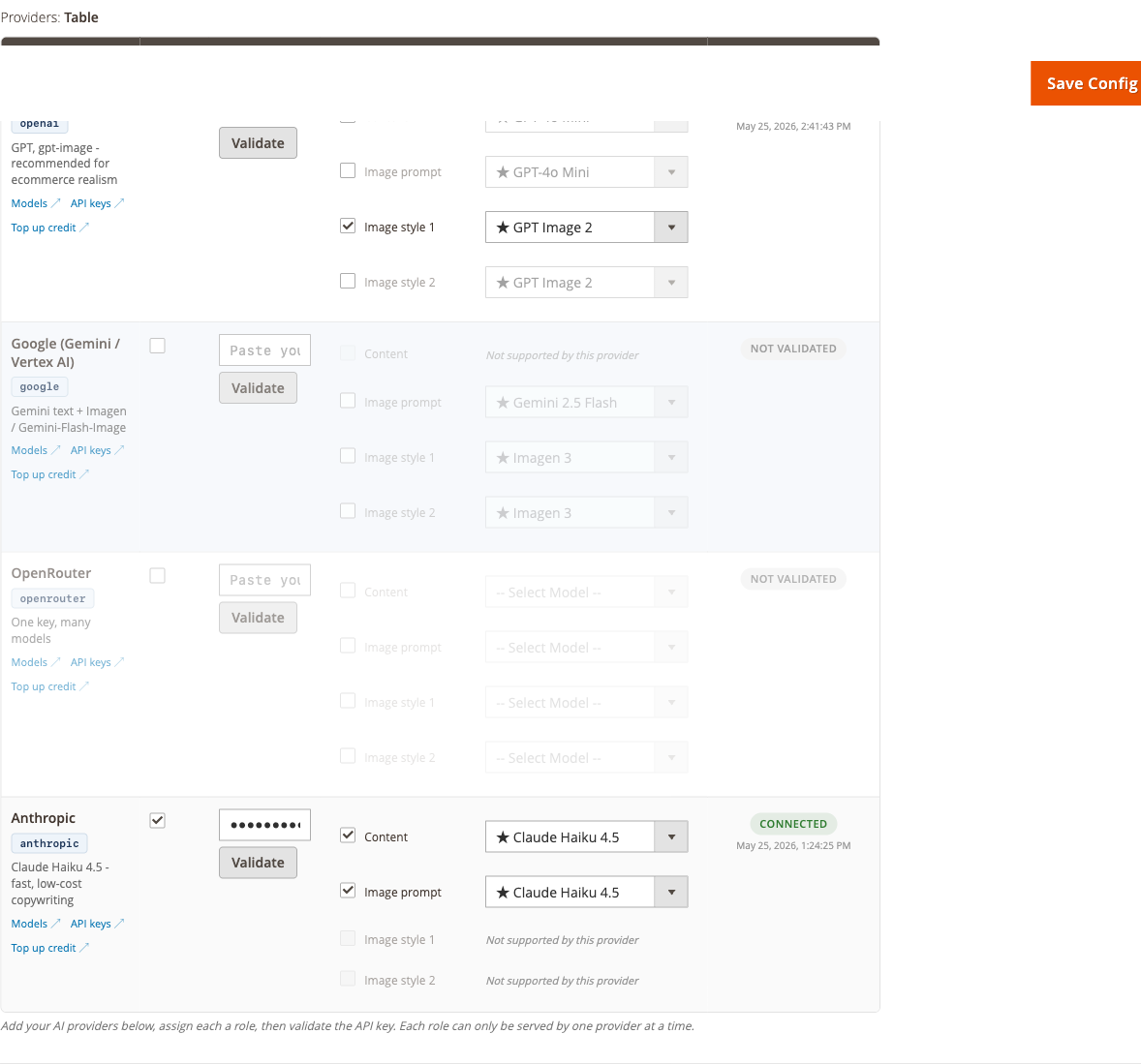
In the providers table, enable a provider, enter its API key, and assign Content and any image roles you need under Roles & Models. OpenAI and OpenRouter can serve Content. Gemini can serve image prompt and image style roles, but not Content. The table shows the roles supported by any other available provider. Select a model for each assigned role. Each role can be assigned to one provider at a time.
-
Click Validate on the provider row. Connected means the key was accepted; Invalid or Needs attention explains what to check. Save the configuration after validation. The providers table appears only in this mode.
API keys are encrypted before storage. The usage panel shows the own-provider monthly limits and local counters.
Set your store voice and brand rules
Store prompts control how all AI-generated content reads. Set them once and every future draft respects the rules.
How to set it up
-
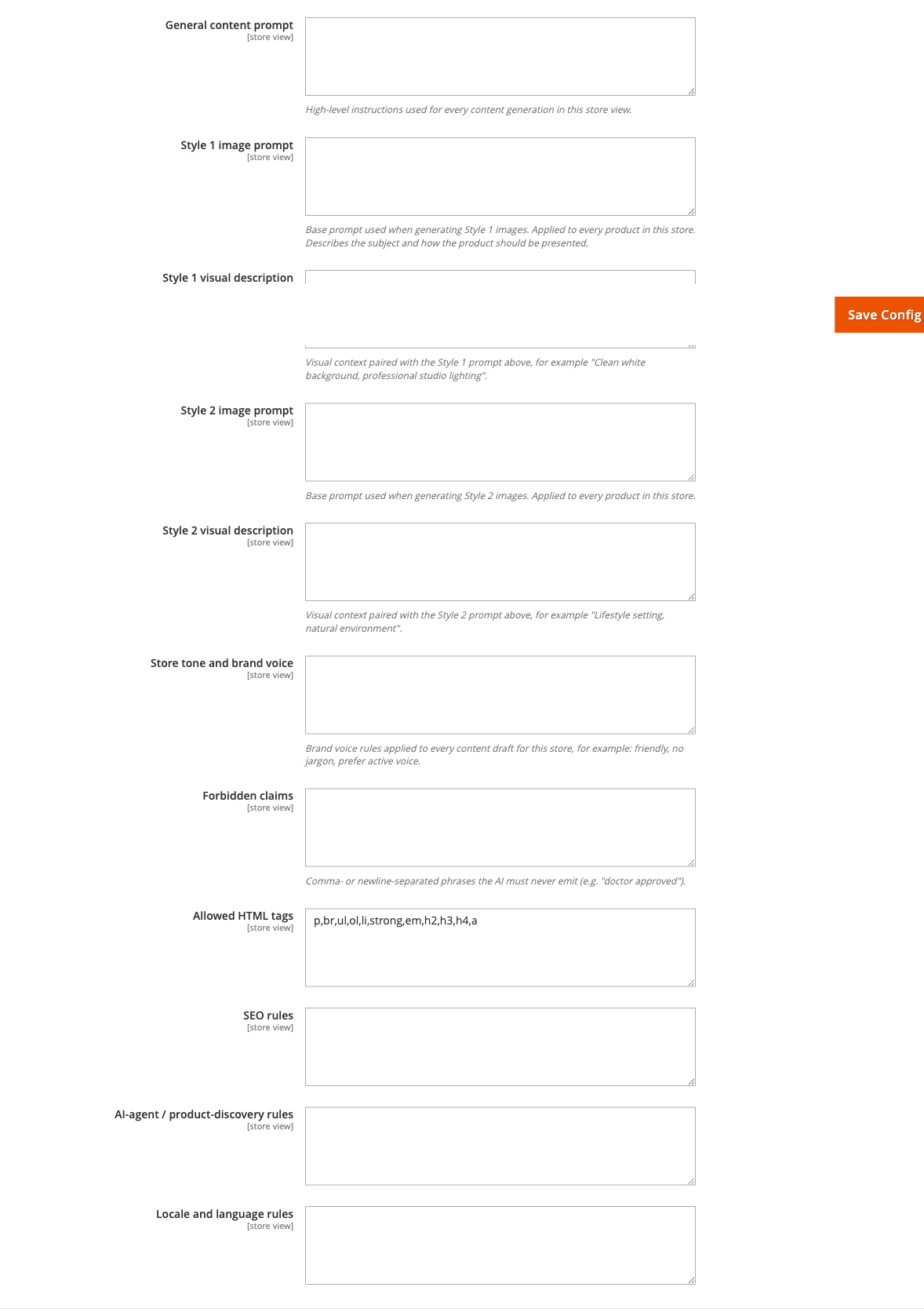
Go to: Stores > Configuration > Moogento > ProductContent AI > Content & images
-
Set:
- General content prompt (
moogento_productcontent/store_prompts/content_prompt) = high-level instructions for every content generation (e.g. "Write in a warm, friendly tone. Emphasise quality and durability.") - Store tone and brand voice (
moogento_productcontent/store_prompts/tone_and_voice) = brand rules applied to every draft (e.g. "Friendly, no jargon, prefer active voice") - Forbidden claims (
moogento_productcontent/store_prompts/forbidden_claims) = comma- or newline-separated phrases the AI must never use (e.g. "doctor approved, guaranteed cure") - Style 1, 2, and 3 image prompts (
moogento_productcontent/store_prompts/image_prompt_style_1,image_prompt_style_2, andimage_prompt_style_3) = how generated product images should look - Allowed HTML tags (
moogento_productcontent/store_prompts/allowed_html) = tag whitelist for generated HTML descriptions
- General content prompt (
-
If you use multiple store views, scope these prompts per store view - the AI uses the store-view-specific prompt when generating content for that scope.
-
Save Config.
Notes
- Store prompts are applied on top of per-product overrides. Product-level prompt fields (set in the ProductContent AI tab on the product edit page) take priority.
- Changing store prompts doesn't automatically re-generate existing drafts. Queue a new generation job to pick up the updated instructions.
Suggest from my store (Growth and Pro)
The Store tone and brand voice field has a Suggest from my store action button. Click it to let ProductContent AI read your home page, About page, and longest product descriptions, then suggest a style guide that matches your store's voice.
The suggestion fills the field with editable text. If the field already has text, a confirmation dialog asks before replacing it. You can then edit the suggestion and click Save Config. If your store has too little written copy, the button shows a message instead and leaves the field unchanged. Add more descriptions or an About page, then try again, or write your style guide directly.
This feature is also available as an optional setup wizard step called "Set how your store sounds". Skipping it does not hold up setup progress.
Understand research notices and test your research setup (Growth and Pro)
When ProductContent AI researches a product, it looks up information from brand websites, retailers, and other sources to write accurate, verified copy. The workspace and review screens show research status with colored notices that tell you what happened.
Research notice meanings
A banner at the top of the workspace shows the research status for the store:
- Green (Researched) - research is set up and working. The last several products were researched successfully.
- Red (Research failed) - research keeps hitting errors. Check your research key or internet connection in Stores > Configuration > Moogento > ProductContent AI > Connections.
- Amber (Research not set up) - you have not configured research yet. See "Complete the online research step" above.
- No notice - your plan does not include research, or it is switched off. Descriptions will still be generated from your catalogue data.
Each product row and the review dialog also show whether that specific product's copy was researched or not. When research found information, the notice names the sources (brand site, Amazon, retailers). When research did not find information, the notice explains why (the search service rejected the API key, was unreachable, or found no matching product).
Test your research setup
To verify that your research configuration is working before running full generation:
- Go to Stores > Configuration > Moogento > ProductContent AI > Connections.
- In the research configuration area, click Test research. The system runs one real search using your configured key.
- You will see the result: "Research worked and found 2 sources" (or the number of sources found), or a plain explanation of what went wrong (API key rejected, service unreachable, etc.).
This test uses your real research allowance if you are on a paid plan, so keep test runs infrequent. Once you have confirmed that research is working, you can confidently queue generation jobs knowing that research will complete successfully.
When research finds facts that contradict your product name
Sometimes research uncovers product facts that differ from what your product name states. For example, research might find that a jacket has a funnel neck, while your catalogue name calls it hooded. When this happens:
- The AI writes your copy using the facts found online, not the name. Your product description will correctly describe the funnel neck, not the hood.
- An amber notice appears on the product row and in the review dialog: "Check the name". This tells you the research found a mismatch and asks you to verify the product name is accurate.
- A corrected title is suggested in the notice. You can read it, but it is never applied automatically. Copy the suggested name by hand if you want to update your product's official name to match what research found.
- Photo notes update automatically when you change the product name or gallery, so they always describe the current product.
The notice does not prevent you from approving and publishing the AI-generated copy. The mismatch is a heads-up that your product name may not match its actual attributes. You stay in control: choose whether to update the name, edit the suggested copy, or proceed as-is.
Review and approve AI-generated drafts
Drafts sit in a pending state until you approve them. Nothing is applied to your live product pages automatically unless you enable auto-apply.
How to set it up
-
Go to ProductContent AI > Products & Drafts (
moogento_productcontent/products/index). -
Find a product with the Review pending status badge. Click the Review drafts button inside the Product cell to open the review panel. (The Review drafts item in the row's Actions menu opens the full Content Review grid instead, filtered to that product.)
The panel opens with four tabs - Content drafts, Images, Attributes and History - each showing its item count. Each draft card shows the original value alongside the AI-generated version.
-
For each draft card:
- Click Approve to accept the draft. It stays staged until you apply it - approving does not change the product.
- Click Apply to write an approved draft to the product. Use Apply all approved in the panel header to write them all at once.
- Click Edit to make inline changes, then Save edits.
- Click Reject to set the draft aside, or Regenerate to reject it and queue a fresh one (you can add a note telling the AI what to change).
- After Regenerate, a short timeline shows Copy, Attributes and Images, each with its progress and roughly how long it usually takes. The work starts straight away while the review screen is open. New copy appears as soon as it is written, without waiting for the images. If you are editing a field at the time, you get a Show new copy button instead, so your typing is never lost.
- Each text field shows a word count next to its target, for example "212 of 150-400 words", and says whether it is below, within or above the target. The count updates as you edit. FAQ answers are counted one by one when the template sets a length per answer.
- Click Request changes to ask the AI to revise several fields at once. Write your guidance next to each field (e.g. "Make this more technical" or "Shorter, more punchy"), then submit. The panel shows live progress as each field regenerates, and replaces it in place when ready. If a field fails, retry just that field with your note still there. Nothing publishes automatically: you approve and apply the results like any other draft. You can also ask for a different image style, one image at a time: write what should change next to the image, and the new image takes its place for review when it is ready.
- After a draft has been applied, click Revert to previous to put the value it replaced back on the product. On the Images tab the equivalent button is Rollback.
-
After reviewing, close the modal. The product's status badge updates to reflect the new state.
Notes
- Rollback works for both content drafts and image drafts. The module captures a full gallery snapshot before applying any image so the rollback is exact.
- The Images and Attributes tabs show the 50 most recent drafts by default (an image version group is always shown whole, so this can be a few more). If any older drafts are not shown yet, a Load older images or Load older attributes button appears at the end of that section so you can bring in the rest without losing your place.
- The Publish without review setting (
moogento_productcontent/content_generation/auto_publish) is available on Growth/Pro plans and skips the review step for drafts carrying no risk flags. Its options are Never - review everything myself (the default), Low-risk content only, and Low-risk content and images. Recommended only after you've reviewed several batches manually.
Approve, hold, or request changes for several products at once
Bulk review decisions let you approve and publish proposals, hold products for later, or ask the AI to revise several fields across multiple products in one workflow.
How to do it
-
In ProductContent AI > Products & Drafts, select products by checking their row checkboxes. The selection applies to the current page and store view. A blue bar shows your selection count.
-
To select all products needing review in this store view across all pages, click the Select all N needing review in this store view link shown after "Select all on this page". The system caps bulk selections at 200 to keep the workflow manageable. If you have more, you can repeat the action after finishing the first batch.
-
Clearing your selection, changing store view, or searching keeps the selection from previous results in the same store. Changing the status filter also keeps your selection.
-
Click Approve + publish, Request changes, or Hold for now from the action bar at the top.
- Approve + publish: publishes every proposal marked as included by default and permitted to be published. A review step shows you the product count, number of proposals, any warnings, and products that cannot be published. Publish permissions come from your admin role; some proposals may be published while others are held back due to permissions. Nothing is published or changed on your products if there is an error.
- Request changes: lets you write guidance for fields that can be improved. Write your notes for each field (e.g. "Make this longer and more detailed"). The system queues content generation jobs in the background with your notes. Products are labeled Queued in the results. Nothing is published automatically: you review and approve the revised content afterward.
- Hold for now: records that you reviewed these products and chose not to proceed. This keeps them in Needs review status without publishing or rejecting any draft.
-
The review step summarizes what will happen. You can see a count of products by eligibility, any warnings attached to products or evidence, and products that cannot be acted on with a reason why. Warnings never prevent you from proceeding. Click Confirm to submit.
The review step also shows the average PCai score of your selection and how many products it covers, such as "2 of 3 scored". For Approve + publish, it adds an approximate estimate of the score after publishing, marked with
~(for example~72 /100). Hover the info icon to see what the estimate is based on. Products whose changes cannot be projected, for example image changes, are estimated from how similar published changes worked out in your store, once enough past results exist; the tooltip says how many products were projected and how many were estimated from past results, and may give a likely range. If there is no reliable basis, the dialog shows "Estimate unavailable" rather than guessing. Request changes uses past change requests in your store, including ones that were never published, so its estimate is deliberately cautious and needs a history of completed requests first. Hold for now leaves scores unchanged. -
As the bulk action runs, a progress bar shows how many products have been processed. Results appear showing how many succeeded and which ones need attention. Successful products are deselected. Products that did not complete stay selected so you can retry them with a single click - they keep their previous selections.
Notes
- Bulk decisions use the same approval and publication rules as the single-product review modal. Proposals are never published when they carry evidence warnings that need human review, unless you explicitly acknowledge them.
- Request changes is a background queued operation: the browser does not wait for generation to complete. Check back later or click the Review button for a product to see when its revised content is ready.
- Retrying failed products uses the exact same selection scope and questions as the initial submission.
- If you have permissions to apply certain content types but not others, some of your selected products may show as partly published with a summary of what was applied and what was held back.
Set up AI image generation
Moogento AI creates new product images that use your store's own product photo as a reference. It does not require a separate provider key. If you selected Use your own AI provider (advanced), assign the image_prompt and image_style_1 roles, plus image_style_2 and image_style_3 for any additional styles you use.
How to set it up
-
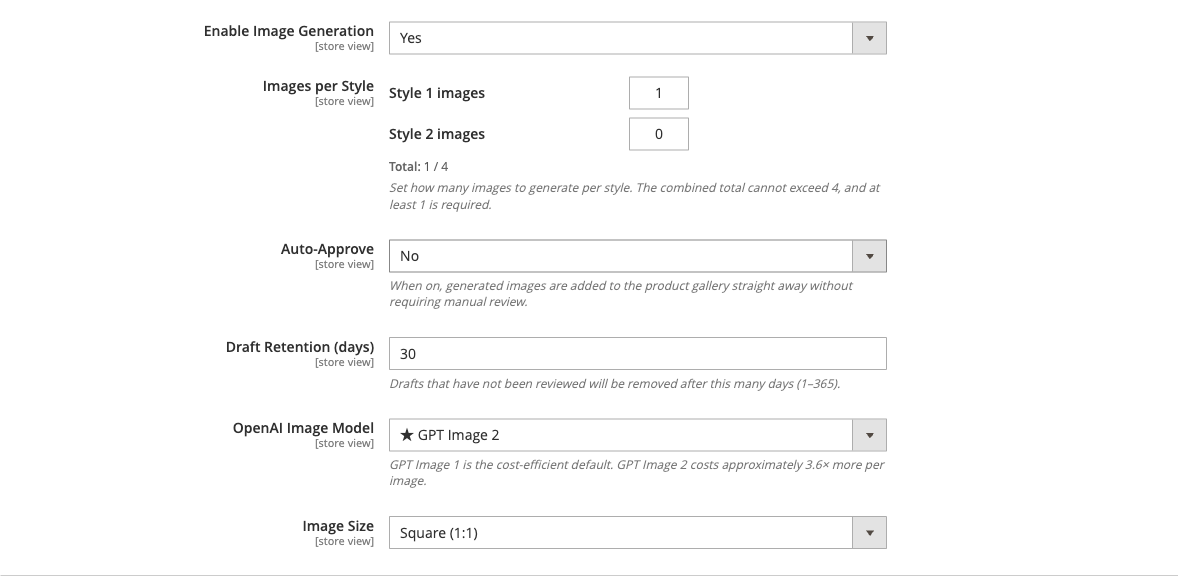
Go to: Stores > Configuration > Moogento > ProductContent AI > Generation: Images
-
Set:
- Enable Image Generation (
moogento_productcontent/image_generation/enabled) =Yes - Images per Style (
moogento_productcontent/image_generation/style_count_per_job) = how many images to generate in each of the three styles per job (combined total must be 1-4). Left at its shipped value, the built-in template makes 1 Style 1 image and 1 Style 2 image (Style 3 is off); any other value you save is used as set. - Image Size (
moogento_productcontent/image_generation/image_size) = Square (1:1), Landscape (4:3 / 16:9), or Portrait (3:4 / 9:16) - Image Generation Mode (
moogento_productcontent/image_generation/generation_mode) = Improve existing photo when available (the default) or Always create a new photo
Draft retention is not on this screen. Unreviewed image drafts are kept for 30 days by default (
moogento_productcontent/image_generation/draft_retention_days, clamped 1-365); change it withbin/magento config:set moogento_productcontent/image_generation/draft_retention_days 14. - Enable Image Generation (
-
Go to: Stores > Configuration > Moogento > ProductContent AI > Generation: Store Prompts
-
Set your image style prompts:
- Style 1 image prompt (
moogento_productcontent/store_prompts/image_prompt_style_1) = the subject and how it should look, in one instruction (e.g. "The product photographed straight on, filling most of the frame, on a clean white background with soft professional studio lighting and a subtle shadow") - Style 2 image prompt (
moogento_productcontent/store_prompts/image_prompt_style_2) = a second look, described the same way (e.g. "The product in use in a bright, lived-in home setting, natural daylight from a window, shallow depth of field") - Style 3 image prompt (
moogento_productcontent/store_prompts/image_prompt_style_3) = an optional third look
- Style 1 image prompt (
-
Save Config.
-
In ProductContent AI > Products & Drafts, select products and choose Actions > Advanced > Queue AI image generation. To do a single product, use Queue image generation in that row's own Actions menu.
Notes
- Images are new images that use your product photo as a reference, so they show your actual product. The built-in template makes 1 Style 1 image and 1 Style 2 image by default (Style 3 is off).
- Images made from your photo are added to the gallery beside it, and your photo stays the main image.
- Your product photos are sent to the image and checking service to make and check images.
- Product shots show the product alone on one plain background, matching your photo's background when it is a solid colour and white otherwise. Lifestyle scenes show a model wearing or using the product. If your store's own photos contain a person, that person is reused in the lifestyle scenes. Otherwise a new model is created, and the same model appears in every lifestyle scene of that product.
- Each image style in a template has a Shot setting: front, back, side, on a model or lifestyle scene. Back and side views are made by AI from your front photo, so they are always held for you to review and never published automatically. With no template of your own, each product gets one front shot and one lifestyle scene. When you set image rules in a template, only the first style is switched on to begin with, and the third style is preset as an on-model shot for you to turn on.
- Each generated image is checked against your product photo. A draft that does not match well is retried once automatically. The retried version is kept as-is (no further retries).
- No duplicates: an image that repeats one of your existing photos, or another image in the same set, is dropped, and one varied replacement is tried. A cut-out that looks pasted onto its background is rejected the same way. Scenes in different settings are kept.
- Always create a new photo works from your product photo as a reference, so a new image is a fresh photo of your real product rather than an edit. Without a usable photo it only generates for a generic item (no brand or manufacturer code, and not recognised as a named product). A branded product with no photo is skipped, and the review screen says to add a product photo and regenerate.
- Product shots and on-model studio shots share one background colour, taken from your own studio photos even when they show a person or have side bars.
- Generated images are stored in
pub/media/moogento/productcontent/drafts/until approved. - On Growth and Pro a maximum of 4 images per product can be held at once (across all statuses: reserved, draft, approved, applied). On Seed the cap is 1.
- The module's SKU exclusion guard prevents the product SKU from appearing in any image prompt, which keeps prompts compliant with most provider terms.
Features reference
Attribute Rules
Define which product attributes the AI should audit, generate, or flag. Each rule targets a specific attribute and sets one of four actions: check whether the value meets quality standards, generate new content for the attribute, set a fixed value, or flag the attribute for manual editing.
- Navigate to ProductContent AI > Attribute Rules (
moogento_productcontent/attributerules/index) to manage rules. - Click Load Default Rules in the grid toolbar to populate a standard set of rules covering the most common product attributes. A fresh install already seeds these; the button adds back any you have since removed. From the command line the same thing is
php bin/magento moogento:productcontent:attribute-rules:seed.
Template Studio
Product Page Templates let you define which sections of a product page to generate, how long each section should be, and what HTML policy applies. Templates can be mapped to categories so every product in that category uses the right template automatically.
- Navigate to ProductContent AI > Product Page Templates (
moogento_productcontent/templates/index) to create and manage templates. - Use the Generate Template split button on the Templates grid to let the AI infer a template structure from existing well-written product pages, or to start from a maintained Best-practice template preset (no AI call, no cost). Existing templates offer a Regenerate option.
- Template resolution order: product-level pin > category mapping (highest priority first) > store default > built-in fallback.
Suggested template assignments
ProductContent AI can suggest which template each category, subcategory and product should use, so you don't have to map a large catalogue by hand.
- Run
php bin/magento pcai:templates:assess(add--dry-runto preview without saving,--category=IDfor one branch,--sample=Nto change how many products are checked per category). It prints the suggestion tree, how many products were checked, and what the run cost. - It works from the top of the category tree down. When a category's products clearly share one template, its subcategories only get a quick check. Where products differ, it looks deeper, down to single products if needed.
- Review the results under Product Page Templates > Suggested assignments. Nothing changes on your store until you accept a suggestion. Accept applies the ones ready to go; Accept after review also applies the ones marked "Needs review", once you have checked them.
- Templates you chose by hand are never replaced. If the suggestion disagrees with your choice, it is marked "Needs review" so you can take a look.
- Fill in Best for on each template (for example "Insulated ski and snowboard gloves"). It is the single biggest help to getting confident suggestions.
- Settings are under Stores > Configuration > Moogento > ProductContent AI > Template suggestions. The recommended decision model is TypeSafe Jev, reached through OpenRouter or directly, which reports how sure it is for every suggestion. You can use your own AI provider instead, but then every suggestion waits for review.
Content Scoring
Every product in your catalogue gets a content score from 0 to 100. The score is calculated across ten areas: description quality, SEO metadata, attribute completeness, structured page sections, copy uniqueness, AI-shopping readiness, product images, feed-consistency flags (missing GTIN or MPN, ALL-CAPS copy, malformed HTML, encoding artefacts, promotional text, title or description length), fact-check findings, and SmartListings boost signal. Some of these areas (advanced scoring) are Growth and Pro only.
- Scores appear as colour-coded chiclets in the Products & Drafts grid: green (high), amber (mid), red (low), grey (not yet scored).
- Scores are recalculated every 6 hours by default (
moogento_productcontent/scheduled_jobs/score_recompute_cron_expr). You can also trigger a recompute from the command line - the command needs a target:php bin/magento moogento:productcontent:score:recompute --allfor the whole enabled catalogue, or--product-id=123for one product. Add--store-id=to pick a store view. - The feed-consistency area is worth
moogento_productcontent/scheduled_jobs/feed_consistency_weightpoints (default 10). The product earns all of them when it raises no flags and none when it raises any. Flags cover missing GTIN, missing MPN, ALL-CAPS copy, broken HTML, encoding artefacts, promotional text in the title or description, and title or description length. This area is scored on Growth and Pro only. - SmartListings score weight is set at
moogento_productcontent/scheduled_jobs/sl_score_weight(default 10 points, awarded when a product sits in an active SmartListings boost rule and simply not awarded when it does not). This area is scored on Growth and Pro only, and is skipped entirely when SmartListings is not installed.
Product Edit Tab
A ProductContent AI tab appears on every product edit page. Its status fields are read-only: Status, Content score, Generation status, Image status, Attribute status, Approval state, Last scored, Latest drafts (the 10 most recent) and Verified evidence sources. A Create with ProductContent button opens the guided workflow for that product.
Below those, six editable fields hold per-product prompt overrides that apply only to this product: Content prompt addendum, Style 1 image prompt addendum, Style 2 image prompt addendum, Merchant notes, Excluded claims and Required phrases.
Visitor view-count tracking
ProductContent AI counts storefront product page views over a rolling 30 days (view_count_30d) as a lightweight traffic signal for the feedback loop, using a first-party cookie named pcai_vc to avoid over-counting repeat visits from the same browser within the cooldown window.
- Cooldown length is
moogento_productcontent/general/view_count_cooldown_seconds(default 300). It has no admin field - change it withbin/magento config:set. - The cookie is never set or read when your store's Stores > Configuration > General > Web > Default Cookie Settings > Cookie Restriction Mode is enabled and the visitor hasn't consented. View counting still increments server-side in that case - only the per-visitor cooldown falls back to a request-level guard.
- Stale view counts reset automatically: any product not viewed in 30 days has its counter zeroed by the View Count Reset schedule (see Advanced configuration below).
Queue Processing
The generation queue runs on Magento cron. The default schedule processes jobs every minute. Queue behaviour has no admin screen - these are module defaults, changed with bin/magento config:set <path> <value> followed by bin/magento cache:clean config:
| Setting | Config path | Default |
|---|---|---|
| Batch Size | moogento_productcontent/queue/batch_size |
10 |
| Item Timeout (seconds) | moogento_productcontent/queue/item_timeout_seconds |
600 |
| Stuck Threshold (minutes) | moogento_productcontent/queue/stuck_threshold_minutes |
15 |
| Max Retry Attempts | moogento_productcontent/queue/max_retry_attempts |
3 |
| Inter-call Delay (ms) | moogento_productcontent/queue/inter_call_delay_ms |
0 |
Background queue processing itself needs a Growth or Pro plan. The values above are not individually restricted.
Module: Integrations
Connect ProductContent AI to other Moogento modules for smarter queue prioritisation.
SmartListings Priority Boost (moogento_productcontent/integrations/enable_smartlistings_priority, off by default, Growth/Pro) - when enabled, products that belong to a SmartListings boosted rule are moved to the front of the content generation queue. The boost value is set at moogento_productcontent/scheduled_jobs/sc_priority_boost (default 10 points). Requires SmartListings to be installed.
AnalyticsEasy Feedback Loop (moogento_productcontent/integrations/feedback_loop_enabled, off by default, Growth/Pro) - when enabled, a daily cron job identifies products with high sales velocity (above the configured minimum) and a content score below the configured threshold, then raises their queue priority. Requires both AnalyticsEasy and ProfitEasy to be installed.
GTIN Attribute Codes (moogento_productcontent/integrations/merchant_center_attribute_csv) - comma-separated list of attribute codes checked for GTIN presence in feed-consistency scoring (default: ean,upc,isbn,gtin).
MPN Attribute Code (moogento_productcontent/integrations/mpn_attribute_code) - attribute code for Manufacturer Part Number, checked in feed-consistency scoring (default: mpn).
Brand photos from research
When research reads the brand's own product page for the exact product and colour, ProductContent AI can propose that page's photos for the gallery. Only photos showing the product alone are offered as proposals; photos that include a person are rejected. Each proposal shows the page it came from and waits for your approval. Photos are only trimmed and padded to your canvas size, never redrawn, and photos of another colourway are rejected before you see them.
Advanced configuration
Scheduled Jobs
All twelve background jobs have configurable cron schedules. They have no admin screen - change one with bin/magento config:set <path> "<cron expression>" then bin/magento cache:clean config.
| Job | Config path | Default |
|---|---|---|
| Queue Process Schedule | moogento_productcontent/scheduled_jobs/queue_process_cron_expr |
Every minute |
| Score Recompute Schedule | moogento_productcontent/scheduled_jobs/score_recompute_cron_expr |
Every 6 hours |
| Queue Cleanup Schedule | moogento_productcontent/scheduled_jobs/cleanup_cron_expr |
Every 15 minutes |
| Image Draft Purge Schedule | moogento_productcontent/scheduled_jobs/image_purge_cron_expr |
Every 15 minutes |
| Feedback-Loop Refresh Schedule | moogento_productcontent/scheduled_jobs/feedback_loop_cron_expr |
3am daily |
| Score History Cleanup Schedule | moogento_productcontent/scheduled_jobs/score_history_cleanup_cron_expr |
3am daily |
| View Count Reset Schedule | moogento_productcontent/scheduled_jobs/view_count_reset_cron_expr |
2am daily |
| Queue Purge Schedule | moogento_productcontent/scheduled_jobs/queue_purge_cron_expr |
4am daily |
| Usage Reservation Cleanup Schedule | moogento_productcontent/scheduled_jobs/usage_reservation_cleanup_cron_expr |
Every 30 minutes |
| Attribute Suggestion Purge Schedule | moogento_productcontent/scheduled_jobs/attribute_suggestion_purge_cron_expr |
5am daily |
| Fact Check Re-check Schedule | moogento_productcontent/scheduled_jobs/fact_check_recheck_cron_expr |
6am daily |
| Fact Check Purge Schedule | moogento_productcontent/scheduled_jobs/fact_check_purge_cron_expr |
6:30am daily |
Score History Retention (moogento_productcontent/scheduled_jobs/score_history_retention_days, default 90, clamped 7-365) - score snapshot rows older than this value are deleted by the cleanup cron. Reduce this if the moogento_productcontent_score_history table grows too large on high-volume stores.
Queue Row Retention (moogento_productcontent/scheduled_jobs/queue_retention_days, default 14, clamped 1-365) - done and failed queue rows older than this many days are deleted by the Queue Purge cron. The Image Draft Purge cron uses Draft Retention (moogento_productcontent/image_generation/draft_retention_days) instead, covered under "Set up AI image generation" above.
Notes
- Schedules are read straight from the module's
config.xml, so nothing needs to be written to the database for a job to start running. Runphp bin/magento setup:upgradeandcache:clean configafter deploying an update so Magento picks up any changed defaults. - Scheduled job settings are default-scope only - they cannot be overridden per website or store view.
Developer Mode Tier Override
On a development install, the license server typically returns no valid license, which restricts the module to Seed tier and blocks Growth/Pro features. Use the developer-mode override to test higher-tier features locally without network access to the license server.
Setup
php bin/magento config:set moogento_productcontent/dev/force_tier pro
Accepted values: seed, growth, pro. Leave blank to use the live license check.
Notes
- The override is active only when
MAGE_MODE=developer. It is a no-op on production and staging, so the setting is safe to leave configured in a developerenv.php. - This setting survives
cache:clean(unlike the cache-priming snippet in the AI guide). Re-runcache:clean configafter changing it so Magento picks up the new value.
Tips & best practices
- Start with a small product batch. If you use your own provider, validate its API key and required roles before generating.
- Write store prompts before generating your first batch. Drafts already in the queue use the prompt that was active when the job ran - changing prompts mid-batch produces inconsistent output.
- Leave Preserve existing merchant content (
moogento_productcontent/content_generation/preserve_existing, on by default) set to Yes when you have products with hand-written descriptions you want to keep. It only matters once Publish without review is on: a field that already holds content is then held back for your review instead of being published automatically. It does not stop the AI drafting for that field - you still get a draft to compare. - Map templates to categories before running bulk generation. Without a template, the module falls back to a minimal single-section built-in - category-specific templates produce significantly better output.
- Keep Draft Retention short enough that your
pub/media/moogento/productcontent/drafts/directory doesn't grow unbounded, but long enough for your review cycle. 30 days is a reasonable default for most teams. - The feed-consistency score flags (missing GTIN, MPN, ALL-CAPS copy, broken HTML) are worth fixing directly in the product data rather than instructing the AI to work around them. Clean source data produces better drafts.
- If you use multiple providers across roles in own-provider mode, validate each connection after adding it.
Troubleshooting
Content jobs are queued but nothing is generated
Jobs sit in pending state and never move to processing or done.
- Cause: Magento cron is not running, or the
defaultcron group is not being processed. - Check: Run
php bin/magento cron:run --group=defaultmanually and watch the output. Checkvar/log/moogento_productcontent.logfor job dispatch messages. - Resolution: Set up Magento cron on the server if it isn't running. Confirm that
crontab -lshows a cron entry callingphp bin/magento cron:run.
The AI provider Validate button shows a red message
Clicking Validate on a provider row returns a red message.
- Cause: The API key is incorrect, the model name is wrong, or the provider endpoint is unreachable.
- Check: Read the validation message and confirm the key has access to the selected model and any image roles.
- Resolution: Correct the key or model, save, and validate again.
Image drafts are not appearing in the review modal
Image generation jobs complete successfully but the Images tab in the review modal is empty.
- Cause: Your plan's per-product image cap is already reached - 4 on Growth and Pro, 1 on Seed - counting reserved, draft, approved and applied images combined. Or the image provider role is not assigned.
- Check: Check
moogento_productcontent_generated_imagefor rows with thisproduct_id. If the number of rows with statusreserved,draft,approvedorappliedhas reached your plan's cap, no new draft can be created. - Resolution: Reject or delete existing draft/applied images for the product to free up capacity, then re-queue.
Content scores are not updating
Products show the same score after you update their descriptions.
- Cause: The score recompute cron hasn't run since the change, or the module is disabled.
- Check: Check the schedule at
moogento_productcontent/scheduled_jobs/score_recompute_cron_expr(default: every 6 hours). Check whether the module is enabled atmoogento_productcontent/general/enable. - Resolution: Run
php bin/magento moogento:productcontent:score:recompute --all(or--product-id=123for a single product) to queue a manual recompute, then let cron run and reload the Products & Drafts grid.
Drafts were applied but the product page hasn't changed
An approved draft shows status applied but the storefront still shows the old content.
- Cause: Magento's full-page cache is serving the old cached version.
- Resolution: Run
php bin/magento cache:clean full_pageor flush the cache for the affected product pages from the Cache Management admin page.
Tiny description
The tiny description is a single line of product copy, capped at 60 characters and 8 words, for places where a full short description will not fit - a cart panel, a comparison row, a compact listing tile.
Turn it on by adding Tiny description under Stores > Configuration > Moogento > ProductContent AI > Generation: Content > Fields to generate. It is off by default, and enabling it adds one AI request per product.
By default the approved text is written to a product attribute called tiny_description, which the module
creates for you. If you already have your own text or textarea attribute for this, pick it in Tiny description
attribute in the same section. Only your own text and textarea attributes are offered - the product name, SKU,
URL key, prices, stock fields, and the fields that already receive their own drafts can never be selected, and a
value written directly into the database rather than through this form is refused the same way.
Every tiny description is checked before it can be approved or applied. It must be one line of plain text within the caps, must not use marketing words like "premium" or "best", and must only repeat facts already on the product. Anything that fails stays in the review queue with the reason shown on the draft, and cannot be applied until it is edited into shape. Changing the attribute mapping later affects new drafts only: an existing draft keeps writing to - and reverting on - the attribute it was generated for.
Read-only workspace
From ProductContent AI > Products, choose a store scope and select Open read-only workspace. It is a safe triage view: search products, filter their current status, open the detail view to compare standalone text and see recorded progress, or follow a specialist Review, Workflow, Suggestions, or Fact Check link when your role permits. The workspace does not generate, publish, approve, or change products. Select a specific storefront before opening a public product link. Use Return to classic Products to go back to the full Products & Drafts grid and its normal actions.
Activity
From ProductContent AI > Activity, view a timeline of all generation and review activity in your store. The panel groups activity by product and shows each generation or review attempt with its outcome.
Filter activity by tabs:
- All runs - every event in the trailing window
- In progress - jobs currently being processed by cron
- Needs attention - attempts that failed and are awaiting retry, or that encountered warnings during review
- Complete - successfully finished attempts
Each row shows the product name, timestamp, and outcome summary. Click a row to open that product's review modal and retry failed fields or adjust proposals. Use the Refresh button to reload the latest activity, or Load more to show older events beyond the current page.
Configuration overview
From ProductContent AI > Configuration, get a quick readiness check and links to all setup areas in one place.
The top section shows readiness for content generation, research, and image generation. In managed mode the guided provider step reads Moogento AI is ready; in own-provider mode, connection readiness reflects the configured provider roles. The overview also shows when connections were last checked.
The separate usage panel on Products & Drafts and in the Stores > Configuration > Moogento > ProductContent AI header shows remaining monthly generations. In managed mode it includes the reset date and an as of time if the snapshot is stale. In own-provider mode it shows local counters and limits.
Below that, the configuration sections link to:
- Templates - create and map product page templates to categories
- Attribute rules - manage which attributes the AI audits and generates
- Feature highlights - turn key attributes into reusable selling points (if enabled)
- System configuration - open the full admin config screen for providers, generation behaviour, budgets, and logging
Click Reopen setup to restart the first-time setup wizard. In own-provider mode, Manage connections opens the providers table.
Monthly plan allowances
| Plan | Moogento AI products | Moogento AI images | Own-provider products | Own-provider images | Images per product | Product audits |
|---|---|---|---|---|---|---|
| Seed | 15 | 3 | 25 | 10 | 1 | 100 |
| Growth | 60 | 10 | 100 | 40 | 4 | 500 |
| Pro | 150 | 25 | 250 | 100 | 4 | 2,000 |
All allowances are monthly on monthly and annual subscriptions. There are no yearly pools.
AI data privacy
Moogento AI uses zero data retention. Prompts are not logged and are not used for training. If you use your own provider, review that provider's privacy terms for its processing of your requests.
FAQs
How do I generate product descriptions automatically in Magento 2?
ProductContent AI includes Moogento AI, so you can queue generation from the Products & Drafts grid without adding an API key. It produces drafts for short description, long description, meta title, meta description, FAQ and tiny description. See "Start generating with Moogento AI" above.
Which AI providers does ProductContent AI support?
Moogento AI is the included default. For advanced setup, select Use your own AI provider to connect OpenAI, Gemini or OpenRouter. Assign content and image roles in the providers table, which appears only in this mode.
Can I review AI-generated content before it goes live?
Yes - every draft created by ProductContent AI sits in review state until you approve it. The Products & Drafts grid shows each product's pending draft count; clicking "Review drafts" opens a modal where you can approve, reject, inline-edit, or rollback each draft individually. Nothing is published automatically unless you enable the Auto-apply low-risk drafts option (Growth/Pro plans).
Does ProductContent AI work with Hyvä, Luma, and Porto themes?
Yes. ProductContent AI is an admin-only module. It writes content to standard Magento product attributes (description, short_description, meta_title, meta_description, and the product gallery) and adds images through the standard gallery API. The output is stored in Magento's native data layer, so it renders correctly on Hyvä, Luma, Porto, and any other theme.
How does the content score work?
The content score rates each product from 0 to 100 across ten checks: description quality, meta title and description presence, attribute completeness, structured page sections, copy uniqueness, AI-shopping readiness, product images, feed-consistency flags (missing GTIN or MPN, ALL-CAPS copy, malformed HTML), fact-check findings, and whether the product has an active SmartListings boost rule. Scores are recalculated every 6 hours by default and displayed as colour-coded chiclets in the Products & Drafts grid.
What happens to existing product descriptions when I run generation?
Nothing is overwritten until you approve and apply a draft, so your existing descriptions are safe by default. The AI creates a draft for every configured field, and you see it alongside the existing value in the review panel. Preserve existing merchant content (moogento_productcontent/content_generation/preserve_existing, Yes by default) adds a second guard for stores that have turned on Publish without review: any field that already holds content is held back for a person to look at rather than published automatically.
Can I use ProductContent AI to generate product images?
Yes. Moogento AI creates product images from your store's own photos in up to three visual styles without your own provider key. The images are new images that use your product photo as a reference. Set store-level style prompts, queue image generation from the Products & Drafts grid, and review the drafts before applying them to the gallery, where they are added beside your photo and never replace it. Growth and Pro can hold up to four images per product; Seed holds one. The built-in template makes 1 Style 1 image and 1 Style 2 image by default.
What happens if I disable ProductContent AI?
Disabling the module (moogento_productcontent/general/enable = No) stops new generation jobs, cron work and storefront view counting. The ProductContent AI menu stays visible - menu items are only hidden when the license itself fails to validate. Any content that has already been applied to products remains in place: the module does not reverse applied changes on disable. Draft images in pub/media/moogento/productcontent/drafts/ are also retained.
How much does ProductContent AI cost / which plan do I need?
ProductContent AI has three plan tiers: Seed, Growth, and Pro. Seed covers content generation, images, online product research and basic scoring, one product at a time - bulk actions and background queue processing are not included. Growth adds bulk and queued processing, advanced scoring, the product history log, scheduled runs, the AnalyticsEasy feedback loop, the SmartListings priority boost, optional publish-without-review for low-risk drafts and images. Pro adds AI attribute suggestions, AI Fact Check, smart regeneration rules and automated processing workflows. Visit https://www.moogento.com for current pricing.
Does ProductContent AI work with Trustblock?
ProductContent AI and Trustblock cooperate via a shared attribute code selection rather than code coupling. If you use Trustblock to display trust badges sourced from a custom product attribute, you can point that attribute at content generated and managed by ProductContent AI. The two modules operate independently - ProductContent AI handles generation and admin workflows, Trustblock handles storefront display.
Does ProductContent AI track my customers and is it GDPR compliant?
ProductContent AI counts product page views with a first-party cookie (pcai_vc) purely to feed its internal traffic-and-content-score feedback loop - it does not track customers across sites or store any personal data. When your store's cookie-restriction mode is enabled and a visitor hasn't consented, the cookie is neither set nor read; view counting falls back to a request-level guard instead. See "Visitor view-count tracking" in Features reference for details.
How do I reset content scores without waiting for the cron?
Run php bin/magento moogento:productcontent:score:recompute --all from the command line. This queues a score job for every enabled catalogue product and processes them in the next cron window; use --product-id=123 for a single product. Alternatively, select products in the Products & Drafts grid and choose Actions > Advanced > Recalculate content score.
Related guides
- AI Fact Check - audits product copy against catalogue attributes, with an optional Pro-plan external corroboration check
- CategoryContent AI - AI-generated category descriptions, hero content, and FAQ sections at the category level using the same provider configuration pattern
- Trustblock - display trust signals and badges sourced from product attributes on the storefront; cooperates with ProductContent AI via the attribute code dropdown
Need help?
- moo@moogento.com
- Include:
- Magento version
- Module name
- What you're trying to do