













CampaignManager :Run a sale on a set date, then everything reverts

Made for Magento® 2

Watch the homepage change itself on the day

Moogento

Each campaign runs from its start time to its end time, then puts the original content back.
• Changes to the homepage and header logo
• Footer blocks swapped for a limited period
• Original values saved before anything changes

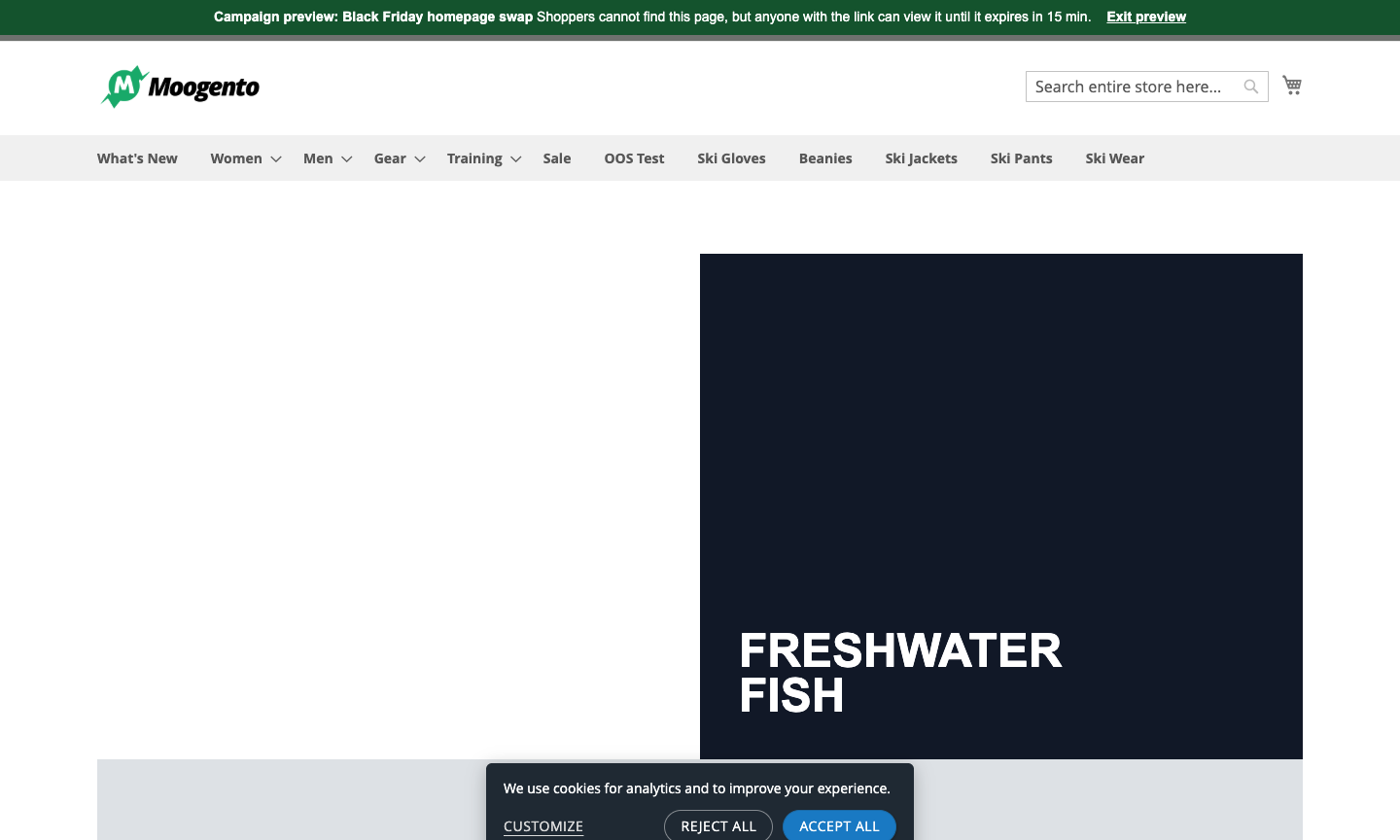
Homepage switches on launch day

The campaign homepage appears at the start time, without anyone editing it.

  • Swap in a Black Friday or Christmas homepage
  • Your normal homepage is kept safe for later
  • No one needs to be online at midnight

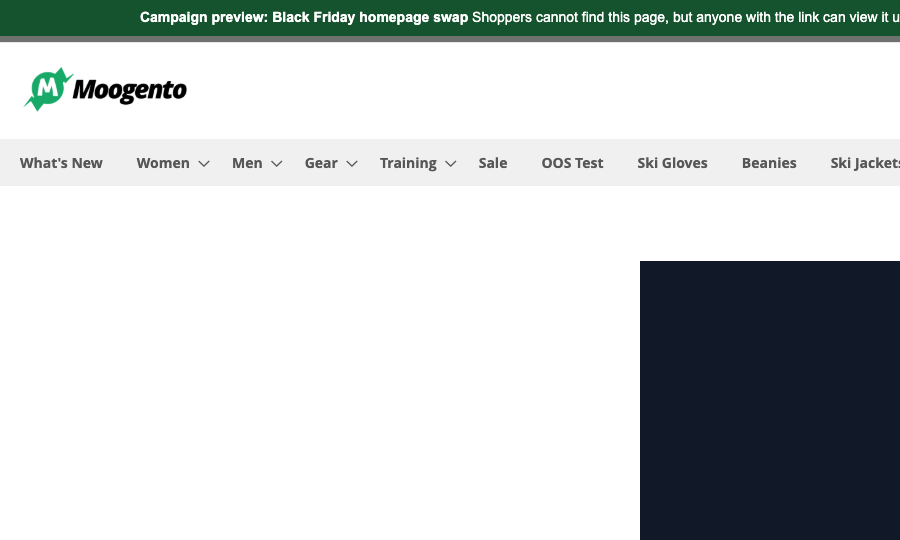
Footer and logo change for the campaign

One campaign can change the footer message and the logo together.

  • Show a limited-time footer message to every shopper
  • Switch the header logo for a seasonal look
  • The normal logo returns when the window closes

Old values return when the sale ends

The module restores the original content as soon as the end time passes.

  • Nothing is left on the homepage after the sale
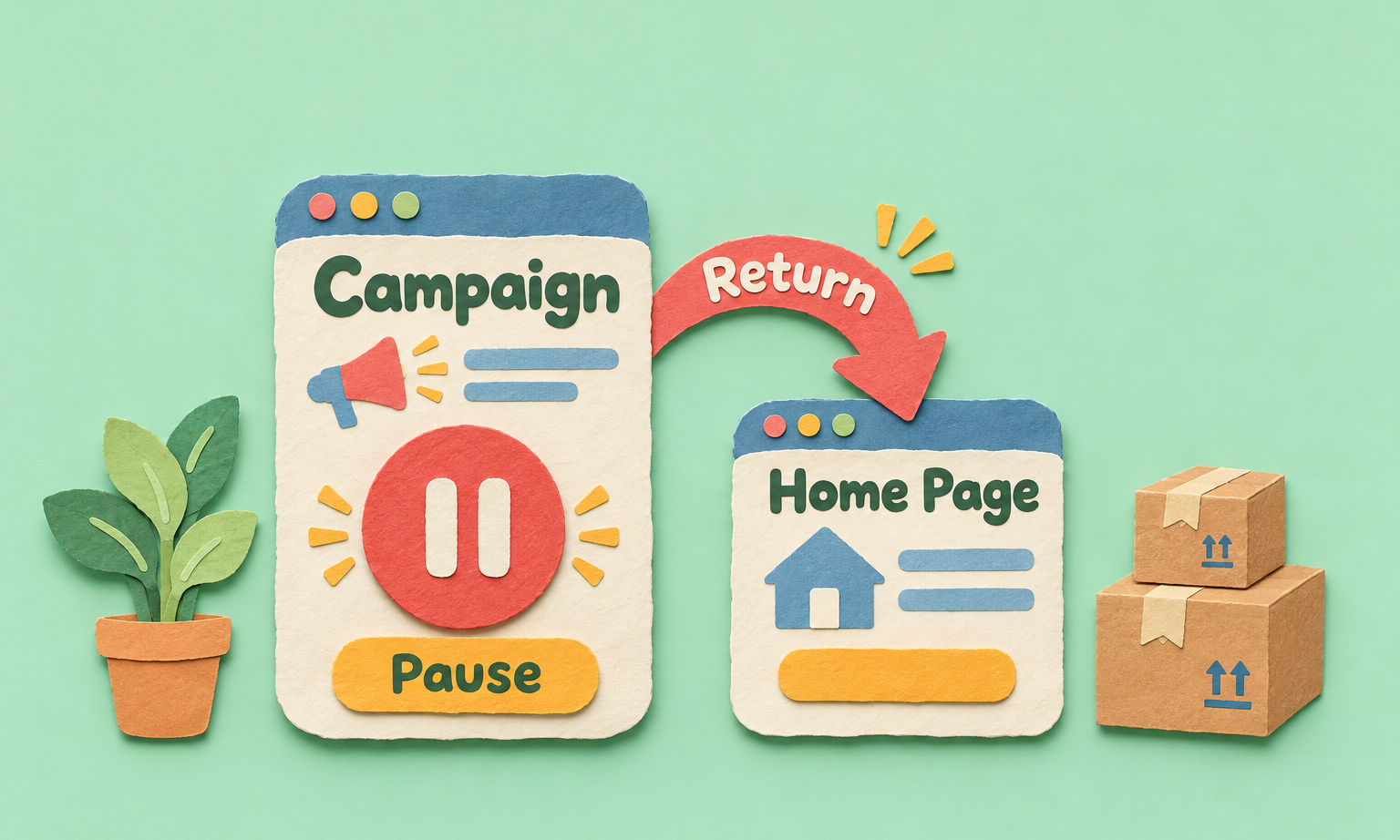
  • Pausing an event restores the values it replaced
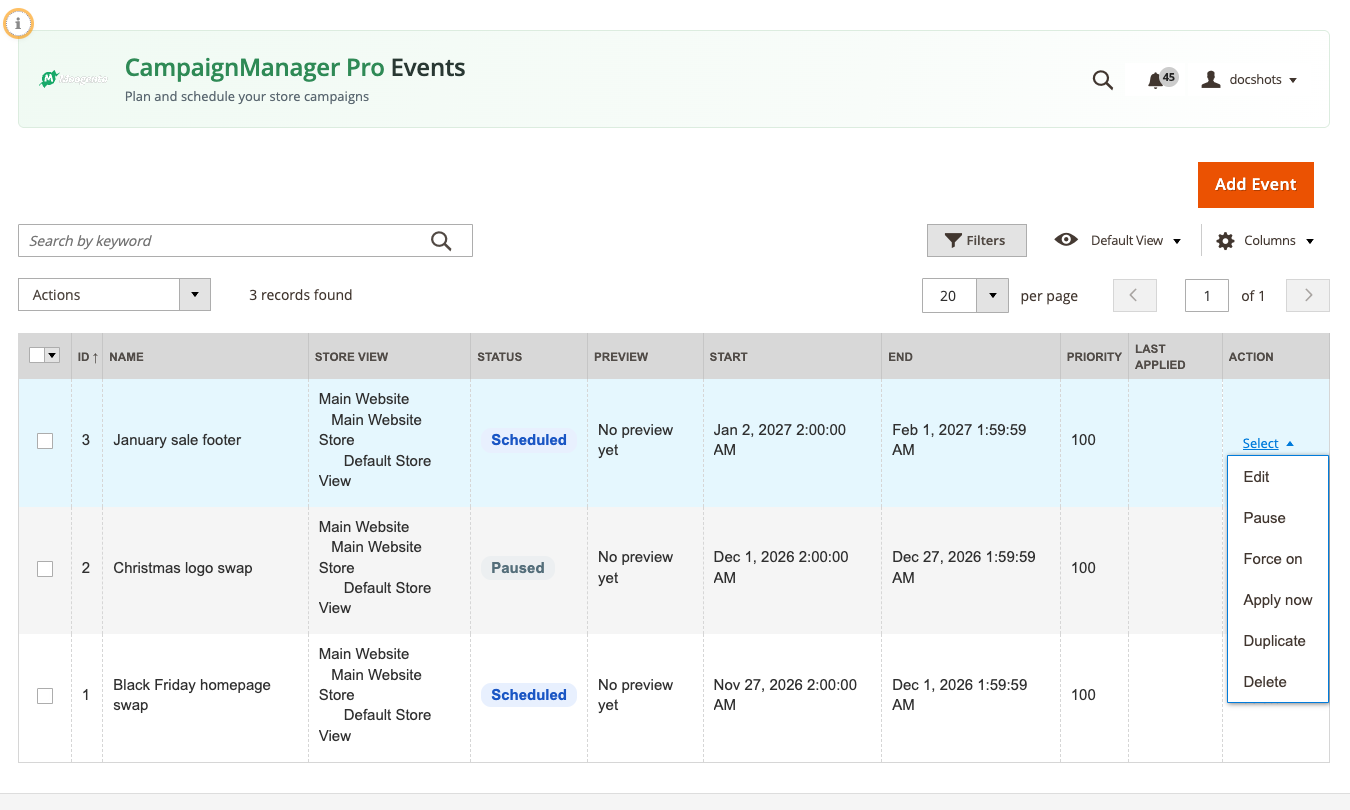
  • The event grid shows each campaign's status and last applied time

Plan the sale weeks ahead and forget it

Build the campaign early, check it, and let the dates run it on the day.

Create the campaign before the rush

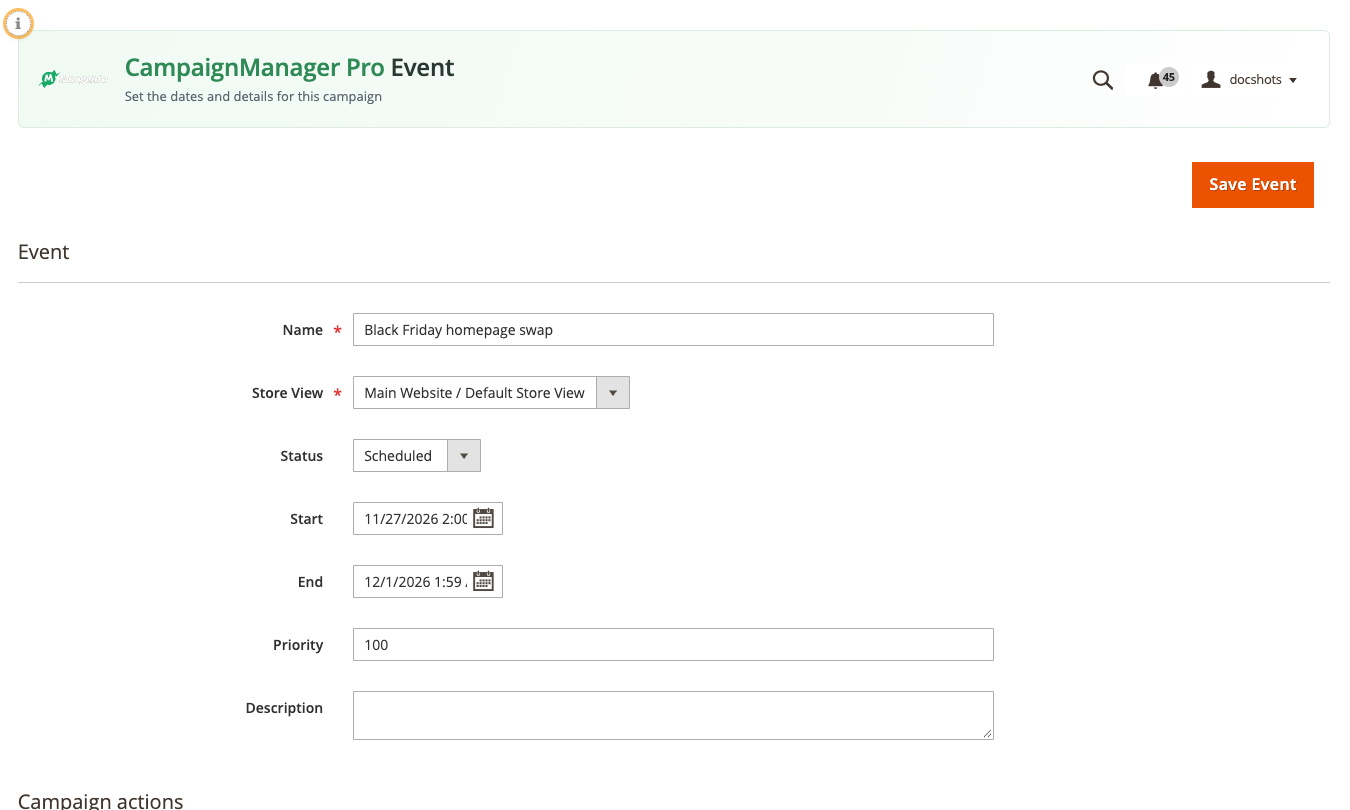
Set the name, store view and dates while things are quiet.

  • Choose the store view and set a start and an end time
  • Keep the status on Scheduled until the campaign is ready
  • Filter the grid by status, store view and dates

Copy last season's campaign for the next one

Duplicate a past event instead of starting from an empty form.

  • Use Duplicate from the grid row or the mass actions
  • Change only the dates for next season
  • Check the copy before its window opens

See each campaign's status at a glance

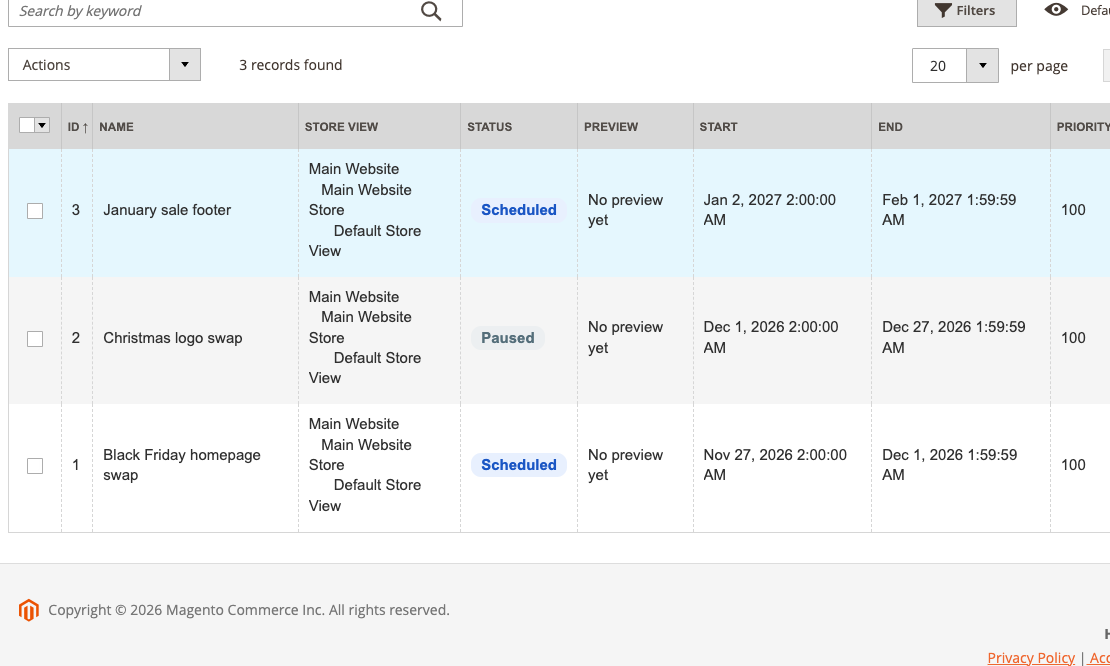
The grid shows where every campaign stands.

  • Scheduled, Active, Completed and Paused are shown per event
  • Each row shows its store view, start, end and priority
  • The last applied time shows when the storefront last changed

Your normal storefront returns on its own

When a window closes, the module puts back what it replaced, so nothing is left behind.

Every replaced value is saved first

The module records the original values before it applies a campaign.

  • Your original homepage is kept, not deleted
  • Your developer can list the saved values from the command line
  • Restoring them happens on schedule, with no manual step

Pause or revert when plans change

Stop a live campaign early and get the original content back.

  • Pausing restores the values the event replaced
  • Pause and resume run from the command line, so ask your developer
  • Revert restores everything the module has saved

Set the date once and the sale runs itself

Schedule the homepage, footer and logo changes, and let them revert when the window closes.

Two campaigns never fight over one page

Run overlapping campaigns on one store view, and priority settles any shared setting.

Run a long sale and a flash sale together

Overlapping campaigns are saved and run side by side.

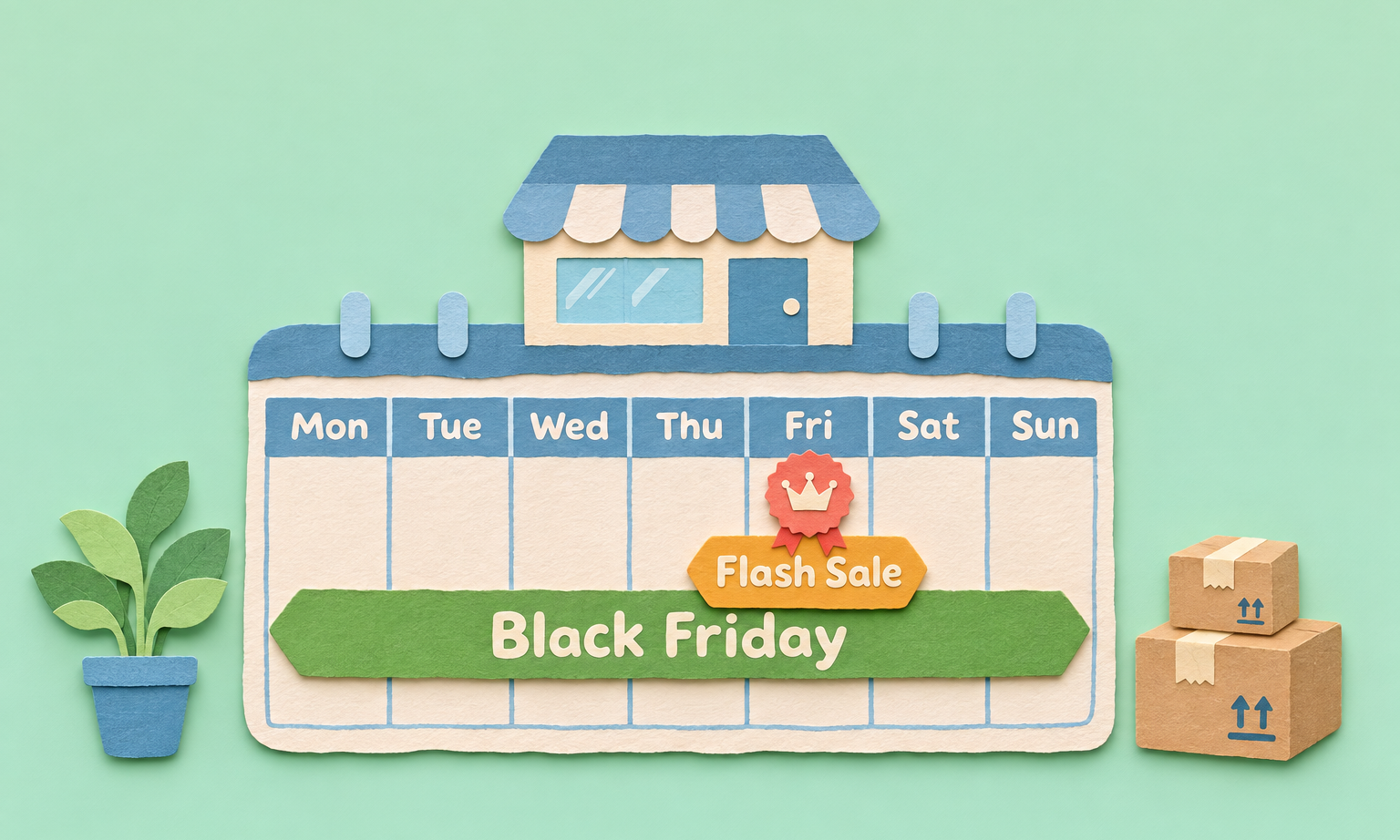
  • A week-long Black Friday banner runs while a one-day flash sale swaps the homepage on Friday
  • Each campaign keeps its own start and end time
  • When the flash sale ends, the Black Friday banner is still there

Priority decides which change wins

When two actions write the same setting, the higher priority wins.

  • Priority defaults to 100 and is set per event
  • On Friday the flash sale homepage can outrank the Black Friday homepage where they touch the same spot
  • The losing action is written to the log
  • Change priority only when two campaigns really must touch the same setting

Know the storefront is healthy after launch

A health check command and a recipient list that the alert test uses.

A health check for each store view

One command reports whether the storefront looks healthy.

  • Run it for any store view by its store ID
  • Your developer can run it after a campaign goes live
  • The result says whether the store is healthy

Alert recipients set in one place

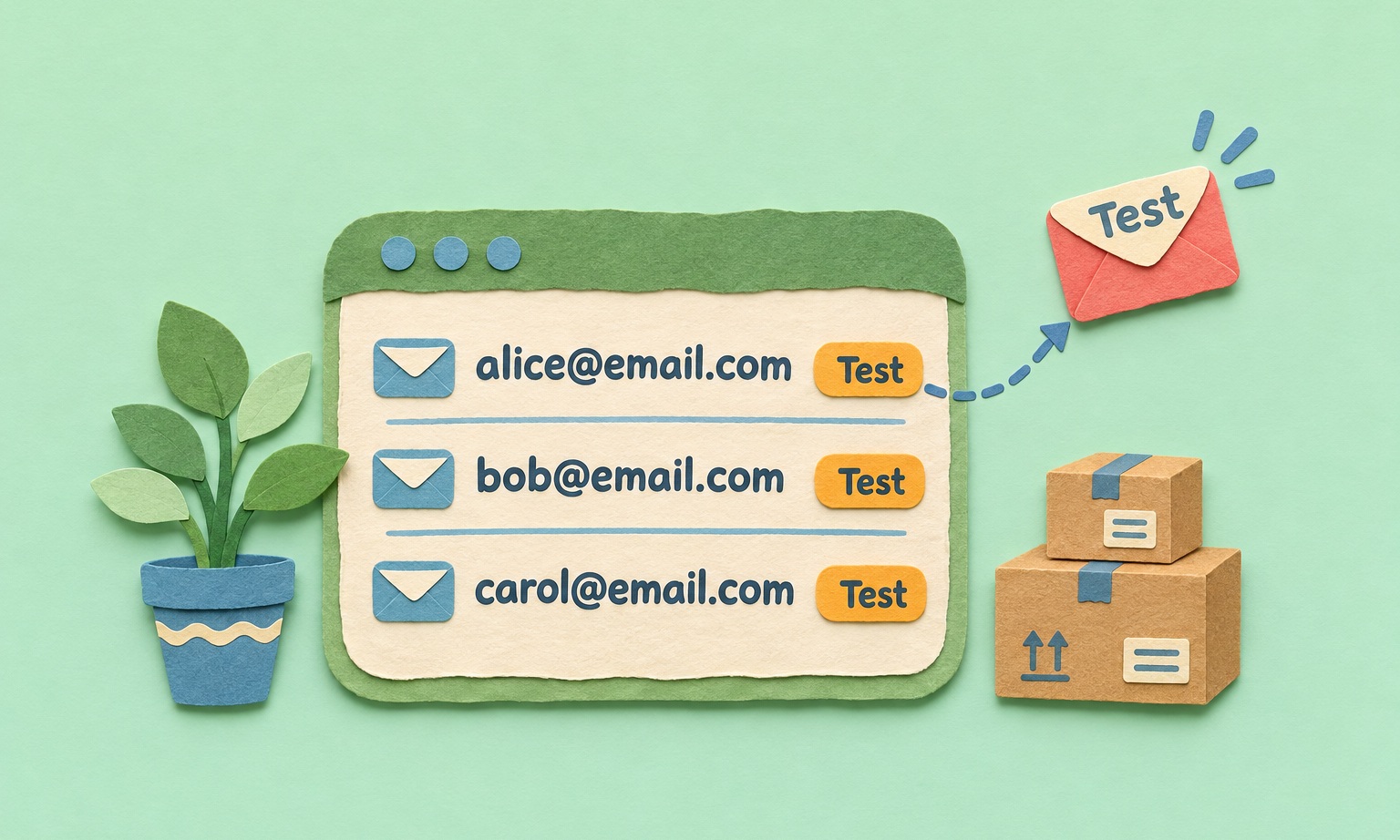
Enter the addresses once under CampaignManager Pro settings.

  • List the addresses in Notification Recipients, separated by commas
  • The alert test command sends a test alert to that list
  • Test the list before a big sale starts

Change the look and cart rules for a sale

Swap a stylesheet, switch the theme, or toggle cart and checkout rules on a schedule.

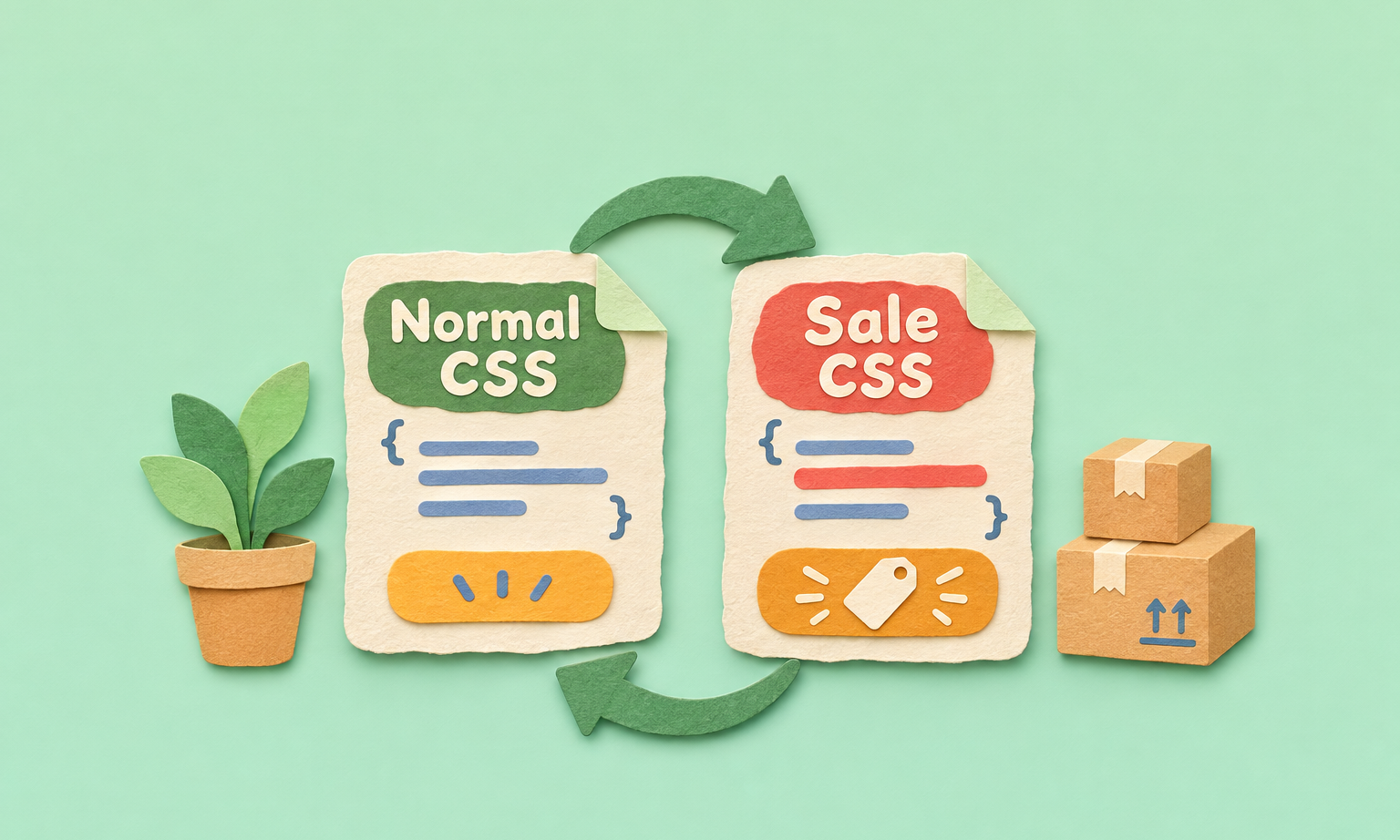
Swap the stylesheet for the sale

Give the sale its own look, and the usual look returns afterwards.

  • Swap a stylesheet file for the length of the campaign
  • Add inline CSS for a short promotion
  • The original stylesheet returns when the window closes

Switch the theme for one campaign

Show a different theme for a campaign, then return to your normal one.

  • The theme switch is scheduled like every other action
  • Set the start and end times in the same event
  • Your normal theme returns when the window closes

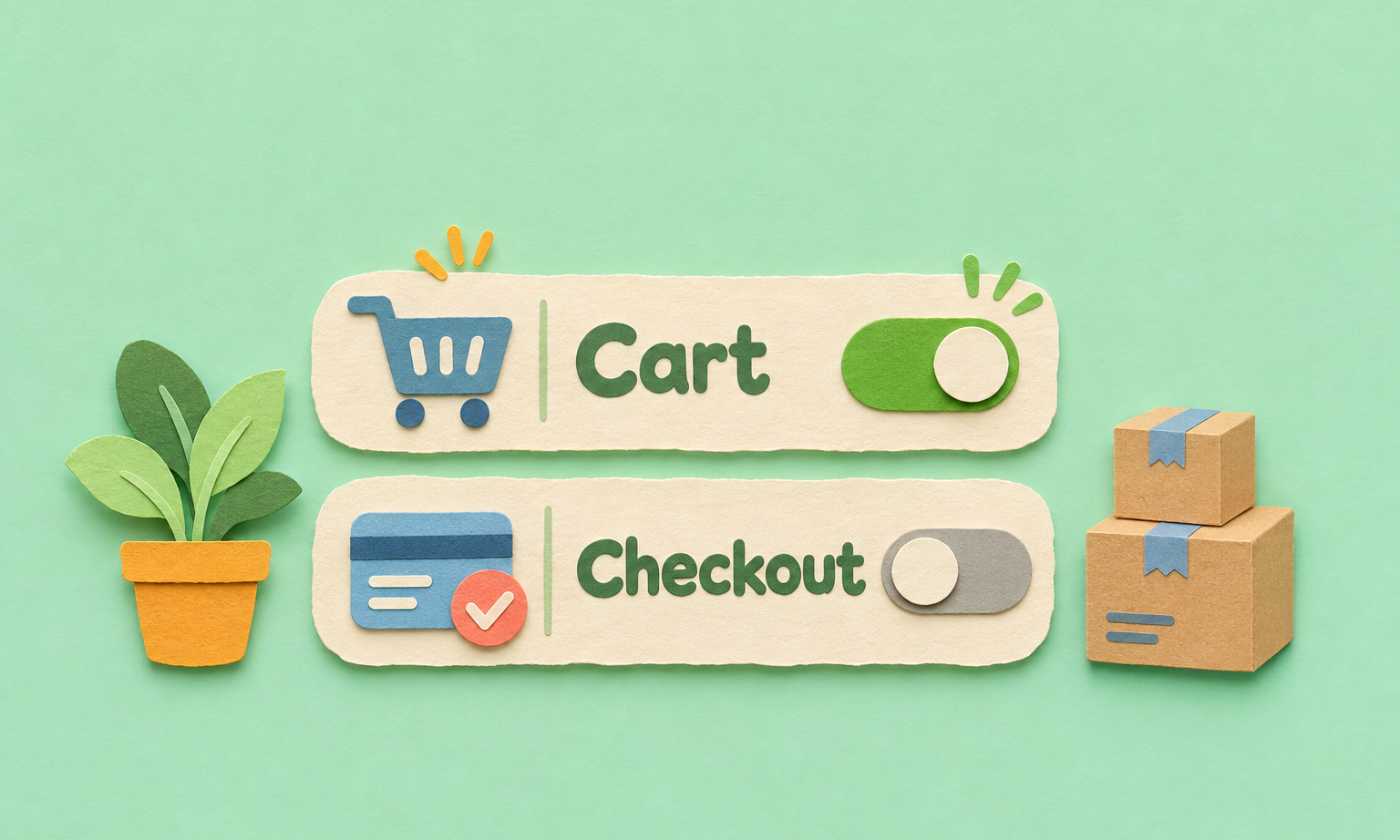
Turn cart and checkout rules on and off

Run a cart or checkout promotion only on the days it is meant to run.

  • Enable a cart rule when the sale starts
  • Disable it again when the window closes
  • Checkout rules follow the same schedule

Add CampaignManager to your store

Annual
Monthly

Pro

$ 250 /year
  • Unlimited overlapping eventsRun several campaigns at once and let priority decide which change wins
  • Stylesheet, theme and cart actionsAdvanced actions for a sale

    Includes:
    • Swap the stylesheet
    • Switch the theme for one campaign
    • Turn cart and checkout rules on and off
  • Health check and alert recipientsA health check for each store view, with alert recipients set in one place
  • Calendar and timeline viewsSee every campaign on one calendar or timeline
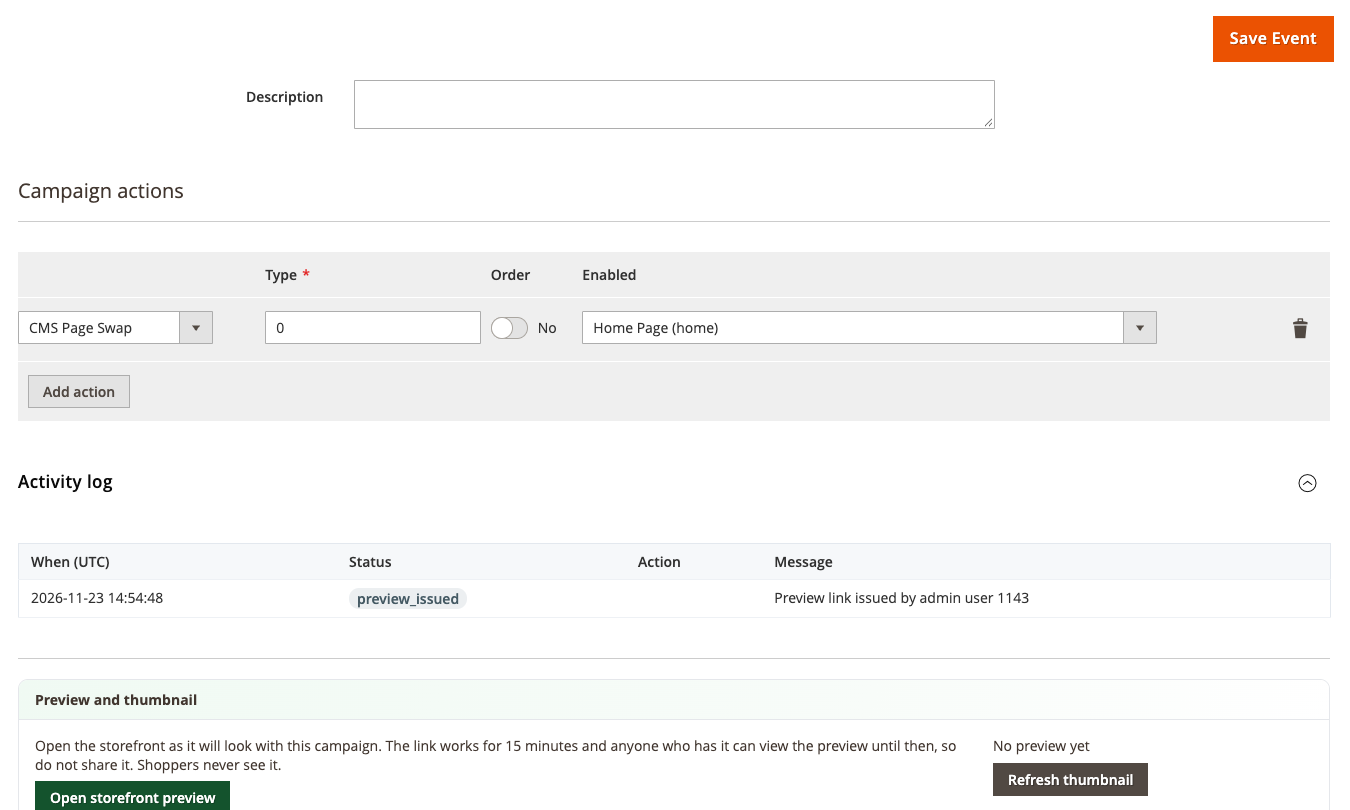
  • Preview before it goes liveOpen your storefront as it will look with the campaign, without visitors seeing it
  • Email alertsEmails when a campaign starts, fails or is rolled back
  • Automatic pause and restoreIf the homepage breaks after a campaign launches, the campaign is paused and the original restored
  • Add and edit actions in the event formBuild the campaign actions in the admin event form

Frequently asked questions

What does CampaignManager actually do?
CampaignManager applies a homepage, footer or logo change for a store view when its start time arrives, then restores the original when the end time passes. You set the dates in the admin, and the change itself is added once by your developer.

Do I have to change the homepage by hand on launch day?
No. After the event and its change are saved, the start time applies the change and the end time removes it. The only manual step is the one-time command that adds the change to the event.

How do I install CampaignManager?
After you buy CampaignManager Pro, installation takes about five minutes with Composer, and the full steps are in the user guide. You need the Composer access keys from My Plugins on moogento.com to download it.

Can I run two campaigns at the same time?
Yes. Overlapping campaigns can run together on the same store view. If two actions write the same setting, the one with the higher priority wins and the other is written to the log.

Can I add the homepage change from the admin form?
No. The event form saves the name, store view, dates, status and priority. The homepage, footer or logo change is added with one command, which your developer runs once per event.

Can I pause a campaign or get the original back?
Yes. Pausing an event restores the values it replaced, and revert restores everything the module saved. The event grid has no pause button, so pausing and resuming are commands your developer runs.

Does CampaignManager work with Hyva and Luma?
Yes. CampaignManager writes standard Magento configuration and CMS content, so the same campaign works on both Hyva and Luma storefronts.

How do I get CampaignManager Pro?
Buy CampaignManager Pro, then register the Pro licence key under Stores, Configuration, Moogento, License in your admin. The Pro key is separate from your Composer keys. Pro rejects event saves until a valid key is registered.

Who receives the alerts from Pro?
Add the addresses to Notification Recipients under CampaignManager Pro settings, separated by commas. The alert test command sends a test alert to that list.

Where do I get help?
Start with the Moogento support desk, or read the user guide. Include your Magento version and the module name when you write in.

Recent Magento® 2 Open Source & Commerce versions are supported.
(Open Source: 2.3.5-2.4.9; Commerce: 2.3.5-2.4.9)

Moogento helps businesses like yours, every day 🚀

What CampaignManager Pro includes

Annual
Monthly

Schedule your next campaign today

30 DAY MONEYBACK GUARANTEE - WE WANT YOUR ❤️ !