

Overview
Plan scope for the examples below: Seed supports one Pick-n-Scan user for both picking and packing. Growth supports up to five users; Pro has no user cap. The statistics dashboard and split shipments require Pro; automatic assignment needs Growth or Pro.
Pick-n-Scan brings Magento 2 barcode pick and pack scanning into your admin panel, turning it into a live picking and packing station. Pickers work through assigned orders by scanning product barcodes; packers verify packed quantities and can enter tracking numbers at the point of packing. Every action updates order status instantly, and, on Pro, a stats dashboard shows throughput by role and time period.

This module helps you:
- Reduce mis-picks by validating each product against the order before it leaves the shelf
- Keep pickers and packers in sync with real-time status updates and auto-load queues
- Enforce accountability - every pick and pack is stamped with the user, time, and quantity
- Handle out-of-stock situations cleanly with substitution and skip workflows
- Track warehouse performance with per-role picking and packing stats
When to use this
Use Pick-n-Scan when you want to:
- Replace paper picklists with a barcode-scanning workflow that catches mistakes before dispatch
- Separate picking and packing roles so each team only sees their relevant queue
- Auto-assign incoming orders to available pickers without manual intervention
- Record which staff member picked or packed each order for accountability and performance reviews
- Connect scanning to shipment creation and tracking number entry at the packing station
Key barcode pick and pack scanning capabilities
- Barcode-validated picking - scans product barcodes against order items; incorrect scans are rejected before they cause a mis-ship
- Separate pick and pack modes - each role has its own scanning page, queue, and status columns in the orders grid
- Auto-assignment - a cron-backed rule assigns unassigned Processing orders to active pickers based on capacity and priority
- Pick Pool - a staging queue that holds orders before a named picker claims them, useful for shared warehouse workstations
- Substitution handling - pickers can swap an out-of-stock item with an alternative; optional admin verification and price-limit checks enforce approval before the sub is saved
- Stats dashboard - per-role charts showing throughput, on-time rate, and individual performance against configurable work-day windows
- PickPack PDF printing - trigger packing sheets, invoices, and picklists directly from the scan screen when PickPack is installed
- ShipEasy OrderTag integration - set OrderTags automatically when picking or packing completes
Installation
Bought on Adobe Commerce Marketplace? Your purchase comes with a Moogento account: set your password from the activation email, then follow the steps below with the Composer keys and licence key in My Plugins. If the email has not arrived, contact Moogento support.
Pick-n-Scan installs via Composer, then activates with a license key from your Moogento.com account. The whole flow takes about 5 minutes.
Prefer a hands-off setup? Our team can install and configure the extension for you - see the paid install service.
Step 1: Get your Composer keys from Moogento.com
- Sign in at https://www.moogento.com and open My Plugins in your account menu.
- Find Pick-n-Scan in the list of plugins you own.
- Generate (or reveal) the Composer access keys for that plugin - a public key and a private key.
- Add your install domain to the key. Each Composer key is tied to a specific domain - if you're installing on
yourstore.com, addyourstore.comto the key's allowed domains. The Composer download will be rejected on any other domain.
If you run staging and production on different domains, add both - separate keys per environment are fine too.
Step 2: Install the module with Composer
From your Magento 2 root directory:
composer require moogento/m2-picknscan
When Composer asks for credentials, paste the public key as the username and the private key as the password. They'll be cached in ~/.composer/auth.json for future runs.
Step 3: Enable the module in Magento
php bin/magento setup:upgrade
php bin/magento setup:di:compile
php bin/magento cache:clean
If you run php bin/magento module:status Moogento_Picknscan you should see it listed as enabled.
Step 4: Add your license key in the Moogento admin
- For a direct purchase, copy the Pick-n-Scan license key from My Plugins at moogento.com. For a Marketplace purchase, check your Moogento account for an issued key and contact Moogento support if it is missing.
- Open Stores > Configuration > Moogento > License in Magento Admin. Add the Installation Domain shown on this page to the key in your Moogento account.
- Paste the key into the key field and click Add key.
- Under Registered Keys for this Installation, confirm that Pick-n-Scan appears with the correct plan.
The license validates within a few seconds. You should see the module's status flip to active. If it stays inactive, double-check the domain on the license matches where you've installed - domain mismatch is the most common cause.
Setup overview
Most setup happens in:
Stores > Configuration > Moogento > Pick-n-Scan
You'll mainly work with:
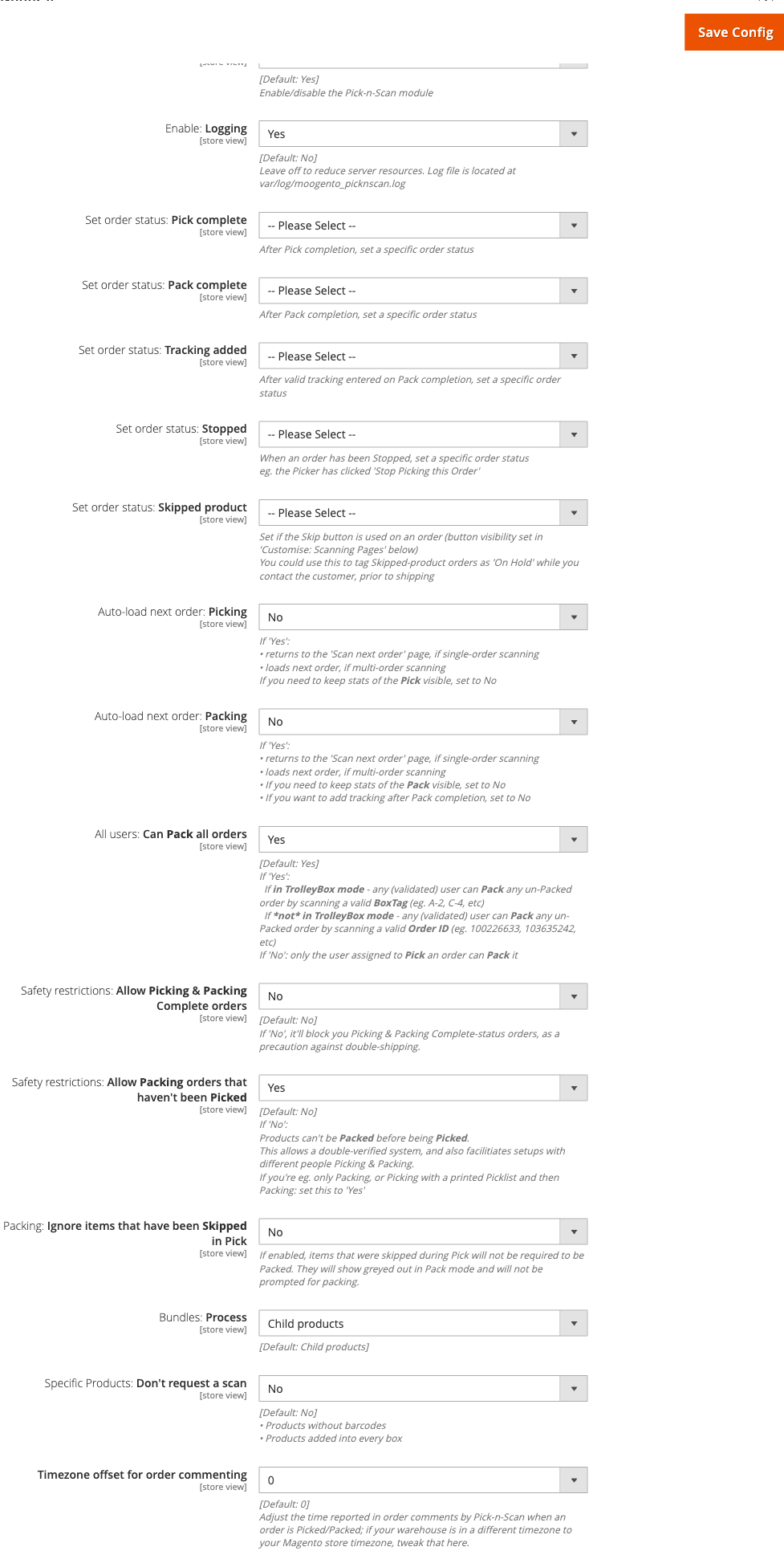
- General - enable the module, set per-role order status transitions, auto-load behavior, safety restrictions, and bundle handling
- Customise: Orders Page - show or hide the Pick and Pack buttons in the sales orders grid
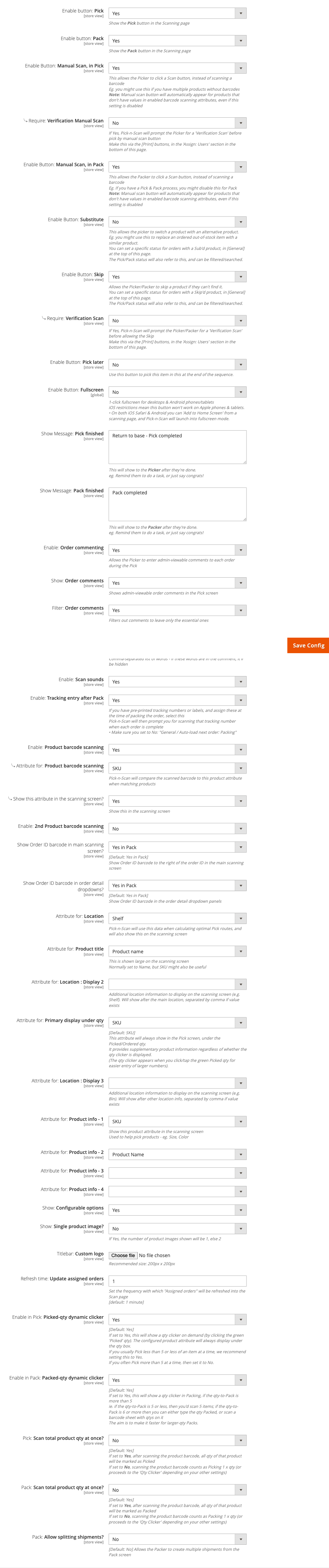
- Customise: Scanning Pages - enable scanning buttons (Pick, Pack, Sub, Skip, Pick Later), barcode attributes, product info fields, location attributes, and scan sounds
- Automate: Assign Orders to Users - configure the auto-assignment switch and eligible order statuses
- Stats page: Settings - define work hours, break times, working days, holidays, and target completion times
- Connect: Integrations - ShipEasy OrderTag settings and PickPack PDF printing buttons
- Set: User Management - enable individual admin users for scanning and configure auto-assignable capacity and priority
Common setups
Set up a pick-and-pack workflow from scratch
A single Seed user can pick and pack with barcode scans. For separate picker and packer accounts, use Growth (up to five users) or Pro (no user cap).
How to set it up
-
Go to: Stores > Configuration > Moogento > Pick-n-Scan > Customise: Orders Page
-
Set:
- Enable Button: Pick = Yes
- Enable Button: Pack = Yes
-
Go to: Stores > Configuration > Moogento > Pick-n-Scan > Customise: Scanning Pages
-
Set:
- Enable button: Pick = Yes
- Enable button: Pack = Yes
- Enable: Product barcode scanning = Yes
- Attribute for: Product barcode scanning = the product attribute that holds your barcode values (e.g.
barcode,upc,ean) - Attribute for: Location = the attribute that stores your shelf/bin location (e.g.
warehouse_location) - Set order status: Pick complete = your chosen in-progress status (e.g. "Picked")
- Set order status: Pack complete = your dispatch-ready status (e.g. "Packed")
-
Save Config, then run
php bin/magento cache:clean.
Notes
Safety restrictions: Allow Packing orders that haven't been Pickeddefaults to No - leave it that way to enforce the pick-before-pack sequence.Safety restrictions: Allow Picking & Packing Complete ordersdefaults to No - this prevents double-shipping a completed order.- Pickers access the scan interface via the Pick button in Sales > Orders, or directly at
Moogento > Pick-n-Scanin the admin nav.
Enable auto-assignment of orders to pickers
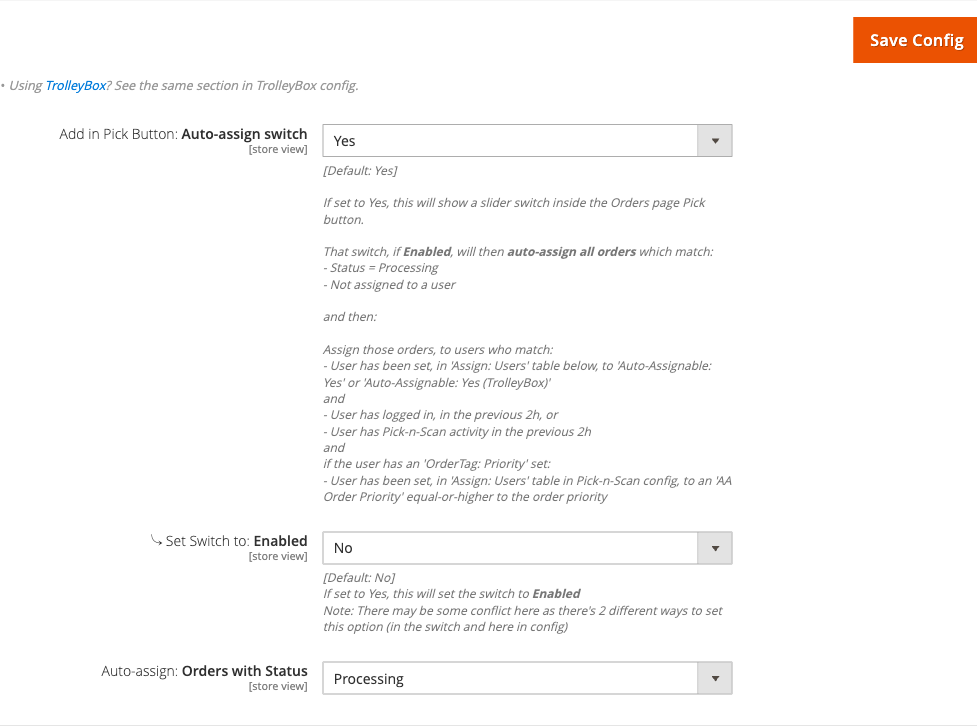
Auto-assignment requires Growth or Pro. Rather than manually assigning orders, let Pick-n-Scan distribute incoming Processing orders across your available pickers automatically.
How to set it up
-
Go to: Stores > Configuration > Moogento > Pick-n-Scan > Customise: Orders Page
-
Set Enable Button: Pick = Yes (required for auto-assign to appear).
-
Go to: Stores > Configuration > Moogento > Pick-n-Scan > Automate: Assign Orders to Users
-
Set:
- Add in Pick Button: Auto-assign switch = Yes
- Auto-assign: Orders with Status = Processing (or whichever status you want eligible)
-
Go to: Stores > Configuration > Moogento > Pick-n-Scan > Set: User Management
-
In the users table, set each picker's Auto-Assignable column to Yes. Optionally set AA Order Priority and capacity to balance load across pickers.
-
Save Config and run
php bin/magento cache:clean.
Notes
- Auto-assign runs every minute via cron. Users must have logged in or shown Pick-n-Scan activity within the previous 2 hours to receive orders.
- The auto-assign switch inside the Orders page Pick button can also be toggled by the picker at scan time. The config field
Auto-assign switch: Set to Enabledsets its default state.
Allow substitutions when an item is out of stock
Pickers can swap an out-of-stock item with an alternative. An optional admin verification code and price limit prevent unauthorised substitutions.
How to set it up
-
Go to: Stores > Configuration > Moogento > Pick-n-Scan > Customise: Scanning Pages
-
Set:
- Enable Button: Substitute = Yes
- Require: Verification Scan (Sub) = Yes (recommended - requires an admin user's 6-character verification code before the sub is accepted)
- Product Replacement Allowance = Yes (optional - enforce a price cap on the substitute item)
- Allowance Multiplier = e.g.
2(substitute may cost up to 2x the original item's price) - Set order status: Sub'd product = a suitable on-hold status so you can contact the customer before dispatch
-
Save Config.
-
Generate and print verification codes for authorised supervisors:
bin/magento moogento:picknscan --action=users:verification-codes
Distribute the printed auth cards (or use Assign: Users > Print in the config page) to supervisors.
Notes
- Verification codes are the first 6 characters of the MD5 hash of the admin username - they are static per user and don't expire.
- If you enable Set order status: Sub'd product, review those orders before shipping so the customer is aware of the change.
Configure the stats dashboard for your work schedule (Pro)
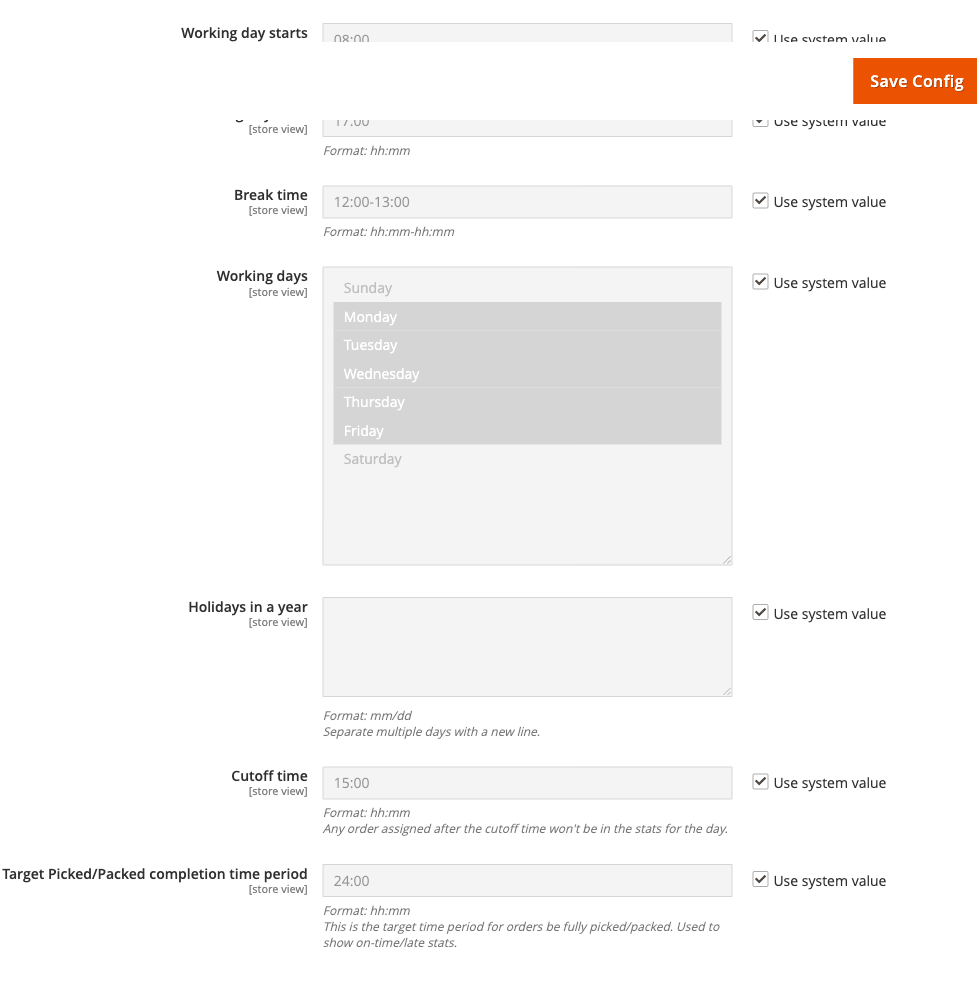
The picking and packing stats pages (Moogento > Pick-n-Scan > Stats: Picking and Stats: Packing) calculate on-time rates against a configurable work-day window.
How to set it up
-
Go to: Stores > Configuration > Moogento > Pick-n-Scan > Stats page: Settings
-
Set:
- Working day starts - e.g.
08:00 - Working day ends - e.g.
17:00 - Break time - e.g.
12:00-13:00 - Working days - select the days your warehouse operates
- Holidays in a year - one
mm/dddate per line for public holidays - Cutoff time - orders assigned after this time won't count toward the current day's stats
- Target Picked/Packed completion time period - e.g.
02:00(orders should be processed within 2 hours)
- Working day starts - e.g.
-
Save Config.
Notes
- Stats are also accessible under Reports > Pick-n-Scan in the Magento admin.
- Per-user stats are visible in each stats page - use this to review individual throughput.
Features reference
Orders page buttons
- What it does: Adds Pick and Pack action buttons to the Sales > Orders grid, as mass-action buttons and per-row buttons. Clicking Pick opens the scanning interface for the selected orders.
- When to use it: Always enable these if you use Pick-n-Scan - they are the primary entry point.
- Config path:
moogento_picknscan/orders_page/show_pickandmoogento_picknscan/orders_page/show_pack
Scanning page customisation
The scanning page has extensive display controls - location attributes (up to 3), product info attributes (up to 4), barcode attribute (primary and secondary), product title attribute, configurable options display, single vs double product image, and a custom logo for the scanning titlebar.
- What it does: Controls exactly what pickers and packers see on the scan screen - shelf location, product details, barcode, and branding.
- When to use it: Configure before going live. Showing the right location field dramatically reduces look-up time at the shelf.
- Config paths:
moogento_picknscan/scanning_page/attribute_item_location,moogento_picknscan/scanning_page/attribute_barcode,moogento_picknscan/scanning_page/extra_product_into_display_1through_4
Manual scan buttons
When a product has no barcode, or for exceptional circumstances, pickers and packers can click a manual scan button instead of scanning a physical label. The button can require a supervisor verification scan before it registers.
- What it does: Allows items without barcodes to be picked or packed by button click rather than hardware scan.
- When to use it: Enable for warehouses that carry unbarcoded products. Enable the verification requirement if you want supervisor oversight on manual picks.
- Config paths:
moogento_picknscan/scanning_page/manual_scan_pick_button_enable,moogento_picknscan/scanning_page/admin_auth_manual_pick,moogento_picknscan/scanning_page/manual_scan_pack_button_enable - Note: The manual scan button appears automatically for any product that lacks a value in the enabled barcode attribute, regardless of this setting.
Qty-at-once scanning and dynamic qty clicker
Controls whether a single barcode scan marks all ordered quantity as picked/packed, or just one unit at a time. A dynamic qty clicker can also appear for high-quantity lines.
- What it does:
Scan total product qty at once= Yes (default) marks all units picked/packed in a single scan. Set to No to count one unit per scan (useful for piece-by-piece validation). The dynamic clicker appears as a tap target on the picked/packed qty for easier bulk entry. - When to use it: Leave at Yes for most warehouses. Set to No when each unit must be individually confirmed (e.g. serialised products).
- Config paths:
moogento_picknscan/scanning_page/pick_whole_product_qty_at_once,moogento_picknscan/scanning_page/pack_whole_product_qty_at_once,moogento_picknscan/scanning_page/dynamic_picked_qty_yn,moogento_picknscan/scanning_page/dynamic_packed_qty_yn
Auto-load next order
After a picker completes an order, Pick-n-Scan can automatically load the next assigned order without returning to the queue screen.
- What it does: Keeps the picker in the scan flow without manual navigation between orders.
- When to use it: Enable for high-volume warehouses. Disable if pickers need to see completion stats between orders, or if packers need to enter tracking after each pack.
- Config paths:
moogento_picknscan/settings/pick_auto_returnandmoogento_picknscan/settings/pack_auto_return
Pick Later button
Allows a picker to defer a product to the end of the picking sequence - useful when the item is temporarily inaccessible on the shelf.
- What it does: Moves the current item to the end of the order's pick list so the picker can continue with other items and return to it.
- When to use it: Enable when pickers regularly encounter temporarily blocked or hard-to-reach shelf locations.
- Config path:
moogento_picknscan/scanning_page/show_pick_later
Skip button
Allows a picker or packer to skip a product they cannot locate, optionally requiring a verification scan before the skip is recorded.
- What it does: Marks the item as skipped and optionally sets the order to a configurable status (e.g. "On Hold") so the order can be reviewed.
- When to use it: Enable when out-of-stock situations occur regularly. Combine with a dedicated on-hold status so skipped-product orders don't ship unfulfilled.
- Config paths:
moogento_picknscan/scanning_page/show_skip,moogento_picknscan/scanning_page/admin_auth_skip,moogento_picknscan/settings/skip_button_set_order_status
Packing: ignore skipped pick items
When an item was skipped during picking, this setting prevents the packing stage from requiring that item to be scanned.
- What it does: Greyed-out items in pack mode are not prompted for packing if they were skipped during pick.
- When to use it: Enable in workflows where skipped items are handled separately (e.g. reordered and shipped later) so the packer does not get blocked waiting for an item that was never picked.
- Config path:
moogento_picknscan/settings/pack_skip_skipped_pick_items
Tracking number entry after packing
When pre-printed tracking labels are assigned at pack time, Pick-n-Scan can prompt the packer to scan the tracking number after each order is packed.
- What it does: Records the tracking number against the shipment at the moment of packing - no separate data-entry step required.
- When to use it: Enable when your courier labels are printed in advance and applied at the packing table.
- Config path:
moogento_picknscan/scanning_page/tracking_number_enabled - Note: Set
moogento_picknscan/settings/pack_auto_return= No, otherwise the next order loads before the packer can scan the tracking number.
Completion messages
Custom text shown to the picker or packer after they finish an order. Use this to remind staff to complete a next step, tally their progress, or acknowledge their work.
- What it does: Displays a configurable text message on the scan screen after Pick or Pack completion.
- When to use it: Useful for reminders (e.g. "Remember to attach the returns slip") or to reinforce good habits.
- Config paths:
moogento_picknscan/scanning_page/pick_finished_message,moogento_picknscan/scanning_page/pack_finished_message
Fullscreen mode
A one-click fullscreen toggle for desktop browsers and Android devices, letting pickers and packers work without browser chrome distracting from the scan interface.
- What it does: Adds a fullscreen button to the scanning page. On iOS, fullscreen is not supported via the browser - use Add to Home Screen instead, which launches Pick-n-Scan in fullscreen automatically.
- When to use it: Enable on dedicated scanning stations.
- Config path:
moogento_picknscan/scanning_page/show_full_screen
Bundle product handling
Controls whether bundle products are processed as the bundle parent or as their child component products.
- What it does: Sets whether the scanner prompts for the bundle SKU or each child SKU individually.
- When to use it: If your warehouse stocks bundle components separately, set to Child products (default). If you pick bundles pre-assembled, set to Bundle product.
- Config path:
moogento_picknscan/settings/bundle_strategy
SKU skip list
Specific SKUs can be excluded from scan prompts - useful for items always included in every order (e.g. a freebie placed at the packing table) or products with no barcode.
- What it does: Pick-n-Scan will not prompt the picker to scan listed SKUs; they are treated as already picked.
- When to use it: Enable
Specific Products: Don't request a scanand list SKUs when you have items that are physically always present without scanning. - Config paths:
moogento_picknscan/settings/show_pick_pack_specific_product,moogento_picknscan/settings/skip_sku
Warehouse timezone offset
Adjusts the timestamp shown in order comments (added when an order is picked or packed) to reflect your warehouse's local time, independently of the Magento store timezone.
- What it does: Stores pick/pack comment timestamps in local warehouse time rather than the store's configured timezone.
- When to use it: When your warehouse and your Magento store are in different timezones and you need comment timestamps to be locally meaningful.
- Config path:
moogento_picknscan/settings/timezone_warehouse_offset
Order commenting during pick
Pickers can add admin-visible comments to an order during the picking process, and existing order comments can be surfaced in the scan screen (with optional stop-word filtering).
- What it does: Creates an audit trail and surfaces customer-facing notes (e.g. gift messages, special instructions) directly in the scanning screen.
- When to use it: Enable order commenting when pickers need to flag issues, and enable order comments display when customer notes should be visible at pick time.
- Config paths:
moogento_picknscan/scanning_page/order_commenting,moogento_picknscan/scanning_page/order_comments_yn,moogento_picknscan/scanning_page/order_comments_filter_yn
App switcher
Shows a dropdown in the scanning interface that lets staff switch between StockEasy, ShipEasy, and Pick-n-Scan without navigating through the main admin menu.
- What it does: Adds a quick-switch control in the scan UI for warehouses that use multiple Moogento tools.
- When to use it: Enable when your team regularly moves between these tools at the same station.
- Config path:
moogento_picknscan/pns_integrations/show_app_switcher
Advanced configuration
Pick Pool
What it does
The Pick Pool is a virtual user (internal ID 99999999, shown as "Pick Pool") used as a staging assignment. Orders are placed into the pool before a real picker claims them. This is most useful in shared workstation setups where pickers self-select from a common queue rather than having orders pre-assigned.
Setup
- Enable auto-assign in Stores > Configuration > Moogento > Pick-n-Scan > Automate: Assign Orders to Users.
- Use the CLI to manage the pool:
bin/magento moogento:picknscan --action=pick-pool:status
bin/magento moogento:picknscan --action=pick-pool:assign --order-id=12345
bin/magento moogento:picknscan --action=pick-pool:clear
Notes
- If auto-assign is not running, check whether the auto-assign process flag is stuck. Use
pick-pool:clearto reset a stuck flag. - TrolleyBox extends the pick pool when installed - see TrolleyBox documentation for TrolleyBox-mode pool behaviour.
Split shipments during packing (Pro)
What it does
Allows a packer to create multiple shipments from a single order at the pack screen - useful when an order spans multiple boxes or must be dispatched in stages.
Setup
-
Go to: Stores > Configuration > Moogento > Pick-n-Scan > Customise: Scanning Pages
-
Set:
- Pack: Allow splitting shipments? = Yes
- Pack: Show button split shipments manually = Yes (shows an explicit split button; otherwise splitting only happens programmatically)
Notes
- Enabling split shipments adds a button to the pack screen. The packer decides at pack time how to distribute items across shipments.
- Config path:
moogento_picknscan/scanning_page/pack_show_split_shipment
REST API access
Pick-n-Scan exposes assigned order data via REST at /V1/pns/assigned-orders. Supports GET (list and by sales order ID), POST (create assignment), and PUT (update assignment). Requires the Moogento_Picknscan::pns ACL role.
Use this to integrate external WMS or reporting tools with Pick-n-Scan's assignment data.
ShipEasy OrderTag integration
When ShipEasy is installed, Pick-n-Scan can automatically set OrderTags when picking or packing completes. Configure which tag values to apply for pick completion and pack completion separately.
- Config path (pick):
moogento_picknscan/pns_shipeasy/pick_set_ordertag_enabledandmoogento_picknscan/pns_shipeasy/pick_ordertag_1 - Config path (pack):
moogento_picknscan/pns_shipeasy/pack_set_ordertag_enabledandmoogento_picknscan/pns_shipeasy/pack_ordertag_1 - Also supports showing the Priority OrderTag in the scanning screen:
moogento_picknscan/pns_integrations/show_ordertag_priority
Tips & best practices
- Set a dedicated order status for each stage (picked, packed, stopped, substituted, skipped). This makes it trivial to filter orders at each stage and spot workflow bottlenecks in the orders grid.
- Print auth cards for all supervisors before enabling verification scans for Sub and Skip. The
users:verification-codesCLI command lists them all at once; the admin config page has print buttons per user. - Test barcode scanning with your actual scanner hardware before going live. USB barcode scanners behave like keyboards - scan speed and termination characters (Enter vs Tab) affect how Pick-n-Scan receives the value. Adjust scanner configuration if products are being over- or under-counted.
- Disable
Auto-load next order: Packingwhen you use tracking number entry - otherwise the next order loads immediately and the packer never sees the tracking prompt. - Keep logging off in production (
moogento_picknscan/settings/enable_log= No) once the setup is stable. The log atvar/log/moogento_picknscan.logis useful for debugging but adds disk I/O under high scan volume. - Use the stats cutoff time to exclude late-arriving orders from the current day's targets - orders placed after the cutoff count toward the next working day.
- When running TrolleyBox mode, configure auto-assign and pick pool settings in the TrolleyBox config panel, not in Pick-n-Scan - TrolleyBox overrides Pick-n-Scan's pool logic when installed.
Troubleshooting
Scan results seem delayed or the UI doesn't update after a successful scan
Sync lag or stale assigned-order data in the scan screen.
- Cause: The assigned-order refresh interval is set too long, or the cron/queue is not running.
- Check: Verify
moogento_picknscan/scanning_page/poll_interval- default is 1 minute. Also confirm Magento cron is active (bin/magento cron:runcompletes without errors). - Resolution: Lower the poll interval to
0.5(30 seconds) or check cron configuration. If the queue processor is used for sync, confirm the consumer is running.
Auto-assign is not distributing orders to pickers
Orders sit unassigned despite auto-assign being enabled.
- Cause: The auto-assign process flag may be stuck, or eligible users have not been active in the previous 2 hours.
- Check: Run
bin/magento moogento:picknscan --action=pick-pool:statusand--action=users:listto see which users are marked auto-assignable and when they last had activity. - Resolution: Run
bin/magento moogento:picknscan --action=pick-pool:clearto reset the flag. If users are not appearing, verify that their user assignments are active and not locked.
The Sub button is not visible on the scan screen
Substitution is intended but the button does not appear.
- Cause: The Substitute button is disabled in configuration, or the scanning page is in Pack mode.
- Check: Stores > Configuration > Moogento > Pick-n-Scan > Customise: Scanning Pages - confirm Enable Button: Substitute = Yes.
- Resolution: Enable the button, save config, and clear cache. The Sub button is only available in Pick mode.
Users are not appearing in the user management table or cannot be assigned
Admin users do not show up as assignable pickers/packers.
- Cause: The user has not been enabled for Pick-n-Scan in the user management table, or the user record is locked.
- Check: Stores > Configuration > Moogento > Pick-n-Scan > Set: User Management - confirm the user row shows Enabled.
- Resolution: Toggle the user to Enabled and save. If the user is locked (e.g. from a stale session), run
bin/magento moogento:picknscan --action=users:configure --username=USERNAME --auto-assignable=yesto unlock and re-enable auto-assign for that user.
Wrong product accepted during pick (barcode mismatch)
A scan that should have been rejected was accepted, or the correct barcode is being rejected.
- Cause: The product attribute selected for barcode scanning does not contain the correct barcode value for the product, or a second barcode attribute is conflicting.
- Check: Stores > Configuration > Moogento > Pick-n-Scan > Customise: Scanning Pages - verify Attribute for: Product barcode scanning points to the correct attribute. Check the product record in catalog to confirm the attribute has the expected value.
- Resolution: Correct the attribute selection or update the product's barcode attribute value. If you use both a primary and secondary barcode attribute, confirm neither attribute has overlapping values across different products.
Malware scanner flags Helper/Moo.php
- Cause: Your host's malware scanner (often Imunify360 on cPanel hosting) heuristically flags the encoded license-check files that ship inside every paid Moogento extension. The files are genuine and unchanged - the encoding protects the license check from tampering.
- Resolution: Add the files to the scanner's ignore list so the warnings stop, and restore any file the scanner already quarantined. Both steps, plus how to verify the files are byte-for-byte what we shipped, are covered in the license file protection guide.
FAQs
How do I start barcode pick and pack scanning in Magento 2 with Pick-n-Scan?
Go to Sales > Orders in your Magento admin, select the orders you want to pick, and click the Pick button that Pick-n-Scan adds to the grid. The scanning interface loads and guides your picker through each item in barcode sequence. See Common setups for the full first-time configuration.
How do I set up automatic order assignment to pickers?
Auto-assignment requires Growth or Pro. Enable the auto-assign switch under Stores > Configuration > Moogento > Pick-n-Scan > Automate: Assign Orders to Users, then mark each eligible picker as Auto-Assignable in the User Management table. The cron runs every minute and distributes unassigned Processing orders to active users. See Enable auto-assignment of orders to pickers for step-by-step instructions.
What happens if a picker can't find a product?
If the Skip button is enabled, the picker can skip that item - Pick-n-Scan records it and can set the order to an on-hold status for review. If the item has a suitable replacement, the Sub (substitute) button lets the picker swap it with an alternative product, with optional admin verification and price-limit controls.
Does Pick-n-Scan work with PickPack for printing packing sheets?
Yes - when PickPack is installed, you can enable PDF print buttons directly in the scan screen (packing sheets, invoices, combined picklists, separated picklists). Enable them under Stores > Configuration > Moogento > Pick-n-Scan > Connect: Integrations > Integration with PickPack.
Can different users pick and pack the same order?
Yes, with Growth or Pro for separate accounts. Seed supports one Pick-n-Scan user total. By default (All users: Can Pack all orders = Yes), any enabled user can pack any unpicked or picked order. Set that field to No if you want to restrict packing to the picker who picked the order. The config is at moogento_picknscan/settings/anyone_can_pack.
What is the Pick Pool and when should I use it?
The Pick Pool is a virtual staging queue - orders are assigned to "Pick Pool" before a real picker claims them. Use it in shared workstation environments where pickers self-select from a common queue rather than having orders pre-assigned by name. Manage it via bin/magento moogento:picknscan --action=pick-pool:status.
Is Pick-n-Scan compatible with Hyvä, Luma, and Porto themes?
Pick-n-Scan is an admin-only module - it runs entirely inside the Magento backend and does not affect your storefront. It is compatible with all storefront themes including Hyvä, Luma, and Porto because no storefront code is modified.
What happens when I disable Pick-n-Scan?
Disabling the module (moogento_picknscan/settings/enable = No) removes the Pick and Pack buttons from the orders grid and prevents access to the scanning interface. Order data already recorded (pick status, pack status, assigned users) is retained in the database and remains visible as grid columns. Re-enabling the module restores full functionality.
How do I track individual picker and packer performance?
On Pro, go to Moogento > Pick-n-Scan > Stats: Picking or Stats: Packing (also available under Reports > Pick-n-Scan). Configure work hours, break times, and a target completion window under Stores > Configuration > Moogento > Pick-n-Scan > Stats page: Settings. The dashboard shows throughput and on-time rates per user.
Which plan do I need for Pick-n-Scan?
Seed supports one Pick-n-Scan user for both picking and packing. Growth supports up to five users; Pro has no user cap and adds statistics and split shipments. Review your plan at https://www.moogento.com > My Plugins.
Related guides
- PickPack - print packing sheets, invoices, and picklists from the scan screen
- StockEasy - manage stock levels that feed into Pick-n-Scan's available inventory
- TrolleyBox - extends Pick-n-Scan's pick pool and auto-assign flows for multi-trolley warehouse operations
Need help?
- moo@moogento.com
- Include:
- Magento version
- Module name
- What you're trying to do