

CampaignManager is a paid module (package moogento/m2-campaignmanagerpro). It needs a valid license key from Moogento.com.
Overview
CampaignManager runs scheduled campaigns for a store view. You create an event with a start date, an end date and one or more actions. When the event window opens, the module applies the actions to the storefront. When the window closes, or the event is paused, the module restores the values it replaced.
Every event belongs to one store view. There is no "All store views" option, so a campaign that should run on every store view needs one event per store view.
This module helps you:
- Run a sale or seasonal homepage without changing the homepage by hand on the start day
- Switch the footer or header logo, stylesheet or theme for a campaign and return to normal afterwards
- Duplicate a past event for the next season and adjust its dates
- Run overlapping campaigns on one store view, with priority deciding which wins
- Preview a campaign and get rolled back automatically if the storefront breaks
When to use CampaignManager
Use CampaignManager when you want to:
- Launch a Black Friday or Christmas homepage on a fixed date
- Switch the homepage CMS page for a summer clearance and restore it when the clearance ends
- Show a campaign footer block for a limited period
- Enable a cart or checkout rule only while a sale runs
- Plan next year's campaigns in advance and let the schedule run them
Key capabilities
- Event schedule: each event has a name, a store view, a start and end time, a priority and a status.
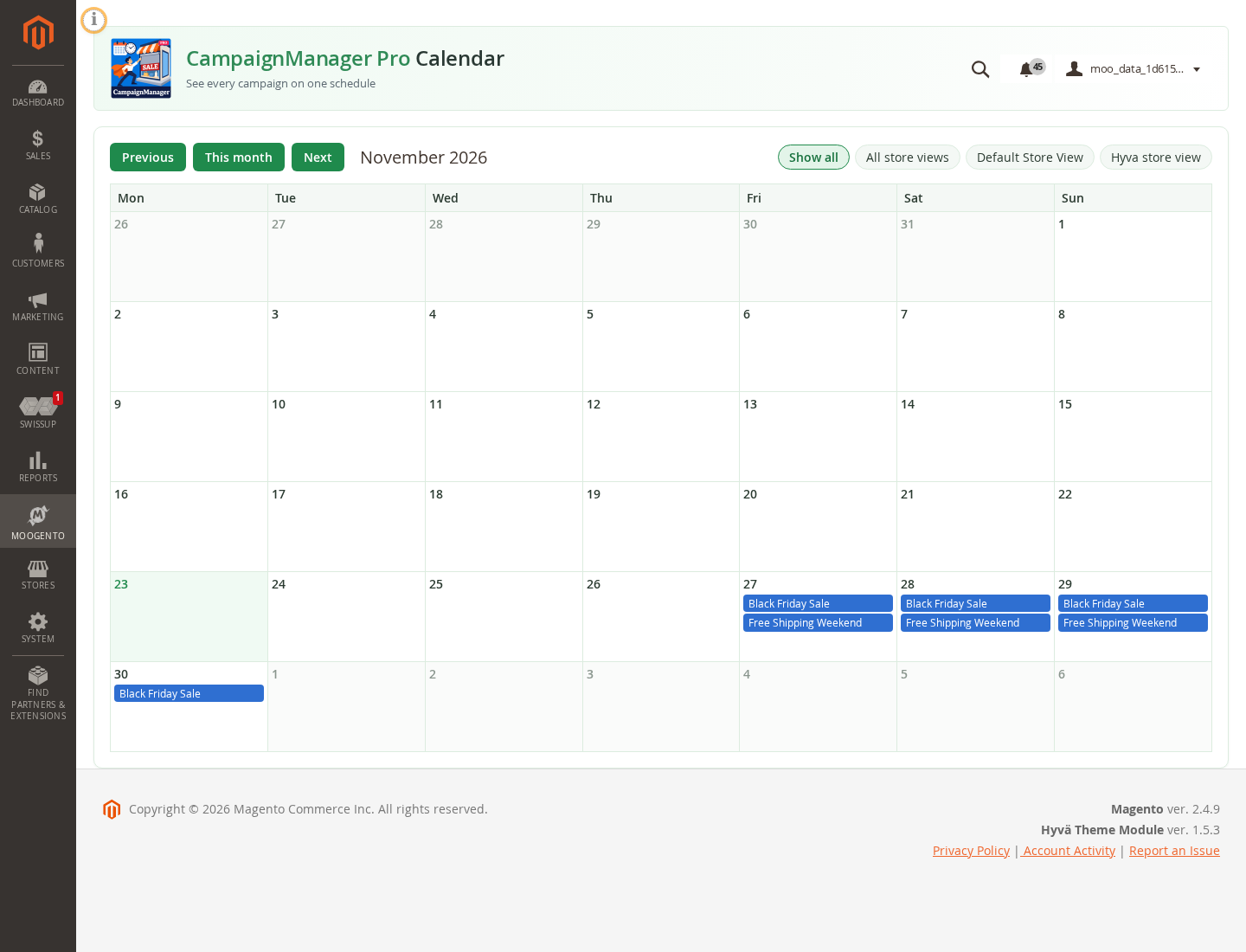
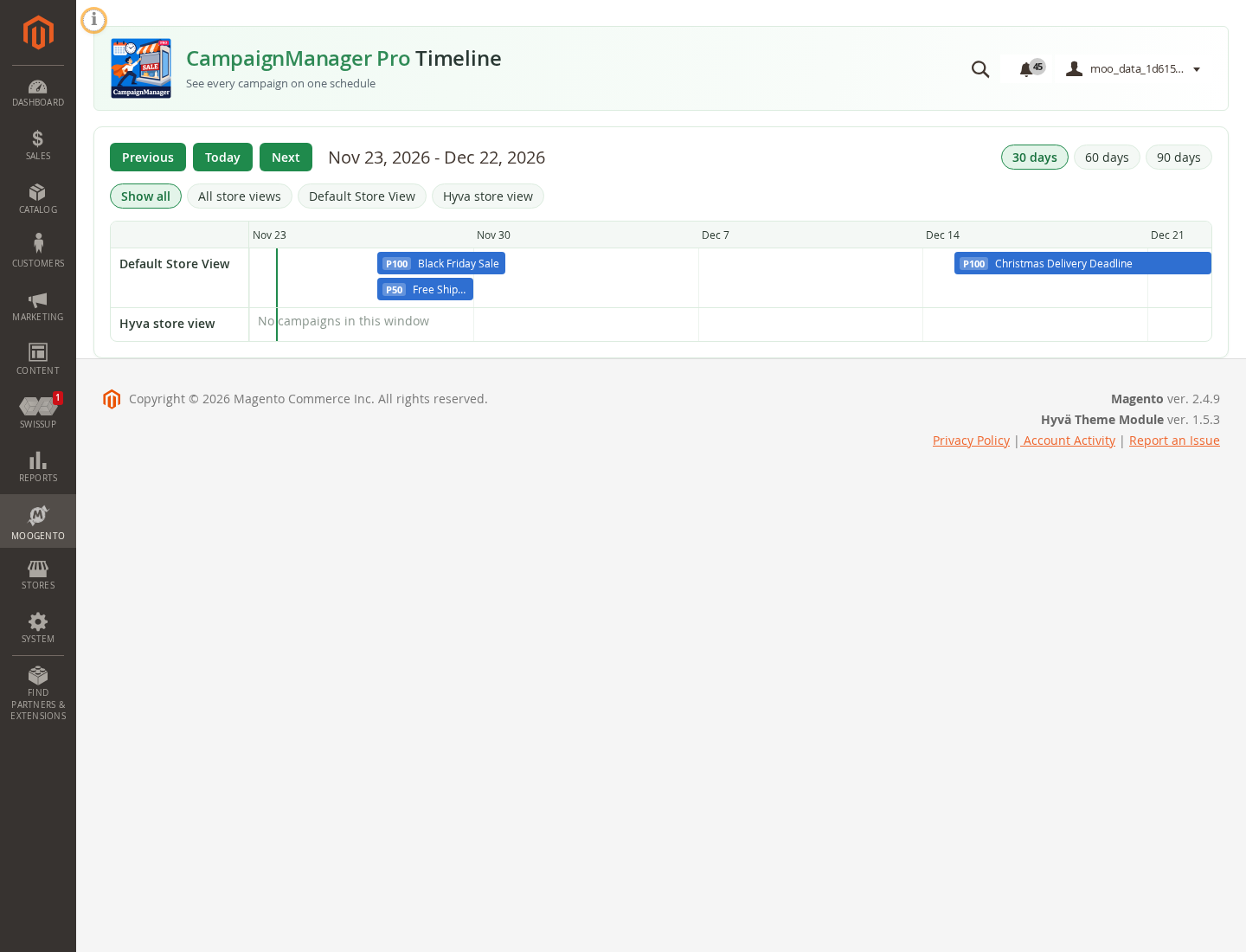
- Calendar and timeline: see every event across the season and spot overlaps and gaps.
- Action editor: add and edit actions in the event form.
- Action types: CMS page swap and toggle, CMS block toggle, logo swap, CSS file swap, inline CSS, theme switch, and cart and checkout rule toggles.
- Overlapping events: create as many events as you need, including overlaps on one store view. Priority decides the winner.
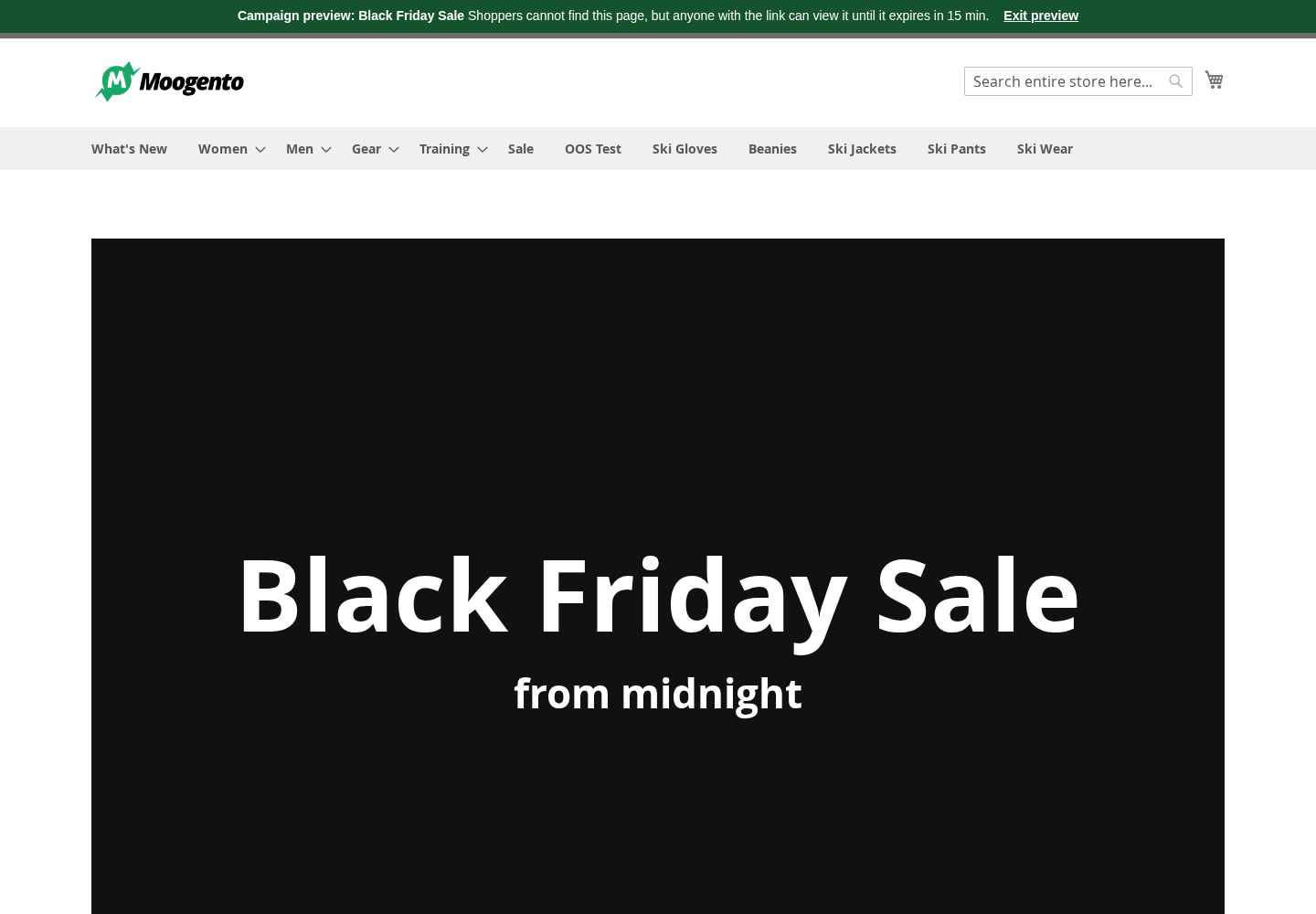
- Signed preview links: see a campaign in your own browser before it goes live.
- Automatic rollback: a campaign is paused and the previous state restored if the storefront breaks after it is applied.
- Email alerts: get told when a campaign starts, fails or is rolled back.
- Snapshots and revert: the module saves the values it replaces and restores them when the event ends.
- Command line tools: every admin task has a
moogento:campaignmanager:*command for scripting and recovery.
Installation
Bought on Adobe Commerce Marketplace? Your order comes with a Moogento account: set your password from the activation email, then follow the steps below with the Composer keys in My Plugins. If the email has not arrived, contact Moogento support.
CampaignManager installs via Composer and needs a valid license key.
Step 1: Get your Composer keys from Moogento.com
- Sign in at https://www.moogento.com and open My Plugins in your account menu.
- Find CampaignManager in the list of plugins you own.
- Generate (or reveal) the Composer access keys for that plugin: a public key and a private key.
- Add your install domain to the key. Each Composer key is tied to a specific domain, so the download is rejected on any other domain.
Step 2: Install the module with Composer
From your Magento 2 root directory:
composer require moogento/m2-campaignmanagerpro
When Composer asks for credentials, paste the public key as the username and the private key as the password.
Step 3: Enable the module in Magento
php bin/magento setup:upgrade
php bin/magento setup:di:compile
php bin/magento cache:clean
Check the result with php bin/magento module:status Moogento_CampaignManagerpro.
Step 4: Add your license key
- On https://www.moogento.com > My Plugins, copy the license key for CampaignManager. The key is separate from the Composer keys.
- In your Magento admin, go to Stores > Configuration > Moogento > License.
- Paste the key and click Add key. Confirm the plan appears under Registered Keys for this Installation.
Event saves and the event commands are rejected until a valid key is registered.
Step 5: Turn the module on
The module is installed switched off. Turn it on in the admin before cron applies anything. See Turn the module on.
Setup overview
Most setup happens in:
Stores > Configuration > Moogento > CampaignManager Pro
Admin menu: Moogento > CampaignManager Pro with Events, Calendar, Timeline and Config.
You will mainly work with:
- Events grid: create, filter, duplicate, pause, resume and delete events
- Event form: set the name, store view, dates, status, priority, description and actions
- General config: turn the module on or off and set alert recipients
Turn the module on
The module ships switched off. Until it is on, cron does not apply any event, so a scheduled campaign will not start.
- Go to Stores > Configuration > Moogento > CampaignManager Pro > General.
- Set Enable to Yes and click Save Config.
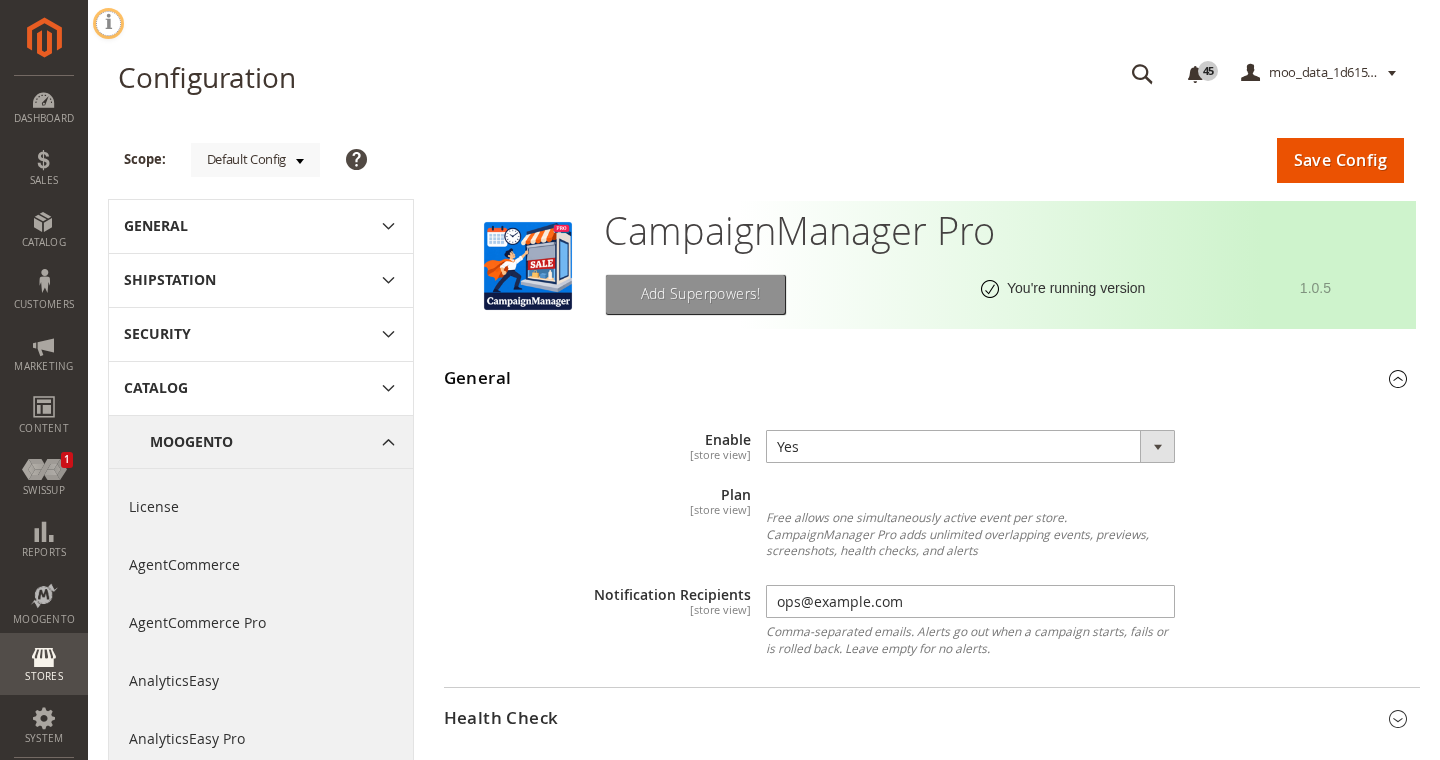
Set the value at the scope you need. Event dates still decide which events run.
Common setups
Launch a seasonal homepage on a fixed date
Use an event for a homepage that should appear on a set date and return to normal afterwards.
How to set it up
- Go to Moogento > CampaignManager Pro > Events and click Add Event.
- Set Name, Store ID (the numeric store view ID), Start and End.
- In Campaign actions, add a
cms_page_swapaction and enter the CMS page identifier, for examplechristmas-home. - Keep Status on Scheduled and click Save.
Notes
- Create the CMS page before you add the action. The action checks that the page exists.
- Preview the event before its start date. See Preview before you go live.
Pause or resume a campaign
How to set it up
- Find the event in the grid, or run
php bin/magento moogento:campaignmanager:event:list --store=<store_id>. - Pause it from the grid row actions, or with
php bin/magento moogento:campaignmanager:event:pause <event_id>. - Resume it from the grid, or with
php bin/magento moogento:campaignmanager:event:resume <event_id>. - Check the result with
php bin/magento moogento:campaignmanager:event:show <event_id>.
Notes
- Pausing an active event restores the values it replaced.
- Use
moogento:campaignmanager:event:force-onandmoogento:campaignmanager:event:force-offto start or stop an event immediately, regardless of its dates. They are also available as Force on and Force off row actions in the event grid.
Check which campaign is live for a store view
How to set it up
- Run
php bin/magento moogento:campaignmanager:active --store=<store_id>to see the event that is currently applied. - Run
php bin/magento moogento:campaignmanager:apply --store=<store_id> --dry-runto preview what the next apply will change without writing anything.
Features reference
Event grid
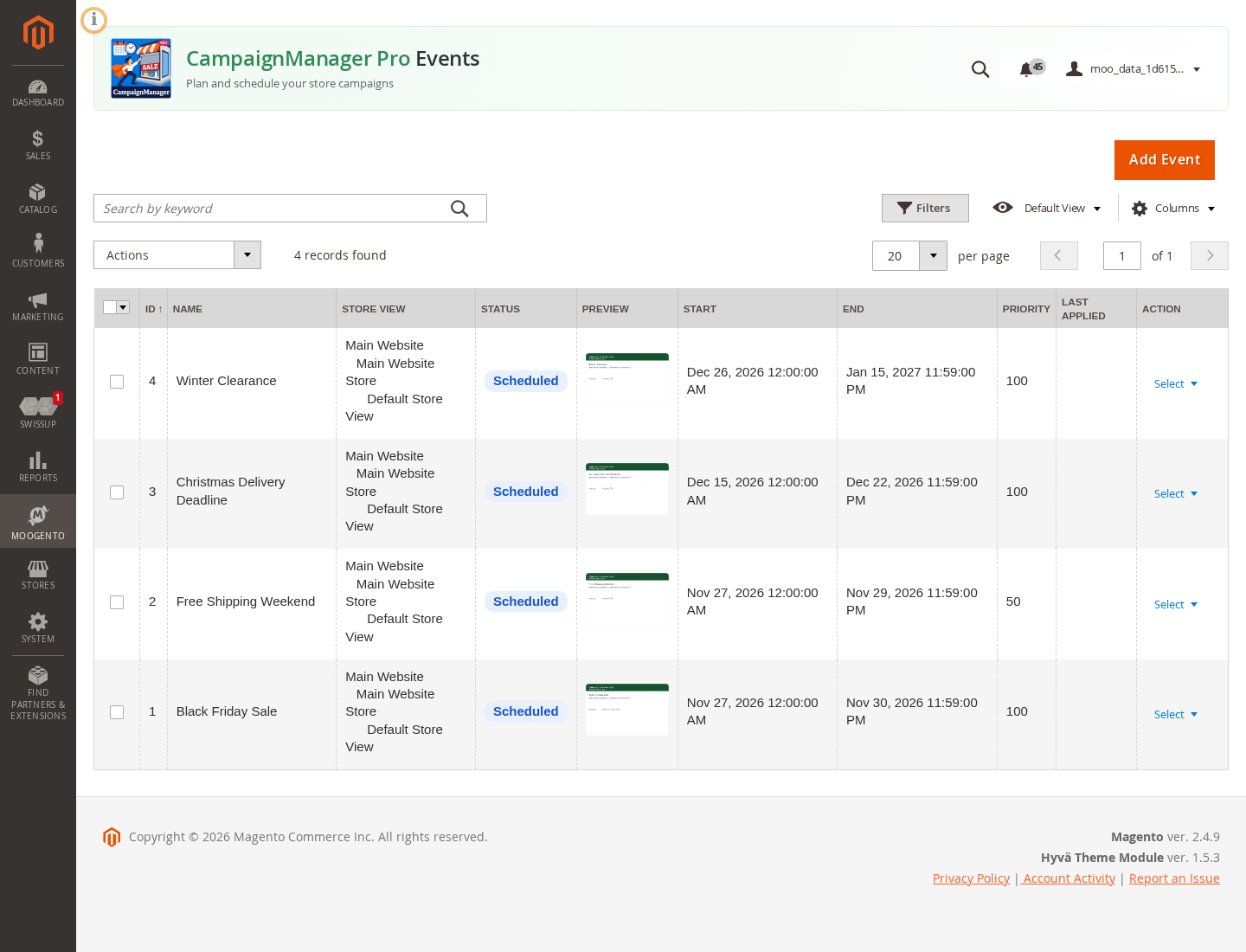
- Lists every event with its ID, name, store view, status, start, end, priority and last applied time, plus a thumbnail of each event's summary card.
- Row actions: Edit, Pause or Resume, Force on (or Force off while an event is forced), Apply now, Preview, Duplicate and Delete. Mass actions: Delete, Duplicate, Pause events and Resume events. There is no mass action for forcing.
- Filter by status, store view and dates.
Event form
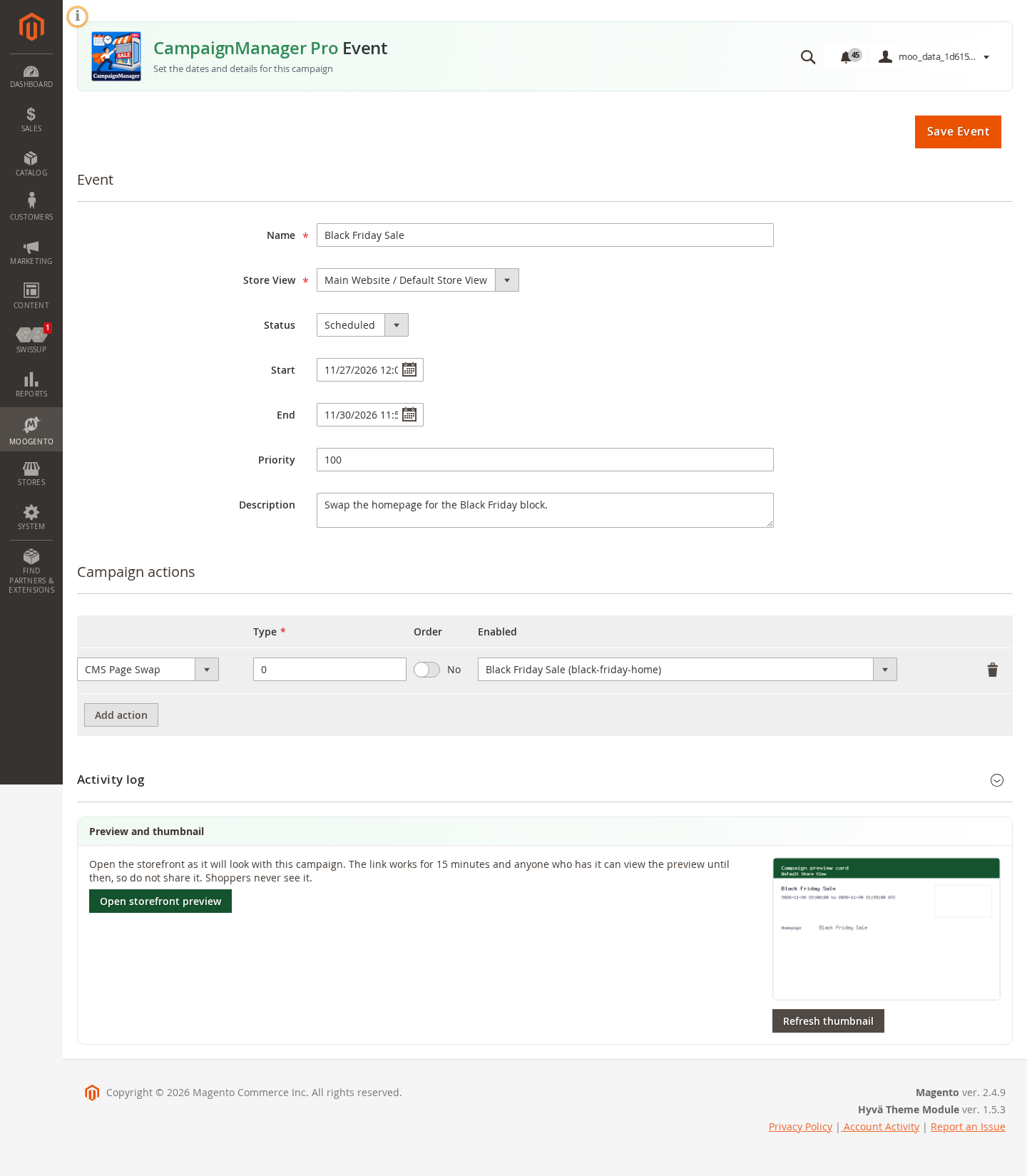
- Fields: Name, Store ID, Status (Scheduled, Active, Completed, Paused, Forced), Start, End, Priority (default 100) and Description.
- Status Failed is set by the module and cannot be chosen in the form.
- The Campaign actions section lets you add, edit and remove actions directly.
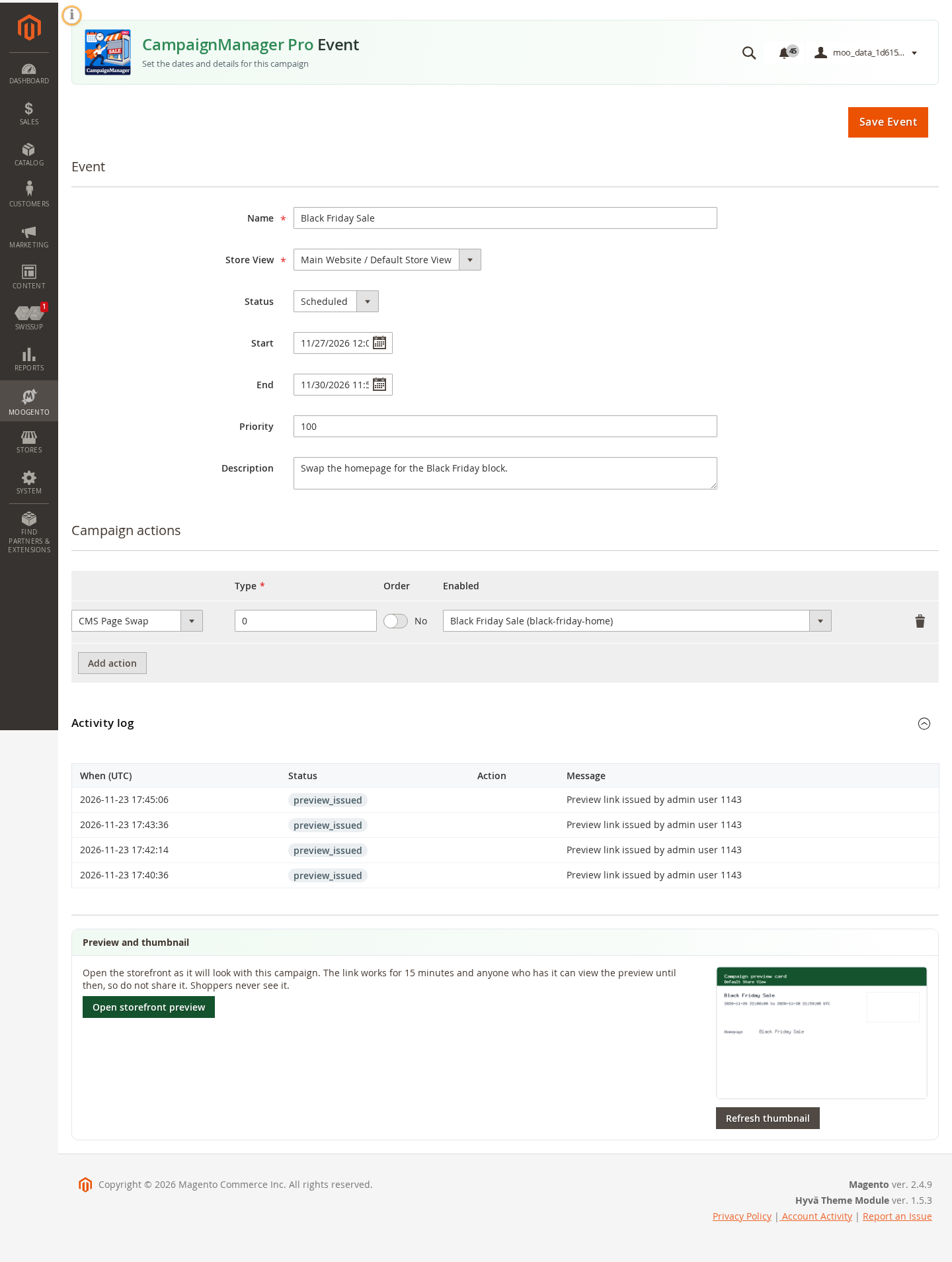
- The Activity log section shows what the module applied, restored, paused or rolled back for this event.
Action types
cms_page_swap: sets the homepage CMS page. Payload key:page_identifier.cms_page_toggle: turns a CMS page on or off for the length of the campaign. The page must exist and must be assigned to one store view only.cms_block_toggle: sets the footer CMS block. Payload key:block_identifier.logo_swap: sets the header logo (header_logoorlogo_class) and optionally the footer logo (footer_logo) and footer block (footer_block_identifier).css_file_swap: swaps a stylesheet for the length of the campaign.inline_css: adds inline CSS for a short promotion.theme_switch: switches the theme and returns to the normal theme when the window closes.cart_rule_toggleandcheckout_rule_toggle: enable a cart or checkout rule when the sale starts. When the window closes the rule goes back to the state it had before the campaign, so a rule that was already enabled stays enabled. If a discount must run only during the campaign, start with the rule disabled.- List the types with
php bin/magento moogento:campaignmanager:action:types.
Priority and overlaps
- Events can overlap in time for the same store view.
- When two active actions write the same storefront setting, the higher-priority action wins. The losing action is logged.
- Forcing one event on or off does not stop other scheduled events from staying applied.
Calendar and timeline
- Calendar (Moogento > CampaignManager Pro > Calendar): a month view of every event, so you can see the whole season at a glance.
- Timeline (Moogento > CampaignManager Pro > Timeline): the events laid out over time, so overlaps and gaps between campaigns are easy to spot.
Preview before you go live
- Click Preview on an event (grid or form). The module opens a short-lived signed link on the event's store view, and the storefront shows the campaign to you in that browser.
- The preview does not show stylesheet swaps, inline CSS, or cart and checkout rule changes. The event form lists these under Not shown in preview, so an unchanged preview does not prove that styling or a discount will launch correctly.
- The preview is only for the browser that opens the link. Store visitors without the link see the normal storefront.
- The preview does not write preview content to the page cache.
- Each preview link is recorded in the event's activity log.
- Create a link from the command line with
moogento:campaignmanager:event:preview.
Automatic rollback when the storefront breaks
- Path: Stores > Configuration > Moogento > CampaignManager Pro > Health Check > Pause campaign automatically if the storefront breaks. Default: enabled (Yes). Set No to turn it off.
- When the scheduled job (cron) applies a campaign, the homepage is checked before and after. If it was healthy before and shows an error afterwards, the campaign is paused and the previous state is restored.
- Apply now in the grid and the
moogento:campaignmanager:applycommand do not run this check. After launching a theme or homepage change by hand, open the storefront yourself, or run the health check below. - Run a check yourself with
php bin/magento moogento:campaignmanager:health:check --store=<store_id>.
Email alerts
- Path: Stores > Configuration > Moogento > CampaignManager Pro > General > Notification Recipients.
- Enter comma-separated email addresses. Alerts go out when a campaign starts, fails or is rolled back. Leave the field empty for no alerts.
- Send a test alert to the list with
php bin/magento moogento:campaignmanager:alerts:test --store=<store_id>. Add--recipient=<email>to send to one address instead.
Snapshots and revert
- The module saves the values it replaces when an event applies.
php bin/magento moogento:campaignmanager:snapshot:list --store=<store_id>shows the saved values.php bin/magento moogento:campaignmanager:revertrestores them.
Logs
- Run
php bin/magento moogento:campaignmanager:log:tail --lines=100to see recent campaign activity. - The module writes to
var/log/moogento_campaignmanagerpro.log. - The same history per event is in the Activity log section of the event form.
Configuration
- Enable: Stores > Configuration > Moogento > CampaignManager Pro > General > Enable. Default: No (off).
- Alerts: Notification Recipients in the same group.
- Rollback: the Health Check group.
Tips and best practices
- Create each event a few days before it starts and check it with
moogento:campaignmanager:apply --dry-run. - Duplicate last season's event rather than starting from an empty form.
- Keep one CMS page per seasonal homepage so the swap is easy to reverse.
- Use priority only when two campaigns really must touch the same setting.
- Preview each event before its start date, and send a test alert to the recipient list before a big sale.
Troubleshooting
The event is saved but the storefront does not change
- Cause: The module is switched off, the event is not active yet, or a higher-priority action owns the same setting.
- Check: Confirm Enable is Yes in the configuration, then run
php bin/magento moogento:campaignmanager:active --store=<store_id>and the log tail command. - Resolution: Confirm the start date, the event status and the action payload, then run
moogento:campaignmanager:apply --store=<store_id>.
Saving an event or running an event command is rejected
- Cause: No valid license key is registered for CampaignManager.
- Check: Open Stores > Configuration > Moogento > License and look under Registered Keys for this Installation.
- Resolution: Add the CampaignManager key, then save again.
Adding an action fails
- Cause: The payload is missing a required key, or the CMS page or block does not exist.
- Check: Confirm the identifier in Content > Pages or Content > Blocks.
- Resolution: Correct the action in the event form and save.
A campaign was paused by itself
- Cause: The health check found an error on the homepage after the campaign changed the store, so it was paused and the previous state restored.
- Check: Open the event's Activity log section and the log tail command.
- Resolution: Fix the homepage problem, then resume the event. Turn the check off only if you do not want automatic rollback.
FAQs
How do I schedule a homepage change in Magento 2?
Create an event in Moogento > CampaignManager Pro > Events, set its start and end dates, and add a cms_page_swap action. The module applies the change when the event window opens. Turn the module on first, because it ships switched off.
Can events overlap on one store view?
Yes. Create as many events as you need. When two active actions write the same setting, the higher priority wins.
Can I restore the original homepage after a campaign ends?
Yes. The module saves the values it replaces and restores them when the event ends or is paused. Use moogento:campaignmanager:snapshot:list to see the saved values.
Can I preview a campaign before it goes live?
Yes. Click Preview on the event. Only your browser sees the campaign. Visitors to the store see the normal page.
What happens if I disable CampaignManager?
Turn off Stores > Configuration > Moogento > CampaignManager Pro > General > Enable and the module stops applying events. Restoring values that were already applied is done with moogento:campaignmanager:revert.
Is CampaignManager compatible with Hyva and Luma?
CampaignManager writes standard Magento configuration and CMS content, so the same campaign works on both Hyva and Luma storefronts.
Related guides
- Moogento Sitemap (see the Moogento product pages for the sitemap module)
Need help?
- Moogento support desk - the fastest route
- moo@moogento.com if you would rather email
- Include:
- Magento version
- Module name
- What you're trying to do