

Overview
Magento By Night gives each Magento admin operator a choice of three appearances. Your selection stays with your admin account across browsers and devices. You can change it while you work and keep the current page, filters, and unsaved form values.
Enable Magento By Night
- Install
moogento/m2-magentobynightthrough Composer using your Moogento account. - Apply the Magento module setup as part of your usual deployment and add your Magento By Night license in Moogento > License.
- Open Moogento > Magento By Night > Config., or Stores > Configuration > Moogento > Magento By Night.
- Set Enable to Yes and save the configuration.
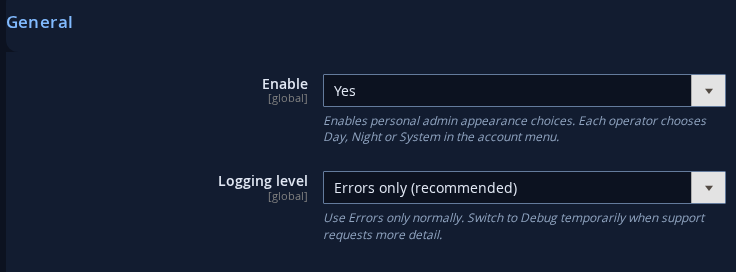
Config. requires the Magento By Night configuration permission. The Guide menu item has its own permission. The $49 USD annual Admin edition includes all three appearance choices. Every signed-in operator can choose their own appearance once the module is enabled and licensed.
Change your appearance
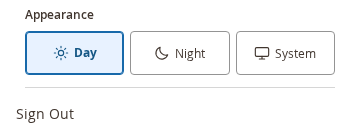
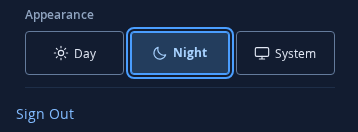
Open your username menu and look for Appearance, immediately above Sign Out.
- Day uses the standard light Magento Admin appearance.
- Night uses dark navy surfaces and lighter text.
- System follows the device's appearance and responds when it changes. It is the default for new operators.
Use Tab to reach the selected choice and an arrow key to move between choices. Escape closes the menu and returns focus to the username. To return to the standard appearance, choose Day.
Working on a shared computer
Sign in with your own Magento Admin account. When a colleague signs in with a different account on the same computer, Magento loads their saved choice. With System selected, the same account can look light on one device and dark on another.
Pulse pages
The Pulse dashboard and Reports use Pulse's own appearance choice. A change made through your username menu on those pages is saved for the rest of Magento Admin. Use the switch in Pulse to change the current Pulse appearance.
Troubleshooting
- If Appearance is missing, ask a configuration administrator to check that the module is enabled and licensed.
- If a selection cannot be saved, the menu restores the last saved choice and announces the failure. Refresh the page and sign in again if your session has expired.
- For diagnostics, switch Logging level in Config. to Debug during troubleshooting, then return it to Errors only.