

Overview
Plan scope for the examples below: Seed covers the enhanced product grid and inline quantity, price and cost edits. CSV import/export, PDF export, reorder quantity and EDX require Growth or Pro. Sales velocity, EDT, lead-time forecasts, intelligent reorder, scheduled CSV auto-import, scheduled stock-report emails and barcode scanning require Pro.
StockEasy adds intelligent Magento 2 stock management and reorder automation to your store. It replaces the default product grid with a richer stock view, calculates reorder quantities based on real sales velocity, and adds CSV imports and email reports on the required plans so you spend less time firefighting stock problems.
The module works in single-source mode and with Magento's Multi-Source Inventory (MSI) - per-source quantities, salable quantity tracking, and source-specific reorder calculations are all supported.
This module helps you:
- See all key stock data - qty, salable qty, reorder need, velocity, EDT, EDX - directly in the product grid
- Calculate reorder quantities automatically using recent or seasonal sales history
- Import stock updates in bulk via CSV on demand (Growth or Pro), or on a schedule (Pro)
- Scan barcodes in the admin to update quantities without touching a keyboard (Pro Plan)
- Email low-stock, inventory-change, and in-stock reports to buyers or warehouse managers on a defined schedule (Pro Plan)
When to use this
Use StockEasy when you want to:
- Know exactly which products need reordering and in what quantity, without running manual queries
- Replace daily or weekly manual stock checks with automated email reports sent directly to buyers
- Update hundreds of stock levels at once from a supplier's CSV feed, manually with Growth or Pro or on a schedule with Pro
- Track per-warehouse quantities when using MSI and need one clear view across all sources
- Calculate safety stock buffers and lead-time-aware reorder points per product or globally
Key capabilities
- Enhanced product grid - adds Qty, Salable Qty, Reorder, iReorder, Trigger Qty, EDT, EDX, iVelocity, MOQ, MXOQ, Cost, and more as optional columns
- Reorder Qty (Growth or Pro) - fires when stock falls below a configurable Trigger Qty; respects MOQ/MXOQ floors and ceilings
- iReorder Qty (Pro) - uses historical velocity, lead time, and buffer period to project how much to order; recalculates hourly
- Image Status column (Growth or Pro) - 3-dot indicator per product showing whether the Base, Small, and Thumbnail image roles are assigned; filter and mass-assign on Pro Plan
- CSV import (Growth or Pro) - bulk-update qty, cost, price, source, operation type (set/add/subtract), MOQ, MXOQ, lead time, and more
- Auto-import scheduling (Pro) - run recurring CSV imports unattended; each schedule can target a different source or operation
- Barcode scanning - camera or handheld scanner updates stock directly in the browser (Pro Plan)
- Automated email reports - four report types (default, low stock, inventory changes, back-in-stock), each with independent schedule and recipient settings (Pro Plan)
- PDF and CSV export (Growth or Pro) - mass-export filtered product lists from the grid; field selection and sort order are fully configurable
- MSI support - per-source quantity tracking with graceful fallback to single-source mode
- Import log - full audit trail of every import operation with replay support
Installation
Bought on Adobe Commerce Marketplace? Your purchase comes with a Moogento account: set your password from the activation email, then follow the steps below with the Composer keys and licence key in My Plugins. If the email has not arrived, contact Moogento support.
StockEasy installs via Composer, then activates with a license key from your Moogento.com account. The whole flow takes about 5 minutes.
Prefer a hands-off setup? Our team can install and configure the extension for you - see the paid install service.
Step 1: Get your Composer keys from Moogento.com
- Sign in at https://www.moogento.com and open My Plugins in your account menu.
- Find StockEasy in the list of plugins you own.
- Generate (or reveal) the Composer access keys for that plugin - a public key and a private key.
- Add your install domain to the key. Each Composer key is tied to a specific domain - if you're installing on
yourstore.com, addyourstore.comto the key's allowed domains. The Composer download will be rejected on any other domain.
If you run staging and production on different domains, add both - separate keys per environment are fine too.
Step 2: Install the module with Composer
From your Magento 2 root directory:
composer require moogento/m2-stockeasy
When Composer asks for credentials, paste the public key as the username and the private key as the password. They'll be cached in ~/.composer/auth.json for future runs.
Step 3: Enable the module in Magento
php bin/magento setup:upgrade
php bin/magento setup:di:compile
php bin/magento cache:clean
If you run php bin/magento module:status Moogento_Stockeasy you should see it listed as enabled.
Step 4: Add your license key in the Moogento admin
- For a direct purchase, copy the StockEasy license key from My Plugins at moogento.com. For a Marketplace purchase, check your Moogento account for an issued key and contact Moogento support if it is missing.
- Open Stores > Configuration > Moogento > License in Magento Admin. Add the Installation Domain shown on this page to the key in your Moogento account.
- Paste the key into the key field and click Add key.
- Under Registered Keys for this Installation, confirm that StockEasy appears with the correct plan.
The license validates within a few seconds. You should see the module's status flip to active. If it stays inactive, double-check the domain on the license matches where you've installed - domain mismatch is the most common cause.
Setup overview
Most setup happens in:
Stores > Configuration > Moogento > StockEasy
You'll mainly work with:
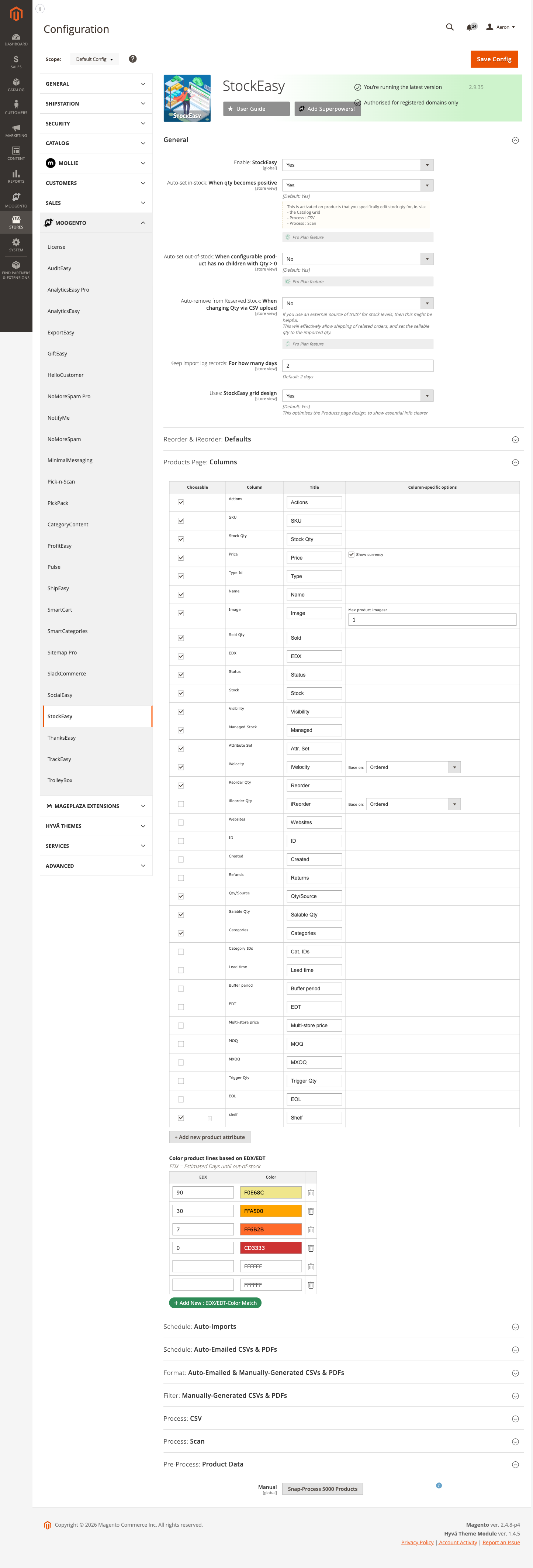
- General - enable the module, configure automatic stock-status updates, and set import log retention
- Reorder & iReorder: Defaults - global thresholds and calculation model for reorder suggestions
- Products Page: Columns - choose which columns appear in the enhanced product grid
- Schedule: Auto-Imports (Pro) - set up recurring CSV import jobs
- Schedule: Auto-Emailed CSVs & PDFs (Pro) - configure report recipients, schedules, and filters
- Format: Auto-Emailed & Manually-Generated CSVs & PDFs - choose fields, sort order, and product attributes for exported reports
- Filter: Manually-Generated CSVs & PDFs - exclude EOL products from manual exports
- Process: CSV - map your supplier's CSV column headers to StockEasy fields
- Process: Scan - configure the barcode scanner attribute and history size (Pro Plan)
Common setups
Set up intelligent reorder calculations
StockEasy calculates two types of reorder quantities. Reorder Qty fires a simple threshold trigger. iReorder Qty (intelligent reorder) uses sales velocity and a configurable forward-looking model to suggest how much to order. Setting sensible global defaults gets both working immediately.
How to set it up
-
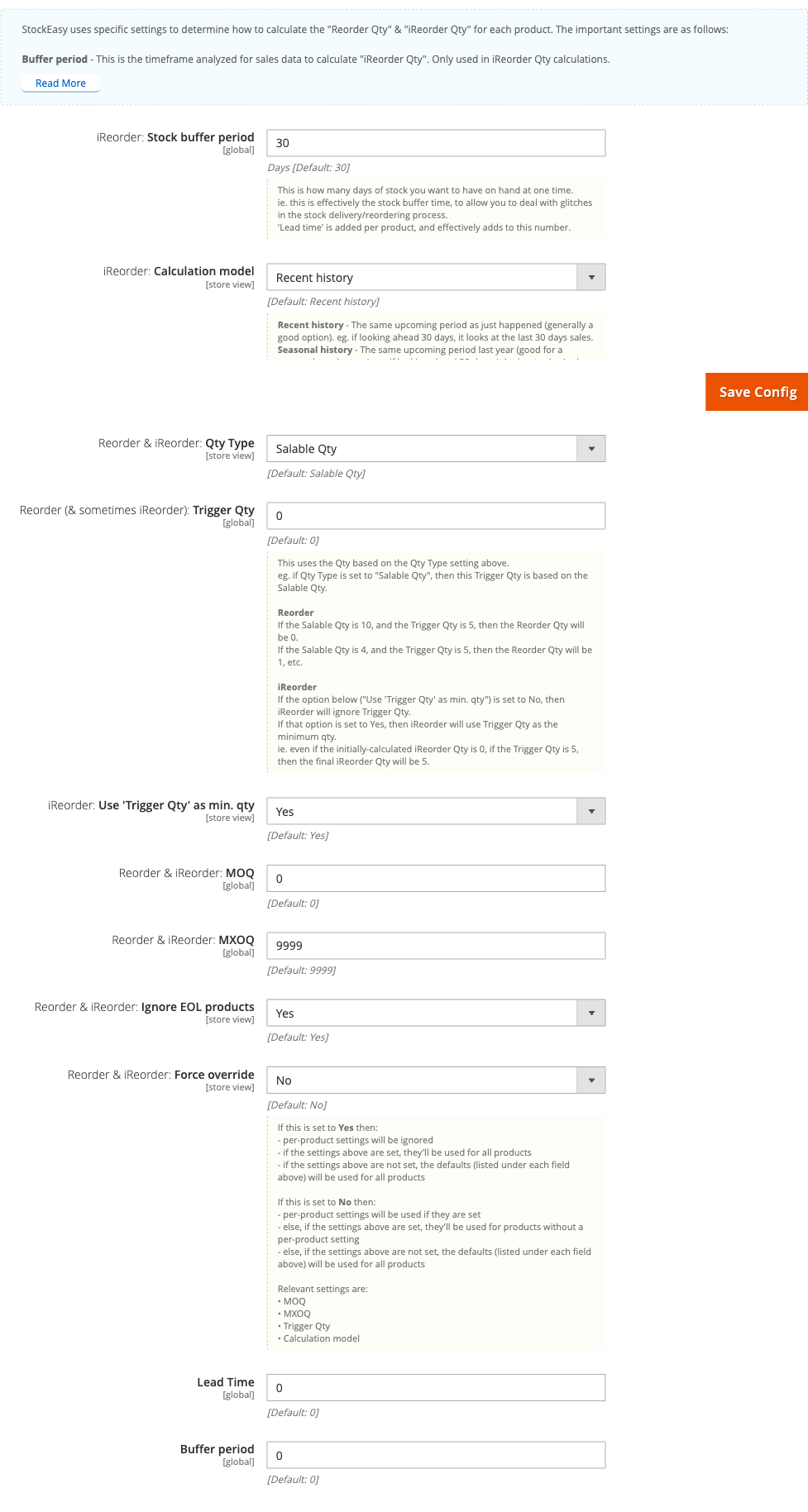
Go to: Stores > Configuration > Moogento > StockEasy > Reorder & iReorder: Defaults
-
Set:
- iReorder: Stock buffer period = the number of days of stock you want on hand at all times (e.g.
30) - iReorder: Calculation model =
Recent historyfor most stores;Seasonal historyif your sales are heavily seasonal - Reorder & iReorder: Qty Type =
Salable Qtyif you want to factor in reservations;Stock Qtyfor raw warehouse count - Reorder (& sometimes iReorder): Trigger Qty = the stock level below which a Reorder Qty is generated (e.g.
5) - iReorder: Use 'Trigger Qty' as min. qty =
Yesto enforce Trigger Qty as the floor for iReorder results - Reorder & iReorder: MOQ = your supplier's minimum order quantity (e.g.
12) - Reorder & iReorder: MXOQ = the maximum you'd ever order in one go (e.g.
500) - Reorder & iReorder: Ignore EOL products =
Yesto skip discontinued lines
- iReorder: Stock buffer period = the number of days of stock you want on hand at all times (e.g.
-
Save config
Notes
- Per-product Lead Time and Buffer Period values add to the global buffer - they do not replace it.
- Set Force override to
Yesonly if you want these global settings to take precedence over any per-product settings already saved. - iReorder requires at least one night of cron runs to populate velocity data. If iReorder shows 0 immediately after install, that is expected - values appear after the nightly
moogento_stockeasy_collect_products_data_per_dayjob runs.
Configure automatic CSV import from a supplier feed (Pro)
If your supplier emails or FTPs a stock CSV on a regular schedule, you can configure StockEasy to pick it up and apply it automatically.
How to set it up
-
First, map your supplier's column headers. Go to: Stores > Configuration > Moogento > StockEasy > Process: CSV
Set:
- CSV column title for: SKU = the exact header in your file (e.g.
sku,Item Code) - CSV column title for: Qty = e.g.
stock_qty,OnHand - CSV column title for: Operation type = the header of the column that says
set,add, orsubtract(leave blank if you always want to set qty) - Map any other columns your feed includes: Cost, Price, Lead time, MOQ, MXOQ, Trigger Qty, Cross-sell SKUs, EOL
- CSV column title for: SKU = the exact header in your file (e.g.
-
Save config.
-
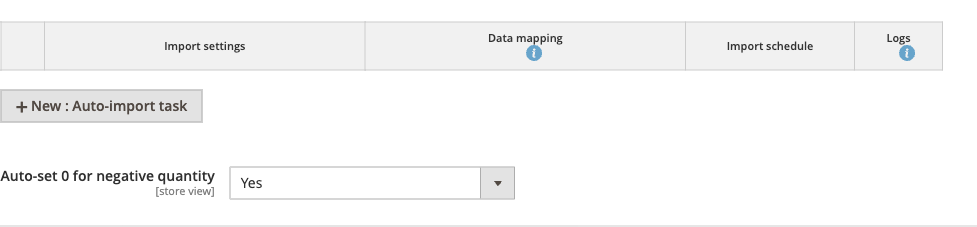
Now set up the schedule. Go to: Stores > Configuration > Moogento > StockEasy > Schedule: Auto-Imports
In the scheduler UI, add an entry with the file path or URL, frequency, and source (for MSI stores).
-
Set Auto-set 0 for negative quantity =
Yesif your supplier feed can contain negative values you want to treat as zero. -
Save config.
Notes
- An empty schedule means no automatic jobs run. Re-saving the config after adding a schedule entry normalises the stored JSON.
- For very large files (tens of thousands of rows), use the CLI command
php bin/magento moogento:stockeasy:fast-csv-importfor a direct batch import that bypasses the queue. - View the result of every import run at Moogento > StockEasy > Import Log.
Schedule automated low-stock email reports
StockEasy can email a low-stock or back-in-stock report to your buyer or warehouse manager without any manual action. This feature requires a Pro Plan.
How to set it up
-
Go to: Stores > Configuration > Moogento > StockEasy > Schedule: Auto-Emailed CSVs & PDFs
-
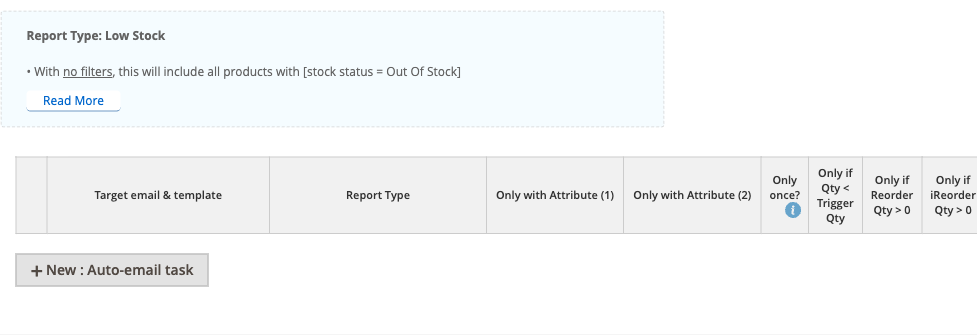
In the report scheduler, add an entry and set:
- Report type (Low Stock, Inventory Changes, In Stock, or Default)
- Recipient email address(es)
- Schedule (hourly, daily, weekly)
- Filters: Only if Qty < Trigger Qty, Only if Reorder Qty > 0, Only if Status = Enabled, Only OOS, Ignore EOL
-
Save config.
Notes
- Each report entry has its own filter settings independent of the global config.
- Only once? prevents the same product appearing in every report until its stock is replenished - useful for low-stock alerts you want to send once per stockout event.
- The report cron (
moogento_stockeasy_send_reports) runs every hour. The first send will occur at the next scheduled hour boundary.
Features reference
Products Page Columns
Stores > Configuration > Moogento > StockEasy > Products Page: Columns
Lets you choose which data columns appear in the enhanced Catalog > Products grid. Available columns include Qty, Salable Qty, Reorder Qty, iReorder Qty, Trigger Qty, MOQ, MXOQ, EDT (Estimated Days Till stockout), EDX, Lead Time Days, Buffer Period, Sold, iVelocity, Cost, Price, multi-store price, Manage Stock, Status, Visibility, Category, Type, Thumbnail, Qty Refunded, Import Log Status, EOL, and Image Status.
Reorder Qty and EDX columns require Growth or Pro. The Image Status column requires Growth or Pro. Velocity, EDT, iReorder, lead-time forecasts and advanced analytics columns require Pro.
Enable Uses: StockEasy grid design in the General group to apply the optimised Products page layout that makes this data easier to read.
Config path: moogento_stockeasy/grid/column
Image Status Column
Stores > Configuration > Moogento > StockEasy > Products Page: Columns
The Image Status column shows a 3-dot indicator on each product row in Catalog > Products. Each dot represents one image role: Base image, Small image, and Thumbnail. A filled dot means the role is assigned; an empty dot means it is unset. This lets you spot products with missing images at a glance without opening each product.
On Pro Plan, the column gains a filter so you can search for products with specific image-role states. Pro Plan also adds:
- A mass action to auto-assign images for up to 200 selected products at once
- A per-row action to auto-assign images for a single product
- A right-click context menu with quick image role assignment
Config path: moogento_stockeasy/grid/column
Export Format: CSVs and PDFs
Stores > Configuration > Moogento > StockEasy > Format: Auto-Emailed & Manually-Generated CSVs & PDFs
Controls the fields, sort order, and product attributes included in both auto-emailed reports and manually triggered exports from the product grid.
- Included fields: In CSV report - pick which data fields appear in exported CSVs
- Sort CSV by / CSV Sort direction - default sort applied to all CSV exports
- Add product attributes to CSV - append any product attribute as an extra column
- Fields to include in PDF report - same choices for the PDF output
- Sort PDF by / PDF Sort direction - default sort for PDF exports
- Add product attributes to PDF - append any product attribute as an extra column in the PDF
- Total Fields to include in PDF report - column totals shown in the PDF footer
Config path: moogento_stockeasy/export/
Filter: Manually-Generated CSVs and PDFs
Stores > Configuration > Moogento > StockEasy > Filter: Manually-Generated CSVs & PDFs
- Filter by: EOL attribute - when set to
Yes, products marked as End-of-Life are excluded from any CSV or PDF you generate manually from the product grid. Auto-emailed reports have their own per-schedule EOL filter.
Config path: moogento_stockeasy/attributes/eol
Barcode Scanning
Stores > Configuration > Moogento > StockEasy > Process: Scan
Pro Plan feature. The barcode scanner lets admin users update stock quantities using a camera or handheld scanner, without typing. Navigate to Moogento > StockEasy > Import Log to see the scan history (each scan is logged as an import operation).
Configuration:
- Which product attribute are we scanning? - default is SKU; change to barcode, EAN, or any product attribute
- Scan history size? - how many previously-scanned items to show on screen (default: 10)
- Show additional attribute - display one extra product attribute alongside the scanned item for a visual double-check
- Stock qty barcode key - download a printable barcode sheet for entering numeric quantities without a keyboard, useful when using a handheld scanner
Config path: moogento_stockeasy/scan/
Pre-Process: Product Data (Manual Calculation)
Stores > Configuration > Moogento > StockEasy > Pre-Process: Product Data
The Manual button triggers iReorder calculations for up to 5,000 products immediately, without waiting for the scheduled cron. Use this after changing global defaults or after a bulk import to see updated reorder quantities right away.
Config path: moogento_stockeasy/manual_calc/calc_now
Advanced configuration
Per-product Lead Time and Buffer Period
What it does
Each product can carry its own Lead Time and Buffer Period values, which are added on top of the global defaults when calculating iReorder Qty. This lets you account for slow-moving or long-lead products without changing global settings.
Per-product fields are edited directly in the product edit form under the StockEasy tab, not in the configuration section.
Setup
- Open a product in Catalog > Products.
- Find the StockEasy product tab.
- Set Lead Time Days and/or Buffer Period for that product.
- Save the product.
Notes
- If Force override is set to
Yesin Stores > Configuration > Moogento > StockEasy > Reorder & iReorder: Defaults, per-product settings are ignored and global values apply to all products. - Leave per-product fields blank to inherit the global defaults.
MSI source mapping for CSV imports
What it does
When Magento MSI is active, you can include a Stock source column in your import CSV to direct quantity updates to a specific warehouse source. This allows a single CSV to update multiple sources simultaneously.
Setup
-
Go to: Stores > Configuration > Moogento > StockEasy > Process: CSV
-
Set CSV column title for: Stock source to the header in your CSV that contains the source code (e.g.
warehouse,source_code). -
Ensure the source codes in your CSV match exactly the source codes configured in Inventory > Sources.
Notes
- Importing to a non-existent source code will skip those rows silently; check the Import Log for skip counts.
- Auto-remove from Reserved Stock (General group, Pro Plan) clears MSI reservations on CSV import - useful when an external system is the authoritative stock source and you want salable qty to equal the imported qty immediately.
Auto-set stock status on quantity changes
What it does
Two Pro Plan settings in the General group keep Magento's stock status in sync automatically when you change quantities via the grid, CSV, or scanner - without needing to manually set "In Stock" or "Out of Stock".
Setup
-
Go to: Stores > Configuration > Moogento > StockEasy > General
-
Set:
- Auto-set in-stock: When qty becomes positive =
Yes- marks a product as In Stock as soon as its qty goes above zero - Auto-set out-of-stock: When configurable product has no children with Qty > 0 =
Yes- marks a configurable product Out of Stock when all its variants are at zero
- Auto-set in-stock: When qty becomes positive =
-
Save config.
Notes
- These settings only apply to quantity changes made through StockEasy (grid edit, CSV import, barcode scan). They do not retroactively update products whose qty was changed through other Magento tools.
- Both settings require a Pro Plan license.
StockEasy Pro (upgrade)
Pro image-management features are included in StockEasy and activated automatically when a Pro plan license is detected. No separate module installation is required. They add four enhancements to the Image Status column in Catalog > Products:
- Image Status filter - a select filter with eight options (All 3 roles set, No roles set, Base image set/not set, Small image set/not set, Thumbnail set/not set) so you can isolate products with incomplete image roles at a glance.
- Mass action: Auto-assign images - select up to 200 products and choose "Auto-assign images" from the mass action menu. The module assigns the first eligible gallery image to each missing role (Base, Small, Thumbnail) and reports how many products were updated, unchanged, or skipped.
- Row action: Auto-assign images - a per-row action that auto-assigns image roles for a single product without a page reload.
- Right-click context menu - right-clicking a thumbnail in the Products grid opens a role-selection menu (Set as Base image, Set as Small image, Set as Thumbnail) so you can assign a specific gallery image to a specific role in one click.
All Pro actions require a StockEasy Pro plan license. Non-Pro requests are rejected before any writes occur. There is no separate configuration page for these features - all settings are inherited from the base StockEasy module.
Tips & best practices
- Run a manual calculation (Pre-Process: Product Data > Manual) after changing global reorder defaults to see updated iReorder quantities immediately without waiting for the nightly cron.
- Use Seasonal history as the iReorder calculation model if your store has strong seasonal demand peaks - it uses the same period last year rather than the most recent period.
- Keep Keep import log records (General group) set to at least 2-3 days during initial CSV import setup. Extend it to 7-14 days if you want a fuller audit trail. Logs are pruned nightly.
- When importing from a supplier CSV for the first time, run a small test file (10-20 rows) manually through Moogento > StockEasy > Import and review the Import Log before enabling automated imports.
- Set a low Trigger Qty (e.g.
5) as a safety net for fast-moving products. Even if iReorder is your primary signal, Reorder Qty provides a backup alert when stock is critically low. - Use Only once? in auto-emailed report filters to prevent the same low-stock product flooding daily reports - it only reappears after being restocked.
- For large catalogs, the CLI fast-import (
php bin/magento moogento:stockeasy:fast-csv-import) is significantly faster than the web-based import for files over a few thousand rows. - Use the Image Status column to audit your catalog for products with missing image roles before a sale or promotional push.
Troubleshooting
iReorder quantities show 0 for all products
All iReorder values appear as zero in the product grid after enabling the module.
- Cause: Velocity data has not yet been collected. iReorder requires daily sales history stored in
moo_stockeasy_ivelocity_data_days, which is populated by the nightlymoogento_stockeasy_collect_products_data_per_daycron. - Check: Confirm Magento cron is running:
bin/magento cron:status. Then check whether the tablemoo_stockeasy_ivelocity_data_dayshas any rows. - Resolution: Let the cron run for at least one full day. For an immediate check, use the Manual button under Stores > Configuration > Moogento > StockEasy > Pre-Process: Product Data to queue up to 5,000 products without waiting.
Auto-import schedule is not running
CSV imports were configured in Schedule: Auto-Imports but no imports are executing.
- Cause: An empty or malformed schedule JSON is stored in
moogento_stockeasy/reports/import_options. This can happen if the schedule was partially saved during a previous session. - Check: Navigate to Stores > Configuration > Moogento > StockEasy > Schedule: Auto-Imports and inspect whether any schedule entries are visible.
- Resolution: Re-save the Auto-Imports configuration page. A re-save normalises any legacy malformed value and writes a valid JSON schedule. Also confirm Magento cron is active - the import cron (
moogento_stockeasy_import) runs every 5 minutes.
Quantity mismatch between StockEasy columns and Magento inventory
The Qty or Salable Qty shown in the StockEasy grid does not match what Magento shows elsewhere.
- Cause: Possible source mapping mismatch (MSI), timezone differences in velocity calculations, or a pending stock index.
- Check: If MSI is active, verify the source codes in your CSV or per-product settings match the codes in Inventory > Sources exactly. Run
bin/magento indexer:reindex cataloginventory_stockto refresh the stock index. - Resolution: After reindexing, run
bin/magento cache:cleanand reload the product grid. If the mismatch persists in MSI mode, check the source-code mappings against the actual source codes configured in Magento.
Barcode scanner camera does not initialise
The camera-based scanner shows a blank panel or a permission prompt that does not resolve.
- Cause: Browser camera permissions are blocked, or the admin is being accessed over HTTP instead of HTTPS. Camera APIs require a secure context.
- Check: Confirm the admin URL uses
https://. Open browser dev tools and check for aNotAllowedErrororNotFoundErrorin the JavaScript console. - Resolution: Ensure the admin is served over HTTPS. In the browser, navigate to site settings and explicitly allow camera access for the admin domain. If testing on a local dev environment without a certificate, use a hardware barcode scanner (USB HID) instead of the camera.
Grid columns are missing after enabling the module
Expected StockEasy columns (Qty, iReorder, EDT, etc.) do not appear in the Catalog > Products grid.
- Cause: UI component cache is stale, or column visibility was not saved after configuration.
- Check: Go to Stores > Configuration > Moogento > StockEasy > Products Page: Columns and confirm the desired columns are selected.
- Resolution: Save the column config, then run
php bin/magento cache:clean layout block_html. Reload the product grid. If columns still do not appear, runphp bin/magento setup:di:compileandphp bin/magento cache:clean.
Malware scanner flags Helper/Moo.php
- Cause: Your host's malware scanner (often Imunify360 on cPanel hosting) heuristically flags the encoded license-check files that ship inside every paid Moogento extension. The files are genuine and unchanged - the encoding protects the license check from tampering.
- Resolution: Add the files to the scanner's ignore list so the warnings stop, and restore any file the scanner already quarantined. Both steps, plus how to verify the files are byte-for-byte what we shipped, are covered in the license file protection guide.
FAQs
How does StockEasy's Magento 2 stock management and reorder automation work?
Open Catalog > Products - StockEasy adds a Reorder Qty column that shows a non-zero value for any product whose stock has fallen below your configured Trigger Qty. You can also filter the grid by the Reorder or iReorder columns to list only products that need attention. See Common setups - Set up intelligent reorder calculations for how to configure the thresholds.
What is the difference between Reorder Qty and iReorder Qty?
Reorder Qty is a simple threshold trigger: it generates a suggested quantity when stock falls below the Trigger Qty. iReorder Qty (intelligent reorder) uses historical sales velocity, your supplier's lead time, and a safety buffer to project exactly how much to order for the period ahead. iReorder is more accurate for stores with consistent or seasonal demand; Reorder is a useful fallback safety net.
How do I import stock quantities from a CSV file?
Go to Moogento > StockEasy > Import (or use the CSV import section accessible from the product grid) to upload a CSV manually, or, with Pro, configure a scheduled auto-import under Stores > Configuration > Moogento > StockEasy > Schedule: Auto-Imports. First map your CSV column headers to StockEasy fields under the Process: CSV config group so the module knows which column contains SKU, Qty, and any other data you want to update.
How do I stop StockEasy from emailing low-stock reports every day for the same products?
Enable Only once? in the filter settings for that report entry under Stores > Configuration > Moogento > StockEasy > Schedule: Auto-Emailed CSVs & PDFs. With this on, a product is only included once per stockout event - it reappears in the report only after its stock is replenished and drops again.
Does StockEasy work with Magento Multi-Source Inventory (MSI)?
Yes, StockEasy supports MSI. The product grid can show per-source quantities, CSV imports can target individual sources using a source-code column, and iReorder calculations respect salable quantity across all sources. On single-source stores it falls back to standard inventory automatically.
Is StockEasy compatible with Hyvä, Luma, and Porto themes?
StockEasy is an admin-only module - all its functionality lives in the Magento backend (product grid, config pages, import/export, barcode scanner, email reports). There is no storefront output, so it is fully compatible with Hyvä, Luma, Porto, and any other frontend theme.
What happens if I disable StockEasy?
Disabling StockEasy stops all cron jobs (iReorder calculations, stock history snapshots, auto-imports, auto-emailed reports) and removes the enhanced columns from the product grid. The Magento product catalog and native inventory data are untouched. Re-enabling the module and running php bin/magento cache:clean restores all features; velocity data accumulated before disabling is preserved in the database.
How much does StockEasy cost and which plan do I need?
StockEasy has three plans - Seed, Growth, and Pro - available at https://www.moogento.com. Seed covers the base grid columns, inline quantity, price and cost editing, and MSI source-quantity visibility. Growth adds CSV import/export, PDF export, basic reorder quantity and EDX. Pro adds velocity, EDT, sales-based reorder calculations, barcode scanning, scheduled CSV auto-import and scheduled stock reports. Check your current plan level under Stores > Configuration > Moogento > License.
Why is iReorder showing 0 when I first install StockEasy?
iReorder needs at least one day of sales velocity data before it can calculate a meaningful quantity. The nightly cron (moogento_stockeasy_collect_products_data_per_day) collects this data; once it has run, the hourly iReorder cron will populate values. Use the Manual button under Stores > Configuration > Moogento > StockEasy > Pre-Process: Product Data to trigger an immediate calculation once data is available.
How do I manually drain the StockEasy stock recalculation queue?
Run php bin/magento queue:consumers:start moogento_stockeasy_stock_recalculation --max-messages=5000 --single-thread. The consumer name matches the queue name so existing stock recalculation messages drain through the normal handler. If your server supervisor or cron_consumers_runner/consumers allow-list still uses the pre-2.9.38 name moogento_stockeasy_stock_recalculation_consumer, update it to the queue name.
Can I update stock for multiple warehouse locations at once?
Yes - if MSI is enabled, include a Stock source column in your import CSV that matches the source codes configured in Inventory > Sources. One CSV can update multiple sources in a single import run. Configure the column header mapping under Stores > Configuration > Moogento > StockEasy > Process: CSV.
What does upgrading to StockEasy Pro add?
StockEasy Pro adds sales velocity, EDT, sales-based reorder calculations, barcode scanning, scheduled CSV auto-import and scheduled stock reports. It also unlocks advanced Image Status tooling in the Products grid: a select filter to isolate products with missing image roles, a mass action to auto-assign roles for up to 200 products at once, a per-row auto-assign action, and a right-click context menu for assigning a specific gallery image to a specific role (Base, Small, or Thumbnail) without opening the product.
What is the Image Status column?
The Image Status column shows a 3-dot indicator per product in Catalog > Products, where each dot represents an image role (Base, Small, Thumbnail). A filled dot means the role is assigned; an empty dot means it is missing. This makes it easy to spot products with incomplete image setups without opening each record individually. Filtering and bulk auto-assignment are available on Pro Plan.
Related guides
- ExportEasy - generate and schedule advanced product data exports including stock fields; complements StockEasy's built-in CSV/PDF reports for more complex export layouts
- PickPack - relies on accurate stock levels that StockEasy maintains; iReorder and real-time quantity updates help ensure pick lists reflect actual warehouse state
Need help?
- moo@moogento.com
- Include:
- Magento version
- Module name
- What you're trying to do