

This page is part of the ProductContent AI guide. Start there for what the extension does, installation and the frequently asked questions.
Attribute Rules
Define which product attributes the AI should audit, generate, or flag. Each rule targets a specific attribute and sets one of four actions: check whether the value meets quality standards, generate new content for the attribute, set a fixed value, or flag the attribute for manual editing.
- Navigate to ProductContent AI > Config. > Attribute rules (
moogento_productcontent/attributerules/index) to manage rules. - Click Load Default Rules in the grid toolbar to populate a standard set of rules covering the most common product attributes. A fresh install already seeds these; the button adds back any you have since removed. From the command line the same thing is
php bin/magento moogento:productcontent:attribute-rules:seed.
Specs list
Each draft run also proposes a Specs list for the product: short label and value pairs such as Waterproof rating: 10K/10K, Insulation: 60 g recycled polyfill, Seams: Fully sealed or Upper: Goat leather. This is the recommended way to fill the Specs tab, and it needs no new attributes.
- The list is built only from what the product already states: its name and descriptions, its accepted research, values already found for its attribute findings, and its real attribute values. Nothing is invented. Every value has to be traceable to one of those sources, using the same evidence check as attribute suggestions, so a value the writer cannot quote is left out. When a product has a real attribute for a spec, the attribute's value is used, so the list never contradicts the catalogue.
- The list leaves out claims that go stale or are not specifications of the product: season, release, model year, collection, launch, availability, price and stock, and values that are only a season or year such as Winter 2026. It never repeats a spec under a second label (Color and Filter Color with the same value become one row, the catalogue attribute's), a rating whose value only repeats its name (Waterproof rating: Waterproof) is dropped, and clothing and soft goods leave out retailer package sizes and shipping weights. Lists already published have season claims, repeated colours and package dimensions hidden in the Specs tab without a re-draft.
- The list arrives in review under Copy as a readable label and value list, with the usual include tickbox. To change it, edit it as lines in the form Label: value, one spec per line. A line without a colon, text with HTML, or the same spec twice is refused with a message saying which line to fix. Up to 40 specs are kept.
- Publishing writes the list to the product's Specs (ProductContent) attribute (
pcai_specs), and Revert to previous restores the list it replaced, like any other copy field. - A list that uses research facts is flagged in review and is held out of Publish without review, and open fact-check findings on the product hold it too.
- Fields to generate includes Specs list for new installs. If you saved that setting before this version, add Specs list to it to start drafting lists.
- A configurable product's list shows on its own page, and variants without a list of their own show their main product's list.
Automatic spec attributes and Created attributes
Automatic setup is optional and off by default. The specs list above already fills the Specs tab, so turn automatic setup on only if you want real catalogue attributes, for example to filter by them in layered navigation or to compare products.
By default a missing spec attribute shows a Set up button and nothing is created until you confirm. If you would rather not click each time, switch on automatic setup.
- Go to Stores > Configuration > ProductContent AI, open Attributes: automatic setup and set Missing spec attributes to Create missing spec attributes automatically. Automatic setup acts as the admin who saved the setting, so save it while signed in as the person who should own the changes. If the setting was changed from the command line and no admin was recorded, automatic setup logs a warning and does nothing until someone saves it from the admin.
- After a draft finds a spec the catalogue has no attribute for (for example a waterproof rating, breathability, insulation, seam sealing, a hood or a warranty on a jacket), the attribute is created, added to the product's attribute set and shown on the product page. Its value then waits in the normal attribute review, where you accept, edit or reject it. Nothing is published without review unless Publish without review already allows it. The first value for a new attribute is added as a choice when it is proposed, so a rejected value can leave an unused choice behind.
- The attribute is a single-choice dropdown that applies to the whole store (global scope). Attributes that already exist but are not in the product's attribute set are added to the set. If an existing attribute has too few choices to suggest from, it is only added to the set.
- Give variants the same spec attributes (on by default) adds the attribute to every attribute set used by a configurable product's variants and parents, so all of them can hold the value. When you apply a value to a product in review, it is also copied to its variants and parents. An attribute that shoppers choose between on the configurable product, such as size or colour, is never copied.
Open ProductContent AI > Config. > Created attributes (or use the Created attributes button on the Attribute Rules page) to see every attribute made by Set up or by automatic setup: its label and code, input type, attribute sets, the product it was created from, who created it, when, and its status. In review, a short note on the attribute section tells you when attributes created for that product are waiting for values.
To undo one, choose Remove on its row, or tick several and choose Remove selected, then confirm. Removing deletes the attribute and its values on every product, takes it out of the suggestion settings and removes its attribute rule. It refuses attributes that are not ordinary custom attributes and attributes used as a variant option on a configurable product, and says why. If the attribute was already deleted elsewhere, the row shows Already gone and Remove just clears it from the list. Removing needs the Created Attributes permission.
Template Studio
Product Page Templates let you define which sections of a product page to generate, how long each section should be, and what HTML policy applies. Templates can be mapped to categories so every product in that category uses the right template automatically.
- Navigate to ProductContent AI > Config. > Templates (
moogento_productcontent/templates/index) to create and manage templates. - Use the Generate Template split button on the Templates grid to let the AI infer a template structure from existing well-written product pages, or to start from a maintained Best-practice template preset (no AI call, no cost). Existing templates offer a Regenerate from… menu.
- Template selection follows your product pin, merchant attribute-set/type rules, category mappings, catalogue assessment rules, store default, then the built-in fallback.
Choose how to start a template
-
Open ProductContent AI > Config. > Templates and use the Generate Template menu.
-
Choose the starting point that matches your task. The Generate Template menu offers the first four; Create with AI on the new-template form also offers product and category starts:
Starting point What to provide What you review Best-practice template A maintained layout or tone preset Ready-made sections, with no AI call or cost Learn from this store A store view and a sample scope, such as specific products The structure and writing style of up to five catalogue pages Learn from another website A public website address Structure and presentation from up to three public product pages Learn from a product page One product page address A template based on that page's structure From one product A catalogue product SKU or ID and optional direction Suggested sections, design and writing style for that kind of product From catalogue categories All categories or selected categories Proposed groups before you queue inactive templates -
For a learning source, choose Store view to learn from, enter any Optional direction, and click Analyse this source. Review What will be sent, the budget information and any limited-evidence warning. If you accept limited evidence, tick Continue with this limited evidence.
-
Click Write the instructions, then review the generated sections and Writing Style. Learning studies the source's structure and presentation; it does not copy another store's product descriptions into yours.
-
Set a name, Best for, scope and category assignments. Save the template when you are happy with it. A category-generated template starts inactive: open and activate it before it can affect products.
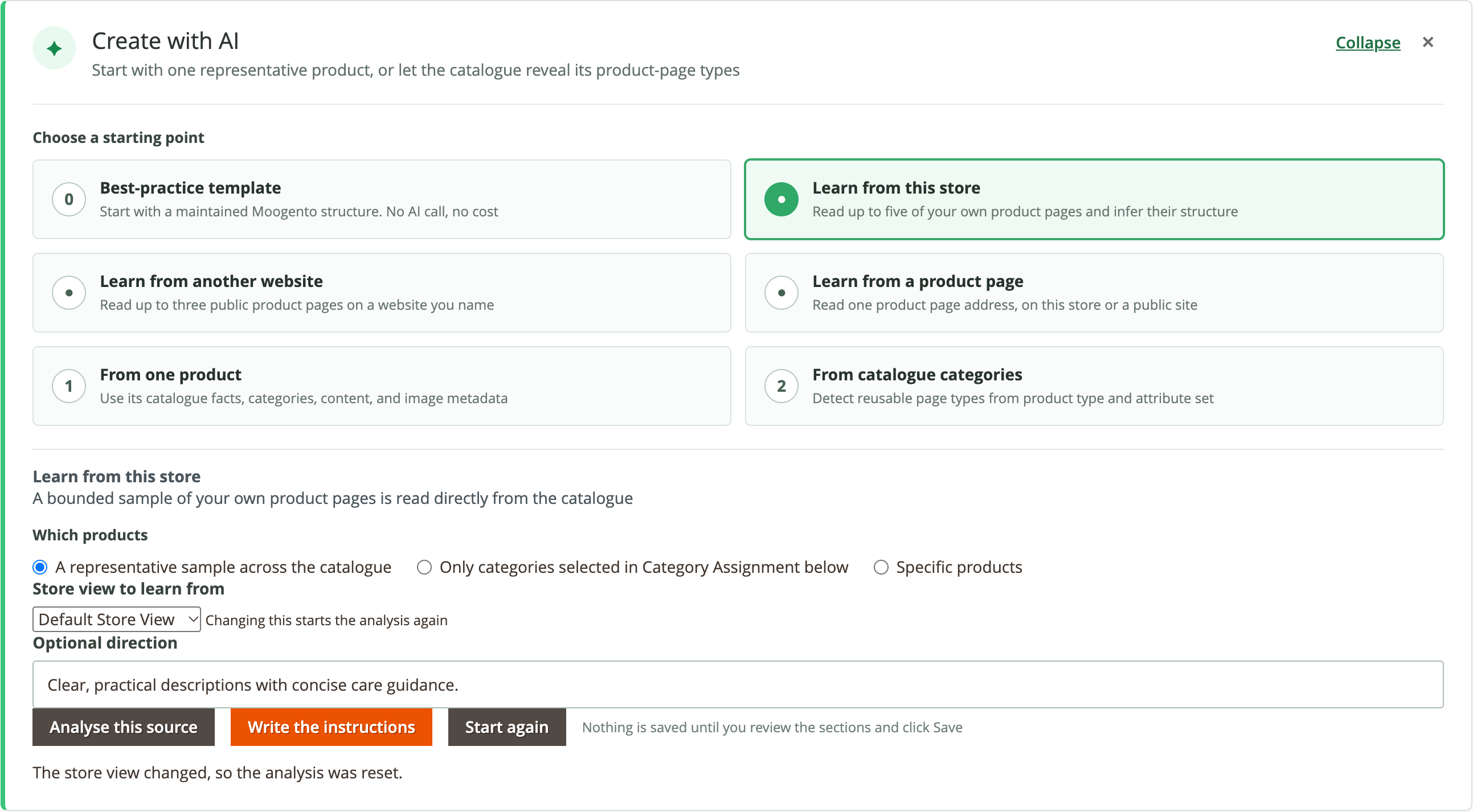
A page on your own store is read from the catalogue. External pages must be public and accessible to crawlers. For external learning, bounded excerpts are sent to your configured AI provider. A blocked or unreadable page needs another source; the wizard does not bypass access restrictions.
To revise an existing template, open it and use Regenerate from…. The Best-practice template option opens its preset submenu. Review the replacement before saving. Saving a template does not rewrite existing drafts: regenerate product copy to create drafts using the changed instructions.
Design the sections inside a product description
Templates control the content inside the product details, while your theme controls the surrounding product page. Use content blocks when you want an ordered outline, such as an introduction followed by materials and care.
- Open a template and expand a description, short description or FAQ section.
- Under Content blocks (optional), click Add content block to build the outline yourself, or describe it in Design and click Turn into blocks. For example: "An opening paragraph, followed by two H3 sections covering construction and care when those facts are available."
- Review each block's format, heading style and wording. Choose fixed heading text or a heading written for each product. Set paragraph ranges for prose and conditions for blocks that need particular product facts.
- Keep at least one unconditional block. A short description must begin with a Paragraphs block with Always include this block ticked. An FAQ section takes exactly one block in total, and it must always be included. Choose Safe HTML or Rich HTML for a section with blocks, and do not combine blocks with a heading pattern. A section supports up to eight blocks, while Design accepts up to 1,000 characters.
- Save, generate one representative product, and review the result before using the template across a category.
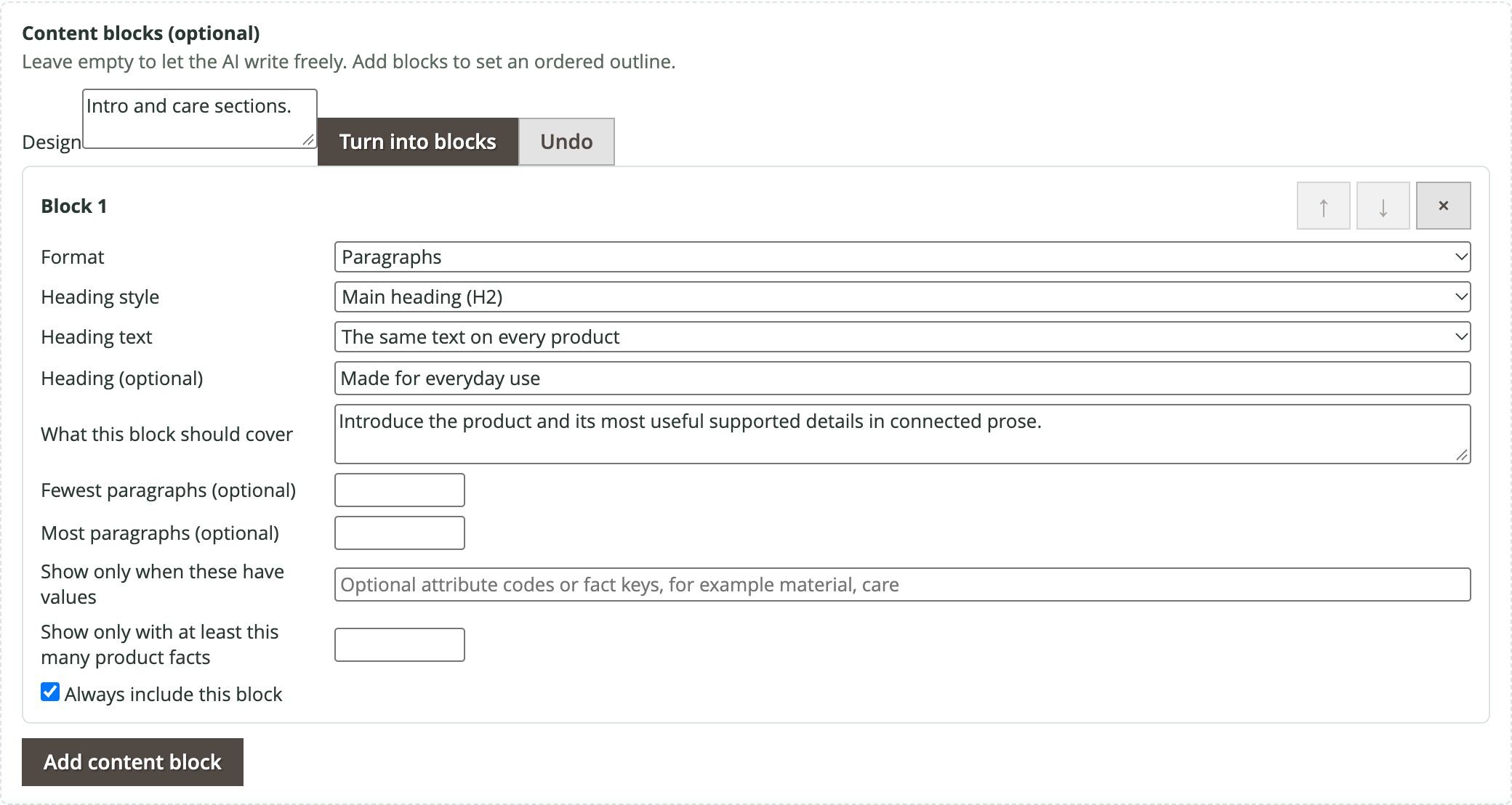
Apply a best-practice layout gives an older template a maintained starting outline. Review the chosen preset before saving. Turn into blocks uses AI; adding blocks yourself and applying a maintained preset do not. Conditional blocks without enough facts are omitted. Blocks are available for description, short description and FAQ; other fields keep their own section controls. Generated structured copy uses the same review and publishing workflow as other drafts. Revisions of an existing draft retain that draft's template version.
Assign a template by attribute set or product type
Use this when products share a page structure even though they sit in different categories.
- Open the template and expand Attribute Set and Product Type Assignment.
- Choose Attribute Sets, Product Types, or both. A product must match both lists when you fill both. An empty list matches any value for that list; leave both empty to create no rule.
- Check Applies To, choose the template's store scope, and save it as active.
- Open a representative product in that store view and check its selected template before generating.
A product's own template pin wins first. Your attribute-set/type rules then take precedence over category mappings, followed by catalogue assessment rules, the store default and the built-in fallback. An inactive template does not take effect. Recheck assignments when changing the template's scope.
Storefront tab labels
The Storefront section of the template form sets the names of the product page tabs for every product that uses the template:
- Description tab label, More information tab label, Specs tab label and FAQ tab label. For example, type DETAILS and FAQ to match a theme whose Reviews tab is in capitals.
- Labels are shown exactly as you type them, apart from extra spaces, up to 40 characters. A label cannot contain
<or>: the save stops with a message and the form keeps what you typed so you can correct it. - Leave a label empty to keep your theme's own label. The Reviews tab, and any other tab your theme adds, stays exactly as your theme shows it.
- Changing labels never marks existing drafts as out of date.
- To rename the Details tab on every product, without a template, set Details tab label in Stores > Configuration > Moogento > ProductContent AI > Storefront: Product tabs. It is shown exactly as typed, the tab still only appears on products with a description, and a template's Description tab label wins for the products that template covers. Leave it empty to keep your theme's label.
- Without a typed label, the tabs follow your theme's casing: if every tab your theme adds itself, such as REVIEWS, is in capitals, the Details, More Information, Specs, FAQ and review summary tabs are shown in capitals too. Mixed-case themes keep the labels as written.
- To turn this off, set Match the theme's tab casing to No in Stores > Configuration > Moogento > ProductContent AI > Storefront: Product tabs.
Templates control writing, images and the layout inside the content, while your theme keeps the surrounding storefront design. Your theme keeps its own product page layout and styling, including Hyvä, Porto and Luma child themes, and shows the labels as its section titles. On a store that uses Magento's standard Luma product details, the tabs keep Luma's look with your labels.
Cached product pages refresh by themselves when you save or delete a template, pin or clear a product's template, or accept a template suggestion, so new labels appear without clearing the cache. Pages that were already cached before you installed this version update after your next full page cache clean. A label saved in Storefront: Product tabs appears once you refresh the page cache when Magento asks you to. Those labels follow the same rules as template labels: up to 40 characters, with no < or >.
Specs tab
Turn on Show a Specs tab on product pages in Stores > Configuration > Moogento > ProductContent AI > Storefront: Product tabs to add a Specs tab beside Details and FAQ on product pages. The tab is on by default; turn the setting off to hide it. It lists the product's specifications, each as a label and value, with multi-value attributes shown as pills. Every spec carries a small icon: a matching one for specs it recognises such as material, waterproofing, insulation, weight, warranty, brand, colour, size and breathability, and a generic tag for the rest. A product with no specs shows no tab.
The published specs list (see Specs list above) is the standard source, so the tab fills even when your catalogue has no spec attributes. Real attributes are optional: when a product has spec attributes, they are listed first and win where the list gives the same spec, and the rest of the list follows.
- Attributes to list: leave empty to list every spec-style attribute automatically. That means the attributes you already show on the storefront, use in layered navigation or in compare, plus weight. Pick attributes to show exactly those. The copy fields ProductContent AI writes and system attributes are never listed, and a yes/no attribute set to No is left out. The published specs list is shown after these attributes either way.
- Specs tab label: the tab name, Specs by default, shown exactly as typed. Left as Specs, it follows your theme's tab casing. A template's Specs tab label overrides it for the products the template covers.
- Hide these attributes: attribute codes that are never shown, one per line, even when they would be listed automatically or are picked in Attributes to list. Example:
garment_type. - Hide these values: one
attribute_code:valueper line, for examplegarment_type:Pants. A row is dropped only when it holds that value (capitals do not matter), so a pants page does not show "Garment type: Pants" while a jacket page still does. A row with several values is dropped when any of them matches. Both hide options apply to the automatic list, to your chosen list and to the published specs list. - Spec groups: one group per line as
Group label: attribute_code, attribute_code. Rows are shown under small group headings, in the order listed, in the same three-column layout (one column on mobile). A group with no rows is not shown. A code listed twice stays in the first group. The default groups are Weather protection, Fit and features, Materials and Care. Clear the field to show one flat list. - Heading for other rows: heading of the last group, which holds rows no group lists. Defaults to "Other details"; leave it empty to show those rows with no heading.
- Replace the More Information tab: on by default, so the same attributes are not listed twice. It only hides More Information on products where the Specs tab has rows; other products keep it. Specs does not list text areas, attributes outside your chosen list, or yes/no values set to No, so set this to No if your More Information tab shows those and you want to keep them.
The tab follows your theme's product details design on Luma, Hyvä and child themes, in the same way as the FAQ tab.
Where the Specs and FAQ are shown
By default the Specs and the FAQ each get their own product tab. You can instead show either one, or both, inside the product details, straight after the description. Shoppers then read the description, the specs and the questions as one page, and search engines and AI assistants find the facts beside the copy they belong to.
Set Where the Specs are shown and Where the FAQ is shown in Stores > Configuration > Moogento > ProductContent AI > Storefront: Product tabs. Each has two choices:
- Own tab (the default): the Specs or FAQ tab, exactly as before.
- Inside product details: the content moves into the Details tab (on Hyvä, the Description section), after the description. The specs come under a Specifications heading, and the FAQ comes after them under an FAQs heading. The two sections can be linked to as
#specsand#faq. These headings stay Specifications and FAQs even when you renamed the Specs or FAQ tab, because the tab labels name tabs only.
Both settings can be set per store view. A page template can choose its own placement for the products it covers: open the template, find Where the Specs are shown and Where the FAQ is shown in its Storefront section, and pick Own tab or Inside product details. Leave them on Use the store setting to follow the configuration.
What stays the same either way:
- Each block appears once on the page. It is never shown both in a tab and inside the details, and a product with no specs or no FAQ shows nothing for it.
- The specs keep their list layout and group headings, and the FAQ keeps its questions and answers. Your theme's styling is used; nothing new is added.
- The FAQ keeps its FAQ structured data (FAQPage), output once.
- The specs are added to the product's structured data as product properties, so search engines read the same specs shoppers see. ProductContent AI adds them to the product data your theme already outputs, and never creates a second product entry. On Luma and Hyvä they join the theme's own product markup. On a theme that writes its own product JSON-LD instead, they are added to that block, and line breaks the theme printed inside its text (for example in a long description) are written the way JSON-LD needs, so the whole block becomes readable to search engines. They are never listed twice. A page with no product structured data at all is left as it is.
- If your theme's product page has no description section, the Specs and FAQ stay in their own tabs so they are never hidden.
Changes show once you refresh the page cache when Magento asks you to.
Suggested template assignments
ProductContent AI can suggest which template each category, subcategory and product should use, so you don't have to map a large catalogue by hand.
- Run
php bin/magento pcai:templates:assess(add--dry-runto preview without saving,--category=IDfor one branch,--sample=Nto change how many products are checked per category). It prints the suggestion tree, how many products were checked, and what the run cost. - It works from the top of the category tree down. When a category's products clearly share one template, its subcategories only get a quick check. Where products differ, it looks deeper, down to single products if needed.
- Review the results under Product Page Templates > Suggested assignments. Nothing changes on your store until you accept a suggestion. Accept applies the ones ready to go; Accept after review also applies the ones marked "Needs review", once you have checked them.
- Templates you chose by hand are never replaced. If the suggestion disagrees with your choice, it is marked "Needs review" so you can take a look.
- Fill in Best for on each template (for example "Insulated ski and snowboard gloves"). It is the single biggest help to getting confident suggestions.
- Settings are under Stores > Configuration > Moogento > ProductContent AI > Rules: Template suggestions. The recommended decision model is TypeSafe Jev, reached through OpenRouter or directly, which reports how sure it is for every suggestion. On the Moogento AI service you need no key: when no Jev or OpenRouter key is saved, Jev runs through the Moogento AI Gateway. You can use your own AI provider instead, but then every suggestion waits for review.
Page title (visible product name)
Page title drafts a clearer visible product name for one store view, built from the facts already in your catalogue (brand, product name, colour, gender and category). It is drafted on every regenerate (untick Page title (visible product name) in Fields to generate to stop it), and no AI credits are used. The draft is never published automatically. It appears in the review screen as "Page title", and the product name changes only when you publish it. The name is written to that store view only, so other store views and the catalogue name are untouched. A run at All Store Views writes the name to the default store view. Use the revert on the draft's history to put the previous name back. Products whose store view name differs from the catalogue name show a "Differs from catalogue name" badge in the workspace list.
To use your own wording, open a template in Template Studio and fill in Name pattern in the Page title card. Leave it empty to use the standard pattern. Tokens: {{brand}}, {{stem}} (the name without brand and colour), {{stem_typed}} (the stem ending in the product type), {{gender}}, {{gender_s}} (for example Men's), {{colour}} and {{attr:code}} for any text or dropdown attribute. Text inside [ ] is dropped when a token inside it is empty, for example {{brand}} {{stem_typed}}[ for {{gender}}][ in {{colour}}]. A pattern with an unknown token is refused when you save the template, and untick Generate this section to switch the section off.