

Overview
SlackCommerce connects your Magento 2 store to Slack so your team receives Magento 2 Slack notifications for the events that matter: new orders, invoices, shipments, credit memos, admin logins, and security events. A built-in queue handles delivery without slowing down storefront requests, and a cron job dispatches batches every minute.
On top of live alerts, the module sends automated daily and weekly sales metrics to a channel of your choice - order count, revenue, product quantity, and average order value. A weekly Monday-morning motivation message rounds out the feature set.
SlackCommerce is free and ships standalone; it does not require a license key.
This module helps you:
- Receive a Slack message the moment an order is placed, invoiced, or shipped - including the payment method used
- Monitor admin security with immediate alerts and daily summaries of failed backend login attempts
- Keep your team informed with automated daily and weekly sales metric reports
- Route different event types to different Slack channels for focused team communication
- Customise notification colors to distinguish order types, security events, and metric reports at a glance
When to use this
Use SlackCommerce when you want to:
- Keep a store operations team updated on order flow without logging into the admin
- Alert your security team in real time when admin login attempts fail
- Track daily and weekly revenue and order volume directly in Slack, without opening a report
- Direct fulfillment notifications to a warehouse channel while routing security alerts to an ops channel
- Give your Monday-morning standup a quick sales pulse before the week kicks off
Magento 2 Slack notifications: key capabilities
SlackCommerce delivers several kinds of Magento 2 Slack notifications straight into your team channels.
- Real-time order notifications - posts to Slack immediately after order placement, invoice creation, shipment, or credit memo
- Payment method in order messages - new-order alerts include the payment method title so your team knows at a glance how each order was paid
- Order status change alerts - notifies your team whenever an order transitions to a new status
- Admin event notifications - alerts on successful admin logins and new backend account creation
- Immediate security alerts - fires the moment a backend login attempt fails, enriched with IP, country, and failure totals
- Daily security summary - aggregated report of failed login attempts across the day
- Metrics notifications - configurable daily and weekly stats messages with order count, revenue, product quantity, and average order value
- Weekly motivation message - automated Monday 8 AM message to start the week with a sales snapshot
- Per-event channel routing - send each event type to its own Slack channel, or funnel everything to a default channel
- Message colorization - assign a hex color to each notification type so categories are instantly recognisable in Slack
Installation
Bought on Adobe Commerce Marketplace? Your order comes with a Moogento account: set your password from the activation email, then follow the steps below with the Composer keys in My Plugins. If the email has not arrived, contact Moogento support.
SlackCommerce installs via Composer. Because the module is free and standalone, no license key is required after installation.
Prefer a hands-off setup? Our team can install and configure the extension for you - see the paid install service.
Step 1: Get your Composer keys from Moogento.com
- Sign in at https://www.moogento.com and open My Plugins in your account menu.
- Find SlackCommerce in the list of plugins you own.
- Generate (or reveal) the Composer access keys for that plugin - a public key and a private key.
- Add your install domain to the key. Each Composer key is tied to a specific domain - if you're installing on
yourstore.com, addyourstore.comto the key's allowed domains. The Composer download will be rejected on any other domain.
If you run staging and production on different domains, add both - separate keys per environment are fine too.
Step 2: Install the module with Composer
From your Magento 2 root directory:
composer require moogento/m2-slackcommerce
When Composer asks for credentials, paste the public key as the username and the private key as the password. They'll be cached in ~/.composer/auth.json for future runs.
Step 3: Enable the module in Magento
php bin/magento setup:upgrade
php bin/magento setup:di:compile
php bin/magento cache:clean
If you run php bin/magento module:status Moogento_Slackcommerce you should see it listed as enabled.
Step 4: Connect your Slack workspace
SlackCommerce is free and does not require a Moogento license key. Proceed directly to setup - see Connect SlackCommerce to your Slack workspace below.
Setup overview
All settings are in:
Stores > Configuration > Moogento > SlackCommerce
You'll mainly work with:
- Slack Connection - webhook URL, default channel, notification icon, and test button
- Event Notifications - enable or disable individual event types, set per-event channels, colors, and payment method display
- Metrics Notifications - daily and weekly stats reports, delivery hour, and which metrics to include
- Security Notifications - immediate alerts and daily summaries for failed backend login attempts
Common setups
Connect SlackCommerce to your Slack workspace
Before any notifications can be sent, SlackCommerce needs a Slack incoming webhook URL.
How to set it up
-
In Slack, open the channel where you want Magento notifications to appear (or create one).
-
Click + Add a service integration in that channel and select Incoming WebHooks.
-
Click the green button to activate the integration. Copy the Webhook URL shown on the next screen.
-
In your Magento admin, go to:
Stores > Configuration > Moogento > SlackCommerce > Slack Connection
-
Set:
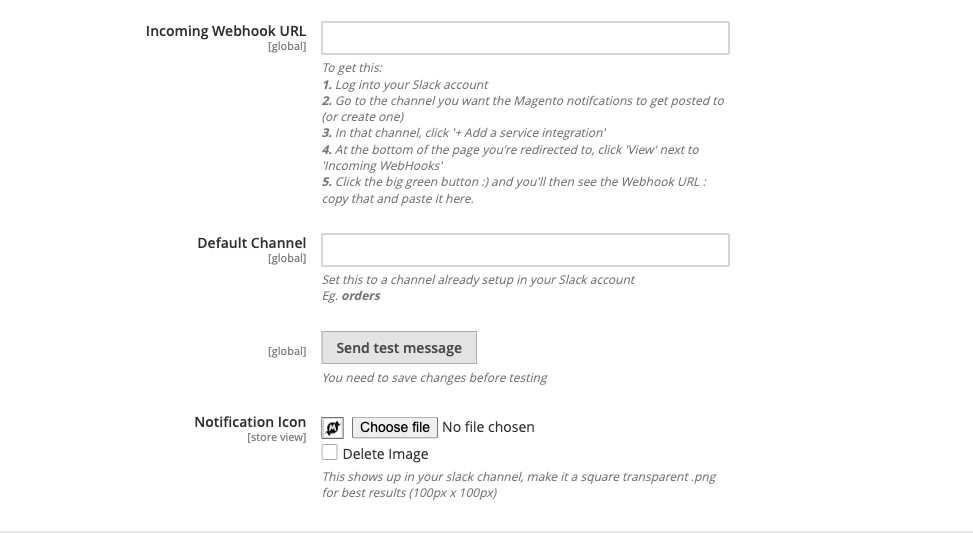
- Incoming Webhook URL = the URL you copied from Slack
- Default Channel = the channel name without the
#(e.g.orders)
-
Click Save Config.
-
Click Test Connection to verify - a test message should appear in your Slack channel within seconds.
Notes
- Save the config before clicking Test Connection - the button reads the saved value, not unsaved field text.
- If the test message does not arrive, double-check the webhook URL and confirm the Slack app is still active in your workspace.
Enable and route event notifications
By default, new order notifications are enabled to the default channel. Use this setup to turn on other event types, route them to specific channels, and control what each message shows.
How to set it up
-
Go to:
Stores > Configuration > Moogento > SlackCommerce > Event Notifications
-
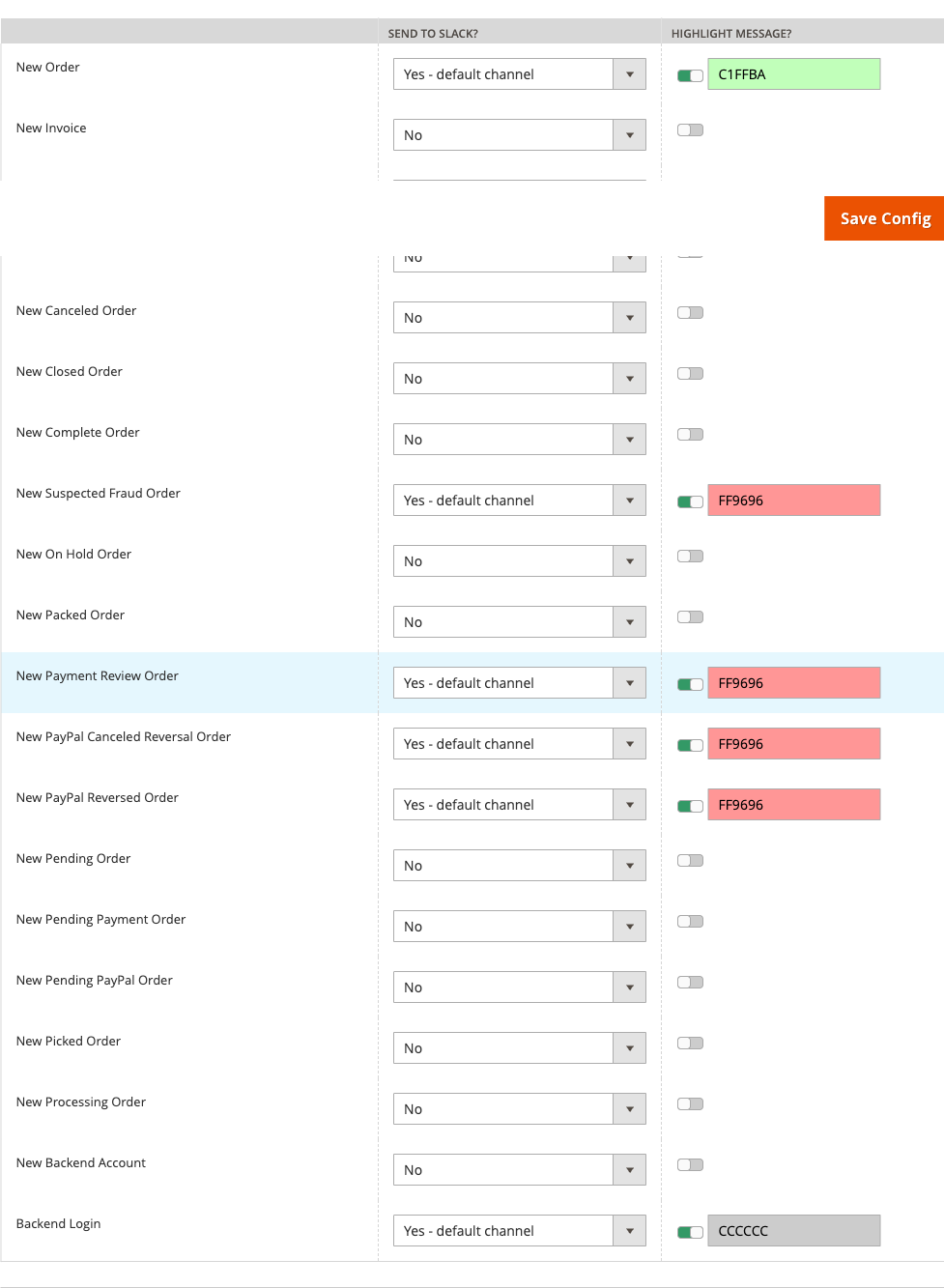
For each event type you want to enable:
- Set Send Type to
Default Channel(uses the channel from Slack Connection) orCustom Channel - If using a custom channel, enter the channel name (e.g.
fulfillment) - Toggle Colorize on and enter a hex color if you want a colored sidebar on the Slack message
- Set Send Type to
-
For New Order notifications specifically, you can also toggle Show Payment Method to include the payment method title in each order alert. This defaults to on.
-
Available event types:
- New Order
- New Invoice
- New Shipment
- New Credit
- Order Status Change
- Backend Login (successful admin logins)
- Backend Login Fail (failed admin login attempts - immediate)
- Backend Account Creation
-
Click Save Config.
Notes
- Routing fulfillment events (order, invoice, shipment) to one channel and security events to another keeps each team's channel focused.
- Color defaults: New Order is green (
C1FFBA), Backend Login Fail is amber (FFDB9E). Override these to match your team's conventions. - The payment method field appears only in New Order messages. Order status-change messages intentionally do not include it, regardless of the toggle.
Set up daily and weekly sales metrics
SlackCommerce can post an automated summary of your store's performance to Slack every day and every week.
How to set it up
-
Go to:
Stores > Configuration > Moogento > SlackCommerce > Metrics Notifications
-
Set:
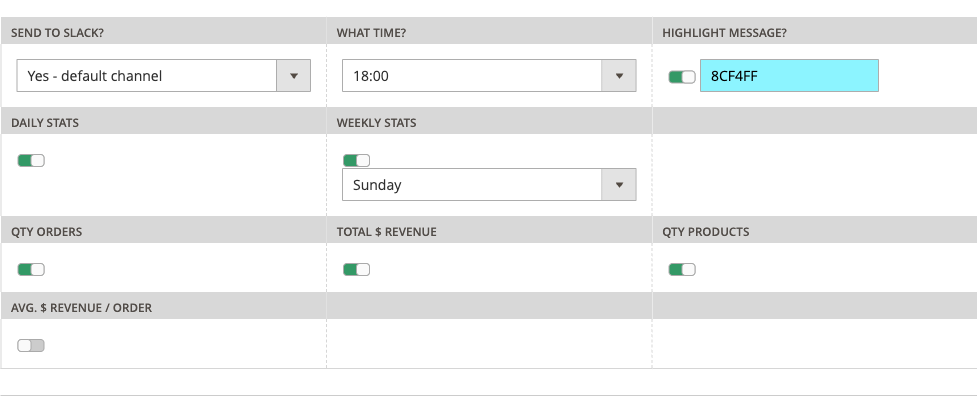
- Daily Stats = Yes to receive a daily summary
- Weekly Stats = Yes to receive a weekly summary
- Delivery Hour = the hour of day (0-23) to send the report
- Enable individual metrics: Order Quantity, Total Revenue, Product Quantity, Average Revenue Per Order
- Optionally set a custom channel and color for the stats message
-
Click Save Config.
Notes
- Revenue figures appear in the store base currency, formatted to two decimal places.
- The weekly report fires every Monday at the configured hour.
Features reference
Security Notifications
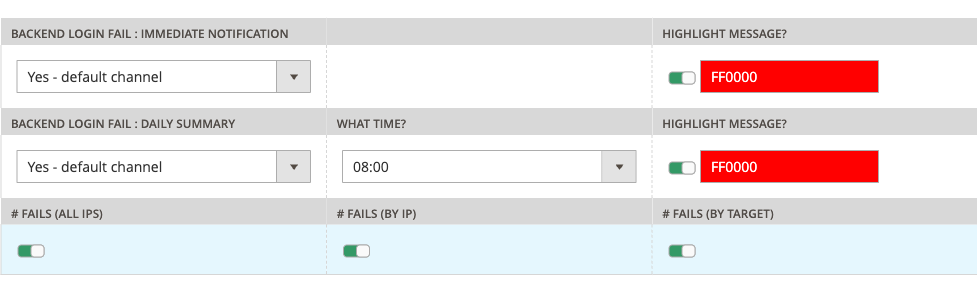
SlackCommerce tracks failed admin backend login attempts and can notify your team both immediately and via a daily summary.
- What it does: The module records each failed login attempt - including the originating IP address and attempted username - and stores it in a dedicated fails table. Immediate alerts fire as soon as a failure occurs. The daily security report aggregates all failures across the day, with per-IP failure counts and country information.
- When to use it: Enable immediate alerts when you want real-time awareness of brute-force or credential-stuffing attempts. Use the daily summary when you want a quiet end-of-day digest without pinging the team on every single failure.
- Config path: Stores > Configuration > Moogento > SlackCommerce > Security Notifications
- Technical paths:
moogento_slackcommerce/security/immediate_send_type,moogento_slackcommerce/security/immediate_custom_channel,moogento_slackcommerce/security/report_send_type
Notification Queue
SlackCommerce uses a database queue to decouple event capture from Slack delivery.
- What it does: When a Magento event fires (e.g. an order is placed), a queue row is written immediately and synchronously. A cron job running every minute claims and dispatches rows in batches of 50. Atomic batch claiming prevents parallel cron workers from sending the same notification twice.
- When to use it: No configuration is required - the queue operates automatically. It's useful to know about when diagnosing delivery gaps: check the
moogento_slackcommerce_queuetable for rows with a non-success status and astatus_messagedescribing the failure. - Stale claimed rows (older than 24 hours) are automatically released before each new batch so the queue cannot permanently block.
Weekly Motivation Message
Every Monday at 8 AM the module sends a motivational message to the configured default Slack channel.
- What it does: Sends a pre-set motivational text to keep your team energised at the start of the week.
- When to use it: This fires automatically when the module is active. There is no on/off toggle - disable the module's cron group
moogentoon the server if you prefer not to receive it. - No per-field configuration is needed; the message uses the default Slack connection settings.
Advanced configuration
Separate security alert channels
Immediate security alerts use a distinct set of configuration keys from the regular Event Notifications group. This is intentional - it allows security events to route to a dedicated channel (e.g. security-ops) with a distinct color (default red, FF0000) independently of other notification routing.
What it does
The security/immediate_send_type and security/immediate_custom_channel keys govern where immediate backend-login-fail alerts go. These are separate from the notifications/BackendLogin_fail_* keys, which govern the queued (non-immediate) variant.
Setup
- Go to Stores > Configuration > Moogento > SlackCommerce > Security Notifications.
- Set Immediate Alert Send Type to
Custom Channel. - Enter your security channel name in Immediate Alert Custom Channel.
- Set Immediate Alert Colorize = Yes and pick a color (red
FF0000is the default). - Save Config.
Notes
- If notifications are going to the wrong channel after a config change, verify which keys you edited -
security/immediate_*vsnotifications/BackendLogin_fail_*- as they control different flows.
Cron group dependency
All SlackCommerce cron jobs belong to the moogento cron group. If you have disabled that group at the server level, none of SlackCommerce's notifications - including stats and security reports - will be dispatched.
- Check
app/etc/env.phpor your cron configuration to confirm themoogentogroup is not excluded. - The queue sender runs every minute (
* * * * *). Stats and security summary senders also run every minute but gate internally on their configured delivery hour.
Tips & best practices
- Create a dedicated Slack channel for each major event category (e.g.
#orders,#fulfillment,#security-ops) and route events accordingly - this keeps channels focused and reduces noise. - Use contrasting hex colors for each event type: green for new orders, amber for security warnings, blue for stats. Slack's colored sidebar makes it easy to scan at a glance.
- After updating the webhook URL or channel settings, always use the Test Connection button to confirm delivery before relying on it for live events.
- If messages stop appearing in Slack, check
moogento_slackcommerce_queuefor rows stuck in a non-success state and readstatus_messagefor the delivery error before digging further. - Keep the Slack incoming webhook app active in your workspace. If a workspace admin removes the app, all deliveries will silently fail - the queue rows will record an error status.
- For high-volume stores, the 50-row batch limit means a busy minute may leave rows for the next cron tick. This is normal and safe; rows are processed in FIFO order.
- All SlackCommerce settings are editable at the default (global) config scope. Store-view and website scope fields are available in the admin but the module reads all values from the default scope, so set everything at the default level.
Troubleshooting
No Slack messages are arriving
Notifications are not appearing in Slack despite orders or other events occurring.
- Cause: The webhook URL is missing or incorrect, or the Slack app integration has been removed from the workspace.
- Check: Go to Stores > Configuration > Moogento > SlackCommerce > Slack Connection. Confirm Incoming Webhook URL is set. Click Test Connection - if the test also fails, the webhook is the issue.
- Resolution: Re-create the incoming webhook in Slack (Slack > Channel > Add Integration > Incoming WebHooks), copy the new URL, paste it into the config, save, and test again. Also check
var/log/moogento_slackcommerce.logfor HTTP response details.
Messages arrive for some events but not others
Only certain event types (e.g. new orders) post to Slack; others (e.g. invoices) are silent.
- Cause: Individual event types have their own Send Type setting. Events set to
Disabledare never queued. - Check: Go to Stores > Configuration > Moogento > SlackCommerce > Event Notifications and confirm the Send Type for the silent event type is not set to
Disabled. - Resolution: Enable the event type, save the config, and trigger the event again to confirm.
Immediate security alerts not respecting the custom channel or color
Immediate backend-login-fail alerts are still posting to the default channel instead of the configured security channel.
- Cause: Immediate security alerts use
security/immediate_*config keys, not thenotifications/BackendLogin_fail_*keys in the Event Notifications group. - Check: Go to Stores > Configuration > Moogento > SlackCommerce > Security Notifications. Confirm Immediate Alert Send Type, Immediate Alert Custom Channel, and Immediate Alert Colorize are set as intended - not the Event Notifications group.
- Resolution: Update the Security Notifications settings, save, and trigger a test login failure.
Backend login-fail Slack message is missing IP or country data
The security alert arrives in Slack but the IP address, country, or failure count fields are absent.
- Cause: The queue row's
additional_datawas not serialized as expected, or the IP record does not yet exist inmoogento_slackcommerce_fails_ip. - Check: Inspect the
additional_datacolumn on the relevant row inmoogento_slackcommerce_queue. Also confirm the IP appears inmoogento_slackcommerce_fails_ip. - Resolution: If
additional_datais empty or malformed, the observer may not have captured the request data. Checkvar/log/moogento_slackcommerce.log. If the IP row is missing, it may have been a first-time failure from that IP - country data is enriched from cumulative records.
Metrics or security reports are not being sent
Daily or weekly stats messages are not arriving in Slack at the configured hour.
- Cause: The
moogentocron group is not running, or the delivery hour has not been reached. - Check: Confirm cron is active on the server and the
moogentogroup is not excluded. Checkvar/log/cron.logor runphp bin/magento cron:run --group=moogentomanually to test. - Resolution: Enable the cron group if disabled. If cron is running but reports are still absent, review
var/log/moogento_slackcommerce.logfor errors fromStatsSenderorSecuritySender.
FAQs
How do I connect my Magento store to Slack?
Create an Incoming WebHooks integration in your Slack workspace, copy the webhook URL, and paste it into Stores > Configuration > Moogento > SlackCommerce > Slack Connection. See Connect SlackCommerce to your Slack workspace for step-by-step instructions.
How do I send different Magento alerts to different Slack channels?
Set a custom channel for each event type in Stores > Configuration > Moogento > SlackCommerce > Event Notifications - each notification row has its own Send Type and Custom Channel fields, so orders, fulfillment, and security events can all land in separate channels.
Does SlackCommerce work with Hyvä, Luma, and Porto themes?
Yes - SlackCommerce operates entirely in the Magento backend and cron layer and has no storefront output, so it is fully compatible with Hyvä, Luma, Porto, and any other frontend theme.
How much does SlackCommerce cost?
SlackCommerce is a free module. It does not require a Moogento license key and has no plan-gated features.
What happens if I disable SlackCommerce?
When the module is disabled, all observers stop firing so no new rows are written to the queue, and the cron jobs stop running. Existing queue rows remain in the database but are not dispatched. No storefront functionality is affected.
Why are my Slack messages delayed or not arriving at all?
Messages are delivered by a cron job that runs every minute - a brief delay is normal. If messages are not arriving at all, verify the webhook URL in Stores > Configuration > Moogento > SlackCommerce > Slack Connection, confirm the Slack incoming webhook app is still active in your workspace, and check var/log/moogento_slackcommerce.log for delivery errors.
Can I get a daily sales summary in Slack?
Yes - enable Daily Stats in Stores > Configuration > Moogento > SlackCommerce > Metrics Notifications and choose which metrics to include (order count, revenue, product quantity, average order value). See Set up daily and weekly sales metrics for setup steps.
How do I get alerted when someone tries to break into my Magento admin?
Enable Immediate Alerts in Stores > Configuration > Moogento > SlackCommerce > Security Notifications. Each failed backend login attempt triggers an instant Slack message with the IP address, attempted username, failure count for that IP, and country of origin.
Can I route security alerts to a separate Slack channel from order notifications?
Yes - Security Notifications has its own Immediate Alert Custom Channel field, independent of the Event Notifications routing. Set it to your security team's channel (e.g. security-ops) and the order team's channel never receives login-fail alerts.
What Magento order events does SlackCommerce notify about?
SlackCommerce covers new orders (with optional payment method), new invoices, new shipments, credit memos, and order status changes. Each event type can be individually enabled, disabled, or routed to a custom channel.
Can I see the payment method in Slack order alerts?
Yes - new-order Slack messages include the payment method title by default. You can toggle this off per-notification in Stores > Configuration > Moogento > SlackCommerce > Event Notifications. Status-change messages do not include payment data regardless of this setting.
Related guides
- Pulse - if you want real-time store analytics in your Magento admin dashboard alongside your Slack alerts, see the Pulse module. The two modules complement each other: Pulse surfaces KPIs inside Magento; SlackCommerce pushes those events outward to Slack.
Need help?
- moo@moogento.com
- Include:
- Magento version
- Module name
- What you're trying to do