

Overview
Plan scope for the examples below: Seed runs the Winback Customer sequence with a configured provider. Abandoned Cart, Abandoned Browse, Review Reminder and welcome sequences require Growth or Pro. Customer notification preferences and customer data sync require Growth or Pro. ProfitEasy data sync requires HelloCustomer Growth or Pro and ProfitEasy Growth or Pro; the Winback "% of AOV" coupon requires ProfitEasy Pro.
HelloCustomer is Moogento's Magento 2 abandoned cart email automation and customer engagement module. It automatically identifies key moments in your customer lifecycle - an abandoned cart, a completed purchase awaiting a review, a customer who hasn't bought in months - and sends targeted email sequences to bring them back.
Six sequence types ("nudges") cover the full customer journey: Abandoned Cart (AC), Abandoned Browse (AB), Review Reminder (RR), Winback Customer (WC), Newsletter Welcome (NW), and Account Welcome (AW). Each sequence is independently configurable with its own timing, email templates, coupon incentives, and email provider routing.
This module helps you:
- Recover abandoned carts automatically with a timed series of reminder emails
- Request product reviews at the right moment after delivery, improving review volume
- Re-engage inactive customers with personalized winback campaigns and optional coupons
- Welcome new newsletter subscribers and account registrants with branded email sequences
- Sync customer data and notification preferences to MailerLite, MailChimp, and other providers (Growth or Pro)
- Track campaign conversions with UTM parameters and an internal conversion window
When to use this
Use HelloCustomer when you want to:
- Start recovering abandoned carts without building manual email workflows in a third-party tool
- Automate post-purchase review requests at a configurable delay after order fulfillment
- Send a timed discount to customers who haven't ordered in a set number of months
- Let customers manage their own notification preferences from their account page (Growth or Pro)
- Route different email types (transactional vs. marketing) to separate email providers for better deliverability
- Backfill nudge sequences against historical orders before going live
Key capabilities
- Abandoned Cart recovery - multi-step email sequence with configurable delays and optional auto-generated coupon
- Abandoned Browse re-engagement - re-contacts customers who viewed products but did not add to cart
- Review Reminder sequences - groups multiple recent orders into a single request; excludes blacklisted SKUs
- Winback Customer campaigns - targets customers inactive beyond a threshold; supports value-based coupon amounts
- Welcome sequences - separate flows for new newsletter subscribers and new account registrations
- Auto-generated coupons - unique codes per nudge, created as Magento cart price rules, with configurable discount amount, type, and expiry
- Multi-provider email routing - connect MailerSend, MailerLite, MailChimp, Emailit, Resend, SMTP, or a custom API; route different nudge types to different providers
- Customer notification preferences (Growth or Pro) - up to 5 opt-in categories shown in the customer account and synced to connected providers
- Spintax email variation - randomized subject lines and body snippets to improve open rates and deliverability
- UTM tracking - appends configurable UTM parameters to all links in generated HTML blocks
Installation
Bought on Adobe Commerce Marketplace? Your purchase comes with a Moogento account: set your password from the activation email, then follow the steps below with the Composer keys and licence key in My Plugins. If the email has not arrived, contact Moogento support.
HelloCustomer installs via Composer, then activates with a license key from your Moogento.com account. The whole flow takes about 5 minutes.
Prefer a hands-off setup? Our team can install and configure the extension for you - see the paid install service.
Step 1: Get your Composer keys from Moogento.com
- Sign in at https://www.moogento.com and open My Plugins in your account menu.
- Find HelloCustomer in the list of plugins you own.
- Generate (or reveal) the Composer access keys for that plugin - a public key and a private key.
- Add your install domain to the key. Each Composer key is tied to a specific domain - if you're installing on
yourstore.com, addyourstore.comto the key's allowed domains. The Composer download will be rejected on any other domain.
If you run staging and production on different domains, add both - separate keys per environment are fine too.
Step 2: Install the module with Composer
From your Magento 2 root directory:
composer require moogento/m2-hellocustomer
When Composer asks for credentials, paste the public key as the username and the private key as the password. They'll be cached in ~/.composer/auth.json for future runs.
Step 3: Enable the module in Magento
php bin/magento setup:upgrade
php bin/magento setup:di:compile
php bin/magento cache:clean
If you run php bin/magento module:status Moogento_Hellocustomer you should see it listed as enabled.
Step 4: Add your license key in the Moogento admin
- For a direct purchase, copy the HelloCustomer license key from My Plugins at moogento.com. For a Marketplace purchase, check your Moogento account for an issued key and contact Moogento support if it is missing.
- Open Stores > Configuration > Moogento > License in Magento Admin. Add the Installation Domain shown on this page to the key in your Moogento account.
- Paste the key into the key field and click Add key.
- Under Registered Keys for this Installation, confirm that HelloCustomer appears with the correct plan.
The license validates within a few seconds. You should see the module's status flip to active. If it stays inactive, double-check the domain on the license matches where you've installed - domain mismatch is the most common cause.
Extra steps for HelloCustomer
HelloCustomer relies on Magento's cron scheduler to find eligible customers and send emails. Confirm cron is running after installation:
php bin/magento cron:status
All HelloCustomer jobs run under the default cron group. If cron is disabled, no nudge emails will send.
A brand new install also turns on Magento newsletter confirmation (double opt-in) for your store; if you already had a newsletter confirmation setting, it is left exactly as it was.
Setup overview
Most setup happens in:
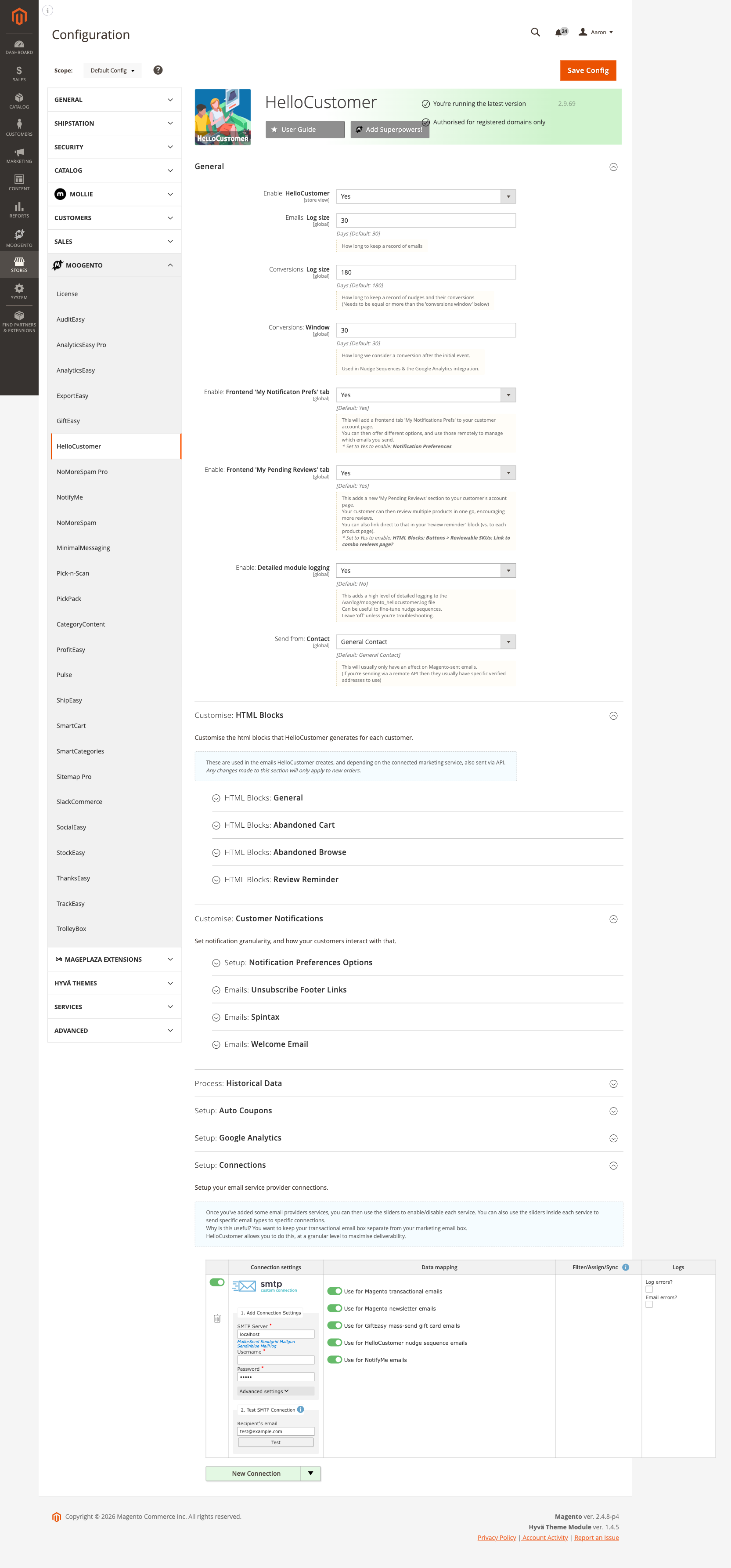
Stores > Configuration > Moogento > HelloCustomer
You'll mainly work with:
- General - enable the module, configure log retention, and set the conversion attribution window
- Setup: Connections - connect your email service provider(s) and route nudge types to each connection
- Customise: HTML Blocks - control what product data appears inside emails (prices, quantities, button labels, colors)
- Customise: Customer Notifications - configure opt-in preference categories shown in the customer account
- Setup: Auto Coupons - enable and configure auto-generated discount codes per sequence
- Setup: Google Analytics - configure UTM parameters appended to email links
- Process: Historical Data - backfill nudge sequences against existing orders
Nudge sequences themselves (timing, email templates, recipient conditions) are managed directly from the Nudge Sequences section within each group - not in the global config.
Common setups
Connect an email provider and send your first nudge
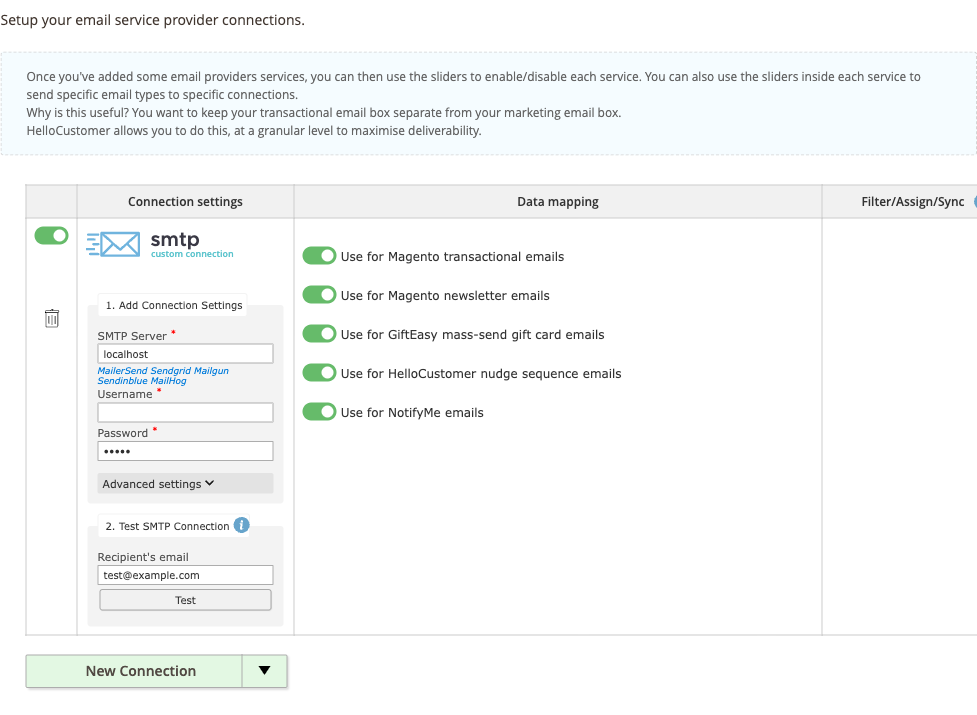
HelloCustomer supports multiple simultaneous email provider connections. Before any nudge email can send, at least one connection must be active.
How to set it up
-
Go to: Stores > Configuration > Moogento > HelloCustomer > Setup: Connections
-
Click Add Connection. Select your provider from the dropdown (MailerSend, MailerLite, MailChimp, Emailit, Resend, SMTP, or Custom API).
-
Enter the API credentials for that provider:
- API key or token
- Sender name and sender email address
-
Use the sliders inside the connection panel to enable specific nudge types (AC, AB, RR, WC, NW, AW) for that connection. This lets you route marketing emails to one provider and transactional emails to another.
-
Save Config, then navigate to: Moogento > HelloCustomer > Config.
-
Under General, confirm Enable: HelloCustomer = Yes.
-
Save Config and run
php bin/magento cache:clean.
Notes
- You can add multiple provider connections. Each connection can handle a different subset of nudge types.
- Growth and Pro plans unlock additional providers including Emailit.
Set up an Abandoned Cart sequence with a coupon
The most common HelloCustomer deployment: send a timed sequence of 2-3 emails to customers who leave items in their cart, with an optional discount on the final email.
How to set it up
-
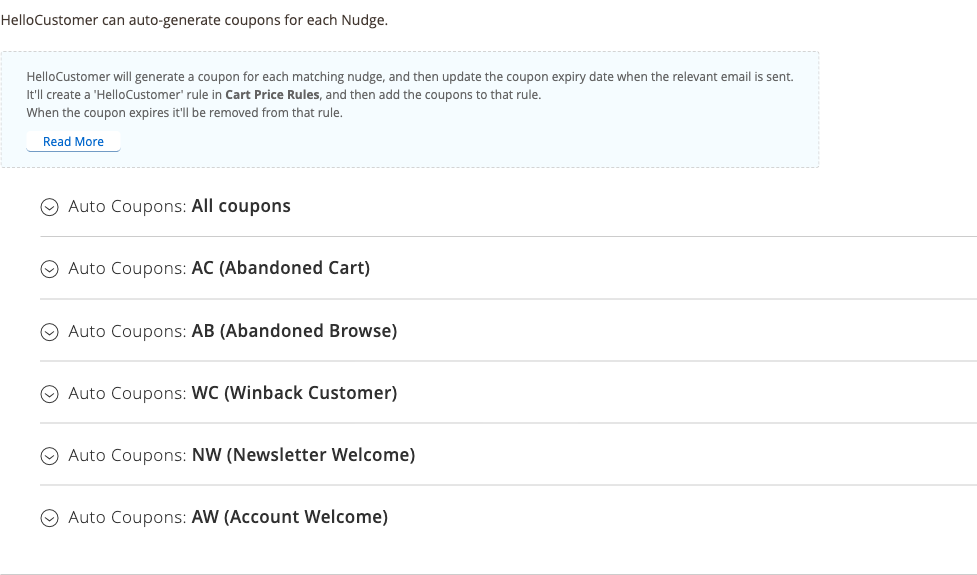
Go to: Stores > Configuration > Moogento > HelloCustomer > Setup: Auto Coupons > Auto Coupons: Abandoned Cart
-
Set:
- Coupon discount amount - e.g.
10for $10 or 10% - Discount type - Fixed or Percent
- Days until expiry - e.g.
7(coupon expires 7 days after the email sends)
- Coupon discount amount - e.g.
-
Save Config.
-
Go to: Stores > Configuration > Moogento > HelloCustomer > Setup: Auto Coupons > Auto Coupons: All coupons
-
Review the global coupon behaviour settings that apply to every HelloCustomer cart rule:
- Don't apply to: Already-discounted products - Yes prevents the coupon applying to products that already have a special price or catalog rule discount (default: Yes)
- Don't apply to: Shipping amount - set to Yes if you want the discount to skip shipping costs (default: No)
- Don't apply: Subsequent cart rules - set to Yes to prevent lower-priority cart rules stacking with the HelloCustomer coupon (default: No)
- Set Priority: Related to cart price rules - lower numbers run first; set lower than any shipping-break rules you have (default: 5)
-
Save Config.
-
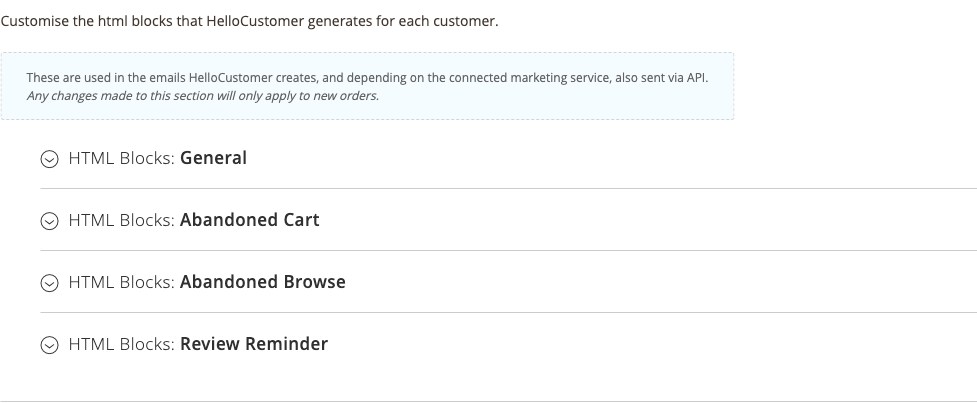
Go to: Stores > Configuration > Moogento > HelloCustomer > Customise: HTML Blocks > HTML Blocks: Abandoned Cart
-
Set the product display options:
- Include: Product price? - Yes or No
- Include: 'Return to Cart' button? - Yes (recommended)
- Limit: Products? - e.g.
3to keep emails concise
-
Save Config.
-
Navigate to the Nudge Sequences editor (accessible from the HelloCustomer config page or via Moogento > HelloCustomer > Config.) to set the email schedule: e.g. Email 1 after 1 hour, Email 2 (with coupon) after 24 hours.
-
In your Magento email templates, add the coupon variable where you want the code to appear:
{{moo_hc_coupon_code}}- outputs the unique coupon code{{moo_hc_coupon_value}}- outputs the discount value{{moo_hc_coupon_valid_days}}- outputs the expiry in days
Notes
- HelloCustomer creates a single "HelloCustomer" Cart Price Rule and adds auto-generated codes to it. Changing coupon settings creates a new rule rather than updating the existing one.
- The coupon will not apply to already-discounted products by default (
moogento_hellocustomer/coupons/coupons_all/coupon_applying= Yes). - The global coupon settings in Auto Coupons: All coupons only apply to newly created cart rules - they do not retroactively update existing rules. Save those settings before the first nudge sequence triggers coupon generation.
- If a customer's cart triggers a validation issue during checkout (visible in
var/log/exception.log), the coupon restriction logic waits until the quote address has an ID before reading the rule cache, so transient validation failures at checkout should self-resolve without intervention.
Enable customer notification preferences (Growth or Pro)
Give customers granular control over the email types they receive. Preferences are captured at signup (via footer, modal, or a new public signup page), confirmed after opt-in, and editable from the customer account page. Preference changes sync to connected email providers.
How to set it up
-
Go to: Stores > Configuration > Moogento > HelloCustomer > General
-
Set Enable: Frontend 'My Notification Prefs' tab = Yes. (This field requires the Magento newsletter to be active:
newsletter/general/active= 1.) -
Save Config.
-
Go to: Stores > Configuration > Moogento > HelloCustomer > Customise: Customer Notifications > Setup: Notification Preferences Options
-
Configure each preference option:
- Enable the option (Yes/No)
- Set an API shortcode - the code sent to connected providers via webhook (e.g.
newsletter,specials) - Set a Customer label - the text the customer sees in their account
- Set Auto-enable for new customers - whether new signups and account registrants start with this option checked
-
Save Config. If you have a connected provider, re-sync customer data from the Setup: Connections section.
Signup flows
Footer and page signup: Subscribers submit the footer form or the standalone page at /hellocustomer/signup. Every enabled notification type set to start checked is recorded for them straight away, and they can change it on the confirmation page.
Double opt-in: After confirming via email link, subscribers see "You're confirmed!" at /hellocustomer/subscription/confirmed, showing their active preferences with a Save button. They can adjust preferences here before closing the page.
Single opt-in: When a new email address signs up from the footer or the signup page, the subscriber goes straight to the preference page. An address that was already on the list sees the usual success message instead, so nobody can open someone else's preferences by typing their email.

Notes
- Option 1 (Newsletter) mirrors the standard Magento newsletter subscription - changing it here changes the customer's newsletter subscription and vice versa.
- API shortcodes should not be changed frequently if you rely on them to filter audiences in an external provider - labels can be changed at any time without side effects.
- After changing preference settings, re-sync existing customers by using the re-sync button in the Setup: Connections section.
- The confirmation page redirects home if the session times out or the browser doesn't accept cookies.
Features reference
General
Enable or disable the module, set the email sender contact, and control log retention.
- What it does: Master switch for all HelloCustomer functionality. Also sets how long email logs and nudge/conversion logs are retained.
- When to use it: First stop after installation, and when diagnosing delivery issues (enable detailed logging temporarily).
- Config path:
moogento_hellocustomer/general/enable,moogento_hellocustomer/general/log_length_days,moogento_hellocustomer/general/log_length_days_emails
Customise: HTML Blocks
Control the product data and styling inside every HelloCustomer-generated email block.
- What it does: Sets button text, button colors, product name colors, whether to show prices/quantities/descriptions, and related product limits. Sub-groups cover Abandoned Cart, Abandoned Browse, and Review Reminder display separately.
- When to use it: When you want email content to match your brand, or when you want to simplify emails by hiding price or description data.
- Config path:
moogento_hellocustomer/hc_html/buttons/*,moogento_hellocustomer/hc_html/abandoned_cart/*,moogento_hellocustomer/hc_html/abandoned_browse/*,moogento_hellocustomer/hc_html/review_reminder/*
Emails: Spintax
Add semi-randomized variation to email subject lines and body snippets to improve open rates and deliverability.
- What it does: Lets you write multiple subject line and body text variants in a
{option1|option2|option3}format. HelloCustomer picks one variant per email send. Separate spintax configurations exist for AC, AB, RR, and WC sequences. - When to use it: When processing large volumes of emails (especially historical backfills) or when you want more natural-looking subject lines. Pair with spintax-specific email templates available in the Magento template editor.
- Config path:
moogento_hellocustomer/hc_subs/email_spintax/spintax_ac/*,moogento_hellocustomer/hc_subs/email_spintax/spintax_ab/*,moogento_hellocustomer/hc_subs/email_spintax/spintax_rr/*,moogento_hellocustomer/hc_subs/email_spintax/spintax_wc/*
Emails: Unsubscribe Footer Links
Add compliant unsubscribe and preference-management links to the footer of marketing emails.
- What it does: Provides configurable footer text and address block for marketing emails. Includes template variables
{{link_update_preferences | anchor text}}and{{link_unsubscribe_from_this_list | anchor text}}that resolve to the customer's personal preference page and one-click unsubscribe respectively. - When to use it: Required for any store sending marketing-type emails (AC, AB, WC). Add the block reference
{Error in template processing}to the base of your email template content. - Config path:
moogento_hellocustomer/hc_subs/unsub_options/*
Emails: Welcome Email
Suppress the default Magento welcome email when using HelloCustomer's Account Welcome sequence.
- What it does: Optionally disables the Magento-generated welcome email so new customers only receive the HelloCustomer Account Welcome nudge, not both.
- When to use it: When you have an AW nudge sequence active and do not want duplicate welcome emails.
- Config path:
moogento_hellocustomer/hc_subs/welcome_email/default_welcome_email_yn
Setup: Auto Coupons
Configure auto-generated discount codes that HelloCustomer creates for each eligible nudge.
- What it does: Generates unique coupon codes tied to a HelloCustomer cart price rule. Supports Abandoned Cart, Abandoned Browse, Winback Customer, Newsletter Welcome, and Account Welcome sequences. The Winback Customer coupon supports value-based ranges (including % of average order value with ProfitEasy Pro) and a configurable minimum order amount.
- When to use it: When you want to include an incentive in recovery or re-engagement emails without manually creating coupon codes.
- Global settings (
moogento_hellocustomer/coupons/coupons_all/*): Control whether auto-coupons apply to already-discounted products, whether the discount applies to shipping, whether the HelloCustomer rule stops lower-priority cart rules from also applying, and the rule priority relative to your other cart price rules. - Config path:
moogento_hellocustomer/coupons/*
Setup: Google Analytics
Append UTM parameters to all links generated in HelloCustomer email HTML blocks.
- What it does: Adds
utm_source,utm_medium, and per-sequenceutm_campaignvalues to product and CTA links inside emails. These appear in your GA4/Universal Analytics traffic reports as campaign-attributed sessions. - When to use it: Whenever you want to measure HelloCustomer's revenue contribution in your analytics platform. The conversion window for internal attribution is controlled separately in General.
- Config path:
moogento_hellocustomer/analytics/*
Process: Historical Data
Backfill nudge sequences against existing customers and orders.
- What it does: Scans historical order and browse data and creates AC and RR nudge entries for customers who would have qualified. Includes safety guards: will not re-process a customer who has ever received that specific nudge, and applies a 14-day cooldown from any previous nudge.
- When to use it: When activating HelloCustomer on a store with an existing customer base. Run after fully configuring and testing your nudge sequences and API connections - historical processing cannot be undone.
- Config path:
moogento_hellocustomer/hc_nudges/column
Order view: How HelloCustomer helped
When ProfitEasy is installed, the admin order view shows a card explaining how HelloCustomer contributed to a sale: the campaign, when the email was sent, and any coupon used. On the Growth and Pro plans it also lists which order lines a recovered cart or browse email matched. There is nothing to configure; the card only appears when the module has real, matching data for that order, the order was placed by a signed-in customer account (not a guest checkout), and the order is not canceled.
Advanced configuration
Routing nudge types to separate email providers
What it does
The Setup: Connections section allows multiple simultaneous email provider connections. Within each connection you can toggle which nudge types (AC, AB, RR, WC, NW, AW) that connection handles. This means you can route cart-recovery emails to a high-deliverability transactional provider while sending review reminders through a marketing platform.
Setup
- Go to Stores > Configuration > Moogento > HelloCustomer > Setup: Connections.
- Add a connection for each provider you want to use.
- Inside each connection, use the per-nudge-type sliders to assign email types.
- Save Config.
Notes
- If a nudge type is enabled on more than one connection, HelloCustomer uses the first active matching connection.
- Growth and Pro plan licenses are required to unlock certain providers (e.g. Emailit).
Spintax in email templates
What it does
Spintax subjects and body fields are written to the nudge email at send time. Body spintax variables must be referenced explicitly in your Magento email template using merge variables like {{var moo_spintax_body1|raw}}.
Setup
- Enable spintax for the relevant sequence in Stores > Configuration > Moogento > HelloCustomer > Customise: Customer Notifications > Emails: Spintax.
- Write spintax variants in the subject and body fields. Format:
{option A|option B|option C}. - In your Magento email template, reference
{{var moo_spintax_body1|raw}}through{{var moo_spintax_body7|raw}}where you want the randomized text to appear. - You can use keywords:
%storeName,%storeNameTrimmed,%firstName.
Notes
- Subject-line spintax overrides the template subject entirely when the field is populated.
- Emoji shortcuts are supported:
^,= thumbs up,:)= smiling face,<3= heart, and others documented in the config comment. - Dedicated spintax email templates are available in the Magento template editor for each sequence type.
Tips & best practices
- Enable detailed logging (
moogento_hellocustomer/general/debugging_logging_enable= Yes) only while troubleshooting - it generates high log volume. The log file isvar/log/moogento_hellocustomer.log. - Set the conversion window (
moogento_hellocustomer/general/conversion_window_days) and log retention (moogento_hellocustomer/general/log_length_days) consistently - the retention period must be equal to or greater than the conversion window or you will lose attribution data. - Test your full nudge sequence end-to-end in a staging environment before running historical backfills. Historical processing cannot be reversed and the safety cooldown (14 days between any nudge) means mistimed emails lock customers out of subsequent sequences.
- Keep API shortcodes stable in notification preferences. Labels can change freely, but shortcodes are what get synced to external providers - changing a shortcode breaks existing audience filters in MailerLite or MailChimp.
- Use separate email provider connections for transactional nudges (RR, NW, AW) and marketing nudges (AC, AB, WC) to protect sender reputation. Review reminder emails in particular benefit from a high-reputation transactional IP.
- Suppress the Magento default welcome email (
moogento_hellocustomer/hc_subs/welcome_email/default_welcome_email_yn= Yes) if you have an AW sequence active - duplicate welcomes harm first impressions. - Cap related product and cart product limits (default 3) in HTML block settings. Longer product lists increase email file size and reduce load speed in webmail clients.
Troubleshooting
No nudge emails are sending
Emails send as expected in testing but no live nudges reach customers.
- Cause: One or more prerequisites are not met: module disabled, cron not running, no active email provider connection, or no nudge rules exist for the sequence type.
- Check: Stores > Configuration > Moogento > HelloCustomer > General - confirm Enable: HelloCustomer = Yes. Run
php bin/magento cron:statusand confirm the HelloCustomer cron jobs appear and are scheduled. Check Setup: Connections - confirm at least one connection is active with the relevant nudge type enabled. - Resolution: Enable the module, start cron if stopped, and add an active connection. If cron is running and connections are configured, enable debug logging and inspect
var/log/moogento_hellocustomer.logfor job-level errors.
Customers receive nudge emails for the wrong sequence or store scope
A customer receives an AC nudge on a store where they haven't abandoned a cart, or receives emails not matching their preferences.
- Cause: Notification preference scope or nudge rule scope may be misconfigured. Preferences are stored per customer, not per store view.
- Check: Confirm the nudge rule's target scope in the Nudge Sequences editor. Check the customer's notification preferences in the customer edit screen under Moogento > HelloCustomer.
- Resolution: Update nudge rule scope conditions. If preferences are mismatched, re-sync customer data from Setup: Connections after reviewing your notification preference configuration.
Auto-generated coupons are not working at checkout
Customers receive a coupon code but it is rejected or does not apply a discount.
- Cause: The cart rule created by HelloCustomer may have an expired coupon, a priority conflict with another cart price rule, or the coupon was generated under a previous rule that no longer exists (because coupon settings were changed).
- Check: Go to Marketing > Cart Price Rules in the Magento admin and locate the "HelloCustomer" rule. Confirm it is active and the coupon appears in the rule's coupon list. Check the rule priority against other active rules if using Don't apply: Subsequent cart rules = Yes.
- Resolution: If the rule is absent or inactive, save the coupon settings again to trigger rule recreation. Adjust cart rule priority (
moogento_hellocustomer/coupons/coupons_all/cart_rule_priority) to resolve conflicts.
Coupon code is present but the cart rejects it at checkout
A customer tries to add to cart with a HelloCustomer coupon applied and the operation fails transiently.
- Cause: The coupon restriction check runs during cart price rule validation. If the quote address record does not yet have a database ID at the point the rule cache is read, validation can fail for that request.
- Check: Look for exceptions in
var/log/exception.logaround the time of the failure. The message typically relates to quote address validation during sales rule application. - Resolution: This is a transient condition. The coupon restriction plugin skips the rule cache read until the quote address has an ID, so the next cart load or add-to-cart attempt succeeds without changes on the customer's end. No configuration change is required.
Provider sync is failing
Customer data is not appearing in MailerLite, MailChimp, or another connected provider.
- Cause: API credentials may be invalid or expired, the webhook endpoint may not be reachable, or the
moo_syncflags on customers may be stuck. - Check: Enable debug logging and monitor
var/log/moogento_hellocustomer.logduring a cron run for API error responses. Verify the API token is still valid in the provider dashboard. - Resolution: Update API credentials in Setup: Connections and save. If sync flags are stuck, contact Moogento support with the log output.
Malware scanner flags Helper/Moo.php
- Cause: Your host's malware scanner (often Imunify360 on cPanel hosting) heuristically flags the encoded license-check files that ship inside every paid Moogento extension. The files are genuine and unchanged - the encoding protects the license check from tampering.
- Resolution: Add the files to the scanner's ignore list so the warnings stop, and restore any file the scanner already quarantined. Both steps, plus how to verify the files are byte-for-byte what we shipped, are covered in the license file protection guide.
FAQs
How do I set up abandoned cart emails in Magento 2?
HelloCustomer sends abandoned cart emails on Growth or Pro once you connect an email provider and create an AC nudge sequence. Go to Stores > Configuration > Moogento > HelloCustomer > Setup: Connections to add your provider, then configure the sequence timing in the Nudge Sequences editor. See the Common setups section for a step-by-step walkthrough.
How long does HelloCustomer wait before sending an abandoned cart email?
On Growth or Pro, the delay between cart abandonment and the first email is set inside the Nudge Sequence editor for the AC sequence; HelloCustomer does not apply a fixed wait. Most stores set the first email between 1 and 4 hours after abandonment, with a follow-up coupon email at 24-48 hours.
Can I send different email types through different providers?
Yes. Add multiple connections in Stores > Configuration > Moogento > HelloCustomer > Setup: Connections and use the per-nudge-type sliders inside each connection to control which sequence types each provider handles. This lets you route cart recovery through a high-deliverability transactional provider and review reminders through a marketing platform.
Does HelloCustomer work with Hyvä, Luma, and Porto themes?
HelloCustomer's admin configuration and email generation are theme-independent. The frontend notification preferences tab and pending reviews tab are rendered using Magento's standard customer account layout and are compatible with Luma and Porto. A Hyva compatibility module keeps checkout form handling compatible with both legacy and current Hyvä Checkout APIs.
What happens when I disable HelloCustomer?
Disabling HelloCustomer (setting Enable: HelloCustomer = No and clearing the cache) stops all cron jobs from running, so no new nudge emails are queued or sent. Existing log data is retained. Customers are not notified. Re-enabling the module resumes processing automatically on the next cron cycle.
Which plan do I need for MailChimp or Emailit integration?
MailChimp is available on all HelloCustomer plans (Seed, Growth, Pro). Emailit requires the Growth or Pro plan. Full feature availability per plan is detailed at https://www.moogento.com under HelloCustomer's pricing page.
Can HelloCustomer send review request emails automatically after an order?
Yes - the Review Reminder (RR) sequence identifies customers with reviewable products and sends a request at the configured delay. You can group orders within a short window (default 7 days) to avoid multiple reminder emails for closely spaced purchases, and you can blacklist specific SKUs from ever triggering a review request. See Stores > Configuration > Moogento > HelloCustomer > Customise: HTML Blocks > HTML Blocks: Review Reminder for the SKU blacklist field.
How do I track HelloCustomer campaign revenue in Google Analytics?
Configure UTM parameters in Stores > Configuration > Moogento > HelloCustomer > Setup: Google Analytics. HelloCustomer appends these to every product and CTA link in the generated email HTML blocks. Each sequence type has its own utm_campaign value (defaults: HC ac, HC rr, HC wc, etc.). Internal conversion attribution uses the conversion window set in General.
Does HelloCustomer integrate with the Pulse dashboard?
Yes. If you have Pulse installed, HelloCustomer's Nudges Log feeds conversion events into the Pulse ecosystem card, showing converted sales count, converted revenue, delta percentage, and a revenue sparkline for the active Pulse time range - no additional configuration required.
What happens if I change the notification preference API shortcodes?
Changing an API shortcode after launch breaks any audience segment or automation in your connected email provider that filters on that shortcode. Labels (the text customers see) can be changed freely at any time. After changing shortcodes, use the re-sync function in Setup: Connections to push updated preference data to the provider.
Related guides
- Pulse - HelloCustomer conversion events appear in the Pulse dashboard ecosystem card for revenue tracking
- GiftEasy - on Growth and Pro plans, HelloCustomer emails can include gift card balance lookups (requires GiftEasy)
- AnalyticsEasyPro - when installed, HelloCustomer campaigns are tracked as GA4 conversion drivers via the Measurement Protocol
- ProfitEasy - required for the Winback Customer "% of AOV" coupon type that calculates discount values based on each customer's average order value
Need help?
- moo@moogento.com
- Include:
- Magento version
- Module name
- What you're trying to do