

Overview
Plan scope for the examples below: Seed covers customer-purchased gift cards, custom amounts, designs and code redemption. Manual issuance, scheduled delivery, claim links, QR codes, expiry reminders and referrals require Growth or Pro; mass sending and order-page store credit require Pro.
GiftEasy adds a complete gift card and store credit system to your Magento 2 store. You can sell gift cards as products with predefined or customer-chosen values, let customers redeem codes during checkout, and add manual issuance and scheduled delivery with Growth or Pro. The Pro plan adds one-click store credit from order pages, and the Growth/Pro plans include a referral rewards program (Give & Get) where your existing customers earn gift cards for introducing friends who make a purchase.
This module helps you:
- Sell gift card products with fixed or custom values and branded designs
- Issue gift cards automatically on purchase; manual admin issuance requires Growth or Pro
- Process store credit for refunds and goodwill gestures without writing a cheque or triggering a full Magento refund
- Run a referral program that rewards both the customer who refers a friend and the friend who buys
- Track every card's balance, usage history, and expiry in one admin grid
When to use this
Use GiftEasy when you want to:
- Offer gift cards as a product line and let customers purchase and send them to friends
- Give a partial refund or compensation without touching the original order's payment
- Incentivise word-of-mouth by letting loyal customers share a gift card link with friends
- Schedule gift card deliveries for future dates with Growth or Pro
- Send gift cards to a bulk list of customers or orders in one action with Pro
Key capabilities
- Gift card product type - a dedicated product type with predefined amounts, custom-value support, and selectable card designs
- Manual and automatic issuance - purchase-generated cards work on Seed; manual admin issuance requires Growth or Pro
- Scheduled delivery (Growth or Pro) - set a future date and timezone for the card email to be sent
- Store credit (Pro) - issue non-transferable store credit from any order with one click
- Give & Get referral program (Growth/Pro) - existing customers share a link; when their friend buys, both earn a gift card reward
- Checkout redemption - customers apply codes in cart and checkout; email claim links require Growth or Pro
- QR codes (Growth or Pro) - include a QR code that leads to the claim page
- Expiry reminders (Growth or Pro) - automated emails warn recipients before a card expires
- Mass send (Pro) - issue gift cards to a list of customers or orders via queue processing
- Google Analytics UTM tracking - tag gift card emails with source, medium, and campaign for attribution reporting
Installation
Bought on Adobe Commerce Marketplace? Your purchase comes with a Moogento account: set your password from the activation email, then follow the steps below with the Composer keys and licence key in My Plugins. If the email has not arrived, contact Moogento support.
GiftEasy installs via Composer, then activates with a license key from your Moogento.com account. The whole flow takes about 5 minutes.
Prefer a hands-off setup? Our team can install and configure the extension for you - see the paid install service.
Step 1: Get your Composer keys from Moogento.com
- Sign in at https://www.moogento.com and open My Plugins in your account menu.
- Find GiftEasy in the list of plugins you own.
- Generate (or reveal) the Composer access keys for that plugin - a public key and a private key.
- Add your install domain to the key. Each Composer key is tied to a specific domain - if you're installing on
yourstore.com, addyourstore.comto the key's allowed domains. The Composer download will be rejected on any other domain.
If you run staging and production on different domains, add both - separate keys per environment are fine too.
Step 2: Install the module with Composer
From your Magento 2 root directory:
composer require moogento/m2-gifteasy
When Composer asks for credentials, paste the public key as the username and the private key as the password. They'll be cached in ~/.composer/auth.json for future runs.
Step 3: Enable the module in Magento
php bin/magento setup:upgrade
php bin/magento setup:di:compile
php bin/magento cache:clean
If you run php bin/magento module:status Moogento_Gifteasy you should see it listed as enabled.
Step 4: Add your license key in the Moogento admin
- For a direct purchase, copy the GiftEasy license key from My Plugins at moogento.com. For a Marketplace purchase, check your Moogento account for an issued key and contact Moogento support if it is missing.
- Open Stores > Configuration > Moogento > License in Magento Admin. Add the Installation Domain shown on this page to the key in your Moogento account.
- Paste the key into the key field and click Add key.
- Under Registered Keys for this Installation, confirm that GiftEasy appears with the correct plan.
The license validates within a few seconds. You should see the module's status flip to active. If it stays inactive, double-check the domain on the license matches where you've installed - domain mismatch is the most common cause.
Setup overview
Most setup happens in:
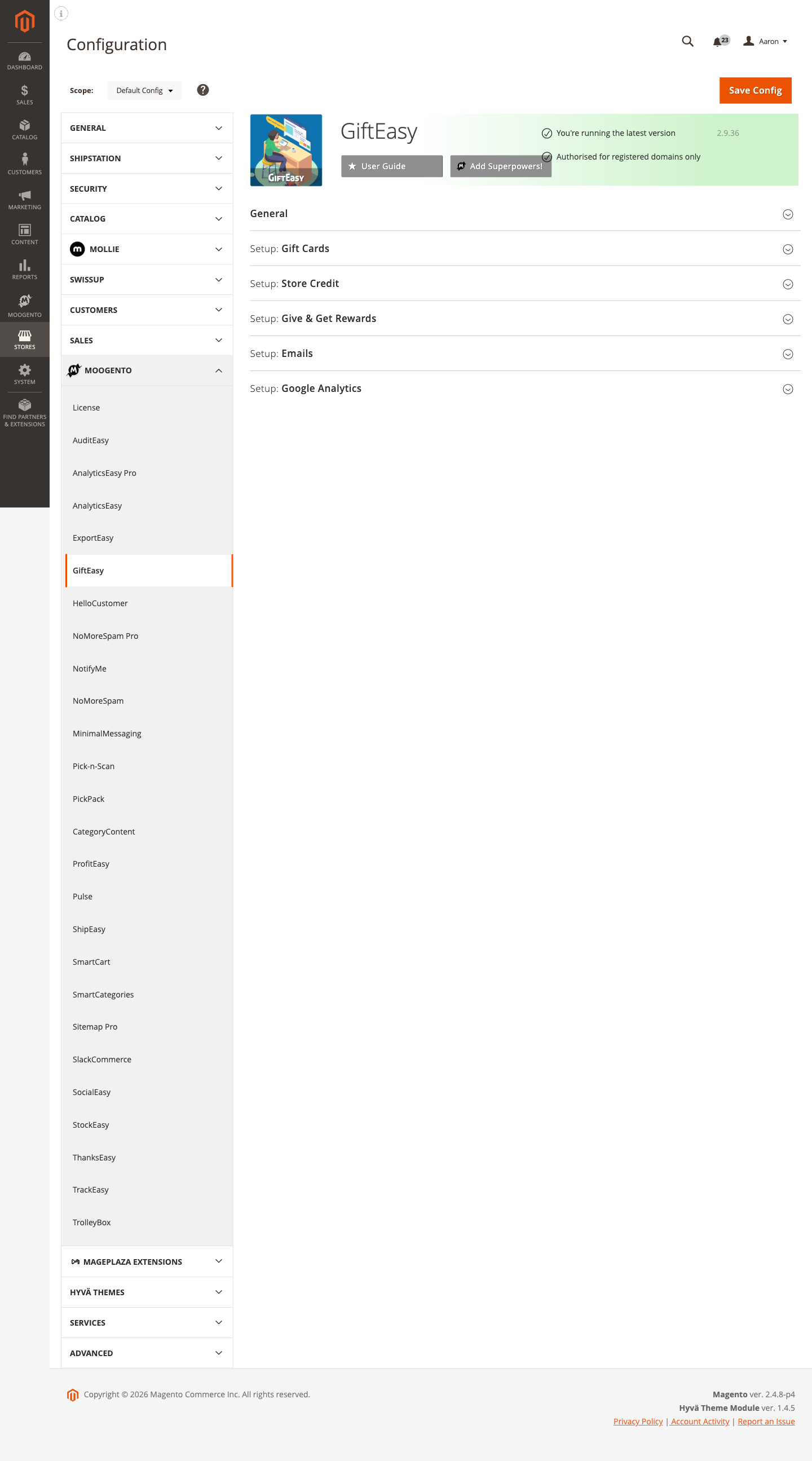
Stores > Configuration > Moogento > GiftEasy
You'll mainly work with:
- General - master enable and debug logging
- Setup: Gift Cards - default validity, custom value limits, checkout code entry
- Setup: Store Credit - one-click store credit enable and default validity (Pro)
- Setup: Give & Get Rewards - referral program values and customer qualification filters (Growth/Pro)
- Setup: Emails - email templates for all gift card, store credit, and referral events
- Setup: Google Analytics - UTM parameters for campaign attribution
Common setups
Sell Magento 2 gift cards in your store
Create a gift card product so customers can purchase and send gift cards from your storefront.
How to set it up
-
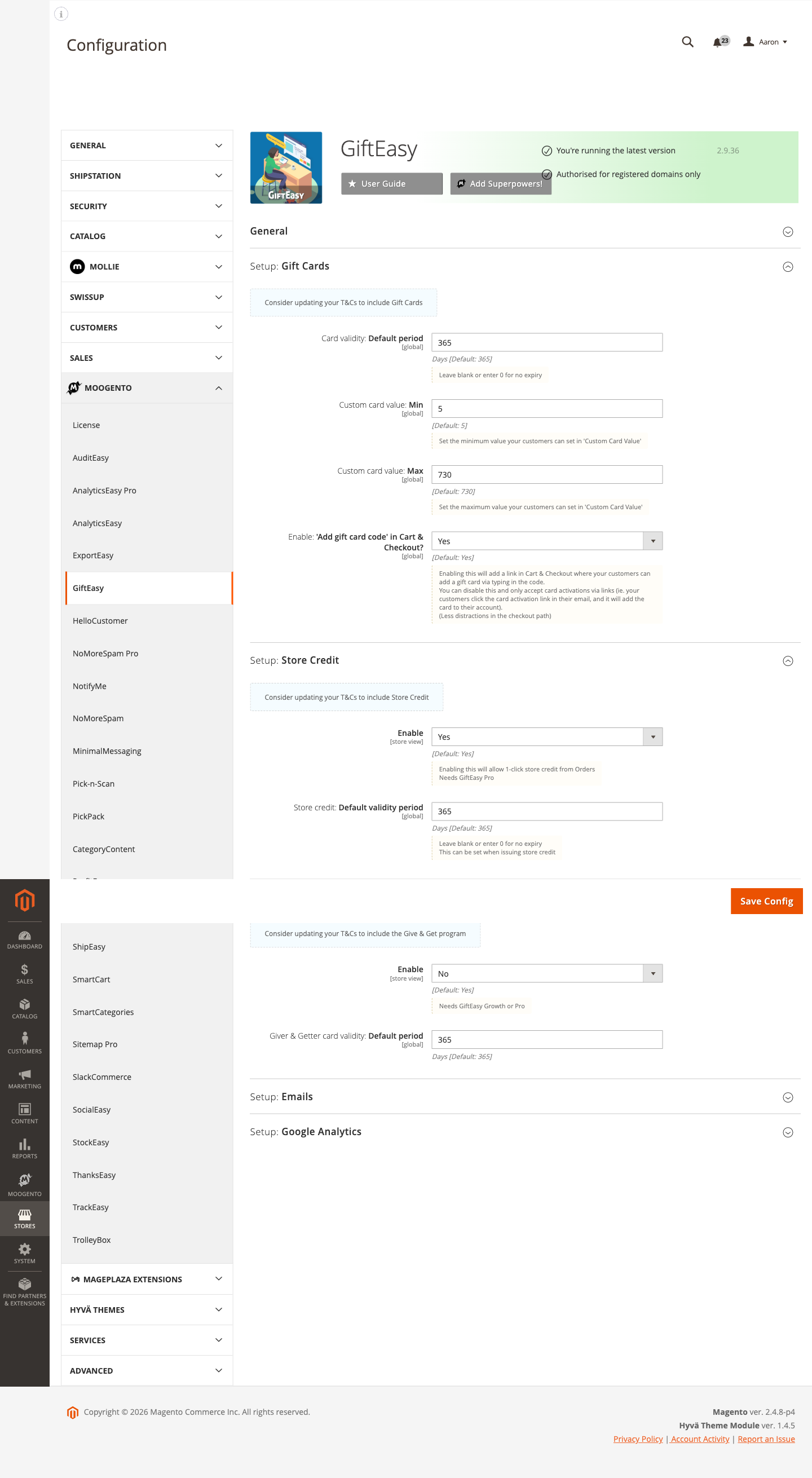
Go to: Stores > Configuration > Moogento > GiftEasy > Setup: Gift Cards
-
Set:
- Card validity: Default period =
365days on Seed; changing the period or using0for no expiry requires Growth or Pro - Custom card value: Min =
5(minimum customers can enter for open-value cards) - Custom card value: Max =
730(maximum customers can enter) - Enable: 'Add gift card code' in Cart & Checkout =
Yes
- Card validity: Default period =
-
Save Config

- In the Magento catalog, create a new product and choose the GiftEasy Gift Card product type.
- Set predefined amounts, choose card designs from the Designs library (Moogento > GiftEasy > Designs), and publish.
Notes
- On Growth or Pro, setting Card validity to
0means cards never expire. Consider your jurisdiction's gift card legislation before deciding. - If you prefer customers to claim cards only via email link (fewer distractions in checkout), set Enable: 'Add gift card code' in Cart & Checkout to
No. - Update your Terms & Conditions to reference gift card policies - the config page includes a reminder about this.
Issue a gift card manually (Growth or Pro)
Send a one-off gift card to a customer - for a promotion, compensation, or customer-service gesture.
How to set it up
- Go to Moogento > GiftEasy > Issued
- Click Add New Card
- Fill in:
- Sender name and receiver name/email
- Card value
- Card design (optional)
- Personal message (optional)
- Send at: leave empty for immediate delivery, or choose a future date and timezone for scheduled delivery
- Click Save and Send Email to dispatch immediately, or Save to hold without sending

Notes
- Scheduled cards are queued by cron every minute and sent when their
send_attime passes. - You can view and manage all issued cards from Moogento > GiftEasy > Issued, including balance and status.
Enable store credit for refunds and goodwill (Pro)
Allow your team to issue store credit from any order page with one click - useful for partial refunds, compensation, or loyalty gestures without processing a formal return.
How to set it up
-
Go to: Stores > Configuration > Moogento > GiftEasy > Setup: Store Credit
-
Set:
- Enable =
Yes - Store credit: Default validity period =
365(days; leave blank or0for no expiry)
- Enable =
-
Save Config

- Open any order in Sales > Orders, click Issue Store Credit, enter an amount and optional note, and save. The customer receives an email with a claim link.
Notes
- Store credit requires the GiftEasy Pro license.
- Store credit is tied to the specific customer account and is not transferable - unlike a gift card code, it cannot be shared or forwarded.
- The validity period set here is a default; you can override it per issuance.
Set up the Give & Get referral program (Growth/Pro)
Reward loyal customers who refer a friend. When a qualifying customer's friend claims their gift card and makes a purchase, both parties earn a reward.
How to set it up
-
Go to: Stores > Configuration > Moogento > GiftEasy > Setup: Give & Get Rewards
-
Set:
- Enable =
Yes - Giver & Getter: Gift card value =
25(amount both parties receive, in your base currency) - Getter: Min. order value =
100(getter's gift card only activates on orders above this amount; leave blank for no restriction) - Giver & Getter card validity: Default period =
365 - Giver: Profile banner = choose a design to show on the giver's Store Credit page
- Enable =
-
Expand the Filter: Customer Welcome sub-group and set qualification thresholds:
- Minimum: Total order value (e.g.
500) - Minimum: Order count (e.g.
3) - Minimum: Product review rating - customers with a review at or below this rating are excluded; customers with no reviews are included
- Minimum: Total order value (e.g.
-
Save Config
Notes
- Give & Get requires the GiftEasy Growth or Pro license.
- Qualifying customers see the Give & Get section on their My Store Credit account page and can share a referral link or enter a friend's email directly.
- Update your Terms & Conditions to describe the referral program before enabling it.
Features reference
Email templates
GiftEasy sends emails for every key event: new gift card, expiring card reminder, store credit notification, and all four Give & Get stages (giver welcome, giver reward, getter invitation, getter claimed card). Each template is configurable at the store view scope.
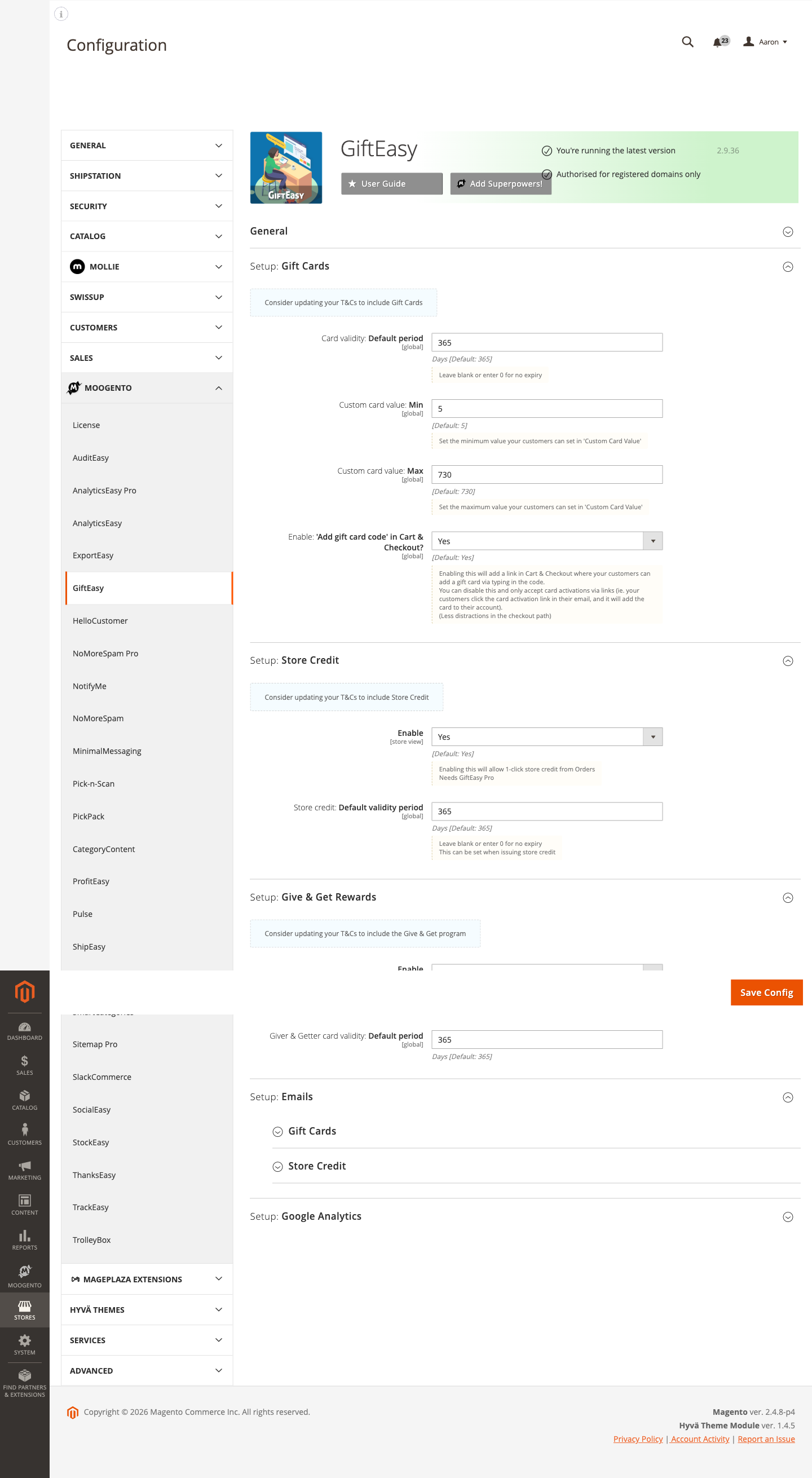
- Config path: Stores > Configuration > Moogento > GiftEasy > Setup: Emails
- Set the receiver template under Setup: Emails > Gift Cards
- On Growth or Pro, enable expiry reminders; setting how many days before expiry requires Pro (
moogento_gifteasy/email/giftcards/notify_expiration_yn,moogento_gifteasy/email/giftcards/days_before_notify_expiration) - Store credit template and default card image: Setup: Emails > Store Credit
- Give & Get giver and getter templates, plus default card images per email type: Setup: Emails > Give & Get
Card designs
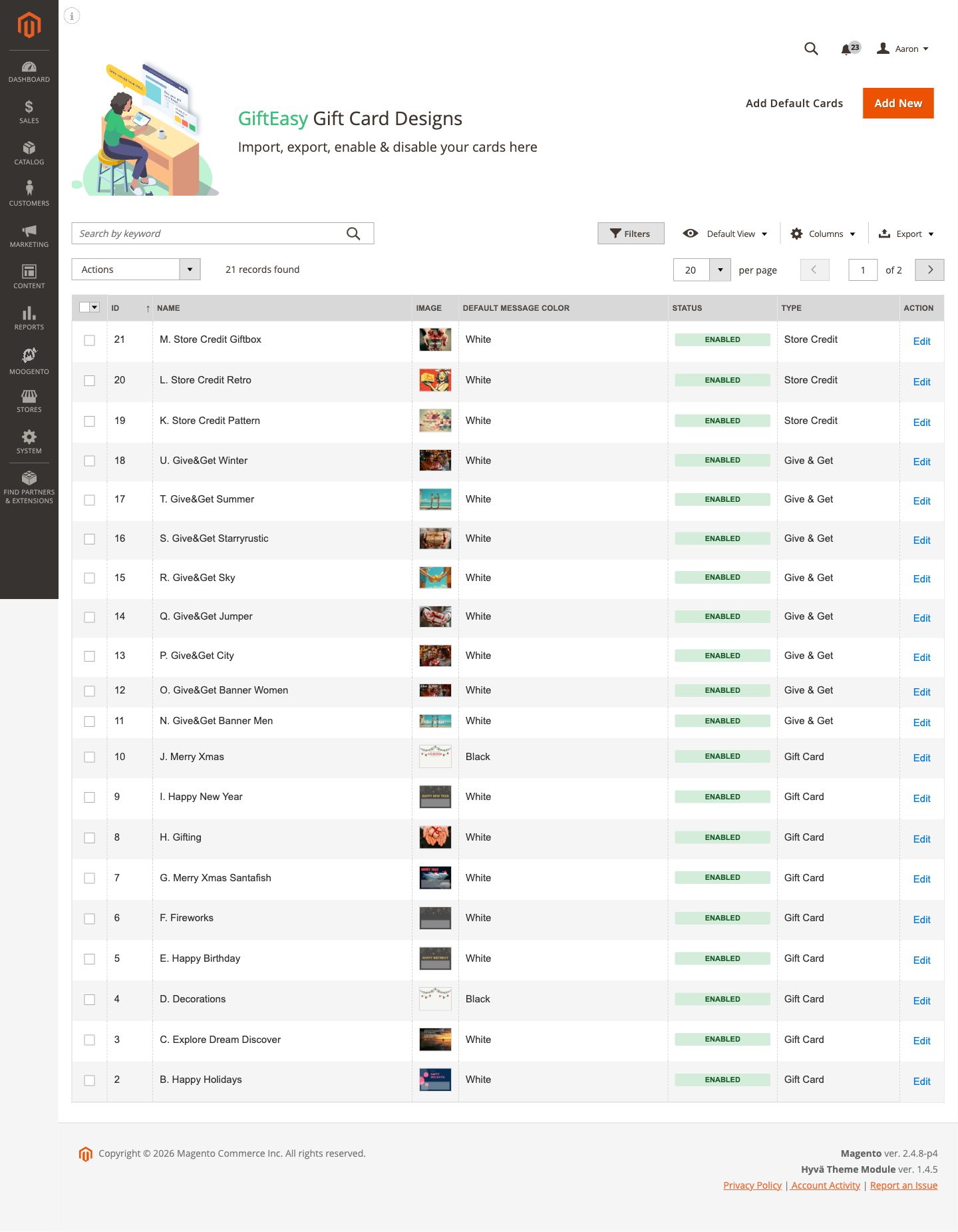
Upload and manage the images used in gift card emails. Designs are shared across manual issuance and Give & Get cards.
- Go to: Moogento > GiftEasy > Designs
- Upload custom PNG images (max 1 MB, recommended 640 × 454 px)
- Assign a text colour (black or white) for the message overlay
- Mark designs as active/inactive to control availability
Give & Get referral log
View the full history of Give & Get activity - who referred whom, when invites were sent, and what status each referral has reached.
- Go to: Moogento > GiftEasy > Give & Get
- Columns show giver and getter details, referral link code, invite date, and status (pending or completed)
Order view: "How GiftEasy helped" card
Order view shows a summary card whenever a gift card, store credit card, Give & Get reward, or bulk-sent gift card is connected to that order. Gift cards show on every plan; store credit requires Pro, Give & Get requires Growth or Pro, and bulk-sent gift cards require Pro. On a lower plan the card is simply not shown.
The card covers two cases:
- Used on this order - the card lists the amount applied, who sent it, and, for store credit, the order that issued it. For Give & Get, it also shows the referral partner's email.
- Sent but not used - when a card was sent to the customer but not applied to this order, the card shows the value it was sent with and the date it was sent, so support can see it was not used on this order. This is skipped on cancelled orders.
Every code shown is masked to its last two characters, and every Give & Get partner email is masked to its
first character plus the domain (for example, j***@example.com). No running or current balance is shown -
just the amount used on this order, or the value the card was sent with.
Google Analytics UTM tracking
Tag every gift card email with UTM parameters so clicks appear as a recognisable campaign in GA4 or your analytics platform.
- Config path: Stores > Configuration > Moogento > GiftEasy > Setup: Google Analytics
- Conversion: Window - how many days after the initial event a click is still counted as a conversion (default
30) utm_source- identifies gift cards as the traffic source (defaultgifteasy)utm_medium- channel type (defaultemail)- Per-send-type campaigns: single-sent card, mass-sent cards, store credit, and Give & Get each have their own
utm_campaignvalue so you can compare them in your analytics dashboard
Advanced configuration
Scheduled gift card delivery (Growth or Pro)
What it does
Set a future date and timezone on any gift card during issuance, and GiftEasy will hold the email until that moment. The cron job runs every minute; a 30-minute de-duplication window prevents sending duplicates if multiple cron workers run at the same time.
Setup
Set the Send at date and timezone when creating a card manually (Moogento > GiftEasy > Issued > Add New Card) or when a customer selects "send later" on the gift card product page.
Notes
- If a scheduled card is not being sent, check that the store's cron is running (
php bin/magento cron:run), verifyemail_sent = 0on the card record, and checkvar/log/moogento_gifteasy.logfor queue processing messages. - Large batches (more than 100 cards) are processed via Magento's message queue. If the queue consumer is not running, start it:
php bin/magento queue:consumers:start gifteasy.sales.mass_send_giftcard.
Mass send gift cards (Pro)
What it does
Issue gift cards to multiple customers or orders in one action from the Customer grid or Sales Order grid. Cards are dispatched via queue processing to avoid timeout on large lists.
Setup
- Go to the Customers grid or Sales > Orders grid.
- Select the rows you want to issue cards to.
- Choose Issue Gift Card from the Actions dropdown.
- Set the card value and any other options, then confirm.
Notes
- For large lists, ensure the message queue consumer is running so cards are dispatched promptly.
- Check
var/log/moogento_gifteasy.logfor progress and any delivery issues.
Tips & best practices
- On Growth or Pro, enable expiry reminder emails if your cards have a validity period - customers who know a card is expiring are much more likely to use it.
- Set a minimum order value for Give & Get getter cards to ensure the referral reward ties to a meaningful purchase, not a $1 checkout.
- Use the Designs library to keep branded card images consistent across manual issuance, mass send, and Give & Get emails.
- Use Give & Get qualification filters (order count, spend, review rating) to restrict the program to your best customers - start with conservative thresholds and loosen over time.
- Turn logging on (
moogento_gifteasy/general/enable_logging_gifteasy) only when investigating a specific issue. The log file atvar/log/moogento_gifteasy.loggrows quickly on active stores. - Update your store's Terms & Conditions to include gift card terms, store credit terms, and the Give & Get referral program before enabling each feature - the config page includes reminders.
Troubleshooting
A customer can't redeem their gift card at checkout
- Cause: The card is inactive, expired, or has a zero balance; the store scope doesn't match; or the minimum order value isn't met.
- Check: Open the card in Moogento > GiftEasy > Issued and verify status is Active, the expiry date is in the future, and current balance is above zero. Confirm the card was issued for the correct store scope. If a minimum order amount is set on the card, verify the customer's cart meets it.
Gift card balance doesn't match what the customer expects
- Cause: Partial redemptions across multiple orders, a reserved balance during a failed checkout, or timezone differences on historical transactions.
- Check: Review the usage history on the card record. The
current_balancefield reflects remaining value after all completed orders. If a cart reservation is stuck, check thereserved_cart_idandreserved_balancefields - these release automatically when the cart is abandoned or the order fails.
Gift card or store credit email not arriving
- Cause: Email template not configured, cron not running (for scheduled or expiring emails), or async email sending is backed up.
- Check: Confirm the relevant template is selected in Stores > Configuration > Moogento > GiftEasy > Setup: Emails. Verify cron is running. Review
var/log/moogento_gifteasy.logfor sending errors. If using asynchronous email, check the Magento email queue.
Give & Get section not showing in a customer's account
- Cause: Customer doesn't meet the qualification filters, the license plan is Seed (doesn't include Give & Get), or the feature is disabled.
- Check: Confirm the customer's total spend, order count, and review rating meet the thresholds set in Setup: Give & Get Rewards > Filter: Customer Welcome. Verify your license is Growth or Pro. Confirm Enable is set to Yes under Setup: Give & Get Rewards.
Scheduled gift cards are not being sent
- Cause: Cron is not running, the card's
send_atdate hasn't passed yet, or the message queue consumer is stopped. - Check: Run
php bin/magento cron:runmanually and re-check. Confirm the card'ssend_attime is in the past. For large batches, start the consumer manually withphp bin/magento queue:consumers:start gifteasy.sales.mass_send_giftcard- in production, keep it running under Supervisor or the Magento cron. Reviewvar/log/moogento_gifteasy.logfor queue processing activity.
Malware scanner flags Helper/Moo.php
- Cause: Your host's malware scanner (often Imunify360 on cPanel hosting) heuristically flags the encoded license-check files that ship inside every paid Moogento extension. The files are genuine and unchanged - the encoding protects the license check from tampering.
- Resolution: Add the files to the scanner's ignore list so the warnings stop, and restore any file the scanner already quarantined. Both steps, plus how to verify the files are byte-for-byte what we shipped, are covered in the license file protection guide.
FAQs
How do I add gift cards to my Magento 2 store?
Install GiftEasy, then create a new product in your catalog and select the GiftEasy Gift Card product type. Set predefined amounts or allow customer-entered values, attach a card design, and publish - the gift card appears in your storefront like any other product. See the Common setups section for the full walkthrough.
Can customers choose their own gift card amount?
Yes. Set Custom card value: Min and Max under Stores > Configuration > Moogento > GiftEasy > Setup: Gift Cards to define the range, and customers can enter any amount within those limits when they add the gift card to their cart.
How do gift cards get redeemed - does the customer type a code or click a link?
Both methods are supported. On Growth or Pro, customers can click the claim link or scan the QR code in their gift card email to add the balance to their account. On every plan, they can type the card code directly in the cart or checkout if you have the code-entry field enabled in Setup: Gift Cards.
What happens to a gift card if the customer doesn't use it before it expires?
The card's status changes to Expired and it can no longer be applied at checkout. On Growth or Pro, expiry reminder emails can run. On Pro, you can configure the number of days before expiry under Setup: Emails > Gift Cards - so customers are prompted to use the card before it lapses. On Growth or Pro, you can extend a card by opening it in Moogento > GiftEasy > Issued and updating the expiry date.
What's the difference between a gift card and store credit in GiftEasy?
A gift card has a code that any customer can use - it can be forwarded, shared, or given as a present. Store credit is tied to a specific customer account and cannot be transferred. Both let customers pay for an order without entering a card, but store credit is the right tool for refunds and goodwill gestures where you want the credit to stay with that customer.
Which plan do I need for the Give & Get referral program?
Give & Get is available on the GiftEasy Growth and Pro plans. Store credit (one-click issuance from orders) requires the Pro plan. Seed includes customer-purchased gift cards, custom amounts, designs and code redemption. Manual issuance, scheduled delivery, claim links, QR codes and expiry reminders require Growth or Pro; mass sending requires Pro.
Does GiftEasy work with Hyvä, Luma, and Porto themes?
GiftEasy is compatible with Luma, Porto, and Hyvä themes. The checkout redemption field and customer account sections render correctly across all three. If you use a heavily customised Hyvä checkout, verify that the gift card totals block is included in your checkout layout.
What happens if I disable GiftEasy?
When you set Enable to No under Stores > Configuration > Moogento > GiftEasy > General, the gift card product type, checkout redemption field, and customer account sections are hidden. Existing issued cards remain in the database - no data is lost - and can be reactivated by turning the module back on.
Can I track which gift card emails lead to purchases?
Yes. GiftEasy adds UTM parameters to every gift card email link, configurable under Stores > Configuration > Moogento > GiftEasy > Setup: Google Analytics. Set your preferred source, medium, and campaign values per send type (single card, mass send, store credit, Give & Get). For deeper attribution that ties gift card redemptions to revenue, see the AnalyticsEasy Pro guide.
Does GiftEasy handle multi-currency stores?
Yes. Gift card values are stored in your base currency and automatically converted to other store currencies at checkout using Magento's exchange rates. Give & Get reward amounts and minimum order values are also set in base currency and converted per store view.
Related guides
- AnalyticsEasy Pro - revenue attribution reporting that shows which gift card campaigns and referrals drive purchases
Need help?
- moo@moogento.com
- Include:
- Magento version
- Module name (GiftEasy)
- What you're trying to do