

Overview
Great Magento Emails turns your Magento 2 transactional emails into branded, professional communications. Design emails once and apply them across your store, with safe fallback to native templates if anything changes. Nothing happens to your customer emails until you explicitly publish a design.
This module is an optional paid add-on that works alongside the free Moogento Messages package. Tested on Magento Open Source 2.4.5-p14 and 2.4.9, with the free Moogento_Messagecontent module version 1.0.7 or later. Every design you create is stored in your database; your designs stay yours even if you disable or remove the module.
What you get
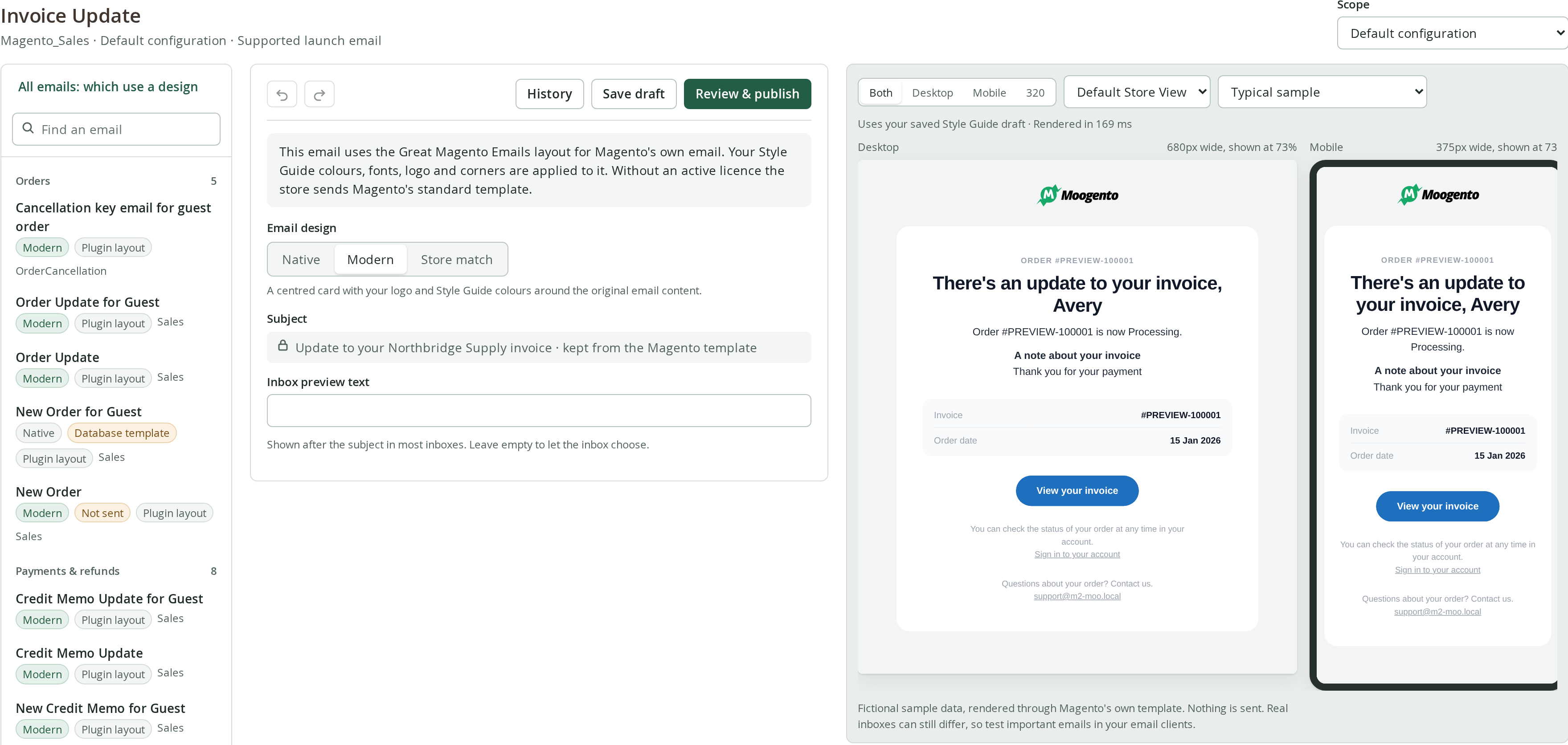
- Email studio: A visual library of your transactional emails grouped by purpose (orders, payments, shipping, accounts, stock alerts, gift cards, reviews, subscriptions, store enquiries and store staff emails), every email Magento and the installed extensions send. Search, filter and scope designs per store view. See which emails customers receive with a design, switch an email between Default, Modern and Store match, or apply a design to every eligible email at once. Guest order emails are switched and published with their customer email.
- Three design styles: Native (unchanged), Modern (clean centred card), or Store match (colours and fonts from your storefront).
- Visual editor: Move blocks up and down, add headings, text, buttons, images, dividers and spacers around Magento's protected order details. Subject line stays with the native template.
- Live preview: Desktop and mobile widths, on their own or side by side. Click an element in the preview to select it. Swap between typical and long sample data.
- Style Guide: Field-by-field colour and typography control, inherited from Default scope down to each store view. Read your storefront's actual look and propose changes. Live preview as you edit.
- Publish with safety: Review which store views are affected. See what a design carries over from a customised template saved in Marketing > Email Templates (such as PickPack PDFs and the subject line) and what it does not, and choose whether the design is sent instead. See warnings if the native template has changed since you published.
- Your logo with no setup: Until you set a logo in the Style Guide, designed emails show the logo your store already uses (see Logo).
- Update notices: When a Great Magento Emails release improves a design you published, the studio flags those emails with Update available, and you can preview and apply each update in one click.
- History and rollback: Every saved version is timestamped and credited to its author. Roll back to any of the 30 most recent versions.
- Permissions: Grant administrators access to view designs, edit drafts, publish, or configure diagnostics independently.
Requirements
- Installable on Magento 2.4.5 to 2.4.9, with verified platforms listed below
- Free Moogento Messages module (Moogento_Messagecontent) version 1.0.7 or later installed and enabled
- Paid license for Great Magento Emails (Moogento_Greatemails), which also installs the Moogento License module
- PHP 8.1 to 8.5, using a PHP version supported by your Magento release
Installation, email sends and native source profiles were verified on Magento Open Source 2.4.5-p14 with PHP 8.1 and on Magento 2.4.9. Welcome email preview rendering and admin preview endpoints were tested on Magento Open Source 2.4.5-p14 with PHP 8.1 and on Magento 2.4.9. Other platform releases have not been verified. Designs that wrap Magento's own email text fall back to native email when its source does not match an admitted profile. Designs with module-owned layouts are verified only on the two listed platforms.
Installation
Prefer a hands-off setup? Our team can install and configure the extension for you - see the paid install service.
Great Magento Emails installs via Composer and activates with a license key. The setup takes about 5 minutes.
Step 1: Get your Composer keys from Moogento.com
- Sign in at https://www.moogento.com and open My Plugins in your account menu.
- Find Great Magento Emails in the list of plugins you own.
- Generate (or reveal) the Composer access keys for that plugin: a public key and a private key.
- Add your install domain to the key. Each Composer key is tied to a specific domain. If you are installing on
yourstore.com, addyourstore.comto the key's allowed domains. The Composer download will be rejected on any other domain.
If you run staging and production on different domains, add both domains to the same key, or create separate keys per environment.
Step 2: Install the module with Composer
From your Magento 2 root directory:
composer require moogento/m2-greatemails
When Composer asks for credentials, paste the public key as the username and the private key as the password. They are cached in ~/.composer/auth.json for future runs.
Step 3: Enable the module in Magento
php bin/magento setup:upgrade
php bin/magento setup:di:compile
php bin/magento cache:clean
Check that the module is enabled:
php bin/magento module:status Moogento_Greatemails
Step 4: Add your license key in the Moogento admin
- Copy the Great Magento Emails license key from My Plugins at moogento.com.
- Open Stores > Configuration > Moogento > License in Magento Admin.
- Add the Installation Domain shown on this page to the key in your Moogento account.
- Paste the key into the key field and click Add key.
- Under Registered Keys for this Installation, confirm that the key you added shows an active status.
The license validates within a few seconds. If it stays inactive, check that the domain on the license matches your installation domain exactly. Domain mismatch is the most common cause.
Getting started: The Email studio
Open Marketing > Moogento > Messages > Email library to see your transactional emails grouped by purpose.
Choosing a scope and email
- Choose the Scope: Default configuration, a website or a store view. Default configuration applies to all store views; each store view inherits the nearest published design unless it has its own.
- Click an email title to open it in the editor.
Understanding email compatibility
Emails in the library carry these badges:
- Design badge (Native, Modern, Store match): The currently published design for this email.
- Draft, not live badge: Shows when a saved draft has not been published yet. Choosing a design in the editor saves a draft straight away, so this badge can appear as soon as you click Modern or Store match; customers keep receiving the published version until you publish.
- Inherited badge: This scope uses the design published at a parent scope.
- Compatibility badge, shown only when an email is not fully supported:
- No badge: fully supported. Your design applies to the complete email, including Magento's order details, items, prices and totals.
- Plugin layout: the email is sent with a ready-made layout coloured with your Style Guide. Magento's New Order, New Invoice, New Shipment and New Credit Memo emails use the Great Magento Emails layout (see Great Magento Emails layout), and so do the account, password, email change and newsletter subscription emails (see account, password and newsletter emails) and the order update, Ready for Pickup and guest cancellation emails (see order update emails); emails from Moogento plugins use the plugin's own layout.
- Branded layout: Your design wraps around unchanged content. This covers emails from other extensions, emails your store staff receive and plain text emails. Before the design is published, the email is rendered with the long sample to check it (see below).
- Needs integration: Magento cannot safely apply a design to this email yet, so it keeps sending unchanged. Every email installed with Magento and the Moogento plugins can take a design, so this only shows when an extension's email cannot be read.
- Not checked: the studio could not determine compatibility for this scope (for example, a scope without store views).
See which emails use a design
When no email is open, the studio shows every email for the chosen scope with a Handled by column, and a count at the top such as "12 of 86 emails use a Great Magento Emails design in Default configuration". Click All emails: which use a design above the library to come back to it from the editor. Use the filter buttons or the search box to narrow the list.
Magento sends guest orders their own version of the order, invoice, shipment, credit memo, update and Ready for Pickup emails (for example New Order for Guest). Each guest version is listed right under its customer email, and the customer email's Handled by says what both receive, for example "Modern design for customers, saved template for guests" when they differ.
Handled by says what customers in that scope actually receive:
- Great Magento Emails: Modern or Store match: the design is sent. The line below names the layout (the Great Magento Emails layout, a plugin's layout or your design around the email content), the parent scope it comes from, if any, and the saved template it is sent instead of, if any (see Customised database templates).
- Modern published, customers get the native template: a design is published but not sent, with the reason: no active licence, the native template changed since publishing, or every store view uses a customised database template.
- Great Magento Emails: Modern, update available (or Store match): a Great Magento Emails release improved this design, and in the store views shown customers get the template they would get without a design until you apply the update (see Great Magento Emails updated).
- Custom template saved in the database: a store view selects a template from Marketing > Email Templates for this email, so that template is sent unchanged. The template name, its number and the store views are listed. When only some store views use one, the design is sent in the others and the line says how many. When the saved template is a copy of Magento's standard one, the line says that publishing Modern or Store match replaces it automatically.
- Native: Magento or theme template: nothing is published. For emails with the Great Magento Emails layout and plugin emails, the line says which layout is available.
- Native: cannot be designed yet: the email needs an integration (see Needs integration).
- Not checked: the scope has no store view.
Change one email's design
Use the Design list on the email's row: Default (the Magento or theme template), Modern or Store match. A design that comes from a parent scope shows where it comes from, for example "Modern (from Default configuration)".
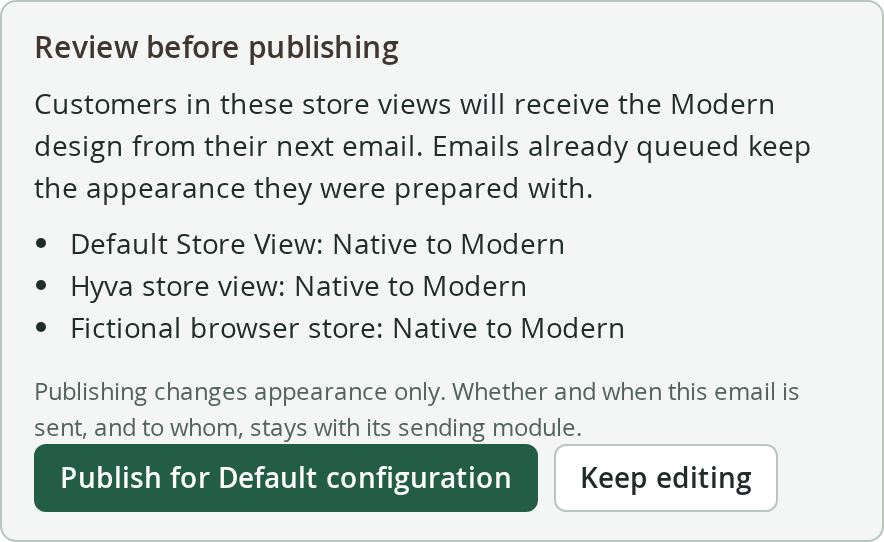
- Choose a design. A window shows a preview with your published Style Guide and the store views that will change.
- For an email with a guest version, Also for guest orders is ticked, so guest orders get the same design. Untick it to change only this email. On a guest version's row the box reads Also for customers.
- If a saved template from Marketing > Email Templates is selected for the email or its guest version, the window lists what the design carries over from each saved template and what it does not, with a Use the design instead of my saved template checkbox that applies to both (see Customised database templates).
- Click Publish Modern for your scope (or the design you chose). Nothing changes until you click it.
- The confirmation names each email that changed, and says why a guest version was left as it is (for example, it has draft changes of its own). Its Undo button puts the previous design of both back, together with your earlier saved template choices.
Publishing here uses the same draft, publication, history and licence checks as the editor, so each change appears in the email's history. Choosing Default removes the scope's own design so it follows its parent scope again, or publishes the native design here when the parent scope has a design.
The list is unavailable, with the reason shown, when the email has unpublished draft changes, comes from another extension (it needs the long-sample check in the editor), needs an integration, or when your role cannot edit and publish designs or there is no active licence.
Apply a design to all eligible emails
- Click Apply a design to all eligible emails.
- Choose Modern, Store match, or Default to return this scope's own designs to the Magento or theme template.
- Click Check what will change. The list shows exactly which emails will change, which already use the design and which are skipped, each with its reason.
- Preview any email that will change, then click Apply. Each email is published on its own and listed with its result.
- To go back, click Revert these emails to Default (or Restore these designs after applying Default).
Later, for example after reloading the page, click Revert all to Default next to Apply a design to all eligible emails. It opens the same window with Default chosen and lists every design this scope has of its own before anything changes. The button shows when the scope has at least one design of its own.
Guest versions, store staff emails and emails from other extensions are listed and switched like every other email, so every email is covered. Emails from other extensions, staff emails and plain text emails are first rendered with the long sample, exactly as the editor's check does; an email whose render fails that check keeps its current design and the result says why. Modern and Store match go only to emails that currently send the native template; an email that already has a design keeps it. These emails are skipped: emails with unpublished draft changes and emails whose store views send a saved template with content of its own, unless you tick Also use the design instead of saved templates that have content of their own.
Emails whose saved template is a copy of Magento's standard one (with at most a PickPack PDF code, its own subject line or CSS, or, for order, invoice and shipment emails, a TrackEasy link added) are included without the box: the design replaces them and nothing is lost. With the box ticked, the review step lists, for each email with a saved template, what the design carries over and what it does not, and the design replaces those saved templates too. Emails that cannot replace a saved template (see below) still publish the design, and their store views keep sending the saved template. Great Magento Emails never changes your configuration.
The Email editor
The editor has two sides: structure on the left and a live preview on the right.
Structure list
The structure shows every block in your email from top to bottom:
- Email content (always present, always protected): Magento's own email content, such as order status updates, account links and secure buttons. You cannot remove it, but you can move it up or down in your email.
- Custom blocks you add: Headings, text, buttons, images, dividers and spacers appear above or below the email content as you arrange them.
Click any block to select it and edit its settings in the inspector.
Adding and editing blocks
- Choose a block type (Heading, Text, Button, Image, Divider or Spacer) under Component to add and click Add. The new block goes after the selected block, or just above the Email content when nothing is selected.
- Click a block in the structure to select it. The preview highlights it in real time.
- Edit its content in the Inspector:
- Text and heading content
- Colour role from your Style Guide
- Alignment (left, centre, right)
- Spacing
- For buttons: label and link
- For images: image address and description
Links and images must be on your store's own domains.
Saving and autosave
- Save draft (Ctrl/Cmd+S): Manually save your changes.
- Autosave: After a short pause with no changes, your work is automatically saved as a draft. The editor shows Draft saved at the time, followed by Not live until you publish: a draft never changes what customers receive.
- Undo/Redo (Ctrl/Cmd+Z / Shift+Ctrl/Cmd+Z): Step back or forward through your edits.
If the draft was changed in another window or from the command line, the editor tells you about the conflict instead of overwriting the newer work.
Preview and sample data
The preview on the right updates as you edit:
- Viewport selector: Choose Desktop (680px), Mobile (375px), 320px narrow, or Both. Scaled frames show their real width.
- Sample data: Choose Typical or Long to see how your design handles different order sizes.
- Store view selector: Preview the email in any store view that belongs to the scope you are editing.
Previews of Editable emails use fictional sample data rendered through Magento's own templating engine. Third-party emails without a design integration have no sample data, so their own values show blank (see Limitations). No preview is sent to customers, and previewing never changes a draft or a published design. The one exception is the third-party check: a Long preview of a third-party email's design is recorded in the audit log, because that record is what allows the design to be published (see Branded layout).
The preview uses your saved Style Guide draft, even before it is published, together with your unsaved changes to the email. To see unsaved Style Guide values, use the live preview on the Style Guide page.
Subject and preview text
The Subject line comes from the native Magento template and cannot be changed in the editor. The Inbox preview text (optional) is a short snippet shown in email clients after the subject when the email is unopened. If left blank, the email client chooses what to show.
Publishing and unpublishing
When your design is ready:
-
Click Review & publish at the top of the editor.
-
Check what each store view will receive. Sending rules, recipients and consent are not changed; only the appearance is.
-
If a store view's configuration selects a template saved in Marketing > Email Templates for this email, the panel says so. Publishing alone does not change what those store views send. The panel lists what the design carries over from the saved template (PickPack PDF codes, the subject line) and what it does not, per store view when they differ, and asks what customers receive:
- Use the design instead of my saved template: the store view line reads "saved template ... to Modern" and the button reads Publish and use the design for your scope.
- Keep sending my saved template (the design is published but not used there): the store view line reads "keeps sending saved template ..." and the button reads Publish design for your scope (saved template stays in use).
The first option is preselected only when you chose the design before (here or at a parent scope) or nothing in the saved template would be lost, exactly as in the library's switch window (see Customised database templates). Your choice is stored only when it changes what is sent, and Undo publication puts the earlier choice back. A saved template the design cannot replace, such as a Plain Text one for an HTML email, is listed as staying in use.
-
For an email with a guest version, Also for guest orders is ticked: the guest version is published in the same step with the same design and blocks, keeping its own subject and its own history. Untick it to publish only this email. A guest version with unpublished changes of its own is left as it is, and the confirmation says so.
-
For a third-party, staff or plain text email, publishing first checks it with the long sample, as described under Branded layout.
-
Click the publish button to make the design live. Undo publication puts back the earlier design of both emails.
After publishing, you can:
- View history to see the 30 most recent versions with timestamps and authors.
- Undo publication to revert to the previous design (available to roles that can edit drafts and publish).
- Roll back from history to publish an earlier version (creates a new publication entry).
- Use instead, on a website or store view with its own design, to follow the parent scope again. The guest version follows it too while Also for guest orders is ticked beside the button, unless it has unpublished changes of its own.
Native fallback
If something changes, your emails automatically return to native (unchanged) templates:
- The design is unpublished or removed. A website or store view then follows the nearest parent scope that still has a published design, and uses the native template only when no parent has one.
- The licence server reports the licence as invalid, or no licence is recorded for this installation (see Licence below).
- The native template file has changed since you published (you can republish after reviewing the changes).
- A Great Magento Emails release changed the design (apply the update in the studio, see Great Magento Emails updated).
- The store view moves to another website.
- A problem occurs while building the designed email. If only the final inline styling step fails, the designed email is still sent, without the extra inline styles. When the design replaced a saved template from Marketing > Email Templates, that saved template is sent.
Queued emails that were prepared before unpublishing keep their appearance.
The Style Guide
Control colour and typography across all emails in a store view.
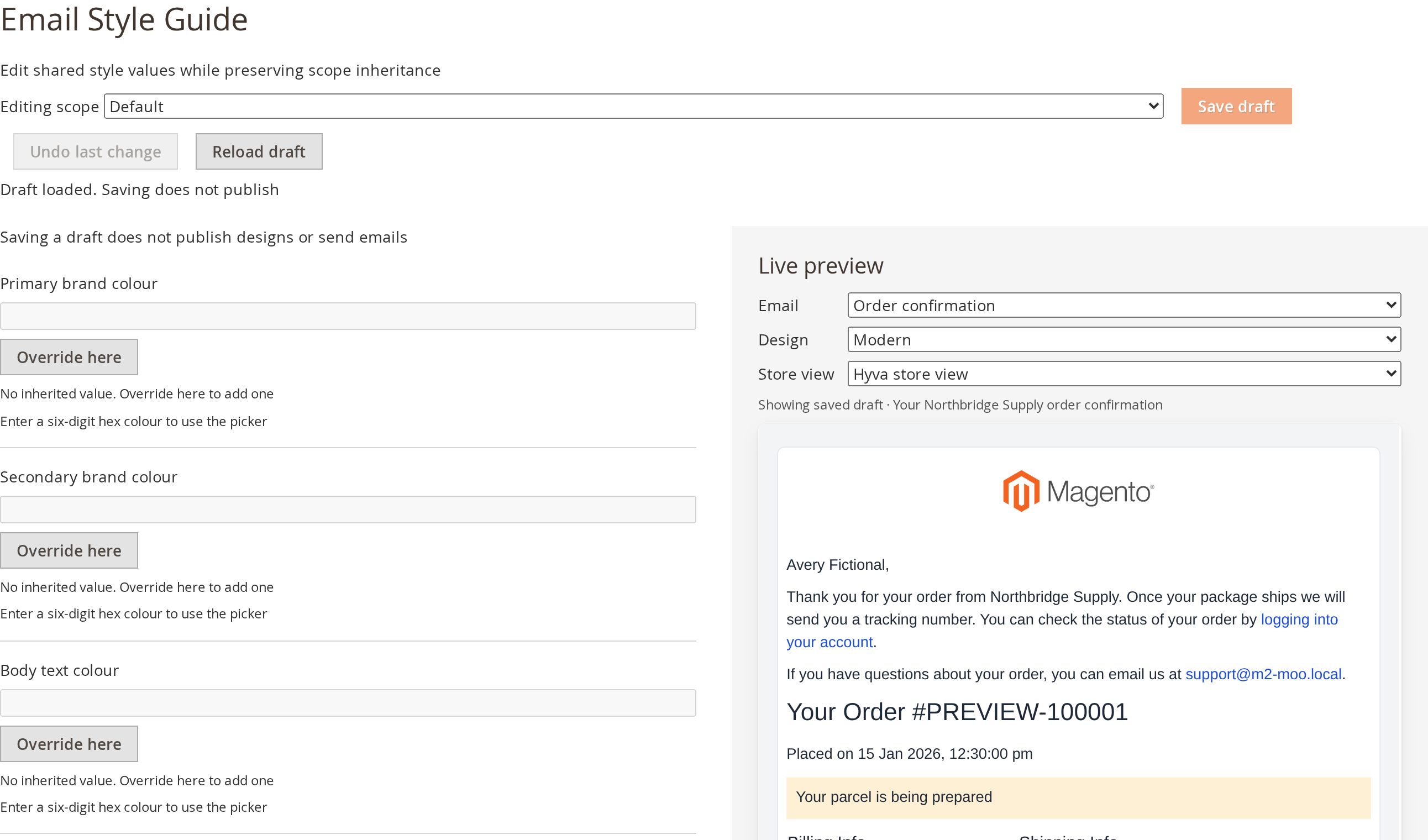
Open Marketing > Moogento > Messages > Style Guide to edit field-by-field settings.
Inheritance and overrides
Every field inherits from its parent scope:
Default configuration > Website > Store view
Example: You set a primary button colour in the Website scope. All store views under that website inherit it, unless you override it in their own store view. On a field that is inherited, click Override here to set a value for this scope; on an overridden field, click Reset to inherited to follow the parent scope again.
Fields
The Style Guide holds your email colours, fonts, logo and button styles. Each field shows whether it is set at this scope or inherited from a parent scope, and can be changed or returned to the inherited value on its own.
Logo
When the Style Guide has no logo of its own, each store view's designed emails use the first of these that works in a white email:
- The email logo saved in Content > Design > Configuration for the store view.
- The storefront header logo, unless it is too light to read on white.
- The theme's email logo, unless it is Magento's sample logo or too light.
- A light header logo, shown on a dark band behind it.
- The store name as text.
Gmail, Outlook and several other email apps do not show SVG images, so when a logo is saved as an SVG, the PNG, JPG or GIF copy saved beside it with the same name is used instead.
Live preview
As you adjust values, the preview updates with your unsaved values. Nothing reaches customers until you publish the Style Guide.
Read from my store
- Click Read from my store to open your storefront in a small window.
- Great Magento Emails reads colours and fonts from your storefront once.
- Review the proposed values. Values email clients cannot use are listed as "Not used" and keep their current setting.
- Click Add to Style Guide draft to add all the proposed values to your draft. If the Style Guide had unsaved changes when you clicked Read from my store, the button stays disabled: save or undo those changes, then click Read from my store again.
The capture interprets your storefront's look for email-safe rendering. Email clients display fonts and colours differently than web browsers, so the result is a practical email-friendly version of your store's look, not an exact copy.
Publishing the Style Guide
When your style is ready:
- Under Publish Style Guide, click Review & publish.
- Check the summary and click Publish now.
Published designs pick up the new Style Guide for the scopes it covers.
Supported emails and customisations
Every email in the studio carries a compatibility level.
Editable (full support)
The Contact Form email that your store receives, and emails from Moogento sending modules that declare their templates: NotifyMe (2), GiftEasy (7), HelloCustomer (26) and TrackEasy (4).
Magento's customer emails use the Great Magento Emails layout described below instead (31 in total):
- New Order, New Invoice, New Shipment and New Credit Memo, customer and guest versions (8).
- The four New Account emails, Forgot Password, Remind Password, Reset Password, Change Email, Change Email and Password, and the three newsletter subscription emails (12).
- Order Update, Invoice Update, Shipment Update and Credit Memo Update, customer and guest versions (8).
- Order is Ready for Pickup, customer and guest versions, and the guest order cancellation confirmation (3).
Your design surrounds Magento's own email content, which stays protected. Unsubscribe, preferences and address footers from sending modules are always kept.
Branded layout (wrapped content)
Other HTML emails using Magento's standard header and footer, typically from other extensions, get your design wrapped around unchanged content, and so do HTML emails without that header and footer. These emails were not tested by Moogento, so each design is checked with the long sample before it is published.
Whether you publish from the editor, switch the design in the email list, apply a design to all eligible emails, or run moogento:emails:design:apply, Great Magento Emails renders the email with the long sample in every store view of the scope and publishes the design only when the email's own content renders inside it with nothing left unprocessed. When the check does not pass, the email keeps its current design and the message names the store view. In the editor's Review & publish panel, Preview with the long sample shows the same render beforehand, and the panel says whether that exact draft has been previewed. Each check is recorded in the audit log. Switching an email back to the native design never needs it.
When Roll back to this or Undo publication would bring back an earlier Modern or Store match design for a third-party email, that version is restored as a draft and the review panel opens, so it is checked again when you publish it. Rolling back to the native design, or undoing a website or store view's first publication so it follows its parent scope again, takes effect directly without the checklist.
Great Magento Emails layout (order, invoice, shipment and credit memo emails)
When you publish Modern or Store match for New Order, New Invoice, New Shipment or New Credit Memo, Great Magento Emails builds the whole email itself from the order, coloured with your Style Guide. It does not use your storefront theme's order email templates, so a theme that changes or breaks Magento's item table (for example by overriding the order email with its own version) cannot remove the products, totals or addresses from these emails.
Each email shows:
- The order, invoice or credit memo number and a greeting with the customer's first name.
- The order, invoice or refund date, the payment method and, for orders that ship, the delivery method.
- Every product with its image, chosen options (such as colour and size, custom options and bundle parts), SKU, quantity and line total.
- Subtotal, discount (with the discount code or rule label), shipping, tax and the total. Credit memos also show any adjustment refund or adjustment fee and the total refunded. Amounts that other extensions add to or take off the total, such as gift cards, store credit or payment fees, appear together on one Other charges and credits line so the figures always add up. Invoices and credit memos list only their own products and amounts, so partial invoices and partial refunds show the right figures.
- The shipping and billing addresses, and a button to the order in the customer's account. Guests get a link to the Orders and Returns lookup instead.
- The customer's order comment, or the comment you add to an invoice or credit memo when you choose to notify the customer.
Prices follow your store's tax display settings in Stores > Configuration > Sales > Tax > Orders, Invoices, Credit Memos Display Settings. When prices are shown including tax, the email shows tax-inclusive line totals, subtotal and shipping, with an Includes tax line under the total. Amounts use the order's currency. Orders with more than 40 products list the first 40 and say how many more are in the customer's account.
The wording is set by Great Magento Emails and translated with your store view's language. As with plugin layouts, the structure list is hidden and the content cannot be edited in the studio; your Style Guide controls colours, fonts, logo and corners. With Native selected, or without a valid licence, Magento sends its standard template unchanged.
What these designs keep and leave out. Because the email is built from the order, anything your theme's copy of Magento's order, invoice, shipment or credit memo template adds to the body is not shown, such as extra links, a review request, banners or your own email footer text. One thing is kept: PickPack PDF attachment codes (<pickpack_attachment type="invoice">{{orderid order=$order}}</pickpack_attachment> and the other forms in the PickPack guide) found in the template the design replaces, whether that is the theme's file or a saved template from Marketing > Email Templates. They carry over with the order, invoice, shipment or credit memo number filled in, so customers still receive the attached PDF. Codes inside a condition ({{if}}, {{depend}}) or with another id are not carried. The PDF is also attached when a design cannot be fully rendered and the replaced template is sent instead. Previews and test emails never attach PDFs.
TrackEasy. With TrackEasy installed, the New Order and New Invoice designs lead with a Track your order button to TrackEasy's tracking page, shown as the one filled button, with View your order (or View your invoice) below it as an outlined button. Without a TrackEasy tracking page, the view button is the main filled button. The New Shipment design's Track your order button opens that page. Without TrackEasy, the New Shipment button opens the carrier's tracking page when the shipment has one and the order page otherwise.
Updating from version 1.0.1: if you published a design for New Order, New Invoice or New Credit Memo before updating, open each of these emails in the studio, review it and publish it again to switch to this layout. Until you do, they keep their earlier design or go back to the standard Magento template.
Great Magento Emails layout (account, password and newsletter emails)
When you publish Modern or Store match for one of these emails, Great Magento Emails sends its own short layout instead of wrapping Magento's template or a version your storefront theme supplies: a heading, one line of text, one button and a small note, coloured with your Style Guide.
| What the customer sees | |
|---|---|
| New Account | A welcome with their first name, what their account lets them do, their email address and a Go to my account button. A small line links to the password reset page, as Magento's own email does. |
| New Account Confirmed | The same, opening with thanks for confirming their email. |
| New Account Without Password (for example, accounts you create in the admin) | A welcome, their email address and a Set your password button. |
| New Account Confirmation Key | Confirm your email, the address to confirm and a Confirm my account button. |
| Forgot Password and Remind Password | Reset your password with their first name, a Set a new password button, how long the link stays valid and a reminder to ignore the email if they did not ask for it. |
| Reset Password (sent after the password changes) | Your password has been changed, a Go to my account button and your store's support email and phone number to contact if they did not change it. |
| Change Email and Change Email and Password | Your email address has been changed (or Your email address and password have been changed), a Go to my account button and your store's support email and phone number to contact if they did not make the change. Neither the new address nor a password is shown. |
| Newsletter Subscription Confirmation | Confirm your subscription, a Confirm subscription button and a note that nothing is sent until they confirm. |
| Newsletter Subscription Success | You're subscribed, a Visit the store button and an Unsubscribe link in the footer. |
| Newsletter Unsubscription Success | You're unsubscribed and a Visit the store button. |
- Every button and link goes to exactly the address Magento's own email uses, including the password reset, account confirmation and newsletter confirmation links. Emails with a one-time link also show it as text under a "Button not working?" line, so customers can copy it if the button does not work in their email app. Long links wrap on phone screens.
- No email shows a password. Magento's own templates never include it, and neither do these layouts.
- The heading uses the customer's first name when Magento has one, and a version without a name otherwise.
- The password link validity comes from Stores > Configuration > Customers > Customer Configuration > Password Options > Recovery Link Expiration Period (hours).
- The subject line stays Magento's own, so existing subject translations keep working. The rest of the wording is set by Great Magento Emails and translated with your store view's language.
- As with the order emails, the structure list is hidden and the content cannot be edited in the studio. With Native selected, without a valid licence, or when Magento's email is missing a link it needs (for example a password reset token), Magento sends its standard template unchanged. Updating from version 1.1.1: if you published Modern or Store match for any of these emails, or for the order update, Ready for Pickup or guest cancellation emails below, before updating, they keep sending the earlier branded layout around Magento's content until you open them in the studio, review them and publish them again. Publishing the Style Guide or rebuilding the design bindings in the meantime switches them to the standard Magento template until you do, so publish them again straight after updating.
Great Magento Emails layout (order update, pickup and cancellation emails)
The update emails Magento sends when you add a comment to an order, invoice, shipment or credit memo and choose to notify the customer, the Ready for Pickup email and the guest order cancellation confirmation also get Great Magento Emails' own layout when you publish Modern or Store match. They use the same blocks as the New Order and New Invoice layouts.
| What the customer sees | |
|---|---|
| Order Update, Invoice Update, Shipment Update and Credit Memo Update | The order number, There's an update to your order (or invoice, shipment or refund) with their first name, the order's new status, your comment, the invoice, shipment or credit memo number and the order date, and a button to that page in their account. Guests get a button to the Orders and Returns lookup instead. Registered customers also get Magento's own link to sign in to their account. |
| Order is Ready for Pickup | The order number, Your order is ready for pickup with their first name, the pickup location, the pickup method and the order date, and a button to the order (or the Orders and Returns lookup for guests). |
| Guest order cancellation confirmation | The order number, Confirm your order cancellation, a Confirm cancellation button with Magento's own confirmation link, the same link as text, and a note that nothing changes if they did not ask to cancel. |
- Every one of these emails ends with your store's email address, phone number and opening hours from Stores > Configuration > General > Store Information and Store Email Addresses, when they are set.
- Your comment is shown exactly as you typed it, with line breaks kept and any HTML shown as text, as Magento's own email does.
- The subject line stays Magento's own. With Native selected, without a valid licence, or when Magento's email is missing the order, its invoice, shipment or credit memo, or a valid cancellation link, Magento sends its standard template unchanged.
Magento emails that keep Magento's own content
These customer emails keep Magento's content inside the branded layout, because their main content arrives already built as HTML or because they are rarely used:
- Price Alert and Stock Alert: the product list comes from Magento as a finished block that also carries the unsubscribe link for each product, so it cannot be rebuilt safely.
- Wish List Sharing: the list of products comes from your storefront theme as a finished block, and Magento does not pass the wish list itself to the email.
- Send Product Link to Friend: Magento turns this feature off by default, and the sender's message arrives as finished HTML.
The Contact Form email goes to your own inbox, not to customers, so it stays an editable email with your design wrapped around Magento's content.
Plugin layout (NotifyMe, GiftEasy, TrackEasy and HelloCustomer emails)
Emails sent by Moogento plugins ship their own rewritten layout. When you publish Modern or Store match for one of these emails, customers receive that layout, coloured with your Style Guide (colours, fonts, logo and corners). The studio shows a Plugin layout badge on these emails.
- The preview matches what is sent: one frame, drawn with your published or draft Style Guide.
- The wording of these emails is changed in each plugin's own settings, not in the studio. The structure list is hidden for them and edits to their content are refused.
- With Native selected, or without a valid licence, the plugin sends its standard Magento email template.
- If the plugin updates its rewritten layout, the email goes back to the standard template until you review and publish it again.
Store staff and plain text emails
Emails Magento and the Moogento plugins send to your store staff (payment failure reminders, admin account and two-factor emails, and the AuditEasy, SitemapPro, ExportEasy, CampaignManager, NoMoreSpam Pro and Pulse alerts) are listed in their own Store staff emails group; the StockEasy reports are listed under Other. Your design wraps their content with your logo, colours and fonts; the module's own header and footer are replaced by the design's. Their email styles come from your storefront theme, as customer emails do, not from the admin theme. A staff email sent for the whole installation uses the design of your default store view.
Plain text emails, such as Magento's admin password and currency update emails, are sent as HTML inside the design once a design is published: their text is shown as it is, with line breaks kept. With Native selected they send as plain text exactly as before.
Resent copies
HelloCustomer's Resend email sends an earlier email again exactly as it was first sent, with the design it had. It is not listed in the studio, because a second design around it would nest two emails.
Needs integration
An extension's email that cannot be read keeps sending unchanged.
Customised database templates
Many stores select a template saved in Marketing > Email Templates for an email in Stores > Configuration, for example to add a PickPack PDF code to the New Order email. For the emails with a Great Magento Emails layout (order, invoice, shipment and credit memo emails, their update emails, the account, password and newsletter emails, Ready for Pickup and guest cancellation), the design can be sent instead of that saved template. Your configuration is never changed: the saved template stays selected, and Great Magento Emails decides at send time.
What is carried over and what is not. The studio compares the saved template with Magento's standard template for the store view and lists, in plain language:
- Carried: PickPack PDF codes (with the order, invoice, shipment or credit memo number filled in), codes from other extensions that register with Great Magento Emails (see For developers), and the saved template's subject line.
- Not carried: everything else you added, for example "Google review request", "TrackEasy tracking link (the design adds its own Track your order button)", "Custom block: promo", "Image or banner", "Link to www.instagram.com" or "Custom text: Free delivery on orders over $99". Added lines that only show values the design for that exact email also shows (for the New Order email: the order number and date, addresses, payment, delivery method, items, header and footer) are listed as Changes to Magento's standard wording or layout, because the design shows that information in its own way. Any other value, such as a payment instruction, a gift message, a tax number or a value that belongs to a different email, is listed as Custom template code. Your template's own CSS is listed for information, and counts as content when it adds text or images (for example with
content:or a background image). The automatic decision replaces a saved template only when it is Magento's standard template for that email, line for line and in the same order, with nothing removed, re-worded or moved. The only differences it accepts are a PickPack code the email can fill in, the saved subject line, plain CSS and (in the New Order, Invoice and Shipment emails) TrackEasy's tracking link with short link text such as "Track your order". Anything else, including a removed section such as the item list, needs your choice, and the review lists it. When store views using the same saved template have different themes, each store view is compared with its own, the lists are combined, and the review names the store views that differ; nothing counts as safe unless it is safe in every one of them.
Who decides. For each email and scope you choose one of:
- Use the design instead of my saved template: the design is sent, with the carried items. If the saved template is edited afterwards (its text, subject or CSS) and the new version would lose content, it keeps sending and the studio says it changed and needs reviewing again.
- Keep sending my saved template: the saved template is sent exactly as before.
- Decide automatically (the default): the design is sent only when nothing listed under Not carried would be lost, for example when the saved template is a copy of Magento's standard one with a PickPack code added. Otherwise the saved template keeps sending until you choose. At a website or store view whose parent scope has made a choice, this option reads Follow the parent scope and names that choice.
The choice is offered when you switch an email's design (the Use the design instead of my saved template checkbox, ticked when nothing would be lost), in the editor's Review & publish panel (see Publishing and unpublishing), from the Saved template button on the email's row once a design is published, in the bulk window, and with the moogento:emails:design:takeover command. A store view follows its website's choice and a website follows Default configuration, unless they set their own. The choice made for an email is also made for its guest version (Also for guest orders), and the review lists each saved template, for example #38 for New Order and #35 for New Order for Guest. Changing the choice needs the same permission and active licence as publishing a design.
Going back. Choosing Keep sending my saved template, switching the email to Default, undoing the switch or unpublishing the design sends the saved template again exactly as before. The saved template is also sent whenever the design cannot be used: no active licence, the saved template cannot be read, or the design cannot be fully rendered. For the update, account, password, newsletter, pickup and cancellation emails, a saved template that a store view selects for more than one email also keeps sending, and the studio says so; the New Order, Invoice, Shipment and Credit Memo emails can share one saved template between their customer and guest versions.
Saved templates of emails with a Branded layout. For the Contact Form, other extensions' emails and staff emails, the design is sent around your saved template's own content instead of replacing it: everything in the saved template is kept, with its subject line, and only its header and footer are replaced by the design's. Because the email looks different, this only happens once you choose Use the design instead of my saved template; Decide automatically keeps sending the saved template.
Emails that keep their saved template. For an HTML email, a saved template of the Plain Text type is never replaced, because every design is HTML; the review says so. A plain text email is the exception: it takes only a Plain Text saved template, and once you choose Use the design instead of my saved template that saved template's text is sent inside the design, with its line breaks kept, the same way as the email's own text. Emails from Moogento plugins keep sending a saved template if one is selected. NotifyMe, GiftEasy, HelloCustomer and TrackEasy emails send their own templates by default, so they need no saved template to get a design: publish Modern or Store match and their plugin layout is used straight away.
What happens when things change
Native template updated
If the underlying Magento template changes after you publish (for example after a Magento upgrade), that email goes back to the normal Magento template for safety. The studio shows a warning; review the email and publish again.
Great Magento Emails updated
When a release changes how designs are built, bin/magento setup:upgrade rebuilds your published designs for every store view, whatever theme it uses, and they keep sending. Your saved template choices are kept.
Some releases improve one of the Great Magento Emails layouts itself, for example the order and invoice button layout. A published email whose design changed is not sent with the new version until you approve it: until then, in the affected store views, it sends the template it would send without a design (Magento's or your theme's template, or your saved template from Marketing > Email Templates). The Email studio flags these emails so nothing is missed:
- A notice above the email list says how many emails have an updated design ready, with Show them to filter the list (the Update available filter) and Apply all updates.
- Each of those emails shows an Update available badge. Emails you can update at this scope also show Preview to see the updated design and Apply update to send it.
- Applying publishes the email's current design again with the new version. Customers get it from their next email; emails already queued keep their appearance and your saved template choices stay as they are. An update that fails can be applied again.
Applying an update needs both the Edit email drafts and Publish email designs permissions. An email with unpublished draft changes must have its draft published or discarded first, and an email that follows a parent scope's design is updated at that scope.
Licence
Great Magento Emails checks your licence with Moogento regularly.
- Publishing needs a recent successful check. A successful check covers the next 4 days. If the licence server cannot be reached (for example during a network outage), publishing keeps working for up to 7 more days.
- Sending published designs continues while Moogento has not reported a problem, so a short outage never changes your customers' emails.
- If the licence server reports the licence as invalid, or no licence is recorded for this installation, emails go back to the normal Magento templates. Your designs stay saved and return once the licence is valid again.
- Plugin emails need a valid licence for their designed layout. Without one they use their standard Magento templates, and the studio preview shows the standard template with a note.
Module disabled or removed
If you disable the module:
- All customer emails return to native templates.
- Your saved designs remain in the database.
- When you re-enable the module, your designs are still there and ready to use.
If you remove the module:
- All customer emails return to native templates.
- Your designs remain in the database.
- If you reinstall the module later, your designs come back.
Permissions
Under System > Permissions > User Roles, Great Magento Emails has four permissions:
- View email designs: See the email library, previews and history.
- Edit email drafts: Change and save drafts.
- Publish email designs: Publish, undo publication and roll back.
- Configure email diagnostics: Change the Great Magento Emails settings in configuration.
An administrator can have view permission without edit permission, or edit permission without publish permission, for example.
Configuration
Test email recipients
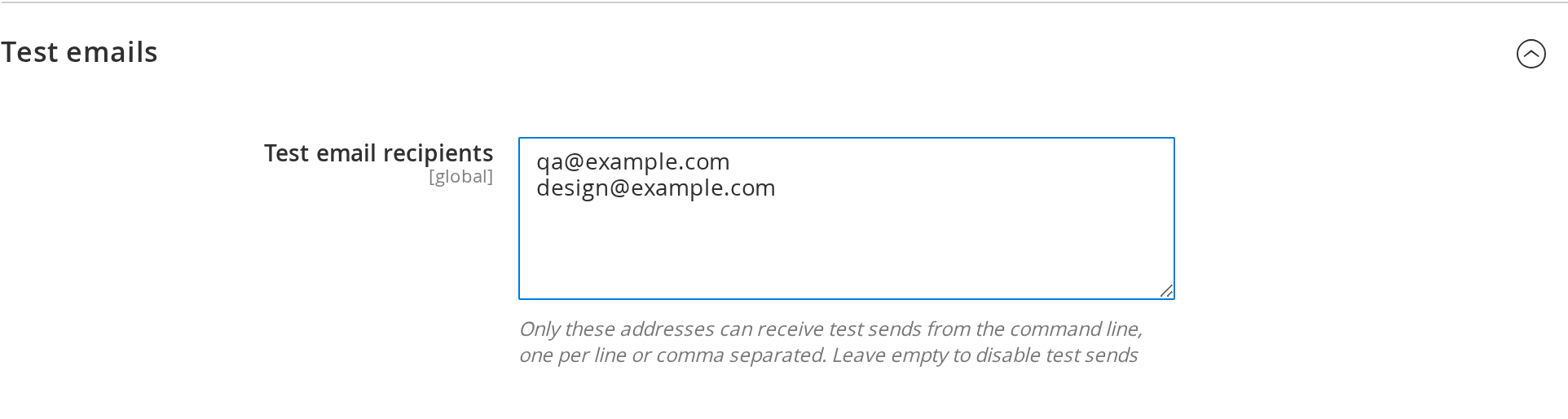
Under Stores > Configuration > Moogento Messages > Great Magento Emails > Test emails, add an allowlist of email addresses that can receive test emails via the CLI. Only addresses on this list can be sent test copies of your designs. A test email renders the email's saved draft (or its published design when there is no draft) through Magento's own template, with fictional sample data and "[Test]" added to the subject. It matches what customers receive once that draft is published.
Diagnostics
Under Stores > Configuration > Moogento Messages > Great Magento Emails > Support, choose a Logging level. Logs appear in var/log/moogento_greatemails.log.

Command-line reference
Commands that work on a scope take --scope=default|website|store and --code (style:show defaults to the default scope). preview:render also takes --store for the store view to render. test:send takes --email, --store and --to instead of a scope, and schema:export takes only the schema kind. Run any command with --help for its exact options. Output is JSON. Files are read and written only under var/greatemails.
design:save, design:inherit, design:takeover and publish:plan act on an email and its guest version together, as the studio does: give the customer email's key (for example core.sales_email_order_template) and the output lists both emails. publish:plan adds the guest version's saved draft to the same publication and stops with a hint when the guest version has no saved draft. Add --no-pair to act on the one email given.
| Command | Purpose |
|---|---|
moogento:emails:catalog:list |
List all available emails |
moogento:emails:catalog:inspect |
Show details for one email |
moogento:emails:design:save |
Save a draft from JSON (--if-revision, --dry-run) |
moogento:emails:design:inherit |
Remove a scope's own design so it inherits |
moogento:emails:design:apply |
List what applying --design=modern, store_match or native to every eligible email at a scope would change, guest versions included, with the reason each skipped email is skipped; add --confirm to apply it (--include-database as in the studio's bulk window) |
moogento:emails:design:takeover |
Show what a design carries over from an email's saved template and what it does not, and the choice that applies (set at the scope or inherited from a parent scope); with --use=design, --use=saved or --use=auto, set whether the design is sent instead of it at the scope |
moogento:emails:preview:render |
Render a preview into the JSON output, or write it under var/greatemails/ with --output-dir |
moogento:emails:publish:plan |
Plan a publication (add --dry-run to only check it, --confirm-compatibility for checked third-party emails) |
moogento:emails:publish:apply |
Apply a planned publication |
moogento:emails:history:list |
List versions for an email |
moogento:emails:history:show |
Show details for one version |
moogento:emails:history:restore |
Restore a prior version as a draft, or publish it with --publish (plus --confirm-compatibility for a checked third-party email) |
moogento:emails:style:show |
Export Style Guide settings |
moogento:emails:style:diff |
Compare proposed changes to current Style Guide |
moogento:emails:style:patch |
Apply a Style Guide change |
moogento:emails:bindings:status |
Check design binding status |
moogento:emails:bindings:rebuild |
Rebuild design bindings (--dry-run or --confirm) |
moogento:emails:test:send |
Send a test email to an allowed recipient (10 per hour, audited) |
moogento:emails:bundle:export |
Export the designs published at a scope to a bundle file |
moogento:emails:bundle:import |
Import a bundle as drafts (never publishes); run with --dry-run first and pass its plan to the real import. A bundle without a style section leaves your Style Guide unchanged |
moogento:emails:schema:export |
Export the style or document schema |
moogento:emails:document:export, document:import, document:patch, document:validate |
Work with a single content document |
Exit codes: 0 success, 2 invalid input (including an unknown email key), 3 conflict (something changed since you read it; read again and retry), 4 not permitted (role or licence), 5 a sending module or catalog is unavailable, 6 infrastructure problem. Dry runs never write or lock anything.
For developers: Declaring sender templates
If you build a custom Magento module that sends transactional emails and want those emails to appear in the Great Magento Emails studio, declare them via the Moogento\Messagecontent\Api\Email\DesignIntegrationInterface contract.
Contract
templates() returns, for each native template identifier: header and footer (the config paths of the header and footer templates the body opens and closes with, or both null when the whole body is a fragment), purpose (an email library group label) and protected_footer (the sender's own footer fragment that must always show, such as the postal address, preferences and unsubscribe links, using only var, depend, if, else and trans directives). A template whose footer carries required content must declare protected_footer, or it is not offered for design.
previewVariables(string $templateId, StoreInterface $store, string $scenario) returns fictional variables for the preview (standard or long), or null.
Registration
<type name="Moogento\Messagecontent\Model\Email\DesignIntegrationRegistry">
  <arguments>
    <argument name="integrations" xsi:type="array">
      <item name="mymodule" xsi:type="object">MyVendor\MyModule\Model\Email\DesignIntegration</item>
    </argument>
  </arguments>
</type>
Never reference Great Magento Emails in your module. The contract belongs to the free Messagecontent package, and your module should not depend on the paid product.
For developers: carrying attachment codes and recognising designed emails
Great Magento Emails replaces the body of Magento's order, invoice, shipment, credit memo, update, account, password, newsletter, pickup and cancellation emails, so markup that another extension expects in that body, such as an attachment code, is lost unless it is carried over. Two mechanisms keep such extensions working.
Carry your extension's codes into designs
Implement Moogento\Greatemails\Api\IntegrationHookInterface:
find(string $templateText, array $entities): arrayreturns the codes you can carry into this email, each as['source' => <the exact fragment>, 'label' => <plain-language name, such as "MyVendor invoice PDF">].$entitieslists what the email's send provides (order,invoice,shipment,creditmemo); return only codes thatrender()can fill in from them, so a code needing an invoice id is not reported as carried in the New Order email. The studio lists what you return under Carried; codes you leave out count as not carried, so the merchant decides before the design replaces them.render(string $templateText, array $variables): stringreturns the markup to add to the design for one send, with ids resolved from the email variables (order,invoice,shipment,creditmemoand their_idvalues), or an empty string.
Both receive only the template text Magento always renders: comments and the content of {{if}}, {{depend}} and {{for}} blocks are removed first. The text is the template the design replaces: the theme's file, or the saved template from Marketing > Email Templates when the design is sent instead of it. Returned markup must be literal: markup holding {{ directives, scripts or event handlers, or longer than 2 KB, is ignored, and a hook that throws is skipped and logged once. The markup is added just before the design's closing section and is never added to previews or test emails. PickPack's code is carried by the first registered hook, Moogento\Greatemails\Model\CoreDesign\Hook\PickPackAttachmentHook, which is a working example.
Register the hook in etc/di.xml:
<type name="Moogento\Greatemails\Model\CoreDesign\AttachmentTags">
  <arguments>
    <argument name="hooks" xsi:type="array">
      <item name="myvendor_invoice_pdf" xsi:type="object">MyVendor\GreatemailsHook\Model\InvoicePdfHook</item>
    </argument>
  </arguments>
</type>
The interface belongs to Great Magento Emails, so put the hook and this registration in a small separate module that requires moogento/m2-greatemails and lists Moogento_Greatemails in its <sequence>. Your main module then keeps working on stores without Great Magento Emails.
Recognise a designed email by its original template
Extensions that attach files at the mail transport or message layer often recognise an email by its template id or code. A designed send uses Great Magento Emails' own template id, so every designed send also carries:
| Template variable | Value |
|---|---|
greatemails_original_template_id |
The template id the store view's configuration selects: the saved template's number, or Magento's id such as sales_email_order_template |
greatemails_original_template_code |
The saved template's name, or Magento's id |
greatemails_design_template_id |
The design template id sent instead |
Once the design has rendered, before the email is handed to the mail transport, the event moogento_greatemails_design_send is dispatched with original_template_id, original_template_code, classic_template_id (Magento's id for the email), design_template_id, store_id and replaces_saved_template. It is not dispatched for previews or test emails, or when the design cannot be rendered and the replaced template is sent instead, and an observer that throws does not stop the send.
Extensions that attach files from an observer of Magento's sender events (such as email_order_set_template_vars_before) or from the sender classes, rather than from the template id, keep working without changes.
Limitations
The following limitations apply to browser previews and email-client rendering:
- Browser preview is not an email-client test: The studio preview shows how your email renders in a browser-like container, not in Gmail, Outlook, Apple Mail or other email clients.
- Dark mode rendering: Dark mode appearance has not been certified across email clients. Your design displays in the client's native light or dark mode, with no guarantee of exact reproduction.
- Real delivery not certified: The studio does not certify that your email reaches inboxes, avoids spam filters or renders identically in transit or at delivery.
- Web fonts are an enhancement: Many email clients block web fonts, so every design falls back to email-safe fonts.
- Third-party HTML not converted: Emails from other extensions and staff emails are not converted into editable blocks. They get a Branded layout around unchanged content.
- Third-party previews have no sample data: The preview cannot fill an extension's own variables, so those values show blank and the preview says the sample is unavailable. After publishing a design for a third-party email, trigger a real one (for example by using that extension's feature yourself) and check it in your inbox.
- Adobe Commerce and B2B not certified: Adobe Commerce and B2B emails have not been tested.
FAQs
How do I change the design of my Magento order confirmation email?
Open the Email studio, choose New Order in the library, pick the Modern or Store match design and click Review & publish. Customers in the affected store views get the new design from their next order email. The New Order email uses the Great Magento Emails layout, which lists the products, totals and addresses itself and takes its colours, fonts and logo from your Style Guide. See Great Magento Emails layout.
Do guest orders get the design too?
Yes. Magento sends guest orders separate versions of the order, invoice, shipment, credit memo, update and Ready for Pickup emails. When you choose or publish a design for one of these emails, Also for guest orders is ticked, so its guest version gets the same design, and the same saved template choice, in the same step. The Handled by column says when customers and guests still receive different things. See Change one email's design.
How do I change the design of the Magento password reset and welcome emails?
Open the Email studio, choose Forgot Password or New Account in the library, pick Modern or Store match and click Review & publish. These emails then use the Great Magento Emails layout: a clear heading, one button with Magento's own link and a short note, coloured with your Style Guide. See account, password and newsletter emails.
How do I change the design of the order status update emails?
Open the Email studio, choose Order Update (or Invoice, Shipment or Credit Memo Update) in the library, pick Modern or Store match and click Review & publish. When you add a comment to an order and notify the customer, they get the Great Magento Emails layout with the new status, your comment and a button to their order. See order update emails.
Is Great Magento Emails free?
No, Great Magento Emails needs a paid licence, while the Moogento Messages module it builds on is free. Publishing needs a recent successful licence check, and published designs keep sending during short licence server outages. See Licence for the exact timings.
Does it work with my storefront theme?
Yes, email designs are built separately from your storefront theme, so they do not depend on Luma, Hyvä, Porto or any other theme. The order, invoice, shipment and credit memo designs build their product lists and totals themselves, so a theme's own versions of Magento's order email templates do not affect them. Read from my store reads colours and fonts from your storefront to suggest Style Guide values, and you can adjust them before publishing.
What happens to my emails if I disable Great Magento Emails?
All customer emails go back to the normal Magento templates, and your saved designs stay in the database. When you enable the module again, your designs are still there. See Module disabled or removed.
Can I design emails sent by other Moogento modules?
Yes, emails from NotifyMe, GiftEasy, HelloCustomer and TrackEasy are fully editable, and their unsubscribe, preferences and address footers are always kept. See Supported emails and customisations.
Can I design emails sent by other extensions?
Yes, as a Branded layout: your design wraps the extension's unchanged content. Because these emails were not tested by Moogento, each design is rendered with the long sample before it is published, wherever you publish it. See Branded layout (wrapped content).
Do emails to my store staff and plain text emails get the design?
Yes. Staff emails, such as payment failure reminders and plugin alerts and reports, are in the Store staff emails group, and plain text emails are sent as HTML inside the design once you publish one. See Store staff and plain text emails.
Why is my published design not showing in customer emails?
The most common cause is a customised template selected in Marketing > Email Templates for that email, which keeps sending instead of your design when it has content of its own. The Handled by column in the studio names that template and the store views using it (see See which emails use a design). Click Saved template on the email's row to see what the design would carry over and choose Use the design instead of my saved template (see Customised database templates). Other causes are listed in Native fallback.
Will my PickPack PDF still be attached when I use a design?
Yes. PickPack PDF codes in the template the design replaces, including a saved template from Marketing > Email Templates, are carried into the designed email with the right order, invoice, shipment or credit memo number, and PickPack attaches the PDF as before. See Customised database templates.
What happens to my email designs when I update Great Magento Emails?
Your published designs keep sending after an update, and when a release changes how designs are built, the upgrade rebuilds them for every store view. When a release improves a design itself, the Email studio marks those emails Update available, and they send your standard template until you preview the new version and click Apply update. See Great Magento Emails updated.
Can I undo a published email design?
Yes, use Undo publication to go back to the previous design, or open History and roll back to any of the 30 most recent versions. See Publishing and unpublishing.
Related guides
- Email design for Magento customer messages - shared email styling and content blocks with the Style Guide and content blocks
- HelloCustomer - automated review requests and customer communication
- NotifyMe - back-in-stock alerts
- GiftEasy - gift cards and store credit
- TrackEasy - shipment tracking and delivery updates
Need help?
- Moogento support desk - the fastest route
- moo@moogento.com
- Include:
- Magento version
- Which email you are editing
- What you are trying to do