

Overview
Plan scope for the examples below: Seed covers core back-in-stock subscriptions and alerts. Related-product suggestions require Growth or Pro; CSV export requires Pro.
NotifyMe adds Magento 2 back in stock alerts via a "Notify Me" button on out-of-stock product pages, category listings, and wishlists. Customers and guests sign up for an alert; when you restock, NotifyMe's cron job queues and delivers personalised emails automatically - without you lifting a finger.

This module helps you:
- Recover sales that would otherwise be lost when a product goes out of stock
- Build a warm re-engagement list of customers who already want to buy
- Throttle notification volume so one large restock doesn't flood your mail server
- Track which notifications convert to orders, with attribution via UTM parameters
- Stay GDPR-compliant with a built-in privacy checkbox and newsletter opt-in for guest sign-ups
When to use this
Use NotifyMe when you want to:
- Capture demand for products that regularly go in and out of stock
- Re-engage customers automatically the moment a pre-order or restocked item is available
- Reduce "is this coming back?" support queries by giving customers a self-serve alert option
- Measure how many orders are driven by back-in-stock emails, not just traffic
- Offer category-page sign-ups so customers browsing a sold-out range don't leave empty-handed
Key capabilities
- Back-in-stock button - injected automatically into product, category, and wishlist pages for all supported product types
- Configurable and bundle product support - variant-specific alerts so customers get notified for exactly the option they want
- Guest email verification - guests confirm their address before a subscription is saved, keeping your list clean
- Notify multiplier - caps how many emails go out per restock event (e.g. restock 20 units × multiplier 3 = up to 60 alerts)
- Message queue delivery - emails are processed via Magento's message queue for reliable, non-blocking sends
- Admin subscriber grid - view, filter, mass-send, and mass-delete subscriptions from a central grid
- Statistics page - see total alerts sent and how many converted to orders
- UTM tagging - every email link carries configurable UTM parameters so Google Analytics / GA4 attributes the revenue correctly
- GDPR & newsletter opt-in - optional checkboxes shown to guests at sign-up, remembered per email address once accepted
- Hyvä, Luma, and Porto theme support - dedicated Hyvä CSS module included; Luma and Porto work out of the box
Installation
Bought on Adobe Commerce Marketplace? Your purchase comes with a Moogento account: set your password from the activation email, then follow the steps below with the Composer keys and licence key in My Plugins. If the email has not arrived, contact Moogento support.
NotifyMe installs via Composer, then activates with a license key from your Moogento.com account. The whole flow takes about 5 minutes.
Prefer a hands-off setup? Our team can install and configure the extension for you - see the paid install service.
Step 1: Get your Composer keys from Moogento.com
- Sign in at https://www.moogento.com and open My Plugins in your account menu.
- Find NotifyMe in the list of plugins you own.
- Generate (or reveal) the Composer access keys for that plugin - a public key and a private key.
- Add your install domain to the key. Each Composer key is tied to a specific domain - if you're installing on
yourstore.com, addyourstore.comto the key's allowed domains. The Composer download will be rejected on any other domain.
If you run staging and production on different domains, add both - separate keys per environment are fine too.
Step 2: Install the module with Composer
From your Magento 2 root directory:
composer require moogento/m2-notifyme
When Composer asks for credentials, paste the public key as the username and the private key as the password. They'll be cached in ~/.composer/auth.json for future runs.
Step 3: Enable the module in Magento
php bin/magento setup:upgrade
php bin/magento setup:di:compile
php bin/magento cache:clean
Run php bin/magento module:status Moogento_Notifyme to confirm the module is listed as enabled.
Step 4: Add your license key in the Moogento admin
- For a direct purchase, copy the NotifyMe license key from My Plugins at moogento.com. For a Marketplace purchase, check your Moogento account for an issued key and contact Moogento support if it is missing.
- Open Stores > Configuration > Moogento > License in Magento Admin. Add the Installation Domain shown on this page to the key in your Moogento account.
- Paste the key into the key field and click Add key.
- Under Registered Keys for this Installation, confirm that NotifyMe appears with the correct plan.
The license validates within a few seconds. If it stays inactive, double-check the domain on the license matches where you've installed - domain mismatch is the most common cause.
Extra steps for NotifyMe
NotifyMe sends emails through Magento's message queue. After installation, make sure the queue consumer is running:
php bin/magento queue:consumers:start moo.notifyme.communication.product.alert.stock
For production, add this consumer to your app/etc/env.php cron consumers list or configure a dedicated cron entry so it restarts automatically.
Setup overview
Most setup happens in:
Stores > Configuration > Moogento > NotifyMe
You'll mainly work with:
- General - enable the module, set email templates, configure the notify multiplier, and choose the email sender
- Customize: Frontend - button text, customer-facing messages, related products, and button colours
- Admin: Tables - choose the product attribute used for end-of-life flags and optionally hide those products from NotifyMe admin tables and CSV exports
- Setup: Google Analytics - UTM parameters and conversion window
Navigate to the subscriber data via Moogento > NotifyMe, then use the hidden grid URLs listed under Subscriber grid and statistics below.
Common setups
Turn on back-in-stock alerts for the first time
Enabling the module and pointing it at your email sender takes about two minutes.
How to set it up
-
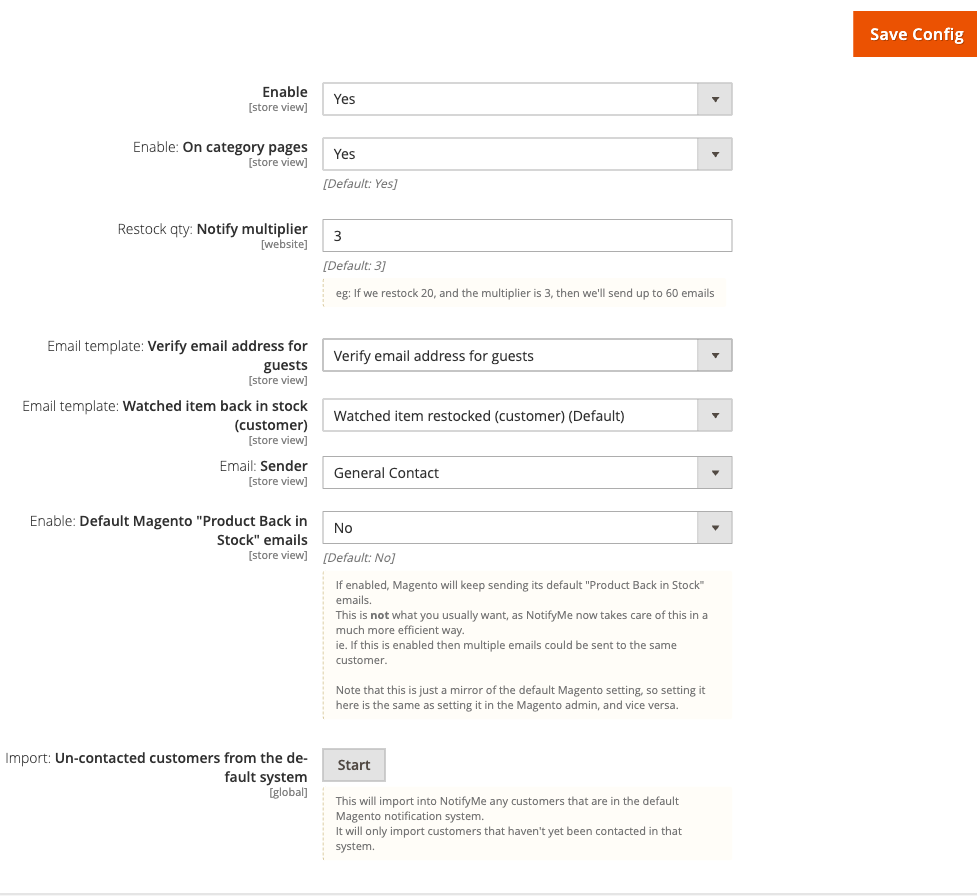
Go to: Stores > Configuration > Moogento > NotifyMe > General
-
Set:
- Enable = Yes
- Email: Sender = the store identity to send from (e.g. General Contact)
- Email template: Watched item back in stock (customer) = NotifyMe: Product Back in Stock (or a custom template)
- Enable: On category pages = Yes (default) - shows the button on category listings
-
Save Config.
-
Run
php bin/magento cache:clean.
Notes
- Leave Enable: Default Magento "Product Back in Stock" emails = No (the default). If you enable it, Magento's built-in alert system will also send emails, resulting in duplicates.
- Make sure at least one cron job is running (
moo_notifyme_product_stock_alertfires every minute). Check via Stores > Configuration > Advanced > System > Cron.
Set the notify multiplier to protect your mail server
When a large restock arrives the multiplier controls how many subscribers get an alert. A multiplier of 3 on a restock of 20 units sends up to 60 emails - everyone on the list for that product, but proportional to actual stock.
How to set it up
-
Go to: Stores > Configuration > Moogento > NotifyMe > General
-
Set:
- Restock qty: Notify multiplier =
3(default) - increase if you want to alert more subscribers per unit restocked, or lower it if you receive very large restocks and want to conserve sends.
- Restock qty: Notify multiplier =
-
Save Config.
Notes
- The multiplier applies at the website scope (not per store view).
- If you restock enough to cover every subscriber, all of them will be notified regardless of the multiplier - it only caps sends when stock is limited relative to demand.
Add GDPR and newsletter opt-in for guest sign-ups
For stores that need a privacy consent tick-box - or that want to grow their newsletter list at the moment of alert sign-up - these checkboxes appear only for guests and only until each is accepted once.
How to set it up
-
Go to: Stores > Configuration > Moogento > NotifyMe > Customize: Frontend > Add for Guests: GDPR & Newsletter Options

-
Set:
- Enable: GDPR/Privacy checkbox = Yes - guests must tick this before their first subscription is saved
- Label for: GDPR/privacy checkbox = e.g.
I agree with the [Privacy Policy](use square brackets around the link text) - Link to: GDPR/privacy policy =
privacy-policy(appended to your store URL) - Enable: Newsletter checkbox = Yes - shown to guests who are not yet subscribed
-
Save Config.
Notes
- Once a guest accepts the GDPR checkbox for one product, it is not shown again for that email address site-wide.
- The newsletter opt-in is only shown if the guest is not already subscribed to your Magento newsletter.
- These options only apply to guests. Registered customers are assumed to have already accepted your terms.
Configure UTM tracking for back-in-stock emails
Add UTM parameters to every link in your back-in-stock alert emails so Google Analytics attributes revenue to the NotifyMe campaign.
How to set it up
-
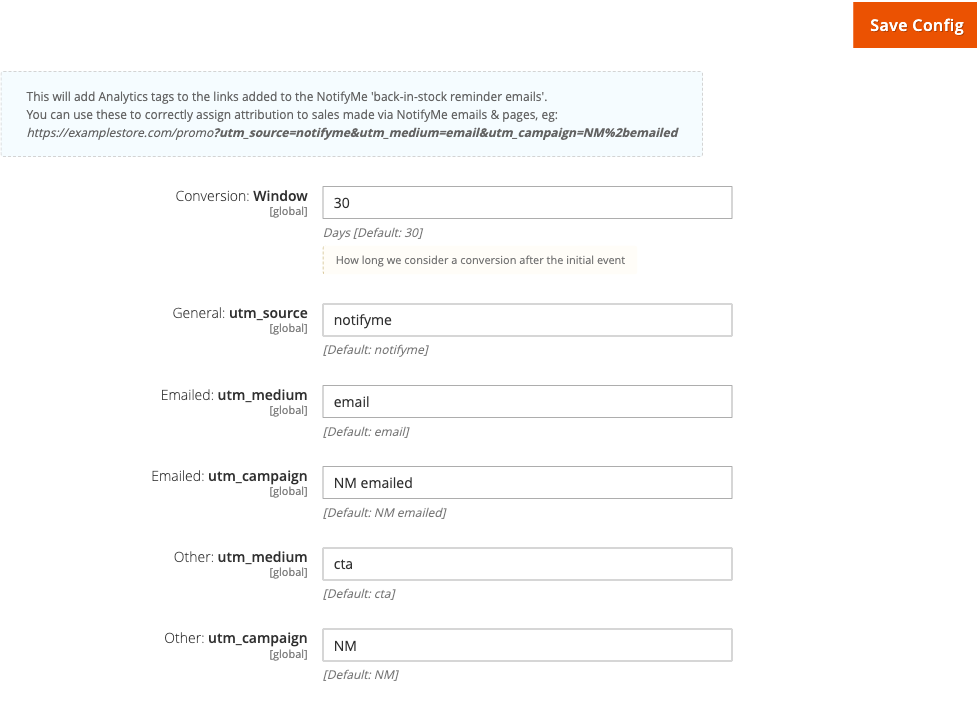
Go to: Stores > Configuration > Moogento > NotifyMe > Setup: Google Analytics
-
Set:
- General: utm_source =
notifyme(default) - Emailed: utm_medium =
email(default) - Emailed: utm_campaign =
NM emailed(default, or your preferred campaign label) - Conversion: Window =
30(days - how long after an email click a resulting order counts as a NotifyMe conversion)
- General: utm_source =
-
Save Config.
Notes
- The
utm_source,utm_medium, andutm_campaignvalues are appended to all product URLs inside notification emails. - Other medium and campaign fields (
utm_medium_other,utm_campaign_other) apply to non-email touchpoints such as the customer watchlist page - set these if you want to distinguish email-driven traffic from in-store page traffic.
Features reference
Subscriber grid and statistics
NotifyMe's subscriber management pages are ACL-protected but not listed in the top navigation menu. Access them directly:
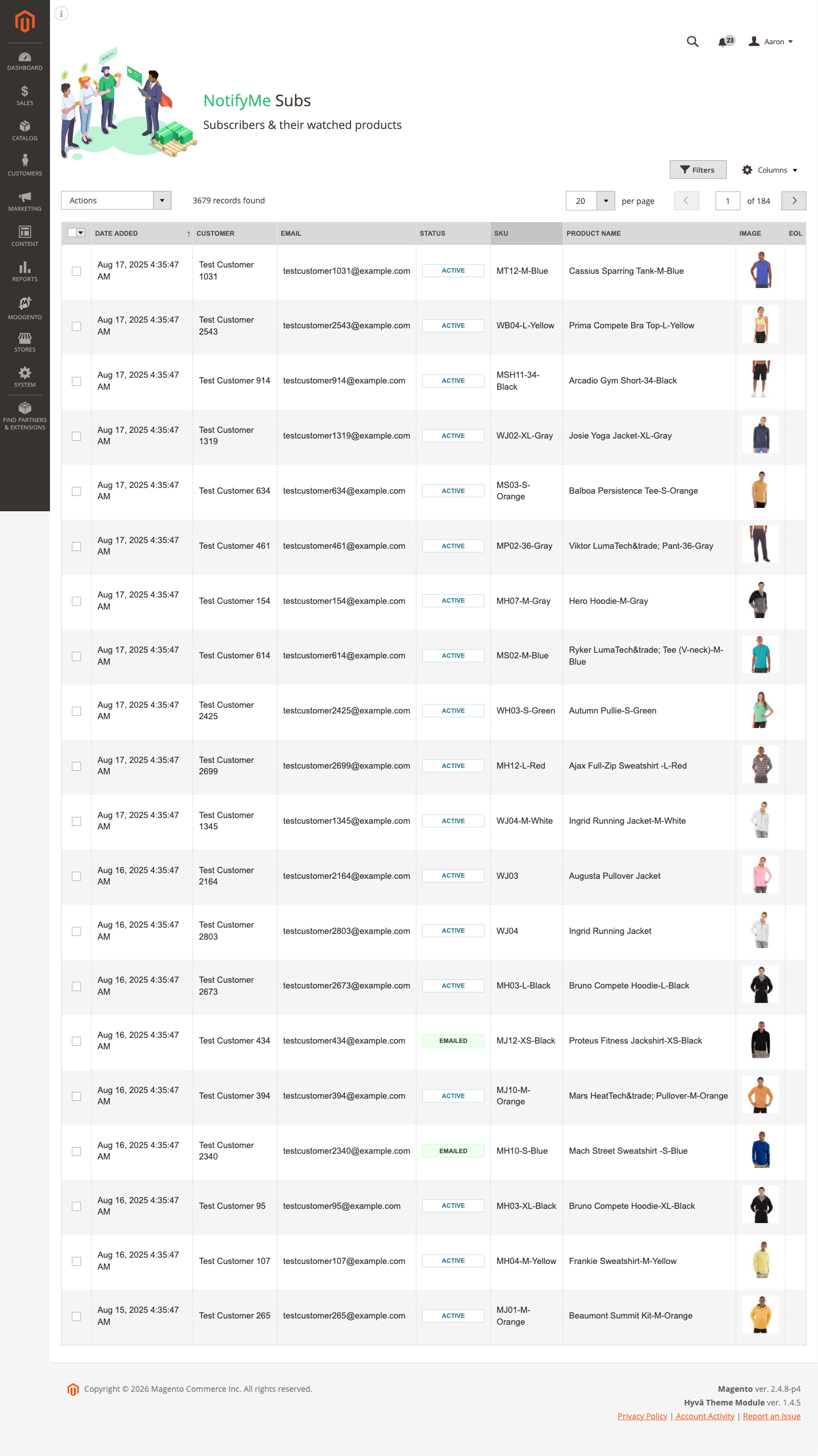
- Subscriptions grid: Moogento > NotifyMe then navigate to
notifyme/watchlists/subs- lists every active and historical subscription with product, email, sent count, and status - Watched products grid:
notifyme/watchlists/products- one row per product with aggregate watcher counts - Statistics page:
notifyme/watchlists/stats- subscriber counts, subscriber trend, potential revenue, total alerts sent, and conversion counts
From the subscriptions grid you can:
- Filter by product, email, or status
- Mass-send alerts immediately (useful after a manual restock)
- Mass-delete stale or test subscriptions
- Export to CSV via
notifyme/csv/subsExport(Pro)
When EOL: Hide products automatically is enabled under Admin: Tables, products marked as end-of-life are hidden from the Subscriptions, Watched products, and Statistics grids and their CSV exports. The attribute defaults to stockeasy_eol; use a Yes/No or integer product attribute.
The Statistics grid also includes:
- Subscriber Trend - a compact per-product trend showing retained active/emailed subscriber count over the recent window
- Potential Revenue - subscriber count multiplied by the product's sale/final price, shown in the store base currency
Frontend customisation
Control every customer-facing string and colour from:
Stores > Configuration > Moogento > NotifyMe > Customize: Frontend
Key fields:
| Setting | Default | Config path |
|---|---|---|
| Button text | Notify Me | moogento_notifyme/frontend/notifyme_button_title |
| Label for customers (un-watched) | Get notified when this is back in stock | moogento_notifyme/frontend/notifyme_button_label_customers |
| Label for guests (un-watched) | Get notified when this is back in stock | moogento_notifyme/frontend/notifyme_button_label_guests |
| Message: after subscription | Done - we'll email you when this is back in stock | moogento_notifyme/frontend/notifyme_success_message |
| Message: guest pending confirm | To confirm your alert just click the link we emailed | moogento_notifyme/frontend/guest_pending_confirm_message |
| Message: already subscribed | On my Watch List | moogento_notifyme/frontend/notifyme_already_subscribed_message |
| Message: unsubscribed | Done - we'll no longer let you know when this product is back in stock | moogento_notifyme/frontend/notifyme_canceled_message |
Button colours are under Customize: NotifyMe Button Design:
- Background color - default
#86aa81(moogento_notifyme/moo/button_bkg_color) - Text color - default
#FFFFFF(moogento_notifyme/moo/button_text_color)
Related products in alert emails (Growth or Pro)
When a product is out of stock, NotifyMe can display a configurable number of related products inside the alert email and on the product page widget.
- Go to Stores > Configuration > Moogento > NotifyMe > Customize: Frontend
- Enable: RelatedProducts = Yes (
moogento_notifyme/frontend/enable_related_products) - Count Related Products =
2(default;moogento_notifyme/frontend/count_related_products) - how many related items to display
Use this to cross-sell while a product is unavailable.
Email templates
NotifyMe ships two transactional email templates:
| Template | Purpose | Config field |
|---|---|---|
| NotifyMe: Product Back in Stock | Sent to subscribers when a product is restocked | moogento_notifyme/general/watched_item_restocked_customer_email_template |
| NotifyMe: Guest Email Verification | Confirmation link sent to guest subscribers before their address is saved | moogento_notifyme/general/verify_guests_email_template |
To customise a template: go to Marketing > Email Templates, click Add New Template, load the NotifyMe template as the base, then select your custom version in the config fields above.
Set templates per store view if you run a multi-language store - the email sender identity (moogento_notifyme/general/email_sender) can also be set per store view.
Import from Magento's built-in product alerts
If you were previously using Magento's default product alert system, you can migrate those subscribers into NotifyMe with one click.
Go to Stores > Configuration > Moogento > NotifyMe > General and click Import: Un-contacted customers from the default system.
This imports only subscribers who have not yet been contacted in the native Magento system, so no one gets a duplicate alert. After the import, set Enable: Default Magento "Product Back in Stock" emails = No to disable the native system.
Alerts stop automatically once a subscriber buys the item
NotifyMe checks purchase history so a subscriber never gets a back-in-stock email for a product they already bought.
How it works:
- If the same email address buys the exact product a subscriber is watching, that alert is marked Purchased instead of staying active, and no restock or removal email is sent for it.
- This is checked at order placement and again immediately before every send, so it covers storefront, guest, admin, and API orders alike.
- If an order is cancelled, or a refund is issued for that item, and no other qualifying order exists, the alert automatically reactivates so the subscriber can still be notified when the product is back in stock.
- A customer can always sign up again after buying. Subscribing again starts a fresh alert, so a past purchase never blocks a new one.
Where customers see it:
On their account watchlist page, signed-in customers see a separate "Recently purchased" list below their active alerts, showing items they bought and a short note that the earlier alert was removed. This list is informational only - there is nothing to click or remove.
Where you see it:
Purchased rows appear in the subscriptions grid (notifyme/watchlists/subs) with their own status badge and are excluded from subscriber counts, watcher totals, and potential-revenue figures, since they no longer represent open demand.
Notes:
- This behaviour is on by default and does not need any setup.
- It applies to registered customers and validated guest subscribers alike, matched by email address.
- Configurable and bundle products are matched to the exact variant purchased, not the parent product.
Clear a customer's entire watch list
NotifyMe provides a bulk unsubscribe service that lets a registered customer remove all of their active alert subscriptions in one action.
How customers can use it:
- On Luma and Porto stores: the customer account watchlist page includes a "Clear all" button that POSTs to
notifyme/product/clearAll. - On Hyvä stores: the same route is used via the Hyvä-specific watchlist template.
How you can use it from the admin:
In the subscriptions grid (notifyme/watchlists/subs), select subscriptions and choose Mass action: Clear customer watch list. This soft-deletes all active subscriptions for the affected customers in a single transaction, then recalculates the watcher counts on the corresponding products.
Notes:
- Only registered-customer rows are cleared. Guest subscriptions (tied to an email address rather than a customer account) are excluded and must be cancelled via the per-subscription unsubscribe link in the original alert email.
- The "Clear all" action is rate-limited to once every 60 seconds per customer session to prevent accidental double-submission.
- Watcher counts on product listings and the watched-products grid update immediately after the clear, reflecting the remaining active subscribers.
Advanced configuration
Cron jobs and message queue
NotifyMe's email delivery depends on two cron jobs and a Magento message queue consumer. If either is not running, alerts will queue up but not send.
| Cron job | Schedule | What it does |
|---|---|---|
moo_notifyme_product_stock_alert |
Every minute | Checks for restocked products and publishes alert messages to the queue |
moo_notifyme_check_orders |
Hourly | Updates conversion statistics (license-gated feature) |
The queue consumer moo.notifyme.communication.product.alert.stock processes up to 50 messages per run. Each subscription record is re-checked immediately before the email is sent: if the record is no longer active or has already been sent (for example, because a second cron worker picked it up in parallel), that send is skipped - so subscribers never receive duplicates even when multiple cron workers overlap.
Setup
- Verify Magento cron is running:
bin/magento cron:run --group=default - Confirm the consumer is active:
bin/magento queue:consumers:list - If the consumer is not listed as running, start it:
bin/magento queue:consumers:start moo.notifyme.communication.product.alert.stock
For production environments, add the consumer to your process manager (e.g. Supervisor) so it restarts automatically. Running multiple consumer workers in parallel is safe - the duplicate-send guard handles concurrent execution correctly.
Notes
- Logs are written to
var/log/moogento_notifyme.log. Check this file first when investigating delivery issues. - The message queue must be configured in
app/etc/env.php. The default Magento database queue adapter works fine; RabbitMQ is supported for high-volume stores. - MSI (Multi-Source Inventory) is supported automatically. If MSI is not installed, NotifyMe degrades gracefully without any additional configuration.
Tips & best practices
- Start with the notify multiplier at 3 and adjust after your first few restocks. Too low and many subscribers never hear from you; too high and you risk over-promising stock you don't have.
- Customise button text to match your brand voice - "Notify Me" works, but "Alert me when available" or "Join the waitlist" can lift sign-up rates on certain product types.
- Set email templates per store view if you operate multiple languages. Sending a French-language store alert in English is a common oversight that hurts conversion.
- Run a test import from the default Magento product alert system before going live, then immediately disable the native system to prevent duplicates.
- Monitor
var/log/moogento_notifyme.logafter each deployment that touches inventory or product data - this is the fastest way to spot a broken observer or queue consumer. - On Hyvä stores, enable
Hyva_MoogentoNotifymeafter installing and runphp bin/magento setup:di:compileandphp bin/magento cache:cleanbefore testing the button in the storefront. - On Pro, use the CSV exports from the subscriptions grid to periodically back up your subscriber list or feed it into your email marketing platform.
- When cleaning up stale test data, use the admin Mass action: Clear customer watch list rather than deleting rows directly from the database - the service recalculates product watcher counts in the same transaction, keeping grid totals accurate.
Troubleshooting
Alerts are not being sent after a restock
Subscribers are signed up but no emails arrive when stock is replenished.
- Cause: The cron job or queue consumer is not running.
- Check: Look at
var/log/moogento_notifyme.logfor recent activity. Runbin/magento cron:run --group=defaultmanually and watch for log output. Confirm the consumer is alive withbin/magento queue:consumers:list. - Resolution: Start the consumer with
bin/magento queue:consumers:start moo.notifyme.communication.product.alert.stock. For production, configure Supervisor or an equivalent process manager to keep it running.
Guest subscribers do not receive their confirmation email
A guest enters their email to sign up, but the verification link never arrives.
- Cause: The guest verification email template is not selected, or Magento's SMTP transport is misconfigured.
- Check: Go to Stores > Configuration > Moogento > NotifyMe > General and confirm Email template: Verify email address for guests is set to NotifyMe: Guest Email Verification. Then verify Stores > Configuration > Advanced > System > Mail Sending Settings > SMTP host is correct.
- Resolution: Select the correct template and save. If SMTP is the problem, fix the transport settings and re-test with a fresh guest sign-up.
The Notify Me button is not appearing on product pages
The button is missing on out-of-stock products despite the module being enabled.
- Cause: The module is disabled, the product type is not supported, or the full-page cache has not been flushed.
- Check: Confirm
moogento_notifyme/general/enable= Yes. Confirm the product is genuinely out of stock (not just a display issue). Runphp bin/magento cache:clean. - Resolution: If the module was just installed or upgraded, run
php bin/magento setup:di:compilefollowed byphp bin/magento cache:clean.
The Notify Me button is missing or unstyled on a Hyvä theme
The button appears in the wrong position, has no styling, or throws a compile error mentioning NotifymeIcons.
- Cause: The
Hyva_MoogentoNotifymecompatibility module is not enabled or its CSS has not been compiled into the Tailwind build. - Check: Run
php bin/magento module:status Hyva_MoogentoNotifyme. Check the browser console for 404s on CSS files underMoogento_Notifyme/. - Resolution: Enable the Hyva compatibility module, run
php bin/magento setup:di:compileandphp bin/magento cache:clean. For theNotifymeIconscompile error specifically, ensure the latest module code is deployed - the icon renderer no longer depends onHyva\Theme\ViewModel\SvgIcons, so an older version in a cache or deployment artifact can cause this.
Too many emails are being sent for a single restock
A restock of 10 units triggers far more alert emails than expected.
- Cause: The notify multiplier is set too high, or the default Magento product alert system is still enabled and sending separately.
- Check: Review
moogento_notifyme/general/notify_multiplierandmoogento_notifyme/general/allow_stock. - Resolution: Lower the multiplier. Set Enable: Default Magento "Product Back in Stock" emails = No to stop the native system from sending a second wave.
Malware scanner flags Helper/Moo.php
- Cause: Your host's malware scanner (often Imunify360 on cPanel hosting) heuristically flags the encoded license-check files that ship inside every paid Moogento extension. The files are genuine and unchanged - the encoding protects the license check from tampering.
- Resolution: Add the files to the scanner's ignore list so the warnings stop, and restore any file the scanner already quarantined. Both steps, plus how to verify the files are byte-for-byte what we shipped, are covered in the license file protection guide.
FAQs
How do customers sign up for a back in stock alert?
When a product is out of stock, NotifyMe displays a "Notify Me" button directly on the product page. Customers click it; if they are logged in their email is captured instantly, while guests receive a confirmation email with a verification link before their subscription is saved. The button also appears on category listing pages and wishlists if those options are enabled.
Does NotifyMe work with configurable and bundle products?
Yes - NotifyMe supports simple, configurable (including swatches), grouped, and bundle product types. For configurable products, the alert is tied to the specific variant the customer selects, so they are notified when that exact size, colour, or option comes back, not just the parent product.
How do I see who has signed up for alerts?
Go to the subscriptions grid at notifyme/watchlists/subs in your admin. It lists every subscription with the customer or guest email, the product, how many emails have been sent, and the current status. You can filter, mass-send, mass-delete, or, on Pro, export the list to CSV.
Why is the Notify Me button not showing on my product pages?
The most common reasons are that the module is disabled, the full-page cache has not been flushed, or setup:di:compile has not been run since installation. Go to Stores > Configuration > Moogento > NotifyMe > General, confirm Enable = Yes, then run php bin/magento setup:di:compile and php bin/magento cache:clean.
Is NotifyMe compatible with Hyvä, Luma, and Porto themes?
Yes - NotifyMe works with all three. Luma and Porto are supported out of the box. For Hyvä, a dedicated companion module (Hyva_MoogentoNotifyme) is included; enable it and run setup:di:compile after installation to load the Tailwind component styles and correct button sizing.
What happens to existing Magento product alert subscribers when I install NotifyMe?
Your existing Magento default product alert subscribers are preserved in the native tables. Use the Import: Un-contacted customers from the default system button in the General config to migrate them into NotifyMe. After importing, set Enable: Default Magento "Product Back in Stock" emails = No so only one system sends alerts.
How does the notify multiplier work?
The notify multiplier controls how many alert emails are sent relative to the number of units restocked. If you restock 20 units and the multiplier is 3, NotifyMe will send up to 60 alerts. This prevents you from notifying more people than you can actually fulfil orders for. When you restock enough to cover every subscriber, everyone is notified regardless of the multiplier.
Can I track which sales came from NotifyMe emails?
Yes - go to Stores > Configuration > Moogento > NotifyMe > Setup: Google Analytics and configure your UTM parameters. Every link inside a back-in-stock email will carry those parameters, so GA4 or Universal Analytics attributes the resulting session to the NotifyMe campaign. The statistics page at notifyme/watchlists/stats also shows total emails sent and orders converted within your configured conversion window.
Does NotifyMe show up on the order view page?
Yes, when you're on a NotifyMe Growth or Pro plan and ProfitEasy is installed, enabled and on a Pro licence (only Pro shows the Sale Source panel). The order also needs a NotifyMe row on its Sale Source panel, so this works best once the UTM tracking from the FAQ above is set up. When that's in place and a shopper places an order within your configured conversion window after receiving a back-in-stock email (or after unsubscribing from one they'd already received), the panel shows a "How NotifyMe helped" card. When the order includes the alerted product, the card names that line and how long after the email it sold. When it doesn't, the card instead shows a short summary plus the alerted product's name, when the alert email was sent, and when the alert was originally requested.
The email must have been sent before the order was placed, and the order must be settled: canceled orders never show the card, and neither do unpaid, still-pending orders.
Does NotifyMe collect GDPR consent from guests?
Yes - when Enable: GDPR/Privacy checkbox is turned on, guest subscribers must tick a privacy acceptance checkbox before their first subscription is saved. The acceptance is remembered per email address site-wide, so the checkbox is not shown again once accepted. This option only applies to guests; registered customers are assumed to have accepted your terms.
What happens if I disable NotifyMe?
Disabling the module (setting Enable = No) removes the Notify Me button from the storefront immediately after a cache flush. Existing subscription records are retained in the database and no emails are sent while it is disabled. Re-enabling the module restores the button and resumes normal cron-driven delivery.
Can a customer remove all their back-in-stock alerts at once?
Yes - registered customers can clear their entire watch list in one action from their account watchlist page. The "Clear all" button removes all their active subscriptions and updates the watcher counts on the affected products immediately. Guest subscriptions are not affected by this action; guests must use the unsubscribe link in their alert email.
Will a subscriber get an email if they already bought the product?
No - NotifyMe checks purchase history before every send, so a subscriber who already bought the exact product they were watching will not receive a back-in-stock email for it. Their alert moves to a "Purchased" status and shows up in their account under "Recently purchased" instead. If they want to be notified again, they can simply click Notify Me on the product page to start a fresh alert.
Related guides
- AnalyticsEasyPro - connects NotifyMe conversion events to GA4 via Measurement Protocol for accurate revenue attribution in your analytics account
Need help?
- moo@moogento.com
- Include:
- Magento version
- Module name
- What you're trying to do