

Overview
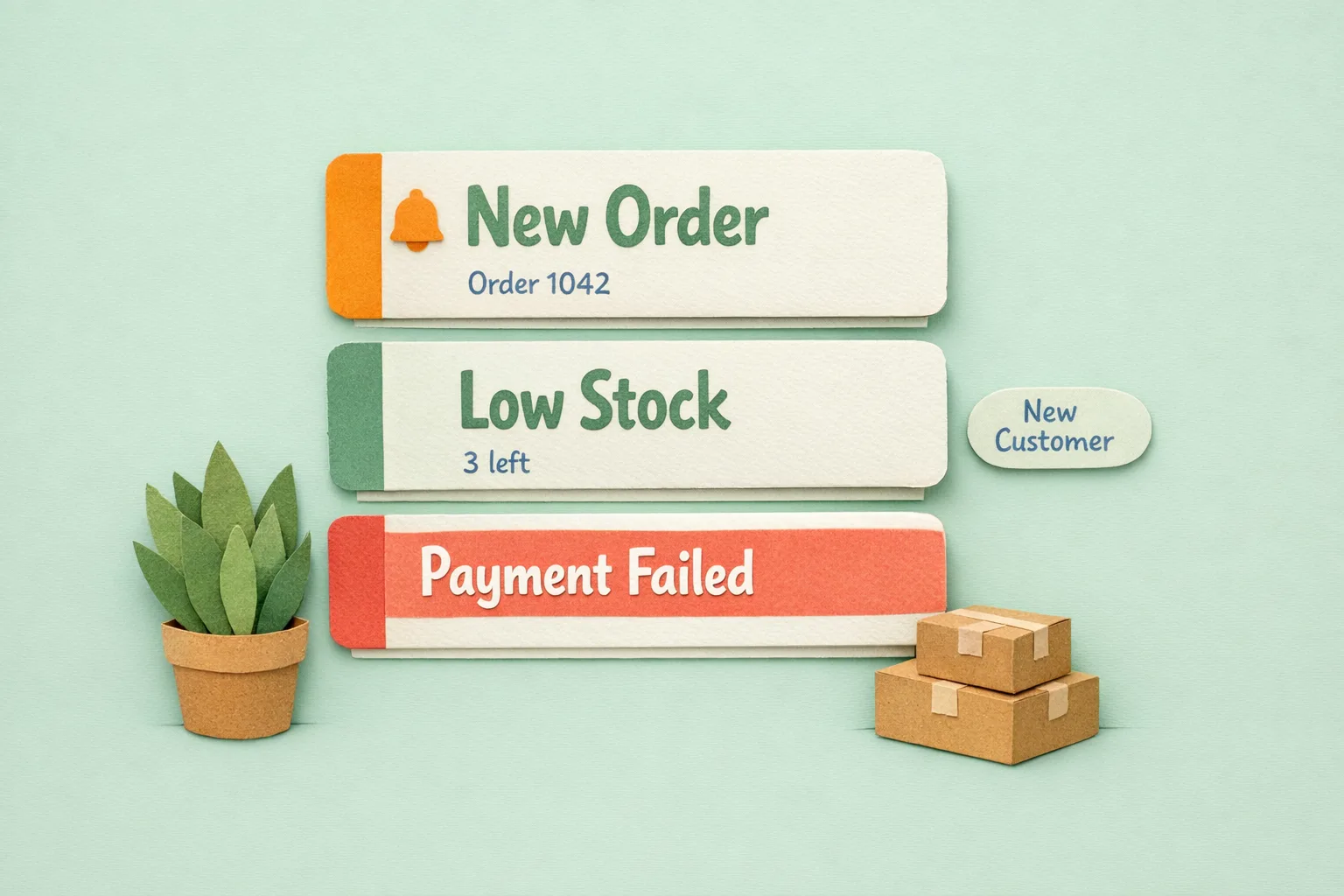
Magento can push store events straight into Slack, so new orders, failed payments, and low-stock warnings land in the channel your team already watches. Standard Magento Open Source has no Slack integration; it sends transactional emails and drops system messages into the admin notification bell. Connecting the two turns your busiest work channel into a live feed of the store.
Key point: the value is not "more notifications", it is putting store events where your team already looks, so someone actually sees and acts on them within seconds.

Why does Slack beat email for store alerts?
Email alerts fail predictably. Order and admin emails go to a shared mailbox, filters bury them, nobody owns the inbox, so nobody acts. By the time someone opens it, the "real-time" alert is an hour old.
Slack is different because your team is already in it. The moment an event happens, the whole relevant team sees it in the place they are already working, with no login and no filter to fight. An email tells you something happened; a Slack message lets a person respond while it still matters, chasing a failed payment before the customer gives up, or reordering stock the same morning it runs low.
Which events are worth pushing to Slack?
Push the events a person can act on, and leave the rest in reports:
- New order - the pulse of the store, for fulfilment and ops.
- High-value order - orders above a value you set, so someone checks them for fraud or hand-fulfils them.
- Failed payment - the most urgent alert, because a fast follow-up recovers a sale otherwise lost silently.
- Low or out-of-stock - a product crossing its notify threshold, so purchasing reorders before the listing goes dark.
- New customer - for B2B or high-touch stores where a welcome or credit check follows sign-up.
- Error or exception - a gateway timeout, a failed integration, an admin login anomaly, caught before customers feel it.
The test: if a human would do something different in the next ten minutes because they saw it, it belongs in Slack. If not, it belongs in a digest.
How do you route events to the right channels?
One firehose channel gets muted within a week. The strength of Slack is that each event reaches the team that owns it.
Step 1 - Map events to teams
Fulfilment owns new orders and shipments. Purchasing owns low stock. Support owns failed payments. Security owns admin logins and errors. That map is your channel list.
Step 2 - One channel per audience, not per event
Group by who reads it: #store-orders, #store-stock, and #store-alerts for anything urgent. Three or four channels covers most stores.
Step 3 - Route each event to its channel
Point orders and shipments at fulfilment, low stock at purchasing, failed payments and errors at alerts. One default channel is fine to start; split them the moment a team starts muting the noise.
Step 4 - Colour-code by type
A coloured sidebar lets a reader triage at a glance: green for orders, amber for stock, red for failures. In a busy channel it is the difference between scanning and reading.
How do you keep the noise under control?
The failure mode of store alerts is too many, not too few. A muted channel is worse than none, because people believe they are covered when they are not. Control the volume with three levers:
- Thresholds. Alert on orders above a value or orders that fail, not every order. Alert when stock crosses the level you would reorder at, not on every movement.
- Digests. Roll routine information into a scheduled summary. A daily sales digest informs the team without a message per order.
- Enable deliberately. Turn on one event type, live with it a week, then add the next. A channel built one useful alert at a time stays read; one switched on all at once gets muted by day two.
The mistakes that make teams mute the channel
Mistake 1 - Alerting on everything at once
On a store doing a hundred orders a day, a message per order buries the failed payment that needed a human. Start with the urgent events only.
Mistake 2 - One channel for the whole store
When orders, stock warnings, alerts, and metrics all land in one place, none get read. Route by audience so each team sees only what it owns.
Mistake 3 - Treating Slack as the system of record
Slack is the alert layer, not the source of truth. Keep a link back to the admin in the message, so a click takes the reader to the real order.
Mistake 4 - No owner for the alerts channel
An alert everyone can see but no one owns is an alert no one acts on. Give the urgent channel a rota, like a support queue.
Where does standard Magento stop?
Magento Open Source has no native Slack integration. What it does have shows the gap:
- Transactional email under Stores > Configuration > Sales > Sales Emails sends order, invoice, shipment, and credit-memo emails to a mailbox, not a team alert.
- The admin notification inbox under System > Notifications shows Magento and Adobe system messages in the admin bell, seen only when logged in.
- Low-stock reporting is a pull, not a push. Set Notify for Quantity Below under Stores > Configuration > Catalog > Inventory > Product Stock Options, and products under that quantity appear in the Reports > Products > Low Stock grid. Nothing tells you.
- Product Alerts under Stores > Configuration > Catalog > Catalog > Product Alerts email customers when an item is back in stock or changes price. They do not alert your team.
Every one is email or a screen you have to open. None puts a live event into the channel your team already watches.
Advanced: getting more from the Slack connection
- High-value routing. Send orders over a value threshold to a separate channel, so someone eyeballs every large order without wading through routine ones.
- Payment method in the message. Showing how each order paid lets fulfilment spot manual-review methods and treat them differently from instant card payments.
- Security alerts. Push failed admin logins, enriched with IP and country, to a security channel with a daily total, so a burst from one country is visible in seconds instead of buried in a log.
- Queued delivery. A good integration queues each message and dispatches on cron, so the alert is near-instant and the checkout untouched.
What does the setup actually look like?
You do not need to write code or learn Slack's full app framework. The connection rides on a Slack incoming webhook: a URL Slack gives you that accepts a message and posts it into a channel.
In Slack, add an incoming webhook to the channel you want and copy the URL. In Magento, paste it into the integration's settings, pick a default channel, and send a test message to confirm it lands. Then enable the events you want, route each to its channel, and set your thresholds. The click-by-click changes as Slack updates its UI, but the model does not.
Where Moogento Fits
Because Magento ships nothing for this, the connection needs an extension. SlackCommerce is Moogento's free, standalone module for exactly this: it posts real-time Magento events to Slack through an incoming webhook, covering new orders (with the payment method shown), invoices, shipments, credit memos, order-status changes, admin logins, and failed-login security alerts. It routes each event type to its own channel, colour-codes messages by type, and adds scheduled daily and weekly sales-metric digests, so routine information arrives as a summary. Delivery is queued and dispatched on cron, so the storefront stays fast, and it needs no licence key. Configuration lives under Stores > Configuration > Moogento > SlackCommerce; the full setup is in the SlackCommerce guide.
Real-World Impact
Stores that move store alerts from email to well-routed Slack channels typically see:
- Failed payments chased in minutes instead of found the next day, recovering sales that used to leak away silently.
- Stock-outs reordered the morning they happen, because purchasing sees the threshold cross in their own channel.
- Fewer "did anyone see that order" conversations, because the whole team saw it at once.
- Less time logged into the admin refreshing the order grid, because the flow comes to the team.
The cost is a webhook and a short setup; the return is that events which used to sit unseen in a mailbox reach a person while they can still act.
FAQs
Does Magento have a native Slack integration?
No. Magento Open Source has no built-in Slack integration. It sends transactional emails under Stores > Configuration > Sales > Sales Emails and shows platform messages in the admin notification bell under System > Notifications, but nothing posts store events to Slack. That needs a third-party extension or custom code using a Slack incoming webhook.
How do I get a Slack alert when a new order is placed in Magento?
Connect Magento to Slack with an extension that listens for the order-placed event and posts through a Slack incoming webhook. You create the webhook in Slack, paste its URL into the extension's settings, choose a channel, and new orders then appear in that channel in near real time.
Why use Slack for store alerts instead of email?
Slack beats email for store alerts because your team is already in it all day, so a message is seen in seconds by everyone in the channel, while shared-mailbox alerts get filtered and ignored. Slack turns an alert from a record that something happened into a prompt a person can act on while it still matters.
Can I send different Magento events to different Slack channels?
Yes, with an extension that supports per-event routing. The common pattern is new orders and shipments to a fulfilment channel, low-stock warnings to purchasing, and failed payments and security events to an urgent alerts channel, so each team sees only what it owns.
How do I stop Slack alerts from becoming noise?
Keep Slack alerts useful with thresholds, digests, and deliberate enabling. Alert only on events a person must act on now, such as failed payments, high-value orders, and stock crossing its reorder level; roll routine information into a scheduled digest; and switch on one event type at a time so the channel stays read.
How does Magento notify me about low stock by default?
By default Magento does not push a notification; it reports. Set a threshold in Notify for Quantity Below under Stores > Configuration > Catalog > Inventory > Product Stock Options, and products under that quantity appear in the Reports > Products > Low Stock grid. You have to open the report to see it, which is why teams add a Slack push for the same threshold.
Will sending Slack messages slow down my store?
Sending Slack messages should not slow your store if the integration is built correctly. Posting inside the checkout request would add latency, so a good extension queues the message and dispatches it on a cron run. The customer's checkout stays fast while the alert arrives within a minute or so.
Next Steps
- Decide which events need a human response: start with failed payments, high-value orders, and low stock.
- Create a small set of channels by audience (orders, stock, urgent alerts), not one per event.
- Add a Slack incoming webhook to each channel and connect Magento with an extension such as SlackCommerce.
- Enable one event type, live with it for a week, then add the next, and route routine information into a digest.
The highest-value move is the failed-payment alert into an owned channel: it recovers sales that email lets slip away unseen.
Related reading: Improve Your Magento Order Process and Magento 2 Inventory Management.