

Overview
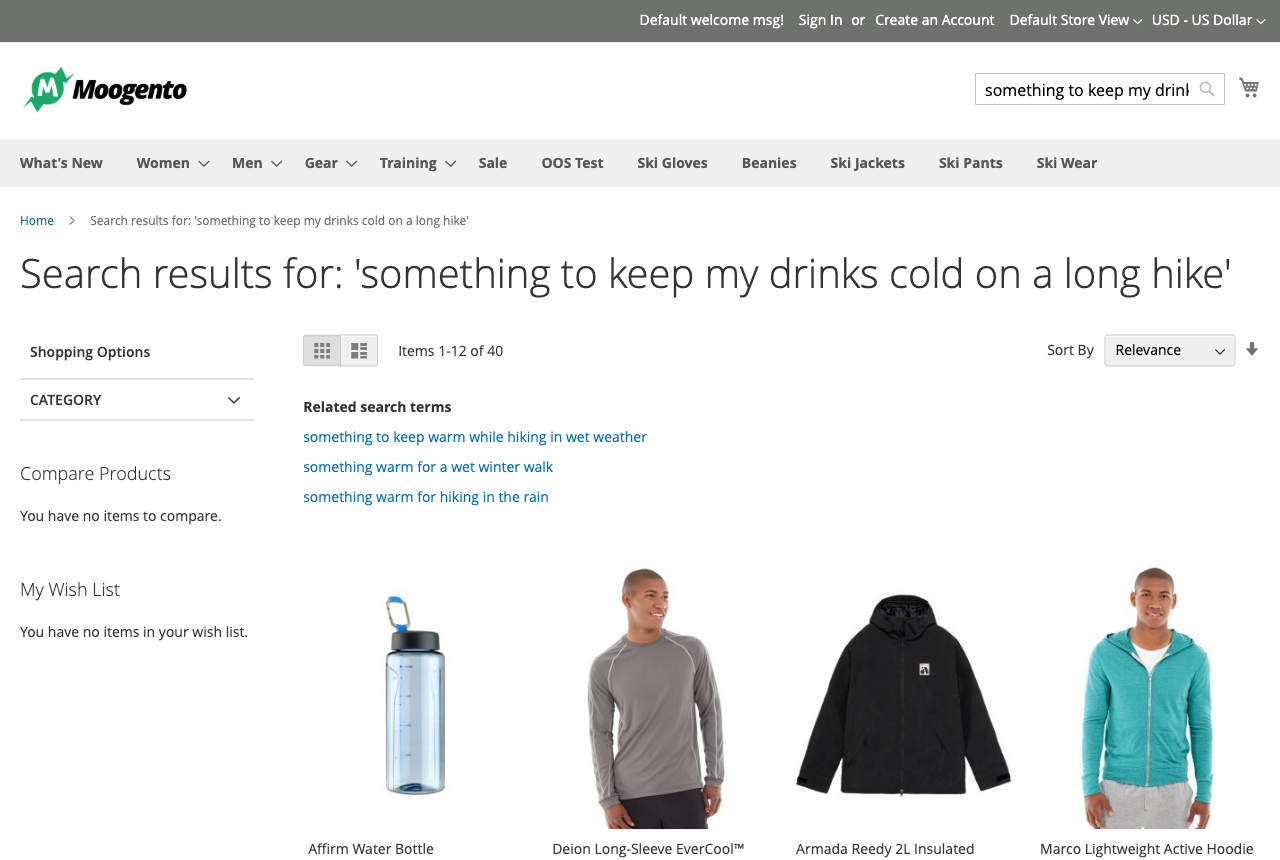
Semantic Search adds meaning-based product search to Magento 2 stores that run OpenSearch. When a shopper types "something to keep my drinks cold on a long hike", native keyword search looks for those exact words. Semantic Search also looks for products that mean the same thing, then puts the closest matches first. Your normal Magento filters, sorting, prices and stock rules keep working on the results.
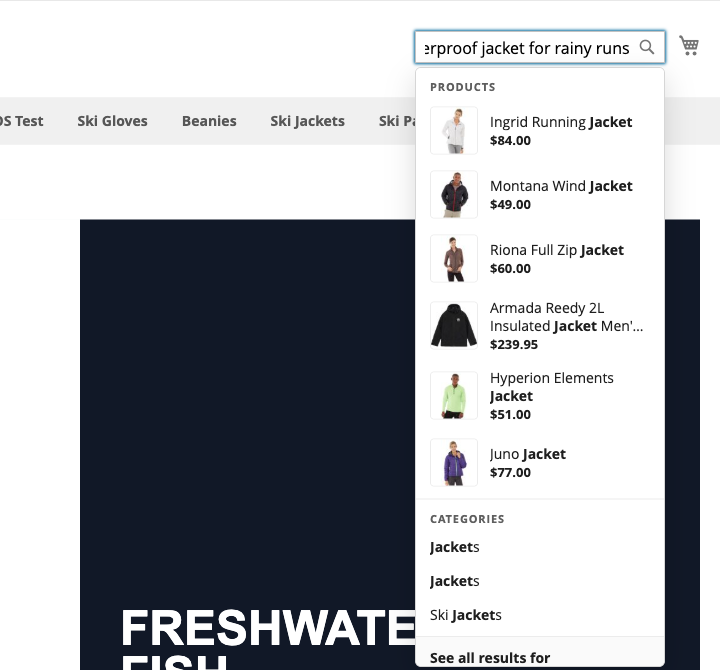
This module helps you:
- Turn descriptive searches and whole questions into relevant product results
- Show matching products, categories, pages and blog posts while shoppers type
- Keep search working: any problem with a connection falls back to keyword results
- Control what the module sends to AI providers and how many calls it makes each day
When to use this
Shoppers rarely know your product names. They type what they want to do, the problem they have, or a question. Keyword search returns nothing, or the wrong thing, and the shopper leaves.
Use Semantic Search when you want to:
- Answer descriptive searches such as "gift for someone who runs in the rain"
- Let shoppers type full questions into the search box
- Point question-style searches to your help and policy pages
- Give the search box a grouped dropdown on Luma or Porto based themes
- Improve search without changing your theme or your catalogue data
Key capabilities
- Hybrid search - combines native keyword matching, exact SKU and name matches, and meaning-based (vector) matching into one ranked list
- Relevance judgments - an AI model checks up to 40 candidate products per search and puts the most relevant first
- Natural language queries - the search box accepts longer phrases, 128 characters by default
- Misspellings matched by meaning - searches such as "watr bottle" or "yoga pnts" still find the right products
- Grouped type-ahead - products, categories, CMS pages, blog posts and a see-all link, with pages first for questions
- Keyword fallback - shoppers always get results, even when a provider is slow, unavailable or out of budget
- Public content search - selected CMS pages, CMS blocks and a public documentation section can appear as "Guides & Help"
- Daily call limits - separate limits for indexing, the first index build and shopper searches, per store view
- Operations page - check readiness, compare keyword and hybrid results, test a connection and roll back a model
- Plan allowances - each plan covers a number of products and semantic searches a month, with usage shown in the admin
Installation
Semantic Search installs via Composer, then activates with a license key from your Moogento.com account. The whole flow takes about 5 minutes.
Step 1: Get your Composer keys from Moogento.com
- Sign in at https://www.moogento.com and open My Plugins in your account menu.
- Find Semantic Search in the list of plugins you own.
- Generate (or reveal) the Composer access keys for that plugin - a public key and a private key.
- Add your install domain to the key. Each Composer key is tied to a specific domain - if you're installing on
yourstore.com, addyourstore.comto the key's allowed domains. The Composer download will be rejected on any other domain.
If you run staging and production on different domains, add both - separate keys per environment are fine too.
Step 2: Install the module with Composer
From your Magento 2 root directory:
composer require moogento/m2-semanticsearch
When Composer asks for credentials, paste the public key as the username and the private key as the password. They'll be cached in ~/.composer/auth.json for future runs.
Step 3: Enable the module in Magento
php bin/magento setup:upgrade
php bin/magento setup:di:compile
php bin/magento cache:clean
Run php bin/magento module:status Moogento_Semanticsearch to confirm it is listed as enabled.
Step 4: Add your license key in the Moogento admin
- Copy the Semantic Search license key from My Plugins at moogento.com.
- Open Stores > Configuration > Moogento > License in Magento Admin. Add the Installation Domain shown on this page to the key in your Moogento account.
- Paste the key into the key field and click Add key.
- Under Registered Keys for this Installation, confirm that Semantic Search appears with the correct plan.
The license validates within a few seconds. Without a valid license, shoppers keep getting keyword results.
Extra steps for Semantic Search
- Your store must use OpenSearch as its catalog search engine, and Magento cron must be running. The module adds three jobs that run every minute to prepare products and content.
- You need two provider accounts: an OpenAI API key (or an OpenAI-compatible embeddings endpoint) for meaning-based matching, and an Anthropic API key for relevance judgments. Provider usage is billed to you by those providers.
- Public product text and shopper searches are sent to the providers you select. API keys are stored encrypted and never written to the log.
Setup overview
Most setup happens in:
Stores > Configuration > Moogento > Semantic Search
You'll mainly work with:
- Search
- Embeddings
- Candidate judgments
- Response and call budgets
- Public search content
Day-to-day checks happen in Stores > Semantic Search Operations.
The section also has a Moogento AI Gateway group. Leave it empty: it is for a managed Moogento connection that cannot serve semantic search yet, and the embedding option for it is labelled "connection pending". New installs already use OpenAI and Claude with your own keys.
All settings can be set per store view, and each store view has its own index.
Common setups
Connect your AI providers
Semantic Search needs one connection that turns text into meaning (embeddings) and one that judges which products fit the search best.
How to set it up
-
Go to: Stores > Configuration > Moogento > Semantic Search > Embeddings
-
Set:
- Embedding connection = OpenAI, use my API key
- Embedding model =
text-embedding-3-small - Embedding API key = your OpenAI key
- Embedding dimensions =
1536 - Text format = Unprefixed text, including OpenAI embeddings
-
Go to: Stores > Configuration > Moogento > Semantic Search > Candidate judgments
-
Set:
- Judgment connection = Claude, use my Anthropic API key
- Judgment model = Sonnet 4.6, reference judgment model
- Anthropic API key = your Anthropic key
-
Save config
Notes
- Saving settings makes no provider call. Use Test selected connection on the operations page to check a key.
- To use another embeddings service, choose OpenAI-compatible HTTPS endpoint and enter its full URL ending in
/v1/embeddings. Set Embedding dimensions to exactly what the model returns. - Changing the embedding model, dimensions or text format builds a new index in the background. The previous index keeps serving until the new one is ready.
- If Judgment connection is Disabled, shoppers get keyword results.
Build the index and preview results
Run the module in Preview first. It builds the index while shoppers keep seeing native results, and you can compare keyword and hybrid results for real queries.
How to set it up
-
Go to: Stores > Configuration > Moogento > Semantic Search > Search
-
Set:
- Search mode = Preview, public keyword results
-
Save config, then open Stores > Semantic Search Operations.
-
Enter a store view ID and watch Local index status until the first build finishes.
-
Under Compare search or test a connection, enter a Preview query, tick I authorize provider calls for this explicit preview or connection test, and run the comparison.
Notes
- The first build uses the higher Daily provider call limit while building the index (default 50,000 calls a day). Each product uses about 4 calls, so 50,000 calls covers about 12,000 products in a day.
- A preview comparison makes real provider calls, which is why it needs the checkbox.
Switch semantic results on for shoppers
When the index is ready and the preview looks right, serve semantic results on the storefront.
How to set it up
-
Go to: Stores > Configuration > Moogento > Semantic Search > Search
-
Set:
- Search mode = On, public semantic results when ready
- Search query length while semantic search is on =
128(or up to256)
-
Save config
-
Check Search readiness on the same page. It says whether shoppers are getting semantic or keyword results, and why.
Notes
- The query length setting lets shoppers type whole questions. A larger value in Catalog > Search > Maximum Query Length is kept.
- The results page accepts queries up to this setting (up to 256 characters). The type-ahead dropdown only reacts to queries of 128 characters or fewer.
- A search that is not cached yet can take 6 to 8 seconds to judge 40 candidates. Repeat searches are answered from the cache.
- Results pages show "Matches within the selected search results (up to 40 products)". Filters, sorting and price ranges work inside those matches.
Turn on the type-ahead dropdown
Show grouped suggestions under the search box as shoppers type.
How to set it up
-
Go to: Stores > Configuration > Moogento > Semantic Search > Search
-
Set:
- Instant results while typing = Yes
-
Save config and clean the cache.
Notes
- The dropdown appears once Search mode is On and semantic results are ready.
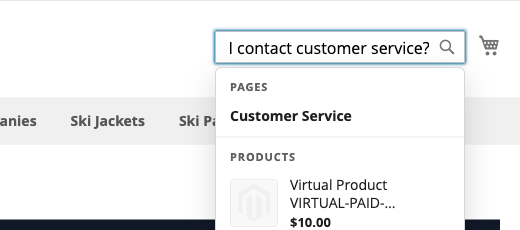
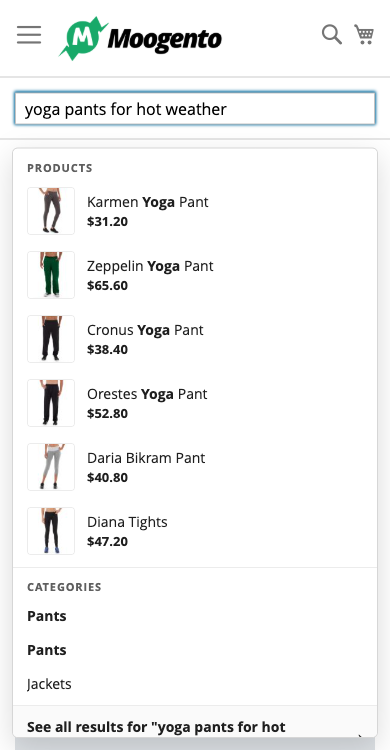
- It shows up to 6 products, 3 categories, 2 CMS pages, 2 blog posts and a see-all link. Empty groups are hidden.
- When the search reads as a question (it starts with how, what, when, where, why, who, which, can, do, does, is or are, or ends with a question mark), pages come first.
- It starts after 3 characters and waits 300 milliseconds after the last keystroke. Each new phrase uses one embedding call from the shopper allowance and no judgment call.
- With SmartListings installed, more sellable products move up among products that match about equally well.
- Blog posts come from the FishPig WordPress integration when it is installed.
- On phones the panel fills the screen width.
Features reference
Plan allowances
-
Each plan covers a number of products in the semantic index and a number of semantic searches each month:
Plan Products Searches per month Seed 5,000 10,000 Growth 25,000 50,000 Pro 100,000 200,000 Custom Unlimited Unlimited -
Allowances apply per website. All store views of one website share them.
-
Only products that are enabled and visible in search count toward the product allowance. If your catalogue is larger, the products with the lowest product IDs are covered, and the rest are still found by normal keyword search.
-
A search counts once per distinct results-page query. Repeating the same search within 30 minutes, paging, sorting and filtering do not count, and neither does the type-ahead dropdown. A search that falls back to keyword results is not counted.
-
When the monthly allowance is used up, shoppers get keyword results until the next month begins (UTC).
-
Search readiness shows your plan, how many products are covered, how many are found by keyword search only, and this month's searches.
-
For larger catalogues, contact Moogento about a Custom plan.
-
Config path: Stores > Configuration > Moogento > Semantic Search > Search > Search readiness
Response and call budgets
- Limits how long a search may wait for providers and how many provider calls the module makes each day.
- Use it to control provider spend and response time.
- Search timeout in milliseconds (default 10000): when time runs out, the shopper sees keyword results. Lower values favour speed over relevance on first searches.
- Daily provider call limit for indexing (default 2,000) and for shopper queries (default 1,000): separate UTC daily limits per store view. Failed attempts count; cached answers use no calls. Set
0to stop new calls. While the first build or a full rebuild is unfinished, indexing can still use the build limit below, so set both to0to pause indexing during a build. - Daily provider call limit while building the index (default 50,000, maximum 1,000,000): replaces the indexing limit only while the first build or a full rebuild is unfinished.
- Config path: Stores > Configuration > Moogento > Semantic Search > Response and call budgets
Fields sent for product meaning
- Chooses which public product fields are used to understand each product. Name is always included.
- Defaults: name, short description, description, public category names, brand, color, manufacturer, material and size.
- Long descriptions are shortened to the title plus four evenly spaced passages.
- Changing the selection rebuilds the index in the background.
- Config path: Stores > Configuration > Moogento > Semantic Search > Public search content > Fields sent for product meaning
Public CMS pages and blocks
- Adds selected CMS pages, and CMS blocks shown on a public owner page, to search. Matching pages appear in the type-ahead and in a "Guides & Help" block on the results page (up to 6 pages).
- Use it for shipping, returns, sizing and care pages that answer common questions.
- Enter comma-separated page IDs in Public CMS page IDs (up to 1000). Only active, public pages are included.
- For blocks, add each block with the public page that contains it in Public blocks and owner pages. Results link to the owner page.
- Config path: Stores > Configuration > Moogento > Semantic Search > Public search content
Public documentation
- Adds a public documentation section of your website, for example
https://example.com/docs, to "Guides & Help". - Enter the HTTPS address in Public documentation subtree, then list pages or one sitemap in Public documentation pages or sitemap, one per line, for example
page https://example.com/docs/guide. - Up to 100 pages. Only that subtree is fetched; private addresses and redirects outside it are refused.
- Config path: Stores > Configuration > Moogento > Semantic Search > Public search content
Logging level
- Controls how much the module writes to
var/log/moogento_semanticsearch.log. - Errors only is recommended. Search text, product text and API keys are never logged.
- Config path: Stores > Configuration > Moogento > Semantic Search > Search > Logging level
Advanced configuration
Semantic Search Operations page
What it does
Shows the local index status for a store view and gives you safe controls: compare keyword and hybrid results, test a connection, queue products for indexing, request a rebuild, and switch back to the previous ready model. Opening the page makes no provider call.
Setup
- Open Stores > Semantic Search Operations.
- Enter the Store view ID.
- Use Read local status, Enqueue products, Request asynchronous rebuild or Use the previous model as needed.
Notes
- Products needing attention and Shopper query operations needing reconciliation list the first 50 items that need a look. They contain no shopper search text.
Command line
What it does
The same operations are available from the command line, with JSON output:
php bin/magento moogento:semanticsearch:operations status --store=1
php bin/magento moogento:semanticsearch:operations enqueue --store=1 --ids=12,15
php bin/magento moogento:semanticsearch:operations rebuild --store=1
php bin/magento moogento:semanticsearch:operations preview --store=1 --query="gift for a runner" --confirm-paid
Notes
previewandprovider-testmake paid provider calls and need--confirm-paid.- Other actions are
rollback, which needs--revisionwith the current profile selection revision, andresolve.
Tips & best practices
- Start in Preview and compare 10 to 20 of your real top searches before switching On.
- Raise the first-build limit for large catalogues so the first index finishes in a day or two, then leave the normal indexing limit low.
- Add your shipping, returns and contact pages to Public CMS page IDs so question-style searches land on an answer.
- Keep Fields sent for product meaning to public, descriptive fields. Brand, material and category names help most.
- Set the shopper query limit with your traffic in mind: once it is spent for the day, shoppers get keyword results until midnight UTC.
Troubleshooting
Shoppers still see keyword results
The results page says "Showing keyword search results".
- Cause: search mode is not On, the license is not active or could not be verified, the first index is unfinished, a provider key is missing, the judgment connection is Disabled, the daily shopper limit or the plan's monthly search allowance is spent, or a first search ran out of time.
- Check: Search readiness in Stores > Configuration > Moogento > Semantic Search > Search, and Local index status on the operations page.
- Resolution: complete the missing step it names. For timeouts, the next search for the same phrase is answered from the cache.
The first index build is slow
Products are still pending after several hours.
- Cause: cron is not running, or the build limit is spent for the day.
- Check: that Magento cron runs every minute, and the pending count in Search readiness.
- Resolution: start cron, or raise Daily provider call limit while building the index.
The type-ahead dropdown does not appear
Typing in the search box shows the theme's own suggestions or nothing.
- Cause: Instant results while typing is off, search mode is not On, the index is not ready, or the theme is Hyva.
- Check: the settings in the Search group and the readiness message.
- Resolution: turn the setting on and clean the cache. On Hyva, the results page uses semantic search but the dropdown does not run.
FAQs
How do I add semantic search to Magento 2?
Install the Semantic Search plugin, connect an OpenAI key and an Anthropic key, and set Search mode to On once the index is built. Shoppers can then search by description or question instead of exact product names. See Common setups for the steps.
Why does my store still show keyword results?
Semantic Search falls back to keyword results whenever it cannot answer safely: a missing key, an unfinished index, a spent daily limit, a used-up monthly plan allowance or a slow provider. The Search readiness message names the reason.
Does Semantic Search work with Hyva, Luma and Porto?
Semantic search results work on Luma, Hyva and Porto. The type-ahead dropdown works on Luma and Porto based themes and does not run on Hyva.
Does it work with Elasticsearch or MySQL search?
No, Semantic Search requires OpenSearch as the Magento catalog search engine.
What does Semantic Search cost to run?
Besides your plan, you pay OpenAI and Anthropic for the calls the module makes, at their prices. Daily call limits per store view keep that under your control; for example, the default 50,000-call first-build limit with text-embedding-3-small costs about $0.60 at most in embeddings.
What happens when I disable Semantic Search?
Set Search mode to Off and your store goes back to native Magento search. Shoppers keep getting results the whole time, because native search is never removed.
Does it work with SmartListings and FishPig?
Yes, both are optional. With SmartListings installed, the dropdown moves more sellable products up among near-equal matches, and with the FishPig WordPress integration it can show blog posts.
Which Semantic Search plan do I need?
Choose the plan whose product and monthly search allowances fit your website: Seed covers 5,000 products and 10,000 searches a month, Growth 25,000 and 50,000, and Pro 100,000 and 200,000. Every plan includes all the features in this guide, and a Custom plan without limits is available for larger catalogues. See Plan allowances for how products and searches are counted.
Why are some products only found by keyword search?
Your catalogue has more enabled, search-visible products than your plan covers. The products with the lowest IDs are in the semantic index, and the rest are still found by normal keyword search; Search readiness shows how many.
Related guides
- SmartListings - sellability scores that can order near-equal search matches
- AgentCommerce - lets AI shopping assistants search your catalogue
Need help?
- Moogento support desk - the fastest route
- moo@moogento.com if you would rather email
- Include:
- Magento version
- Module name
- What you're trying to do