

Overview
CategoryContent AI gives every Magento 2 category page a full suite of rich content tools: full-width hero banners with AI-generated backgrounds, collapsible FAQ tabs, and custom details blocks. All content is authored and maintained from the admin - no theme edits required. Heroes support image or solid-colour backgrounds, gradient overlays, and fine-grained typographic controls, while FAQs surface the most useful answers first via built-in popularity tracking.

This module helps you:
- Add and manage per-category hero banners with images, colours, gradients, and custom title styling
- Bulk-generate on-brand hero images using AI providers (Claude, GPT Image 2, Gemini, DALL-E 3, and others) without leaving the admin
- Publish category FAQ sections and auto-sort questions by shopper popularity
- Add a rich Details tab to category pages, sourced from custom WYSIWYG content or the existing category description
- Import and export heroes, FAQs, and details via CSV for bulk catalogue management
When to use this
Use CategoryContent AI when you want to:
- Replace plain category page headers with full-width branded hero banners
- Keep a per-category FAQ section that automatically prioritises the most-clicked questions
- Give category pages a structured details or description tab without editing theme templates
- Populate or update hero content across hundreds of categories from a single CSV import
- Generate hero background images in bulk using AI, then review and activate the best ones
Key capabilities
- Category heroes - per-category background images or solid-colour heroes with gradient overlays, custom fonts, and colour controls
- AI image generation - multi-provider pipeline (Claude + GPT Image 2, Claude + DALL-E 3, Google Nano Banana 2, OpenRouter, Gemini 2.5 Flash, Gemini 3 Pro, GPT Image 2, DALL-E 3) that queues and processes images via cron
- FAQ tabs - category-scoped FAQ sections with click tracking, popularity sorting, and a three-mode sort strategy (manual / popularity / hybrid)
- Details blocks - category details tab with WYSIWYG editor and flexible source control (category description, custom content, or none); tab is hidden automatically when the resolved content contains only blank paragraphs or whitespace
- CSV round-trip - import and export heroes, FAQs, and details for bulk updates; supports category names in addition to IDs
- Live site export - download all current category hero content as a CSV from the running store, ready for AI processing or migration
- Mobile-responsive controls - per-breakpoint focus point, zoom, and slim-text settings for hero images on phones and tablets
- CMS FAQ widget - place FAQ blocks on any CMS page (homepage, contact, landing pages) with configurable style, interaction behaviour, and background images
Installation
Bought on Adobe Commerce Marketplace? Your purchase comes with a Moogento account: set your password from the activation email, then follow the steps below with the Composer keys and licence key in My Plugins. If the email has not arrived, contact Moogento support.
CategoryContent AI installs via Composer, then activates with a license key from your Moogento.com account. The whole flow takes about 5 minutes.
Prefer a hands-off setup? Our team can install and configure the extension for you - see the paid install service.
Step 1: Get your Composer keys from Moogento.com
- Sign in at https://www.moogento.com and open My Plugins in your account menu.
- Find CategoryContent AI in the list of plugins you own.
- Generate (or reveal) the Composer access keys for that plugin - a public key and a private key.
- Add your install domain to the key. Each Composer key is tied to a specific domain - if you're installing on
yourstore.com, addyourstore.comto the key's allowed domains. The Composer download will be rejected on any other domain.
If you run staging and production on different domains, add both - separate keys per environment are fine too.
Step 2: Install the module with Composer
From your Magento 2 root directory:
composer require moogento/m2-categorycontent
When Composer asks for credentials, paste the public key as the username and the private key as the password. They'll be cached in ~/.composer/auth.json for future runs.
Step 3: Enable the module in Magento
php bin/magento setup:upgrade
php bin/magento setup:di:compile
php bin/magento cache:clean
If you run php bin/magento module:status Moogento_Categorycontent you should see it listed as enabled.
Step 4: Add your license key in the Moogento admin
- For a direct purchase, copy the CategoryContent AI license key from My Plugins at moogento.com. For a Marketplace purchase, check your Moogento account for an issued key and contact Moogento support if it is missing.
- Open Stores > Configuration > Moogento > License in Magento Admin. Add the Installation Domain shown on this page to the key in your Moogento account.
- Paste the key into the key field and click Add key.
- Under Registered Keys for this Installation, confirm that CategoryContent AI appears with the correct plan.
The license validates within a few seconds. You should see the module's status flip to active. If it stays inactive, double-check the domain on the license matches where you've installed - domain mismatch is the most common cause.
Setup overview
Most setup happens in:
Stores > Configuration > Moogento > CategoryContent AI
You'll mainly work with:
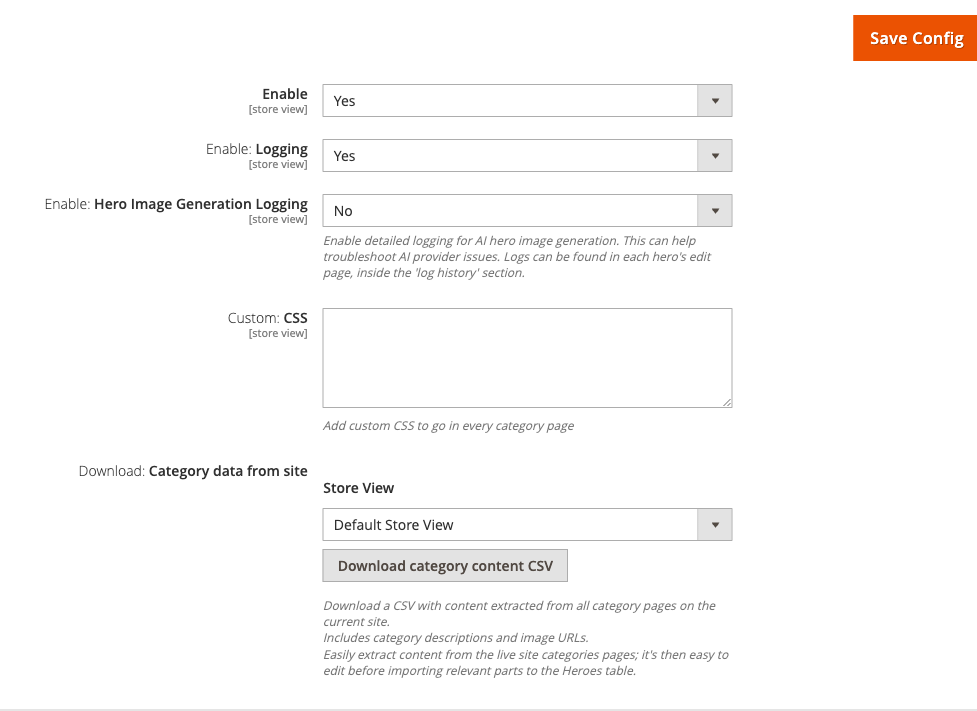
- General - master enable switch, logging, custom CSS, and live-site export
- Category: Hero - enable heroes, typography, colours, gradient overlay, fallback image, mobile/tablet breakpoints, and AI image generation
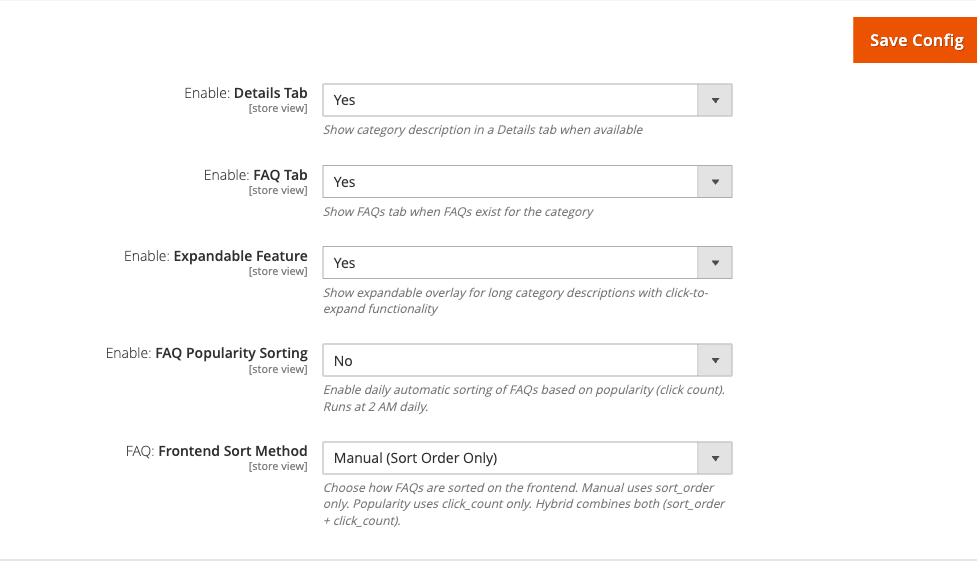
- Category: Details & FAQ - enable the Details and FAQ tabs, expandable descriptions, and FAQ popularity sorting
- CMS: FAQ Widget - settings for FAQ widgets placed on CMS pages (homepage, contact, etc.)
Day-to-day content work happens in the three admin grids under Catalog > CategoryContent AI:
- Heroes - create, edit, and generate AI images for category heroes
- Details - manage per-category detail content blocks
- FAQs - create, import, and manage FAQ questions across categories
Common setups
Enable category heroes and add your first banner
Give your category pages a branded header instead of the plain Magento title block.
How to set it up
-
Go to: Stores > Configuration > Moogento > CategoryContent AI > General
-
Set:
- Enable = Yes
-
Go to: Stores > Configuration > Moogento > CategoryContent AI > Category: Hero
-
Set:
- Enable: Category Heroes = Yes
- Remove: Default Header Section = Yes (hides the stock Magento category title)
-
Save Config, then run
php bin/magento cache:clean. -
Go to Catalog > CategoryContent AI > Heroes and click Add New (or find the auto-created hero for the category you want).
-
Set the background type to Image and upload a photo, or set it to Color and pick a hex value. Add above-title blurb text and a title if needed.
-
Save the hero. Clear
layout,block_html, andfull_pagecaches to see the change on the storefront.
Notes
- Heroes are linked to categories by category ID. CategoryContent AI can auto-create a blank hero for every category - use the Heroes grid mass actions to do this in bulk.
- If a hero is set to Image but no image is uploaded, the fallback image set in Stores > Configuration > Moogento > CategoryContent AI > Category: Hero > Style: Background is shown.
Set up AI hero image generation
Generate on-brand hero background images across your catalogue using AI providers - no designer required.
How to set it up
-
Go to: Stores > Configuration > Moogento > CategoryContent AI > Category: Hero > AI: Image Generation
-
Set:
- Enable: AI Image Generation = Yes
-
Expand Providers and click Add Provider to add your first AI provider. Fill in:
- Provider type (e.g.
openrouter,gemini_flash,gpt_image,dalle3) - API key
- Roles to assign (
prompt,image_primary,image_secondary)
- Provider type (e.g.
-
Expand Prompts > General Context. Enter your homepage and about-us URLs, then click Auto-Generate: Style 1 Prompt to let the AI analyse your site and write a brand context prompt. Review and adjust the generated text in the Style 1 General Prompt field.
-
Expand Image Creation and set:
- Generate: Images Per Request = 2-4 (depends on your API plan)
- Max Generations: Per Hero = 4 (keeps storage manageable)
- Auto-Select: Latest Generation = Yes (automatically activates the newest image)
-
Save Config.
-
Go to Catalog > CategoryContent AI > Heroes, select the heroes you want to generate images for, and use the mass action Generate AI Images to add them to the queue.
-
Cron processes the queue automatically. To check queue status, run:
php bin/magento moogento:categorycontent:ai:queue-status -
Once images appear in each hero's AI gallery, open the hero, review the generated options, and click the one you want to make active.

Notes
- Cron must be running. If images are not generating, look for the admin notification "CategoryContent: Please check your Magento cron is running".
- Product images from the category can be sent as context to the AI - enable Include: Product Images for Context under Prompts > Product Context for more relevant results.
- On local or staging environments where product image URLs are not publicly reachable, set Replacement Reachable URL: For Product Images to a public tunnel or staging domain.
Set up Magento 2 category page FAQ tabs
Add an expandable FAQ section to every category page and let shopper behaviour determine which questions appear first.
How to set it up
-
Go to: Stores > Configuration > Moogento > CategoryContent AI > Category: Details & FAQ
-
Set:
- Enable: Details Tab = Yes (to show the category description in a tab)
- Enable: FAQ Tab = Yes
- Enable: FAQ Popularity Sorting = Yes
- FAQ: Frontend Sort Method = Hybrid (recommended - balances manual order with click count)
-
Save Config.
-
Go to Catalog > CategoryContent AI > FAQs and click Add New FAQ. Fill in:
- Question
- Answer
- Category assignments
- Sort order
-
Save. Clear
full_pagecache to see the FAQ tab on the storefront.
Notes
- The FAQ tab only appears on the first pagination page of a category and only when at least one active FAQ exists for that category.
- The Details tab is hidden automatically when the resolved content contains only blank paragraphs, line breaks, or non-breaking spaces - no manual suppression needed.
- Popularity data builds up over time. Allow 2-3 weeks of click data before evaluating the Hybrid sort results.
- To import many FAQs at once, use Catalog > CategoryContent AI > FAQs > Import and upload a CSV with columns:
question,answer,sort_order,is_active,categories(ID or name).
Download live-site hero content for bulk editing or AI processing
Export all current category hero content to CSV - useful for migration, backup, or feeding to an AI pipeline.
How to set it up
-
Go to: Stores > Configuration > Moogento > CategoryContent AI > General
-
Click Download: Category data from site.
-
Select the store view if prompted, then click Download.
-
A CSV file downloads with columns for category name, above-title text, main title, below-title text, category description, page title, meta description, meta keywords, image URL, and store ID.
-
Edit the CSV (or pass it through an AI tool), then re-import via Catalog > CategoryContent AI > Heroes > Import.
Notes
- An
ai_promptcolumn arrives needing approval. A prompt supplied by a CSV is not sent to your image provider until you approve it, because an imported file may carry text from a crawled third-party page. The heroes grid shows an AI Prompt Source column: rows reading Imported, needs approval have a row action called Approve imported prompt. Until you use it, an image run for that hero stops with "Imported prompt needs approval before it can be sent to the image provider" and nothing is billed. Prompts CategoryContent AI generated itself, and heroes imported before this release, are unaffected and generate as they always have. - Heroes > Import applies the hero columns only. The category-level columns in this file - category description, page title, meta description and meta keywords - are read for reference and are not written back by the hero importer. To bulk-update those, use the Details CSV import (page title, meta description and meta keywords) or
moogento:category:import-attributes(all four, and the only route that is store-view scoped). Editing them in this file and re-importing through Heroes will appear to succeed while leaving the category untouched. - Extraction crawls every active category page via HTTP. For large catalogues (100+ categories) this may take several minutes.
- Progress is logged to
var/log/moogento_categorycontent.log.
Manage category SEO fields (page title, meta description, meta keywords)
Edit and bulk-manage the native Magento category page title, meta description, and meta keywords attributes alongside the Details content, without leaving CategoryContent AI.
How to set it up
-
Go to Catalog > CategoryContent AI > Details, open an existing detail record or create a new one for the category.
-
Fill in Page Title, Meta Description, and Meta Keywords alongside the existing Detail Content and Category Description fields. Aim for roughly 60 characters in the page title and 160 characters in the meta description - the form shows this guidance but does not enforce it.
-
Save. The three fields are written directly to the category's native
meta_title,meta_description, andmeta_keywordsattributes, the same way the Details form already writesdescription. -
For bulk edits, use the Details CSV export/import (Details > Export, Export All, or Download Template) - the three columns sit immediately after
category_description. Or usemoogento:category:import-attributesto set meta fields alongside hero attributes, optionally scoped to a store view with--store-id.
Notes
- Blank cell clears, absent column leaves unchanged. A CSV column present with an empty value clears that attribute on import. Omitting the column entirely leaves the existing value untouched. This matches how
category_descriptionalready behaves. - Values are stored as plain text: HTML tags are stripped, entities decoded, and repeated whitespace collapsed to single spaces.
- The character-count guidance in the form (around 60 for the page title, around 160 for the meta description) is advisory - nothing is rejected or shortened for being longer than that. There is one hard limit underneath it: the page title is stored in a 255-character database column, as it is for Magento's own category form. A longer value will be cut short or rejected by the database depending on your server's SQL mode, so keep page titles under 255 characters. Meta description and meta keywords have no practical limit.
- Editing category fields needs the Magento category permission. Writing the category description, page title, meta description and meta keywords from the Details screens or the Details CSV import requires your admin role to have Catalog > Categories (
Magento_Catalog::categories) as well as CategoryContent access. A role without it can still create and edit detail content; the category fields are left untouched and the screen says so. If a colleague reports their SEO edits silently not saving, this permission is the first thing to check. Themoogento:category:import-attributescommand is not affected, as command-line access is already trusted. - The Details form, Details CSV, and Details exporters read and write the default (store 0) scope. To set meta fields per store view, use
moogento:category:import-attributes --store-id=N. - Import the Details CSV through Catalog > CategoryContent AI > Details > Import in the admin, or with the
moogento:categorycontent:details:importcommand. Both write detail content plus the optionalcategory_description,meta_title,meta_descriptionandmeta_keywordscolumns, so a file with onlycategory_idand meta columns imports fine. The admin import skips the category-level columns for an admin user whose role cannot edit categories, and says so; the command runs with full rights. Add--dry-runto report what would change without saving, and--update-existingto overwrite detail content that is already there. - The command reports a row naming a category that does not exist as an error and finishes with a non-zero exit code, so a scheduled job will show as failed rather than passing quietly. Rows skipped for other reasons, such as having no detail content, are reported as a single summary line per reason and do not affect the exit code.
- After a bulk CSV import, flush the
full_pagecache so storefront pages pick up the new<title>and meta tags immediately. moogento:categorycontent:export-heroes(the CLI command) also includes Page Title, Meta Description, and Meta Keywords columns, but its output uses Title Case headers and is a reporting artefact, not a re-importable file.
Features reference
Category: Hero - Titles styling
Control the typography inside every category hero globally. These settings apply unless a specific hero overrides them.
- What it does: Sets font colour, font size, text shadow, and above/below-title blurb styling across all category heroes.
- When to use it: When your brand uses a specific heading size or colour that differs from the theme default.
- Config path: Stores > Configuration > Moogento > CategoryContent AI > Category: Hero > Hero: Titles
The style picker for each property offers three options: Inherit from theme, CategoryContent AI default, or Custom. Selecting Custom reveals a colour picker or size input. Per-hero overrides in the Heroes grid offer a fourth option - Use module config - so individual heroes can defer to these global settings.
Category: Hero - Style: Background
Upload a fallback image for heroes and control the gradient overlay on background images.
- What it does: Provides a store-wide fallback image when a hero is set to Image mode but has no image uploaded. Also enables or disables the dark left-to-right gradient overlay that improves text legibility over busy photos.
- When to use it: Set a fallback image at launch so no hero ever shows a blank background.
- Config path: Stores > Configuration > Moogento > CategoryContent AI > Category: Hero > Style: Background
- Technical path:
moogento_categorycontent/category_head/style_background/hero_fallback_image
Category: Hero - Style: Mobile
Control how hero background images position and scale on phones and tablets.
- What it does: Sets default focus point (horizontal position) and zoom level for mobile and tablet breakpoints, and lets you define the pixel widths where mobile and tablet layouts kick in.
- When to use it: When hero images have a focal point (a face, product, or logo) that appears off-screen on smaller devices.
- Config path: Stores > Configuration > Moogento > CategoryContent AI > Category: Hero > Style: Mobile
- Individual heroes can override these defaults from the hero edit page.
CMS: FAQ Widget
Embed FAQ blocks on CMS pages (homepage, contact page, landing pages) outside the category context.
- What it does: Configures the default visual style, interaction behaviour (accordion vs. always-open), icon style, mobile breakpoint, and background images for the CMS FAQ widget.
- When to use it: When you want a FAQ section on your homepage or other CMS pages, not just on category pages.
- Config path: Stores > Configuration > Moogento > CategoryContent AI > CMS: FAQ Widget
To place the widget, use Magento's standard widget insertion in any CMS page or block. Use the background image gallery to find media paths, then reference them in the widget code as:
bg_image="{{media url='categorycontent/cms-faqs/filename.jpg'}}"
Details blocks
Control whether a Details tab appears on category pages and what content it shows.
- What it does: Adds a Details tab beneath the hero. The tab can show the standard Magento category description, a custom WYSIWYG block from the Details grid, or nothing (disabled per category). The tab is suppressed automatically when the resolved content contains only empty markup such as blank paragraphs, line breaks, or non-breaking spaces.
- When to use it: When you want category descriptions in a collapsible tab rather than inline, or when you need custom content that differs from the category description attribute.
- Config path: Stores > Configuration > Moogento > CategoryContent AI > Category: Details & FAQ > Enable: Details Tab
- Manage per-category content at: Catalog > CategoryContent AI > Details
The Details grid supports mass actions to switch all selected details to category-description mode, custom-content mode, or none.
Advanced configuration
AI Prompts - dual visual style system
CategoryContent AI supports two simultaneous visual styles for AI image generation, allowing you to generate a standard variation and a more artistic or experimental variation for each hero.
What it does
Style 1 (primary) is typically your main brand direction. Style 2 (secondary) can be set to a more creative direction. Each has its own general brand context prompt and an independently configurable Visual Style setting (Photo-realistic, Illustration, Abstract, and others, plus Auto).
Setup
-
Go to: Stores > Configuration > Moogento > CategoryContent AI > Category: Hero > AI: Image Generation > Prompts
-
Under Visual Style, set Model 1 Visual Style and (if using) Model 2 Visual Style.
-
Under General Context, generate or write both Style 1 and Style 2 brand context prompts.
-
Under Image Creation, enable Auto-Split: Between Models. When Images Per Request > 1, generation requests are split between your primary and secondary image providers so each hero receives one image from each style direction.
Notes
- Auto-Split requires a secondary image provider to be configured in the Providers Table with an
image_secondaryrole. - Auto-detected visual styles (when set to Auto) are populated after you run prompt generation for a hero. The read-only Detected Style fields show what the AI chose.
FAQ popularity sorting and cron
The popularity sorting system tracks every FAQ click on the storefront and runs a nightly cron to re-sort questions by engagement.
What it does
Shoppers expand FAQ questions during normal browsing. Each expansion is tracked via a non-blocking AJAX call (de-duplicated per session). A cron job at 2 AM daily recalculates sort order using the chosen method.
Sort method options (moogento_categorycontent/category_tabs/faq_sort_method):
| Method | Behaviour |
|---|---|
| Manual | Uses sort_order only - full admin control |
| Popularity | Sorts by click count descending - fully data-driven |
| Hybrid | Combines manual order and click count - recommended |
Setup
-
Go to: Stores > Configuration > Moogento > CategoryContent AI > Category: Details & FAQ
-
Set Enable: FAQ Popularity Sorting = Yes and choose a FAQ: Frontend Sort Method.
-
Save Config. Ensure Magento cron is running (
crontab -lor your server cron manager).
Notes
- With Hybrid sorting, you can still influence position via the Sort Order field on each FAQ - higher-clicked FAQs naturally rise within their manual range.
- The admin FAQ grid shows a Clicks column so you can see which questions attract the most engagement.
- Give the system 2-3 weeks of data before drawing conclusions on FAQ performance.
Tips & best practices
- Clear the
layout,block_html, andfull_pagecaches after every hero background or style change - the new styles won't appear until those cache types are flushed. - Use the Download: Category data from site button to export your current category content before making bulk changes. It gives you an instant backup and a ready-made CSV for AI enhancement.
- For AI image generation, write a specific and detailed general prompt - describe brand colours, mood, audience, and product types. The more context the AI has, the more on-brand the results.
- Start AI image generation on a small subset of 5-10 category heroes before running bulk generation across the whole catalogue. Review the results and adjust your general prompt before scaling up.
- Use the Hybrid FAQ sort method from the start. It respects your initial manual ordering while letting popular questions rise over time - you can always override individual FAQ positions without rebuilding the entire list.
- Set a global fallback hero image so every category has a presentable background even before you've uploaded or generated category-specific images.
- On multi-store installations, the CategoryContent AI config section only appears at the Default scope (showInWebsite="0"). Manage heroes, FAQs, and details at the default scope and rely on Magento's standard category scoping for store-specific content.
- When using the Include: Product Images for Context option on a local or staging site, set Replacement Reachable URL: For Product Images to a publicly accessible tunnel or proxy URL so AI providers can fetch the images.
Troubleshooting
Heroes or FAQ tabs not appearing on the storefront
Category content is not visible on the live site after saving.
- Cause: Stale cached layout or block HTML from before the content was added.
- Check: Verify the module is enabled at Stores > Configuration > Moogento > CategoryContent AI > General > Enable = Yes, and that Category Heroes or FAQ tabs are enabled in their respective groups.
- Resolution: Run
php bin/magento cache:cleanwith specific types:php bin/magento cache:clean layout block_html full_page. If the hero is set to Image but no image shows, check that a fallback image is set or that the hero has an image selected.
An imported hero prompt will not generate
The queue item fails with "Imported prompt needs approval before it can be sent to the image provider". That is deliberate: the prompt came from a CSV import, so it is held until a person confirms it.
Open Catalog > CategoryContent AI > Heroes, find the row (the AI Prompt Source column reads Imported, needs approval), and choose Approve imported prompt from its Actions menu. The next image run uses it normally. Nothing is charged while a prompt is waiting.
AI images are not being generated
The Heroes grid shows items in the queue but no images appear after a long wait.
- Cause: Magento cron is not running, stopping the
ProcessAiImageQueuejob from executing. - Check: Look for the admin notification "CategoryContent: Please check your Magento cron is running". Run
php bin/magento moogento:categorycontent:ai:queue-statusto see queue depth and last-processed time. - Resolution: Confirm cron is active on your server. To process a batch immediately without waiting for cron, run
php bin/magento moogento:categorycontent:ai:process-queue. After cron is confirmed running, new queue items will process automatically within the configured cron interval.
AI provider connection is rejected
Running the image generation queue produces API errors in the log.
- Cause: API key is missing, expired, or does not have sufficient credits for the selected provider.
- Check: Run
php bin/magento categorycontent:ai:keys:checkto verify keys are present. Runphp bin/magento categorycontent:ai:test-connectionto test live connectivity. Checkvar/log/moogento_categorycontent.logfor the specific error message. - Resolution: Re-enter the API key in the Providers Table at Stores > Configuration > Moogento > CategoryContent AI > Category: Hero > AI: Image Generation > Providers. Ensure the provider's account has available credits.
FAQ tab only appears on some category pages
FAQs are visible for a few categories but not others, even though FAQs exist in the grid.
- Cause: FAQ tabs only render on the first pagination page of a category, and only when at least one active FAQ is linked to that category.
- Check: Confirm the FAQ's status is Active and its category assignment includes the expected category. Open the category page without any
?p=2or later pagination parameters. - Resolution: Edit the FAQ record in Catalog > CategoryContent AI > FAQs and verify the categories list. Set Status = Enabled, then clear the
full_pagecache.
CSV import says "Missing required CSV columns"
Importing heroes via CSV produces a validation error about missing headers.
- Cause: The CSV does not include the required column headers.
- Check: Heroes CSV must include:
category_id(orcategory_name),above_title_text,text_in_title,below_title_text. FAQs CSV must include:question,answer,sort_order,is_active,categories. - Resolution: Download the template CSV from the import form (Catalog > CategoryContent AI > Heroes > Import > Download Template), then map your data to the required headers.
- The
meta_title,meta_description, andmeta_keywordscolumns are always optional and never trigger this error, whether they are present or absent from the file.
A page title or meta description looks right in the admin but wrong on the storefront
An SEO field saved from the Details screen shows the old value in the Details grid, the Details CSV export, or on one store view only.
- Cause: Older versions could save the Details form's category fields against the store view you were browsing in the admin rather than against all store views, leaving an override on top of the all-store-views value. Current versions always write the all-store-views value.
- Check and resolution: Run the scope report and clear any override you did not intend. Both are covered in Why does an imported category description not show on one of my store views? below.
Malware scanner flags Helper/Moo.php
- Cause: Your host's malware scanner (often Imunify360 on cPanel hosting) heuristically flags the encoded license-check files that ship inside every paid Moogento extension. The files are genuine and unchanged - the encoding protects the license check from tampering.
- Resolution: Add the files to the scanner's ignore list so the warnings stop, and restore any file the scanner already quarantined. Both steps, plus how to verify the files are byte-for-byte what we shipped, are covered in the license file protection guide.
FAQs
How do I add a hero banner to a specific category?
Open Catalog > CategoryContent AI > Heroes, find or create the hero for that category, set the background type to Image or Color, upload or select an image, and save. Then flush the layout and full-page cache to see the change on the storefront. Full steps are in the Enable category heroes section above.
How do I generate hero images with AI?
Enable AI Image Generation in the CategoryContent AI config, add an AI provider with its API key, generate a brand context prompt, then select heroes in the Heroes grid and run the Generate AI Images mass action. Magento cron processes the queue automatically. See Set up AI hero image generation for the full walkthrough.
Why aren't my AI-generated hero images appearing?
The most common reason is that Magento cron is not running. CategoryContent AI processes AI image requests in a background queue that requires cron to execute. Check for the admin notification warning about cron, or run php bin/magento moogento:categorycontent:ai:queue-status to inspect the queue. See Troubleshooting - AI images are not being generated for more detail.
How do I add FAQs to a Magento 2 category page?
Go to Catalog > CategoryContent AI > FAQs, click Add New FAQ, fill in the question, answer, and category assignments, then save. Ensure the FAQ tab is enabled at Stores > Configuration > Moogento > CategoryContent AI > Category: Details & FAQ > Enable: FAQ Tab = Yes. See Set up FAQ tabs for full steps.
What is hybrid FAQ sorting and should I use it?
Hybrid sorting combines your manual sort order with live click counts so the most-clicked questions naturally rise within the position range you set, while you retain overall control. It is the recommended setting because it balances editorial curation with real shopper behaviour. Set it at Stores > Configuration > Moogento > CategoryContent AI > Category: Details & FAQ > FAQ: Frontend Sort Method = Hybrid.
Does CategoryContent AI work with Hyvä themes?
Yes. A dedicated Hyvä compatibility module (Hyva_MoogentoCategorycontent) ships alongside CategoryContent AI. It replaces RequireJS/Knockout-based assets with Alpine.js and Tailwind-compatible equivalents, keeps the hero full-width on Hyvä category pages, and routes FAQ tracking through Hyvä's form-key mechanism. No manual template swaps are needed.
What happens if I disable CategoryContent AI?
Disabling the module (or setting Enable = No in config) stops all category hero blocks, FAQ tabs, and details tabs from rendering on the storefront. Category pages revert to the standard Magento layout. Hero records, FAQ records, and details records remain in the database and are restored when the module is re-enabled.
Can I import heroes and FAQs in bulk from a spreadsheet?
Yes. Export a template CSV from Catalog > CategoryContent AI > Heroes > Import > Download Template (or the FAQs import form), fill it in, and upload it back. The importer supports category names as well as category IDs, so you don't need to look up numeric IDs before importing.
How do I move category description content into a collapsible Details tab?
CategoryContent AI can pull the existing Magento category description into a collapsible Details tab without any theme edits. Enable the Details tab at Stores > Configuration > Moogento > CategoryContent AI > Category: Details & FAQ > Enable: Details Tab = Yes, then go to Catalog > CategoryContent AI > Details, create a detail record for the category, and set Source = Category Description.
Which AI providers does CategoryContent AI support?
CategoryContent AI supports Claude + GPT Image 2 (claude_gpt_image), Claude + DALL-E 3 (claude_dalle3), Google Nano Banana 2 (google_banana), OpenRouter (openrouter), Gemini 2.5 Flash (gemini_flash), Gemini 3 Pro (gemini_3_pro), GPT Image 2 (gpt_image; legacy gpt-image-1 and gpt-image-1.5 remain selectable), and DALL-E 3 (dalle3). Configure them in the Providers Table under AI: Image Generation settings.
Can I bulk-edit category page titles and meta descriptions?
Yes. For a Details CSV that only needs to touch meta fields, add meta_title, meta_description, and/or meta_keywords columns to a file with just category_id - no detail_content is required. For a file that also carries hero attributes, use moogento:category:import-attributes, which accepts the same three optional columns alongside the required hero columns. Note that moogento:categorycontent:export-heroes output is a report, not an import file - re-import via the Details CSV or the attribute importer instead.
Why does an imported category description not show on one of my store views?
Category descriptions and SEO fields can be set once for all store views, or overridden for a single store view. The Details grid, the CSV exports and the CSV import all read the all-store-views value, so a value saved against one store view is invisible on those screens while still being what that store's shoppers see.
To list every category where a store view holds its own description, page title, meta description or meta keywords:
php bin/magento moogento:categorycontent:category:scope-report
Each row is marked differs when that store view currently shows something else, no all-store-views value when only that store view has anything at all, or same as default when it shows the same text today but still holds its own copy - so your next all-store-views edit will not reach it.
Add --category-id=5 to check a single category, or --json for machine-readable output. The report
only reads - it changes nothing. To clear an override you did not intend, open Catalog >
Categories, pick that store view in the store switcher, tick Use Default Value on the field and
save.
Older versions could write these values to a store view rather than to all store views, so a site that has been importing for a while may carry overrides nobody chose. Current versions always write the all-store-views value.
After you clear an override, that store view's category page can keep showing the old description for up to an hour. CategoryContent AI keeps a tidied copy of each description per store view and prefers it on the storefront; an hourly task refreshes that copy once the category has been saved. The report does not list those copies, because one exists for every store view by design and clearing them is not something you should do by hand.
How much does CategoryContent AI cost?
CategoryContent AI is available with a single license tier - all features are included with any active license. Visit https://www.moogento.com and open My Plugins to see current pricing and purchase a license key.
Related guides
- Moogento Licenses - managing license keys for all Moogento modules (needed for CategoryContent AI activation)
Need help?
- moo@moogento.com
- Include:
- Magento version
- Module name
- What you're trying to do