

Overview
Magento 2 has no barcode generator: no barcode attribute, no barcodes on its PDFs and no label printing. Here is how to add one and print scannable labels.
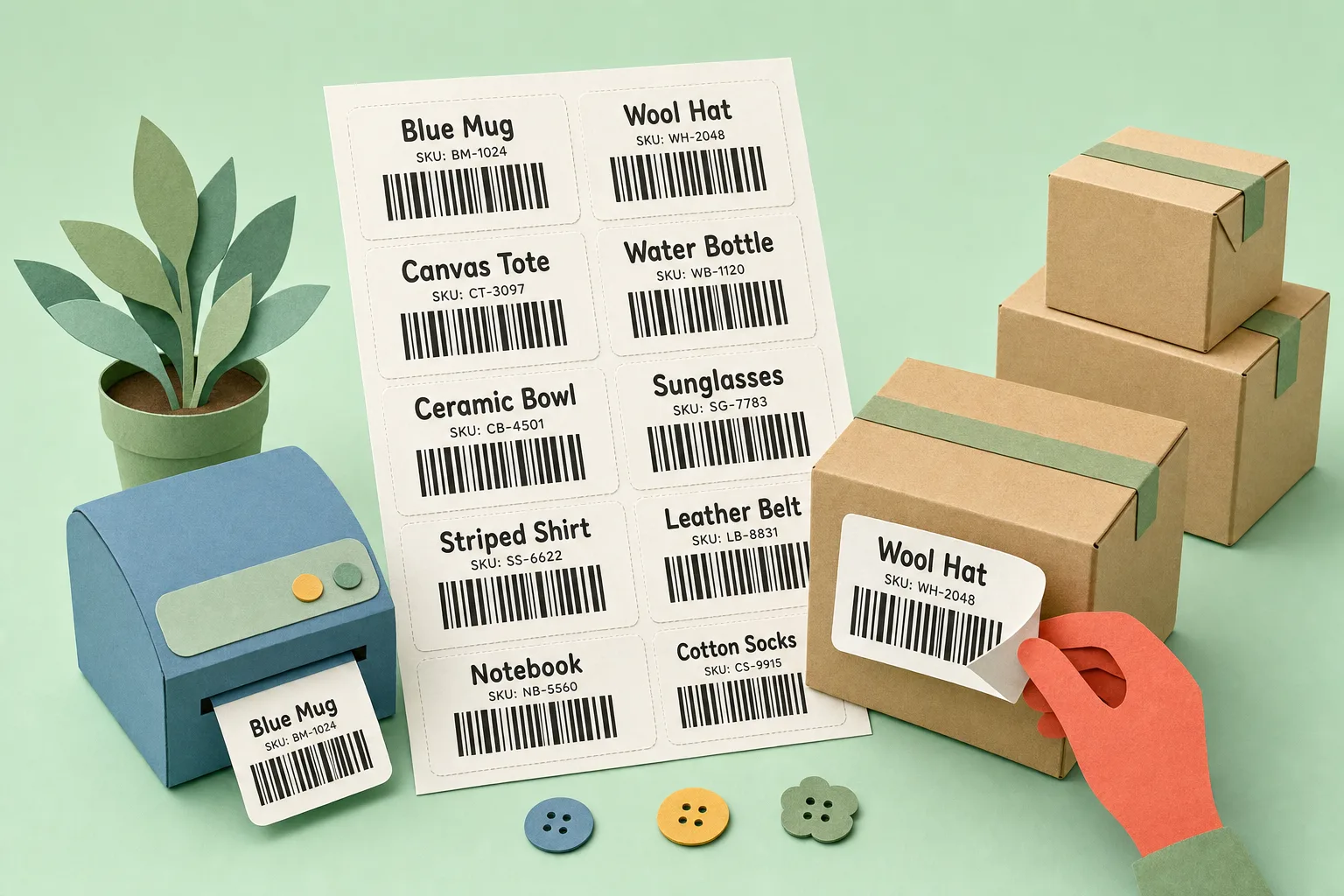
The only labels Open Source 2.4.x prints are the carrier shipping labels it fetches from UPS, FedEx, USPS or DHL. To put a scannable barcode on a product label, pick list or bin tag, you add a product attribute to hold the value and an extension that renders it as an image. The value usually exists already, as the SKU you assigned or the retail code on the supplier's box.
Key point: a barcode is a value plus a symbology. Store the value in a product attribute, pick the symbology your scanners read, and let a PDF template do the drawing.

What is the difference between a barcode, a SKU and a GTIN?
These get used interchangeably and they are not the same thing.
- SKU is your internal identifier. Magento requires it and enforces uniqueness. You control the format, so it can be anything from
TSHIRT-BLU-Mto a plain number. - GTIN is the global trade item number a retailer or marketplace expects: EAN-13 in Europe and most of the world, UPC-A in North America. GS1 issues the company prefix, you allocate the item numbers under it, and the last digit is a check digit. Magento does not issue these and neither does any extension.
- Barcode is the printed pattern that encodes either of the above. A SKU rendered as Code 128 is a barcode. A GTIN rendered as EAN-13 is a barcode.
The practical split: sell through marketplaces or wholesale and you need GTINs; run your own warehouse and internal SKU barcodes are enough. Many stores need both, which is why the barcode attribute and the SKU should stay separate fields.
Which barcode symbology should you use?
Code 128
The default for internal labels. It encodes digits, upper and lower case letters and punctuation, packs tightly, and every modern scanner reads it. If your SKUs contain hyphens or lower case, this is the one that will not fail.
Code 39
Older and less dense. It supports only digits, upper case A to Z and a handful of symbols, so a lower case SKU will not encode: the label either fails to generate or prints something the scanner will not match. Use it only when a legacy scanner or label printer demands it.
EAN-13
The retail code: 13 digits ending in a check digit computed from the other 12. A generator can add the check digit if you supply the first 12, but the numbers themselves must come from a GS1 allocation or they will collide with someone else's product on a marketplace. UPC-A is the 12-digit North American form of the same GTIN system and lives in the same attribute.
QR codes
A 2D code that holds far more than a SKU: a URL, a serial number, a return-portal link. It needs a 2D imager or a phone camera - a laser scanner cannot read it at all, at any speed - so only choose QR once you know what is on the warehouse floor.
How do you generate barcodes in Magento 2?
Step 1 - Create a barcode attribute
Go to Stores > Attributes > Product and add a text attribute with a code such as barcode, ean or gtin. Set Unique Value to Yes under Advanced Attribute Properties so two products cannot share a code, and assign it to every attribute set that needs it. If you only ever print SKU barcodes you can skip this, but the moment a supplier code or a GTIN enters the picture you want a dedicated field.
Step 2 - Populate the values in bulk
Typing barcodes one product at a time does not scale. Export the catalogue for the SKU list, but expect a wrinkle: a user-defined attribute does not get its own export column, it comes back inside additional_attributes as barcode=VALUE alongside every other custom attribute. The simplest route is to add your own barcode column to the CSV, which the importer reads by attribute code, and bring it back through System > Data Transfer > Import with the products entity and the add/update behaviour. Supplier price lists usually carry EAN or UPC columns you can match on SKU. For GTINs, assign numbers sequentially from your GS1 range and record which item took which number before you print anything.
Step 3 - Choose what each document encodes
A pick list wants the value the picker will scan against, so it should match the attribute your scanning tool checks. A shelf label wants the SKU or the bin location. A packing slip header wants the order number so the packer can pull the order up with one scan. Decide per document, not globally.
Step 4 - Add a barcode to the PDF template
In the template editor of your PDF extension, add a barcode column to the product list, or a free-standing barcode block for the order number, and pick the symbology. Set the height so the bars are tall enough to scan at arm's length; thermal labels usually need more than a full-page sheet.
Step 5 - Print to the right surface
Full-page pick lists and packing sheets print on any office printer. Product labels, bin tags and address labels belong on a thermal label printer, which means a template sized to the label stock rather than an A4 page scaled down. Print a short run first and scan every code with the floor scanner before committing to a batch of hundreds.
Common mistakes to avoid
Mistake 1 - Encoding the parent SKU on a configurable
The picker scans a blue medium t-shirt; the barcode says TSHIRT. Encode the simple product's SKU or attribute, never the configurable parent, or the scan can never confirm the variant.
Mistake 2 - Inventing EAN numbers
A made-up 13-digit number renders as a perfectly valid EAN-13 and is then rejected, or worse matched to another seller's item, the first time it meets a marketplace. Internal codes belong in Code 128, where nobody expects a GS1 prefix.
Mistake 3 - No quiet zone
Barcodes need blank space either side of the bars. A label design that pushes the code against a border or a block of text scans intermittently, and nothing in the print job tells you why.
Mistake 4 - Scanning a different attribute from the one printed
Whatever attribute the printed barcode encodes should be the attribute your picking, stock-count and receiving tools scan against. One field, referenced from every document and every scanning screen, avoids a whole class of "it will not scan" tickets.
Where Moogento Fits
PickPack is the generation and printing side. Its template editor adds a barcode column to any pick list, packing sheet or product list, and a free-standing barcode block anywhere on a template, in Code 128, Code 39, Code 39 Extended, EAN-13 or QR. The column can encode the simple product's SKU, a single product attribute or a combination of attributes with a separator; the block can carry the order or invoice number. Output is SVG or PNG through GD or Imagick, default Auto, configured at Stores > Configuration > Moogento > PickPack > General with a template height field that multiplies a 40 px base, capped by a configurable maximum that defaults to 200 px. Dedicated Zebra templates cover product labels, address labels, packing sheets and product lists for thermal printers, all generated in batch from the Sales > Orders grid.
Pick-n-Scan is the scanning side of the same loop: it verifies each pick against the product attribute you nominate, with a manual-scan button for products that have no barcode. StockEasy (Pro plan) scans the same attribute for stock counts and ships a printable quantity barcode sheet so counts can be entered without a keyboard.
FAQs
Does Magento 2 have a built-in barcode generator?
No. Magento 2 Open Source has no barcode attribute, no barcode rendering on its invoice or packing slip PDFs, and no product label printing. Carrier shipping labels come from the carrier's API, not from Magento. Barcode generation needs an extension that renders a product attribute or order number as an image in a printable template.
Which barcode format is best for Magento product labels?
Code 128 is the safest default for internal labels because it encodes letters, digits and punctuation and every modern scanner reads it. Use EAN-13 only for GS1-issued retail codes, and QR only when you need to encode more than an identifier.
Can Magento generate EAN or UPC numbers?
No. EAN-13 and UPC-A numbers are allocated under a GS1 company prefix that you license; Magento and its extensions can render an EAN you already own but cannot issue one. Inventing numbers produces valid-looking barcodes that marketplaces will reject.
Should the barcode be the SKU or a separate attribute?
Use the SKU for internal-only barcodes and a separate attribute for supplier codes or GTINs. Keeping them apart lets you print a Code 128 SKU label for the warehouse while still holding the retail EAN for marketplace feeds, and lets scanning tools check whichever value the physical label carries.
How do I print barcode labels for a Zebra printer from Magento?
Set up a template sized to the label stock rather than an A4 page, add the barcode with a height suited to thermal printing, and print in batch from the Sales > Orders grid. PickPack ships dedicated Zebra product label, address label, packing sheet and product list templates for this.
Why does my Magento barcode not scan?
Usually one of four causes: the value contains characters the symbology cannot encode, there is no blank quiet zone around the bars, the printed height or resolution is too low, or the scanner is checking a different attribute from the one printed. Test-scan a handful of labels with the floor scanner before every bulk run.
Next Steps
- Decide whether you need GTINs, internal SKU barcodes, or both, and create a dedicated attribute for anything that is not the SKU.
- Populate the values in bulk through the products import before touching a template.
- Add a Code 128 barcode column to your pick list template and test-scan five printed lines.
- Standardise on one scan attribute across printing, picking and stock counts.
The highest-value move is the first one: a single, unique barcode attribute that every document and every scanner refers to.
Related reading: Barcode Scanners for Magento, Create Perfect Magento SKUs and Batch Order Picking in Magento.