
This page is part of the ProductContent AI guide. Start there for what the extension does, installation and the frequently asked questions.
Start generating with Moogento AI
Moogento AI is included by default. Once your ProductContent AI subscription is active, no separate API key is required. The guided setup provider step reads Moogento AI is ready. On first use, the service may briefly show Setting up while its key is provisioned.
How to set it up
-
Go to Stores > Configuration > Moogento > ProductContent AI and check that AI service is set to Moogento AI.
-
Choose the fields you want the AI to produce: Go to Stores > Configuration > Moogento > ProductContent AI > Content: Images & copy and pick them in Fields to generate (
moogento_productcontent/content_generation/generate_fields). Hold Ctrl (Cmd on a Mac) to select more than one. The options are Page title (visible product name), Short description, Long description, Tiny description, Meta title, Meta description, FAQ, Image alt text and Specs; all of them are on by default. Leave nothing selected and generation falls back to the short and long descriptions. -
Save Config.
-
On every plan, complete the online research step before using Create product page. In Connections, either configure a supported Online research source or set Research products online to
Noif you do not want online research. -
Open ProductContent AI > Products, then follow the Classic Products link at the top of the workspace. Select one or more products, open Actions, and either:
- choose Create product page to run the guided one-product-at-a-time workflow, or
- choose Actions > Advanced > Regenerate content drafts to queue a fresh generation pass in the background.
The queue cron processes the jobs within a minute. Bulk actions and background queue processing need a Growth or Pro plan; on Seed, generate one product at a time from the product row's own actions.
Notes
- The usage panel shows product and image generations remaining this month, the reset date, and an as of time if the latest usage snapshot is stale.
- If the included allowance is exhausted, use Upgrade or select Use your own AI provider. A temporary service interruption is shown separately from exhausted usage.
- An active ProductContent AI subscription is required for generation.
Use your own AI provider (advanced)
Choose this when you already manage an AI account or want the higher ProductContent AI generation limits. Your provider bills AI usage directly. Switching AI service does not remove drafts, history, revisions, reservations, or counters.
-
Go to Stores > Configuration > Moogento > ProductContent AI and select Use your own AI provider (advanced) under AI service.
-
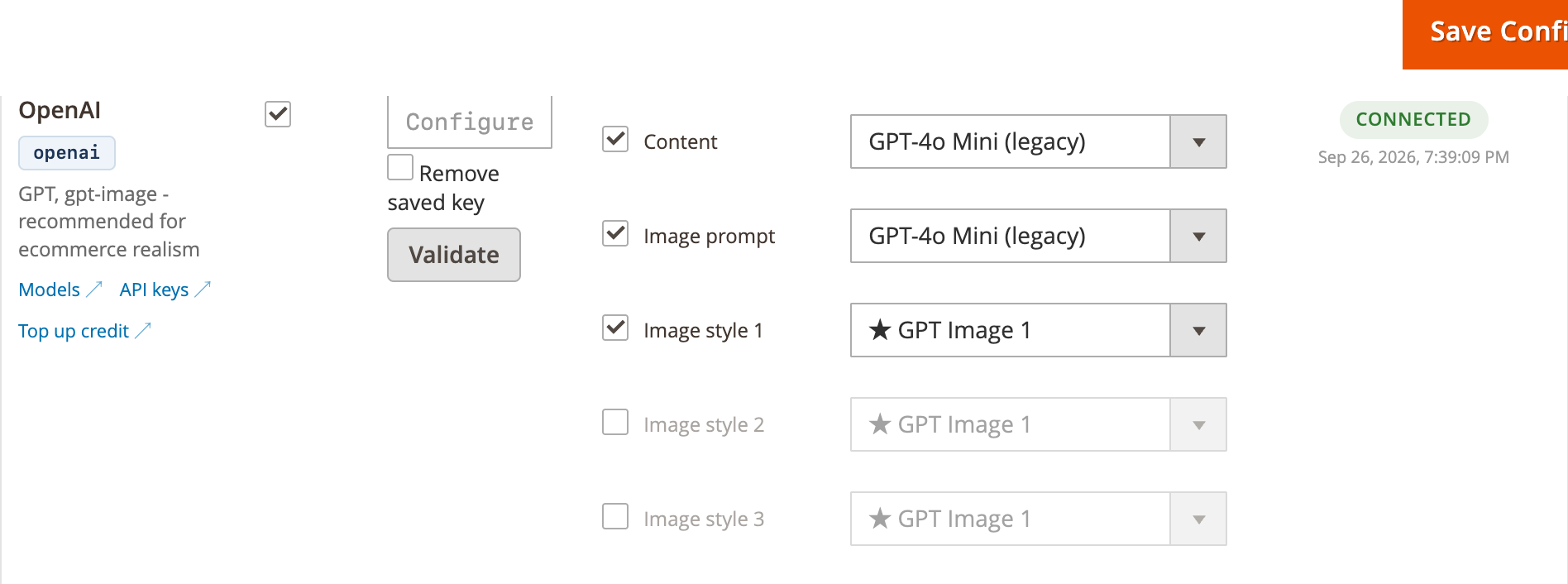
In the providers table, enable a provider, enter its API key, and assign Content and any image roles you need under Roles & Models. Use the roles offered in the table for each provider. Content generation with product photos requires a model that supports image input. Online research through your content provider requires a supported search-capable provider; otherwise choose a separate research source or turn research off. Select a model for each assigned role. Each role can be assigned to one provider at a time.
-
Click Validate on the provider row. Connected means the key was accepted; Invalid or Needs attention explains what to check. Save the configuration after validation. The providers table also appears in managed mode when Fall back to my own provider when Moogento AI is unreachable is enabled.
API keys are encrypted before storage. The usage panel shows the own-provider monthly limits and local counters.
Set your store voice and brand rules
Store prompts control how all AI-generated content reads. Set them once and every future draft respects the rules.
How to set it up
-
Go to: Stores > Configuration > Moogento > ProductContent AI > Content: Images & copy
-
Set:
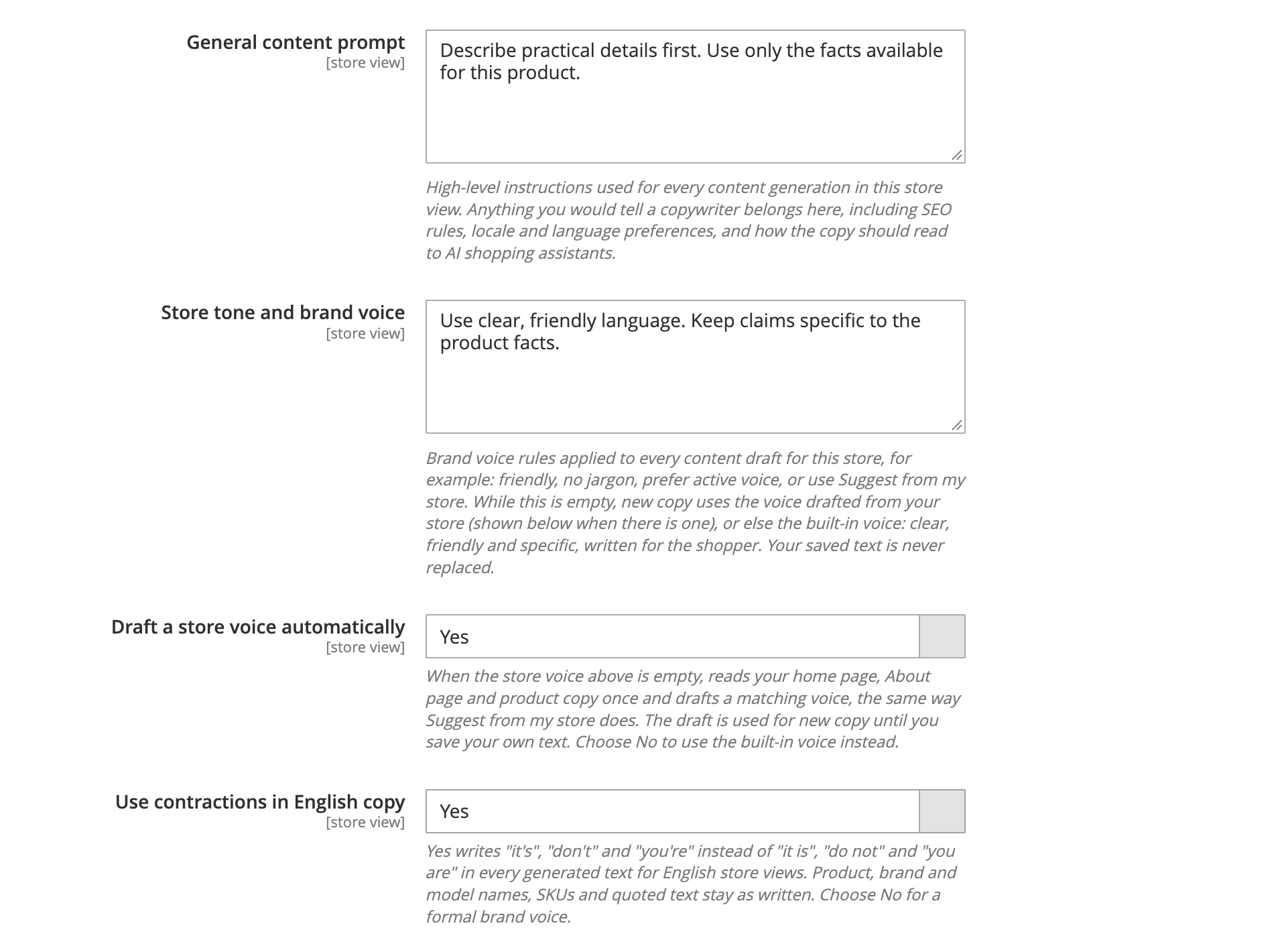
- General content prompt (
moogento_productcontent/store_prompts/content_prompt) = high-level instructions for every content generation (e.g. "Write in a warm, friendly tone. Emphasise quality and durability.") - Store tone and brand voice (
moogento_productcontent/store_prompts/tone_and_voice) = brand rules applied to every draft (e.g. "Friendly, no jargon, prefer active voice") - Use contractions in English copy (
moogento_productcontent/writing/use_contractions, default Yes) = writes "it's", "don't" and "you're" instead of "it is", "do not" and "you are" in every generated text, including headings, FAQ questions, meta fields, image alt text and review summaries. It applies to English store views only. Product, brand and model names, SKUs and quoted text stay as written. Choose No for a formal brand voice - In Publishing: Review, set Allowed HTML tags (
moogento_productcontent/store_prompts/allowed_html) to the tags permitted in generated copy. Choose Safe HTML or Rich HTML in a template before adding content blocks - In Publishing: Review, set Forbidden claims (
moogento_productcontent/store_prompts/forbidden_claims) to the claims you want checked, for example "doctor approved, guaranteed cure" - Style 1, 2, and 3 image prompts (
moogento_productcontent/store_prompts/image_prompt_style_1,image_prompt_style_2, andimage_prompt_style_3) = how generated product images should look
- General content prompt (
-
If you use multiple store views, scope these prompts per store view - the AI uses the store-view-specific prompt when generating content for that scope.
-
Save Config.
Notes
- Store prompts are applied on top of per-product overrides. Product-level prompt fields (set in the ProductContent AI tab on the product edit page) take priority.
- Changing store prompts doesn't automatically re-generate existing drafts. Queue a new generation job to pick up the updated instructions.
Suggest from my store (Growth and Pro)
The Store tone and brand voice field has a Suggest from my store action button. Click it to let ProductContent AI read your home page, About page, and longest product descriptions, then suggest a style guide that matches your store's voice.
The suggestion fills the field with editable text. If the field already has text, a confirmation dialog asks before replacing it. You can then edit the suggestion and click Save Config. If your store has too little written copy, the button shows a message instead and leaves the field unchanged. Add more descriptions or an About page, then try again, or write your style guide directly.
This feature is also available as an optional setup wizard step called "Set how your store sounds". Skipping it does not hold up setup progress.
Research products online and check the sources
When ProductContent AI researches a product, it looks up information from brand websites, retailers, and other sources to write accurate, verified copy. The workspace and review screens show research status with colored notices that tell you what happened.
Research notice meanings
A banner at the top of the workspace shows the research status for the store:
- Green (Researched) - research is set up and working. The last several products were researched successfully.
- Red (Research failed) - research keeps hitting errors. Check your research key or internet connection in Stores > Configuration > Moogento > ProductContent AI > Setup: Connections.
- Amber (Research not set up) - you have not configured research yet. See "Complete the online research step" above.
- No notice - research is switched off. Descriptions will still be generated from your catalogue data.
Each product row and the review dialog also show whether that specific product's copy was researched or not. When research found information, the notice names the sources (brand site, Amazon, retailers). When research did not find information, the notice explains why (the search service rejected the API key, was unreachable, or found no matching product).
Test your research setup
To verify that your research configuration is working before running full generation:
- Go to Stores > Configuration > Moogento > ProductContent AI > Setup: Connections.
- In the research configuration area, click Test research. The system runs one real search using your configured key.
- You will see the result: "Research worked and found 2 sources" (or the number of sources found), or a plain explanation of what went wrong (API key rejected, service unreachable, etc.).
This test uses your real research allowance if you are on a paid plan, so keep test runs infrequent. Once you have confirmed that research is working, you can confidently queue generation jobs knowing that research will complete successfully.
When research finds facts that contradict your product name
Sometimes research uncovers product facts that differ from what your product name states. For example, research might find that a jacket has a funnel neck, while your catalogue name calls it hooded. When this happens:
- The AI writes your copy using the facts found online, not the name. Your product description will correctly describe the funnel neck, not the hood.
- An amber notice appears on the product row and in the review dialog: "Check the name". This tells you the research found a mismatch and asks you to verify the product name is accurate.
- A corrected title is suggested in the notice. You can read it, but it is never applied automatically. Copy the suggested name by hand if you want to update your product's official name to match what research found.
- Photo notes update automatically when you change the product name or gallery, so they always describe the current product.
The notice does not prevent you from approving and publishing the AI-generated copy. The mismatch is a heads-up that your product name may not match its actual attributes. You stay in control: choose whether to update the name, edit the suggested copy, or proceed as-is.
Brand page lists and other seasons
When research reads the brand's own product page, it keeps that page's lists of features, materials, specifications and care instructions in the brand's own grouping and order, so the writer can follow them. When one research run reads two brand pages, the lists from both are kept.
Brands often publish the same product again each season under a new style code. If the brand page for your exact product is missing some of those lists, the same product's page from another season can fill the gaps, but only when it passes strict checks:
- It must be on the brand's confirmed website and name the same product, including gender and product type, with a different season.
- Its facts are used only when something else backs them up: the same description on the current page, an agreeing fact from the current page or another accepted source, or a brand page address you pasted into Know the product page? Paste it here. Facts that cannot be backed up are never written into your copy.
- The current page always wins when it has its own list. Materials come from the other season only when the current page lists none, and then all together.
- Anything that names a colour is refused, and so are style codes, SKUs and other identifiers.
- Another season's page never supplies photos, colours, the description or the product's identity. A fact missing from its lists is not taken as a sign that the fact is wrong.
Review and approve AI-generated drafts
Drafts sit in a pending state until you approve them. Nothing is applied to your live product pages automatically unless you enable auto-apply.
How to set it up
-
Go to ProductContent AI > Products > Classic Products (
moogento_productcontent/products/index). -
Find a product with the Review pending status badge. Click the Review drafts button inside the Product cell to open the review panel. (The Review drafts item in the row's Actions menu opens the full Content Review grid instead, filtered to that product.)
The panel opens with four tabs - Content drafts, Images, Attributes and History - each showing its item count. Each draft card shows the original value alongside the AI-generated version.
-
For each draft card:
- Click Approve to accept the draft. It stays staged until you apply it - approving does not change the product.
- Click Apply to write an approved draft to the product. Use Apply all approved in the panel header to write them all at once.
- On the Images tab, Apply adds the image to the gallery. It does not make the image the main image, unless the product has no main image yet or its main image file is missing (see "When the main image file is missing"). An improved version of one of your photos takes that photo's place, including any main image role it held. To publish an image and make it the main image, small image and thumbnail, click Use as main image instead.
- Click Edit to make inline changes, then Save edits.
- Click Reject to set the draft aside, or Regenerate to reject it and queue a fresh one (you can add a note telling the AI what to change).
- After Regenerate, a short timeline shows Copy, Attributes and Images, each with its progress and roughly how long it usually takes. The work starts straight away while the review screen is open. New copy appears as soon as it is written, without waiting for the images. If you are editing a field at the time, you get a Show new copy button instead, so your typing is never lost.
- Each text field shows a word count next to its target, for example "212 of 150-400 words", and says whether it is below, within or above the target. The count updates as you edit. FAQ answers are counted one by one when the template sets a length per answer.
- Click Request changes to ask the AI to revise several fields at once. Write your guidance next to each field (e.g. "Make this more technical" or "Shorter, more punchy"), then submit. The panel shows live progress as each field regenerates, and replaces it in place when ready. If a field fails, retry just that field with your note still there. Nothing publishes automatically: you approve and apply the results like any other draft. You can also ask for a different image style, one image at a time: write what should change next to the image, and the new image takes its place for review when it is ready.
- After a draft has been applied, click Revert to previous to put the value it replaced back on the product. On the Images tab the equivalent button is Rollback.
-
After reviewing, close the modal. The product's status badge updates to reflect the new state.
Notes
- Rollback works for both content drafts and image drafts. The module captures a full gallery snapshot before applying any image so the rollback is exact.
- Attribute findings list catalogue attributes that the product's copy suggests but the product does not set, for example a material mentioned in the description with the matching attribute left empty. Findings are read-only: nothing changes on the product. Each one can be dismissed (with a reason) and restored. Discovery runs automatically when a workflow reaches its attributes step; to check a product on demand, click Check attributes in the review panel, then reopen the review after a moment.
- Set up appears on a finding when the attribute the copy points to does not exist yet, or exists but is not in the product's attribute set (Pro plan). It opens a preview showing the attribute, its choices, the attribute set and how many products it would affect. Nothing changes until you confirm. Confirming creates the attribute and its choices, adds it to the attribute set and, if you chose, shows it on the product page. These changes apply to every product in that attribute set, not just the one you are reviewing. The same drawer has a Product value section: choose Use the value found in the product text (used only when exactly one of your choices appears in the product's own text, and shown with the passage it came from) or Enter a value myself (you must tick a box to confirm it). If the product already has a different value you must tick Replace the current value. Turn on future suggestions for this attribute is needed to apply a value. A more specific store view can have its own attribute list, and if it does, suggestions stay off there and the drawer tells you so. Choose Set up and apply the value to do everything in one go, or Set up only and prepare the value for review to leave the value waiting in the normal attribute suggestions. Setup never changes variant products. An attribute created by setup with only one choice still gets suggestions. The value is set on this product only, at the scope of the attribute: a global or website attribute takes it in every store view it covers, a store view attribute only in the store view you are reviewing. Turn on future suggestions for this attribute is saved in the store view's own attribute list when it has one, otherwise in the website or default list it inherits, so it can also turn suggestions on for other store views that share that list; the result names the scope that was changed. Applying goes through the normal attribute suggestion review, so it appears in history and can be rolled back, and rolling back restores only the product value. Each run is recorded in the review history as Catalog setup. The finding refreshes shortly after a successful setup. If a step fails, run Set up again to finish the remaining steps.
- Set up needs the Create Catalog Attributes And Choices From Review permission, in addition to Review Attribute Suggestions for reading findings. Turning on suggestions also needs Attribute Rules, and applying a value needs Review Generated Content, Review Attribute Suggestions and Apply Attribute Suggestions (and Product Page Workflows for workflow reviews); controls you cannot use are disabled with a note. Without the Create Catalog Attributes And Choices From Review permission, the finding shows a note that setup needs permission instead of the Set up button. Grant it under System > Permissions > User Roles, open the role, and tick ProductContent AI > Create Catalog Attributes And Choices From Review under Role Resources.
- The Images and Attributes tabs show the 50 most recent drafts by default (an image version group is always shown whole, so this can be a few more). If any older drafts are not shown yet, a Load older images or Load older attributes button appears at the end of that section so you can bring in the rest without losing your place.
- The Publish without review setting (
moogento_productcontent/content_generation/auto_publish) is available on Growth/Pro plans and skips the review step for drafts carrying no risk flags. Its options are Never - review everything myself (the default), Low-risk content only, and Low-risk content and images. Recommended only after you've reviewed several batches manually.
Answer shopper questions the research could not
Under Stores > Configuration > Moogento > ProductContent AI, the Content: Customer questions group has a Questions your customers ask box, one question per line. When a product's catalogue data and research cannot answer one of those questions, the review panel lists it under Customer questions skipped for lack of facts. Only questions that name the product or its type are listed for that product.
How to answer a question
- Open the product in Review product and find the list of skipped questions near the top of the panel.
- Type your answer in the box beside the question and click Save. Answers can be up to 600 characters. Longer answers are refused so nothing is cut off without you knowing.
- The panel says "Saved as a product fact. Regenerate to use it in the FAQ and copy". Click Regenerate for the answer to be used. Existing drafts do not change.
- Click Edit to change an answer, or Clear to remove it. An empty answer also removes it.
Notes
- An answer is stored as a fact about that product, in your words. It is used the next time copy is regenerated and is treated as more trustworthy than research found online, so write only what you know to be true.
- An answer saved while All Store Views is selected applies to every store view. An answer saved for one store view replaces it for that store view only. Clearing the store view answer brings the All Store Views answer back.
- Saved answers do not expire. Facts found by research are dropped after 90 days; your answers are kept until you clear them.
- Admins who can only view the panel see the saved answers but no boxes.
From the command line
All of these accept --store=ID (default 0) and --json, and need no admin login:
php bin/magento moogento:productcontent:questions SKUlists the skipped questions with theirquestion_id, what is missing, and any saved answer.php bin/magento moogento:productcontent:answer SKU --question-id=ID --answer="..."saves an answer. Use--file=answers.jsonfor several answers at once, a list of{"question_id" or "question", "answer"}. An empty answer removes one. Add--dry-runto preview.php bin/magento moogento:productcontent:pendinglists, one line per product, the products with drafts waiting for review (copy, attributes or images), unanswered questions or a missing product photo. Options:--limit,--status,--store,--json. It says so when it stops before checking every product.php bin/magento moogento:productcontent:image-reject SKU --image-id=IDrejects one draft image. Thedraftcommand shows each image's ID, and it now lists the skipped questions too.
How your product copy is written
The writer's voice
ProductContent AI writes in your store's own voice. Set your tone and brand rules under Stores > Configuration > Moogento > ProductContent AI > Content: Images & copy ("Set your store voice and brand rules" above), and every generated field follows it. If you leave the tone field empty, the writer defaults to a warm, plain, benefits first voice rather than a generic or robotic one, so your copy still reads naturally from the first product you generate.
Photos the writer can see
By default the writer receives up to four photos in total: your own store photos first, main image first, then published generated gallery images, then up to three accepted research references if space remains. References marked as another colour or containing a person are excluded. A reference whose colour is not confirmed is labelled that way. Generated gallery images are background context and cannot establish a factual copy claim. From your store photos and accepted research references, the writer can describe visible details such as colour, pockets and closures. Ratings, exact materials, certifications and measurements still need product evidence. Change or disable photo input under Stores > Configuration > Moogento > ProductContent AI > Content: Images & copy using Show the writer the product photos and Most photos shown to the writer. The maximum is five. A provider that cannot read images receives text-only context; the review's photo notice tells you when photos were skipped.
When a product has few supported facts
When the available facts do not support a long description, ProductContent AI can write shorter copy instead of inventing specifications or padding it to a target. Your template's hard limits and evidence rules still apply. Read the draft before publishing, especially when the product has little catalogue information or research found no matching sources. Add missing facts through the product attributes or merchant answers, then regenerate.
Understanding the copy check line in the review dialog
Below each text draft in the review panel, a short line tells you what happened during its post-write check:
- Facts double-checked means the draft's checkable claims were compared against outside evidence and nothing was disputed.
- Removed n claim(s) the product facts contradict means the writer's own copy check found a claim outside evidence and removed it before you ever saw the draft; you can expand the line to see what was removed.
- Check this (shown in amber) flags a specific claim the check could not confirm, along with what the source actually says, so you can look at it before approving.
- Wording mentions where the facts came from (shown in amber) means the draft still names a source directly, for example "as listed" or "research shows". Edit that wording out before approving; your published copy should read as your own, not as a citation.
- Facts were not double-checked explains why the check did not run this time, for example the field is not fact-checked, the plan does not include it, or the check ran out of time. This is informational and does not block you from approving.
Approve, hold, or request changes for several products at once
Bulk review decisions let you approve and publish proposals, hold products for later, or ask the AI to revise several fields across multiple products in one workflow.
How to do it
-
In ProductContent AI > Products > Classic Products, select products by checking their row checkboxes. The selection applies to the current page and store view. A blue bar shows your selection count.
-
To select all products needing review in this store view across all pages, click the Select all N needing review in this store view link shown after "Select all on this page". The system caps bulk selections at 200 to keep the workflow manageable. If you have more, you can repeat the action after finishing the first batch.
Ticking a configurable product also ticks its options (sizes, colours), so bulk actions act on them too. Open N variants to untick an option you want to leave out, or tick an option on its own without its main product.
-
Clearing your selection, changing store view, or searching keeps the selection from previous results in the same store. Changing the status filter also keeps your selection.
-
Click Approve + publish, Request changes, or Hold for now from the action bar at the top.
- Approve + publish: publishes every proposal marked as included by default and permitted to be published. A review step shows you the product count, number of proposals, any warnings, and products that cannot be published. Publish permissions come from your admin role; some proposals may be published while others are held back due to permissions. Nothing is published or changed on your products if there is an error.
- Request changes: lets you write guidance for fields that can be improved. Write your notes for each field (e.g. "Make this longer and more detailed"). The system queues content generation jobs in the background with your notes. Products are labeled Queued in the results. Nothing is published automatically: you review and approve the revised content afterward.
- Hold for now: records that you reviewed these products and chose not to proceed. This keeps them in Needs review status without publishing or rejecting any draft.
-
The review step summarizes what will happen. You can see a count of products by eligibility, any warnings attached to products or evidence, and products that cannot be acted on with a reason why. Warnings never prevent you from proceeding. Click Confirm to submit.
The review step also shows the average PCai score of your selection and how many products it covers, such as "2 of 3 scored". For Approve + publish, it adds an approximate estimate of the score after publishing, marked with
~(for example~72 /100). Hover the info icon to see what the estimate is based on. Products whose changes cannot be projected, for example image changes, are estimated from how similar published changes worked out in your store, once enough past results exist; the tooltip says how many products were projected and how many were estimated from past results, and may give a likely range. If there is no reliable basis, the dialog shows "Estimate unavailable" rather than guessing. Request changes uses past change requests in your store, including ones that were never published, so its estimate is deliberately cautious and needs a history of completed requests first. Hold for now leaves scores unchanged. -
As the bulk action runs, a progress bar shows how many products have been processed. Results appear showing how many succeeded and which ones need attention. Successful products are deselected. Products that did not complete stay selected so you can retry them with a single click - they keep their previous selections.
Notes
- Bulk decisions use the same approval and publication rules as the single-product review modal. Proposals are never published when they carry evidence warnings that need human review, unless you explicitly acknowledge them.
- Request changes is a background queued operation: the browser does not wait for generation to complete. Check back later or click the Review button for a product to see when its revised content is ready.
- Retrying failed products uses the exact same selection scope and questions as the initial submission.
- If you have permissions to apply certain content types but not others, some of your selected products may show as partly published with a summary of what was applied and what was held back.