

Overview
Plan scope for the examples below: Seed supports core recommendation rules, with up to three active rules and one offer per placement. Purchase-history suppression and association mining require Growth or Pro; AI rule generation, the Drafts queue and AI combo reasons require Pro.
SmartCart delivers Magento 2 add-on recommendations in your shoppers' path at the moment they're most likely to add something extra. When a customer has items in their cart, SmartCart evaluates your rules, picks the most relevant complementary products, and shows them as add-on tiles. The module works locally with no third-party calls at runtime - you decide which products appear and when.
Every recommendation is entirely rule-based. You control which products appear through a rule editor with three trigger types (specific SKUs in cart, category in cart, or attribute match) and three pool types (specific products, a category, or an attribute value). Optional guardrails keep out-of-stock, already-in-cart, or previously-purchased products off the list automatically.
A separate offline toolset - association mining and an optional AI provider - can analyse your order history and propose draft rules for your review. You approve or reject each draft; nothing goes live without your sign-off.
This module helps you:
- Present relevant add-on products in the cart, mini-cart, and checkout sidebar without touching theme templates
- Suppress products a shopper already owns, has already added, or has dismissed - keeping suggestions fresh and useful
- Build recommendation rules manually or let the system propose them from your order history
- Track impressions, clicks, add-to-carts, and revenue per rule so you can see what's working
- Restrict offers by customer group, cart subtotal threshold, or coupon status
- Explain why each suggested product belongs in the cart with AI-written reasons tailored to the shopper's specific items
- Group suggestions under a clear heading so shoppers scan by theme instead of reading each tile independently
- Show star ratings and a one-line review snippet on each suggestion so shoppers can judge relevance at a glance
When to use this
Use SmartCart when you want to:
- Surface complementary accessories or consumables at the point in the journey where the shopper has already committed to buying
- Replace a static cross-sell block with context-aware suggestions that respond to what's actually in the cart
- Test which add-on products convert best - rule-level stats show impressions, add rate, and purchase rate over 30 days
- On Growth or Pro, avoid showing returning customers products they already bought with purchase history suppression
- On Growth or Pro, mine product associations from order history; Pro adds draft-rule review
Key capabilities
- Rule-based recommendations - define triggers (SKU, category, attribute) and pools (specific products, category, attribute) per rule
- Three placement zones - cart page, mini-cart, and checkout sidebar, each independently enabled
- Guardrail filtering - automatically removes out-of-stock, already-in-cart, excluded, and incompatible candidates
- Dismissal memory - dismissed offers stay hidden for a configurable number of hours per shopper, per store
- Purchase history suppression (Growth or Pro) - skip products the shopper has already ordered, matched by customer ID (guest email matching requires Pro)
- Performance stats - 30-day impressions, add rate, purchase rate, and revenue visible on the Rules grid
- Offline association mining (Growth or Pro); AI rule generation (Pro) - mine co-purchase associations from order history, optionally enrich with AI tags, generate draft rules for admin review
- Draft approval workflow (Pro) - generated rules require explicit approve or reject before going live
- Event tracking - impressions, clicks, dismissals, and purchases logged with placement context for analysis
- ProfitEasy integration - SmartCart-attributed revenue appears as a
smartcartsource bucket in ProfitEasy reporting - AI combo reasons (Pro) - Generates short, specific explanations for each suggestion (e.g. "Both are waterproof and UV-resistant") so shoppers understand the recommendation at a glance
- Grouped suggestion headings - Suggestions are grouped by recommendation theme with a short heading (e.g. "Complete your travel workout kit") so shoppers scan by context instead of reading every tile
- Star ratings on offer tiles - Each suggestion shows a compact star rating and review count when review data is available
- Review snippet - Optional one-line excerpt from a real customer review shown below each suggestion tile
Installation
Bought on Adobe Commerce Marketplace? Your purchase comes with a Moogento account: set your password from the activation email, then follow the steps below with the Composer keys and licence key in My Plugins. If the email has not arrived, contact Moogento support.
SmartCart installs via Composer, then activates with a license key from your Moogento.com account. The whole flow takes about 5 minutes.
Prefer a hands-off setup? Our team can install and configure the extension for you - see the paid install service.
Step 1: Get your Composer keys from Moogento.com
- Sign in at https://www.moogento.com and open My Plugins in your account menu.
- Find SmartCart in the list of plugins you own.
- Generate (or reveal) the Composer access keys for that plugin - a public key and a private key.
- Add your install domain to the key. Each Composer key is tied to a specific domain - if you're installing on
yourstore.com, addyourstore.comto the key's allowed domains. The Composer download will be rejected on any other domain.
If you run staging and production on different domains, add both - separate keys per environment are fine too.
Step 2: Install the module with Composer
From your Magento 2 root directory:
composer require moogento/m2-smartcart
When Composer asks for credentials, paste the public key as the username and the private key as the password. They'll be cached in ~/.composer/auth.json for future runs.
Step 3: Enable the module in Magento
php bin/magento setup:upgrade
php bin/magento setup:di:compile
php bin/magento cache:clean
If you run php bin/magento module:status Moogento_Smartcart you should see it listed as enabled.
Step 4: Add your license key in the Moogento admin
- For a direct purchase, copy the SmartCart license key from My Plugins at moogento.com. For a Marketplace purchase, check your Moogento account for an issued key and contact Moogento support if it is missing.
- Open Stores > Configuration > Moogento > License in Magento Admin. Add the Installation Domain shown on this page to the key in your Moogento account.
- Paste the key into the key field and click Add key.
- Under Registered Keys for this Installation, confirm that SmartCart appears with the correct plan.
The license validates within a few seconds. You should see the module's status flip to active. If it stays inactive, double-check the domain on the license matches where you've installed - domain mismatch is the most common cause.
Setup overview
Most setup happens in:
Stores > Configuration > Moogento > SmartCart
The major configuration sections are:
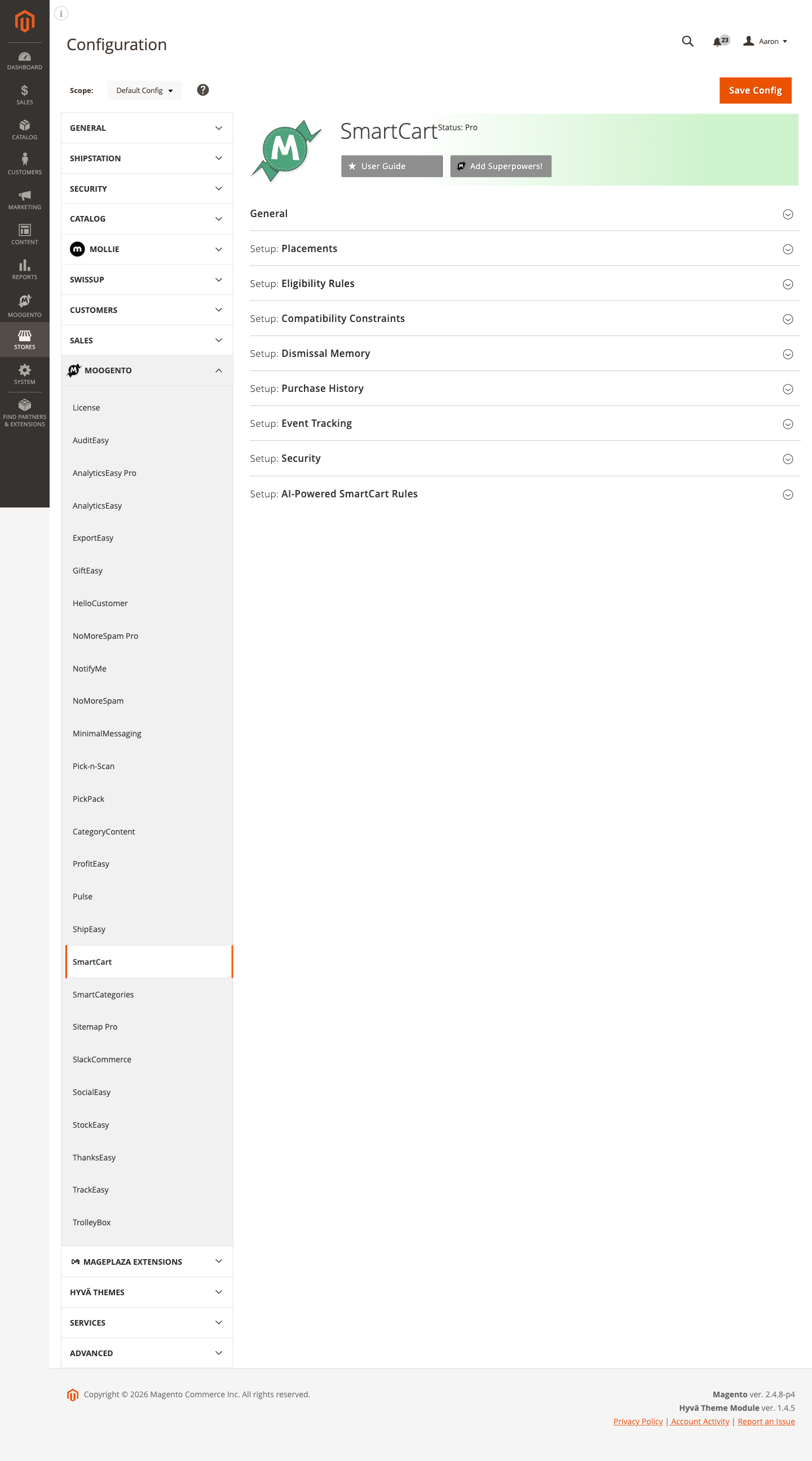
- Setup: General - master on/off switch, offer limit, cache TTL, and logging level
- Where: Placements - choose which zones (cart page, mini-cart, checkout sidebar) show recommendations
- Look: Presentation - grouped suggestion headings, star ratings, and review snippets
- Sources: Suggestions & Matching - product sources, attribute compatibility, Don't Mix category groups, and co-purchase associations
- Limits: Eligibility & Suppression - customer group restrictions, minimum cart subtotal, excluded SKUs and categories, purchase history suppression
- Extra: Empty Cart Experience - turn empty carts into discovery pages with a bestseller section, popular categories, and optional continue button (Growth+)
- AI: Rules - configure an AI provider and trigger rule generation from order history
- Pro: AI Draft Automation - auto-approve high-confidence drafts (Pro plan)
- Pro: Free Shipping & Tier Boost - show a progress bar to free shipping and suggest products to reach the next tier
- Pro: Smart Bundles - let shoppers add multiple recommendations at once with an automatic discount
- Pro: Extra Add-on Surfaces - display Everyday Essentials and Complete With surfaces
- Extra: Empty Cart Experience - turn an empty cart into a discovery page (Growth and Pro plans)
- Pro: Focused Checkout - hide navigation distractions on the checkout page
Rules and draft review live under the Moogento menu:
- Moogento > SmartCart > Rules - create, edit, enable, disable, and delete recommendation rules
- Moogento > SmartCart > Drafts - review, approve, or reject AI-mined draft rules
- Moogento > SmartCart > Stats - view aggregated performance data. "Units sold" is the quantity of suggested items ordered, so a line of 5 counts as 5. "Times added to cart" counts add-to-cart actions, not quantity. "Order credits" counts one per order for each rule, placement and surface that helped it, so one order can earn more than one credit; the "Orders SmartCart played a part in" row gives the distinct order count
- Moogento > SmartCart > A/B Tests - manage cart recommendation experiments
Common setups
Turn SmartCart on and place it on the cart page
New installations have SmartCart enabled by default. Once a rule is ready, you can choose where offers appear.
How to set it up
-
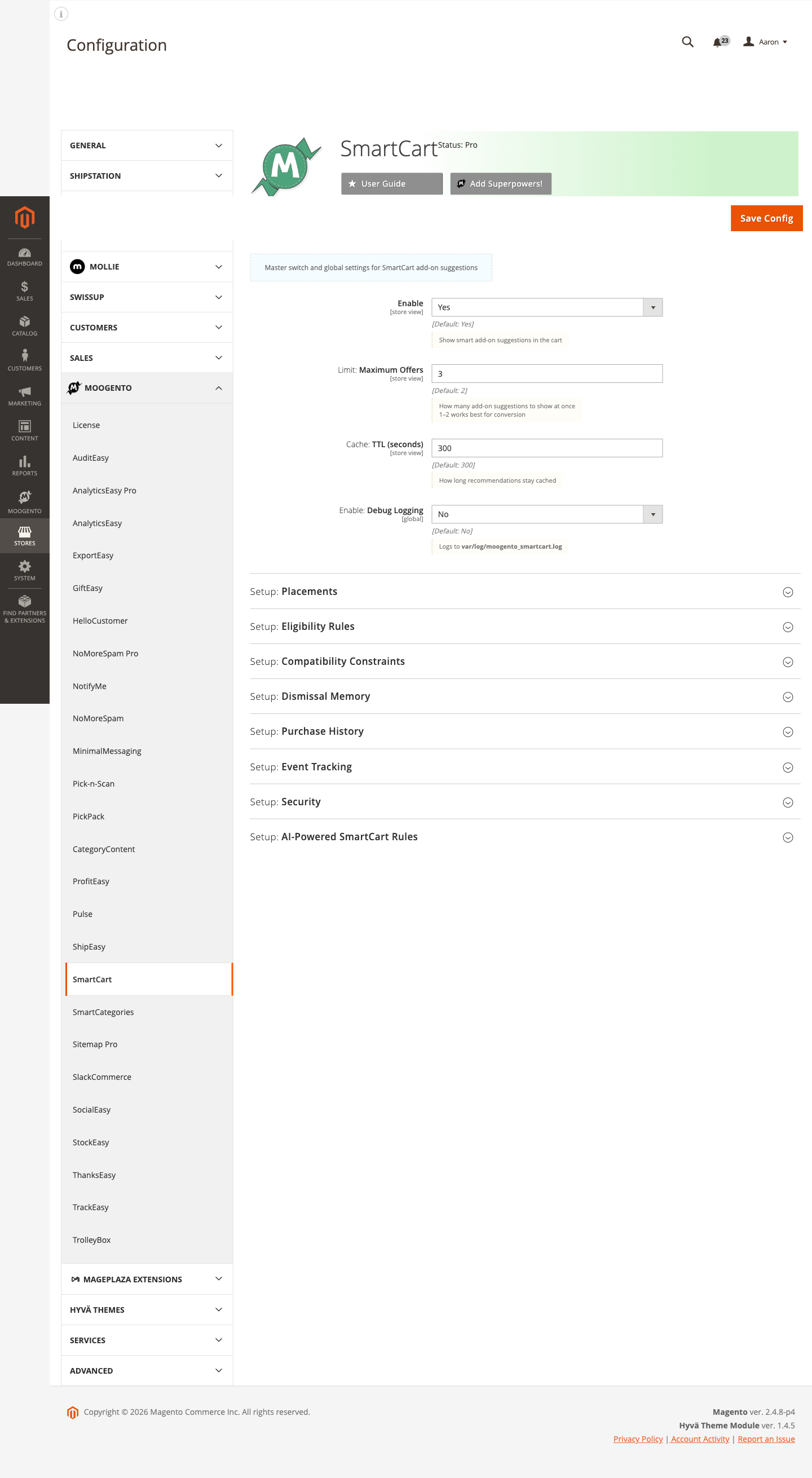
Go to: Stores > Configuration > Moogento > SmartCart > Setup: General
-
Set:
- Enable = Yes
- Maximum Offers = 2 (1-2 converts best; you can test with 3 if your layout allows it)
- Cache TTL (seconds) = 300 (default - keeps server load low; set to 0 to disable caching during rule testing)
-
Go to: Stores > Configuration > Moogento > SmartCart > Where: Placements
-
Set:
- Show: Cart Page = Yes
- Show: Mini-Cart = No while you test the cart placement (ships as Yes; switch back on once you are happy with the offers)
- Show: Checkout Sidebar = No while testing (also ships as Yes)
-
Save Config
Notes
- The module will not show any suggestions if there are no active rules. Go to Moogento > SmartCart > Rules and create at least one rule before shoppers see anything.
- If you change cache TTL during testing, remember to set it back to 300 or higher in production - a TTL of 0 fires a pipeline call on every cart page load.
Create a manual recommendation rule
Rules tell SmartCart which products to suggest and when. Each rule has a trigger (what must be in the cart) and a pool (which products to suggest).
How to set it up
-
Go to: Moogento > SmartCart > Rules
-
Click Add New Rule.
-
Fill in the form:
- Code - a unique slug for this rule, e.g.
camera-accessories - Priority - higher numbers run first when multiple rules match; start at 10 and leave gaps to insert later
- Status - set to Enabled when ready to go live
- Store View - choose a specific store or leave as All Store Views
- Trigger Type - choose SKU in Cart, Category in Cart, or Attribute in Cart, then fill the trigger values
- Pool Type - choose Specific Products, Category, or Attribute, then select the candidates
- Display Copy - optional title and helper text shown above the offer tiles
- Code - a unique slug for this rule, e.g.
-
Save the rule.
Notes
- Rules only fire if a shopper's cart matches the trigger. A rule with trigger type "SKU in Cart" and no matching SKU in the cart will never show.
- Guardrails run automatically - out-of-stock, already-in-cart, and excluded products are filtered out before display regardless of pool contents.
- The Rules grid shows 30-day impressions, add rate, and purchase rate per rule once event tracking is enabled. Check back after a week to compare rule performance.
- In the Rules grid, Sales history means the connection came from products bought together in completed orders. AI Connected means “SmartCart AI connected these products, and the connection was then approved”.
Restrict offers by customer group and minimum cart value
Not every offer is right for every customer. Use eligibility rules to limit suggestions to guests, logged-in customers, or specific groups - and only show when the cart is large enough to make the add-on relevant.
How to set it up
-
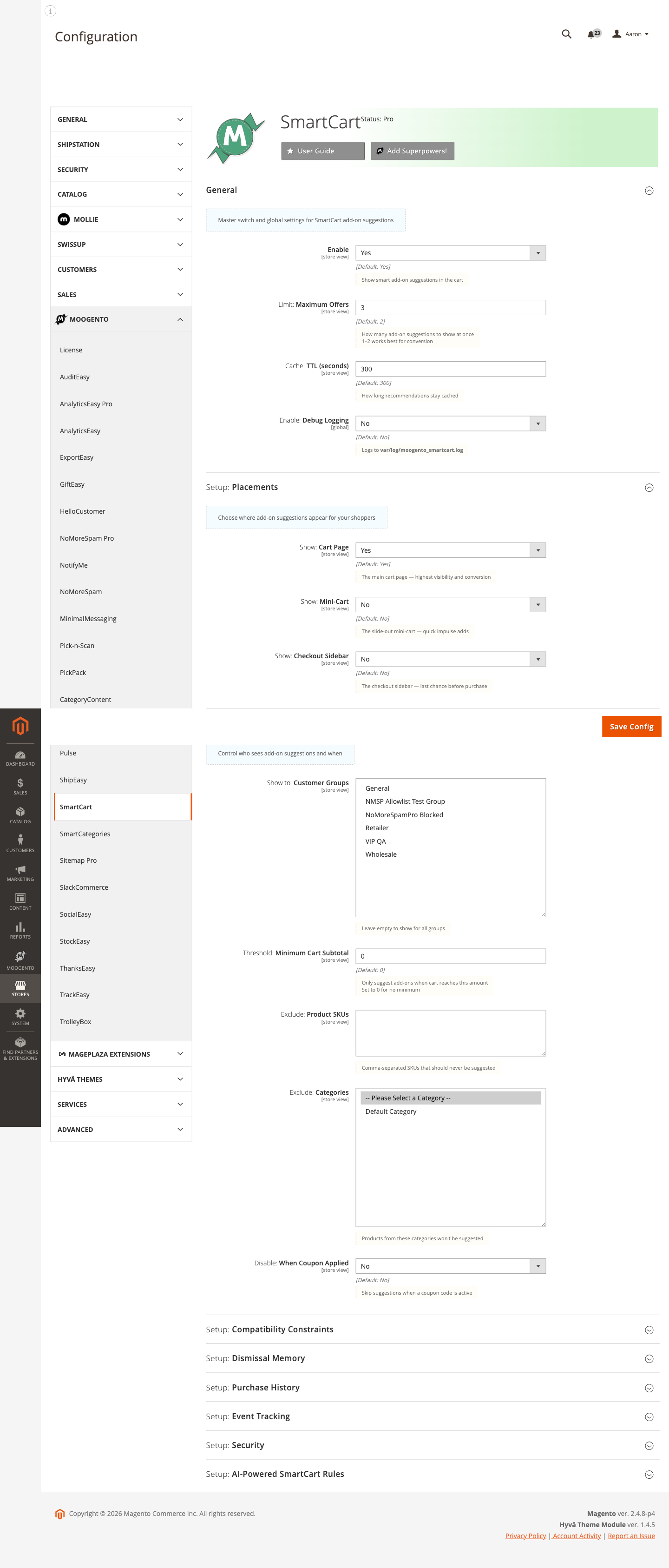
Go to: Stores > Configuration > Moogento > SmartCart > Limits: Eligibility & Suppression
-
Set:
- Show to: Customer Groups - select the groups you want to target (leave empty for all groups)
- Threshold: Minimum Cart Subtotal - enter a value, e.g.
50to only show offers on carts worth $50 or more (use0for no minimum) - Exclude: Product SKUs - paste any SKUs that should never appear as suggestions, comma-separated
- Exclude: Categories - select any categories whose products should never be suggested
- Disable: When Coupon Applied - set to Yes to hide all recommendations whenever a coupon code is active
-
Save Config
Notes
- Coupon suppression (Disable: When Coupon Applied) is useful if your coupons already give a discount - showing an add-on alongside a discount code can dilute the incentive.
- Excluded SKUs and categories act as a blocklist across all rules. You can also exclude a pool at the rule level by not including those products in the pool.
Use purchase history suppression to avoid re-suggesting owned products (Growth or Pro)
Recommending a product someone already bought feels out of touch. Enable history suppression so SmartCart automatically skips candidates the shopper has ordered before.
How to set it up
-
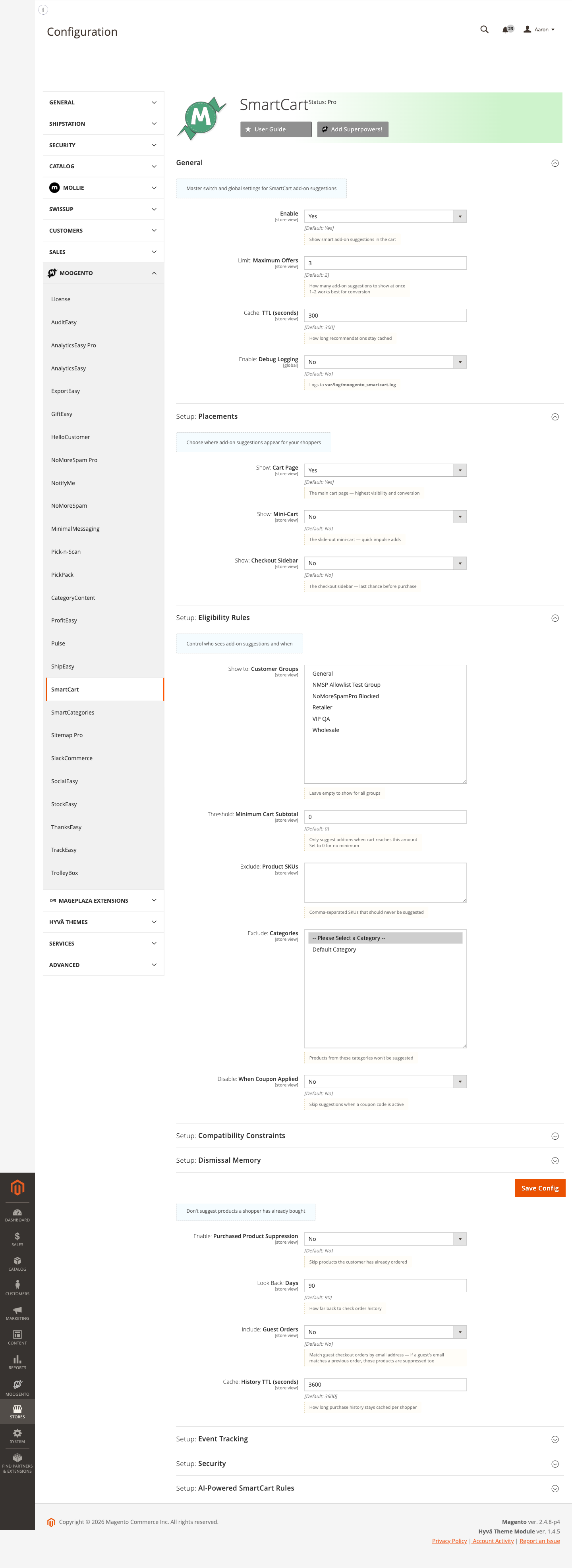
Go to: Stores > Configuration > Moogento > SmartCart > Limits: Eligibility & Suppression
-
Set:
- Enable: Purchased Product Suppression = Yes
- Look Back: Days = 90 (how far back to check; increase for slow-moving products)
- Include: Guest Orders = Yes (Pro, if you want to match by email for guests)
-
Save Config
Notes
- Guest order matching requires the guest's email to be available in the session. If a guest checks out without logging in, the email from their most recent checkout attempt is used.
- History lookups are cached (Purchase History: Refresh Interval in the same group, default 60 minutes) so the database is not queried on every page load.
Generate rule drafts from order history (Pro)
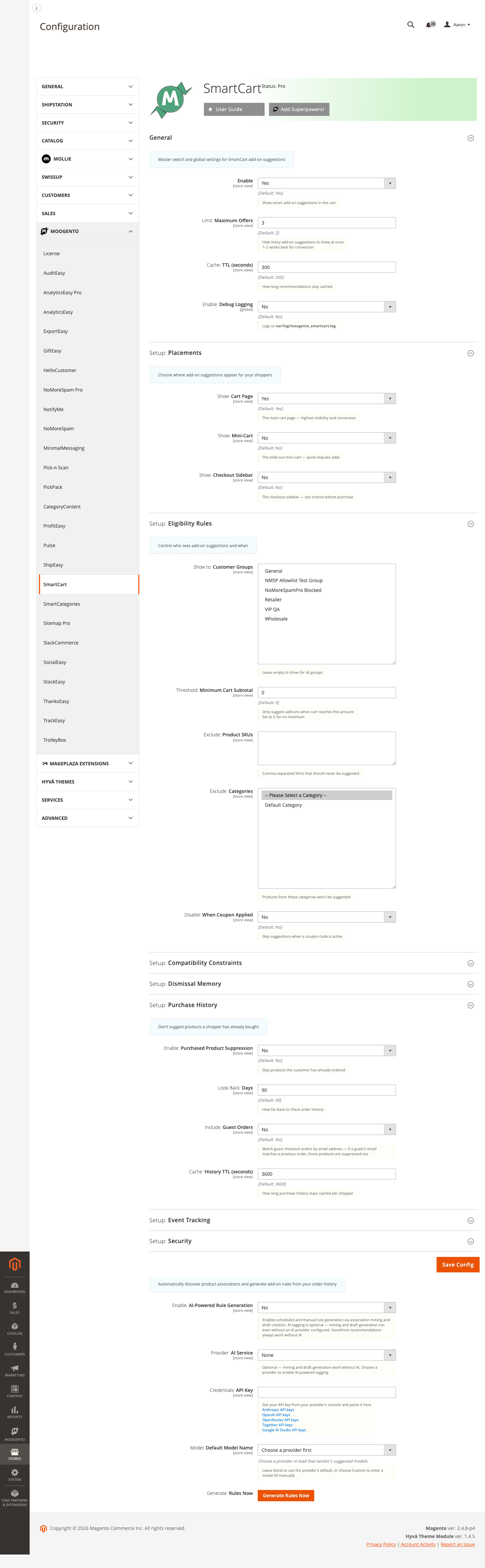
SmartCart can mine your order history to find products that are frequently bought together, then generate pending draft rules for you to review. AI is optional - mining and draft creation work without a provider configured.
How to set it up
-
Go to: Stores > Configuration > Moogento > SmartCart > AI: Rules
-
Set:
- Enable: AI-Powered Rule Generation = Yes
- Provider: AI Service - select your preferred provider if you want AI-enhanced tagging; leave as None for mining-only workflow
- Credentials: API Key - paste the API key from your provider's console (only required if a provider is selected)
-
Save Config.
- From the server command line, run the mining and draft generation sequence:
php bin/magento smartcart:mine:associations --since=90 --min-support=3
php bin/magento smartcart:tag:products --batch=50   # optional, requires AI provider
php bin/magento smartcart:generate:semantic-pairs   # optional, Pro plan, for new products
php bin/magento smartcart:generate:drafts --min-confidence=0.1
- Go to Moogento > SmartCart > Drafts. Review each pending draft - you'll see the trigger, pool, copy, evidence (pair count, confidence, lift), and source. Click Approve to create a live rule, or Reject to discard it.
Notes
- Mining requires qualifying orders (status
processingorcomplete) containing two or more distinct products. Stores with few multi-product orders may produce few associations. - Association mining runs weekly on a cron schedule (by default Sunday at 4 AM). The rule-generation pipeline (mine → tag → generate drafts) then runs Monday at 5:15 AM, with a change-detection guard that skips weeks with no new orders or products.
- AI tagging enriches draft copy (helper text) but is not required for the pipeline to work. Even without a provider, mined rules produce useful draft rules.
Enable AI-written reasons for cart suggestions
AI combo reasons are short, product-specific sentences that appear below each suggestion tile, explaining why that product pairs with what's already in the cart. Reasons are pre-generated in the background so they show instantly at render time.
Requirements
- Pro plan license active
- AI provider and API key already configured in AI: Rules
How to set it up
-
Go to: Stores > Configuration > Moogento > SmartCart > AI: Rules
-
Set:
- Enable: AI-Powered Rule Generation = Yes
- Provider: AI Service - select your preferred provider and paste the API key
-
Set:
- Enable: AI Combo Reasons = Yes
-
Optionally adjust:
- Combo Reasons: Daily Budget - how many product pairs to generate per day (default 500; set to 0 to pause)
- Combo Reasons: Model Override - use a specific model for reasons, or leave blank for provider default
-
Save Config.
Reasons are pre-generated by the daily cron (runs at 4:30 AM). To generate immediately without waiting for the cron, run:
php bin/magento smartcart:reasons:generate
The command runs against your default store view; pass --store=ID to target another store view. Add --limit=N to cap the number of pairs processed in one run. The same store behaviour applies to smartcart:microdescriptions:generate and smartcart:group-titles:generate.
Notes
- Until the cron or CLI has generated a reason for a given product pair, the offer tile shows a templated fallback phrase. The coverage readout in admin shows what percentage of tracked pairs already have an AI reason ready.
- Reasons are stored in the database, not the Magento cache. Flushing the cache does not erase or delay them.
Features reference
Setup: General
Controls the master on/off switch and global performance settings.
- Enable (default Yes) - toggles the entire module
- Maximum Offers (default 2) - number of suggestions to display on the cart page (1-2 recommended); the mini-cart and checkout always show at most one
- Cache TTL (seconds) (default 300) - recommendation cache lifetime; set to 0 to disable during testing
- Logging Level (default Errors only) - choose Errors only, Info, or Debug for var/log/moogento_smartcart.log
- Enable: Default Suggestions (default Yes) - fall back to related items, bestsellers, and category picks when no rule matches
- Enable: Event Tracking (default Yes) - record impressions, clicks, adds, dismissals, and purchases; an explicitly saved No stays off after upgrading
Config path: Stores > Configuration > Moogento > SmartCart > Setup: General (moogento_smartcart/general/)
Where: Placements
Controls where add-on suggestions appear for shoppers. Each zone can be independently enabled.
- Show: Cart Page (default Yes) - recommendations appear below the main cart form; highest visibility and conversion
- Show: Mini-Cart (default Yes) - compact suggestions in the slide-out mini-cart; limited to one offer with Essential intent
- Show: Checkout Sidebar (default Yes) - last-chance prompts on the order summary; limited to one offer with Essential intent
- Show: Checkout Shipping Step (default No) - also show during the shipping-address step
- Place: Checkout Offer (default Outside order summary) - whether the checkout tile sits inside the expandable product list or below the order summary
- Show: Minimum Items for Cart-Level Offers (default 2) - hide general cart-level offers until the cart has at least this many items; item-specific inline offers can still appear
- Require: Essential Intent Surfaces - only rules whose intent is set to Essential appear on the selected surfaces (mini-cart, checkout); leave empty to allow all intent levels
- Suppress: Post-Express Checkout Offers (default Yes) - hides SmartCart after a shopper starts Apple Pay, Google Pay, PayPal Express, or a similar wallet flow
- Suppress: After Quiet Offer Shown (default Yes) - after a mini-cart or checkout impression, no further quiet-placement offers are shown for that quote session
- Enable: A/B Tests (default No) - reserve for assignment-based experiment framework
- Variant: Mini-Cart Note Instead of Widget (default No) - show a brief static note instead of the full recommendation widget
Config path: Stores > Configuration > Moogento > SmartCart > Where: Placements (moogento_smartcart/placement/)

Look: Presentation
Controls how suggestion tiles are laid out and what supporting information is shown alongside each product.
- Enable: Group Suggestions by Reason (default Yes) - groups offer tiles under a short heading; when off, tiles render as a flat list
- Enable: AI Relationship Subtitles (default No, Pro only) - replaces the deterministic heading with an AI-generated use-case phrase pre-generated offline; no live AI call at render time
- Enable: Tabbed Group Navigation (default No) - show suggestion groups as clickable tabs instead of stacked headings
- Enable: Star Ratings on Suggestions (default Yes) - compact star widget and review count per tile
- Ratings: Minimum Review Score to Show (default 4) - only show ratings for products with at least this many stars
- Enable: One-Line Review Snippet (default Yes) - show a short excerpt from a real customer review below each tile
- Enable: Suggestion Quick View (default Yes) - adds an eye icon to each suggestion tile; hovering shows a light image-only preview anchored beside the thumbnail, and clicking opens a compact product panel with the larger image, name, short description, price, colour and size, star rating, an Add to Cart button and a View product link
- Enable: Rotate Suggestion After Cart Add (default Yes) - replace an added cart-page suggestion with the next eligible product
Config path: Stores > Configuration > Moogento > SmartCart > Look: Presentation (moogento_smartcart/presentation/)
Sources: Suggestions & Matching
Controls which sources supply product candidates and how candidates are matched to cart contents.
- Enable: Native Product Relations Backfill (default Yes) - fill remaining slots from Magento's native product links (related, cross-sell) when the curated pool has fewer products than the configured maximum
- Enable: SmartListings Category Source (default Yes) - when SmartListings Pro is installed, use its conversion-ranked category products to fill slots
- Enable dynamic association pools (default No) - let rules suggest products shoppers frequently buy together, found automatically from order history
- Default Lookup Source (default Matched items only) - which cart products to find co-purchases for (matched items only, or all cart items)
- Default Suggestion Limit (default 5) - how many products to suggest per association-based rule (1-20)
- Default Min Confidence (default 0.10) - minimum confidence score required to show a pairing (0.0-1.0)
- Default Min Pair Count (default 2) - minimum number of orders where two products were bought together before the pairing is suggested
- Enable: Compatibility Checking (Growth or Pro; default No) - filter suggestions by product attribute compatibility
- Rules: Compatibility Attributes - add one row per product attribute and choose match mode (must match all, allow values already in cart, or deny values already in cart)
- Enable: Don't Mix: Category Groups (default No) - products from one group are never suggested to carts containing another group
- Don't Mix: Category Groups - configure conflicting category groups (Pro and Growth plans)
- AI: Suggest Groups - propose groups from the category tree via AI provider (Pro plan, requires AI Workflows enabled)
- When Cart Has: Mixed Group Items (default Allow) - allow all grouped products or strictly hide them when cart has items from different groups
- Don't Mix: Admin Overrides (default none) - force Don't Mix group membership per SKU (Pro plan)
- Enable Variant Matching (Growth or Pro; default No) - match suggested configurable products to the child variant that fits the shopper's cart
- Variant Match Attributes (Growth or Pro; default size, color) - attributes used to match the suggested variant
Config path: Stores > Configuration > Moogento > SmartCart > Sources: Suggestions & Matching (moogento_smartcart/sources/)
Limits: Eligibility & Suppression
Controls who sees add-on suggestions and when.
- Show to: Customer Groups - restrict to specific customer groups (leave empty for all)
- Threshold: Minimum Cart Subtotal (default $5) - show offers only above this subtotal
- Exclude: Product SKUs - comma-separated SKUs to never suggest
- Exclude: Categories - categories whose products should never be suggested
- Exclude: Gift Cards (default Yes) - automatically ignore GiftEasy and Magento gift card products
- Disable: When Coupon Applied (default No) - hide recommendations when a coupon code is active
- Enable: Purchased Product Suppression (default Yes) - skip products the customer has already ordered
- Look Back: Days (default 180) - how far back to check order history
- Include: Guest Orders (Pro; default Yes) - match guest orders by email
- Remember: Dismissed Offers (default 24 hours) - how long a dismissed offer stays hidden per shopper, per store
- Purchase History: Refresh Interval (default 60 minutes) - cache TTL for purchased-product lookups (advanced)
Config path: Stores > Configuration > Moogento > SmartCart > Limits: Eligibility & Suppression (moogento_smartcart/eligibility/)
Extra: Empty Cart Experience
Turns the empty-cart page into a discovery surface with recovery sections, popular categories, trending products, and an optional continue button (Growth+ plan). Shoppers see server-rendered products ranked by current-month sales, filtered by prior-purchase history.
- Enable (default No) - master switch; when off, shoppers see Magento's standard empty cart page
- Page Heading (default "Your cart is empty") - main heading on the discovery page
- Supporting Copy (default "Ready when you are - here are some ideas to get started") - text under the heading
- Continue Shopping Button (default No) - hidden by default; when shown, defaults to "Go to homepage" label and resolves a blank URL to your store home page
- Continue Shopping Label (default "Go to homepage") - label on the button when shown
- Continue Shopping URL (blank by default) - leave blank for home page, or enter a store-relative path or full http(s) URL
- Recently Viewed (default Yes) - shows products shoppers looked at recently, client-hydrated
- Recently Viewed Heading (default "Pick up where you left off") - heading above that section
- Recently Removed (default Yes) - shows the last removed item and related products when a shopper empties their cart
- Recently Removed Heading (default "Still thinking it over?") - heading above that section
- Desktop Items (default 5) - products per section at desktop widths (max 12)
- Tablet Items (default 3) - products per section at tablet widths (max 12)
- Mobile Items (default 2) - products per section at mobile widths (max 12)
- Filter-in by: Minimum final price - minimum-final-price filter mode for this section
- Minimum final price - threshold amount
- Bestseller This Month (default Yes) - shows one sales-ranked current-month product with larger image, description, and rating; omitted when no eligible candidate exists
- Bestseller Heading (default "Bestseller this month") - heading above the focus section
- Popular Categories (default Yes) - shows sales-ranked category image tiles with category names, a short description, and wayfinding; omitted when no eligible category exists
- Popular Categories Heading (default "Popular categories") - heading above the tiles
- Popular Categories Count (default 4, configurable 1-4) - number of category tiles to display
- Balance: Category Tiles (default Yes) - while a shopper has not clicked into a category yet, spreads tiles across your store's audiences instead of letting one side dominate; Women/Men, Ladies/Gents, and Freshwater/Marine style pairs are recognized automatically
- Balance: Category Groups - add your own rows when your category names differ from the recognized pairs; each row lists two or more categories that should share the tile rotation
- Everyday Essentials (default Yes) - adds a row of affordable everyday items after the popular products rack, using your Everyday Essentials price cap; Pro plans only, omitted when no eligible product exists
- Everyday Essentials Heading (default "Everyday essentials") - heading above the row
The bestseller focus product treats size and color variants as one family, so a bestseller whose sales are spread across several sizes still wins the spot. For a simple or virtual product it shows the usual one-click Add button; for a size/color family it shows the parent product's name, image, and a "From" starting price, with a "Choose options" button that takes the shopper to the parent product page to pick their variant rather than guessing one for them. The same choose-options presentation shows up on the popular products rack and the Everyday Essentials row whenever the offer is a configurable family.
All server-rendered offers and client-hydrated recent products show star ratings (when available) and are subject to a hard prior-purchase suppression regardless of the global history setting — products in the shopper's purchase history are automatically hidden. If the history lookup fails for a known customer, all product discovery hides but category wayfinding and the Magento native empty-cart copy remain visible.
Config path: Stores > Configuration > Moogento > SmartCart > Extra: Empty Cart Experience (moogento_smartcart/empty_cart/)
AI: Rules
Configures offline AI tagging and draft generation from order history.
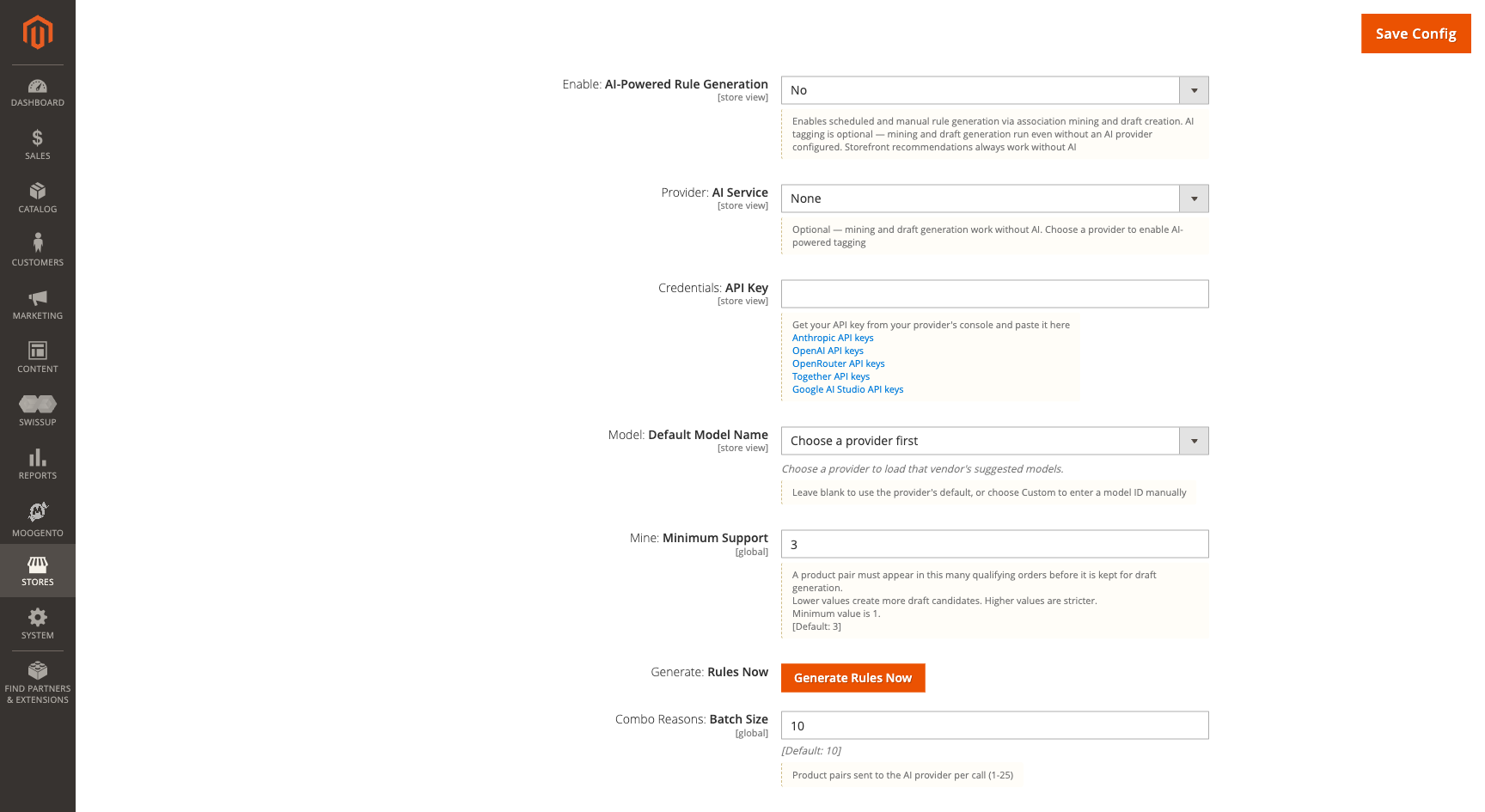
- Enable: AI-Powered Rule Generation (default No) - enable offline AI tagging and draft generation
- Provider: AI Service - select Anthropic, OpenAI, OpenRouter, Together, Gemini, or None (mining works without AI)
- Credentials: API Key - encrypted API key for the selected provider
- Model: Default Model Name - leave blank to use provider default, or choose Custom to enter a model ID manually
- Generate: Rules Now - manually trigger the mining and draft generation pipeline
- Enable: AI Combo Reasons (default No) - generate short AI "why" sentences for product pair suggestions (Pro plan required)
- Combo Reasons: Daily Budget (default 500) - max product pairs to generate per store per day; set to 0 to pause
- Combo Reasons: Model Override - use a specific model for reasons, or leave blank for provider default
- AI Combo Reasons - Coverage - readout showing what percentage of tracked pairs have AI reasons ready
- Enable: AI Micro-Descriptions (default Yes) - write one-line factual descriptors under Complete With suggestions (Pro plan required)
- Micro-Descriptions: Product One-Liner Attribute (default "No override") - pick a text or text-area catalog attribute that already holds a one-line summary, eg. Moogento ProductContent's Tiny Description; when a product has a value there, it is shown instead of the AI micro-description on the Complete With drawer, and no AI request is spent generating one for that product. Works even with AI Micro-Descriptions switched off
- Micro-Descriptions: Daily Budget (default 500) - max products to write descriptions for per store per day
- Micro-Descriptions: Model Override - use a specific model for descriptions
- AI Draft Rule Style (default Fixed product list) - controls how AI builds draft rules: fixed product list (one rule per pair), or live co-purchase lookup (one rule per trigger product)
- AI Relationship Subtitle Tone (default Benefit-led) - voice of the AI-written relationship subtitle (Descriptive, Benefit-led, or Call to action)
- AI Relationship Subtitles - Coverage - readout showing generation progress
- Enable: AI Domain Tags (default No, Pro plan) - classifies each product into configured Don't Mix groups using AI (requires Don't Mix: Category Groups enabled)
- Domain Tags: Model Override - use a specific model for tagging
- Domain Tags: Minimum Confidence (default 0.00, no floor) - domain tags below this confidence are treated as untagged
Config path: Stores > Configuration > Moogento > SmartCart > AI: Rules (moogento_smartcart/ai/)
Pro: AI Draft Automation
Automatically promotes high-confidence drafts to live rules and enables cold-start semantic pairing for new products (Pro plan).
- Auto-enable drafts above confidence threshold (default No) - drafts scoring at or above the threshold become live rules automatically
- Confidence Threshold (%) (default 90, range 50-100) - minimum score to auto-enable drafts
- Include semantic-only drafts in auto-enable (default No) - allow semantic drafts (capped at 75) to auto-promote
- Enable: Cold-start Semantic Pairing (default Yes) - Pro-only offline scoring for products with little or no co-purchase history; it shortlists same-category products, applies Don't Mix rules, and creates drafts with source "AI idea" (requires AI-Powered Rule Generation and a configured provider)
- Semantic: Daily Pair Budget (default 200) - candidate pairs available to the offline semantic job for each store each day; scored-but-rejected pairs count, failed provider calls refund their share, 0 pauses the job, and this budget is separate from Combo Reasons and Relationship Subtitles
- Semantic: Model Override - use a specific model for semantic pairing
- Semantic: Minimum AI Score (default 0.55, range 0.0-1.0) - pairs below this score are skipped
- Auto-enable: Max per generation run (default 10, advanced) - hard cap on how many drafts can auto-promote in a single pipeline run
Config path: Stores > Configuration > Moogento > SmartCart > Pro: AI Draft Automation (moogento_smartcart/ai_drafts/)
Pro: Free Shipping & Tier Boost
Shows a progress bar on the cart and checkout telling shoppers how much more they need to spend to reach free shipping, with optional product suggestions ranked by how well they fill the gap (Pro plan).
- Enable: Free-Shipping Bar (default No) - requires at least one tier configured and a Pro plan
- Show: Surfaces (default all) - which surfaces show the bar (mini-cart, cart, checkout)
- Checkout: Bar Position (default Order Summary below items) - where the bar appears on checkout
- Calculate: Subtotal Basis (default Subtotal before discounts) - whether discounts reduce progress toward free shipping
- Base Thresholds On (default Order Value) - Order Value applies the Tiers table below to every shopper; Customer Location groups the Location Tiers table by shipping postcode pattern and only applies to signed-in shoppers
- Tiers: Free-Shipping Thresholds - dynamic rows with threshold amount, label, sub-label, tone (colour), and whether this tier is free shipping; used in Order Value mode
- Location Tiers: Postcode-Based Free-Shipping Thresholds - same columns as Tiers, plus a Pattern column; used in Customer Location mode
- Message: Qualified (default "You've got free shipping 🔥") - shown when cart reaches the final free-shipping tier
- Message: Remaining Amount (default "Add {{amount}} more for free shipping") - shown while below next tier; use {{amount}} as placeholder
- Enable: Tier-Boost Suggestions (default Yes) - show products ranked by how well they close the remaining gap to the next tier
- Rank: Strategy (default Single Item) - Single Item (cheapest that closes the gap) or Near Miss (product closest in price to remaining amount)
- Show: Max Suggestions (default 3) - number of product chips to display
- Upsell: Surfaces - which surfaces show tier-boost products
- Cart: Progress Bar and Upsell Position (default Sidebar above totals) - where bar and products render on cart page
- Threshold: Minimum Remaining Amount (default 0, advanced) - hide suggestions when remaining amount is below this
- Cap: Max Overshoot % (default 50, advanced) - hide products priced more than this percentage above remaining amount
- Reserve: Slots for Recommendations Well (default 1, advanced) - how many complement slots tier-boost reserves for main recommendations
Config path: Stores > Configuration > Moogento > SmartCart > Pro: Free Shipping & Tier Boost (moogento_smartcart/free_shipping_bar/)
Order value versus customer location
Order Value is the default and works for every shopper, guest or signed in. Switch Base Thresholds On to Customer Location when you offer free shipping at different spend levels for different postcode areas (for example, a lower threshold near a warehouse and a higher threshold further away).
Customer Location mode:
- Only applies to signed-in shoppers. Guests never see location-based free-shipping surfaces.
- Checks the current order's shipping postcode first; if that is blank, it falls back to the shopper's default shipping address.
- Hides the free-shipping bar, upsell, and tier-boost suggestions for a virtual (downloadables-only) cart, since there is no shipping address to resolve a postcode from.
- Hides the free-shipping bar, upsell, and tier-boost suggestions when the shopper has no usable postcode or when their postcode does not match any pattern.
Pattern examples and precedence - patterns support an exact postcode, a trailing wildcard, or a catch-all. When several patterns match the same postcode, the one with the longest literal run before the wildcard wins; if two tie, the exact postcode wins over a wildcard:
| Pattern | Matches | Precedence for postcode 92891 |
|---|---|---|
92891 |
exactly 92891 |
1st - same 5-character literal length as 92891*, but exact wins the tie |
92891* |
any postcode starting 92891 |
2nd - same literal length as 92891, loses the tie to the exact match |
928* |
any postcode starting 928 |
3rd - longer literal prefix than 92* |
92* |
any postcode starting 92 |
4th - shorter literal prefix |
* |
any postcode at all | 5th - catch-all, used only if nothing else matches |
Add a * row only if you want every signed-in shopper without a more specific match to fall back to a
default threshold ladder. Without a * row, shoppers whose postcode matches nothing simply see no
free-shipping surfaces - this is the safe default and avoids accidentally promising a threshold you did
not intend for that shopper's location.
Pro: Smart Bundles
Lets shoppers add multiple recommended products at once with an automatic discount applied when they select a qualifying number of items (Pro plan).
- Enable Smart Bundles (default No) - master toggle; Pro plan required
- Discount Mode (default None) - None (no automatic discount), Percent (% off each item), Flat (fixed amount off bundle), or Tiered (quantity-based tiers)
- Discount Value - the percentage or flat amount to apply
- Already-Discounted Item Handling (default Stack) - how bundle discount treats products already on sale: Stack (on top), Exclude (sale items keep current price), Best price (lower of existing or bundle discount)
- Minimum Items to Qualify for Discount (default 3) - shoppers must select at least this many items to trigger discount (non-tiered modes)
- Heuristic Strictness (default Balanced) - how aggressively to filter candidates: Permissive (widest set), Balanced (default), or Strict (highest-confidence only)
- Use AI Bundle-Intent Classification (default No) - only allow products tagged as bundle-friendly by the AI provider
- Show Percentage Saving on Bundle Offers (default Yes) - display discount as "Save X%" alongside dollar amount
- Tiers: Quantity Discount Tiers - for tiered mode, add rows with min items and discount value per tier
- Minimum Unit Price for Bundle Inclusion (default $2.00, advanced) - products below this price are excluded from bundles
Config path: Stores > Configuration > Moogento > SmartCart > Pro: Smart Bundles (moogento_smartcart/bundles/)
Pro: Extra Add-on Surfaces
Displays two additional surfaces for product add-ons: Everyday Essentials (a row of affordable items) and Complete With (a drawer for completing a purchase) (Pro plan).
- Enable Everyday Essentials (default No) - show a row of affordable add-ons based on co-purchase frequency
- Filter: Price Ceiling (default $5.00) - only show essentials at or below this price; 0 disables the ceiling
- Limit: Desktop Items (default 5, max 12) - items to display on desktop
- Limit: Tablet Items (default 3, max 12) - items to display on tablet
- Limit: Mobile Items (default 2, max 12) - items to display on mobile and mini-cart
- Show: Cart Position (default Below product list) - where the essentials rack appears on cart page
- Show: Placements (default cart) - which surfaces show the Essentials row
- Text: Section Heading (default "Everyday essentials for you") - label above the Essentials row
- Enable Complete With Drawer (default No) - show a flyout drawer with complete-the-look suggestions
- Limit: Maximum Items per Drawer (default 8, range 2-12) - items per drawer
- Show: Cart Page (default Yes) - whether the drawer appears on the cart page
Config path: Stores > Configuration > Moogento > SmartCart > Pro: Extra Add-on Surfaces (moogento_smartcart/addons/)
Extra: Empty Cart Experience
Turns the empty cart page into a discovery page with a heading, supporting copy, a continue-shopping button, and product suggestions (Growth and Pro plans).
- Enable Empty Cart Experience (default Yes) - master switch for eligible plans; an explicitly saved No remains off after upgrading
- Page Heading (default "Your cart is empty") - discovery-page heading
- Supporting Copy - short text below the heading
- Continue Shopping Label / URL - button wording and destination
- Recently Viewed (default Yes) - show products the shopper viewed recently when available
- Recently Removed (default Yes) - show the last removed product and related items when available
- Desktop / Tablet / Mobile Items (defaults 5 / 3 / 2) - per-section responsive limits
- Balance: Category Tiles (default Yes) - spread popular-category tiles across your store's audiences instead of favoring one side, until the shopper clicks a tile
- Balance: Category Groups - custom category pairings for stores whose category names differ from the automatically recognized pairs (Growth and Pro plans)
- Everyday Essentials (default Yes) - adds a row of affordable everyday items after the popular products rack, sharing your Everyday Essentials price cap (Pro plan only)
- Everyday Essentials Heading (default "Everyday essentials") - heading above the row
If the plan is unavailable or no section has suitable products, Magento's standard empty cart page stays visible. SmartListings can improve popular-product ranking when installed; SmartCart retains a built-in bestseller fallback without it, and rolls up size/color variant sales into a single family so the bestseller spot reflects the parent product's true popularity. Size and color families show a "Choose options" button that takes the shopper to the parent product page instead of guessing a variant to add; simple and virtual products keep the one-click Add button. Popular category tiles also show a short description under the category name.
Config path: Stores > Configuration > Moogento > SmartCart > Extra: Empty Cart Experience
(moogento_smartcart/empty_cart/)
Pro: Focused Checkout
Removes navigation and search distractions on the checkout page while preserving the sign-in link (Pro plan).
- Enable: Focused Checkout (default No) - master toggle; Pro plan required
- Hide: Elements - which elements to hide (top navigation, search bar)
- Logo: Image URL - optional custom logo for the focused checkout header; leave blank to use store default
- Show: Secure Checkout Badge (default Yes) - display a trust badge next to the checkout logo
- Badge: Text (default "100% Safe & Secure Checkout") - text shown inside the badge
Config path: Stores > Configuration > Moogento > SmartCart > Pro: Focused Checkout (moogento_smartcart/focused_checkout/)
Advanced configuration
Offline AI rule generation pipeline
The offline tooling layer mines your order history for frequently co-purchased product pairs, optionally enriches them with AI-generated semantic tags, and proposes draft rules. Nothing in this layer touches the storefront runtime.
What it does
- Association mining (
smartcart:mine:associations) reads qualifying orders in batches of 500, counts product co-occurrences, and calculates confidence and lift scores. Results land in the database. - Product tagging (
smartcart:tag:products) sends product names, SKUs, and descriptions to the configured AI provider and stores semantic tags for each product. This step is optional but improves draft helper-text quality. - Cold-start semantic pairing (
smartcart:generate:semantic-pairs, Pro plan) scores complementary-fit candidates for products with little or no co-purchase history, within a separate daily pair budget. - Draft generation (
smartcart:generate:drafts) combines associations and tags into pending draft rules, and promotes ready semantic pairs into drafts at the same time. Each draft shows the mined evidence so you can judge whether it's worth approving. By default it covers every store view (plus all-store pairs); pass--store=IDto target one store view.
Association mining runs weekly on a cron schedule (by default Sunday at 4 AM). The rule-generation pipeline (mine → tag → generate drafts) then runs Monday at 5:15 AM, with a change-detection guard that skips weeks where no new orders or products exist.
Setup
-
Enable AI-Powered Rule Generation in: Stores > Configuration > Moogento > SmartCart > AI: Rules
-
Optionally select an AI Provider and paste the API key.
-
Run the pipeline manually for the first time:
php bin/magento smartcart:mine:associations --since=90 --min-support=3 php bin/magento smartcart:generate:drafts --min-confidence=0.1 -
Review drafts at Moogento > SmartCart > Drafts.
-
Click Generate: Rules Now in the config section to re-run at any time without SSH access.
Notes
- AI is never called during runtime recommendation generation - only the CLI commands and the weekly cron invoke external AI APIs.
- AI generation protects itself against a broken provider setup: after three consecutive failed provider calls (a connection error, or a response with no usable content) the run stops early, refunds the unused daily budget it reserved, and records the reason in
var/log/moogento_smartcart.log. An incorrect API key never burns the day's AI budget. - If micro-description generation gave up on some products after repeated provider failures, re-queue them with
php bin/magento smartcart:microdescriptions:generate --forceonce the provider setup is corrected. - If a Product One-Liner Attribute is configured, products with a value there never reach the AI provider -
smartcart:microdescriptions:generatereports them as "already had a product one-liner" and returns their reserved daily budget unused. - Associations require orders with 2+ distinct products and status
processingorcomplete. Fewer than 3 orders sharing a pair (the--min-supportdefault) produce no association rows. --min-confidence=0.1means "at least 10% of orders containing product A also contained product B". Raise this for higher-confidence suggestions; lower it to see more (but noisier) drafts.- The Generate button in admin (
AI: Rules > Generate: Rules Now) runs the same pipeline in force mode, bypassing the change-detection skip. Use it after adding a new product range or importing a batch of orders.
Tips & best practices
- Start with 1-2 rules covering your highest-volume cart scenarios before scaling up. Check 30-day stats before creating more - rule quality matters more than quantity.
- Keep Maximum Offers at 2. Showing 3 or more offer tiles increases visual noise and typically reduces conversion on each individual tile.
- Set a cache TTL of at least 300 seconds in production. A TTL of 0 runs the full pipeline on every cart page load and adds latency.
- Use priority numbers with gaps (10, 20, 30) so you can insert new rules between existing ones without renumbering.
- Enable event tracking from day one. The 30-day stats columns on the Rules grid are the fastest way to tell which rules are worth keeping.
- If a rule's dismiss rate is consistently above 40-50%, the pool is probably too broad or the product is not a good fit for that trigger. Narrow the pool or revise the trigger.
- Use the Disable: When Coupon Applied toggle if your promotions already offer a clear incentive - adding an upsell alongside a coupon code can feel pushy and reduce trust.
- Run association mining against 90 days of orders first. If your catalogue changes seasonally, re-run after each season ends.
- Approve AI-generated drafts selectively. Check the evidence column - pair count below 5 or confidence below 15% usually means a weaker association. Reject freely.
Troubleshooting
No recommendations appear on the cart page
- Cause: Module is disabled, no active rules exist, or placement is off
- Check: Stores > Configuration > Moogento > SmartCart > Setup: General > Enable = Yes
- Check: Stores > Configuration > Moogento > SmartCart > Where: Placements > Show: Cart Page = Yes
- Check: Moogento > SmartCart > Rules - at least one rule must be enabled and scoped to the current store
Recommendations appear but never include a specific product
- Cause: The product is filtered out by a guardrail
- Check: The product is in stock and salable
- Check: The product SKU is not in Excluded: Product SKUs (
moogento_smartcart/eligibility/excluded_skus) - Check: The product's category is not in Excluded: Categories (
moogento_smartcart/eligibility/excluded_categories) - Check: The product is not already in the shopper's cart (SmartCart never suggests items already in cart)
- Check: If history suppression is enabled, the shopper may have purchased the product before
A dismissed offer keeps coming back after the browser is refreshed
- Cause: The dismissal TTL has expired, or localStorage is being cleared between sessions
- Check: Stores > Configuration > Moogento > SmartCart > Limits: Eligibility & Suppression > Remember: Dismissed Offers - increase the value if needed
- Note: The dismissal key includes the context hash - if the cart changes (a different item is added), the context hash changes and dismissed offers may reappear
Rule stats columns show zeros even though the module is active
- Cause: Event tracking is disabled
- Check: Stores > Configuration > Moogento > SmartCart > Setup: General > Enable: Event Tracking = Yes
- Note: Stats aggregate on a 15-minute cron. Allow up to 15 minutes after enabling before expecting data
Mining produces no associations or drafts
- Cause: Not enough qualifying orders, or minimum support threshold is too high
- Check: Orders must have status
processingorcompleteand contain 2+ distinct products - Try: Lower
--min-supportto 2, or extend--sinceto 180 days - Check:
var/log/moogento_smartcart.logfor pipeline output
AI provider returns no results or a 401
- Cause: API key is missing, wrong provider selected, or key does not match the provider
- Check: Stores > Configuration > Moogento > SmartCart > AI: Rules - verify Provider and API Key match
- Check:
var/log/moogento_smartcart.log- the error from the provider API is logged there - Note: Changing the provider requires a matching API key - a key issued for OpenAI will not work if Provider is set to Anthropic
Free-Shipping Bar does not appear on the storefront
- Cause: Pro plan not active, no tier rows configured, or the bar is not enabled for the relevant placement
- Check: Stores > Configuration > Moogento > SmartCart > Pro: Free Shipping & Tier Boost > Enable: Free-Shipping Bar = Yes
- Check: At least one row exists under Tiers: Free-Shipping Thresholds with a positive threshold amount
- Check: The relevant placement toggle (Show: Mini-Cart / Cart Page / Checkout Page) is set to Yes
- Check: Stores > Configuration > Moogento > License - the SmartCart Pro plan must be active
Smart Bundles discount is not applied at checkout
- Cause: The shopper selected fewer items than the Minimum Items to Qualify for Discount setting
- Check: Stores > Configuration > Moogento > SmartCart > Pro: Smart Bundles > Minimum Items to Qualify for Discount - confirm the minimum matches the number of bundle items the shopper selected
- Check: Discount Mode is not set to None
- Note: The bundle discount appears in the order summary as "Bundle Discount" and requires a Pro plan
Malware scanner flags Helper/Moo.php
- Cause: Your host's malware scanner (often Imunify360 on cPanel hosting) heuristically flags the encoded license-check files that ship inside every paid Moogento extension. The files are genuine and unchanged - the encoding protects the license check from tampering.
- Resolution: Add the files to the scanner's ignore list so the warnings stop, and restore any file the scanner already quarantined. Both steps, plus how to verify the files are byte-for-byte what we shipped, are covered in the moogento-license-file-protection guide in the Magento guides section.
FAQs
How do I add contextual cart recommendations to my Magento 2 store?
Install SmartCart, create at least one recommendation rule under Moogento > SmartCart > Rules, and enable the module at Stores > Configuration > Moogento > SmartCart > Setup: General. Offers appear automatically on the cart page without any template changes.
Why are no recommendations showing even though the module is enabled?
SmartCart needs at least one active rule whose trigger matches the current cart contents. Go to Moogento > SmartCart > Rules and confirm a rule is enabled, scoped to the right store view, and that the trigger SKU, category, or attribute is present in the shopper's cart.
Can I show add-on suggestions in the mini-cart or during checkout?
Yes - SmartCart supports three independent placement zones: the cart page, the mini-cart slide-out, and the checkout sidebar. Enable each one at Stores > Configuration > Moogento > SmartCart > Where: Placements. Mini-cart and checkout placements show at most one offer and only rules with Essential intent.
How does SmartCart choose which products to recommend?
SmartCart evaluates your active rules in priority order against the current cart contents. Each rule has a trigger (which products or categories must be in the cart) and a pool (which products to suggest). Only in-stock, eligible, and compatible candidates from the winning rules are shown.
Does SmartCart work with Hyvä, Luma, or Porto themes?
SmartCart is compatible with Luma and Porto themes out of the box. SmartCart also ships its own Hyvä layouts and templates directly in the module, so no separate compatibility layer is needed - you still need a genuine Hyvä theme installed on your store to use them. Contact moo@moogento.com if you run into a rendering issue on your specific Hyvä version.
Will shoppers keep seeing a suggestion for something they already bought?
Not on Growth or Pro if you enable purchase history suppression. Set Stores > Configuration > Moogento > SmartCart > Limits: Eligibility & Suppression > Enable: Purchased Product Suppression = Yes and SmartCart will automatically skip products the shopper has ordered before.
Can I hide recommendations when a discount code is applied?
Yes. Set Stores > Configuration > Moogento > SmartCart > Limits: Eligibility & Suppression > Disable: When Coupon Applied = Yes. All recommendations will be hidden for that cart session while a coupon code is active.
How do I know which recommendation rules are performing best?
Enable event tracking at Stores > Configuration > Moogento > SmartCart > Setup: General, then check the Rules grid at Moogento > SmartCart > Rules. The grid shows 30-day impressions, add rate, purchase rate, and revenue per rule, updated every 15 minutes.
Related guides
- Pulse - real-time dashboard with a SmartCart ecosystem widget showing add-on performance at a glance
- ProfitEasy - revenue attribution reports with a dedicated SmartCart source bucket
- SmartListings - category-ranked product discovery for SmartCart sources
Need help?
- moo@moogento.com
- Include:
- Magento version
- Module name
- What you're trying to do