

Overview
Plan scope for the examples below: Seed covers basic profit calculations and dashboard data. Customer lifetime value and source attribution require Growth or Pro; the dashboard AOV widget and orders-grid source/device columns require Pro.
ProfitEasy brings Magento 2 profit tracking directly into your admin. Every time an order is placed, the module calculates the true profit by deducting your configured costs - product cost, shipping, monthly overheads, payment fees - from the order revenue. The result appears in the orders grid, on the admin dashboard, and on each customer's profile.

This module helps you:
- See profit figures on every order without leaving the Magento admin
- Track customer lifetime value and average order value per customer
- Identify which traffic sources and campaigns are driving profitable orders
- Detect which device types (desktop, mobile, tablet) your highest-value customers use
- Surface product-level gross margin percentages and currency amounts in the catalog grid (Pro plan)
When to use this
Use ProfitEasy when you want to:
- Stop guessing whether a promotional campaign actually made money
- Know which customers are worth a loyalty offer based on their total spend
- Attribute orders correctly to Google Ads, newsletters, social media, or direct traffic
- Include profit margin data in inventory exports via StockEasy
- Feed performance-ranked category sorting to SmartListings (Pro plan)
Key capabilities
- Order profit calculation - automatically deducts configured costs from revenue on every invoiced order
- Customer CLV and AOV - customer lifetime value on Growth or Pro; average order value on Pro
- Traffic source attribution - matches orders to their original referral source using UTM parameters, social platform detection, and custom rules (Growth+ plans)
- Device detection - records whether each order was placed from desktop, tablet, or mobile (Growth+ plans)
- Dashboard widgets - profit and AOV tiles on the Magento admin dashboard
- Product grid margin columns - color-coded margin percentage and currency amount columns in the catalog product grid (Pro plan)
- Catalog margin history - website-scoped current data and versioned daily snapshots for connected analytics (Pro plan)
- Product velocity attributes - sales velocity and profit velocity attributes used by SmartListings for performance ranking (Pro plan)
- StockEasy export integration - includes profit percentage in CSV and PDF exports (Pro plan)
Catalog margin uses the effective public quantity-one catalog price and the native product cost on an ex-tax basis. Coupons, negotiated discounts, shipping, and payment costs are excluded. Products with missing costs, unsupported configurations, or unavailable stock remain blank with an availability reason instead of being shown as zero margin. The product percentage field remains available as a default-website compatibility projection, while the grid and connected analytics use the website-scoped current snapshot and its versioned daily history.
Installation
Bought on Adobe Commerce Marketplace? Your purchase comes with a Moogento account: set your password from the activation email, then follow the steps below with the Composer keys and licence key in My Plugins. If the email has not arrived, contact Moogento support.
ProfitEasy installs via Composer, then activates with a license key from your Moogento.com account. The whole flow takes about 5 minutes.
Prefer a hands-off setup? Our team can install and configure the extension for you - see the paid install service.
Step 1: Get your Composer keys from Moogento.com
- Sign in at https://www.moogento.com and open My Plugins in your account menu.
- Find ProfitEasy in the list of plugins you own.
- Generate (or reveal) the Composer access keys for that plugin - a public key and a private key.
- Add your install domain to the key. Each Composer key is tied to a specific domain - if you're installing on
yourstore.com, addyourstore.comto the key's allowed domains. The Composer download will be rejected on any other domain.
If you run staging and production on different domains, add both - separate keys per environment are fine too.
Step 2: Install the module with Composer
From your Magento 2 root directory:
composer require moogento/m2-profiteasy
When Composer asks for credentials, paste the public key as the username and the private key as the password. They'll be cached in ~/.composer/auth.json for future runs.
Step 3: Enable the module in Magento
php bin/magento setup:upgrade
php bin/magento setup:di:compile
php bin/magento cache:clean
If you run php bin/magento module:status Moogento_Profiteasy you should see it listed as enabled.
Step 4: Add your license key in the Moogento admin
- For a direct purchase, copy the ProfitEasy license key from My Plugins at moogento.com. For a Marketplace purchase, check your Moogento account for an issued key and contact Moogento support if it is missing.
- Open Stores > Configuration > Moogento > License in Magento Admin. Add the Installation Domain shown on this page to the key in your Moogento account.
- Paste the key into the key field and click Add key.
- Under Registered Keys for this Installation, confirm that ProfitEasy appears with the correct plan.
The license validates within a few seconds. You should see the module's status flip to active. If it stays inactive, double-check the domain on the license matches where you've installed - domain mismatch is the most common cause.
Setup overview
Most setup happens in:
Stores > Configuration > Moogento > ProfitEasy
You'll mainly work with:
- General - master switch, dashboard visibility toggles, default tax rate, free-shipping cost, source validity period
- Cost rules - define what to deduct from revenue (product cost, shipping, monthly overheads, payment fees)
- Sources - configure which referral sources map to which labels and icons
- Product Grid Profit - enable the margin percentage and currency columns and set color-coded percentage ranges (Pro plan)
- StockEasy Integration - include profit percentage in StockEasy exports (Pro plan)
Common setups
Enable ProfitEasy and show profit on the dashboard
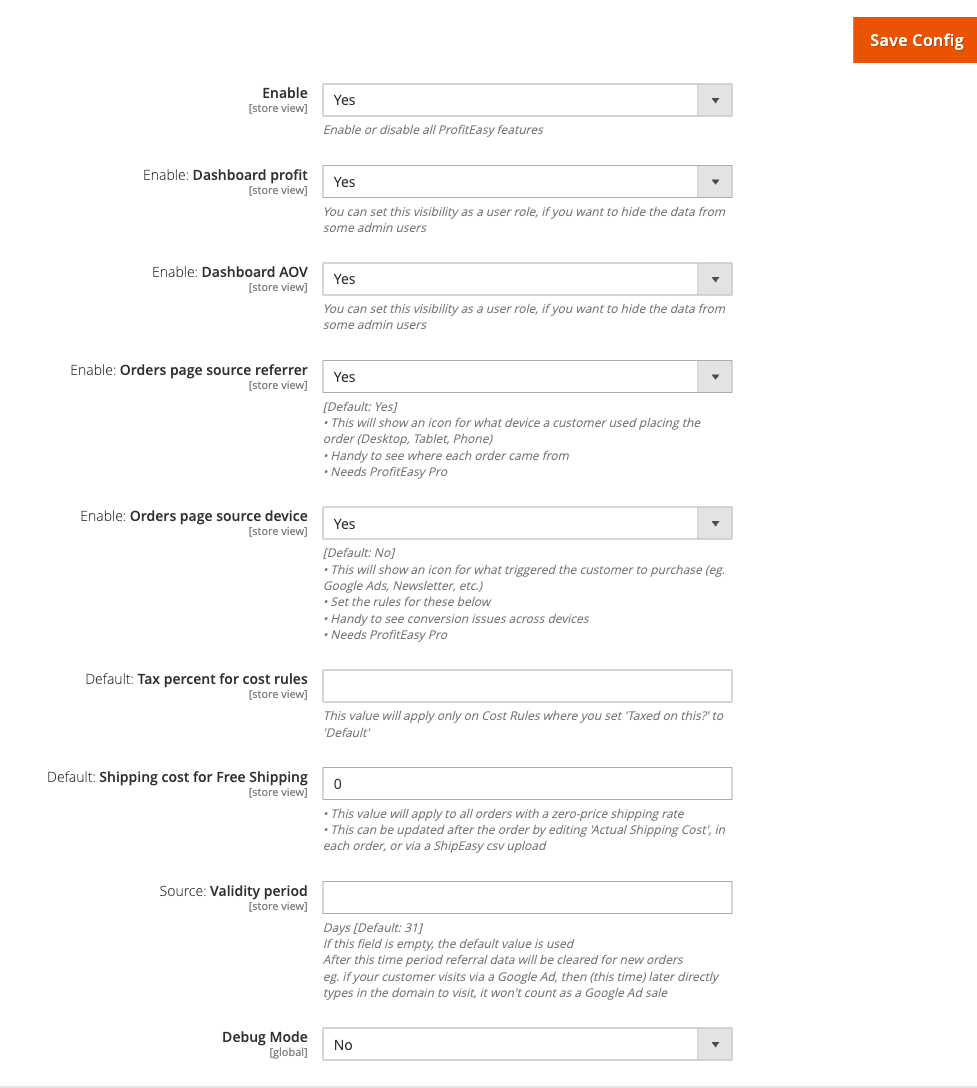
Turn the module on and confirm profit and AOV widgets are visible on the admin dashboard.
How to set it up
-
Go to: Stores > Configuration > Moogento > ProfitEasy > General
-
Set:
- Enable = Yes
- Enable: Dashboard profit = Yes
- Enable: Dashboard AOV = Yes (
moogento_profiteasy/moo/show_dashboard_section_aov)
-
Click Save Config, then run
php bin/magento cache:clean.
Notes
- Dashboard AOV requires a Pro license - the widget will not appear on a Seed plan even if this setting is Yes.
- You can set each dashboard toggle as a user-role permission to hide profit data from specific admin accounts.
Set up cost rules so profit figures are accurate
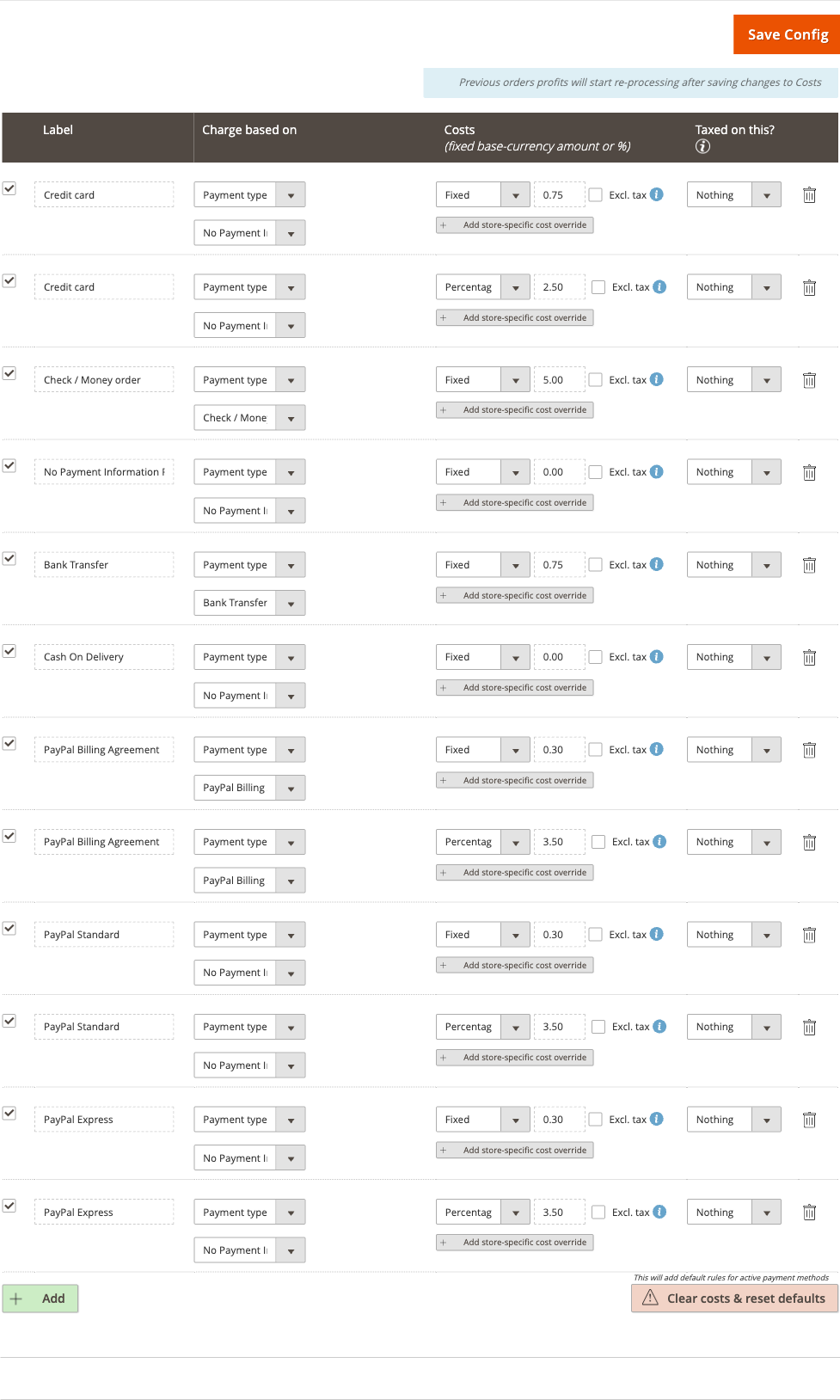
ProfitEasy calculates profit by subtracting cost rules from each order's revenue. Until you configure at least a product cost rule, profit figures will equal revenue.
How to set it up
-
Go to: Stores > Configuration > Moogento > ProfitEasy > Cost rules
-
In the cost rules table, click Add Cost and configure each row:
- Name - a human-readable label (e.g. "Default shipping cost")
- Type - Fixed amount, Percentage of order total, or Payment method fee
- Taxed on this? - set to Default to apply the global tax rate you set in General, or enter a specific rate
-
Set Default: Tax percent for cost rules (
moogento_profiteasy/moo/default_tax) in the General group to your standard tax rate so "Default" rules deduct the right amount. -
Set Default: Shipping cost for Free Shipping (
moogento_profiteasy/moo/free_shipping_cost) to your average fulfilment cost. This value is applied to all orders with a zero-price shipping rate. You can override it per order by editing Actual Shipping Cost on the order view, or in bulk via a ShipEasy CSV upload. -
Click Save Config.
Notes
- A fresh install seeds common payment-method cost rows automatically - review these before going live.
- Per-order shipping cost can always be adjusted after the order is placed; the cron recalculates profit every 10 minutes.
Configure traffic source attribution
Source rules classify the referrer URL stored with each order on Growth or Pro. Showing the referral column on the orders grid requires Pro.
How to set it up
-
Go to: Stores > Configuration > Moogento > ProfitEasy > Sources

-
In the sources table, add or edit rules:
- Pattern - a URL pattern or UTM parameter value to match (e.g.
google.com,utm_medium=email) - Icon - the icon shown in the orders grid for matching orders
- Priority - higher-priority rules win when multiple rules match the same referrer
- UTMs optional - when enabled, a visit with no UTM parameters (or UTMs that do not match the rule's values) does not disqualify the rule. The rule can still win on a matching domain alone. Disable this on CPC or paid-ads rules where UTM presence is required to distinguish paid from organic traffic. Default rules for AI referrers (ChatGPT, Claude, Gemini, and others) and organic search engines (Google, Bing, DuckDuckGo) have this enabled out of the box.
- Pattern - a URL pattern or UTM parameter value to match (e.g.
-
On Pro, set Enable: Orders page source referrer = Yes (
moogento_profiteasy/moo/show_orders_source_referrer) in the General group to display the referrer icon column on the Sales > Orders grid. -
On Pro, optionally set Enable: Orders page source device = Yes (
moogento_profiteasy/moo/show_orders_source_device) to display the device icon column. -
Set Source: Validity period (
moogento_profiteasy/moo/referer_expires) to the number of days a referral cookie remains valid (default: 31). After this window, a returning customer who types the domain directly is counted as Direct, not attributed to the original campaign. -
Click Save Config.
Notes
- Source attribution requires a Growth or Pro license.
- SmartListings and SmartCart attribution is automatic - orders influenced by those modules appear under their respective source channels without manual rules. For what the SmartListings boost types and widget-placement labels on the order view mean, see Sale source and boost types in the SmartListings guide.
- Payment services are never recorded as a sale source. When a shopper passes through PayPal, Stripe, Braintree, Klarna, Afterpay, Zip, humm, Latitude, Laybuy, Square, Adyen or a bank's card-check page on the way to paying, that step is skipped. Orders placed before this change keep the sources they already have.
- When SmartCart helped an order, the order view says how many items it helped sell, for example "SmartCart helped sell 5 of 15 items", and lists every order line with its quantity and line total. Lines SmartCart did not touch are shown as "Not from SmartCart", and each helped line has one sentence explaining where the suggestion was shown. Campaign tags and the referring domain for each source sit behind a details toggle.
See untagged referring domains before you add a source rule
Above the Sources rule table, ProfitEasy lists referring domains that produced orders in the recent order history but carried no campaign tags, so no source rule could match them. Use it to spot which domains are worth writing a rule for next.
How to set it up
There is nothing to turn on - the panel appears automatically on the Sources page whenever there is something to report.
-
Go to: Stores > Configuration > Moogento > ProfitEasy > Sources
-
Each listed domain shows how many orders in the window arrived from it with no campaign tags. Click Add a source rule for this domain to add a pre-filled row to the rules table below it, ready to review and save.
-
Optionally set Untagged Traffic Window (days) (
moogento_profiteasy/mooreferer/untagged_window_days) to change how far back the scan looks (default: 90 days, maximum 730).
Notes
- The panel counts orders, not visits - a referral that never turned into an order does not appear here, even if it carried no campaign tags.
- It lists the busiest 10 domains. A footnote tells you how many more were found when there are more than that.
- Each scan reads the 5,000 most recent referrals in the window. A footnote appears when that limit is hit, since there may be more untagged domains further back than the scan reached.
- Results are cached for about an hour, so a domain can take a little while to drop off the list after you add a rule for it.
- A domain already covered by an enabled rule that would still match an untagged referral is left off the list, since a rule already exists for it.
- Domain names longer than 50 characters do not get the quick-add button - add a rule for them by hand instead.
Tag email links with campaign values automatically
Adds moo_utm_* template variables that tag the links in your transactional and newsletter emails with campaign values, so renaming a campaign never means re-editing every email template.
How to set it up
-
Go to: Stores > Configuration > Moogento > ProfitEasy > Emails: Link Tagging
-
Set:
- Enable (
moogento_profiteasy/email_utm/enable) = Yes - utm_source (
moogento_profiteasy/email_utm/utm_source) - utm_medium (
moogento_profiteasy/email_utm/utm_medium) - utm_campaign (
moogento_profiteasy/email_utm/utm_campaign) - leave blank to use each email template's own code as the campaign value, so every email reports separately
- Enable (
-
Add one of the variables to a link in the body of an email template:
moo_utm_link_query- for a link with no query string yet; carries its own leading?moo_utm_amp_query- for a link that already has a?; carries its own leading&moo_utm_query- the bareutm_source=...&utm_medium=...&utm_campaign=...fragment, for building the query yourselfmoo_utm_source/moo_utm_medium/moo_utm_campaign- the individual values
For example:
<a href="https://moogento.com/checkout/cart{{var moo_utm_link_query}}">Your cart</a> -
Click Save Config.
Notes
- Only letters, numbers,
_,.and-are accepted in utm_source, utm_medium and utm_campaign - anything else is left out of the tag. - The variables work in the body of an email template only; email subject lines are not covered.
- Directives cannot be nested, so a
{{var moo_utm_...}}variable cannot go inside a{{store}}directive's parameters. For a{{store}}link that already carries a query, such ashttps://moogento.com/catalogsearch/result?q=shoes, add the tags inside the link instead with_query_utm_source,_query_utm_mediumand_query_utm_campaign. - These variables also reach newsletter templates. A medium of
transactionalconfigured here would label newsletter clicks as transactional too, so tag newsletter links yourself if you send both kinds of email. - When link tagging is off, every variable resolves to an empty string, so links keep working with no stray
?or&.
Find and tag the email links that are still missing campaign tags
Scans your saved and shipped email templates for links that could carry campaign tags but don't, then gets you into Magento's own template editor with the fix already typed in. ProfitEasy never edits a template itself - Magento's own Save button does the write, so you stay in control of what changes.
How to set it up
-
Go to: Moogento > ProfitEasy > Email Link Tagging
-
Each template with something to report gets a row showing how many links fall into each group: links using a
{{store}}directive or one of your own web addresses that ProfitEasy can tag automatically, links built when the email is sent that can only be flagged for you to review by hand, links already tagged, and links left alone on purpose. -
Click Open and pre-fill to use the setting-driven variable form, or Open with fixed values instead to write the campaign values straight into the template. Either one takes you to Magento's own template editor with the edit already typed into the template body - review it, then press Save yourself.
-
Click Show before and after to preview the template with and without the change before opening it.
-
If a listed template ships as a file default rather than a saved database row, click Create an editable copy first, then point the setting that uses that template at the new copy in Stores > Configuration. The file default keeps rendering until you do.
Notes
- Campaign tagging must be switched on (see "Tag email links with campaign values automatically" above) for any tag added here to actually appear once the email is sent. The screen warns you when it is off and links straight to the setting.
- The variable-driven option keeps values in sync with your settings; the fixed-values option writes today's values into the template text, so a later change to utm_source, utm_medium or utm_campaign in config will not reach that template until you re-run the tagging here.
- Links built from
{{var ...}}directives at send time are reported but never rewritten automatically, since the actual web address does not exist until Magento sends the email - review and tag those by hand. - Unsubscribe and email-preference links are never tagged. ProfitEasy recognises them by wording in the web address, so a custom or translated preference-centre address may not be recognised - and those links must never carry campaign tags regardless.
- Links pointing to a domain other than your store are left alone.
- If a template changes after ProfitEasy prepared an edit for it, opening that edit refuses to pre-fill and asks you to rescan instead, so a newer edit is never silently overwritten.
- If your email service rewrites links for its own click tracking, the campaign tags still reach your store - they travel through the rewrite as part of the destination address.
Enable the product profit percentage column (Pro plan)
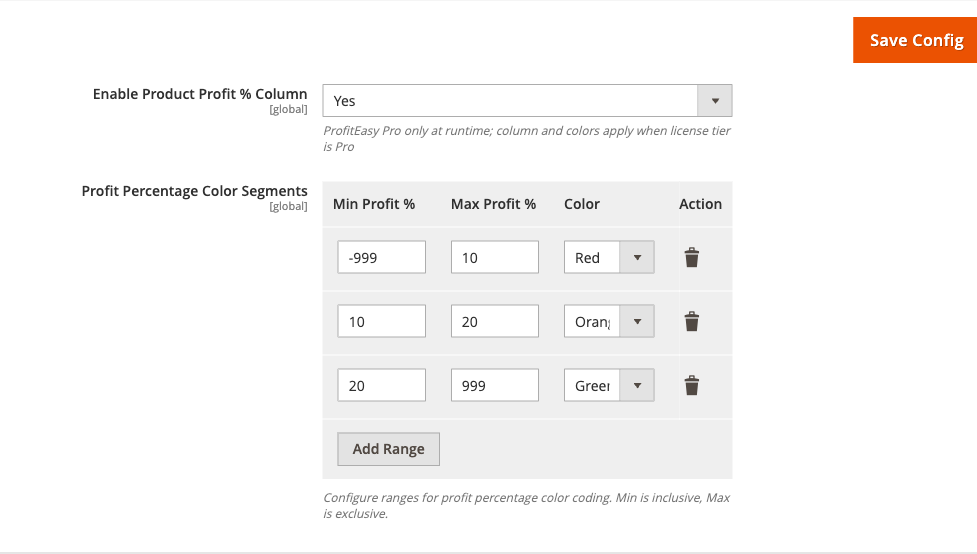
Add a color-coded profit percentage column to the catalog product grid so buyers and merchandisers can see margin at a glance.
How to set it up
-
Go to: Stores > Configuration > Moogento > ProfitEasy > Product Grid Profit
-
Set:
- Enable Product Profit % Column (
profiteasy/profiteasy_grid/enabled) = Yes
- Enable Product Profit % Column (
-
In the Profit Percentage Color Segments table, configure one row per range:
- Min (inclusive) and Max (exclusive) - profit percentage boundaries
- Color - the background color applied to cells in that range
-
Click Save Config.
Notes
- This feature is enforced at runtime for Pro plan stores only. The column appears in the UI configuration on all plans, but the data only populates when the license is Pro.
- Profit percentages are recalculated nightly by the
UpdateProfitPercentQueuecron job (01:00 AM daily).
Features reference
Dashboard profit widgets
The admin dashboard gains two tiles when ProfitEasy is enabled:
- Profit widget - shows total profit for the selected date range. Controlled by
moogento_profiteasy/moo/show_dashboard_section_profit. - AOV widget - shows average order value for the period. Requires Pro plan. Controlled by
moogento_profiteasy/moo/show_dashboard_section_aov.
Both widgets automatically exclude orders in states canceled, closed, holded, and payment_review, as well as orders with status fraud, so cancelled or held orders do not inflate reported figures. The exclusion applies consistently across all three dashboard time panels (24 hours, 7 days, 30 days).
Both widgets respect admin user-role permissions. To hide profit data from a particular admin account, restrict access at the role level rather than toggling these settings globally.
Customer profile analytics
On every customer's edit page in the admin, ProfitEasy adds an analytics tab showing:
- CLV - cumulative revenue from that customer
- AOV - average of their order totals
- Order count - total number of orders
- Account age - days since registration
- Order age - days since their last order
- Order age spread - range between first and last order dates
- Initial and last device - whether they first ordered and last ordered on desktop, tablet, or mobile
Customer data is refreshed nightly by the UpdateCustomerData cron job (01:15 AM daily).
These fields require a Growth or Pro license.
Orders grid source and device columns
When Enable: Orders page source referrer is Yes, a referrer-source icon appears in Sales > Orders for each order. Hovering reveals the source label (e.g. "Google Ads", "Newsletter", "Direct").
When Enable: Orders page source device is Yes, a device icon (desktop/tablet/phone) appears alongside it.
Config path: moogento_profiteasy/moo/show_orders_source_referrer and moogento_profiteasy/moo/show_orders_source_device.
Both columns require a Pro license.
Order view source attribution cards
When you open an order in the admin, a Moogento module that helped with the sale can show a "How it helped" card in the Sale Source panel. SmartCart shows one today, and other Moogento modules add theirs as they are updated. A card that says "Matched by" is a best match rather than a recorded link, and a card titled "probably helped" is a likely connection that was not recorded.
When a module's card cannot point to specific items on the order, it shows the order's own value instead - for example "Order value: 2 items · $41" - so you can still see the scale of the sale without the card claiming credit for particular products.
StockEasy Integration
When Include Profit % in StockEasy Exports (profiteasy/stockeasy_integration/include_profit_in_export) is Yes and the StockEasy module is installed, the moo_profiteasy_profit_percent attribute becomes available in the StockEasy column selector for CSV and PDF exports.
Config path: Stores > Configuration > Moogento > ProfitEasy > StockEasy Integration
Requires Pro plan.
Advanced configuration
Product velocity attributes (Pro plan)
ProfitEasy calculates two product attributes on every product:
profiteasy_sales_velocity- distinct orders per day over the last 30 days (bulk purchases count as one order, preventing inflated velocity from high-quantity line items)profiteasy_profit_velocity- proportional profit per day over the same window, calculated as(row_total / subtotal) * order_profitfor each line item
These attributes are updated nightly by the UpdateVelocities cron job (01:30 AM daily). SmartListings reads them via ProfitEasyMetricsProviderInterface to power performance-based product ranking on category pages. Products with no sales in the lookback window are reset to 0 so stale values do not affect ranking.
Notes
- Velocity calculations only run when both ProfitEasy is enabled and the store has a Pro license. The cron exits early otherwise.
- The 30-day lookback window is not currently configurable from the admin.
Debug mode
Enable Debug Mode (profiteasy/general/debug_mode) in Stores > Configuration > Moogento > ProfitEasy > General to write detailed profit and referrer resolution logs to var/log/moogento_profiteasy.log.
Add ?moo_debug=1 to any storefront URL to trigger referrer tracking debug output in the log for that specific session.
Turn Debug Mode off on production once investigation is complete.
CLI Reference
ProfitEasy includes command-line tools for automated administration, reporting, and integration workflows. The seven newer actions (costs:list, costs:show, costs:set, sources:list, sources:show, sources:set, order:show-costs) support both table and JSON output formats; the legacy actions (config:check, product:show-profit, recalculate, populate-costs) do not accept --format and always print human-readable text.
Get help
# List available actions
php bin/magento moogento:profiteasy:help

# Detailed help for all options
php bin/magento help moogento:profiteasy
Configuration check
php bin/magento moogento:profiteasy --action=config:check
Shows whether ProfitEasy is enabled and which license plan is currently active.
Product profit reporting
# Show profit % for a product by ID or SKU
php bin/magento moogento:profiteasy --action=product:show-profit --product_id=42
php bin/magento moogento:profiteasy --action=product:show-profit --product_id=24-UG06
Product cost population
When you need to backfill product costs without knowing supplier pricing, use this to set costs based on a target profit margin:
# Default: 30% margin, prices exclude tax
php bin/magento moogento:profiteasy --action=populate-costs

# Custom margin
php bin/magento moogento:profiteasy --action=populate-costs --margin=40

# Prices include tax
php bin/magento moogento:profiteasy --action=populate-costs --margin=25 --tax=included

# Specific SKUs only
php bin/magento moogento:profiteasy --action=populate-costs --skus=SKU1,SKU2
Cost = price * (1 - margin / 100). Only sets costs on products that don't already have one. Skips configurable, bundle, and grouped parents.
Order profit recalculation
Recalculates profit for paid orders based on current cost rules:
# Recalculate last 15 unprofitable or uncalculated orders (default)
php bin/magento moogento:profiteasy --action=recalculate

# Custom limit
php bin/magento moogento:profiteasy --action=recalculate --limit=100

# Date range (newest first)
php bin/magento moogento:profiteasy --action=recalculate --from="2026-06-10 00:00:00" --to="2026-06-11 23:59:59"

# Force recalculate all eligible orders in range
php bin/magento moogento:profiteasy --action=recalculate --force --limit=100

# Single order by increment ID or entity ID
php bin/magento moogento:profiteasy --action=recalculate --increment_id=100000123
php bin/magento moogento:profiteasy --action=recalculate --order_id=456
Excludes canceled, closed, and held orders unless targeting a specific order.
Cost rules management
List, inspect, and modify cost rules from the CLI:
# List all cost rules
php bin/magento moogento:profiteasy --action=costs:list

# Filter to enabled rules only
php bin/magento moogento:profiteasy --action=costs:list --enabled_only

# Filter by charge type (per_order, per_item, per_payment, currency, time_period)
php bin/magento moogento:profiteasy --action=costs:list --charge_type=per_item

# Machine-readable output
php bin/magento moogento:profiteasy --action=costs:list --format=json | jq .

# Show a specific rule
php bin/magento moogento:profiteasy --action=costs:show --cost_id=7

# Update an existing rule (only specified fields change)
php bin/magento moogento:profiteasy --action=costs:set --cost_id=7 --enable=1 --cost=2.50

# Create a new fixed-cost rule
php bin/magento moogento:profiteasy --action=costs:set --label="Pick fee" \
  --charge_type=per_item --calculation_type=fixed --cost=0.35 --enable=1

# Create a percentage cost rule for a specific payment method
php bin/magento moogento:profiteasy --action=costs:set --label="Payment gateway fee" \
  --charge_type=per_payment --payment=paypal_express --calculation_type=percent --cost=2.9 --enable=1

# Preview changes without writing to database
php bin/magento moogento:profiteasy --action=costs:set --cost_id=7 --cost=2.50 --dry_run
Valid charge types: per_order, per_item, per_payment, currency, time_period
Calculation types: fixed, percent
Tax handling: nothing, default (uses global tax rate), custom (requires --taxed_custom=<rate>)
Creating or modifying a cost rule flags affected orders for profit recalculation so profit figures stay current.
Traffic source rules management
Define and modify traffic source attribution rules without using the admin UI:
# List all source rules
php bin/magento moogento:profiteasy --action=sources:list

# Enabled rules only
php bin/magento moogento:profiteasy --action=sources:list --enabled_only --format=json

# Show details of a specific rule by ID
php bin/magento moogento:profiteasy --action=sources:show --source_id=3

# Show all rules matching an identifier
php bin/magento moogento:profiteasy --action=sources:show --identifier=smartcart

# Show usage count since a specific date (scans last 100K order rows)
php bin/magento moogento:profiteasy --action=sources:show --identifier=smartcart \
  --count-since="2026-07-01 00:00:00"

# Update an existing rule
php bin/magento moogento:profiteasy --action=sources:set --source_id=3 --enable=1 --priority=5

# Create a new UTM-based source rule
php bin/magento moogento:profiteasy --action=sources:set --create \
  --identifier=newsletter --label="Newsletter" \
  --utm_source=newsletter --utm_medium=email --enable=1

# Disambiguate with --source_id when multiple rows match
php bin/magento moogento:profiteasy --action=sources:set --source_id=5 --priority=10
An --identifier may match multiple database rows (one for each UTM-specific variant). --source_id is required to update a specific row when matches are ambiguous.
Order cost breakdown (read-only reporting)
Show the detailed cost breakdown that drives order profit, without recalculating or modifying anything:
# Single order by increment ID
php bin/magento moogento:profiteasy --action=order:show-costs --increment_id=100000123

# Single order by entity ID
php bin/magento moogento:profiteasy --action=order:show-costs --order_id=456

# Date range (newest first, default 15 orders, max 100)
php bin/magento moogento:profiteasy --action=order:show-costs \
  --from="2026-07-01 00:00:00" --to="2026-07-31 23:59:59" --limit=50

# Machine-readable output
php bin/magento moogento:profiteasy --action=order:show-costs --order_id=456 --format=json
This command displays both the live-calculated profit and the stored profit value side-by-side, flagging mismatches caused by cost-rule changes. Includes the cost breakdown per order for audit and troubleshooting. No customer names, emails, or addresses are emitted - output is privacy-safe by design.
Tips & best practices
- Configure your cost rules before you expect meaningful profit numbers - revenue minus zero costs equals revenue, not profit.
- Set a realistic Default: Shipping cost for Free Shipping immediately after install. Orders with free shipping are common and will otherwise show inflated profit until you enter an actual fulfilment cost.
- Shorten the Source: Validity period if you run frequent campaigns and want attribution to reset sooner. The default of 31 days means a customer who clicked a January Google Ad and returned in February is still attributed to that ad.
- Use the orders grid device column to spot mobile conversion problems: if desktop orders dominate while mobile traffic is high, your mobile checkout may have friction.
- Grant profit-viewing ACL access selectively. The dashboard and customer profile widgets can be hidden per user role - useful when finance data is restricted to certain team members.
- Wait for the next 10-minute cron cycle after a bulk cost-rule change before comparing profit figures on orders.
Troubleshooting
Profit figures are not appearing on orders
Profit values are blank or missing in the orders grid after enabling the module.
- Cause: The profit calculation cron has not yet run, or order-processing queue consumers are stalled.
- Check: Look at
var/log/moogento_profiteasy.logfor recent activity. Runphp bin/magento cron:runmanually to trigger an immediate calculation cycle. Verify that Magento queue consumers are running (bin/magento queue:consumers:list). - Resolution: Ensure Magento cron is configured and running (
*/10 * * * *is the minimum frequency ProfitEasy needs). If queue consumers have stopped, restart them or add them to your server's process supervisor.
Customer CLV and AOV are not updating
The CLV and AOV values on customer profiles remain at zero or show stale data.
- Cause: The nightly customer-data cron job is not running, or the orders have not been invoiced.
- Check: Confirm
UpdateCustomerDataran recently by searchingvar/log/moogento_profiteasy.logfor[UpdateCustomerData. Also confirm the relevant orders have been invoiced - CLV only counts invoiced orders. - Resolution: Ensure cron is scheduled. CLV features require a Growth or Pro license - verify the license tier under Stores > Configuration > Moogento > License.
Traffic source attribution is showing "Direct" for all orders
Every order is attributed to Direct traffic even when you can see UTM parameters in your analytics tool.
- Cause: The referrer cookie is not being captured, the source rules do not match the incoming UTM values, or the Source: Validity period has expired before the customer completed the order.
- Check: Add
?moo_debug=1to a storefront URL and reviewvar/log/moogento_profiteasy.logto see what referrer data was captured. Review the Sources config group to confirm matching rules are active and have the correct patterns. - Resolution: Adjust source rule patterns to match your actual UTM structure. Increase the validity period if customers typically take longer than 31 days from first click to purchase. If organic or AI referrer rules are not matching visits that arrive without UTM parameters, check that UTMs optional is enabled on those rules - when disabled, a visit with no UTM parameters penalises the rule score and prevents a match. Source attribution requires a Growth or Pro license.
Dashboard profit widgets are missing
The profit or AOV tiles do not appear on the admin dashboard after enabling them in config.
- Cause: Cache not cleared after config change, or the admin user does not have the required ACL role permission.
- Check: Run
php bin/magento cache:clean. Then go to System > User Roles and confirm the admin user's role includes access to the ProfitEasy dashboard resources. - Resolution: Clear cache and, if the widgets still do not appear, check the license tier - the AOV widget requires Pro.
Product profit column shows no data in the catalog grid
The Enable Product Profit % Column is set to Yes but the column shows empty values.
- Cause: The nightly
UpdateProfitPercentQueuecron has not yet run, or the store is not on a Pro plan. - Check: Verify the license tier under Stores > Configuration > Moogento > License. If the plan is Pro, check
var/log/moogento_profiteasy.logfor recent cron activity and runphp bin/magento cron:runmanually. - Resolution: Wait for the nightly cron at 01:00 AM, or trigger it manually. Upgrade to Pro if the store is currently on Seed or Growth.
The 30-day total appears lower than the 7-day total
The profit dashboard shows a 30-day total that is lower than or contradicts the 7-day figure.
- Cause: Previously recorded profit rows for refunded orders were calculated without subtracting
base_total_refunded, leaving inflated values in the older comparison window. - Check: Review
var/log/moogento_profiteasy.logand confirm theResetRefundedOrdersProfitdata patch has been applied. Runphp bin/magento setup:upgradeif you have recently updated the module. - Resolution: Run
php bin/magento setup:upgradeto apply the data patch, which resets the calculated flag on all historically refunded orders. Wait for the nextUpdateProfitcron cycle (every 10 minutes) to recompute the corrected figures.
Malware scanner flags Helper/Moo.php
- Cause: Your host's malware scanner (often Imunify360 on cPanel hosting) heuristically flags the encoded license-check files that ship inside every paid Moogento extension. The files are genuine and unchanged - the encoding protects the license check from tampering.
- Resolution: Add the files to the scanner's ignore list so the warnings stop, and restore any file the scanner already quarantined. Both steps, plus how to verify the files are byte-for-byte what we shipped, are covered in the license file protection guide.
FAQs
How do I set up Magento 2 profit tracking on my orders?
Install ProfitEasy, configure your cost rules under Stores > Configuration > Moogento > ProfitEasy > Cost rules, and the module will automatically calculate and display profit figures in the Sales > Orders grid and on each order view. See Common setups for step-by-step instructions.
Why are my profit numbers showing revenue instead of true profit?
ProfitEasy shows revenue minus configured costs - if no cost rules have been set up, the result equals revenue. Go to Stores > Configuration > Moogento > ProfitEasy > Cost rules and add rows for at least product cost, shipping, and any payment fees to get accurate profit figures.
How do I track which ads and campaigns are driving orders?
On Growth or Pro, configure matching rules in the Sources config group to capture UTM parameters and referrer URLs for orders. On Pro, enable Orders page source referrer in General to show the source column on the orders grid.
Does ProfitEasy work with SmartListings?
Yes - when both modules are active, ProfitEasy supplies sales velocity and profit velocity attributes that SmartListings uses to rank products on category pages by recent performance. SmartListings also passes attribution data back so that orders influenced by category boosts appear under the SmartListings channel in ProfitEasy source reports. Pro plan required for velocity features.
Does ProfitEasy work with SmartCart?
Yes - when SmartCart is active, any order item carrying SmartCart attribution is automatically recorded under the smartcart source channel in ProfitEasy without any extra configuration.
Does ProfitEasy work with Pulse?
Yes - Pulse reads campaign attribution data from ProfitEasy via the OrderAttributionResolverInterface to aggregate campaign performance across order data in the Pulse dashboard.
Which license plan do I need for customer lifetime value?
Customer lifetime value requires Growth or Pro. The dashboard AOV widget and orders-grid source and device columns require Pro. The Seed plan includes basic profit calculation and a profit dashboard widget, but not customer analytics. See Stores > Configuration > Moogento > License to check or upgrade your plan.
Is ProfitEasy compatible with Hyvä, Luma, and Porto themes?
Yes - ProfitEasy is a pure admin-side module with no storefront templates. It is theme-agnostic and works with Hyvä, Luma, Porto, and any other Magento 2 frontend theme.
What happens if I disable ProfitEasy?
Disabling ProfitEasy (setting Enable to No) stops new profit calculations and hides the dashboard widgets and orders grid columns. Previously calculated profit data stored in the database is retained and will reappear if you re-enable the module.
How do I export profit data to a spreadsheet?
If you have StockEasy and a Pro license, enable Include Profit % in StockEasy Exports under Stores > Configuration > Moogento > ProfitEasy > StockEasy Integration - the profit percentage column then becomes available in StockEasy's CSV and PDF export builder.
Related guides
- Pulse - campaign analytics dashboard that reads ProfitEasy order attribution data
- SmartListings - performance-based category ranking powered by ProfitEasy velocity attributes
- SmartCart - cart optimisation module whose attributed orders appear in ProfitEasy source reports
- StockEasy - inventory export module; profit percentage column is available in exports when ProfitEasy Pro is active
- ShipEasy - shipping management module; per-order actual shipping costs updated via ShipEasy CSV upload flow into ProfitEasy profit calculations
Need help?
- moo@moogento.com
- Include:
- Magento version
- Module name
- What you're trying to do