

Overview
Plan scope for the examples below: Seed covers the core dashboard and event annotations. Campaign Analytics requires Pulse Growth or Pro plus ProfitEasy Growth or Pro. Search Console and GA4 connections require Pulse Growth or Pro. Google Ads and Meta Ads spend sync and AI recommendations require Pulse Pro.
Pulse is a Magento 2 real-time admin dashboard. Instead of waiting for end-of-day reports, you see revenue, orders, refunds, and health status update continuously - alongside an interactive revenue chart, automatic anomaly alerts, and attribution-driven campaign performance.

This module helps you:
- See what's happening in your store right now without running a report
- Catch revenue drops, order slowdowns, and refund spikes before customers start complaining
- Compare any period against the last one - or the same period a year ago - at a glance
- Understand which campaigns and traffic sources actually produce revenue
- Mark campaigns, promotions, deployments, and incidents on the revenue timeline so you can see their impact
When to use this
Use Pulse when you want to:
- Open the admin and know instantly whether today is on track
- Investigate a suspicious drop in sales or surge in refunds, and drill straight into the affected orders
- Plan staffing, promotions, and inventory around the hours and days your customers actually buy
- Evaluate campaign and ad spend performance against real Magento revenue, not estimated conversions
- Record operational events (deploys, promotions, outages, price changes) next to your revenue line so the cause of every wiggle is visible later
Key capabilities
- Interactive revenue chart - zoom, pan, overlay metrics, click a point to drill into the orders behind it
- Live ticker - 24-hour revenue, orders, visitors, and conversion against the same day last week (or yesterday), plus a health indicator that refreshes every 30-60 seconds
- Pulse Insights card (Pro) - one plain-language finding at a time on sales, profit, refunds and order pace, with the last-order age in its footer
- KPI hero tiles - units, AOV, refunds, discounts, profit, margin, CLV, visitors, conversion, and repeat customers with period-over-period deltas
- Orders-by-hour heatmap - see your peak buying windows and quiet gaps at a glance
- Recent order stream - last 20 orders with VIP and frequent-refund badges
- Alert center - deterministic detectors for revenue drops, order slowdowns, refund spikes, zero-revenue windows, fulfilment aging, spam, cart abandonment, and more
- Annotations and events - pin campaigns, promotions, deploys, incidents, and holidays to the chart
- Campaign analytics - revenue, health score, and period-over-period change per campaign (requires Pulse Growth or Pro and ProfitEasy Growth or Pro)
- Ad spend and ROI (Pulse Pro) - connect Google Ads or Meta Ads for daily spend sync and optional AI budget recommendations
- Category intelligence - 2x2 tile grid with momentum, opportunity mix, and rule-based restock suggestions
- Content and search analysis (Pro) - reviews product, category and page copy and Search Console queries in the background and lists pages worth improving in the Suggestions tab, with a "Why this suggestion?" explanation. Off by default; never edits content
- Category Rankings - tabbed section showing Top Categories (navigation menu) and Top Collections (non-menu active categories) with shared column chooser
- Category Insights - tabbed card combining Category Share and Category Momentum views
- Opportunity Insights - tabbed card combining Opportunity Mix and Revenue Mix views
- Traffic and Timing - tabbed card combining Visitor Trends and Orders By Hour views
- Payment and Shipping Methods - tabbed card with three side-by-side donut charts each (Overall, Customers, and Guests) breaking down revenue by payment method or shipping carrier
- AI Search Intelligence - track visits and orders from ChatGPT, Claude, Perplexity, Gemini, Copilot, and organic search, blended into one attribution-evidence panel (requires Growth plan)
- Top Products and Top Customers - ranked lists with CLV as the headline value for customers (requires ProfitEasy), plus location, last-order modal, and coupon detail
- Ecosystem widgets - live cards for ProfitEasy, HelloCustomer, NotifyMe, SmartCart, SmartListings, TrackEasy, and fulfilment modules
- Dashboard theming - Day, Night, or System-matched theme stored per admin user
- Dashboard layouts - built-in presets, drag-to-reorder sections, named layouts, and per-card tab choosers, all saved per admin user
In this guide
This guide is split across several pages so each one stays quick to read and easy to search. This page covers what Pulse does, how to install it and the frequently asked questions. The detailed instructions are on these pages:
- Pulse: Setup Tasks, Advanced Options and Troubleshooting: Turn Pulse on, tune the alert center, connect ad platforms, and find answers to common dashboard problems. Covers Turn Pulse on and make it your default dashboard, Choose the dashboard's default view and live refresh, Highlight VIP and frequent-refund customers in the recent orders stream, Tune the alert center to your store's volume, Turn on campaign analytics and connect Google Ads, Connect Meta Ads (Pulse Pro), Advanced configuration, Tips & best practices, Troubleshooting.
- Pulse: Dashboard Cards and Features Reference: Every Pulse dashboard card and feature explained, from the revenue chart and Insights to campaign analytics and ad spend. Covers Interactive revenue chart, Live ticker and health state, Pulse Insights card (Pro), What the card compares over 28 days, Visitor tracking, KPI hero tiles, Orders-by-hour heatmap, Recent order stream, Sources card, Alert center, Annotations and event timeline, Top Products and Top Customers, Category Rankings, Category Insights, Opportunity Insights, Visits and conversion in Pulse Insights, Traffic and Timing, Payment and Shipping Methods, Contribution reports (Pro), Dashboard layout, presets, and tab choosers, Campaign analytics dashboard, Ad spend and ROI, Search Console integration (Growth or Pro), AI Search Intelligence, Category intelligence, Ecosystem widgets.
Installation
Bought on Adobe Commerce Marketplace? Your purchase comes with a Moogento account: set your password from the activation email, then follow the steps below with the Composer keys and licence key in My Plugins. If the email has not arrived, contact Moogento support.
Pulse installs via Composer, then activates with a license key from your Moogento.com account. The whole flow takes about 5 minutes.
Prefer a hands-off setup? Our team can install and configure the extension for you - see the paid install service.
Step 1: Get your Composer keys from Moogento.com
- Sign in at https://www.moogento.com and open My Plugins in your account menu.
- Find Pulse in the list of plugins you own.
- Generate (or reveal) the Composer access keys for that plugin - a public key and a private key.
- Add your install domain to the key. Each Composer key is tied to a specific domain - if you're installing on
yourstore.com, addyourstore.comto the key's allowed domains. The Composer download will be rejected on any other domain.
If you run staging and production on different domains, add both - separate keys per environment are fine too.
Step 2: Install the module with Composer
From your Magento 2 root directory:
composer require moogento/m2-pulse
When Composer asks for credentials, paste the public key as the username and the private key as the password. They'll be cached in ~/.composer/auth.json for future runs.
Step 3: Enable the module in Magento
php bin/magento setup:upgrade
php bin/magento setup:di:compile
php bin/magento cache:clean
If you run php bin/magento module:status Moogento_Pulse you should see it listed as enabled.
Step 4: Add your license key in the Moogento admin
- For a direct purchase, copy the Pulse license key from My Plugins at moogento.com. For a Marketplace purchase, check your Moogento account for an issued key and contact Moogento support if it is missing.
- Open Stores > Configuration > Moogento > License in Magento Admin. Add the Installation Domain shown on this page to the key in your Moogento account.
- Paste the key into the key field and click Add key.
- Under Registered Keys for this Installation, confirm that Pulse appears with the correct plan.
The license validates within a few seconds. You should see the module's status flip to active. If it stays inactive, double-check the domain on the license matches where you've installed - domain mismatch is the most common cause.
Setup overview
Most setup happens in:
Stores > Configuration > Moogento > Pulse
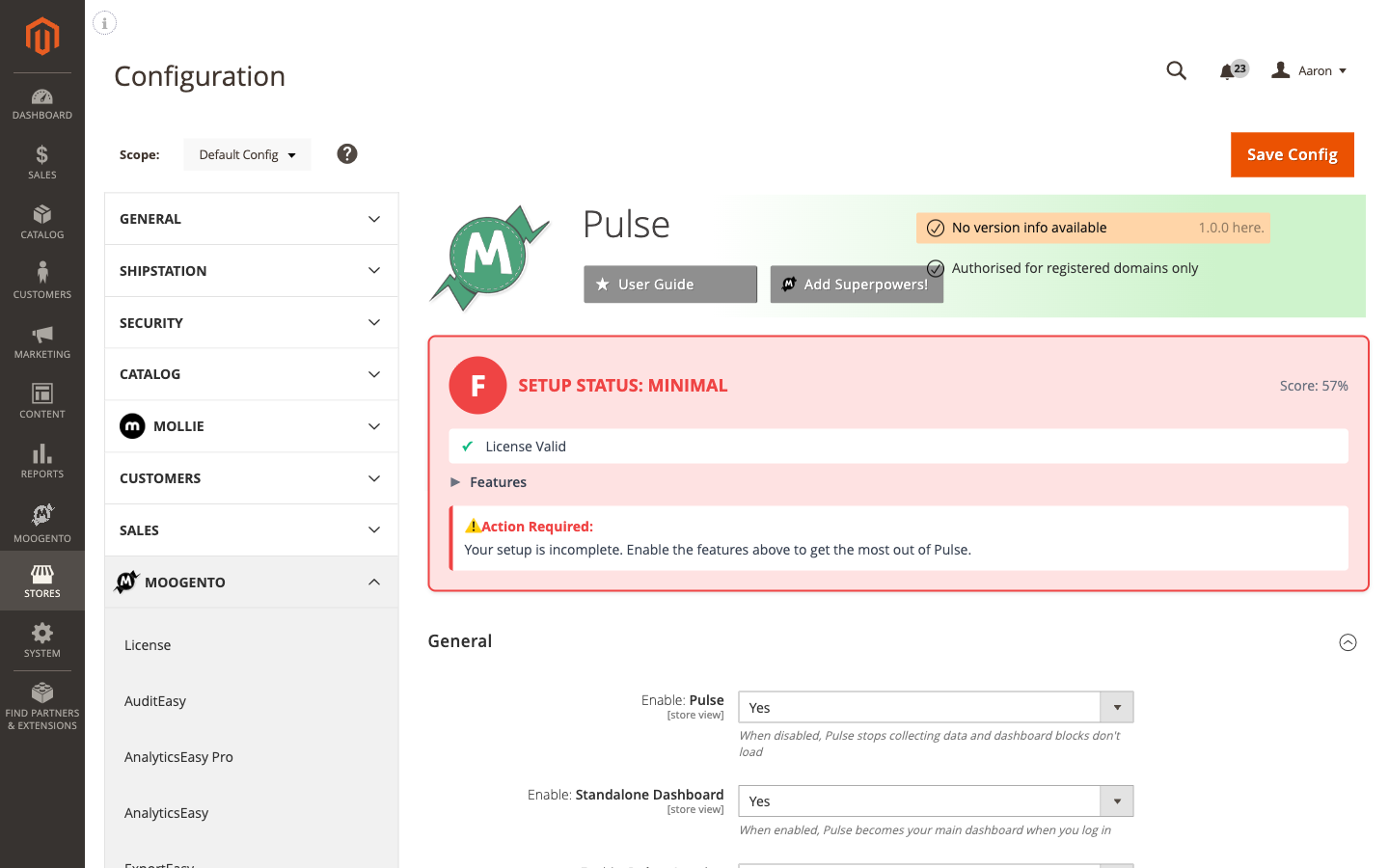
You'll mainly work with:
- Setup: Status - your setup grade; click any line to jump to the setting it is about
- Setup: General - master on/off, standalone dashboard, debug logging, and Copy: Settings to Another Store
- Setup: Dashboard - default scope and time range, widget visibility, VIP and refund badges, automatic events, category tiles
- Setup: Alerts - which detectors run and their thresholds
- Connect: Google - one place to sign in with Google and choose GA4, Search Console and Google Ads (Growth or Pro)
- Campaigns: Analytics & Ad Spend - campaign reporting, ad spend, and the Meta Ads connector
- AI: Tracking & Suggestions - AI referral tracking (Growth), content suggestions and AI budget recommendations (Pro)
- Advanced: Data & Privacy - mixed-currency handling, data retention, and visitor session collection
Developer tuning values (refresh interval, chart types, VIP percentiles, scoring thresholds, ROI thresholds, sync frequencies) are not shown in the admin. They keep sensible defaults and support can change them from the command line: php bin/magento moogento:pulse:config:show lists every setting and php bin/magento moogento:pulse:config:set <path> <value> changes one at the default scope.
Copy settings to another store
At the bottom of Setup: General, Export Settings downloads your dashboard and reporting settings as a file and Import Settings loads such a file into the scope you are viewing. Google and Meta connections, licence keys and API keys are never included.
Common setups
- Turn Pulse on and make it your default dashboard
- Choose the dashboard's default view and live refresh
- Highlight VIP and frequent-refund customers in the recent orders stream
- Tune the alert center to your store's volume
- Turn on campaign analytics and connect Google Ads
- Connect Meta Ads (Pulse Pro)
Features reference
- Interactive revenue chart
- Live ticker and health state
- Pulse Insights card (Pro)
- What the card compares over 28 days
- Visitor tracking
- KPI hero tiles
- Orders-by-hour heatmap
- Recent order stream
- Sources card
- Alert center
- Annotations and event timeline
- Top Products and Top Customers
- Category Rankings
- Category Insights
- Opportunity Insights
- Visits and conversion in Pulse Insights
- Traffic and Timing
- Payment and Shipping Methods
- Contribution reports (Pro)
- Dashboard layout, presets, and tab choosers
- Campaign analytics dashboard
- Ad spend and ROI
- Search Console integration (Growth or Pro)
- AI Search Intelligence
- Category intelligence
- Ecosystem widgets
FAQs
How do I make Pulse my default dashboard when I log in to Magento admin?
Set Enable: Standalone Dashboard to Yes under Stores > Configuration > Moogento > Pulse > Setup: General and save. Any admin user with the Moogento_Pulse::dashboard_view ACL permission will land on Pulse automatically on their next login. Users without that permission continue to see the standard Magento dashboard.
Why are my revenue chart and KPI tiles showing zero?
The chart relies on pre-aggregated rollup data built by a background cron job - if rollups haven't run yet, all tiles read zero. Run php bin/magento moogento:pulse:rollup:backfill once to seed historical data, then confirm the moogento_pulse_update_rollups cron is running and that real orders exist within the selected date range and scope.
Does Pulse work with Hyvä, Luma, and Porto themes?
Yes. Pulse is an admin-only module and has no storefront components, so it has no theme dependency - it works identically regardless of which frontend theme your store uses.
Which plan do I need to use Campaign Analytics and Google Ads?
Campaign Analytics requires Pulse Growth or Pro plus ProfitEasy Growth or Pro with campaign tracking enabled. Ad Spend tracking and the Google Ads and Meta Ads connectors require the Pulse Pro plan. Rule-based campaign classification runs when Campaign Analytics is enabled, with Pulse Growth or Pro and ProfitEasy Growth or Pro; it does not require Pulse Pro AI or Google Ads sync.
How do I connect Google Search Console to Pulse (Growth or Pro)?
Go to Stores > Configuration > Moogento > Pulse > Connect: Google, choose the connection method (for your own Google Cloud app enter the OAuth Client ID and Client Secret and save), then click Connect under Google Search Console. See the Common setups section for a full walkthrough including setting up the GCP OAuth app.
What happens when I disable Pulse?
When Enable: Pulse is set to No, Pulse stops collecting data, all dashboard routes return a 403, and the Moogento menu item disappears. Your configuration and historical rollup data are preserved - re-enabling restores everything without needing to rebuild data from scratch.
How do I stop getting too many alerts?
Open Stores > Configuration > Moogento > Pulse > Setup: Alerts, uncheck detectors you don't need, and raise the relevant thresholds - for example, increasing Threshold: Revenue Drop from 20 to 40 means a 40% drop is required before an alert fires. Build thresholds from a month of real data: a good threshold fires once or twice, not every day.
Can I restrict which parts of the Pulse dashboard each admin role can see?
Yes. Go to System > Permissions > User Roles, edit the role, and uncheck specific Pulse dashboard section resources under Moogento > Pulse > Dashboard Sections. Denied sections are removed server-side before the page renders, so users cannot un-hide them. See the Advanced configuration section for full details.
Can I see how much traffic comes from ChatGPT, Claude, or Perplexity?
Yes. Set Track: AI Referral Visits to Yes under Stores > Configuration > Moogento > Pulse > AI: Tracking & Suggestions (requires the Growth plan) and the AI Search card starts showing visit counts, order counts, and conversion rates per AI source. No IP addresses, user agents, or prompt text are ever stored - only the normalized AI source and landing path.
Does Pulse integrate with other Moogento modules?
Pulse integrates with ProfitEasy (profit KPIs, VIP badges, CLV data, campaign attribution), HelloCustomer (converted sales card), NotifyMe (waitlist demand card), SmartCart, SmartListings, TrackEasy (shipment risk alert), and PickPack / PicknScan (fulfilment backlog alert). The more Moogento modules you run, the richer the Pulse dashboard becomes.
How long does Pulse keep detailed order rollup data?
By default, high-resolution rollups (15-minute and hourly) are kept for 365 days. You can adjust this under Stores > Configuration > Moogento > Pulse > Advanced: Data & Privacy. Daily and monthly rollups are kept indefinitely regardless of this setting.
What do the payment and shipping donut charts show?
The Payment and Shipping Methods card breaks down revenue by payment gateway or shipping carrier. Each tab displays three side-by-side donut charts: Overall (all orders), Customers (registered customers), and Guests. Free orders and orders with no payment information required show as None. Card payments display the processor name, e.g. Credit Card [Stripe]. The Guests and Overall columns hide automatically when they have zero orders. Shipping Methods hides completely on stores that have no shippable orders (digital-goods only). Switch between the Payment Methods and Shipping Methods tabs to compare your gateway and carrier mix. Orders paid with Apple Pay, Google Pay or Link show as their own rows when the store records the wallet. The charts lazy-load when you first open each tab.
Release notes
v1.7.0
Top Customers widget, night mode, and ranking reliability improvements. v1.7.0 adds a covering index (MOO_PULSE_SALES_ORDER_TOP_CUSTOMERS) on the sales_order table to support the Top Customers GROUP BY query. Stores with more than 10 million orders should plan this deployment during off-peak hours, as the ALTER TABLE will briefly lock the table on MySQL 5.7 (InnoDB online DDL on MySQL 8+ and MariaDB 10.6+ runs without a blocking lock).
Related guides
Need help?
- moo@moogento.com
- Include:
- Magento version
- Module name (Pulse)
- What you're trying to do