

Overview
Plan scope for the examples below: Seed covers availability-aware category ordering and out-of-stock messaging. Low-stock deprioritization, manual boosts and behavior collection require Growth or Pro; cross-category activity inserts and personalized results require Pro.
SmartListings is a Magento 2 category merchandising module that replaces the static category sort with a dynamic, data-driven ranking system. In-stock products always appear before out-of-stock ones, low-stock items are gently deprioritised on Growth or Pro, and on higher plan tiers the ranking blends in real customer signals and profit-based performance data.

This module helps you:
- Keep in-stock products at the top of every category without manual intervention
- Reduce customer frustration caused by dead-end out-of-stock pages
- Run time-limited promotional boosts for flash sales or featured collections
- Surface products each returning visitor is most likely to buy (Pro)
- Place SmartListings-ranked product carousels and related-product widgets anywhere on the storefront using the CMS Product Block widget
- Measure which category placements and widget interactions actually drive sales through built-in attribution
When to use this
Use SmartListings when you want to:
- Stop manually reordering category products every time stock levels change
- Display a friendly message and sibling-category suggestions when a category sells out
- Run a campaign boost for a supplier range or seasonal collection with automatic expiry
- Surface browsing-history-based product suggestions for logged-in customers
- Add a "Related Products" or "New Arrivals" widget to product pages or CMS pages, sorted by SmartListings score
- Connect ProfitEasy sales velocity and margin data to drive category ranking
Key capabilities
- Availability-aware ranking - in-stock products always lead; OOS products pushed to the bottom automatically
- OOS category messaging - custom per-category message with waterfall inheritance from parent categories
- Related collections - automatically shows sibling categories when a category is fully out of stock
- Menu visibility logic - hides fully out-of-stock leaf categories from navigation, restores when stock returns
- Admin product boosts - score-based boosts with optional date range, category scope, and CSV import/export (Growth+)
- Behaviour tracking - records views and purchases so Growth plans capture attribution; Pro uses this data for ranking
- Personalised results - per-visitor reordering via AJAX or server-side rendering (Pro)
- ProfitEasy performance integration - sales velocity, profit velocity, and conversion rate drive ranking (Pro)
- Debug overlay - add
?sl_debug=1to any category URL while signed in to the admin with a role that has the SmartListings score-view permission, to see per-product score breakdowns (Pro) - Hyvä, Luma, and Porto compatibility - dedicated compat module for Hyvä; tested on all three themes
- CMS Product Block widget - drop SmartListings-ranked carousels and grids into any CMS page or block; supports six source modes including Related Products (PDP cascade) and New Arrivals
- Widget attribution - purchases driven by widget interactions are credited to SmartListings in ProfitEasy and AnalyticsEasy Pro
Installation
Bought on Adobe Commerce Marketplace? Your purchase comes with a Moogento account: set your password from the activation email, then follow the steps below with the Composer keys and licence key in My Plugins. If the email has not arrived, contact Moogento support.
SmartListings installs via Composer, then activates with a license key from your Moogento.com account. The whole flow takes about 5 minutes.
Prefer a hands-off setup? Our team can install and configure the extension for you - see the paid install service.
Step 1: Get your Composer keys from Moogento.com
- Sign in at https://www.moogento.com and open My Plugins in your account menu.
- Find SmartListings in the list of plugins you own.
- Generate (or reveal) the Composer access keys for that plugin - a public key and a private key.
- Add your install domain to the key. Each Composer key is tied to a specific domain - if you're installing on
yourstore.com, addyourstore.comto the key's allowed domains. The Composer download will be rejected on any other domain.
If you run staging and production on different domains, add both - separate keys per environment are fine too.
Step 2: Install the module with Composer
From your Magento 2 root directory:
composer require moogento/m2-smartlistings
When Composer asks for credentials, paste the public key as the username and the private key as the password. They'll be cached in ~/.composer/auth.json for future runs.
Step 3: Enable the module in Magento
php bin/magento setup:upgrade
php bin/magento setup:di:compile
php bin/magento cache:clean
If you run php bin/magento module:status Moogento_Smartlistings you should see it listed as enabled.
Step 4: Add your license key in the Moogento admin
- For a direct purchase, copy the SmartListings license key from My Plugins at moogento.com. For a Marketplace purchase, check your Moogento account for an issued key and contact Moogento support if it is missing.
- Open Stores > Configuration > Moogento > License in Magento Admin. Add the Installation Domain shown on this page to the key in your Moogento account.
- Paste the key into the key field and click Add key.
- Under Registered Keys for this Installation, confirm that SmartListings appears with the correct plan.
The license validates within a few seconds. You should see the module's status flip to active. If it stays inactive, double-check the domain on the license matches where you've installed - domain mismatch is the most common cause.
Extra steps for SmartListings
SmartListings scores are computed on a cron schedule (every 4 hours). After installation, run one manual refresh so the first page loads show correct ordering:
php bin/magento smartlistings:score:refresh
php bin/magento cache:clean
If you use Hyvä theme, also enable the companion compat module Hyva_MoogentoSmartlistings - it ships in app/code/Hyva/MoogentoSmartlistings and handles Hyvä-specific layout, sidebar filter rendering, and AJAX personalisation.
Setup overview
Most setup happens in:
Stores > Configuration > Moogento > SmartListings
You'll mainly work with:
- General - enable or disable the module, turn on score logging
- Availability Sorting - OOS handling, stock filter, menu visibility, related collections
- Behaviour-Based Merchandising - behaviour tracking (Growth or Pro), personalised results and activity inserts (Pro)
- Performance Intelligence - ProfitEasy weights, optimisation modes (Pro)
- Analytics / Attribution - UTM parameters for attribution tracking (Growth+)
- Overview: Ranking Weights - live visual breakdown of the current scoring formula
- Product Block Widget - default image preference and card display settings for CMS widgets
Common setups for Magento 2 category merchandising
Push out-of-stock products to the bottom of every category
This is the core Seed feature. Once enabled, customers automatically see available products first on every category page.
How to set it up
-
Go to: Stores > Configuration > Moogento > SmartListings > Availability Sorting
-
Set:
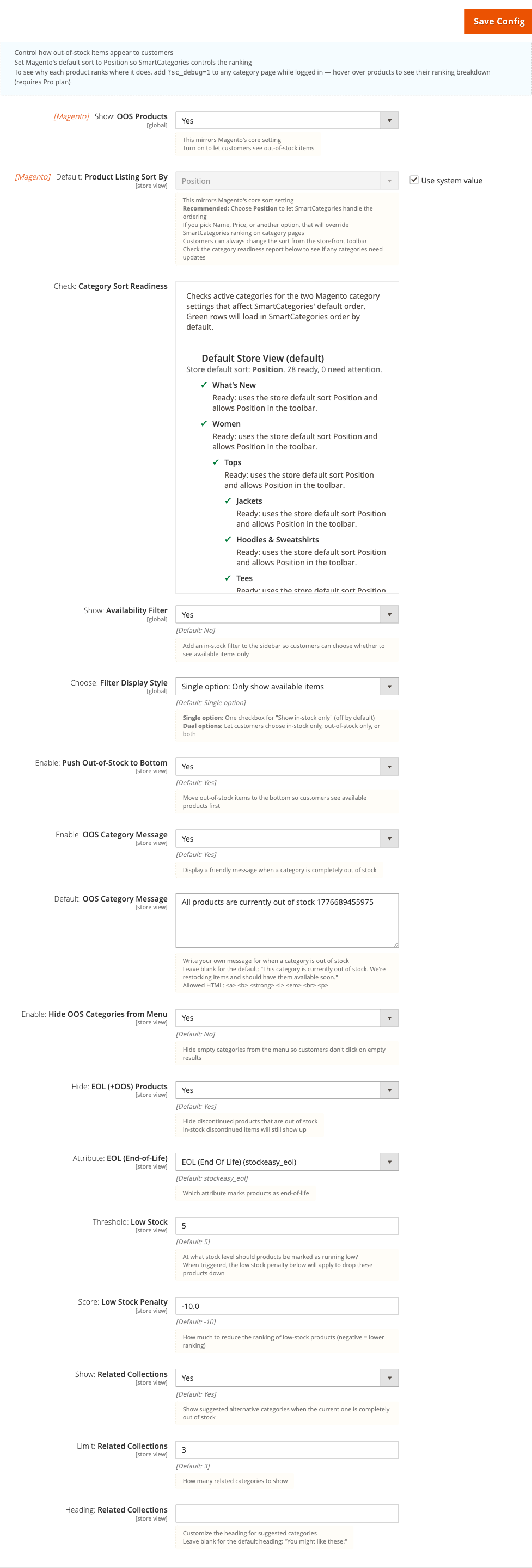
- [Magento] Show: OOS Products = Yes (customers can still see OOS items, just ranked lower)
- [Magento] Default: Product Listing Sort By = Position (lets SmartListings control ranking)
- Enable: Push Out-of-Stock to Bottom = Yes
-
Save Config, then run:
php bin/magento smartlistings:score:refresh
php bin/magento cache:clean
Notes
- SmartListings only controls ranking when the storefront sort is Position. If a shopper selects Name or Price, that overrides SmartListings for their session.
- Check the Category Sort Readiness diagnostic in the same config section - it lists categories whose individual sort settings may override the global default.
Show a custom message and alternative categories when a category sells out
When a category has no in-stock products left, SmartListings can show a tailored message and suggest sibling categories so the shopper has somewhere to go.
How to set it up
-
Go to: Stores > Configuration > Moogento > SmartListings > Availability Sorting
-
Set:
- Enable: OOS Category Message = Yes
- Default: OOS Category Message = your message text (leave blank for the built-in default)
- Show: Related Collections = Yes
- Limit: Related Collections = 3 (or your preferred count)
- Heading: Related Collections = "You might also like" (or custom text)
-
Save Config and run
php bin/magento cache:clean.
To override the message for a specific category, go to Catalog > Categories > [your category] > SmartListings tab and enter the per-category message. Leave blank to inherit from the parent or global config.
Notes
- The message inherits in waterfall order: category -> parent -> grandparent -> global config -> built-in default.
- Related collections only appears when the current category has a parent with at least one active sibling.
- Allowed HTML in the message:
<a>,<b>,<strong>,<i>,<em>,<br>,<p>.
Create a time-limited product boost for a promotion (Growth+)
Use Product Boosts to manually promote specific products in category rankings during a campaign. Boosts add a score value on top of normal ranking and expire automatically.
How to set it up
-
Go to: Moogento > SmartListings > Product Boosts
-
Click Add New Boost and complete the form:
- Products - select one or more products using the product picker
- Boost Value - enter a value between -100 and +100 (positive = promote; negative = demote)
- Label - an admin-facing label such as "Summer Sale" or "VIP Range"
- Start Date / Expiry Date - set campaign dates; the boost activates and deactivates automatically
- Categories - leave blank to apply to all categories, or select specific ones
-
Click Save. The boost is active immediately; no score refresh is needed.
Notes
- A single boost rule can target multiple products - useful for promoting a full supplier range without creating separate rules.
- Manual boosts never override in-stock prioritisation: an OOS product with a high boost still appears below in-stock products when Push Out-of-Stock to Bottom is enabled.
- Use the CSV export/import commands (
smartlistings:boost:export/smartlistings:boost:import) for bulk operations.
Enable personalised category results for returning customers (Pro)
On the Pro plan, SmartListings can reorder category products based on each visitor's browsing and purchase history.
How to set it up
-
Go to: Stores > Configuration > Moogento > SmartListings > Behaviour-Based Merchandising
-
Set:
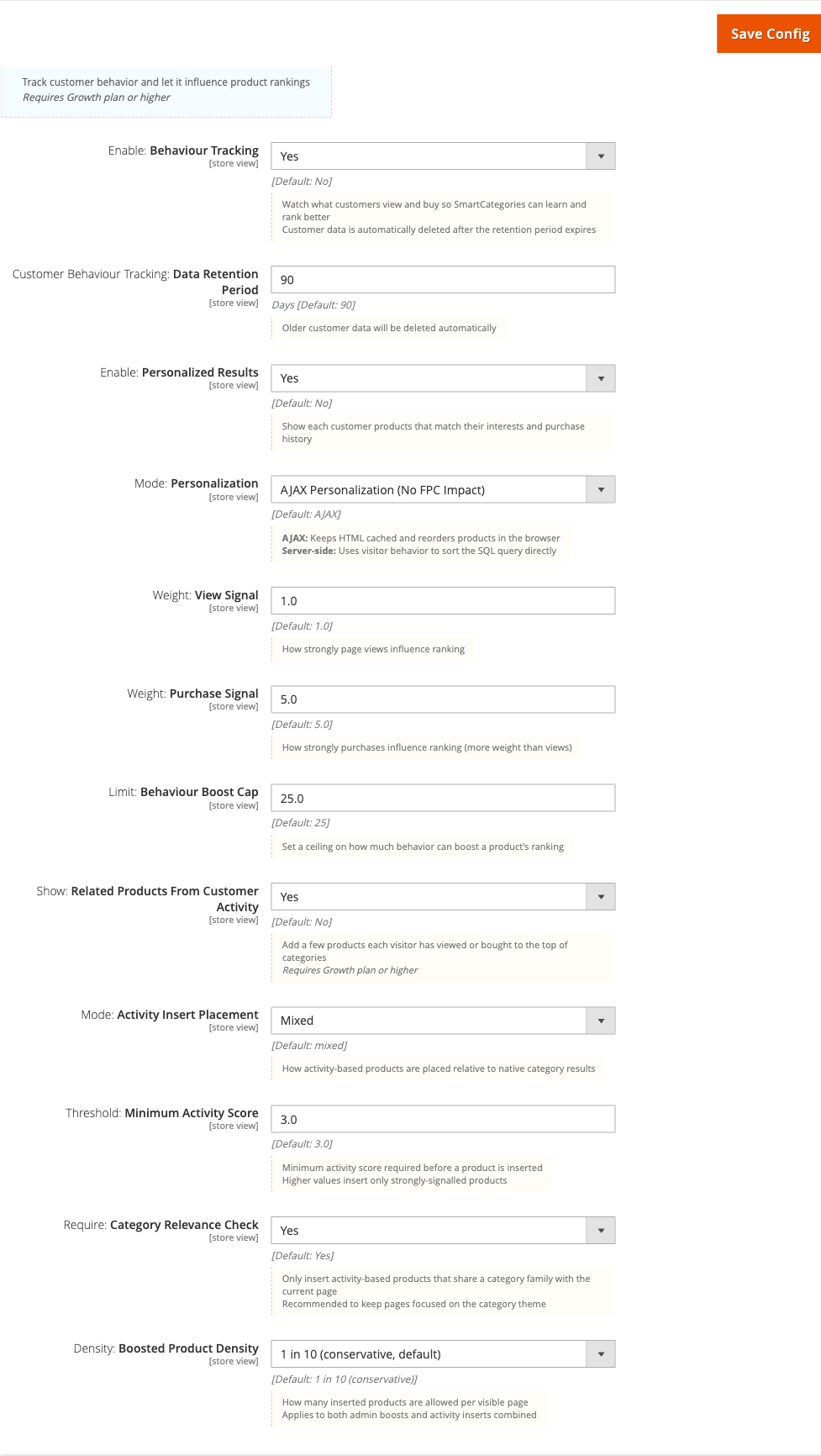
- Enable: Behaviour Tracking = Yes
- Enable: Personalized Results = Yes
- Mode: Personalization = AJAX (recommended; keeps HTML cached and reorders in the browser) or Server-side (ranks at the SQL level)
- Customer Behaviour Tracking: Data Retention Period = 90 (days; older signals are deleted automatically)
-
Save Config and run
php bin/magento cache:clean.
Notes
- Behaviour data starts accumulating from the moment tracking is enabled. Personalisation quality improves as signals build up.
- On Growth plan, tracking is enabled but behaviour signals are used for attribution only - not for reranking. Reranking requires Pro.
- AJAX mode is fully compatible with Magento's full-page cache because personalisation happens in the browser after the cached page is served.
Stop re-suggesting a product a shopper just bought
Someone who has just bought a water filter does not want that filter at the top of their next visit. SmartListings can hold a product back from that shopper's personalised results until enough time has passed for them to need it again, then bring it back when they are due to reorder.
This runs on the Pro plan, alongside personalised results.
How to set it up
-
Go to: Stores > Configuration > Moogento > SmartListings > Behaviour-Based Merchandising
-
Set:
- Enable: Behaviour Tracking = Yes
- Enable: Personalized Results = Yes (the wait applies to personalised ranking, so this must be on for it to have any effect)
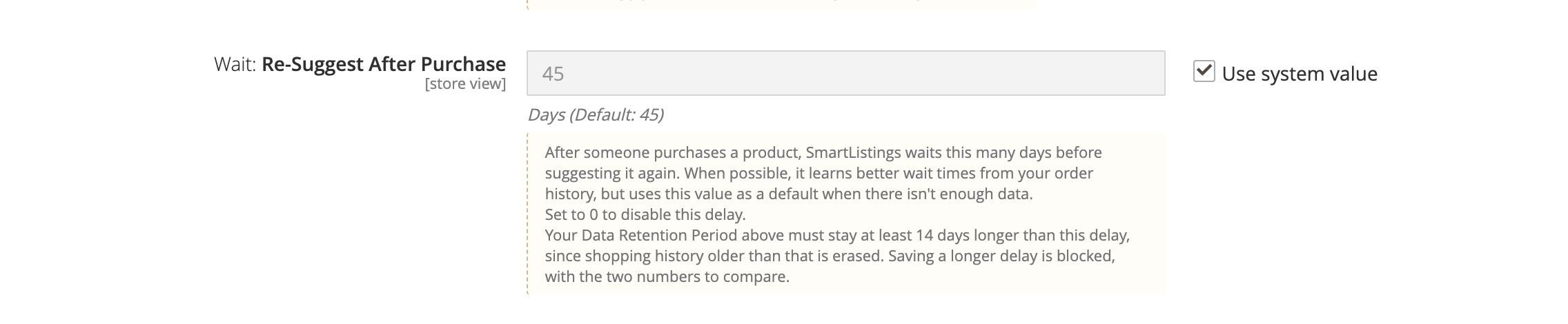
- Wait: Re-Suggest After Purchase = 45 (days, or whatever suits your catalogue)
-
Save Config.
How the wait is worked out
SmartListings uses the most specific figure it has for each shopper and product:
- What that shopper does. If they have bought the product more than once, SmartListings measures the gaps between those purchases and uses the middle value. Someone who reorders coffee every three weeks gets three weeks.
- What everyone does. With no repeat history for that shopper, SmartListings uses the typical gap across all customers who have repeat-bought that product.
- Your setting. With neither of the above, the number in Wait: Re-Suggest After Purchase applies.
Learned figures are worked out overnight and are kept between 7 and 60 days, so an unusual one-off gap cannot produce a wait of several years.
When the wait is over
Once the wait has passed, the product returns to the shopper's personalised results at its full purchase weight. It is not held back any longer and it is not weakened by how long ago the purchase was, so a product that is genuinely due to be reordered competes on the same footing as one bought yesterday.
Notes
- Guest orders are not affected. The wait needs a customer account to know who bought what.
- Views and cart activity still count during the wait. Only the purchase itself is held back, so a shopper who keeps browsing the product still sees it.
- Set the field to 0 to switch the whole thing off, including the overnight learning.
- Your Data Retention Period must stay longer than the wait. Shopping history is deleted once it passes that age, so a wait that reaches it would mean the product never comes back at all. Admin blocks a combination that would do this and tells you which number to change.
Add a Related Products widget to product pages
The SmartListings Product Block widget can act as a smart related-products panel on product detail pages (PDPs). It cascades through Magento related products, upsell products, cross-sell products, and category siblings - returning the first non-empty group sorted by SmartListings composite score.
How to set it up
-
Go to: Content > Pages (or Content > Blocks) > [page] > Insert Widget > SmartListings Product Block
-
Set:
- Source Mode = Related Products (PDP cascade, sorted by SmartListings)
- Cascade Stages - choose which stages to include and their order: Related, Upsell, Cross-sell, Category siblings. The widget tries each stage in the listed order and uses the first one that returns products (unless First Match Wins is off).
- Show Only When Source Product OOS - set to Yes to display this panel only when the source product is out of stock; leave No to always show it.
- Category Fallback Scope - for the Category Siblings stage, Primary uses the deepest assigned category; Any expands to all shared categories.
-
Set the Title (leave blank to hide the heading) and configure display options (Navigation Style, Add to Cart, Show Reviews, etc.).
-
Save the page or block.
Notes
- When the widget is on a PDP, it automatically reads the current product from the page context. No need to enter a product ID.
- Products are sorted by their store-wide composite score - no category context is used in the scoring for this mode.
- Products without a score-cache row sort last rather than being excluded.
- Attribution: when a shopper adds a product to cart from this widget, the sale is credited to SmartListings in ProfitEasy reports with
widget_contextset to the resolved cascade stage (related, upsell, crosssell, category, or mixed).
Show only in-stock products in CMS widgets
CMS Product Block widgets (carousels, grids placed on CMS pages and blocks) hide out-of-stock products by default. If every product in the configured group is out of stock, the widget falls back to showing them so the carousel never renders empty.
How to set it up
-
Go to: Content > Pages (or Content > Blocks) > [page] > Insert Widget > SmartListings Product Block
-
Configure the widget as usual (source mode, categories or SKUs, image preference, etc.).
-
Set:
- Include Out-of-Stock Products = Default (hide out-of-stock; show them if all products are unavailable) (recommended)
- Yes if you want the widget to always show out-of-stock products
- No if you want the widget to always hide out-of-stock products even when the result would be empty
-
Save the page or block. No
cache:cleanneeded for new widgets.
Notes
- The default applies automatically to new widget instances; no manual setup is required to keep out-of-stock products out of carousels.
- Earlier versions followed the global Magento setting Stores > Configuration > Catalog > Inventory > Display Out of Stock Products. The widget now decides on its own. If a store had that global set to Yes and relied on widgets following it, set the widget's Include Out-of-Stock Products parameter to Yes to restore the previous behaviour on a per-widget basis.
- The fallback runs only in Default mode. Yes never hides; No never falls back.
- Cache: when a hidden product later returns to stock, the cached widget HTML may still omit it until the page's full-page cache TTL expires or
cache:cleanis run. This is a limitation of Magento's block cache, not a SmartListings quirk.
Features reference
General
- What it does: Globally enables or disables SmartListings and sets how much detail is written to the log.
- When to use it: Disable during testing or maintenance. Leave Logging level on Errors only day to day, which is the setting that keeps
var/log/moogento_smartlistings.logsmall. Choose Info to record per-product score breakdowns, bearing in mind it also records ranking detail on every category, search and product page view, or Debug for a verbose troubleshooting session. Debug adds full internal detail while capping the entries that would otherwise repeat once per product, category or row, so the log stays readable on a large catalogue. Set it back afterwards. - Config paths:
moogento_smartlistings/general/enabled,moogento_smartlistings/general/logging
Availability Sorting
Controls how out-of-stock and low-stock products are handled on category pages.
- Show: Availability Filter - adds an in-stock filter to the layered navigation sidebar so customers can choose to see only available items.
- Choose: Filter Display Style - single option ("Show in-stock only") or dual options ("In Stock" / "Out of Stock").
- Enable: Push Out-of-Stock to Bottom - forces OOS products to score 0 so they rank below all in-stock items. When disabled, OOS products receive a neutral score and can rank normally alongside in-stock products. A product with variants counts as out of stock once every one of its variants is sold out.
- Hide: EOL (+OOS) Products - hides products that are both end-of-life and out of stock. In-stock discontinued products still appear.
- Attribute: EOL (End-of-Life) - which boolean product attribute marks a product as discontinued (default:
stockeasy_eol). - Threshold: Low Stock - products at or below this stock level receive the low-stock penalty (default: 5). For a product with variants this is the total left across every variant that can still be sold, so 2 left in one size plus 1 in another counts as 3.
- Score: Low Stock Penalty - how much to reduce the ranking of low-stock products (default: -10).
- Enable: Hide OOS Categories from Menu - removes fully out-of-stock leaf categories from navigation. Parent categories with active subcategories remain visible.
Config paths: moogento_smartlistings/availability/push_oos_to_bottom, moogento_smartlistings/availability/stock_filter_enabled, moogento_smartlistings/availability/hide_oos_from_menu, moogento_smartlistings/availability/low_stock_threshold, moogento_smartlistings/availability/low_stock_penalty, moogento_smartlistings/availability/eol_enabled, moogento_smartlistings/availability/eol_attribute
Note on third-party search engines:
On third-party search engines, the availability filter and end-of-life hiding work through a wider search window: SmartListings asks the engine for the whole category (up to 5,000 products), then applies the filter and its own ranking before building the page. Page sizes stay full, the toolbar shows the correct product count, and ranking continues across pages. Very large categories keep the search engine's own order and full pages while SmartListings prepares their scores.
On Magento's built-in Elasticsearch or OpenSearch, if the search index is missing the SmartListings fields after an update, a reindex is requested automatically. You can check the index status by running php bin/magento smartlistings:category:status <category-id> --store=<store-id>.
Behaviour-Based Merchandising (Growth or Pro; activity inserts Pro)
Tracks customer activity and optionally uses it to reorder products per visitor.
- Enable: Behaviour Tracking - records page views and purchases so SmartListings can identify which products attract the most interest.
- Customer Behaviour Tracking: Data Retention Period - behaviour data older than this (in days) is deleted automatically (default: 90).
- Enable: Personalized Results - reorders products per visitor based on their activity (Pro only).
- Mode: Personalization - AJAX (browser reorder after page load) or Server-side (SQL-level reorder on cache miss).
- Weight: View Signal - how much page views influence the per-visitor ranking score (default: 1.0).
- Weight: Purchase Signal - how much purchases influence the per-visitor ranking score (default: 5.0).
- Wait: Re-Suggest After Purchase - how many days to wait before suggesting a product again to the shopper who bought it (default: 45). Set to 0 to switch the wait off (Pro only). See Stop re-suggesting a product a shopper just bought.
- Limit: Behaviour Boost Cap - maximum score contribution from behaviour signals (default: 25).
- Show: Related Products From Customer Activity (Pro) - inserts products the visitor has viewed or bought in other categories into the current category page.
- Mode: Activity Insert Placement (Pro) - where activity-based inserts appear: top, bottom, or mixed (default: mixed).
- Density: Boosted Product Density (Pro) - controls how many inserted products are allowed per page relative to total page size (supported: 6, 8, 10; default: 10 = up to ~3 inserts on a 30-product page).
Config paths: moogento_smartlistings/behaviour/behaviour_tracking, moogento_smartlistings/behaviour/behaviour_retention_days, moogento_smartlistings/behaviour/personalized_results, moogento_smartlistings/behaviour/behaviour_personalization_mode, moogento_smartlistings/behaviour/view_signal_weight, moogento_smartlistings/behaviour/purchase_signal_weight, moogento_smartlistings/behaviour/repurchase_interval_days, moogento_smartlistings/behaviour/boost_cap, moogento_smartlistings/behaviour/boosted_product_density
Performance Intelligence (Pro)
Blends ProfitEasy sales and profit data into the ranking formula.
- Weight: Sales Velocity - contribution of orders-per-day to the performance score (default: 0.3).
- Weight: Profit Velocity - contribution of profit-per-day to the performance score (default: 0.4).
- Weight: Conversion Rate - contribution of conversion rate to the performance score (default: 0.3).
- Threshold: Stale Data Days - ProfitEasy data older than this is not used in scoring (default: 7).
- Default: Optimisation Mode - how to weight the three signal types for new categories: Performance-First, Behaviour-First, or Balanced (default: Balanced).
Config paths: moogento_smartlistings/performance/velocity_weight, moogento_smartlistings/performance/profit_velocity_weight, moogento_smartlistings/performance/conversion_weight, moogento_smartlistings/performance/stale_data_days, moogento_smartlistings/performance/default_optimisation_mode
Analytics / Attribution (Growth+)
Customises UTM parameters appended to purchase attribution data sent to ProfitEasy and AnalyticsEasy Pro.
- UTM: Source - identifies SmartListings traffic in your analytics platform (default:
smartlistings). - UTM: Medium - describes how traffic entered your site (default:
website). - UTM: Campaign - campaign name used for all SmartListings attribution (default:
SL).
Attribution covers both category-page interactions and widget-driven purchases. When a shopper adds a product to cart from a SmartListings widget, the sale is credited using the same UTM campaign value; the widget context (carousel label, cascade stage) is stored internally in the order item for detailed analysis.
Config paths: moogento_smartlistings/analytics/utm_source, moogento_smartlistings/analytics/utm_medium, moogento_smartlistings/analytics/utm_campaign
Sale source and boost types
When SmartListings influenced an order, the Sale Source panel on the order view (Sales > Orders > any order) shows a How SmartListings helped breakdown. The panel itself requires ProfitEasy on a Pro licence; without it, the order view shows an upgrade prompt instead of the breakdown. The Boost type tells you why each item was surfaced. The wording is plain-language; the underlying signal is one of:
- Hand-picked - the product was manually boosted in a SmartListings Product Boost rule. You chose to promote it.
- Shopper-matched - the product was auto-promoted from this shopper's own browsing and purchase signals (Pro personalised ranking). SmartListings matched the item to what this visitor was likely to buy - no manual boost involved.
- Hand-picked & shopper-matched - both applied: the item sat in a boost rule and matched this shopper's behaviour.
- Out-of-stock recovery - the shopper clicked the product while it was out of stock, then came back and bought it once it returned. SmartListings kept it visible instead of hiding it.
- From a storefront widget - the item was surfaced by a SmartListings Product Block widget (related products, up-sell, new arrivals, and so on) rather than a category listing.
When several items on one order were helped in different ways, the breakdown lists each type with a count. Manual boost rules and widgets are named individually, along with the products they surfaced, so you can see exactly which merchandising decision drove the sale.
Each order line SmartListings helped sell also gets its own plain one-line explanation, in a table listing every line on the order with its quantity and line total, so you can see at a glance which specific items were boosted, how much they were worth, and which sold on their own. When the boost was recorded against the order as a whole rather than one specific item, SmartListings still matches the boosted product to its order line and shows it in the same table - the evidence line says it was matched by product, not recorded per line. If only some of the matched products can still be tied to a line (for example, a product was later deleted from the catalog), the table still shows the line or lines that can, and the products that can't are listed underneath as "Also matched (not on this order)" instead of disappearing. The card falls back to the boost type and matching evidence with no table when none of the matched products can be tied to a line on the order, or when more than eight products matched (the evidence list is capped, so a partial table could hide real matches).
Boost types are only recorded when attribution tracking is enabled (Growth+). shopper-matched reflects Pro personalised ranking; on the Growth plan behaviour signals are captured for attribution but not used to rerank.
What matched
Under the boost type, the panel lists the products behind it and why each one qualified. For every product you see its name, its SKU, and one or more short labels naming the shopper signal that matched:
- Viewed recently - the shopper browsed this product in the run-up to the order.
- Carted recently - the shopper put this product in their cart in the run-up to the order.
Hover or focus either label to read the same explanation in full. Where a hand-picked boost rule covered the product, the rule name appears alongside, so you can tell a manual merchandising decision from an automatic match at a glance.
Long orders are summarised rather than truncated. The list shows the first eight products and then how many more there were, and does the same for a product covered by several boost rules, so a count is never quietly hidden.
This detail is rebuilt when you open the order, from the order's own product list and the shopper's activity. Two things follow. Orders placed before this feature existed still show it. And once shopping history passes your Data Retention Period, older orders fall back to showing the boost type on its own.
Where the widget sat
When a sale came from a SmartListings Product Block widget, the breakdown adds a small label showing where on the page the widget was placed:
- Related products - shown in the related-products slot.
- Up-sell - shown in the up-sell slot on the product page.
- Cross-sell - shown in the cross-sell slot in the cart.
- Category match - pulled from a matching category when related products ran low.
- Mixed sources - combined from related, up-sell and category sources.
- Placed widget - a SmartListings widget placed on a CMS page or block.
- Storefront widget - shown by a SmartListings storefront widget (used when the placement does not match one of the labels above).
Which page it was on
Manual boost rules and widgets also show which type of page the shopper was on when the boosted product surfaced: Home page, Category, Product, CMS page, or Storefront page (used when the page type does not match one of the others).
Chip colours
Each Boost type chip has its own colour, so a busy order stays easy to scan at a glance. The Where the widget sat chips share one colour as a family, since they are all describing the same kind of thing - a page placement - rather than different reasons a product was surfaced. The colour is a shortcut; the label text on every chip already says what it means, so nothing depends on colour alone.
If the Sale Source row itself shows an amber chip reading Swap the campaign tags, it means the click's utm_source and utm_medium tracking parameters arrived the wrong way round for that ad. Fix this in your ad platform's tracking or final-URL settings rather than in Moogento - the same reversal also skews your analytics channel grouping, so it is worth correcting at the source.
Overview: Ranking Weights
A read-only visual display in config that shows how the current weights combine into the final ranking formula. The chart updates as you change weight settings in the Behaviour and Performance sections, giving you a preview before saving.
Config path: moogento_smartlistings/ranking_summary/ranking_chart (display only)
CMS Product Block Widget
Per-widget controls available when adding the SmartListings Product Block widget to a CMS page or block. Configured at Content > Pages or Content > Blocks > Insert Widget > SmartListings Product Block, not in Stores > Configuration.
Source modes:
- Products on special - products with an active special price.
- New arrivals (by date added) - recently created visible products, newest first, optionally scoped to selected categories.
- Products from selected categories - all products from one or more chosen category IDs (use Category IDs to pick categories via the tree chooser).
- Manually selected products - specific product IDs in the configured order.
- Products with active boosts - products currently affected by SmartListings boost rules.
- Related Products (PDP cascade, sorted by SmartListings) - cascades through up to four stages (Magento related products, upsell products, cross-sell products, category siblings) in admin-configured order and returns the first non-empty stage, sorted by composite score. Intended for product detail pages; reads the current PDP product automatically.
Related Products (PDP cascade) parameters:
- Cascade Stages - choose which stages to include and in what order (Related, Upsell, Cross-sell, Category siblings). Unknown values are ignored; defaults to Related only if left empty.
- First Match Wins - Yes (default) uses the first non-empty stage. No blends all stages, deduplicates by product, and marks the result as "mixed".
- Show Only When Source Product OOS - Yes renders the widget only when the source product is not salable. Useful for suggesting alternatives on sold-out PDPs.
- Category Fallback Scope - for the Category Siblings stage: Primary uses the deepest assigned category; Any includes all shared categories under the store root.
Display options:
- Title - heading rendered above the product list on the storefront. Leave empty to hide the heading.
- Subtitle - optional secondary line displayed below the title. Leave empty to hide.
- Discounted/Special Products - leave pricing unrestricted, show only currently discounted products, or exclude currently discounted products. Applies to category, selected product, and active-boost sources. Not applied to the Related Products (PDP cascade) source.
- Product Image Preference - Use Default (inherits the system config), Show Any Products, Prefer Products With Images (with-image first, no-image at the end), or Only Products With Images.
- Include Out-of-Stock Products - Default hides out-of-stock products and falls back to including them only when every product in the group is OOS; Yes always shows OOS; No always hides OOS even if the result is empty. Default applies to new widget instances automatically.
- Enable Personalization - when enabled, an AJAX call re-ranks the visible products for the current shopper after the widget renders. Re-ranks the existing product set without adding new products. Requires Personalisation features enabled in SmartListings configuration (Pro).
- Allow Behaviour Inserts - when enabled, products from the shopper's recent cross-category activity are mixed into the widget's product set. Adds new products to the visible set rather than re-ranking existing ones. Requires Cross-Category Behaviour Inserts enabled in SmartListings configuration (Pro).
- Navigation Style - None (static grid), Previous / Next, Carets, or Dots (default for new widgets). The carousel options render a scroll-snap carousel with the selected navigation controls.
- Navigation Position - Below Products (default), Top Right, or Top Left. Top positions place carousel controls beside the widget heading; on mobile they reflow below the carousel.
- Desktop Products Visible - number of products visible across a desktop carousel row (1-8). Leave as Automatic (0) for responsive width-based sizing.
- Auto-Advance - when the carousel has more than one page, it advances automatically on a timer. Enabled by default. Pauses when the visitor hovers over or focuses into the carousel, and is suppressed automatically for visitors who have reduced-motion enabled in their OS accessibility settings.
- Auto-Advance Delay (seconds) - seconds between automatic advances. Default 5. Range 2-30.
- Show Add to Cart Button - Use Config (default, follows
moogento_smartlistings/widget/show_add_to_cart), Yes, or No. Products that require options show a "View Product" link instead of the cart button. - Show Review Summary - Use Config (default, follows
moogento_smartlistings/widget/show_reviews), Yes, or No. Renders when Magento Review is active. - Show Add-to-Wishlist Icon - Use Config (default, follows the store's wishlist setting), Yes (always show), or No (always hide). The icon appears as a heart on each product card.
- Swap to Secondary Image on Hover - when enabled (default), hovering a product card cross-fades to the product's secondary image if one exists. Suppressed automatically for visitors with reduced-motion preferences.
Cache: widget cache lifetime is governed by Magento's block cache. When a hidden out-of-stock product returns to stock, the cached widget HTML may not refresh until TTL expires or cache:clean runs.
Product Block Widget (defaults)
Website-scope defaults for the SmartListings Product Block widget. These values are used whenever a widget instance's corresponding setting is set to Use Config or Use Default.
- Default: Product Image Preference - image-preference mode for any widget whose per-widget parameter is Use Default. Options: No Image Filter (
any), Prefer Products With Images (prefer, default), Only Products With Images (only). - Default: Show Add to Cart on Widget Cards - whether product cards show an Add to Cart button when the per-widget setting is Use Config. Yes (default) shows the button; No hides it.
- Default: Show Review Summary on Widget Cards - whether product cards show the star rating and review count when the per-widget setting is Use Config. Yes (default) shows when Magento Review is active; No hides it.
Changing Default: Product Image Preference immediately clears the widget base-set cache and invalidates block and full-page cache so all Use Default widget instances update without a deploy.
Config paths: moogento_smartlistings/widget/image_preference, moogento_smartlistings/widget/show_add_to_cart, moogento_smartlistings/widget/show_reviews
Advanced configuration
Category-level overrides
What it does
Every category has a SmartListings tab in the category edit form (Catalog > Categories > [category] > SmartListings tab). Settings here override global configuration for that category only.
Available per-category settings:
- Enable or disable SmartListings for the category
- OOS message override (inherits from parent if left blank)
- Hide from menu when OOS
- Optimisation mode: Performance-First, Behaviour-First, or Balanced (Pro)
Setup
- Open Catalog > Categories and select a category.
- Click the SmartListings tab.
- Change the settings and save the category.
Notes
- The OOS message resolves by walking up the category ancestor chain: current category -> parent -> grandparent -> global config -> built-in default.
- Category-level overrides are only available after the category has been saved at least once.
Priority Bands (Pro)
What it does
Priority Bands let you pin specific products permanently to the top or bottom of every category they belong to, regardless of stock, behaviour, or performance scores.
- Always Promote - product is forced to score 999,999 (appears first)
- Never Promote - product is forced to score -999,999 (appears last)
Setup
Set the Priority Band on a boost rule in Moogento > SmartListings > Product Boosts.
Notes
- Always/Never Promote overrides all other scoring including manual boosts.
- Use sparingly: pinning too many products reduces the value of automated ranking.
Tips & best practices
- Set the Magento default product listing sort to Position at Stores > Configuration > Moogento > SmartListings > Availability Sorting > [Magento] Default: Product Listing Sort By. SmartListings only controls ranking when the sort is Position.
- Run the Category Sort Readiness diagnostic (visible in the Availability Sorting config section) to spot categories that have a category-level sort override preventing SmartListings from taking effect.
- On Growth plan, enable behaviour tracking as soon as possible - the data accumulates over time. When you upgrade to Pro, the existing data is immediately available for ranking.
- Use time-limited boosts with expiry dates rather than indefinite boosts. Expired boosts are cleaned automatically and keep the boosts grid tidy.
- Changing the Low Stock Threshold clears the score cache and marks the catalogue search index stale on save, and rankings pick the new threshold up on the next scan. Run
php bin/magento smartlistings:score:refreshANDphp bin/magento indexer:reindex catalogsearch_fulltextonly when you want the change to land immediately. - Use the debug overlay (
?sl_debug=1on any category URL, Pro plan) to verify a boost is taking effect before a campaign goes live. Your admin role needs the SmartListings score-view permission or the overlay stays hidden. - On stores with large catalogues, the score cache refreshes every 4 hours automatically. If you make a manual stock change that needs to take effect immediately, run
php bin/magento smartlistings:score:refresh --category=<id>. - When using the Related Products (PDP cascade) widget source, the cascade stages are tried in the order you configure them. Put the source with the broadest fallback coverage (usually Category siblings) last so other stages take priority when products exist.
- Widget attribution uses the same UTM campaign as category-page attribution. Check the Analytics / Attribution config group if you want to distinguish widget-driven sales from category-driven sales in ProfitEasy.
Monitoring category ranking health
SmartListings updates category rankings in the background through Magento cron. If those updates stop, it tells you in the admin instead of leaving you to find it in the logs.
Ranking Status on the settings page
Open Stores > Configuration > Moogento > SmartListings. The Ranking Status section at the top shows, for each store view in the scope you are viewing:
- A status: Live, Getting ready, Waiting for cron, Needs attention, Setup step needed or Off
- How many categories are ranked so far, for example "Ranking is live in 212 of 331 categories"
- When the last update ran and, while ranking is getting ready, roughly how long is left
- The last problem and where to find its details, if updates keep failing
- How many categories are paused after repeated problems, if any
This section only shows information; it has no settings to save.
Admin alerts
Admins with access to SmartListings settings see a system message when ranking updates stall. Each alert is shown once per new problem: if you dismiss it and a different problem appears later, a new message shows.
| Message says | What it means | What to do |
|---|---|---|
| needs a quick setup step | SmartListings database tables are missing | Run bin/magento setup:upgrade |
| waiting for Magento cron | Cron has not run the ranking job in the last hour | Check that Magento cron is set up and running on your server |
| updates keep failing | The ranking job failed three times in a row | Check var/log/moogento_smartlistings.log for the error, or send it to support |
| has not moved forward for an hour | The job runs but ranking is not progressing | Check the same log file; contact support if it persists |
Alerts clear on their own a few minutes after the next successful ranking run.
Checking progress from the command line
bin/magento smartlistings:category:status <category-id> --store=<store-id>
Besides the category details, the output shows:
- Ranking scan: Off, Setup step needed, Waiting for cron, Needs attention, Getting ready or Live
- Categories ready: how many categories in the store are ranked so far
- Last run: when the ranking job last ran
- Estimated finish: roughly how long until every category is ranked, once there is enough history to tell
- Last failure: the most recent error, if any
- Ranking on storefront: whether this category is ranked yet, and if not, why (for example waiting for the scan, queued, or sorted by something other than Position)
Troubleshooting
Products are not sorted by stock status
Products appear in the original Magento order rather than in-stock first.
- Cause: SmartListings may be disabled, or Magento's default sort is set to something other than Position.
- Check: Verify
moogento_smartlistings/general/enabled = 1. Then go to Stores > Configuration > Moogento > SmartListings > Availability Sorting and confirm the [Magento] Default: Product Listing Sort By is set to Position. Check the Category Sort Readiness report in the same section for per-category overrides. - Resolution: Enable the module, set sort to Position, and run
php bin/magento smartlistings:score:refreshfollowed byphp bin/magento cache:clean.
The availability filter doesn't appear in layered navigation
stock_filter_enabled = 1 but no availability filter shows in the sidebar.
- Cause: Theme layout renders filters outside
sidebar.main, or on Hyvä the compat module is not enabled. - Check: Confirm the effective store-view value of
moogento_smartlistings/availability/stock_filter_enabled. On Hyvä, verifyHyva_MoogentoSmartlistingsis enabled. - Resolution: On Luma/Porto, verify the theme renders layered navigation in
sidebar.main. On Hyvä, enable the compat module - it moves the filter intosidebar.mainwith Hyvä-native markup.
OOS message or related collections are not showing
A fully sold-out category shows the standard Magento "no products" state rather than the SmartListings message.
- Cause: The feature is disabled, or at least one product in the category is still in-stock or salable.
- Check: Confirm
moogento_smartlistings/availability/oos_message_enabled = 1andrelated_collections_enabled = 1. Verify the category is truly fully out of stock - even one salable product suppresses the OOS state. - Resolution: Enable the features in config, then verify the category has no in-stock, visible, enabled products. For Related Collections, also confirm the category has a parent with at least one active sibling.
Boosts are not changing product positions
A boost is active but the boosted product does not appear higher in the category.
- Cause: The boost may have expired, the Magento default sort may not be Position, or the score cache has not been refreshed.
- Check: In Moogento > SmartListings > Product Boosts, confirm the boost status shows Active (not Expired or Disabled). Run
php bin/magento smartlistings:score:explain <product_id> --category=<category_id>to see the boost's contribution in the score breakdown. - Resolution: Check the boost dates, set Magento sort to Position, and run
php bin/magento smartlistings:score:refresh. Manual boosts never reorder an OOS product above in-stock products when Push OOS to Bottom is enabled.
Performance scores are not applied (Pro)
Products on a Pro plan are ordered by availability only - no performance differentiation.
- Cause: ProfitEasy is not installed, the store is not on the SmartListings Pro plan, or ProfitEasy data is older than the stale-data threshold.
- Check: Confirm the store is licensed for the SmartListings Pro plan (Stores > Configuration > Moogento > License) and that ProfitEasy is installed and enabled. Query
SELECT performance_score FROM moogento_smartlistings_score_cache LIMIT 5- all-zero values mean ProfitEasy data is not reaching the scorer. - Resolution: Confirm the SmartListings Pro licence at Stores > Configuration > Moogento > License. Install and license ProfitEasy, run the ProfitEasy velocity cron, then run
php bin/magento smartlistings:score:refresh. Increasestale_data_daysif ProfitEasy data is valid but older than the threshold.
Related Products widget shows no products on PDP
The SmartListings Product Block widget in Related Products (PDP cascade) mode renders empty on a product page.
- Cause: All cascade stages returned empty results, or the source product could not be resolved from the page context.
- Check: Confirm the product has at least one Magento related product, upsell, cross-sell, or is assigned to a category with siblings. Add Category siblings as the last cascade stage to provide a broad fallback pool.
- Resolution: Add or broaden the cascade stages in the widget configuration. If the widget is on a CMS page rather than a PDP, set Source Product ID to the product's entity ID explicitly - the widget cannot read the current product from registry outside a PDP layout.
Malware scanner flags Helper/Moo.php
- Cause: Your host's malware scanner (often Imunify360 on cPanel hosting) heuristically flags the encoded license-check files that ship inside every paid Moogento extension. The files are genuine and unchanged - the encoding protects the license check from tampering.
- Resolution: Add the files to the scanner's ignore list so the warnings stop, and restore any file the scanner already quarantined. Both steps, plus how to verify the files are byte-for-byte what we shipped, are covered in the license file protection guide.
FAQs
How do I confirm SmartListings is controlling Magento 2 category merchandising order?
SmartListings takes effect only when Magento's default product listing sort is set to Position - go to Stores > Configuration > Moogento > SmartListings > Availability Sorting, set the [Magento] Default: Product Listing Sort By field to Position, save, and run a score refresh. The Category Sort Readiness report in the same section lists any categories with per-category sort overrides that may be blocking SmartListings.
Why are out-of-stock products still showing at the top of my category page?
Out-of-stock products remain visible but should be pushed to the bottom when Enable: Push Out-of-Stock to Bottom is Yes. If they appear at the top, the score cache may be stale - run php bin/magento smartlistings:score:refresh and then php bin/magento cache:clean. Also confirm the Magento default sort is set to Position, not Name or Price.
How do I show a custom message when a category runs out of stock?
Enable Enable: OOS Category Message in Stores > Configuration > Moogento > SmartListings > Availability Sorting and type your message in the Default: OOS Category Message field. To customise the message for a specific category, open Catalog > Categories > [category] > SmartListings tab and enter an override there - it inherits from parent categories if left blank. See the Common setups section for the full walkthrough.
What is the difference between Seed, Growth, and Pro plans?
The Seed plan covers availability-aware ordering, OOS messaging, related collections, and menu visibility. Growth adds manual product boosts with campaign scheduling, behaviour data collection for attribution, low-stock sensitivity, and boost CSV import/export. Pro adds behaviour-driven ranking and personalised results per visitor, ProfitEasy performance integration (sales velocity, profit velocity, conversion rate), priority bands, cross-category inserts, and the debug score overlay. Plan level is determined automatically by your licence key.
Can I add a SmartListings "Related Products" block to my product pages?
Yes. Add the SmartListings Product Block widget to your product page layout (or a CMS block in the PDP area) and set the Source Mode to Related Products (PDP cascade, sorted by SmartListings). The widget reads the current product from the page context automatically and cascades through Magento related products, upsell products, cross-sell products, and category siblings in the order you configure. See Add a Related Products widget to product pages for step-by-step instructions.
Can I display a "New Arrivals" spotlight on my homepage?
Yes. Add the SmartListings Product Block widget to your homepage layout and set the Source Mode to New arrivals (by date added). The widget returns recently created visible products, newest first, and you can optionally scope it to specific category IDs. Use the Navigation Style to render it as a carousel.
Does SmartListings work with Hyvä, Luma, and Porto?
Yes, SmartListings is compatible with all three themes. Luma and Porto are supported in the main module. Hyvä support is provided by the companion module Hyva_MoogentoSmartlistings (located in app/code/Hyva/MoogentoSmartlistings), which handles Hyvä-specific layout, sidebar filter rendering, and AJAX personalisation without modifying the main module's templates.
Will disabling SmartListings remove the custom OOS messages and related collections?
When SmartListings is disabled via moogento_smartlistings/general/enabled = No, all dynamic ranking, OOS messaging, related collections, and menu visibility logic stop immediately. Category pages revert to Magento's default sort order and no SmartListings blocks are rendered. No data is deleted - re-enabling restores full functionality.
How do I promote a product during a sale without affecting it when the sale ends?
Create a boost in Moogento > SmartListings > Product Boosts, set the desired Boost Value, and enter a Start Date and Expiry Date for the campaign. The boost activates and deactivates automatically at those times. See Create a time-limited product boost for a promotion for step-by-step instructions.
How does SmartListings interact with ProfitEasy?
On the Pro plan, SmartListings reads sales velocity, profit velocity, and conversion rate from ProfitEasy and incorporates them into the ranking formula. Without ProfitEasy, ranking falls back to availability-only (Seed/Growth) or uses native Magento conversion data for partial performance ranking (Pro). Attribution data from SmartListings - including widget-driven purchases - is also written back to ProfitEasy orders for campaign-level reporting. See the Performance Intelligence section for configuration details.
Why has a product a customer bought stopped appearing in their recommendations?
SmartListings holds a product back from the shopper who bought it until they are likely to need it again, which is 45 days by default. Change the wait in Wait: Re-Suggest After Purchase under Behaviour-Based Merchandising, or set it to 0 to switch it off. See Stop re-suggesting a product a shopper just bought.
Can SmartListings work out reorder timing per product instead of one figure for everything?
SmartListings measures the real gaps between repeat purchases and uses them in preference to your setting, per shopper first and then per product. Coffee and printer ink end up with different waits without you configuring either. Your figure applies only where there is no repeat history to learn from.
How often does the ranking update?
Scores are recalculated automatically every 4 hours via a background cron job. Stock changes trigger an immediate score update for affected products via Magento's stock save event. For instant updates after manual changes or config edits, run php bin/magento smartlistings:score:refresh from the command line.
How do I see why a product ranks where it does?
On the Pro plan, add ?sl_debug=1 to any category page URL while logged in as an admin with the View Score Breakdowns permission - hovering over a product shows its full score breakdown. Alternatively, run php bin/magento smartlistings:score:explain <product_id> --category=<category_id> from the CLI to get a detailed breakdown for any product/category combination.
Related guides
- SmartCart - SmartListings improves SmartCart's Everyday Essentials ranking when both modules are installed. SmartListings composite scores feed the Essentials candidate pool on any plan; behaviour signals join on Growth+ and sales-velocity ranking on Pro.
- Pulse - Pulse's category intelligence widget surfaces SmartListings momentum and restock suggestions on the real-time admin dashboard.
- ProfitEasy - provides sales velocity, profit velocity, and conversion metrics that power Pro-plan performance ranking in SmartListings.
- AnalyticsEasy Pro - receives SmartListings attribution events (including widget-driven sales) via the Measurement Protocol for GA4 campaign reporting.
Need help?
- moo@moogento.com
- Include:
- Magento version
- SmartListings plan (Seed / Growth / Pro)
- What you're trying to do