Magento By Night :Give your eyes a break with Magento Admin dark mode

Made for Magento® 2

Still checking orders after dark?

Moogento

Late-night order checks, without the glare.

  • Turn down the glare without leaving the page.
  • Let your screen follow the light in the room.
  • Keep the look you like when you sign in again.
A shop owner shields his eyes from a bright screen after dark

When your monitor lights up the whole room

Give the room a break from your monitor.

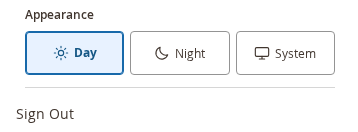
  • Open your username menu above Sign Out.
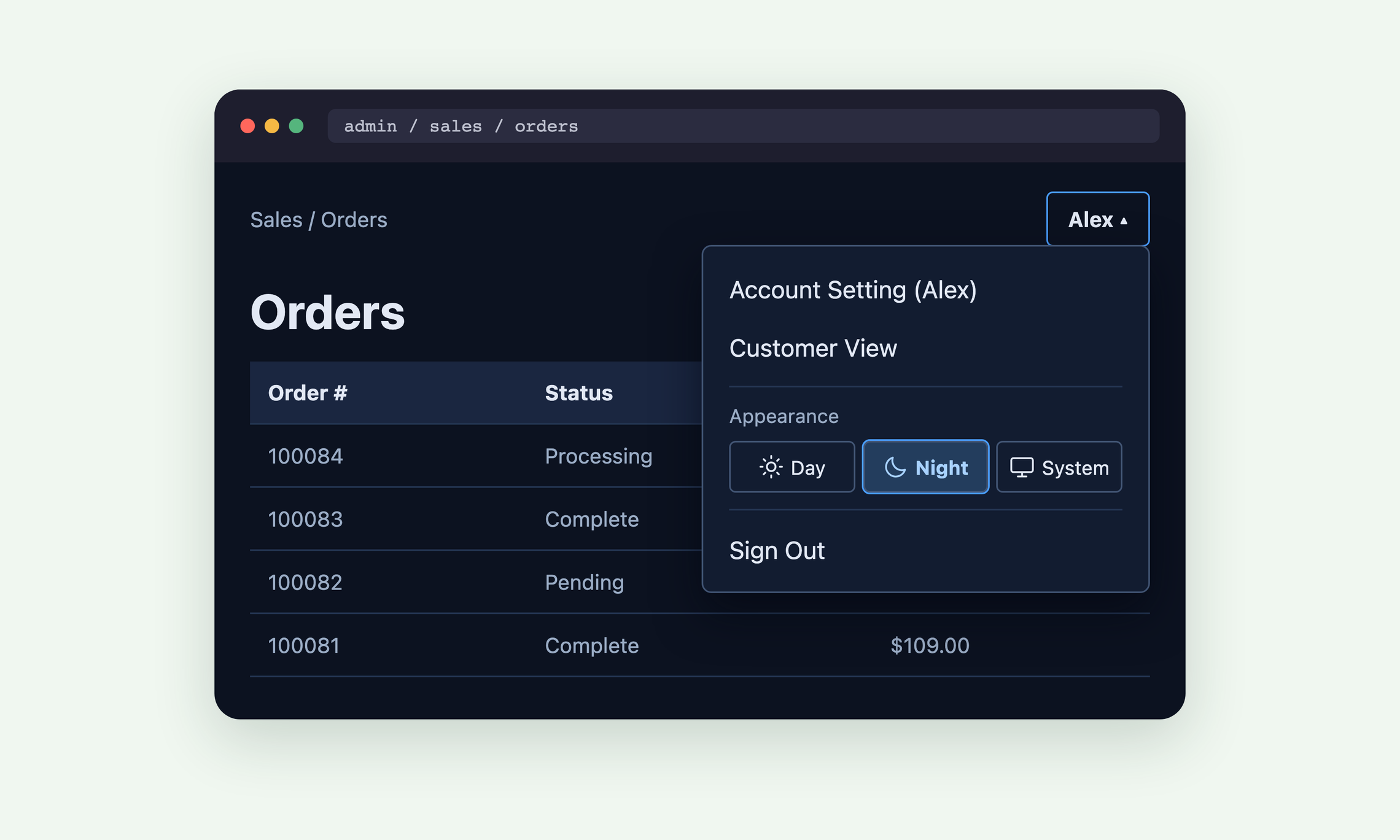
  • Choose Night for navy panels and light text.
  • Choose Day again when the sun comes up.

Keep your place in Orders

Switch the lights while your Orders grid is open.

Same filters, softer light

Change the light halfway through checking orders.

  • Stay on the same page of results.
  • Keep the filters you took the time to set.
  • Open the next order without running the search again.

Keep your preference when you change computers

Choose the look you like. Magento saves it with your account.

Pick up your product edits where you left off

Your preference travels with your account.

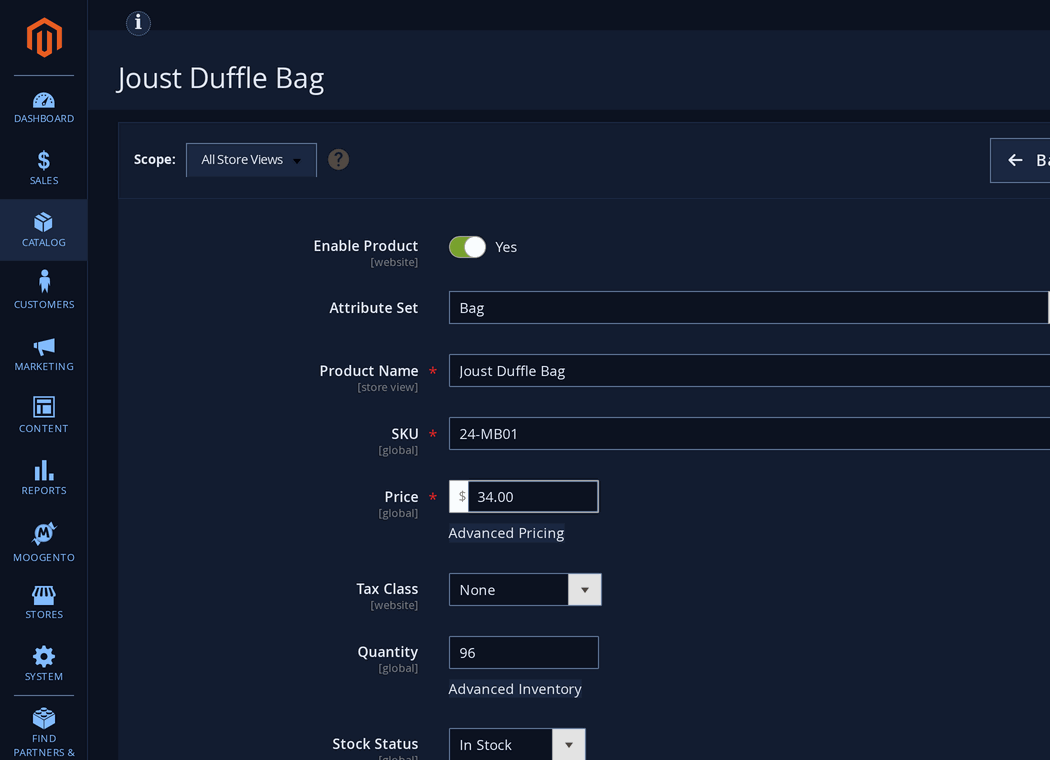
  • Switch while you edit a product and keep your unsaved fields.
  • Sign in on another computer and find your chosen appearance.
  • Share a desk while each person keeps their own setting.

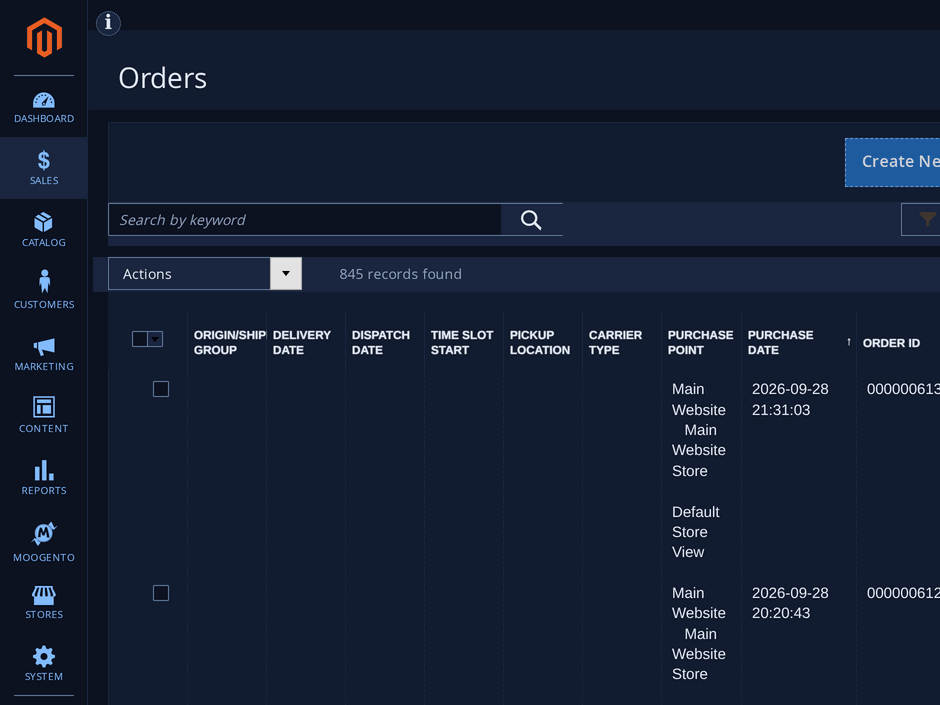
Try the lights on your Orders grid

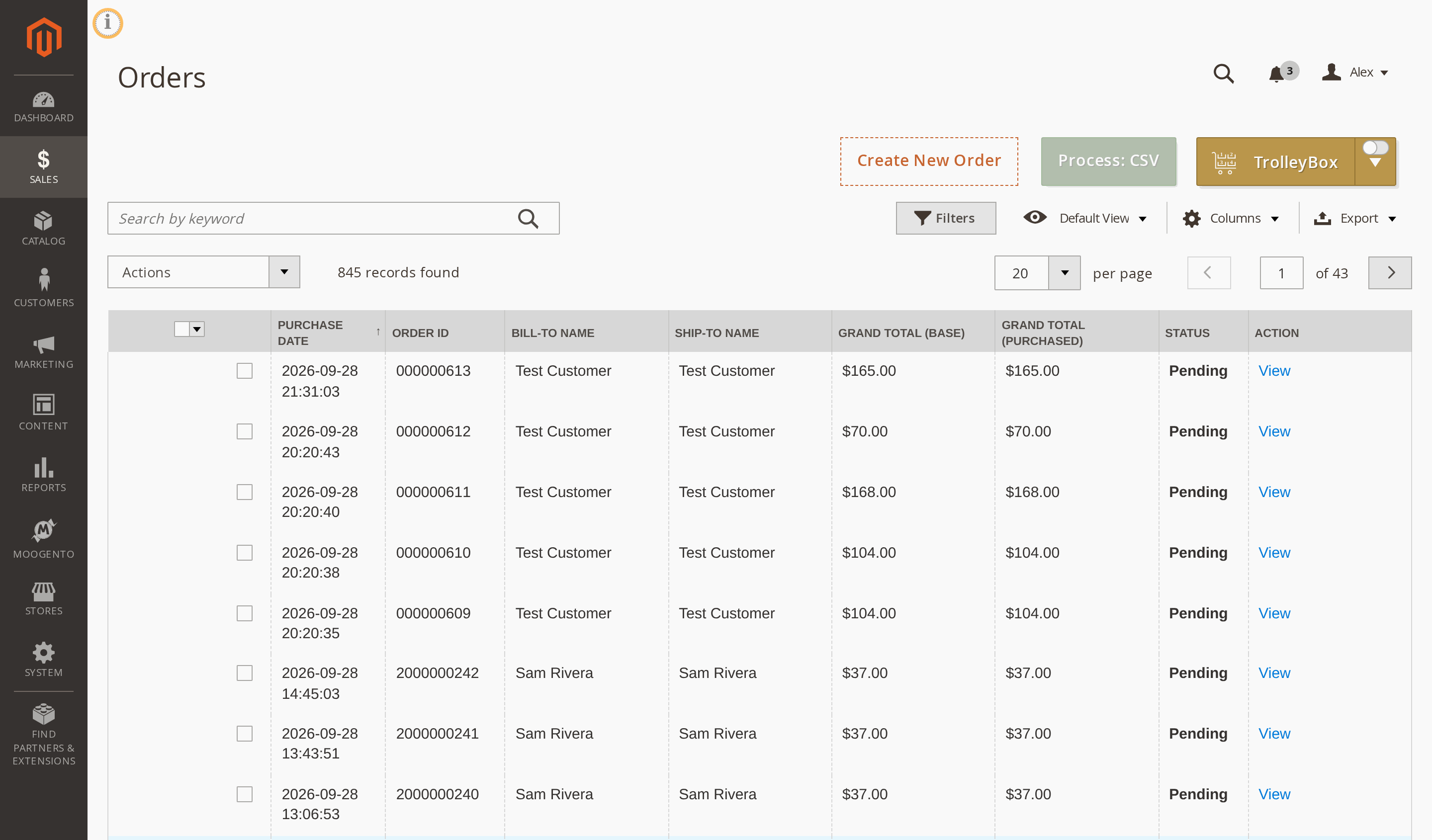
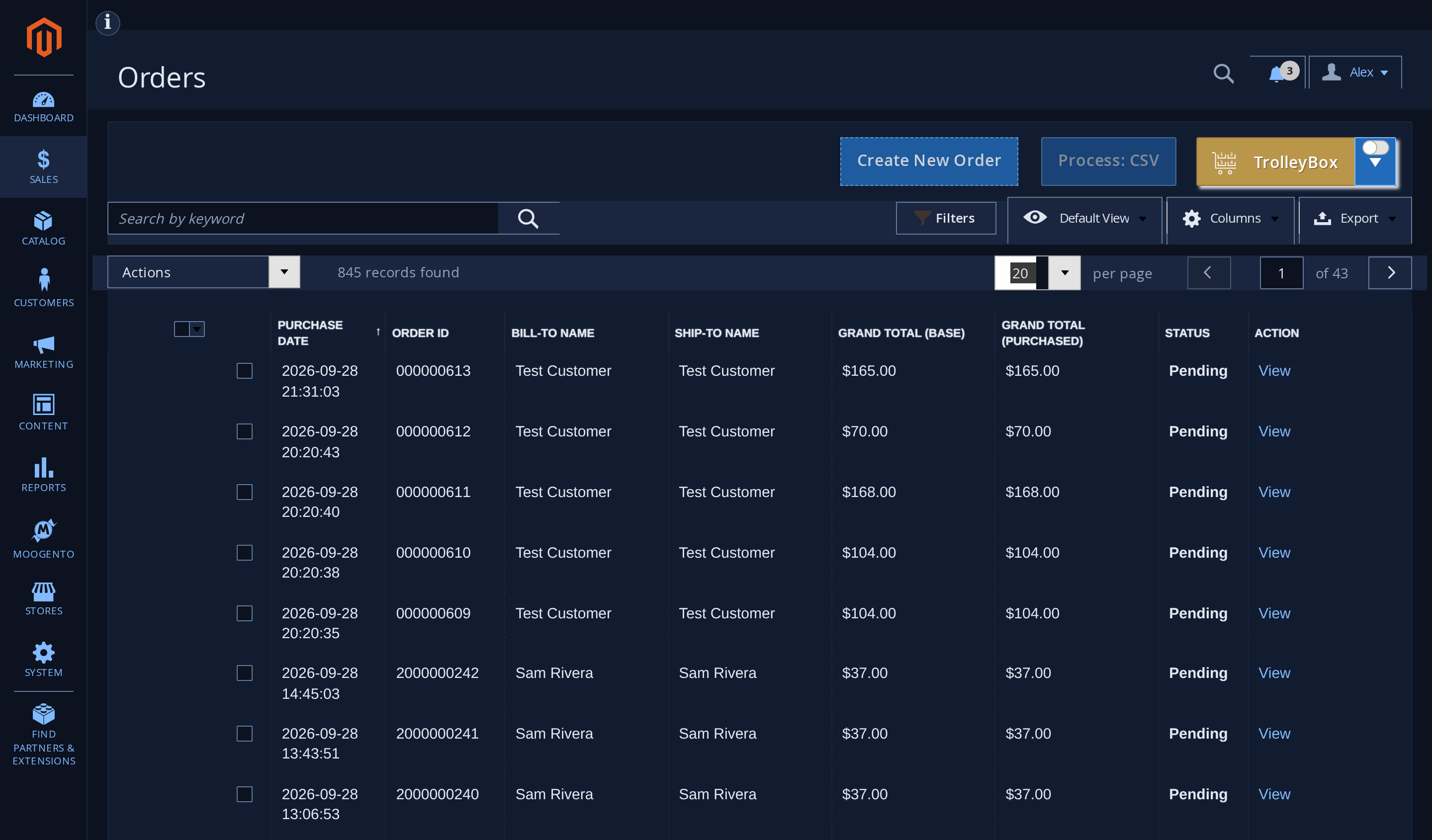
Click the example screen to switch between Day and Night. Your orders and filter stay put.

Magento Admin Sales Orders grid in Day appearance, sample ordersThe same Magento Admin Sales Orders grid in Night appearance

Real Sales > Orders screen, same filter and rows. Flip the switch, or select the picture to see it full size.
Prefer the familiar light dashboard?

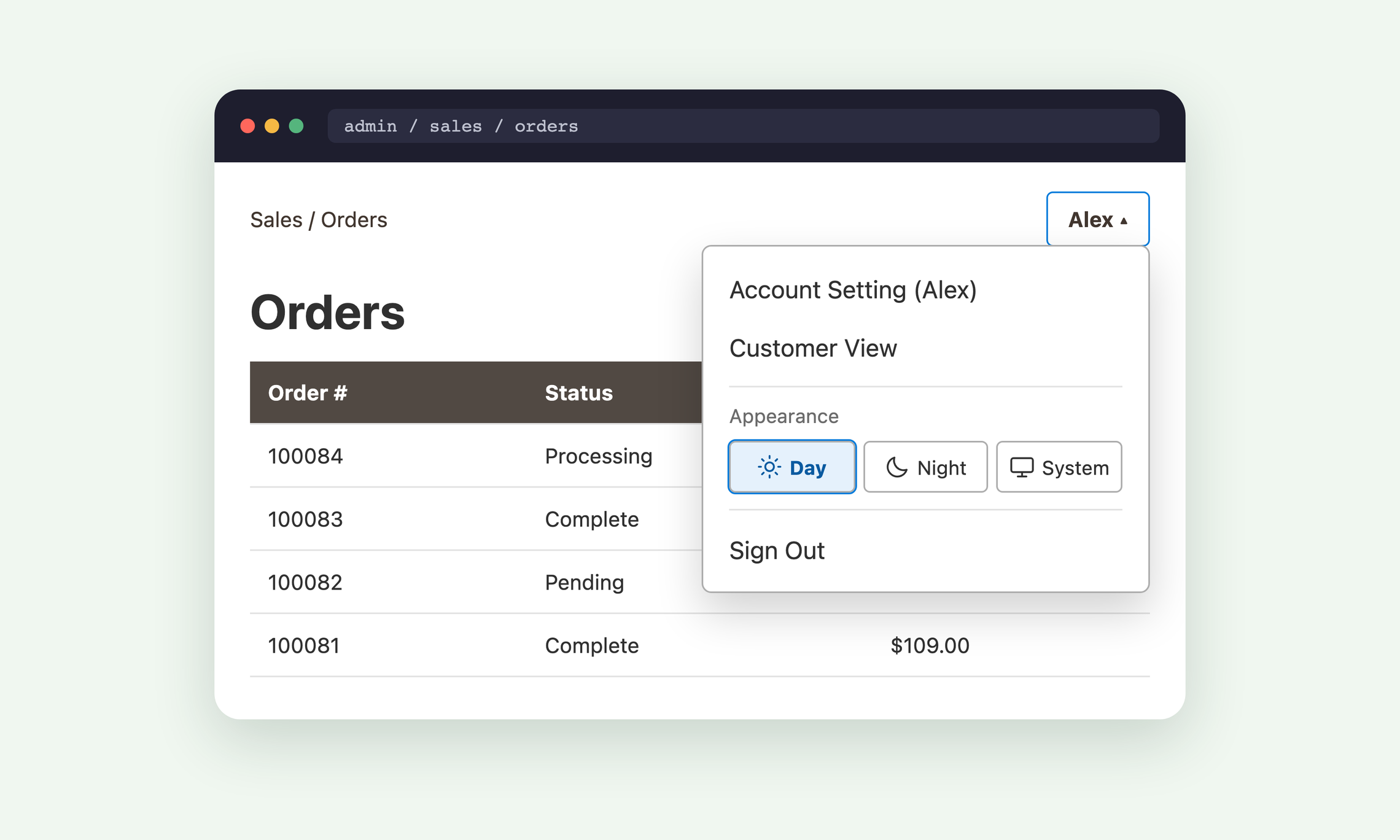
Choose Day for the standard Magento look any time.

Magento Admin Orders page in Day, with Day selected under Appearance in the account menu

Choose Day, or let your device decide

Pick the light that works for you.

  • Choose Day to keep the familiar light dashboard.
  • Choose System to follow your device’s appearance.
  • Leave Admin open and it responds when your device switches.

Set it up once for your store

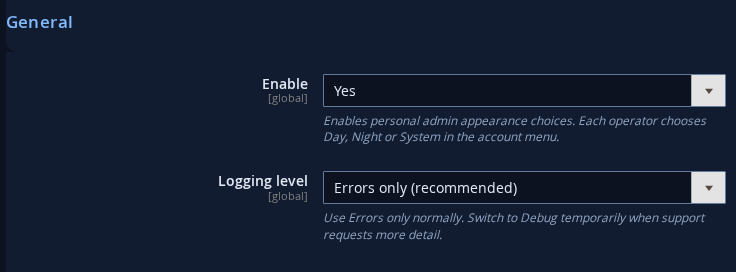
Add your license, open Magento By Night in Configuration and select Enable.

Magento By Night settings in Stores Configuration with Enable set to Yes

Everyone gets a personal choice

Enable Magento By Night once for your store.

  • Enter the key from your purchase under Moogento > License.
  • Enable Magento By Night in Configuration.
  • Choose your own appearance from your account menu.

Switch using the keyboard

Reach Appearance from your username menu.

Use the arrow keys to choose your look

Change the light without reaching for your mouse.

  • Tab to the selected appearance in your username menu.
  • Use an arrow key to move between Day, Night and System.
  • Press Escape to close the menu and return to your username.
Magento Admin Orders page in Night, with Night selected under Appearance in the account menu

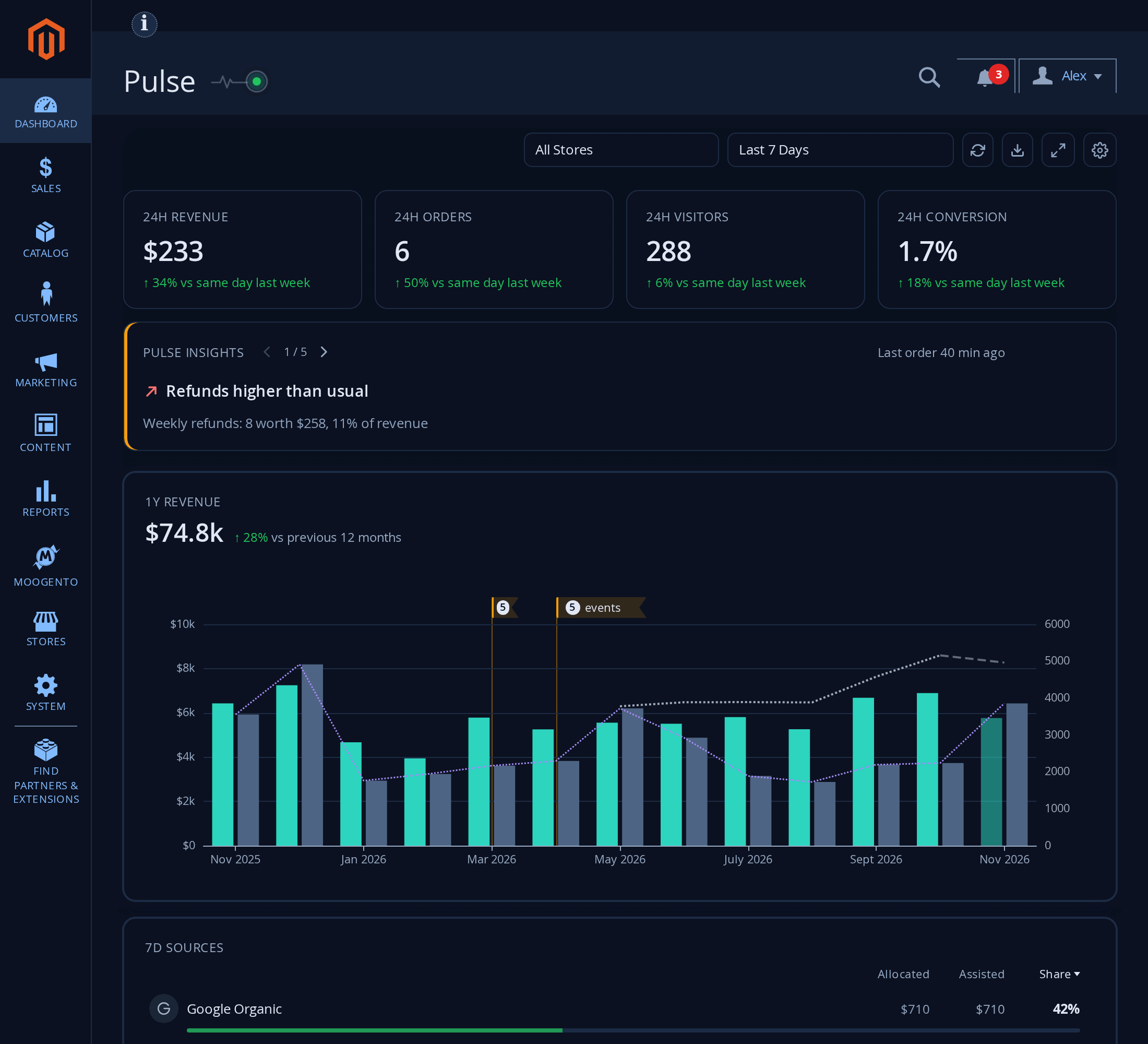
Using Pulse too?

Pulse dashboards and Reports keep their own Day and Night switch. A choice you make from your username menu on a Pulse page is saved for the rest of Magento Admin.See today's revenue, orders and average order value the moment you open Admin, with no report to run.Get alerts when revenue drops, orders slow down or refunds spike, so you can act the same day.Use the orders heatmap to see your busiest days and hours, then plan promotions and staffing around them.See Pulse for Magento.


Easier late shifts for your whole team, for one yearly price

Annual
Monthly

Seed

$ 49 / year
  • Day, Night and SystemPick one in your username menu. System follows your device.
  • Keep your place while switchingThe page stays open with your filters and unsaved edits.
  • Saved for each operatorEach admin keeps their own choice on any browser or device.
  • Keyboard controlsTab to your choice, then use the arrow keys.

Frequently asked questions

What does Magento By Night do?
You get Day, Night and System in your Magento Admin account menu. Magento remembers the one you choose.

Where is the switch?
Open your username menu and look directly above Sign Out for Appearance.

What happens when I first sign in?
You start in System. Keep it to follow your device, or pick Day or Night whenever you like.

Can I switch while editing a product?
Yes. The page stays open and your unsaved field values stay in place.

Can I use the keyboard?
Tab to the selected option and use the arrow keys to change it. Escape returns focus to the username menu.

How do I enable it?
Install the Composer package, apply your Magento deployment steps, add the license and enable Magento By Night under Moogento in Admin.

Does the subscription change my storefront?
The annual Admin edition styles the signed-in Magento Admin. Shoppers continue to use your existing storefront and checkout.

How much does Magento By Night cost?
Magento By Night costs $49 a year. Every operator who signs in to your Magento Admin gets their own Day, Night and System choice.

What happens if my license lapses or I turn it off?
The Appearance choice is hidden and Magento Admin shows its standard look. Each operator's saved choice is kept, so it comes back when the module is enabled and licensed again.

Does it work with Pulse?
Yes. Pulse dashboards and Reports use their own Day and Night switch. A choice made from your username menu on a Pulse page is saved for the rest of Magento Admin.

Where can I find help?
Open the Guide under Moogento > Magento By Night for setup instructions and help changing your appearance.

Recent Magento® 2 Open Source & Commerce versions are supported.
(Open Source: 2.3.5-2.4.8; Commerce: 2.3.5-2.4.8)

Moogento helps businesses like yours, every day 🚀

Try Day, Night and System in a live Magento Admin

Try Magento By Night in Magento Admin

Sign in to the demo, open your username menu and try Day, Night and System.

Open the Magento By Night demo
Magento By Night running in a Magento 2 admin

Magento By Night changelog

1.0.0 · First release. Adds per-account Day, Night and System choices.

Same Magento Admin, now with a dimmer switch

Annual
Monthly

After checkout, your Moogento account has the download and your license key. The User Guide walks you through installation.

Make your next late-night order check a little easier

The best Magento Admin is the one that suits the light in your room, remembers how you like it, and never makes you lose your place.

30 DAY MONEYBACK GUARANTEE - WE WANT YOUR ❤️ !