
This page is part of the SmartCart guide. Start there for what the extension does, installation and the frequently asked questions.
Features reference
Setup: General
Controls the master on/off switch and global performance settings.
- Enable (default Yes) - toggles the entire module
- Maximum Offers (default 2) - number of suggestions to display on the cart page (1-2 recommended); the mini-cart and checkout always show at most one
- Cache TTL (seconds) (default 300) - recommendation cache lifetime; set to 0 to disable during testing
- Logging Level (default Errors only) - choose Errors only, Info, or Debug for var/log/moogento_smartcart.log
- Enable: Default Suggestions (default Yes) - fall back to related items, bestsellers, and category picks when no rule matches
- Enable: Event Tracking (default Yes) - record impressions, clicks, adds, dismissals, and purchases; an explicitly saved No stays off after upgrading
Config path: Stores > Configuration > Moogento > SmartCart > Setup: General (moogento_smartcart/general/)
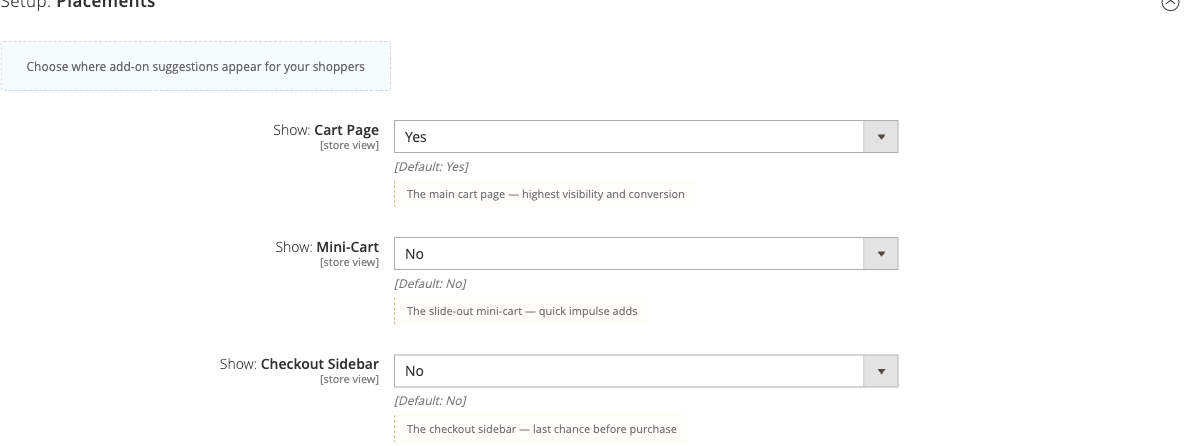
Where: Placements
Controls where add-on suggestions appear for shoppers. Each zone can be independently enabled.
- Show: Cart Page (default Yes) - recommendations appear below the main cart form; highest visibility and conversion
- Show: Mini-Cart (default Yes) - compact suggestions in the slide-out mini-cart; limited to one offer with Essential intent
- Show: Checkout Sidebar (default Yes) - last-chance prompts on the order summary; limited to one offer with Essential intent
- Show: Checkout Shipping Step (default No) - also show during the shipping-address step
- Place: Checkout Offer (default Outside order summary) - whether the checkout tile sits inside the expandable product list or below the order summary
- Show: Minimum Items for Cart-Level Offers (default 2) - hide general cart-level offers until the cart has at least this many items; item-specific inline offers can still appear
- Require: Essential Intent Surfaces - only rules whose intent is set to Essential appear on the selected surfaces (mini-cart, checkout); leave empty to allow all intent levels
- Suppress: Post-Express Checkout Offers (default Yes) - hides SmartCart after a shopper starts Apple Pay, Google Pay, PayPal Express, or a similar wallet flow
- Suppress: After Quiet Offer Shown (default Yes) - after a mini-cart or checkout impression, no further quiet-placement offers are shown for that quote session
- Enable: A/B Tests (default No) - reserve for assignment-based experiment framework
- Variant: Mini-Cart Note Instead of Widget (default No) - show a brief static note instead of the full recommendation widget
Config path: Stores > Configuration > Moogento > SmartCart > Where: Placements (moogento_smartcart/placement/)
Look: Presentation
Controls how suggestion tiles are laid out and what supporting information is shown alongside each product.
- Enable: Group Suggestions by Reason (default Yes) - groups offer tiles under a short heading; when off, tiles render as a flat list
- Enable: AI Relationship Subtitles (default No, Pro only) - replaces the deterministic heading with an AI-generated use-case phrase pre-generated offline; no live AI call at render time
- Enable: Tabbed Group Navigation (default No) - show suggestion groups as clickable tabs instead of stacked headings
- Enable: Star Ratings on Suggestions (default Yes) - compact star widget and review count per tile
- Ratings: Minimum Review Score to Show (default 4) - only show ratings for products with at least this many stars
- Enable: One-Line Review Snippet (default Yes) - show a short excerpt from a real customer review below each tile
- Enable: Suggestion Quick View (default Yes) - adds an eye icon to each suggestion tile; hovering shows a light image-only preview anchored beside the thumbnail, and clicking opens a compact product panel with the larger image, name, short description, price, colour and size, star rating, an Add to Cart button and a View product link
- Enable: Rotate Suggestion After Cart Add (default Yes) - replace an added cart-page suggestion with the next eligible product
Config path: Stores > Configuration > Moogento > SmartCart > Look: Presentation (moogento_smartcart/presentation/)
Sources: Suggestions & Matching
Controls which sources supply product candidates and how candidates are matched to cart contents.
- Enable: Native Product Relations Backfill (default Yes) - fill remaining slots from Magento's native product links (related, cross-sell) when the curated pool has fewer products than the configured maximum
- Enable: SmartListings Category Source (default Yes) - when SmartListings Pro is installed, use its conversion-ranked category products to fill slots
- Enable dynamic association pools (default No) - let rules suggest products shoppers frequently buy together, found automatically from order history
- Default Lookup Source (default Matched items only) - which cart products to find co-purchases for (matched items only, or all cart items)
- Default Suggestion Limit (default 5) - how many products to suggest per association-based rule (1-20)
- Default Min Confidence (default 0.10) - minimum confidence score required to show a pairing (0.0-1.0)
- Default Min Pair Count (default 2) - minimum number of orders where two products were bought together before the pairing is suggested
- Enable: Compatibility Checking (Growth or Pro; default No) - filter suggestions by product attribute compatibility
- Rules: Compatibility Attributes - add one row per product attribute and choose match mode (must match all, allow values already in cart, or deny values already in cart)
- Enable: Don't Mix: Category Groups (default No) - products from one group are never suggested to carts containing another group
- Don't Mix: Category Groups - configure conflicting category groups (Pro and Growth plans)
- AI: Suggest Groups - propose groups from the category tree via AI provider (Pro plan, requires AI Workflows enabled)
- When Cart Has: Mixed Group Items (default Allow) - allow all grouped products or strictly hide them when cart has items from different groups
- Don't Mix: Admin Overrides (default none) - force Don't Mix group membership per SKU (Pro plan)
- Enable Variant Matching (Growth or Pro; default No) - match suggested configurable products to the child variant that fits the shopper's cart
- Variant Match Attributes (Growth or Pro; default size, color) - attributes used to match the suggested variant
Config path: Stores > Configuration > Moogento > SmartCart > Sources: Suggestions & Matching (moogento_smartcart/sources/)
Limits: Eligibility & Suppression
Controls who sees add-on suggestions and when.
- Show to: Customer Groups - restrict to specific customer groups (leave empty for all)
- Threshold: Minimum Cart Subtotal (default $5) - show offers only above this subtotal
- Exclude: Product SKUs - comma-separated SKUs to never suggest
- Exclude: Categories - categories whose products should never be suggested
- Exclude: Gift Cards (default Yes) - automatically ignore GiftEasy and Magento gift card products
- Disable: When Coupon Applied (default No) - hide recommendations when a coupon code is active
- Enable: Purchased Product Suppression (default Yes) - skip products the customer has already ordered
- Look Back: Days (default 180) - how far back to check order history
- Include: Guest Orders (Pro; default Yes) - match guest orders by email
- Remember: Dismissed Offers (default 24 hours) - how long a dismissed offer stays hidden per shopper, per store
- Purchase History: Refresh Interval (default 60 minutes) - cache TTL for purchased-product lookups (advanced)
Config path: Stores > Configuration > Moogento > SmartCart > Limits: Eligibility & Suppression (moogento_smartcart/eligibility/)
Extra: Empty Cart Experience
Turns the empty-cart page into a discovery surface with recovery sections, popular categories, trending products, and an optional continue button (Growth+ plan). Shoppers see server-rendered products ranked by current-month sales, filtered by prior-purchase history.
- Enable (default No) - master switch; when off, shoppers see Magento's standard empty cart page
- Page Heading (default "Your cart is empty") - main heading on the discovery page
- Supporting Copy (default "Ready when you are - here are some ideas to get started") - text under the heading
- Continue Shopping Button (default No) - hidden by default; when shown, defaults to "Go to homepage" label and resolves a blank URL to your store home page
- Continue Shopping Label (default "Go to homepage") - label on the button when shown
- Continue Shopping URL (blank by default) - leave blank for home page, or enter a store-relative path or full http(s) URL
- Recently Viewed (default Yes) - shows products shoppers looked at recently, client-hydrated
- Recently Viewed Heading (default "Pick up where you left off") - heading above that section
- Recently Removed (default Yes) - shows the last removed item and related products when a shopper empties their cart
- Recently Removed Heading (default "Still thinking it over?") - heading above that section
- Desktop Items (default 5) - products per section at desktop widths (max 12)
- Tablet Items (default 3) - products per section at tablet widths (max 12)
- Mobile Items (default 2) - products per section at mobile widths (max 12)
- Filter-in by: Minimum final price - minimum-final-price filter mode for this section
- Minimum final price - threshold amount. In "Yes, match the quantity customers typically buy" mode the minimum is a hard floor: the suggested quantity is raised until the price reaches it. Set it to 0 to turn the minimum off.
- Bestseller This Month (default Yes) - shows one sales-ranked current-month product with larger image, description, and rating; omitted when no eligible candidate exists
- Bestseller Heading (default "Bestseller this month") - heading above the focus section
- Popular Categories (default Yes) - shows sales-ranked category image tiles with category names, a short description, and wayfinding; omitted when no eligible category exists
- Popular Categories Heading (default "Popular categories") - heading above the tiles
- Popular Categories Count (default 4, configurable 1-4) - number of category tiles to display
- Balance: Category Tiles (default Yes) - while a shopper has not clicked into a category yet, spreads tiles across your store's audiences instead of letting one side dominate; Women/Men, Ladies/Gents, and Freshwater/Marine style pairs are recognized automatically
- Balance: Category Groups - add your own rows when your category names differ from the recognized pairs; each row lists two or more categories that should share the tile rotation
- Everyday Essentials (default Yes) - adds a row of affordable everyday items after the popular products rack, using your Everyday Essentials price cap; Pro plans only, omitted when no eligible product exists
- Everyday Essentials Heading (default "Everyday essentials") - heading above the row
The bestseller focus product treats size and color variants as one family, so a bestseller whose sales are spread across several sizes still wins the spot. For a simple or virtual product it shows the usual one-click Add button; for a size/color family it shows the parent product's name, image, and a "From" starting price, with a "Choose options" button that takes the shopper to the parent product page to pick their variant rather than guessing one for them. The same choose-options presentation shows up on the popular products rack and the Everyday Essentials row whenever the offer is a configurable family.
All server-rendered offers and client-hydrated recent products show star ratings (when available) and are subject to a hard prior-purchase suppression regardless of the global history setting: products in the shopper's purchase history are automatically hidden. If the history lookup fails for a known customer, all product discovery hides but category wayfinding and the Magento native empty-cart copy remain visible.
Config path: Stores > Configuration > Moogento > SmartCart > Extra: Empty Cart Experience (moogento_smartcart/empty_cart/)
AI: Rules
Configures offline AI tagging and draft generation from order history.
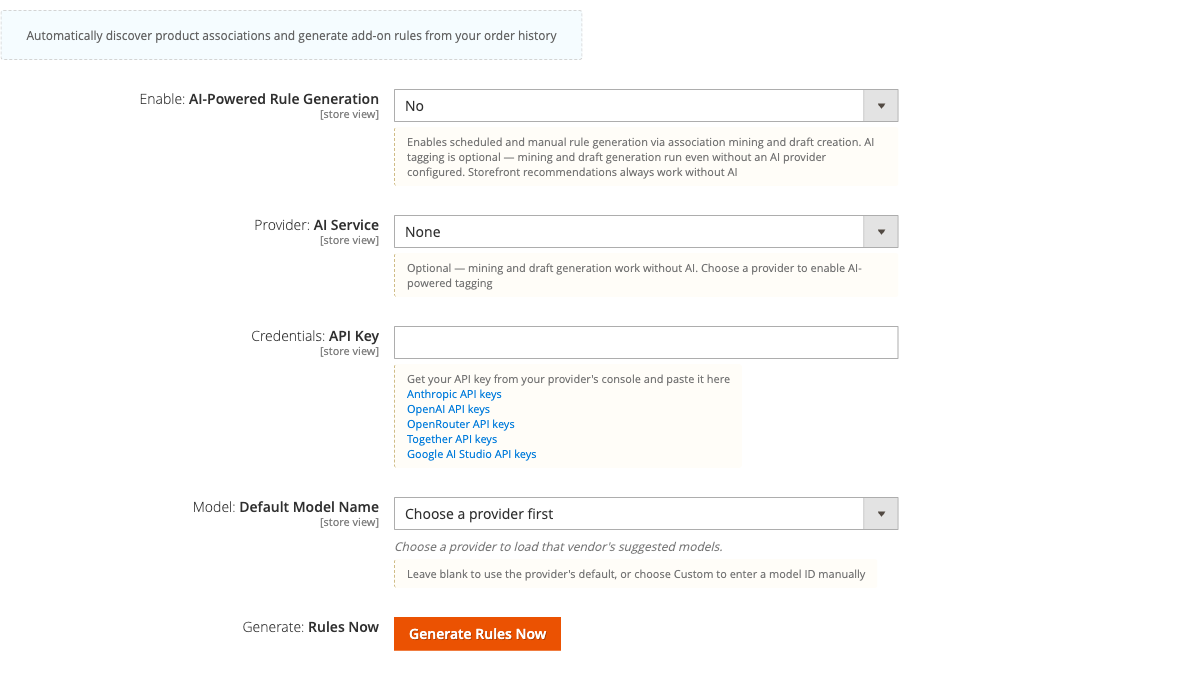
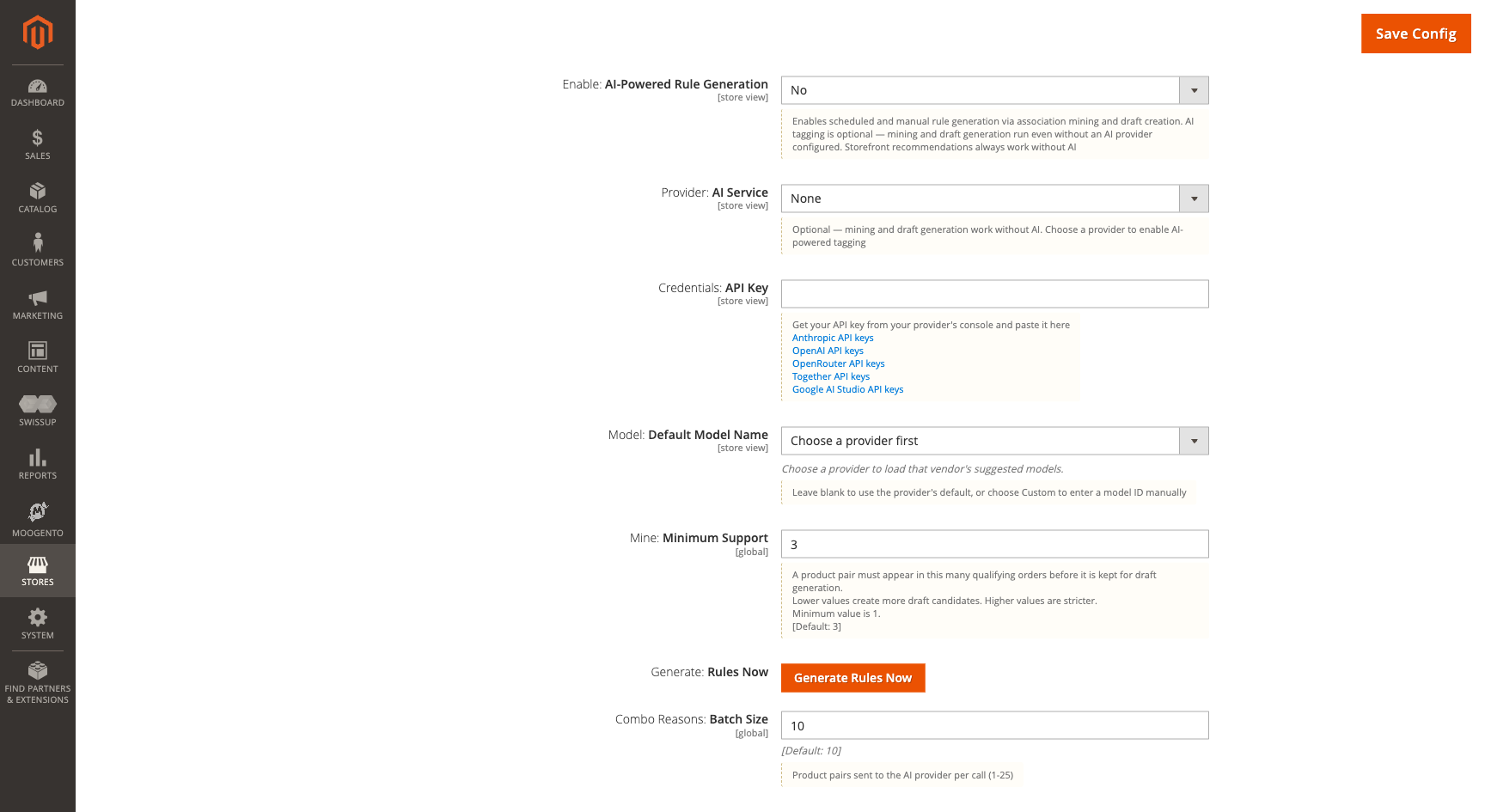
- Enable: AI-Powered Rule Generation (default No) - enable offline AI tagging and draft generation
- Provider: AI Service - select Anthropic, OpenAI, OpenRouter, Together, Gemini, or None (mining works without AI)
- Credentials: API Key - encrypted API key for the selected provider
- Model: Default Model Name - leave blank to use provider default, or choose Custom to enter a model ID manually
- Generate: Rules Now - manually trigger the mining and draft generation pipeline
- Enable: AI Combo Reasons (default No) - generate short AI "why" sentences for product pair suggestions (Pro plan required)
- Combo Reasons: Daily Budget (default 500) - max product pairs to generate per store per day; set to 0 to pause
- Combo Reasons: Model Override - use a specific model for reasons, or leave blank for provider default
- AI Combo Reasons - Coverage - readout showing what percentage of tracked pairs have AI reasons ready
- Enable: AI Micro-Descriptions (default Yes) - write one-line factual descriptors under Complete With suggestions (Pro plan required)
- Micro-Descriptions: Product One-Liner Attribute (default "No override") - pick a text or text-area catalog attribute that already holds a one-line summary, eg. Moogento ProductContent's Tiny Description; when a product has a value there, it is shown instead of the AI micro-description on the Complete With drawer, and no AI request is spent generating one for that product. Works even with AI Micro-Descriptions switched off
- Micro-Descriptions: Daily Budget (default 500) - max products to write descriptions for per store per day
- Micro-Descriptions: Model Override - use a specific model for descriptions
- AI Draft Rule Style (default Fixed product list) - controls how AI builds draft rules: fixed product list (one rule per pair), or live co-purchase lookup (one rule per trigger product)
- AI Relationship Subtitle Tone (default Benefit-led) - voice of the AI-written relationship subtitle (Descriptive, Benefit-led, or Call to action)
- AI Relationship Subtitles - Coverage - readout showing generation progress
- Enable: AI Domain Tags (default No, Pro plan) - classifies each product into configured Don't Mix groups using AI (requires Don't Mix: Category Groups enabled)
- Domain Tags: Model Override - use a specific model for tagging
- Domain Tags: Minimum Confidence (default 0.00, no floor) - domain tags below this confidence are treated as untagged
Config path: Stores > Configuration > Moogento > SmartCart > AI: Rules (moogento_smartcart/ai/)
Pro: AI Draft Automation
Automatically promotes high-confidence drafts to live rules and enables cold-start semantic pairing for new products (Pro plan).
- Auto-enable drafts above confidence threshold (default No) - drafts scoring at or above the threshold become live rules automatically
- Confidence Threshold (%) (default 90, range 50-100) - minimum score to auto-enable drafts
- Include semantic-only drafts in auto-enable (default No) - allow semantic drafts (capped at 75) to auto-promote
- Enable: Cold-start Semantic Pairing (default Yes) - Pro-only offline scoring for products with little or no co-purchase history; it shortlists same-category products, applies Don't Mix rules, and creates drafts with source "AI idea" (requires AI-Powered Rule Generation and a configured provider)
- Semantic: Daily Pair Budget (default 200) - candidate pairs available to the offline semantic job for each store each day; scored-but-rejected pairs count, failed provider calls refund their share, 0 pauses the job, and this budget is separate from Combo Reasons and Relationship Subtitles
- Semantic: Model Override - use a specific model for semantic pairing
- Semantic: Minimum AI Score (default 0.55, range 0.0-1.0) - pairs below this score are skipped
- Auto-enable: Max per generation run (default 10, advanced) - hard cap on how many drafts can auto-promote in a single pipeline run
Config path: Stores > Configuration > Moogento > SmartCart > Pro: AI Draft Automation (moogento_smartcart/ai_drafts/)
Pro: Pairing Guidance
Reviews compatibility advice found in your product, category and selected CMS text. The scan runs from the command line, and review happens under Moogento > SmartCart > Pairing Guidance (Pro plan). Accepted category advice can be added to Don't Mix from Pairing Guidance; the only change is the Don't Mix rows you save.
- Enable: Content Pairing Evidence (default No) - turns on the content scan; requires a Pro plan and a configured AI provider
- Content pairing: Daily Passage Budget (default 150, 0 pauses) - maximum passages sent to your AI provider per store view per day; every sent passage counts, even when the reply is unusable (default scope only)
Config path: Stores > Configuration > Moogento > SmartCart > Pro: AI Draft Automation (moogento_smartcart/ai_drafts/)
Pro: Free Shipping & Tier Boost
Shows a progress bar on the cart and checkout telling shoppers how much more they need to spend to reach free shipping, with optional product suggestions ranked by how well they fill the gap (Pro plan).
- Enable: Free-Shipping Bar (default No) - requires at least one tier configured and a Pro plan
- Show: Surfaces (default all) - which surfaces show the bar (mini-cart, cart, checkout)
- Checkout: Bar Position (default Order Summary below items) - where the bar appears on checkout
- Calculate: Subtotal Basis (default Subtotal before discounts) - whether discounts reduce progress toward free shipping. When your store shows cart subtotals including tax, the bar measures the subtotal including tax, so the remaining amount matches what shoppers see
- Base Thresholds On (default Order Value) - Order Value applies the Tiers table below to every shopper; Customer Location groups the Location Tiers table by shipping postcode pattern and only applies to signed-in shoppers
- Tiers: Free-Shipping Thresholds - dynamic rows with threshold amount, label, sub-label, tone (colour), and whether this tier is free shipping; used in Order Value mode. Write labels as actions with {{amount}}, for example "Add {{amount}} more for $11 shipping". A label without {{amount}} reads as if the tier is already reached, so saving one shows a warning
- Location Tiers: Postcode-Based Free-Shipping Thresholds - same columns as Tiers, plus a Pattern column; used in Customer Location mode
- Message: Qualified (default "You've got free shipping 🔥") - shown when cart reaches the final free-shipping tier
- Message: Remaining Amount (default "Add {{amount}} more for free shipping") - shown while below next tier; use {{amount}} as placeholder
- Enable: Tier-Boost Suggestions (default Yes) - show products ranked by how well they close the remaining gap to the next tier. On the cart and checkout, when no single product closes the gap, the bar suggests one product that covers part of it, with the message "Add this and you're [amount] away from free shipping"
- Rank: Strategy (default Single Item) - Single Item (cheapest that closes the gap) or Near Miss (product closest in price to remaining amount)
- Show: Max Suggestions (default 3) - number of product chips to display
- Upsell: Surfaces - which surfaces show tier-boost products
- Cart: Progress Bar and Upsell Position (default Sidebar above totals) - where bar and products render on cart page
- Threshold: Minimum Remaining Amount (default 0, advanced) - hide suggestions when remaining amount is below this
- Cap: Max Overshoot % (default 50, advanced) - hide products priced more than this percentage above remaining amount
- Reserve: Slots for Recommendations Well (default 1, advanced) - how many complement slots tier-boost reserves for main recommendations
Config path: Stores > Configuration > Moogento > SmartCart > Pro: Free Shipping & Tier Boost (moogento_smartcart/free_shipping_bar/)
Order value versus customer location
Order Value is the default and works for every shopper, guest or signed in. Switch Base Thresholds On to Customer Location when you offer free shipping at different spend levels for different postcode areas (for example, a lower threshold near a warehouse and a higher threshold further away).
Customer Location mode:
- Only applies to signed-in shoppers. Guests never see location-based free-shipping surfaces.
- Checks the current order's shipping postcode first; if that is blank, it falls back to the shopper's default shipping address.
- Hides the free-shipping bar, upsell, and tier-boost suggestions for a virtual (downloadables-only) cart, since there is no shipping address to resolve a postcode from.
- Hides the free-shipping bar, upsell, and tier-boost suggestions when the shopper has no usable postcode or when their postcode does not match any pattern.
Pattern examples and precedence - patterns support an exact postcode, a trailing wildcard, or a catch-all. When several patterns match the same postcode, the one with the longest literal run before the wildcard wins; if two tie, the exact postcode wins over a wildcard:
| Pattern | Matches | Precedence for postcode 92891 |
|---|---|---|
92891 |
exactly 92891 |
1st - same 5-character literal length as 92891*, but exact wins the tie |
92891* |
any postcode starting 92891 |
2nd - same literal length as 92891, loses the tie to the exact match |
928* |
any postcode starting 928 |
3rd - longer literal prefix than 92* |
92* |
any postcode starting 92 |
4th - shorter literal prefix |
* |
any postcode at all | 5th - catch-all, used only if nothing else matches |
Add a * row only if you want every signed-in shopper without a more specific match to fall back to a
default threshold ladder. Without a * row, shoppers whose postcode matches nothing simply see no
free-shipping surfaces - this is the safe default and avoids accidentally promising a threshold you did
not intend for that shopper's location.
Pro: Smart Bundles
Lets shoppers add multiple recommended products at once with an automatic discount applied when they select a qualifying number of items (Pro plan).
- Enable Smart Bundles (default No) - master toggle; Pro plan required
- Discount Mode (default None) - None (no automatic discount), Percent (% off each item), Flat (fixed amount off bundle), or Tiered (quantity-based tiers)
- Discount Value - the percentage or flat amount to apply
- Already-Discounted Item Handling (default Stack) - how bundle discount treats products already on sale: Stack (on top), Exclude (sale items keep current price), Best price (lower of existing or bundle discount)
- Minimum Items to Qualify for Discount (default 3) - shoppers must select at least this many items to trigger discount (non-tiered modes)
- When a product is under the minimum price (default Skip it) - Skip it leaves the product out of bundles; Offer a multi-pack that reaches it adds units until the minimum is cleared; Offer the quantity shoppers usually buy, never under the minimum keeps the usual quantity but raises it until it reaches the minimum
- Heuristic Strictness (default Balanced) - how aggressively to filter candidates: Permissive (widest set), Balanced (default), or Strict (highest-confidence only)
- Use AI Bundle-Intent Classification (default No) - only allow products tagged as bundle-friendly by the AI provider
- Show Percentage Saving on Bundle Offers (default Yes) - display discount as "Save X%" alongside dollar amount
- Tiers: Quantity Discount Tiers - for tiered mode, add rows with min items and discount value per tier
- Minimum Unit Price for Bundle Inclusion (default $2.00, advanced) - products below this price are excluded from bundles
Config path: Stores > Configuration > Moogento > SmartCart > Pro: Smart Bundles (moogento_smartcart/bundles/)
Pro: Extra Add-on Surfaces
Displays two additional surfaces for product add-ons: Everyday Essentials (a row of affordable items) and Complete With (a drawer for completing a purchase) (Pro plan).
- Enable Everyday Essentials (default No) - show a row of affordable add-ons based on co-purchase frequency
- Filter: Price Ceiling (default $5.00) - only show essentials at or below this price; 0 disables the ceiling
- Limit: Desktop Items (default 5, max 12) - items to display on desktop
- Limit: Tablet Items (default 3, max 12) - items to display on tablet
- Limit: Mobile Items (default 2, max 12) - items to display on mobile and mini-cart
- Show: Cart Position (default Below product list) - where the essentials rack appears on cart page
- Show: Placements (default cart) - which surfaces show the Essentials row
- Text: Section Heading (default "Everyday essentials for you") - label above the Essentials row
- Enable Complete With Drawer (default No) - show a flyout drawer with complete-the-look suggestions
- Limit: Maximum Items per Drawer (default 8, range 2-12) - items per drawer
- Show: Cart Page (default Yes) - whether the drawer appears on the cart page
Config path: Stores > Configuration > Moogento > SmartCart > Pro: Extra Add-on Surfaces (moogento_smartcart/addons/)
Extra: Empty Cart Experience
Turns the empty cart page into a discovery page with a heading, supporting copy, a continue-shopping button, and product suggestions (Growth and Pro plans).
- Enable Empty Cart Experience (default Yes) - master switch for eligible plans; an explicitly saved No remains off after upgrading
- Page Heading (default "Your cart is empty") - discovery-page heading
- Supporting Copy - short text below the heading
- Continue Shopping Label / URL - button wording and destination
- Recently Viewed (default Yes) - show products the shopper viewed recently when available
- Recently Removed (default Yes) - show the last removed product and related items when available
- Desktop / Tablet / Mobile Items (defaults 5 / 3 / 2) - per-section responsive limits
- Balance: Category Tiles (default Yes) - spread popular-category tiles across your store's audiences instead of favoring one side, until the shopper clicks a tile
- Balance: Category Groups - custom category pairings for stores whose category names differ from the automatically recognized pairs (Growth and Pro plans)
- Everyday Essentials (default Yes) - adds a row of affordable everyday items after the popular products rack, sharing your Everyday Essentials price cap (Pro plan only)
- Everyday Essentials Heading (default "Everyday essentials") - heading above the row
If the plan is unavailable or no section has suitable products, Magento's standard empty cart page stays visible. SmartListings can improve popular-product ranking when installed; SmartCart retains a built-in bestseller fallback without it, and rolls up size/color variant sales into a single family so the bestseller spot reflects the parent product's true popularity. Size and color families show a "Choose options" button that takes the shopper to the parent product page instead of guessing a variant to add; simple and virtual products keep the one-click Add button. Popular category tiles also show a short description under the category name.
Config path: Stores > Configuration > Moogento > SmartCart > Extra: Empty Cart Experience
(moogento_smartcart/empty_cart/)
Pro: Focused Checkout
Removes navigation and search distractions on the checkout page while preserving the sign-in link (Pro plan).
- Enable: Focused Checkout (default No) - master toggle; Pro plan required
- Hide: Elements - which elements to hide (top navigation, search bar)
- Logo: Image URL - optional custom logo for the focused checkout header; leave blank to use store default
- Show: Secure Checkout Badge (default Yes) - display a trust badge next to the checkout logo
- Badge: Text (default "100% Safe & Secure Checkout") - text shown inside the badge
Config path: Stores > Configuration > Moogento > SmartCart > Pro: Focused Checkout (moogento_smartcart/focused_checkout/)