

This page is part of the SmartCart guide. Start there for what the extension does, installation and the frequently asked questions.
Turn SmartCart on and place it on the cart page
New installations have SmartCart enabled by default. Once a rule is ready, you can choose where offers appear.
How to set it up
-
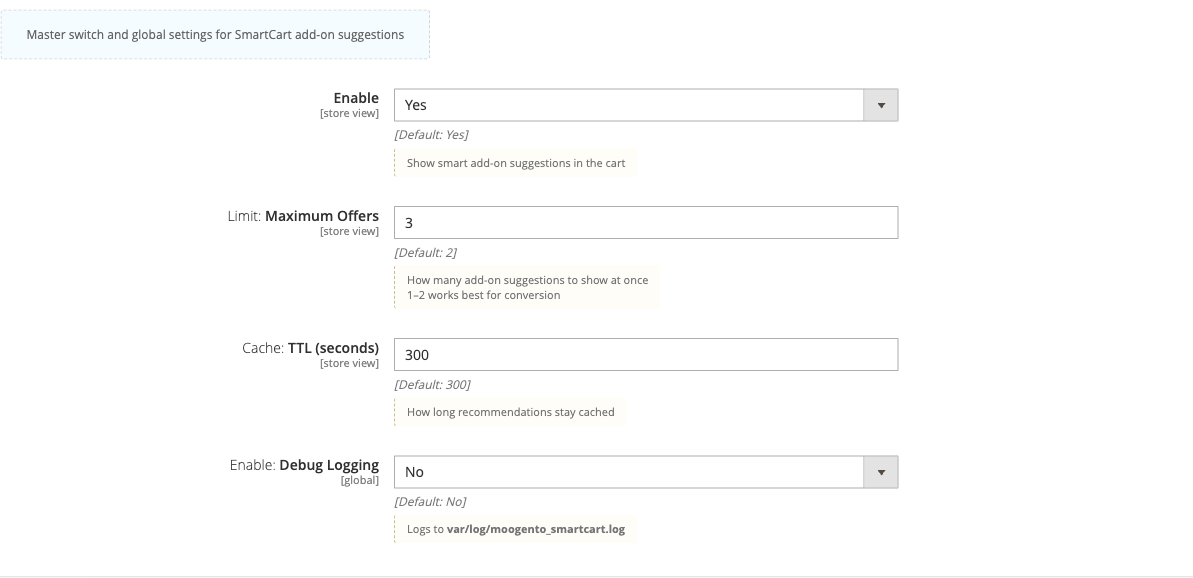
Go to: Stores > Configuration > Moogento > SmartCart > Setup: General
-
Set:
- Enable = Yes
- Maximum Offers = 2 (1-2 converts best; you can test with 3 if your layout allows it)
- Cache TTL (seconds) = 300 (default - keeps server load low; set to 0 to disable caching during rule testing)
-
Go to: Stores > Configuration > Moogento > SmartCart > Where: Placements
-
Set:
- Show: Cart Page = Yes
- Show: Mini-Cart = No while you test the cart placement (ships as Yes; switch back on once you are happy with the offers)
- Show: Checkout Sidebar = No while testing (also ships as Yes)
-
Save Config
Notes
- The module will not show any suggestions if there are no active rules. Go to Moogento > SmartCart > Rules and create at least one rule before shoppers see anything.
- If you change cache TTL during testing, remember to set it back to 300 or higher in production - a TTL of 0 fires a pipeline call on every cart page load.
Create a manual recommendation rule
Rules tell SmartCart which products to suggest and when. Each rule has a trigger (what must be in the cart) and a pool (which products to suggest).
How to set it up
-
Go to: Moogento > SmartCart > Rules
-
Click Add New Rule.
-
Fill in the form:
- Code - a unique slug for this rule, e.g.
camera-accessories - Priority - higher numbers run first when multiple rules match; start at 10 and leave gaps to insert later
- Status - set to Enabled when ready to go live
- Store View - choose a specific store or leave as All Store Views
- Trigger Type - choose SKU in Cart, Category in Cart, or Attribute in Cart, then fill the trigger values
- Pool Type - choose Specific Products, Category, or Attribute, then select the candidates
- Display Copy - optional title and helper text shown above the offer tiles
- Code - a unique slug for this rule, e.g.
-
Save the rule.
Notes
- Rules only fire if a shopper's cart matches the trigger. A rule with trigger type "SKU in Cart" and no matching SKU in the cart will never show.
- Guardrails run automatically - out-of-stock, already-in-cart, and excluded products are filtered out before display regardless of pool contents.
- The Rules grid shows 30-day impressions, add rate, and purchase rate per rule once event tracking is enabled. Check back after a week to compare rule performance.
- In the Rules grid, Sales history means the connection came from products bought together in completed orders. AI Connected means “SmartCart AI connected these products, and the connection was then approved”.
Restrict offers by customer group and minimum cart value
Not every offer is right for every customer. Use eligibility rules to limit suggestions to guests, logged-in customers, or specific groups - and only show when the cart is large enough to make the add-on relevant.
How to set it up
-
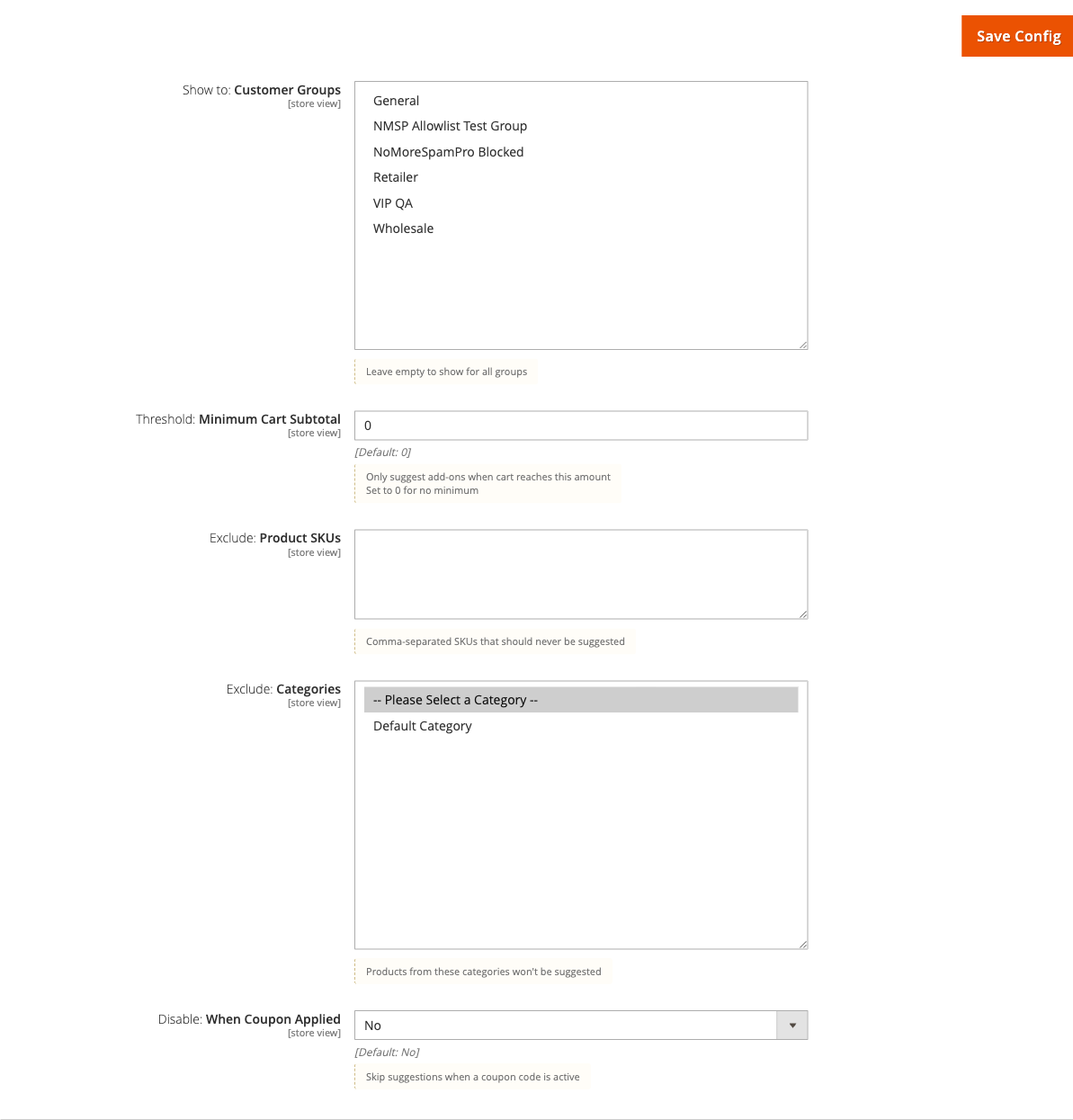
Go to: Stores > Configuration > Moogento > SmartCart > Limits: Eligibility & Suppression
-
Set:
- Show to: Customer Groups - select the groups you want to target (leave empty for all groups)
- Threshold: Minimum Cart Subtotal - enter a value, e.g.
50to only show offers on carts worth $50 or more (use0for no minimum) - Exclude: Product SKUs - paste any SKUs that should never appear as suggestions, comma-separated
- Exclude: Categories - select any categories whose products should never be suggested
- Disable: When Coupon Applied - set to Yes to hide all recommendations whenever a coupon code is active
-
Save Config
Notes
- Coupon suppression (Disable: When Coupon Applied) is useful if your coupons already give a discount - showing an add-on alongside a discount code can dilute the incentive.
- Excluded SKUs and categories act as a blocklist across all rules. You can also exclude a pool at the rule level by not including those products in the pool.
Use purchase history suppression to avoid re-suggesting owned products (Growth or Pro)
Recommending a product someone already bought feels out of touch. Enable history suppression so SmartCart automatically skips candidates the shopper has ordered before.
How to set it up
-
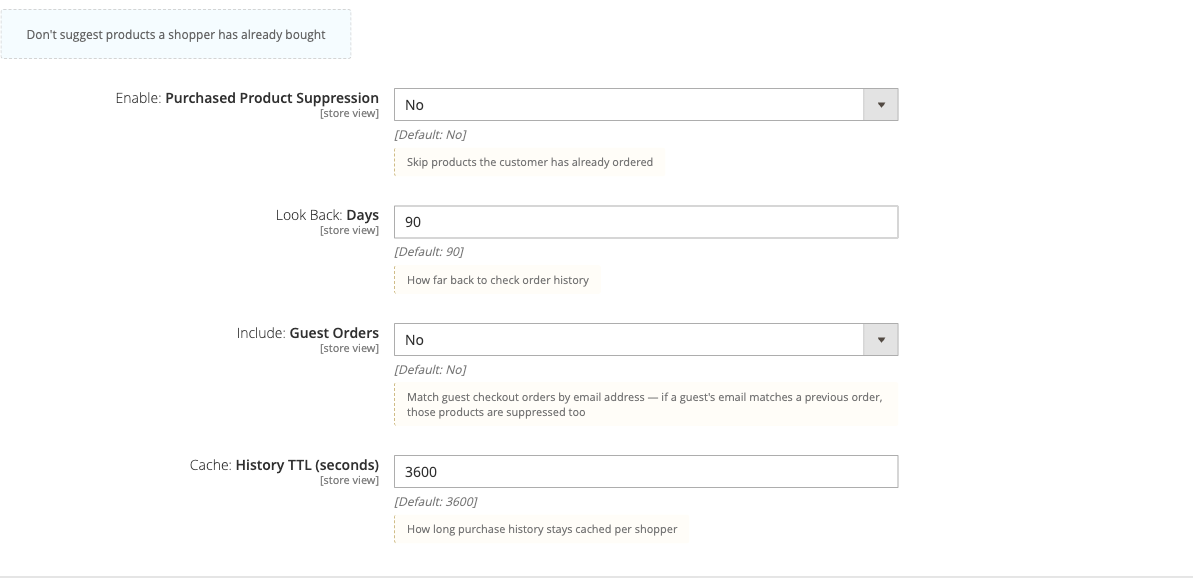
Go to: Stores > Configuration > Moogento > SmartCart > Limits: Eligibility & Suppression
-
Set:
- Enable: Purchased Product Suppression = Yes
- Look Back: Days = 90 (how far back to check; increase for slow-moving products)
- Include: Guest Orders = Yes (Pro, if you want to match by email for guests)
-
Save Config
Notes
- Guest order matching requires the guest's email to be available in the session. If a guest checks out without logging in, the email from their most recent checkout attempt is used.
- History lookups are cached (Purchase History: Refresh Interval in the same group, default 60 minutes) so the database is not queried on every page load.
Generate rule drafts from order history (Pro)
SmartCart can mine your order history to find products that are frequently bought together, then generate pending draft rules for you to review. AI is optional - mining and draft creation work without a provider configured.
How to set it up
-
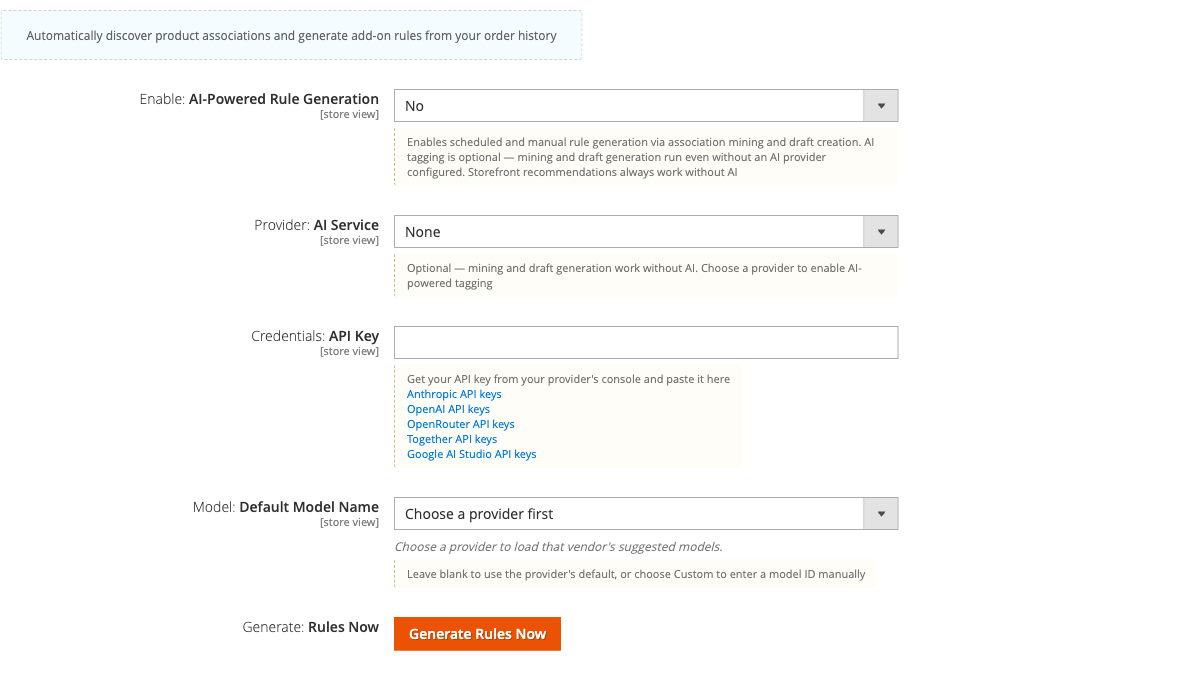
Go to: Stores > Configuration > Moogento > SmartCart > AI: Rules
-
Set:
- Enable: AI-Powered Rule Generation = Yes
- Provider: AI Service - select your preferred provider if you want AI-enhanced tagging; leave as None for mining-only workflow
- Credentials: API Key - paste the API key from your provider's console (only required if a provider is selected)
-
Save Config.
- From the server command line, run the mining and draft generation sequence:
php bin/magento smartcart:mine:associations --since=90 --min-support=3
php bin/magento smartcart:tag:products --batch=50   # optional, requires AI provider
php bin/magento smartcart:generate:semantic-pairs   # optional, Pro plan, for new products
php bin/magento smartcart:generate:drafts --min-confidence=0.1
- Go to Moogento > SmartCart > Drafts. Review each pending draft - you'll see the trigger, pool, copy, evidence (pair count, confidence, lift), and source. Click Approve to create a live rule, or Reject to discard it.
Notes
- Mining requires qualifying orders (status
processingorcomplete) containing two or more distinct products. Stores with few multi-product orders may produce few associations. - Association mining runs weekly on a cron schedule (by default Sunday at 4 AM). The rule-generation pipeline (mine → tag → generate drafts) then runs Monday at 5:15 AM, with a change-detection guard that skips weeks with no new orders or products.
- AI tagging enriches draft copy (helper text) but is not required for the pipeline to work. Even without a provider, mined rules produce useful draft rules.
Find pairing guidance in store content (Pro)
This feature is Pro only. SmartCart can read your product and category text, plus the CMS pages and blocks you choose, and look for passages that say two products or categories should be kept apart or go well together (for example, a page that says one item is not suitable with another). Each passage it finds is quoted and queued under Pairing Guidance for you to review.
The scan never changes your recommendations. Accepting advice only records your decision until you add it to Don't Mix (see below).
How to set it up
-
Go to: Stores > Configuration > Moogento > SmartCart > Pro: AI Draft Automation
-
Set:
- Enable: Content Pairing Evidence = Yes
- Content pairing: Daily Passage Budget = 150 (default scope only)
-
Save Config. A configured AI provider is required (see AI: Rules above).
-
Check the scope first. A dry run reads and counts passages without AI calls or writes:
php bin/magento smartcart:content-scan --store=1 --dry-run
- Run the scan for one store view:
php bin/magento smartcart:content-scan --store=1 --limit=200
php bin/magento smartcart:content-scan --store=1 --limit=200 --cms-page=12,14 --cms-block=3
- Go to Moogento > SmartCart > Pairing Guidance and pick the store view in the switcher.
Command options
--store(required) - store view ID, above 0--limit- maximum number of sources with new or changed text to process in this run (1 to 5000)--dry-run- counts passages only; no AI calls and no writes--cms-pageand--cms-block- comma-separated IDs, up to 200 each. CMS content is scanned only when you list it here. Choose public content only. Each page or block must be active and assigned to this store view or to all store views.
The command stops with an error if the plan is not Pro, the setting is off, no AI provider is configured, or the store view ID is invalid.
Review the advice
- Accept - records that you agree with the advice. It is offered only for clear advice between two products or two categories that match exactly one item each and has no condition. Accepted advice that two categories should be kept apart waits until you add it to Don't Mix. Accepted advice that two products go well together becomes a draft straight away (see below). Accepting does not change companion pairs.
- Reject - hides the advice. The same passage is not suggested again.
- Set aside - leaves the advice for later.
- Bulk actions are Reject and Set aside. There is no bulk accept.
- Unresolved means a name in the text matches more than one product or category. Add an alias, then rescan.
- Out of date means the quoted passage changed or its page was removed after the advice was found. Rescan instead of accepting.
- Disagrees with other advice means opposing advice exists for the same pair. Reject the side you do not agree with.
Add accepted category advice to Don't Mix
Accepted advice that says two categories should be kept apart can be added to the Don't Mix: Category Groups editor for the same store view. Nothing changes until you press Save Config.
- In Pairing Guidance, click Add to Don't Mix on the accepted category advice. The Don't Mix: Category Groups editor for that store view opens with a panel for that one item.
- Check the estimate in the panel: about how many products are in these categories, how many existing suggestions would be excluded, and which other groups a new group would keep apart. Estimates show "1000+" when the count is high, and do not include rules that pick products by attribute.
- Click Add to groups. The rows appear in the editor marked "Added below. Click Save Config to apply."
- Click Save Config. Once the save succeeds, the advice is marked applied.
Notes:
- Smartcart adds only the rows that belong to this advice. Your existing groups are not changed.
- Advice is added per store view. Website scope, and Default scope on multi-store sites, are not changed.
- If the store view currently uses inherited groups, adding a row copies the whole inherited list into the store view. Later changes at Default or Website scope will no longer reach it. Smartcart asks you to confirm first.
- Rows added from advice show "From store content" in the Source column, with a link back to the advice.
- Advice about two single products is not added. Smartcart has no product-level rule yet, and a category group would also block other products, so it stays as advice.
Product advice becomes a draft
When you accept advice that two products go well together, Smartcart creates a pending draft in Drafts, labelled "Store content". If a Store content draft for the same product was created less than a day ago and is still pending, the new product and its quote are added to it. Otherwise a new draft is created. This way every piece of advice gets at least 6 days for review before it can be approved automatically. Your role needs access to drafts to accept this kind of advice.
- The draft is approved automatically 7 days after it was created, unless you approve or reject it first.
- Before approving, Smartcart checks each product again against the quoted page, Don't Mix and your other settings. Products that no longer fit are dropped. If none are left, the draft is held for you to review instead.
- An automatic approval is noted on the draft and the rule, for example "Auto-approved on 2026-11-02 after 7 days with no review".
- Drafts and rules show a Why this was suggested section: the advice in plain words, the quoted passage, the page it came from with links to edit and view it, when it was scanned, who accepted it, and any other store content that disagrees. If that content changes later, the section says so.
- The Pairing Guidance column links to the draft and shows when it will be approved.
Click Revert on the advice to remove its product and quote from the draft. A draft left with nothing in it is rejected. Revert is refused once the draft has become a live rule: turn the rule off in Rules instead. Rejecting a draft in Drafts does not change the advice in Pairing Guidance.
Applied advice and revert
The Don't Mix column in Pairing Guidance shows where accepted advice was added. It reads "Added to Don't Mix" with the group names, and links to the editor. Two badges warn you when things have changed: "edited since applied" (a row was changed) and "Removed in Don't Mix editor" (the rows were deleted by hand).
Click Revert to remove the rows that this advice added. Smartcart asks you to confirm, then removes only those rows. Other groups are not touched.
Revert refuses, and changes nothing, when:
- A row added from this advice was edited. Remove it in the Don't Mix editor instead.
- Only some of the rows are still there. Remove the rest in the editor, then try again.
- Another group is set to keep apart from one of these rows. Remove that group first.
- Your plan does not allow changing Don't Mix groups.
- The groups could not be saved. Nothing is changed.
- Another change is in progress. Try again in a moment.
Your admin role needs access to both Pairing Guidance and Smartcart configuration to add or revert advice.
Add accepted "goes well together" advice to companion pairs
Accepted advice that says two categories go well together can be added to the Compatible Companion Pairs editor (Pro plan) for the same store view. Nothing changes until you press Save Config.
- Click Add to companion pairs on the accepted row in Pairing Guidance.
- In the editor, the panel first lists the rows it will add and an estimate of the products in each category. Click Add to companion pairs in the panel to add them, up to two rows, one for each direction. If this store view currently uses inherited companion pairs, adding a row copies the whole inherited list into the store view, so Smartcart asks you to confirm first.
- Click Save Config. The advice moves to approved once the save has gone through.
The pair shows in Frequently Bought Together after the next daily refresh. Smartcart cannot promise a time, and a rule you have disabled by hand stays disabled. Where a Don't Mix rule or an accepted "keep apart" advice separates the two categories, the pair is refused. Click Revert to remove only the rows this advice added, if they were not edited. Revert refuses, and changes nothing, when:
- A row added from this advice was edited. Remove it in the companion pairs editor instead.
- Only some of the rows are still there. Remove the rest in the editor, then try again.
- Your plan does not allow changing companion pairs.
- The companion pairs could not be saved. Nothing is changed.
- Another change is in progress. Try again in a moment.
If you delete every row this advice added in the editor and save, the advice is marked reverted and Pairing Guidance shows "Removed in companion pairs editor".
Add aliases for names the text uses
Click Manage aliases on the Pairing Guidance page. An alias is a second name (2 to 128 characters) for one product or category in that store view, such as a nickname the copy uses. Aliases are never added automatically, and plural forms are not matched automatically, so add them when the text needs them. Rescan after adding an alias.
Notes
- The daily budget is the maximum number of passages sent to your AI provider per store view per day. Every passage sent counts, even when the reply is unusable. Set it to 0 to pause scanning. The budget resets each day.
- A CMS page or block stays in scope on later runs. To stop scanning it, disable or unassign it in Magento, or reject its advice. The command cannot deselect it in this release.
- Scanning does not run on a schedule in this release. Run the command when you want to refresh the advice.
Enable AI-written reasons for cart suggestions
AI combo reasons are short, product-specific sentences that appear below each suggestion tile, explaining why that product pairs with what's already in the cart. Reasons are pre-generated in the background so they show instantly at render time.
Requirements
- Pro plan license active
- AI provider and API key already configured in AI: Rules
How to set it up
-
Go to: Stores > Configuration > Moogento > SmartCart > AI: Rules
-
Set:
- Enable: AI-Powered Rule Generation = Yes
- Provider: AI Service - select your preferred provider and paste the API key
-
Set:
- Enable: AI Combo Reasons = Yes
-
Optionally adjust:
- Combo Reasons: Daily Budget - how many product pairs to generate per day (default 500; set to 0 to pause)
- Combo Reasons: Model Override - use a specific model for reasons, or leave blank for provider default
-
Save Config.
Reasons are pre-generated by the daily cron (runs at 4:30 AM). To generate immediately without waiting for the cron, run:
php bin/magento smartcart:reasons:generate
The command runs against your default store view; pass --store=ID to target another store view. Add --limit=N to cap the number of pairs processed in one run. The same store behaviour applies to smartcart:microdescriptions:generate and smartcart:group-titles:generate.
Notes
- Until the cron or CLI has generated a reason for a given product pair, the offer tile shows a templated fallback phrase. The coverage readout in admin shows what percentage of tracked pairs already have an AI reason ready.
- Reasons are stored in the database, not the Magento cache. Flushing the cache does not erase or delay them.