

This page is part of the Great Magento Emails guide. Start there for what the extension does, installation and the frequently asked questions.
Permissions
Under System > Permissions > User Roles, Great Magento Emails has four permissions:
- View email designs: See the email library, previews and history.
- Edit email drafts: Change and save drafts.
- Publish email designs: Publish, undo publication, roll back and send test emails.
- Configure email diagnostics: Change the Great Magento Emails settings in configuration.
An administrator can have view permission without edit permission, or edit permission without publish permission, for example.
Test email recipients
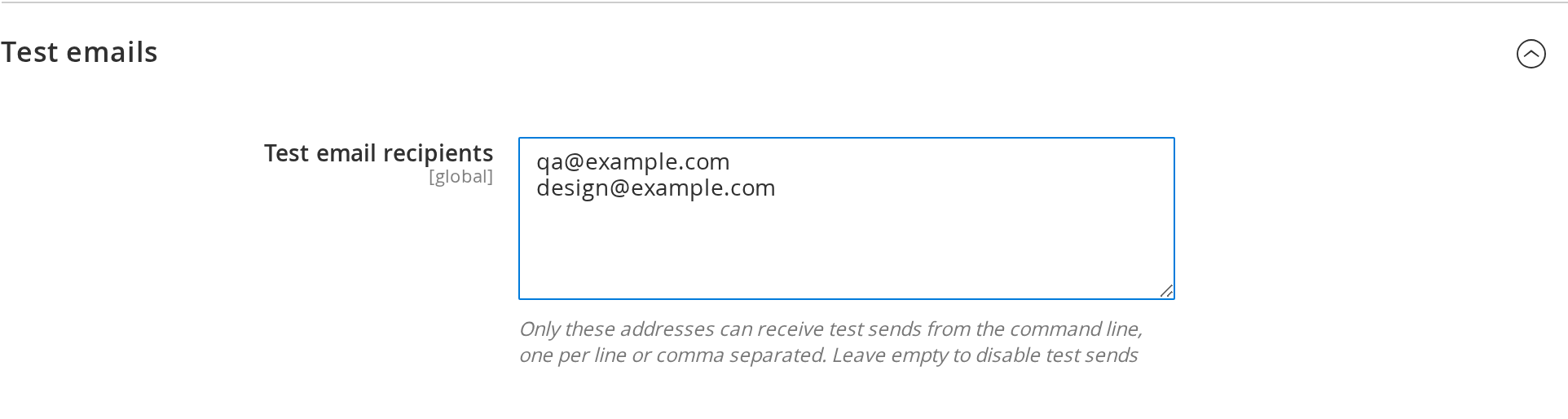
Under Stores > Configuration > Moogento Messages > Great Magento Emails > Test emails, add an allowlist of email addresses that can receive test emails, sent with Send test in the studio (see Send a test email) or from the command line. Only addresses on this list can be sent test copies of your designs. A test email renders the email's saved draft (or its published design when there is no draft) through Magento's own template, with fictional sample data and "[Test]" added to the subject. It matches what customers receive once that draft is published.
Diagnostics
Under Stores > Configuration > Moogento Messages > Great Magento Emails > Support, choose a Logging level. Logs appear in var/log/moogento_greatemails.log.

Header image
Under Stores > Configuration > Moogento Messages > Great Magento Emails > Header image, you can put one picture across the top of the email card. It is off by default, so nothing changes in your emails until you switch it on.
The band sits directly under your logo, spans the card from edge to edge and shares the card's rounded top. Nothing above the card moves, so enabling it cannot push your logo down.
The band belongs to the Moogento email card, so it appears on every email sent with that card. An email that another extension still renders from its own template, with its own header and footer, keeps that template's artwork until it is published through the Moogento card.
- Enable the header image: the master switch. With it off, every email looks exactly as it does now.
- How the image is chosen: One image always uses the same picture; Daytime and evening images picks between two pictures by the time the email is prepared.
- Daytime starts and Evening starts: 24-hour times,
05:00and17:00until you change them. Daytime runs from the first time until the second. If the evening start is earlier than the daytime start, the daytime window wraps over midnight. - Timezone: your store view's own timezone by default, with an optional override for a brand that keeps a different city's hours. Daylight saving is handled automatically.
- Band height in pixels: 120 to 260, 180 by default. The picture keeps its own proportions and is never stretched; the height only reserves the space so the card does not jump while images load.
- Image fit and Image position: modern mail apps only. Where they are ignored, the picture simply keeps its own proportions.
- Fade into content: blends the bottom of the picture into the card colour behind your content, so the band and the content read as one. Off by default, and it only affects the picture, never your text or the spacing around it.
- Fade starts at: how much of the picture stays untouched, from 40% to 90% of the picture's height, 65% by default. At 65%, the top two thirds keep their colours and sharpness, and the last third blends into the card colour.
Blending the picture into the card
With Fade into content switched on, the picture is copied once per picture and setting, and the bottom of that copy blends smoothly into your card colour. Because the target is the card colour set in the Style Guide, a tinted card fades to that tint rather than to white. The email itself is unchanged: one picture, no overlay and no extra markup, so the fade does not depend on the mail app supporting backgrounds or overlays.
Every processed copy is a normal file in your store's media folder with a name derived from the picture, the card colour and the start point. Turning the setting off goes back to the original picture; changing the start point or the card colour uses a different copy, and copies are never deleted, so an email delivered last year keeps showing the picture it was sent with.
With images switched off, readers see a band in the card colour instead of a band in the picture's own sampled colour. That is deliberate: a picture that ends in the card colour would otherwise leave a visible edge, and this way nothing looks broken. The trade-off is that the sampled accent colour is not visible in that one case.
Choosing a picture
The gallery offers three bundled sets, each with a daytime and an evening image:
- Aquarium: an interior with a city window.
- Workshop: a craft bench with mountains behind it.
- Pool terrace: outdoors, by the water.
Each thumbnail shows its name and pixel size. Custom uploads are tagged Custom and use Remove to delete them. A picture you choose in the gallery is applied to the store view when you click Save Config; uploading an image does not save the setting on its own. No image empties the field for the scope you are editing without deleting anything, which is how the fallback field goes back to following the daytime picture.
Uploading your own
PNG, JPEG and WebP are accepted up to 4 MB, and very large images (over 40 megapixels) are refused. SVG, PDF and other file types are not accepted. Uploads are re-cut to the band ratio (1200 x 360) for email and re-encoded as JPEG, so an oddly shaped picture cannot be squashed in Outlook. Your original is kept beside the email copy. Using a picture that is already about 1200 x 360 keeps the most detail.
Which date each email uses
Order emails use the order date, so the same picture follows the whole order: the confirmation, invoice, shipment and credit memo all show the same picture. Account, password and newsletter emails use the customer's or the account's own date where there is one, and otherwise the fallback image. Nothing is stored on the order: if you later change the times, an older order is judged by the new settings the next time one of its emails is prepared.
What readers see when images are blocked
Many people read email with images switched off. The band is designed so that case still looks deliberate: the picture sits on a colour band taken from the image itself, with the card's rounded top, and the picture has no alt text, so a blocked reader sees a coloured rounded band rather than a hole or a red cross. With Fade into content on, that band is the card colour instead of the colour sampled from the picture, so the one thing a blocked reader loses is the sampled accent colour. This is the design intent; how each mail app paints a blocked image is being checked in our own client matrix rather than asserted here.
Without the fade, the colour comes from the picture, so a very pale picture gives a very pale band. The panel warns when a sampled colour is close to the card white.
Website and store view
The header image is the only Great Magento Emails setting that can differ by website and store view. Set it at Default for every store, then override it on a website or a single store view. For a two-store example: a wholesale store view can use the Workshop set while your retail store view keeps Aquarium, and the Use Default checkbox returns a store view to the value above it.
Email client limits
Rounded corners on the band are square in Outlook desktop, which ignores rounded corners. Fill the band
and Show the whole image, and the exact band height, are modern-client features: Outlook desktop shows
the picture at its own proportions. Every picture is delivered from your store's media folder over a
normal public URL, never a signed or expiring link, so an email opened months later still shows it.
Purchase order number
Under Stores > Configuration > Moogento Messages > Great Magento Emails > Purchase order number, choose the Amasty Order Attribute that holds your customers' purchase order numbers, or type its exact code if the list does not show it. The list appears only when Amasty Order Attributes is installed, and a code you type takes priority over it. An order attribute is not a product attribute.
When an order has a purchase order number, the New Order, invoice, credit memo and shipment emails, the four update emails and Ready for Pickup show it as a PO number line. The number your payment method already records is used first, and the Amasty attribute is used when that is empty. Orders without a number simply leave the line out, so nothing changes if you do not use purchase order numbers.
Command-line reference
Commands that work on a scope take --scope=default|website|store and --code (style:show defaults to the default scope). preview:render also takes --store for the store view to render. test:send takes --email, --store and --to instead of a scope, and schema:export takes only the schema kind. Run any command with --help for its exact options. Output is JSON. Files are read and written only under var/greatemails.
design:save, design:inherit, design:takeover and publish:plan act on an email and its guest version together, as the studio does: give the customer email's key (for example core.sales_email_order_template) and the output lists both emails. publish:plan adds the guest version's saved draft to the same publication and stops with a hint when the guest version has no saved draft. Add --no-pair to act on the one email given.
| Command | Purpose |
|---|---|
moogento:emails:catalog:list |
List all available emails |
moogento:emails:catalog:inspect |
Show details for one email |
moogento:emails:design:save |
Save a draft from JSON (--if-revision, --dry-run) |
moogento:emails:design:inherit |
Remove a scope's own design so it inherits |
moogento:emails:design:apply |
List what applying --design=modern, store_match or native to every eligible email at a scope would change, guest versions included, with the reason each skipped email is skipped; add --confirm to apply it (--include-database as in the studio's bulk window) |
moogento:emails:design:takeover |
Show what a design carries over from an email's saved template and what it does not, and the choice that applies (set at the scope or inherited from a parent scope); with --use=design, --use=saved or --use=auto, set whether the design is sent instead of it at the scope |
moogento:emails:preview:render |
Render a preview into the JSON output, or write it under var/greatemails/ with --output-dir |
moogento:emails:publish:plan |
Plan a publication (add --dry-run to only check it, --confirm-compatibility for checked third-party emails) |
moogento:emails:publish:apply |
Apply a planned publication |
moogento:emails:history:list |
List versions for an email |
moogento:emails:history:show |
Show details for one version |
moogento:emails:history:restore |
Restore a prior version as a draft, or publish it with --publish (plus --confirm-compatibility for a checked third-party email) |
moogento:emails:style:show |
Export Style Guide settings |
moogento:emails:style:diff |
Compare proposed changes to current Style Guide |
moogento:emails:style:patch |
Apply a Style Guide change |
moogento:emails:bindings:status |
Check design binding status |
moogento:emails:bindings:rebuild |
Rebuild design bindings (--dry-run or --confirm) |
moogento:emails:test:send |
Send a test email to an allowed recipient (10 per hour, audited) |
moogento:emails:bundle:export |
Export the designs published at a scope to a bundle file |
moogento:emails:bundle:import |
Import a bundle as drafts (never publishes); run with --dry-run first and pass its plan to the real import. A bundle without a style section leaves your Style Guide unchanged |
moogento:emails:schema:export |
Export the style or document schema |
moogento:emails:document:export, document:import, document:patch, document:validate |
Work with a single content document |
Exit codes: 0 success, 2 invalid input (including an unknown email key), 3 conflict (something changed since you read it; read again and retry), 4 not permitted (role or licence), 5 a sending module or catalog is unavailable, 6 infrastructure problem. Dry runs never write or lock anything.
For developers: Declaring sender templates
If you build a custom Magento module that sends transactional emails and want those emails to appear in the Great Magento Emails studio, declare them via the Moogento\Messagecontent\Api\Email\DesignIntegrationInterface contract.
Contract
templates() returns, for each native template identifier: header and footer (the config paths of the header and footer templates the body opens and closes with, or both null when the whole body is a fragment), purpose (an email library group label) and protected_footer (the sender's own footer fragment that must always show, such as the postal address, preferences and unsubscribe links, using only var, depend, if, else and trans directives). A template whose footer carries required content must declare protected_footer, or it is not offered for design.
previewVariables(string $templateId, StoreInterface $store, string $scenario) returns fictional variables for the preview (standard or long), or null.
Registration
<type name="Moogento\Messagecontent\Model\Email\DesignIntegrationRegistry">
  <arguments>
    <argument name="integrations" xsi:type="array">
      <item name="mymodule" xsi:type="object">MyVendor\MyModule\Model\Email\DesignIntegration</item>
    </argument>
  </arguments>
</type>
Never reference Great Magento Emails in your module. The contract belongs to the free Messagecontent package, and your module should not depend on the paid product.
For developers: carrying attachment codes and recognising designed emails
Great Magento Emails replaces the body of Magento's order, invoice, shipment, credit memo, update, account, password, newsletter, pickup and cancellation emails, so markup that another extension expects in that body, such as an attachment code, is lost unless it is carried over. Two mechanisms keep such extensions working.
Carry your extension's codes into designs
Implement Moogento\Greatemails\Api\IntegrationHookInterface:
find(string $templateText, array $entities): arrayreturns the codes you can carry into this email, each as['source' => <the exact fragment>, 'label' => <plain-language name, such as "MyVendor invoice PDF">].$entitieslists what the email's send provides (order,invoice,shipment,creditmemo); return only codes thatrender()can fill in from them, so a code needing an invoice id is not reported as carried in the New Order email. The studio lists what you return under Carried; codes you leave out count as not carried, so the merchant decides before the design replaces them.render(string $templateText, array $variables): stringreturns the markup to add to the design for one send, with ids resolved from the email variables (order,invoice,shipment,creditmemoand their_idvalues), or an empty string.
Both receive only the template text Magento always renders: comments and the content of {{if}}, {{depend}} and {{for}} blocks are removed first. The text is the template the design replaces: the theme's file, or the saved template from Marketing > Email Templates when the design is sent instead of it. Returned markup must be literal: markup holding {{ directives, scripts or event handlers, or longer than 2 KB, is ignored, and a hook that throws is skipped and logged once. The markup is added just before the design's closing section and is never added to previews or test emails. PickPack's code is carried by the first registered hook, Moogento\Greatemails\Model\CoreDesign\Hook\PickPackAttachmentHook, which is a working example.
Register the hook in etc/di.xml:
<type name="Moogento\Greatemails\Model\CoreDesign\AttachmentTags">
  <arguments>
    <argument name="hooks" xsi:type="array">
      <item name="myvendor_invoice_pdf" xsi:type="object">MyVendor\GreatemailsHook\Model\InvoicePdfHook</item>
    </argument>
  </arguments>
</type>
The interface belongs to Great Magento Emails, so put the hook and this registration in a small separate module that requires moogento/m2-greatemails and lists Moogento_Greatemails in its <sequence>. Your main module then keeps working on stores without Great Magento Emails.
Recognise a designed email by its original template
Extensions that attach files at the mail transport or message layer often recognise an email by its template id or code. A designed send uses Great Magento Emails' own template id, so every designed send also carries:
| Template variable | Value |
|---|---|
greatemails_original_template_id |
The template id the store view's configuration selects: the saved template's number, or Magento's id such as sales_email_order_template |
greatemails_original_template_code |
The saved template's name, or Magento's id |
greatemails_design_template_id |
The design template id sent instead |
Once the design has rendered, before the email is handed to the mail transport, the event moogento_greatemails_design_send is dispatched with original_template_id, original_template_code, classic_template_id (Magento's id for the email), design_template_id, store_id and replaces_saved_template. It is not dispatched for previews or test emails, or when the design cannot be rendered and the replaced template is sent instead, and an observer that throws does not stop the send.
Extensions that attach files from an observer of Magento's sender events (such as email_order_set_template_vars_before) or from the sender classes, rather than from the template id, keep working without changes.
Limitations
The following limitations apply to browser previews and email-client rendering:
- Browser preview is not an email-client test: The studio preview shows how your email renders in a browser-like container, not in Gmail, Outlook, Apple Mail or other email clients. Use Send test to check an email in a real inbox (see Send a test email).
- Dark mode rendering: Dark mode appearance has not been certified across email clients. Your design displays in the client's native light or dark mode, with no guarantee of exact reproduction.
- Real delivery not certified: The studio does not certify that your email reaches inboxes, avoids spam filters or renders identically in transit or at delivery.
- Web fonts are an enhancement: Many email clients block web fonts, so every design falls back to email-safe fonts.
- Third-party HTML not converted: Emails from other extensions and staff emails are not converted into editable blocks. They get a Branded layout around unchanged content.
- Third-party previews have no sample data: The preview cannot fill an extension's own variables, so those values show blank and the preview says the sample is unavailable. After publishing a design for a third-party email, trigger a real one (for example by using that extension's feature yourself) and check it in your inbox.
- Adobe Commerce and B2B not certified: Adobe Commerce and B2B emails have not been tested.