

This page is part of the Great Magento Emails guide. Start there for what the extension does, installation and the frequently asked questions.
Choosing a scope and email
- Choose the Scope: Default configuration, a website or a store view. Default configuration applies to all store views; each store view inherits the nearest published design unless it has its own.
- Click an email title to open it in the editor.
Understanding email compatibility
Emails in the library carry these badges:
- Design badge (Native, Modern, Store match): The currently published design for this email.
- Draft, not live badge: Shows when a saved draft has not been published yet. Choosing a design in the editor saves a draft straight away, so this badge can appear as soon as you click Modern or Store match; customers keep receiving the published version until you publish.
- Inherited badge: This scope uses the design published at a parent scope.
- Compatibility badge, shown only when an email is not fully supported:
- No badge: fully supported. Your design applies to the complete email, including Magento's order details, items, prices and totals.
- Plugin layout: the email is sent with a ready-made layout coloured with your Style Guide. Magento's New Order, New Invoice, New Shipment and New Credit Memo emails use the Great Magento Emails layout (see Great Magento Emails layout), and so do the account, password, email change and newsletter subscription emails (see account, password and newsletter emails) and the order update, Ready for Pickup and guest cancellation emails (see order update emails); emails from Moogento plugins use the plugin's own layout.
- Branded layout: Your design wraps around unchanged content. This covers emails from other extensions, emails your store staff receive and plain text emails. Before the design is published, the email is rendered with the long sample to check it (see below).
- Needs integration: Magento cannot safely apply a design to this email yet, so it keeps sending unchanged. Every email installed with Magento and the Moogento plugins can take a design, so this only shows when an extension's email cannot be read.
- Not checked: the studio could not determine compatibility for this scope (for example, a scope without store views).
See which emails use a design
When no email is open, the studio shows every email for the chosen scope with a Handled by column, and a count at the top such as "12 of 86 emails use a Great Magento Emails design in Default configuration". Click All emails: which use a design above the library to come back to it from the editor. Use the filter buttons or the search box to narrow the list.
Magento sends guest orders their own version of the order, invoice, shipment, credit memo, update and Ready for Pickup emails (for example New Order for Guest). Each guest version is listed right under its customer email, and the customer email's Handled by says what both receive, for example "Modern design for customers, saved template for guests" when they differ.
Handled by says what customers in that scope actually receive:
- Great Magento Emails: Modern or Store match: the design is sent. The line below names the layout (the Great Magento Emails layout, a plugin's layout or your design around the email content), the parent scope it comes from, if any, and the saved template it is sent instead of, if any (see Customised database templates).
- Modern published, customers get the native template: a design is published but not sent, with the reason: no active licence, the native template changed since publishing, or every store view uses a customised database template.
- Great Magento Emails: Modern, update available (or Store match): a Great Magento Emails release improved this design, and in the store views shown customers get the template they would get without a design until you apply the update (see Great Magento Emails updated).
- Custom template saved in the database: a store view selects a template from Marketing > Email Templates for this email, so that template is sent unchanged. The template name, its number and the store views are listed. When only some store views use one, the design is sent in the others and the line says how many. When the saved template is a copy of Magento's standard one, the line says that publishing Modern or Store match replaces it automatically.
- Native: Magento or theme template: nothing is published. For emails with the Great Magento Emails layout and plugin emails, the line says which layout is available.
- Native: cannot be designed yet: the email needs an integration (see Needs integration).
- Not checked: the scope has no store view.
Change one email's design
Use the Design list on the email's row: Default (the Magento or theme template), Modern or Store match. A design that comes from a parent scope shows where it comes from, for example "Modern (from Default configuration)".
- Choose a design. A window shows a preview with your published Style Guide and the store views that will change.
- For an email with a guest version, Also for guest orders is ticked, so guest orders get the same design. Untick it to change only this email. On a guest version's row the box reads Also for customers.
- If a saved template from Marketing > Email Templates is selected for the email or its guest version, the window lists what the design carries over from each saved template and what it does not, with a Use the design instead of my saved template checkbox that applies to both (see Customised database templates).
- Click Publish Modern for your scope (or the design you chose). Nothing changes until you click it.
- The confirmation names each email that changed, and says why a guest version was left as it is (for example, it has draft changes of its own). Its Undo button puts the previous design of both back, together with your earlier saved template choices.
Publishing here uses the same draft, publication, history and licence checks as the editor, so each change appears in the email's history. Choosing Default removes the scope's own design so it follows its parent scope again, or publishes the native design here when the parent scope has a design.
The list is unavailable, with the reason shown, when the email has unpublished draft changes, comes from another extension (it needs the long-sample check in the editor), needs an integration, or when your role cannot edit and publish designs or there is no active licence.
Apply a design to all eligible emails
- Click Apply a design to all eligible emails.
- Choose Modern, Store match, or Default to return this scope's own designs to the Magento or theme template.
- Click Check what will change. The list shows exactly which emails will change, which already use the design and which are skipped, each with its reason.
- Preview any email that will change, then click Apply. Each email is published on its own and listed with its result.
- To go back, click Revert these emails to Default (or Restore these designs after applying Default).
Later, for example after reloading the page, click Revert all to Default next to Apply a design to all eligible emails. It opens the same window with Default chosen and lists every design this scope has of its own before anything changes. The button shows when the scope has at least one design of its own.
Guest versions, store staff emails and emails from other extensions are listed and switched like every other email, so every email is covered. Emails from other extensions, staff emails and plain text emails are first rendered with the long sample, exactly as the editor's check does; an email whose render fails that check keeps its current design and the result says why. Modern and Store match go only to emails that currently send the native template; an email that already has a design keeps it. These emails are skipped: emails with unpublished draft changes and emails whose store views send a saved template with content of its own, unless you tick Also use the design instead of saved templates that have content of their own.
Emails whose saved template is a copy of Magento's standard one (with at most a PickPack PDF code, its own subject line or CSS, or, for order, invoice and shipment emails, a TrackEasy link added) are included without the box: the design replaces them and nothing is lost. With the box ticked, the review step lists, for each email with a saved template, what the design carries over and what it does not, and the design replaces those saved templates too. Emails that cannot replace a saved template (see below) still publish the design, and their store views keep sending the saved template. Great Magento Emails never changes your configuration.
The Email editor
The editor has two sides: structure on the left and a live preview on the right.
Structure list
The structure shows every block in your email from top to bottom:
- Email content (always present, always protected): Magento's own email content, such as order status updates, account links and secure buttons. You cannot remove it, but you can move it up or down in your email.
- Custom blocks you add: Headings, text, buttons, images, dividers and spacers appear above or below the email content as you arrange them.
Click any block to select it and edit its settings in the inspector.
Adding and editing blocks
- Choose a block type (Heading, Text, Button, Image, Divider or Spacer) under Component to add and click Add. The new block goes after the selected block, or just above the Email content when nothing is selected.
- Click a block in the structure to select it. The preview highlights it in real time.
- Edit its content in the Inspector:
- Text and heading content
- Colour role from your Style Guide
- Alignment (left, centre, right)
- Spacing
- For buttons: label and link
- For images: image address and description
Links and images must be on your store's own domains.
Saving and autosave
- Save draft (Ctrl/Cmd+S): Manually save your changes.
- Autosave: After a short pause with no changes, your work is automatically saved as a draft. The editor shows Draft saved at the time, followed by Not live until you publish: a draft never changes what customers receive.
- Undo/Redo (Ctrl/Cmd+Z / Shift+Ctrl/Cmd+Z): Step back or forward through your edits.
If the draft was changed in another window or from the command line, the editor tells you about the conflict instead of overwriting the newer work.
Preview and sample data
The preview on the right updates as you edit:
- Viewport selector: Choose Desktop (680px), Mobile (375px), 320px narrow, or Both. Scaled frames show their real width.
- Sample data: Choose Typical or Long to see how your design handles different order sizes.
- Store view selector: Preview the email in any store view that belongs to the scope you are editing.
Previews of Editable emails use fictional sample data rendered through Magento's own templating engine. Third-party emails without a design integration have no sample data, so their own values show blank (see Limitations). No preview is sent to customers, and previewing never changes a draft or a published design. The one exception is the third-party check: a Long preview of a third-party email's design is recorded in the audit log, because that record is what allows the design to be published (see Branded layout).
The preview uses your saved Style Guide draft, even before it is published, together with your unsaved changes to the email. To see unsaved Style Guide values, use the live preview on the Style Guide page.
Send a test email
Click Send test in the editor, or on any email's row in the email list, to send yourself a real copy of the email.
- Make sure your address is on the test recipient list (see Test email recipients). Until the list has an address, the window says so and links to the setting.
- Click Send test.
- Choose who it goes to under Send to (only addresses on the list are offered), the Store view, and the Sample data: Typical sample or Long names and many items.
- Click Send test. The window confirms "Test sent to" the address.
The test sends the email's saved draft when it has one, and the published email otherwise, so you can check a change in a real inbox before you publish it. Unsaved changes are not included, so save the draft first. Sent from the editor while you work on a draft, the test also uses your saved Style Guide draft; sent from the email list, it uses the published Style Guide. Every test uses fictional sample data, has "[Test]" added to its subject and never goes to a customer. Sending tests needs the Publish email designs permission and an active licence, and the store sends at most 10 test emails an hour, whether from the studio or the command line. Each test is recorded in the audit log.
Subject and preview text
The Subject line comes from the native Magento template and cannot be changed in the editor. The Inbox preview text (optional) is a short snippet shown in email clients after the subject when the email is unopened. If left blank, the email client chooses what to show.
Publishing and unpublishing
When your design is ready:
-
Click Review & publish at the top of the editor.
-
Check what each store view will receive. Sending rules, recipients and consent are not changed; only the appearance is.
-
If a store view's configuration selects a template saved in Marketing > Email Templates for this email, the panel says so. Publishing alone does not change what those store views send. The panel lists what the design carries over from the saved template (PickPack PDF codes, the subject line) and what it does not, per store view when they differ, and asks what customers receive:
- Use the design instead of my saved template: the store view line reads "saved template ... to Modern" and the button reads Publish and use the design for your scope.
- Keep sending my saved template (the design is published but not used there): the store view line reads "keeps sending saved template ..." and the button reads Publish design for your scope (saved template stays in use).
The first option is preselected only when you chose the design before (here or at a parent scope) or nothing in the saved template would be lost, exactly as in the library's switch window (see Customised database templates). Your choice is stored only when it changes what is sent, and Undo publication puts the earlier choice back. A saved template the design cannot replace, such as a Plain Text one for an HTML email, is listed as staying in use.
-
For an email with a guest version, Also for guest orders is ticked: the guest version is published in the same step with the same design and blocks, keeping its own subject and its own history. Untick it to publish only this email. A guest version with unpublished changes of its own is left as it is, and the confirmation says so.
-
For a third-party, staff or plain text email, publishing first checks it with the long sample, as described under Branded layout.
-
Click the publish button to make the design live. Undo publication puts back the earlier design of both emails.
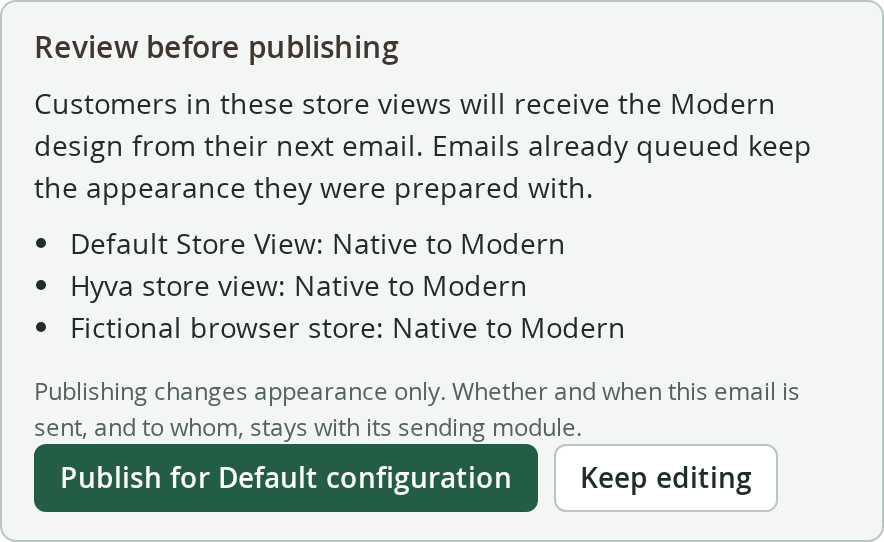
After publishing, you can:
- View history to see the 30 most recent versions with timestamps and authors.
- Undo publication to revert to the previous design (available to roles that can edit drafts and publish).
- Roll back from history to publish an earlier version (creates a new publication entry).
- Use instead, on a website or store view with its own design, to follow the parent scope again. The guest version follows it too while Also for guest orders is ticked beside the button, unless it has unpublished changes of its own.
Native fallback
If something changes, your emails automatically return to native (unchanged) templates:
- The design is unpublished or removed. A website or store view then follows the nearest parent scope that still has a published design, and uses the native template only when no parent has one.
- The licence server reports the licence as invalid, or no licence is recorded for this installation (see Licence below).
- The native template file has changed since you published (you can republish after reviewing the changes).
- A Great Magento Emails release changed the design (apply the update in the studio, see Great Magento Emails updated).
- The store view moves to another website.
- A problem occurs while building the designed email. If only the final inline styling step fails, the designed email is still sent, without the extra inline styles. When the design replaced a saved template from Marketing > Email Templates, that saved template is sent.
Queued emails that were prepared before unpublishing keep their appearance.
The Style Guide
Control colour and typography across all emails in a store view.
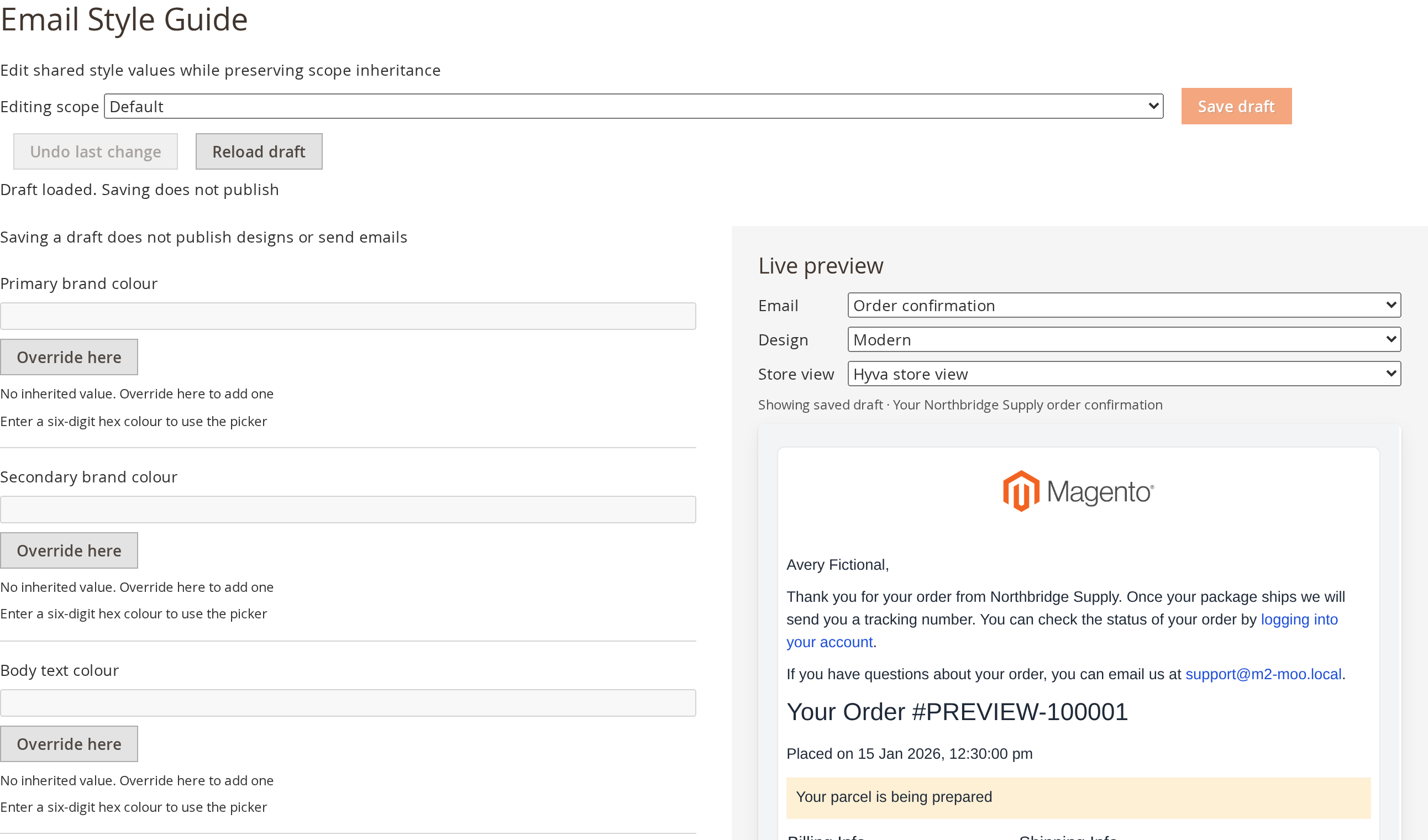
Open Marketing > Moogento > Messages > Style Guide to edit field-by-field settings.
Inheritance and overrides
Every field inherits from its parent scope:
Default configuration > Website > Store view
Example: You set a primary button colour in the Website scope. All store views under that website inherit it, unless you override it in their own store view. On a field that is inherited, click Override here to set a value for this scope; on an overridden field, click Reset to inherited to follow the parent scope again.
Fields
The Style Guide holds your email colours, fonts, logo and button styles. Each field shows whether it is set at this scope or inherited from a parent scope, and can be changed or returned to the inherited value on its own.
Footer copy
Set Footer copy in the Style Guide to share your business details across designed emails, including account, order and NotifyMe emails. Each line you enter stays on its own line. The text replaces the sender's address line; email notes, preferences and unsubscribe links remain. Modern centers the footer, while Store match keeps its normal alignment.
Publish the Style Guide to apply the copy to the store views in that scope. Leave the field blank to keep each email's usual closing details. Native emails and emails using the standard template as a fallback keep their own footers.
Logo
When the Style Guide has no logo of its own, each store view's designed emails use the first of these that works in a white email:
- The email logo saved in Content > Design > Configuration for the store view.
- The storefront header logo, unless it is too light to read on white.
- The theme's email logo, unless it is Magento's sample logo or too light.
- A light header logo, shown on a dark band behind it.
- The store name as text.
Gmail, Outlook and several other email apps do not show SVG images, so when a logo is saved as an SVG, the PNG, JPG or GIF copy saved beside it with the same name is used instead.
Live preview
As you adjust values, the preview updates with your unsaved values. Nothing reaches customers until you publish the Style Guide.
Read from my store
- Click Read from my store to open your storefront in a small window.
- Great Magento Emails reads colours and fonts from your storefront once.
- Review the proposed values. Values email clients cannot use are listed as "Not used" and keep their current setting.
- Click Add to Style Guide draft to add all the proposed values to your draft. If the Style Guide had unsaved changes when you clicked Read from my store, the button stays disabled: save or undo those changes, then click Read from my store again.
The capture interprets your storefront's look for email-safe rendering. Email clients display fonts and colours differently than web browsers, so the result is a practical email-friendly version of your store's look, not an exact copy.
Publishing the Style Guide
When your style is ready:
- Under Publish Style Guide, click Review & publish.
- Check the summary and click Publish now.
Published designs pick up the new Style Guide for the scopes it covers.