

This page is part of the TrackEasy guide. Start there for what the extension does, installation and the frequently asked questions.
Preview the delivery-update email
- Open Marketing > Moogento > Messages > TrackEasy and choose an active Store view.
- Inspect the delivery-update preview. It shows the standard Magento email template this store sends.
- If your role permits test emails, Send me a test sends the preview only to your administrator email address.
TrackEasy emails always send the standard template through Magento's normal email system. A designed layout is used only when Great Magento Emails is installed, has a valid licence and has published a design for that email in the store view; without it the standard template is sent. Saved merchant templates keep their selected identifiers and content.
Designs change appearance only. Enable delivery-date update emails separately under Stores > Configuration > Moogento > TrackEasy > Design: Timeline steps > Emails at each step > Email when the delivery date changes.
Send pickup and delivery-stage emails (Pro)
Use shipment notification rules to send a message when an eligible parcel reaches a selected stage. These rules require TrackEasy enabled with a valid Pro licence. They work independently of HelloCustomer and the SMS setting.
How to set it up
- Open Marketing > Moogento > Messages > TrackEasy and find Shipment notifications.
- Choose a Saved rule, or click New rule. The out-for-delivery example starts disabled. The middle timeline step shipping email starts enabled on a fresh install and disabled on an upgrade.
- Select Store views, a Message purpose and the events that can trigger the rule.
- Choose Send once per and Match item conditions against. Shipment is the recommended sending scope; per-track messages can repeat when a shipment has several tracking records.
- Add any Current order statuses and Item restrictions that must also match.
- Enter a real Shipment entity ID in the selected store, then click Preview eligibility and selected channels. Inspect the reasons and the rendered email.
- Select Enable this rule and click Save rule when you are ready to use it.
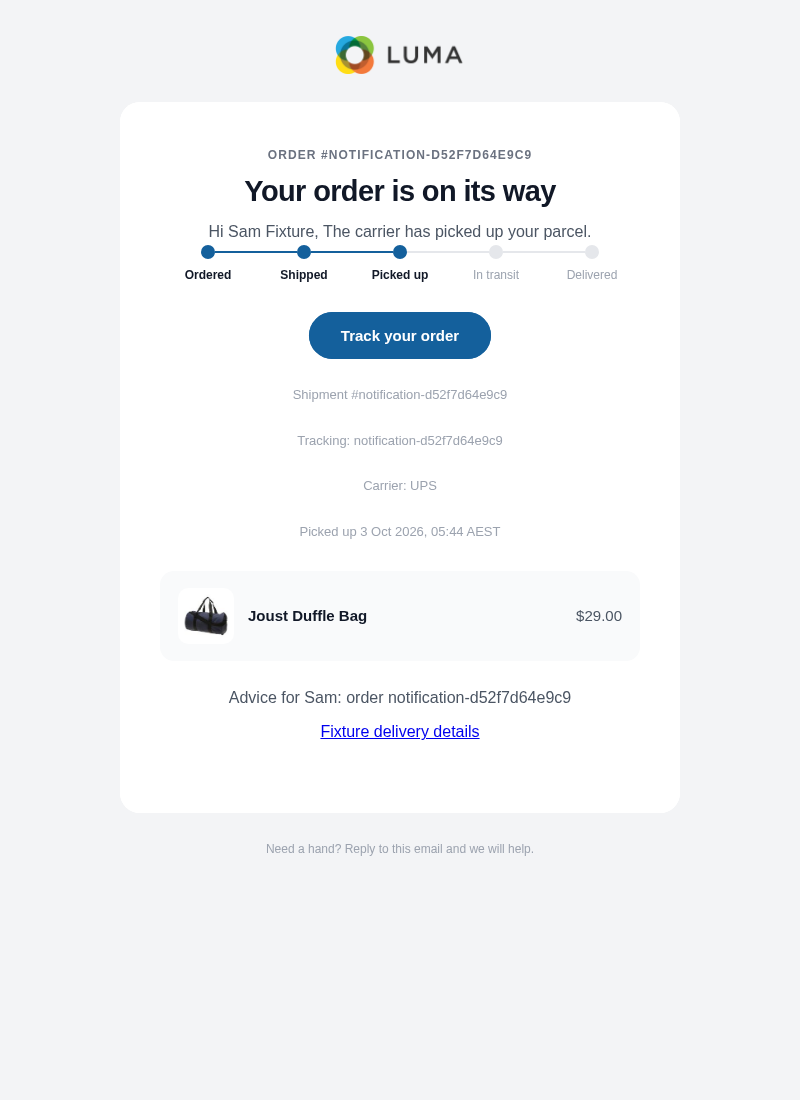
This capture uses fictional shipment data. Advice appears only when an enabled matching content block supplies it.
Choose the events and restrictions
Any listed event can trigger the rule. Current order statuses and item restrictions must also match. Priority (lower numbers first) controls the order in which rules are evaluated.
Structured carrier codes or 17Track evidence support pickup, out-for-delivery and delivered triggers. Carrier wording alone can support In transit. Magento shipment creation and order-status changes are separate alternatives; they do not claim that a carrier scanned a parcel.
Timeline: middle step reached follows each store view's Middle step is reached when setting, so one rule sends the shipping email when the order gets a shipped status, when a shipment is created, or when the carrier first reports collecting the parcel. With the carrier setting, a pickup scan followed by an in-transit scan still sends one email per shipment. This event sends email only.
To see which rules send at each step for a store view, open Stores > Configuration > Moogento > TrackEasy > Design: Timeline steps > Emails at each step. The table lists every step and an Other moments row, with each rule's on or off state and a link to edit it here.
Choose the sending scope and item scope separately. For example, send once per shipment while matching conditions against the whole order. Product cards show up to 24 items; conditions and advice still use the complete selected item set, within the supported context limit.
Keep the template and style separate
Choose the Email template and Sender for the rule. To use another saved source, enable Override the default email template and select it under Override email source. Turning the override off retains its selection and leaves the rule enabled or disabled as before. Edit saved copies under Marketing > Communications > Email Templates.
Rule settings do not change the email layout. Great Magento Emails designs do not enable notification rules. Fresh rule activation and new store assignments apply to new eligible events; they do not replay earlier notification history. Installing or upgrading never sends these messages.
Understand previews, waiting and expiry
The preview is read-only: it does not send an email or create a delivery intent. For whole-scope Delivered wording, every relevant physical shipment must have authoritative completion evidence. An order-wide Delivered message also requires no physical quantity left to ship. The preview reports physical coverage and uses neutral wording when complete shipment scope cannot be confirmed.
Waiting messages are checked again within their original useful window. On-the-way messages expire 24 hours after verified occurrence, with a bounded observation fallback. Out-for-delivery messages expire at the applicable local delivery-day boundary. Today requires precise evidence for the recipient's current local day. Returns, cancellation, delivery attempts or exceptions can supersede a reminder.
An eligible order-status event received before the first shipment can wait for an actual shipment within its original deadline. Expired envelopes close without sending; processed history is not reopened. Recovery checks the rule activation and the actual order status again.
Use Delivery history and Refresh history to inspect the status and reason. An unknown external sending outcome is held for investigation rather than automatically sent again. Carrier polling intervals and provider rate limits still apply, so a rule does not guarantee fresh carrier evidence.
Email customers when a delivery is missed, ready to collect or has a problem (Pro)
TrackEasy can email the customer when the carrier reports something other than a smooth delivery, so they hear about it from you before they contact support. Each outcome has its own carrier event and its own email template:
| Carrier event | Email template | Starter rule |
|---|---|---|
| Carrier: delivered | Delivered email | None, create one if you want it |
| Carrier: delivery attempted | Delivery attempted email | Missed delivery email |
| Carrier: awaiting collection | Awaiting collection email | Ready to collect email |
| Carrier: delivery problem (delay, damage or return) | Delivery problem email | Delivery problem email |
The starter rules apply to all store views and send once per shipment. On a new install, the missed delivery and ready to collect rules start enabled. On an upgrade, all three start disabled, so nothing new is sent until you turn a rule on. The delivery problem rule always starts disabled, because a delay or return usually needs your own wording.
The missed delivery, ready to collect and delivery problem events send email only. Leave Channels on Email, because a rule that adds SMS to these events cannot be saved.
How to set it up
- Open Marketing > Moogento > Messages > TrackEasy and select the store view.
- Under Shipment notifications, choose Missed delivery email, Ready to collect email or Delivery problem email from Saved rule. For a delivered email, click New rule, select Carrier: delivered and choose Delivered email as the Email template.
- Enter a shipment ID from the selected store and click Preview eligibility and selected channels to check the rendered email.
- Select Enable this rule and click Save rule.
Each template has a standard version and a Great Magento Emails design. When Great Magento Emails has a published design for that email in the store view, the designed version is sent; otherwise the standard one is. To change the wording, load the template, for example TrackEasy: Delivery attempted (native), in Marketing > Communications > Email Templates and save your copy. Then, in the rule, select Override the default email template and choose your copy under Override email source.
Which carriers can send these emails
These emails need the carrier's own status code for the outcome, either from a connected carrier or from 17TRACK. A report that only describes the outcome in words does not send one, which keeps a loosely worded scan from triggering the wrong email.
- Delivery problem covers delays, exceptions, damage and parcels returning to you.
- Team Global Express, StarTrack and 17TRACK can send all three.
- Australia Post parcels send ready to collect and delivery problem emails, but not missed delivery.
- DHL depends on the service: Express and Parcel Germany can send all three, eCommerce sends ready to collect and delivery problem emails but no missed delivery email, and other DHL services send none.
- UPS and FedEx send ready to collect and delivery problem emails, but report a missed delivery only in words, so they send no missed delivery email.
- USPS connected directly sends none of the three. Tracking USPS through 17TRACK does.
- Royal Mail and Evri are link-only, so they send none of these emails.
If the parcel moves on before the email goes out, for example the carrier delivers it on a second attempt, the waiting email is cancelled rather than sent late.
Add consented shipment SMS to a rule (Pro)
Use the same shipment rules for SMS when a customer has subscribed. Texts can go out for picked up, out for delivery, delivered and delivery date changes. Email and SMS can run independently. Choosing a channel does not subscribe a shipping phone or replay earlier events.
How to set it up
- Open Stores > Configuration > Moogento > TrackEasy > Integration: SMS. Confirm your provider and sender, set Enable and Policies confirmed, and review Max SMS per order and Enable quiet hours. See Confirm your SMS setup.
- Open Moogento > TrackEasy > SMS Templates. Inspect the pickup example, keep its STOP instruction, and activate it when you are ready. It installs inactive; your existing examples and customized bodies are retained.
- Open Marketing > Moogento > Messages > TrackEasy and select a store view and a rule. Under Channels, choose SMS or Email and SMS.
- Choose an active SMS template. Use Find SMS templates and Search SMS templates if the saved template is outside the displayed results. Import existing shipped, out-for-delivery or delivered templates through the routing steps below.
- Set the events, sending scope and restrictions. Enter a shipment belonging to the selected store, then click Preview eligibility and selected channels.
- Inspect SMS preview, including the full text, encoding and segment estimates. Enable the rule and click Save rule only when the message and restrictions are ready.
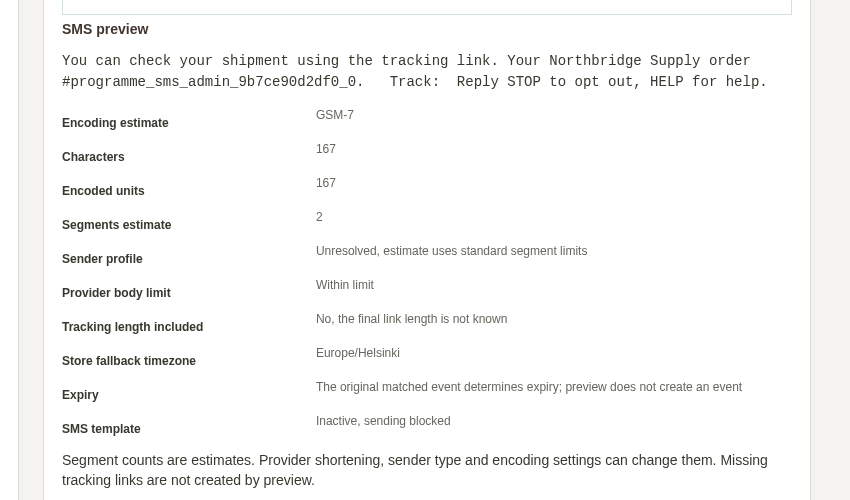
This local capture uses a fictional shipment. The rule and pickup template are disabled; preview still shows the complete message, marks the missing tracking-link length, and labels the unresolved sender profile as an estimate using standard segment limits.
An enabled SMS rule needs an active template. You can save a disabled draft with an inactive pickup template, or retain a template selection while SMS is off. If a template is deactivated later, you can still disable or archive its rule. An enabled ordinary rule keeps its selected template at the original pickup stage. An imported template keeps its original stage and trigger while the rule is disabled or returned to legacy routing. You can still edit the source body or active state. A template selected by a rule or referenced by a pending or frozen message, unexpired publication or SMS history cannot be deleted.
The stock message follows the evidence available for the parcel. Store-status messages use neutral shipment wording. Pickup and out-for-delivery wording requires structured carrier or 17Track evidence; a date-only event cannot promise delivery today. Customized wording is retained, so check any delivery promises in your own template.
Add relevant delivery advice
On the shared Content blocks tab, choose delivery advice with an allowed shipment purpose and supply its SMS text. Marketing blocks and blocks containing only HTML are omitted from shipment SMS.
Use {{delivery_advice}} for matching advice or {{moo_block_code}} for a specific block,
replacing code with its saved code. A named block is not repeated in the remaining advice.
Customer values are inserted as text, so they cannot request another block. Custom sources
must contain their own authored STOP instruction outside placeholders, links and markup.
Activation checks this before taking imported routing ownership, without rewriting your copy.
Disabled drafts and SMS-off selections retain their text; you can still disable or archive a
rule after its source is edited. Sending checks the STOP instruction again after activation.
Add {{tracking_url}} where you want a tracking link; a custom message that omits it does not
receive an extra link automatically.
Import an existing SMS template deliberately
- If the shipped, out-for-delivery or delivered template is inactive, activate it first in Moogento > TrackEasy > SMS Templates. SMS-enabled rules require an explicit import for these stages even when the source was saved while inactive.
- In the selected store's TrackEasy tab, open Import an existing SMS template.
- Select the active template and click Check routing. Inspect current routing owners and queued messages.
- Select I confirm this selected SMS routing action, then click Create disabled SMS rule. The original body is retained in a disabled, SMS-only rule that sends once per order.
- Review its triggers and restrictions, then enable and save the imported rule. This transfers future sending for that store and template to the rule. Existing queued messages and retries finish on their original route without creating a second send slot.
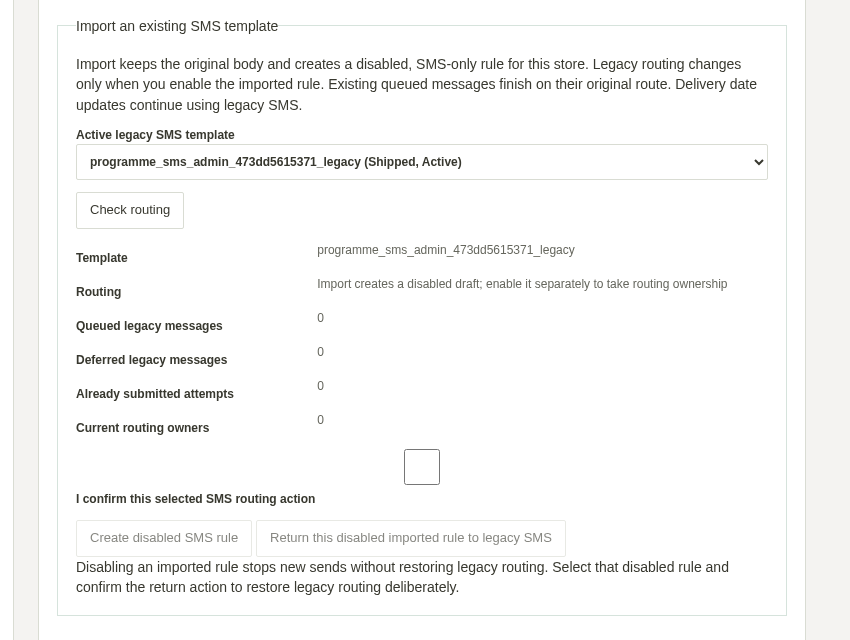
Disabling or archiving an imported rule stops its future messages but does not restore the previous route. To restore it, select the disabled imported rule, confirm the routing action, and click Return this disabled imported rule to legacy SMS. An imported rule keeps its original store, template and once-per-order setting, including before its first activation. You can return the route after the source template is deactivated, provided the selected store, rule and template still match the original import. To use another store, return the disabled original import to legacy routing, then import the template separately in the target store. Ordinary rules can still use several store views. Delivery-date updates remain on their existing SMS route. Pickup templates use the rule route directly.
Understand estimates and held messages
Preview is read-only. It does not subscribe a number, send a message, shorten a link or create an unavailable tracking link. If the link is missing, its length is excluded and the estimate is incomplete. A Messaging Service or unknown sender allocation remains unresolved and uses a standard-limit estimate. Preview cannot confirm the sender the provider will allocate or its cost. Sender type, provider encoding and provider shortening can also change the final segment count. Messages exceeding 1,600 characters are blocked without truncation.
The first eligible preparation retains the full body, tracking link and authorized recipient for retries. Later changes to copy do not replace that message. Current consent, STOP, template activation, rule activation and delivery evidence are checked again before sending. A changed phone does not inherit the previous recipient's frozen message.
Quiet hours defer sending within the original useful window; they do not extend a delivery-day reminder into the next day. Sending caps include pending reservations and uncertain provider outcomes. A confirmed provider rate-limit rejection can retry. Unknown acceptance, including network failures, is held rather than automatically submitted again. Provider acceptance and confirmed delivery remain separate history states. If SMS eligibility is withdrawn after a recorded legacy retry enters the queue, that exact deferred retry closes as suppressed instead of remaining pending until expiry.
Add an HTML shipment timeline (Pro)
The HTML timeline shows the shipment's journey without needing a generated image. It requires an active TrackEasy Pro licence and Enable timeline image in emails under Stores > Configuration > Moogento > TrackEasy > Setup: Emails > Emails: Timeline Image.
In your Magento shipment email template, add:
{{trackeasy_timeline}}
The default uses the shipment supplied by Magento. Picked up and Out for delivery appear only when structured carrier codes or 17Track evidence support them. Pickup or out-for-delivery inferred only from carrier wording or store events appears as In transit. An order-level email with several shipments shows conservative progress across those shipments.
Use steps to choose and relabel points:
{{trackeasy_timeline steps="ordered,shipped,delivered"}}
{{trackeasy_timeline steps="ordered:Order placed,shipped,customs:Customs cleared,in_transit,delivered"}}
Use shipment=$shipment to select an available shipment object in a multi-shipment template.
A numeric selection such as shipment="42" must belong to the same order and store.
The optional stage="in_transit" deliberately overrides detection. A custom label changes
what is displayed; it does not provide carrier evidence.
Existing timeline-image variables remain available. You can retain your image and tracking links while adding the HTML timeline.
Which events send emails and texts
Customer messages are rule-based. You manage the rules in Marketing > Moogento > Messages > TrackEasy (see Send pickup and delivery-stage emails). A rule can fire on:
- Carrier events: shipment created, picked up, in transit, out for delivery, delivered, delivery attempted, awaiting collection and delivery problem
- Timeline steps: for example the middle step reached, or the order status changing
Each rule sends once per shipment, so a parcel that is scanned several times does not email the customer again. Pickup, out for delivery, delivered and the missed delivery, collection and problem emails are sent only when the carrier's own scan supports them.
Text messages (Pro, through Twilio) can be sent for picked up, out for delivery, delivered and delivery date changes. Texts follow quiet hours of 8am to 9pm by default, and a cap on texts per order. Both are set under Integration: SMS, and see Confirm your SMS setup before your first shipment.
Set up the delivery timeline in emails (Pro)
Adding the timeline image and tracking link to your transactional emails keeps customers informed and reduces support contacts.
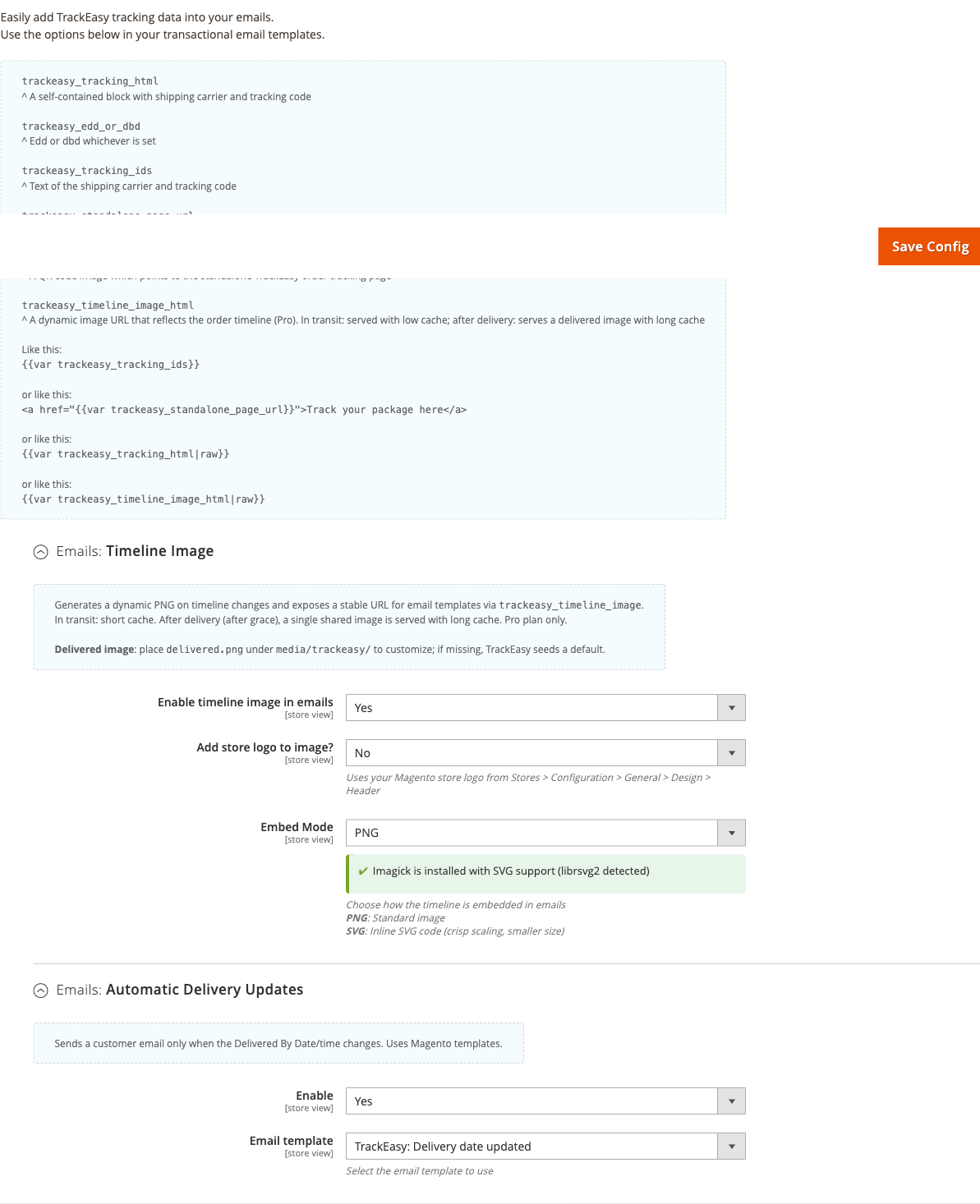
How to set it up
-
Go to: Stores > Configuration > Moogento > TrackEasy > Setup: Emails > Emails: Timeline Image
-
Set:
- Enable timeline image in emails = Yes
- Add store logo to image? = Yes (uses the logo from Content > Design > Configuration > Header > Logo Image)
- Embed Mode = PNG (standard) or SVG (crisp at all sizes, smaller file)
- If SVG: SVG: Convert text with custom fonts to paths = Yes if you use a non-system font
-
Go to: Stores > Configuration > Moogento > TrackEasy > Design: Timeline steps > Emails at each step
-
Set:
- Email when the delivery date changes = Yes to send a customer email whenever the DBD changes
- Delivery date email template = select the delivery update template (or a custom template you've created)
-
Open the email template you want to enrich (Marketing > Communications > Email Templates, or edit the default shipment template):
Add any of the following variables where needed:
{{trackeasy_timeline design="dots" dates="on"}}- the shipment timeline (html by default;format="png"makes a picture){{var trackeasy_tracking_html|raw}}- carrier name + tracking number block{{var trackeasy_tracking_ids}}- plain text carrier and tracking code{{var trackeasy_standalone_page_url}}- bare link to the tracking page (plain text, the default - survives email apps that strip HTML){{var trackeasy_standalone_page_link|raw}}- optional ready-made button/link to the tracking page (render with|raw){{var trackeasy_standalone_page_qr_image}}- QR code image pointing to the tracking page{{var trackeasy_edd_or_dbd}}- estimated or delivered-by date, whichever is set
-
Save the template and run
php bin/magento cache:clean.
Notes
- PNG generation requires
rsvg-convert(librsvg) or Imagick with SVG support installed on the server. Check the status indicator in the Embed Mode field: green = Tier 1 ready, orange = fallback available, red = PNG will not generate. If PNG fails, emails automatically fall back to inline SVG or text-only - no broken images are sent. - A custom delivered image can be placed at
media/trackeasy/delivered.png. If that file is absent, TrackEasy seeds a default. - Timeline images are generated on shipment creation, status change, and DBD update. They are stored in
media/trackeasy/timeline/and cleaned up by the daily cron after a configurable grace period.
Confirm your SMS setup before your first shipment
SMS notifications are a Pro feature. Once you have entered your Twilio details, two buttons let you prove the setup works before a real customer is involved.
How to check it
-
Go to: Stores > Configuration > Moogento > TrackEasy > Integration: SMS
-
Enter your Twilio credentials and one sender:
- Twilio Messaging Service SID is the preferred sender - it enables Twilio's opt-out handling and native link shortening
- Twilio From Number is used when no Messaging Service SID is set. Enter it in E.164 format, for example
+15551234567
-
Click Save Config. Both buttons read the saved values, so an unsaved change is not tested.
-
Click Test connection. This checks your account and your sender with Twilio. It never sends a message and costs nothing. A green result naming your Messaging Service or your From Number means Twilio is happy with the setup.
-
Enter your own mobile number in E.164 format and click Send test SMS. This sends one real message to verify the provider connection and configured sender. It does not guarantee that a shipment message is eligible or delivered: customer consent, opt-out status, enabled notification settings, sending caps, quiet hours and message expiry still apply to real shipments. The result shows the Twilio Message SID.
Notes
- Twilio trial accounts only deliver to numbers you have verified in your Twilio Console. If Send test SMS reports a rejection, verify the destination number in Twilio, or upgrade the account.
- "Accepted by Twilio" means Twilio took the message, not that the handset has received it. Carrier delivery is reported separately through the delivery-receipt webhook.
- Short codes and alphanumeric sender IDs cannot be looked up on your Twilio account, so Test connection reports them as "could not be verified automatically". That is a success, not a failure - use Send test SMS to confirm the sender works.
- The destination number you type is never saved. It is used for that one message only.
- Send test SMS pauses for 30 seconds between messages, so a stray double-click cannot run up your Twilio bill. If you send again too soon the result tells you how long to wait.
- Two different results mention opting out, and they come from two different places. Neither means your Twilio setup is wrong:
- "That number has opted out of SMS from this store" - this store's own opt-out list refused the message before Twilio was contacted, so nothing was sent and nothing was charged. See "How your store finds out that someone opted out" below for how a number reaches that list.
- "This recipient has opted out of messages from your Twilio sender" (Twilio error
21610) - we did reach Twilio, and Twilio blocked the message at its end. Re-sending will not get through until that number texts START to opt back in. Send test SMS does not add its one-off destination to your store's opt-out list.
How your store finds out that someone opted out
A customer can stop your messages by replying STOP, and your store keeps its own opt-out list so it can refuse a send before spending anything with Twilio. Which route updates that list depends on one setting in Twilio, and it is worth knowing which you are running.
With Advanced Opt-Out on (Twilio's default for a Messaging Service): Twilio answers STOP, START and HELP itself and does not pass those replies to your store. Twilio refuses shipment messages with error 21610 while the number is stopped, then accepts them again after the customer texts START. TrackEasy leaves this carrier-managed state at Twilio so START can restore delivery without requiring a webhook. The customer always gets a confirmation, because Twilio sends it.
With Advanced Opt-Out off: configure the Messaging Service's incoming-message webhook to the TrackEasy SMS webhook URL shown in the admin configuration. The replies then reach your store: STOP adds the number to your store's list immediately, and START clears it again. The trade-off is that nobody sends a confirmation - Twilio is no longer handling the keyword, and TrackEasy deliberately stays silent so customers are not messaged twice where Twilio does reply. If you turn this off, set your own STOP reply so people are still told their request worked.
Either way a customer who has opted out can return by texting START to your sender. Your account page cannot re-subscribe them, because submitting a form does not prove the person holds that phone.