

This page is part of the NoMoreSpam guide. Start there for what the extension does, installation and the frequently asked questions.
What Pro adds over the free version
| Capability | Free | Pro |
|---|---|---|
| Honeypot field injection | Yes | Yes |
| Speed and hash checks | Yes | Yes |
| Contact, review, newsletter, registration, login, forgotten-password protection | Yes | Yes |
| Admin login and admin forgotten-password protection | - | Yes |
| Custom form CSS-selector protection | - | Yes |
| IP/email/customer-group allowlist | - | Yes |
| Configurable risk scoring (50+ signals) | - | Yes |
| Configurable risk threshold (global block score) | - | Yes |
| IP blocklist management with CIDR subnet escalation | - | Yes |
| Checkout and payment pre-auth protection | - | Yes |
| Payflow, Braintree, Stripe, and PayPal integration | - | Yes |
| Payments log grid | - | Yes |
| Stats dashboard | - | Yes |
| Weekly protection summary email | - | Yes |
| Customer restriction management | - | Yes |
| Store Security checklist (one-glance hardening review) | - | Yes |
| Admin 2FA enhancements (trusted devices, per-user exemptions, setup email, role-access visibility, one-click grant) | - | Yes |
Admin login and forgotten-password protection (Pro)
Once NoMoreSpam Pro is installed and enabled, the Admin: Login and Admin: Forgotten password toggles in Stores > Configuration > Moogento > NoMoreSpam Pro > Protect: Specific Sections become active. These inject the same honeypot and timing fields into the Magento admin authentication forms.
The Admin: Block login until spam checks load setting (moogento_nomorespampro/protect_sections/admin_login_submit_gate, default: on) holds the admin login submit button until the hidden fields have loaded - preventing fast-autofill bots from submitting before protection is active. Disable it only for CI automation via bin/magento config:set moogento_nomorespampro/protect_sections/admin_login_submit_gate 0.
Config paths: moogento_nomorespampro/protect_sections/admin_login, moogento_nomorespampro/protect_sections/admin_forgotten_password.
Custom form protection (Pro)
Extends honeypot and timing protection to any form on your store - third-party checkout steps, quote request forms, B2B registration, and so on.
Go to Stores > Configuration > Moogento > NoMoreSpam Pro > Protect: Custom Forms and add either the Magento URL path (e.g. customer/account/createpost) or a CSS selector (e.g. form[action*="createpost"]), one per line.
Config paths: moogento_nomorespampro/custom_form/request_url, moogento_nomorespampro/custom_form/css_selector.
IP allowlist, email allowlist, and customer group allowlist (Pro)
Trusted IPs, customer emails, and customer groups can be exempted from all spam checks so that legitimate automated traffic (office IPs, B2B partners, test suites) never accumulates violation counts.
Go to Stores > Configuration > Moogento > NoMoreSpam Pro > Protect: Allowlists.
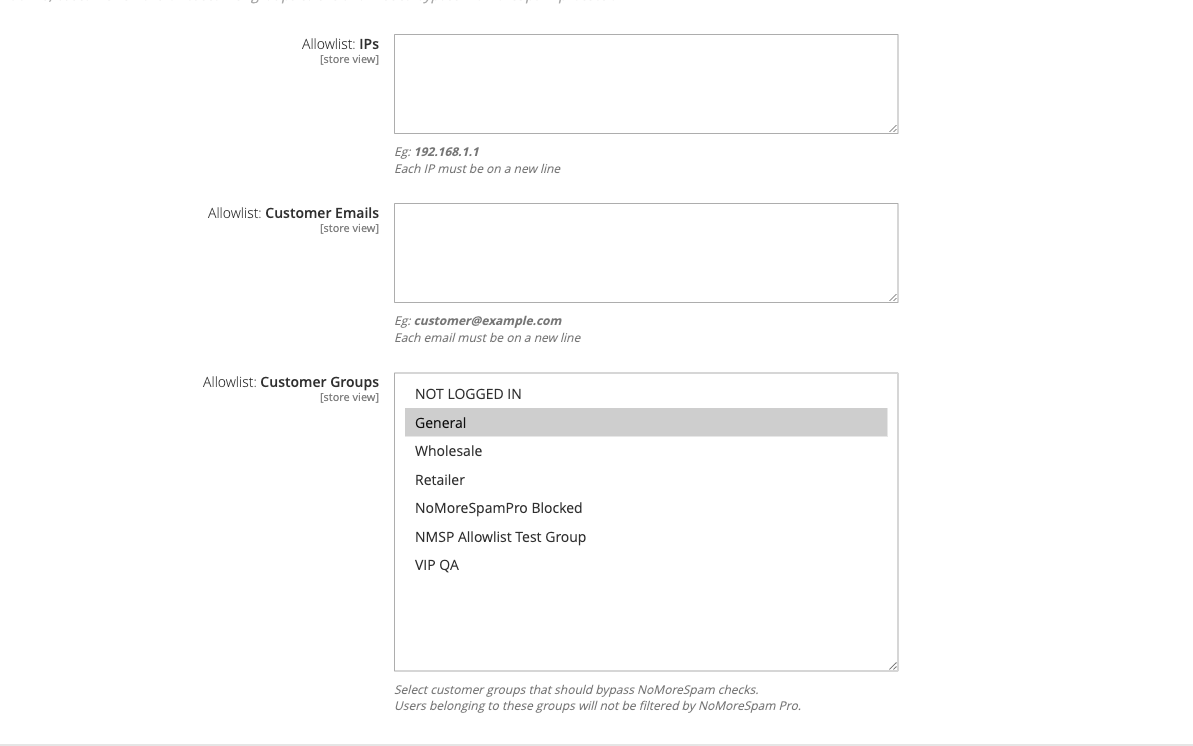
- Allowlist: IPs (
moogento_nomorespampro/allowlist/allowlist_ips) - One IP per line. - Allowlist: Customer Emails (
moogento_nomorespampro/allowlist/allowlist_customer_emails) - One email per line. - Allowlist: Customer Groups (
moogento_nomorespampro/allowlist/allowlist_customer_groups) - Multiselect of customer groups.
The Allowlist: Bypass Mode setting under Advanced: Bot & IP Protection controls how much protection still runs for allowlisted IPs: Permissive (skip all checks), Soft (skip risk scoring, keep pre-auth), or Strict (skip only auto-blocking).
Configurable risk threshold (Pro)
The global risk threshold sets the score at which NoMoreSpam Pro blocks a request. Individual signal weights are configured in Risk: Scoring; the threshold controls the cut-off point.
Go to Stores > Configuration > Moogento > NoMoreSpam Pro > Risk: Threshold.
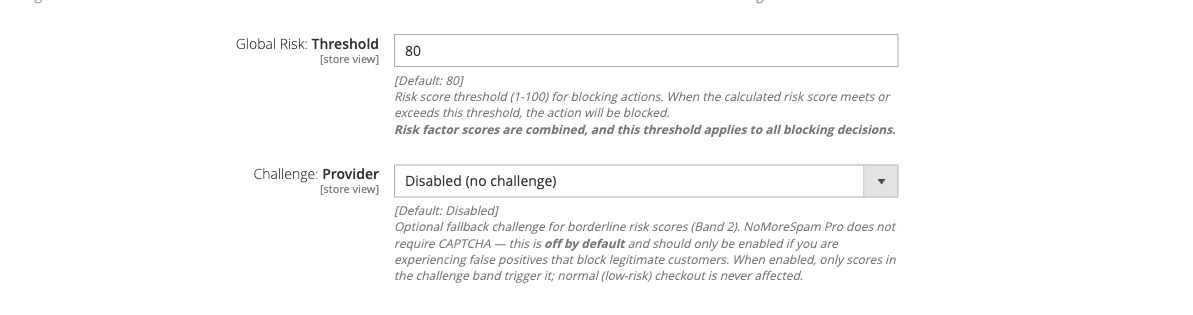
- Global Risk: Threshold (
moogento_nomorespampro/risk_threshold/global_risk_threshold, default 80) - Lower toward 60 for stricter protection; raise toward 95 to reduce false positives. - Challenge: Provider - Optional reCAPTCHA v3 fallback for borderline scores. Off by default; activate only if false-positive blocks are affecting real customers.
Payment method protection (Pro)
Pre-auth validation and gateway-level rate caps for Payflow, Braintree, Stripe, and PayPal. NoMoreSpam Pro intercepts payment attempts before they reach the processor and scores them using the same risk engine as form protection.
Go to Stores > Configuration > Moogento > NoMoreSpam Pro > Advanced: Payment Method Protection.
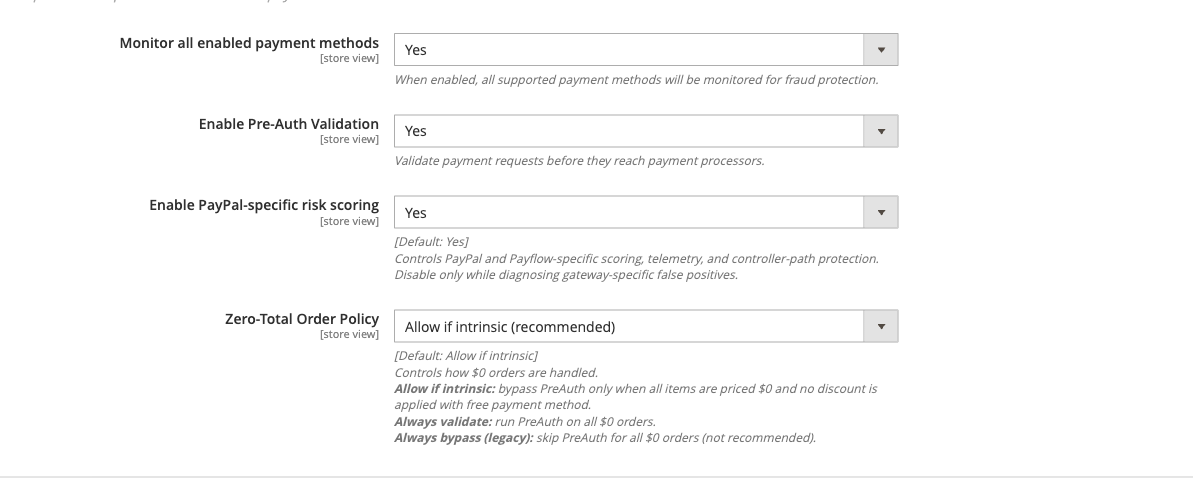
- Monitor all enabled payment methods - Turn on to protect all active payment methods.
- Enable Pre-Auth Validation - Runs risk scoring before each payment authorisation.
- Enable PayPal-specific risk scoring / Enable Payflow-specific risk scoring / Enable Stripe-specific risk scoring / Braintree Protection - Per-gateway toggles.
Payflow-specific incident controls (guest direct-card policy, store-wide token cap, TRXTYPE integrity gate) are in Payflow: Carding Controls (moogento_nomorespampro/payflow_hardening/).
Stripe controls (per-surface guest policies, intent cap) are in Stripe: Carding Controls (moogento_nomorespampro/stripe_hardening/).
Braintree controls (per-surface guest policies, client-token cap) are in Braintree Hardening (moogento_nomorespampro/braintree_hardening/).
Payments grid (Pro)
The Payments log at Moogento > NoMoreSpam Pro > Payments shows all payment attempts grouped by checkout session. Rows with STATUS_BLOCKED are attempts NoMoreSpam Pro declined before they reached the gateway. The Gateway column includes risk score, AVS/CVV results, and card or PaymentIntent reference.
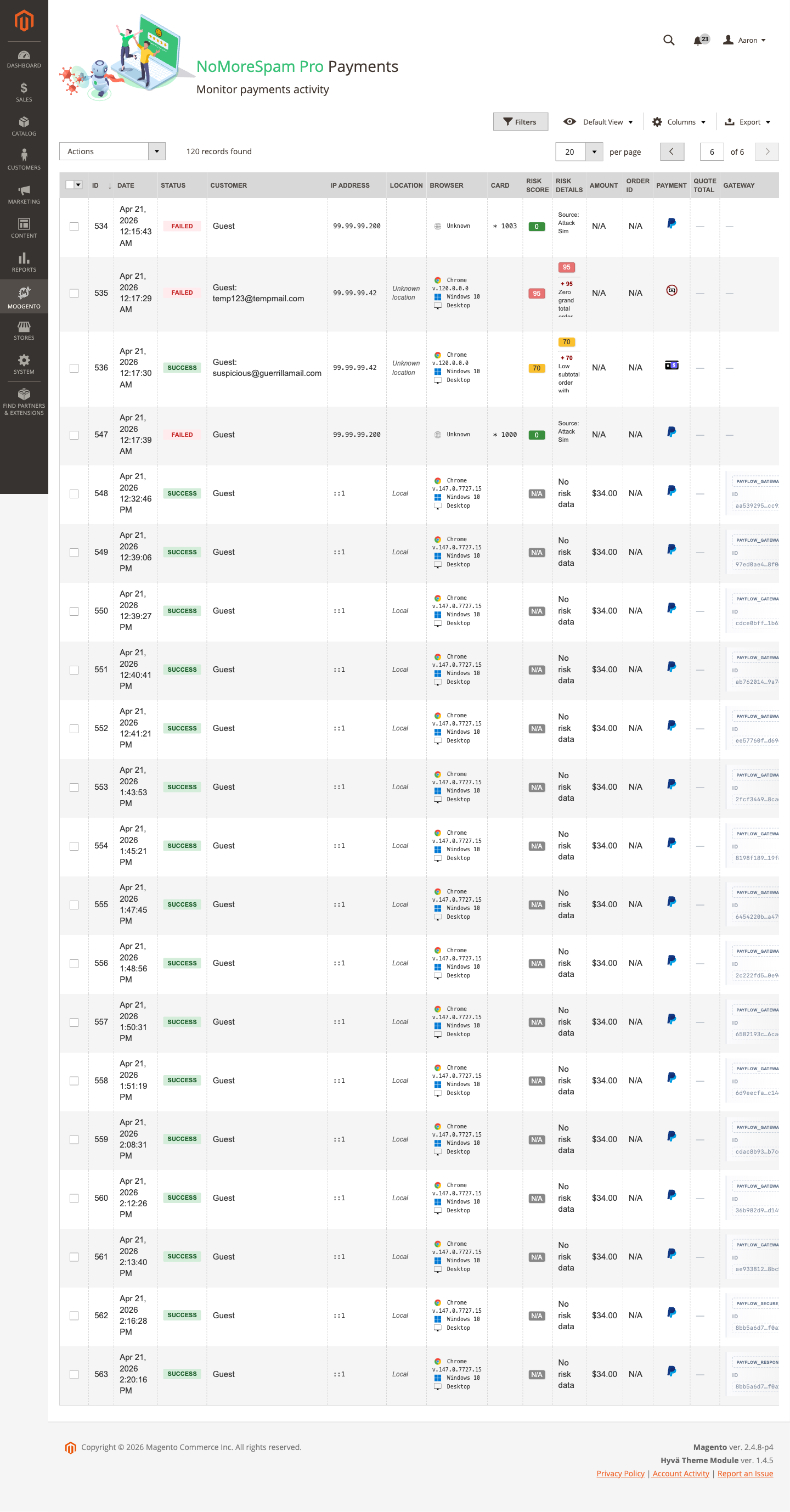
Use this grid to investigate a customer reporting a declined payment, or to confirm that blocked card-testing attempts are being recorded correctly.
Config path for log retention: moogento_nomorespampro/general/payment_data_retention (days).
Blocklist grid (Pro)
The Blocklist at Moogento > NoMoreSpam Pro > Blocklist shows all blocked IPs, their expiry, and the block reason. You can manually add, remove, or mass-unblock IPs here.
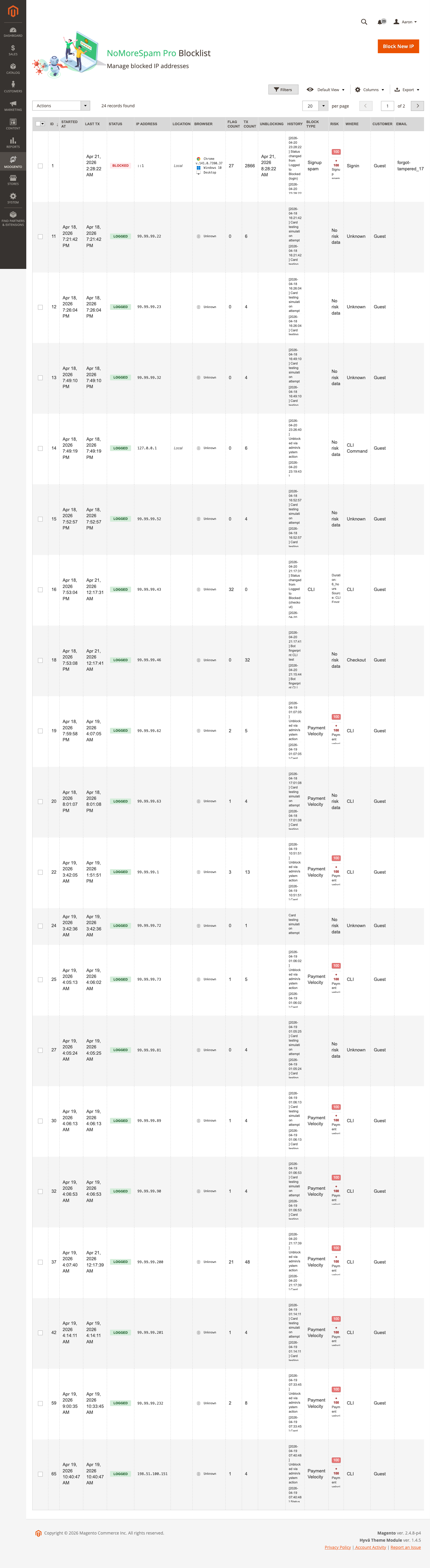
Velocity-sticky-block entries (added automatically when attack-velocity scoring fires) show the reason velocity_sticky_block and expire on their own. CIDR subnet escalation entries appear when multiple IPs from the same subnet are blocked within the escalation window.
Stats dashboard (Pro)
The Stats page at Moogento > NoMoreSpam Pro > Stats shows blocked attempts over time, top attacking IPs, a block-reason distribution chart (20 categories), an attack-pattern heatmap by day and hour, and an estimated savings counter.
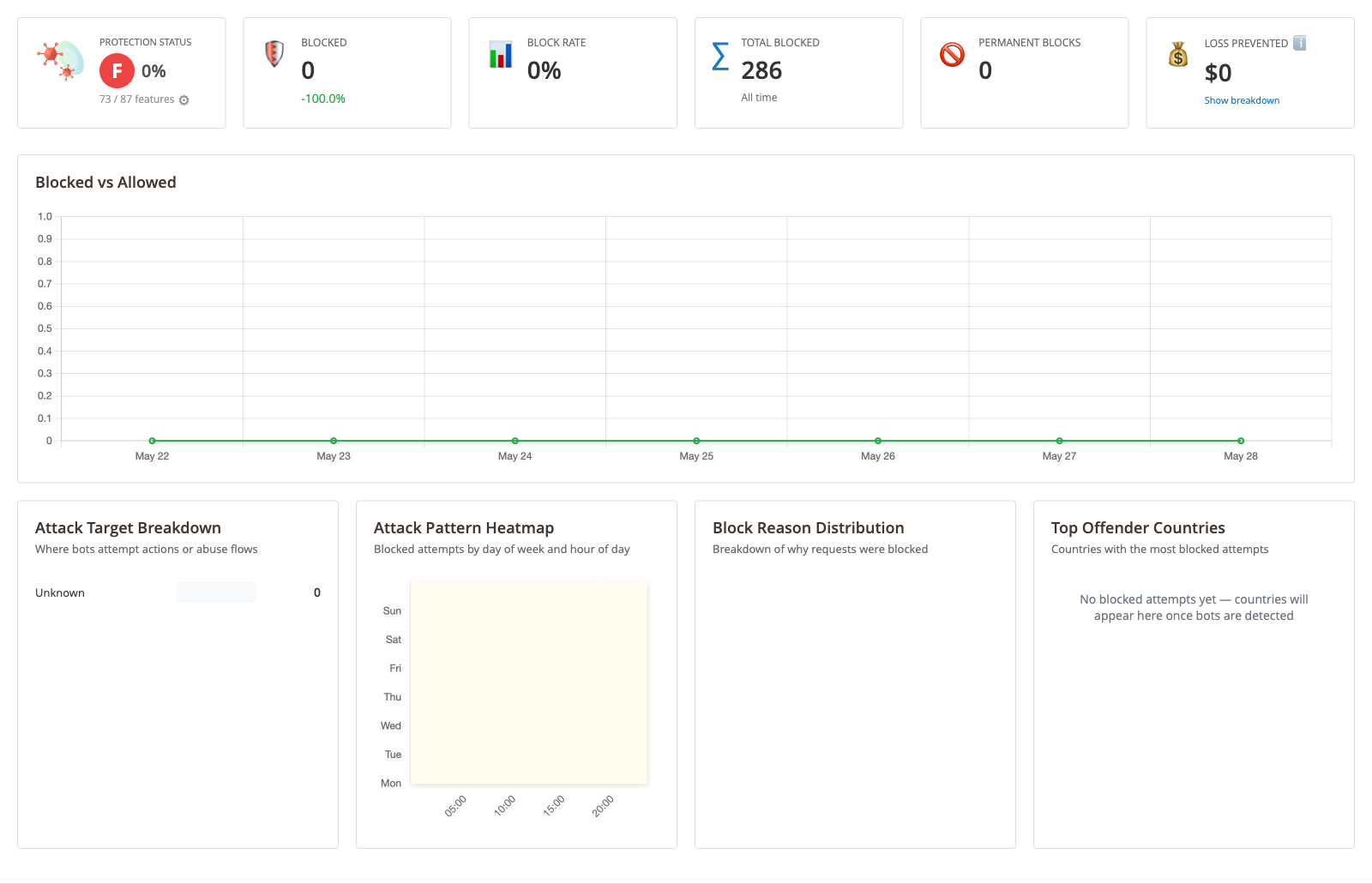
The cost-per-spam field (moogento_nomorespampro/analytics_dashboard/cost_per_spam) sets the per-blocked-attempt value used to calculate estimated savings.
Object-injection hardening level (Pro)
Stores > Configuration > Moogento > NoMoreSpam Pro > Advanced: Controls & Hardening > Endpoint: Object-Injection Hardening (moogento_nomorespampro/graphql_hardening/level). The default is Strict. The setting is global: it applies whether or not the module is enabled for a store view, and it cannot be overridden per website or store. Choose Off to disable it.
- Standard - blocks the object-injection gadget chain in emails, widgets, block templates and URLs. It also neutralises customer-supplied data (names, addresses, comments) when it is rendered into emails and CMS content, so a
{{...}}directive typed by a shopper is shown as text instead of being run. Email addresses with unsafe characters (control characters, quotes, braces, invalid UTF-8) are refused on the contact, newsletter, registration and guest order forms. - Strict - everything in Standard, plus rejects any request whose URL, GraphQL payload, REST or SOAP body, or storefront form post (including Hyva Checkout inputs) contains a Magento template directive.
Genuine storefront, checkout and GraphQL traffic never contains a directive. Drop to Standard only if a bespoke client legitimately sends {{...}} text.
What a blocked customer sees
- Unsafe email address: the form shows "We could not use that email address. Please check it for typos or try a different one.".
- Directive in a storefront form post: the server returns HTTP 403 with the plain text "Request rejected".
- Directive in a REST or SOAP body: the server returns HTTP 400 with
{"message":"Request rejected"}. - Rendered customer data: nothing is blocked; the directive appears as plain text.
Where it is logged
Strict rejections and refused email addresses are written as warnings to var/log/moogento_nomorespampro.log. Directive rejections are rate limited per IP and channel, and each one counts towards the IP tracker.
Store Security Panel (Pro)
The Store Security panel appears at the top of Stores > Configuration > Moogento > NoMoreSpam Pro as a collapsible section within the green Protection Status area. It runs 14 environment and install security checks and feeds the protection score.
Each row displays:
- A colour-coded badge - Pass (green), Needs attention (orange), Action needed (red), or Info (blue circle)
- A plain-language status message - what is working or what needs focus
- Optional detail lines - e.g. a list of discovered executable files in media
- A "where to fix" link (when applicable) - jumps to the relevant config section
Example rows:
| Check | What it verifies |
|---|---|
| Admin usernames | Default "admin" username has been changed |
| Admin 2FA | Two-factor authentication is enabled and all admins have enrolled |
| Dangerous upload extensions | Risky file types (.php, .phtml, .sh) are blocked on upload |
| Media script execution | The media directory .htaccess prevents PHP/script execution |
| Media executable files | No executable scripts are present in the media upload folders, and no media file has execute permission |
| Admin login form protected | Admin login form has bot protection (NoMoreSpam Pro or Magento CAPTCHA) |
| Custom admin URL path | Admin path has been changed from default |
| HTTPS enforced | All traffic to Stores > Configuration > General > Web > Base URLs is HTTPS |
| Admin security hardening | Session timeouts, lockout, and form-key enforcement |
| Database table prefix | Table prefix is set to something other than default |
| Production deployment mode | Store is running in production mode, not developer or maintenance |
| Magento version | The October 2026 Adobe patch (APSB26-153) and the September 2026 hotfix (VULN-39341) are installed; fails on Adobe Commerce or Magento Open Source if either is missing |
| Stored template code | No quote, order, customer, address, subscriber, review, item option or email template holds a template directive (found by the scheduled integrity scan; shows table, field and record ID only, never the stored text) |
| Active 2FA exemptions | Any admins currently exempted from 2FA are listed |
| Bot challenge (reCAPTCHA) | reCAPTCHA v3 is configured for high-risk requests |
Panel behaviour:
- Header shows a breakdown: "N passing - N to review - N informational" so you can see at a glance how many rows need action.
- Rows are sorted by severity - critical failures first, then warnings, then passes, then information-only rows.
- When a critical security check fails, the overall Protection Level grade is capped at "GOOD, action needed" (B-) even if payment fraud protection is perfect. This ensures admin security doesn't get overlooked.
- Info-tier checks (exemptions, bot challenge) are shown for awareness but do not affect the grade.
Stored template code and the patch check: the "Stored template code" row reads the result of the scheduled store integrity scan, so it needs the scan on "scheduled" (the default) or a click on "Run scan now". Large stores are scanned in slices over several runs, newest records first, and records added since the last run are always checked first. A red result means someone stored a Magento template directive in that record, most likely an attempt at the October 2026 BlockStrap attack: delete the record or clear the listed field, then apply Adobe's APSB26-153 patch. An amber result means an encoded lookalike, or an email template link that sends a directive's output to another site, such as https://other-site/?{{var ...}}. Magento's own links, like {{var this.getUrl(...)}}, {{var logo_url}} and mailto:, are not flagged. The "Magento version" row turns red on Adobe Commerce or Magento Open Source when the APSB26-153 patch or the VULN-39341 hotfix is not detected (other distributions get an amber warning instead). Apply the missing patches, and keep the object-injection hardening level at Standard or Strict until you do.
Secret-field search refusal: at Standard and Strict, any customer search outside GraphQL (REST and SOAP calls included, even with an admin or integration token) that searches or sorts customers by password_hash, rp_token, rp_token_created_at or confirmation is refused, and the attempt is logged without the query string. REST calls to the /customers routes get a 403; other REST services and SOAP calls that reach the customer search get an input error (a SOAP fault for SOAP).
One-click fixes:
When the "Dangerous upload extensions" row shows action needed, a Restore secure list button appears. Clicking it:
- Backs up your current allowed extensions list
- Adds the hardened high-risk-blocking set to your config
- Shows an Undo button (owner-only, 30-minute window) in case you need to revert
When a media row lists files with executable permission, a Remove execute permission button appears. It asks you to confirm, then removes the execute bits from the files the panel lists (775 becomes 664, 755 becomes 644). Folders are never changed, symlinks are skipped, and files with script extensions such as .php or .js are left as they are so you can review them by hand. Click Run scan now afterwards to refresh the full media row. To check the whole media folder at once, use the fix-media-permissions command below.
For other checks, the "where to fix" link takes you straight to the Magento config section.
Why images get execute permission: this is usually Magento itself, not an attack. Magento's Magento\Framework\Filesystem\Driver\File::rename() runs chmod(0777 & ~umask()) on every file it moves, so each upload moved out of the tmp folder lands as 775 (umask 002) or 755 (umask 022). NoMoreSpam Pro still flags these files because attackers have used executable media files before, so check the list for anything you did not upload before you fix it.
NoMoreSpam Pro also removes the execute bits from new files straight after Magento saves them: WYSIWYG and other uploads (including product import images), product gallery images moved out of tmp, and category images. Files copied in some other way, for example by a third-party importer, a deployment script or rsync, can still arrive with execute permission, so the flag can come back. Run the fix again when it does. Do not change the server umask to stop it: a umask that removes execute permission from files also removes it from new folders, and Magento cannot open a folder without it.
Fixing the permission changes each file's change time (ctime). If you are investigating a possible break-in, save the dry-run list (or the change times) first.
CLI equivalent (SSH-safe / headless use):
The full checklist is available from the command line for incident response and automated auditing:
bin/magento moogento:nomorespampro:security-checklist
bin/magento moogento:nomorespampro:security-checklist --format=json
bin/magento moogento:nomorespampro:security-checklist --only=critical
Exit codes: 0 = all checks pass, 1 = warnings present, 2 = failures present.
Three companion commands cover targeted hardening tasks:
bin/magento moogento:nomorespampro:security:scan-media
bin/magento moogento:nomorespampro:security:harden-extensions
bin/magento moogento:nomorespampro:security:fix-media-permissions
scan-media scans the media directory for executable script files and reports findings without making any changes. harden-extensions runs in dry-run mode by default; add --apply to write the hardened denylist. fix-media-permissions walks the whole media folder and lists the files with execute permission; add --apply to remove it (exit code 1 means a dry run found files, 2 means a file could not be changed, usually because another user owns it).
Admin two-factor authentication, made friendlier (Pro)
NoMoreSpam Pro augments Magento's built-in admin 2FA - it does not replace it. The aim is to make 2FA easier to live with day-to-day so your team keeps it enabled rather than working around it.
Admin 2FA page
The Admin 2FA page at Moogento > NoMoreSpam Pro > Admin 2FA displays a table of all admins with their 2FA status and trusted device count. The page was redesigned in v2.11.22 to consolidate device management:
- Column layout: Username, Role, Role 2FA access, Active status, 2FA enrollment status, Exemption status, Trusted device count
- Colour-coded chiplets: Each column uses visual indicators (green pass, orange warning, blue info)
- Bulk actions: Select multiple admins with checkboxes, then choose a bulk action:
- Send Setup Email - sends 2FA setup invitations to selected unenrolled admins (skips exempt or inactive accounts)
- Revoke Devices - clears all trusted devices for selected admins at once
- Reset 2FA - clears 2FA enrollment so admins re-enroll on next login (skips exempt admins)
- Exempt User - adds selected admins to the per-user 2FA skip list
- Unexempt User - removes selected admins from the per-user 2FA skip list
- Per-admin actions: Buttons for Reset, Send Setup, and Revoke Devices appear per row when you have the required permissions
- Live selection counter: "Selected: N" updates as you check/uncheck boxes
- Selected-row tinting: Checked rows are visually highlighted
Each bulk action respects your admin permissions (ACL):
- Send Setup requires "Send 2FA Setup Emails" permission
- Revoke Devices requires "Manage Admin Trusted Devices" (self) and "Revoke Any Admin Trusted Device" (others)
- Reset 2FA requires "Reset Admin 2FA Enrollment" permission
Exempt admins and inactive accounts are automatically skipped from all bulk actions.
Configuration
Configuration is at Stores > Configuration > Moogento > NoMoreSpam Pro > Admin Two-Factor Authentication (group moogento_nomorespampro/admin_2fa, global scope).
Remember this device
When Enable Remember This Device (moogento_nomorespampro/admin_2fa/enable_trusted_device, default: No) is on, an admin who completes a 2FA challenge can mark their current device as trusted. They will not be asked for a second factor again on that device for the number of days set in Trust Duration (Days) (moogento_nomorespampro/admin_2fa/trusted_device_days, default: 14, range 1-90).
Device counts per admin are shown in the Admin 2FA table (Moogento > NoMoreSpam Pro > Admin 2FA). Trust is removed automatically on password change. Expired records are pruned daily at 04:00 (server time).
CLI commands for device management:
bin/magento moogento:nomorespampro:2fa:trusted-list
bin/magento moogento:nomorespampro:2fa:trusted-revoke --user=<username>
bin/magento moogento:nomorespampro:2fa:trusted-revoke --device-id=<id>
bin/magento moogento:nomorespampro:2fa:trusted-revoke --all --force
Per-user and IP exemptions
Enable Per-User 2FA Skip (moogento_nomorespampro/admin_2fa/enable_per_user_skip, default: No) lets you designate specific admin users who bypass the 2FA prompt entirely. When enabled, two additional fields appear:
- Users Exempt from 2FA (
moogento_nomorespampro/admin_2fa/skip_users) - multiselect of admin accounts. - IP Allowlist for Exempt Users (
moogento_nomorespampro/admin_2fa/skip_ip_allowlist) - one IP or CIDR per line. When this field is populated, the exemption only applies when the admin logs in from a listed IP - logins from any other IP still require 2FA. Leave the field empty to allow exempt users to skip 2FA from any IP.
The feature is fail-safe: when there is any uncertainty about whether an exemption applies, 2FA is still required.
Exempt admins are flagged in the Admin 2FA table with a chip badge. The Admin 2FA page bulk actions skip exempt admins automatically.
CLI commands for exemption management:
bin/magento moogento:nomorespampro:2fa:status
bin/magento moogento:nomorespampro:2fa:exempt-add <username>
bin/magento moogento:nomorespampro:2fa:exempt-remove <username>
Setup email orchestration
Auto-Send Setup Email to New Admins (moogento_nomorespampro/admin_2fa/setup_email_auto_new_admin, default: Yes) sends a 2FA setup invitation automatically when a new admin account is created, removing the manual tracking step.
For existing admins not yet enrolled, use the Admin 2FA page bulk action Send Setup Email, or from the CLI:
bin/magento moogento:nomorespampro:2fa:setup-email
bin/magento moogento:nomorespampro:2fa:setup-email --apply
Running without --apply performs a dry run and lists which admins would receive the email.
Role 2FA access: unblocking restricted roles
When 2FA enforcement is enabled, the native Magento 2FA setup screens require the Magento_TwoFactorAuth::tfa resource. If you've assigned a restricted role to an admin user and that role lacks this resource, the admin cannot reach the 2FA setup page and cannot complete their enrollment: locking them out of the admin panel entirely.
The Role 2FA access column on the Admin 2FA page shows which roles need this resource. An amber Blocked - role pill appears for any admin whose role is missing the permission, with a one-click Grant 2FA access button that adds only that single resource to the role (no other permissions are modified).
To grant the button yourself:
- Open System > User Roles
- Edit the restricted role
- In the ACL tabs, navigate to Moogento / NoMoreSpam Pro / 2FA and check the 2FA resource
- Save the role
Alternatively, if you need to see and manage 2FA status for individual admins without leaving the admin user-edit page, NoMoreSpam Pro adds a NoMoreSpam Pro 2FA tab on each admin user's edit page. This tab shows the same status, role-access grant button, trusted-device list with per-device revoke, and exemption controls: all in one place.