

Overview
AgentCommerce turns Claude, ChatGPT and other tools into a Magento 2 AI shopping assistant for your store. It publishes your catalog through a Magento-hosted MCP endpoint at /mcp, so an assistant can search products and read product details using your store prices and visibility rules.
With AgentCommerce Pro, shoppers can use Connect My Agent, the shopper connector for participating stores, to link their store account to a supported assistant. They can then ask about past orders, follow deliveries, reorder, and have a cart ready on your storefront. The Connect My Agent app for ChatGPT is in private preview and requires access. By default, payment happens on your own Magento checkout.
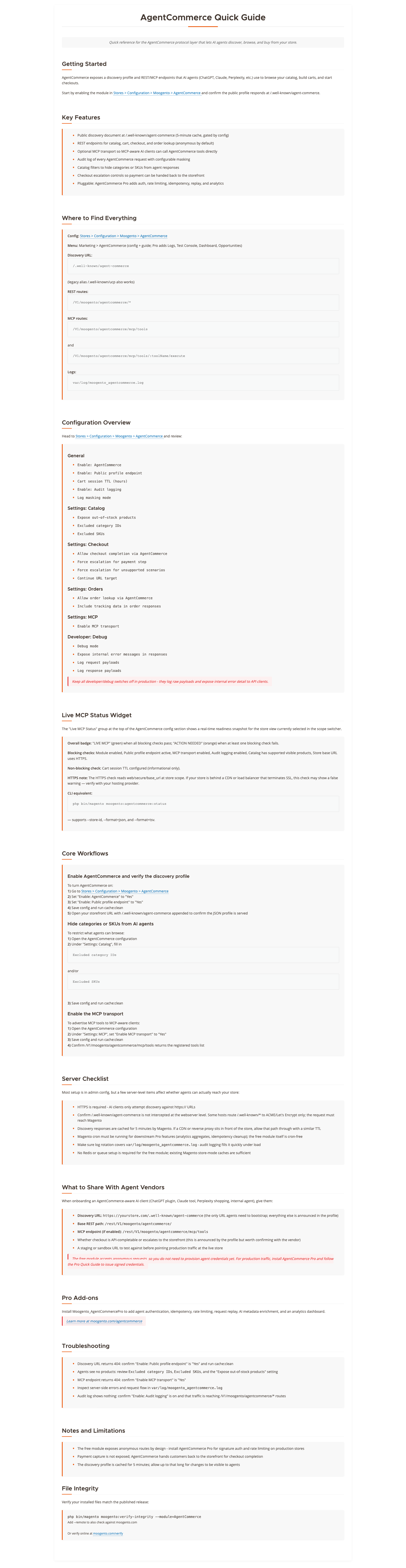
The free module uses a local, offline AC- registration key. It also publishes a store profile at /.well-known/agent-commerce, a /llms.txt discovery file, store policy and FAQ tools, promotions, carrier tracking links, and a REST API. A valid AgentCommerce Pro licence covers the free registration, so Pro merchants use one key.
Default access: On a registered free-only installation, catalog search and product lookup are public once you enable the module and MCP. Require Pro authentication for cart, checkout, and order access is on by default, and Allow checkout completion via AgentCommerce is off by default. Installing the free module alone does not open cart creation, checkout writes, order lookup or payment to anonymous assistants.
This module helps you:
- Get your products found and recommended inside AI assistants
- Turn an assistant conversation into a ready-to-pay cart on your storefront
- Keep your existing Magento checkout, payment methods and pricing rules
- Give signed-in shoppers order, delivery and reorder answers in their assistant (Pro)
- Ask your own assistant about sales, products and shipping from your admin login (Pro)
When to use this
Use AgentCommerce when you want to:
- Let an MCP client search your Magento catalog using store prices and visibility rules.
- Give shoppers a simple page that shows them how to connect Claude or ChatGPT to your store.
- Let an assistant build a cart and send the shopper to your storefront to pay.
- Share published store policies, FAQs and promotions with assistants.
- Check sales and fulfilment figures by asking an assistant instead of opening reports.
Key capabilities
- MCP endpoint at
/mcp- catalog search, product details, policies and promotions; cart changes require an authorised write-capable connection - Agent discovery -
/.well-known/agent-commerceprofile and/llms.txt, published by default - Checkout handoff - a one-use link merges the assistant's cart into the shopper's browser cart
- Shop with AI page (Pro) - a storefront page with connect steps and QR codes for ChatGPT and Claude
- Shopper connections (Pro) - order history, delivery tracking, reorder, profile updates and prepared checkout, approved by the shopper
- Store Admin Assistant (Pro) - admins ask Claude or ChatGPT about revenue, top products, shipping and a saved daily report
- Agent controls (Pro) - agent keys, rate limits, retry protection, request logs, replay and analytics
- Run ChatGPT Ads from Magento (Pro) - send your catalogue, measure sales and create campaigns
Installation
AgentCommerce installs via Composer, then activates with a registration or licence key from your Moogento.com account. The whole flow takes about 5 minutes.
Step 1: Get your Composer keys from Moogento.com
- Sign in at https://www.moogento.com and open My Plugins in your account menu.
- Find AgentCommerce (and AgentCommerce Pro if you bought it) in the list of plugins you own.
- Generate (or reveal) the Composer access keys for that plugin - a public key and a private key.
- Add your install domain to the key. Each Composer key is tied to a specific domain - if you're installing on
yourstore.com, addyourstore.comto the key's allowed domains. The Composer download will be rejected on any other domain.
If you run staging and production on different domains, add both - separate keys per environment are fine too.
Step 2: Install the module with Composer
From your Magento 2 root directory:
composer require moogento/m2-agentcommerce
For Pro, install the base and Pro packages together:
composer require moogento/m2-agentcommerce moogento/m2-agentcommercepro
When Composer asks for credentials, paste the public key as the username and the private key as the password. They'll be cached in ~/.composer/auth.json for future runs.
Step 3: Enable the module in Magento
php bin/magento setup:upgrade
php bin/magento setup:di:compile
php bin/magento cache:clean
Run php bin/magento module:status Moogento_AgentCommerce to confirm it is listed as enabled.
Step 4: Add your Pro license key in the Moogento admin
This step is for AgentCommerce Pro. The free module uses an AC- registration key instead, covered in the extra steps below.
- Still on https://www.moogento.com > My Plugins, copy the license key for AgentCommerce Pro (separate from the Composer keys you used above).
- In your Magento admin, go to Stores > Configuration > Moogento > License.
- Paste the key and click Add key. Confirm the module and plan appear under Registered Keys for this Installation.
- Run
php bin/magento cache:cleanonce.
The license validates within a few seconds. If it stays inactive, double-check the domain on the license matches where you've installed - domain mismatch is the most common cause.
Extra steps for AgentCommerce
- For the free module, enter your
AC-registration key in Stores > Configuration > Moogento > AgentCommerce > General > Free registration key. The check is local and offline. A valid Pro licence replaces this key. - In the same section, confirm Enable: AgentCommerce, Enable: Public profile endpoint and, under Settings: MCP, Enable MCP transport are Yes. All three are on by default.
- With Pro, set Enable AgentCommerce Pro to Yes under Stores > Configuration > Moogento > AgentCommerce Pro > Security.
- Open
https://yourstore.com/.well-known/agent-commerceand check the Live MCP Status panel at the top of the AgentCommerce configuration page.
After an upgrade, check registration, MCP and security settings and test existing integrations before relying on their previous access. The hostname must be public. A hosted Claude, ChatGPT or Perplexity connector cannot reach localhost or a private development hostname.
Setup overview
Most setup happens in:
Stores > Configuration > Moogento > AgentCommerce
You'll mainly work with:
- General
- Settings: Security
- Settings: Catalog
- Settings: Checkout
- Settings: Orders
- Settings: MCP
- Settings: Agent discovery
The AgentCommerce admin menu also has a Setup Wizard with a Connect assistants step. Pro adds its own section at Stores > Configuration > Moogento > AgentCommerce Pro plus the Dashboard, Activity and Store assistant connections pages. ChatGPT Ads (Pro) is set up in that same section; see ChatGPT Ads (Pro).
Common setups
Connect an assistant to your catalog
Give any MCP client your public endpoint so it can search your products.
How to set it up
- Register the free module or activate Pro, then enable the module and Enable MCP transport. Confirm your public HTTPS server lets
POST /mcpreach Magento. - In the assistant's custom connector settings, enter
https://yourstore.com/mcpand choose Streamable HTTP when asked for a transport. - On a registered free-only store, choose no authentication for public catalog reads if the assistant supports it. For a connector that accepts a fixed Bearer credential, register a Pro agent and send its key as
Authorization: Bearer <key>for the whole MCP connection. - Ask the assistant to list its tools, search for a product and look up a SKU.

Notes
- A fixed Pro Bearer key supports read-only MCP requests, which can include protected order reads when enabled. Treat it as a credential and give it only to a trusted integration. Cart and checkout writes need a connection that can sign each request using version 2 authentication; a fixed Bearer header alone cannot perform them. See Claude's remote connector setup and Perplexity's connector options.
- Shoppers who want their own account in the assistant use the Connect My Agent shopper connector instead. See Let shoppers link their account.
Choose what assistants can read
How to set it up
- Go to Stores > Configuration > Moogento > AgentCommerce > Settings: Catalog.
- In Allowed product types, keep every type you want assistants to see. Simple, configurable, virtual, downloadable, bundle, grouped and gift card products are readable by default.
- Set Expose out-of-stock products to No to hide items you can't ship.
- Add any Excluded category IDs or Excluded SKUs.
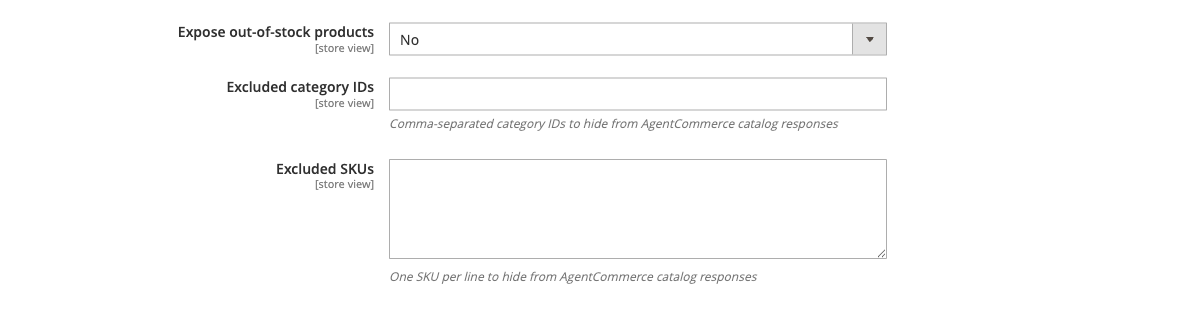
Notes
- Products must be enabled, assigned to the store website and visible in catalog or search. Cart additions enforce the same rules, so an assistant cannot bypass them by supplying a SKU.
- These settings affect AgentCommerce only, not your storefront catalog.
- Bundle and grouped products show their lowest "from" price, and gift cards show their fixed or lowest allowed amount. Selections that need choices stay on the storefront.
Build a cart and hand off checkout
With the default security settings, cart and checkout writes require a valid Pro licence. When Pro authenticates commerce writes, they require version 2 signatures. A fixed Bearer key permits read-only MCP requests and cannot create or change a cart.
How to set it up
- For shoppers, use the registered store connection through Connect My Agent where available. For a custom integration, register an agent under AgentCommerce > Activity > Agents, save its one-time signing secret securely, and use a client that signs each write with version 2 authentication. A fixed Bearer key is not sufficient for writes.
- In Settings: Checkout, keep Allow checkout completion via AgentCommerce at No and Force escalation for payment step at Yes.
- Choose where the shopper lands with Continue URL target.
- Using the write-capable connection, ask the assistant to create a cart, add an item and return the checkout link. Open that link in the shopper's browser.
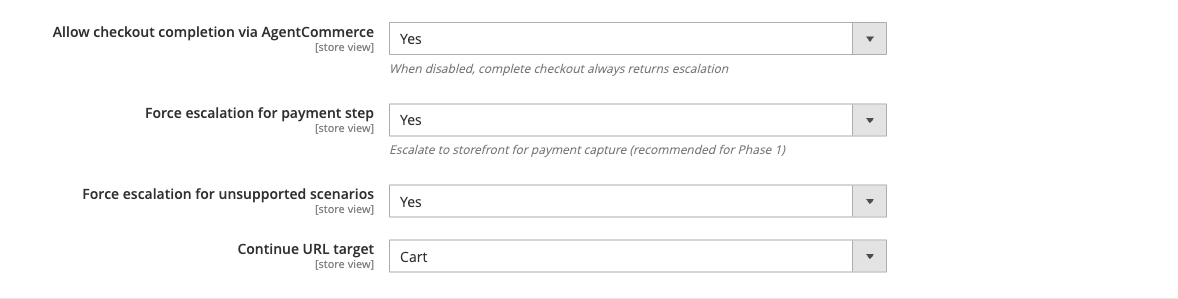
Notes
- An authorised assistant can use
create_cart,get_cart,add_to_cart,update_cart_item,remove_cart_item,apply_couponandstart_checkout. - The checkout link uses a short-lived, one-use token to merge the assistant's cart into the shopper's browser cart, including a signed-in customer's cart. Existing items stay, and Magento recalculates totals. The link works only in its store view.
- After a successful handoff the assistant can no longer read or change that cart. Turning off AgentCommerce stops new links and redemption of existing ones.
Let shoppers link their account (Pro)
Connect My Agent is the shopper connector for participating stores using the AgentCommerce Pro Magento extension. A shopper adds it in a supported assistant such as Claude where custom connectors are available and links your store by signing in with their store account, so you don't register a connector or change DNS. The Connect My Agent app for ChatGPT is in private preview; availability depends on the assistant and the shopper's access.
How to set it up
- Set Let shoppers connect from ChatGPT to Yes under Settings: Agent discovery, or turn it on in the Setup Wizard step Connect assistants.
- Ask Moogento to register your store for shopper connections. The store link appears in the Setup Wizard,
/.well-known/agent-commerceandllms.txtonly once Moogento has registered your store. - Keep Show the Shop with AI page at Yes under Stores > Configuration > Moogento > AgentCommerce Pro > Shop with AI Page so shoppers have a page with the steps.
- Keep Allow order lookup via AgentCommerce and Include tracking data in order responses at Yes under Settings: Orders if you want order and delivery answers.
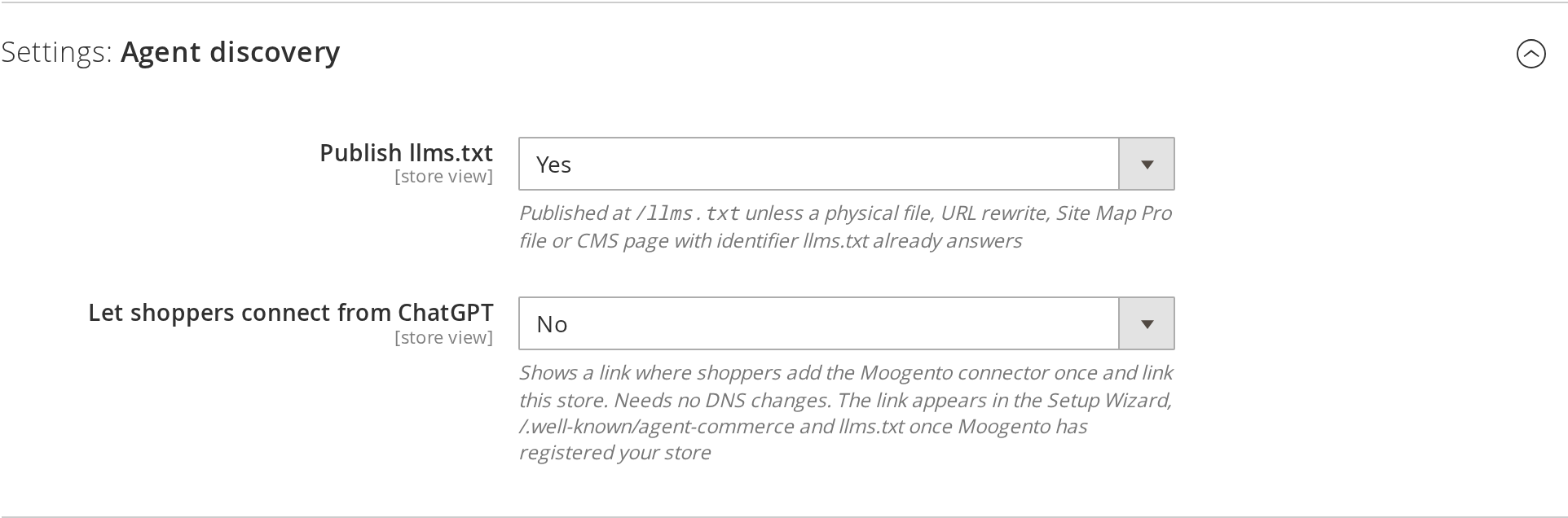
This screenshot predates the current Connect My Agent label.
Notes
- When a shopper links, your store shows a consent page naming the assistant and what it may do. The shopper approves on your store, under your normal login and two-factor rules.
- Linked assistants can list the shopper's orders, follow deliveries, reorder past items, update their name and default addresses, and prepare checkout. The shopper still pays on your storefront. Review your store privacy notice and each assistant provider's handling of shared data before enabling connections.
- Email address and password changes stay on your store. A profile change sends the shopper a confirmation email.
Features reference
Store policies and FAQ
Nothing needs configuring. AgentCommerce reads your returns, shipping, privacy and FAQ content from your own active CMS pages and shares it through the get_store_policy tool and the policy://returns, policy://shipping, policy://privacy and faq://general MCP resources. Each page is found by its URL key, in this order:
- Returns:
returns,return-policy,returns-policy,refund-policy,returns-and-refunds - Shipping:
shipping,shipping-policy,delivery,shipping-information - Privacy:
privacy-policy,privacy-policy-cookie-restriction-mode,privacy - FAQ:
faq,faqs,help
If none of those exist, the active page with the shortest URL key containing return, shipping, privacy or faq is used. For shipping, Magento's Shipping Policy Parameters are the last fallback. To change what assistants see, rename the page's URL key.
Promotions
An automatic cart price rule (no coupon code) that is active, inside its dates, assigned to your website and the NOT LOGGED IN group, and has a storefront label is shared by get_promotions with its label and end date only. Give a rule a label only if you want assistants to mention it.
Order lookup and tracking links
Under Settings: Orders, Allow order lookup via AgentCommerce controls whether assistants can read an order in the store view. Include tracking data in order responses hides tracking details when off. For UPS, USPS, FedEx and DHL, tracking numbers link to the carrier's own tracking page; other carriers show the number only.
Discovery: profile and llms.txt
Publish llms.txt under Settings: Agent discovery is on by default. It serves a short guide at /llms.txt built from public store data, with links to your storefront, policies, FAQ and MCP endpoint. A physical file, URL rewrite, Site Map Pro file or CMS page with identifier llms.txt takes priority. Neither the profile nor llms.txt registers your store with Claude, ChatGPT, Perplexity or a search engine.
Your store also publishes /.well-known/ucp with no shopping capabilities declared. Gemini and Google AI Mode listings need a Merchant Center account and Google's own programme.
MCP tools
Assistants connected to /mcp can list these tools. Availability and access depend on the connection; a fixed Bearer credential is read-only:
| Catalog and reads | Cart and checkout |
|---|---|
search_products |
create_cart |
get_product |
get_cart |
get_store_policy |
add_to_cart |
get_promotions |
update_cart_item |
get_order (protected) |
remove_cart_item |
apply_coupon |
|
start_checkout |
|
update_checkout |
|
complete_checkout |
With Pro and Enable Rule-Based Product Features on, recommend_products also appears. It suggests eligible in-stock cross-sells for a SKU from your catalog links and rules, not an AI model. A listed tool does not mean every caller may use it.
The /V1/moogento/agentcommerce/* REST routes remain available for existing integrations. Their /mcp/tools path is a REST tool list, not the MCP connection URL.
AgentCommerce Pro (upgrade)
AgentCommerce Pro adds shopper connections, the Shop with AI page, a Store Admin Assistant, Moogento integrations, and the controls you need to run agents safely: agent keys, rate limits, retry protection, request logs, replay and analytics.
Shop with AI page
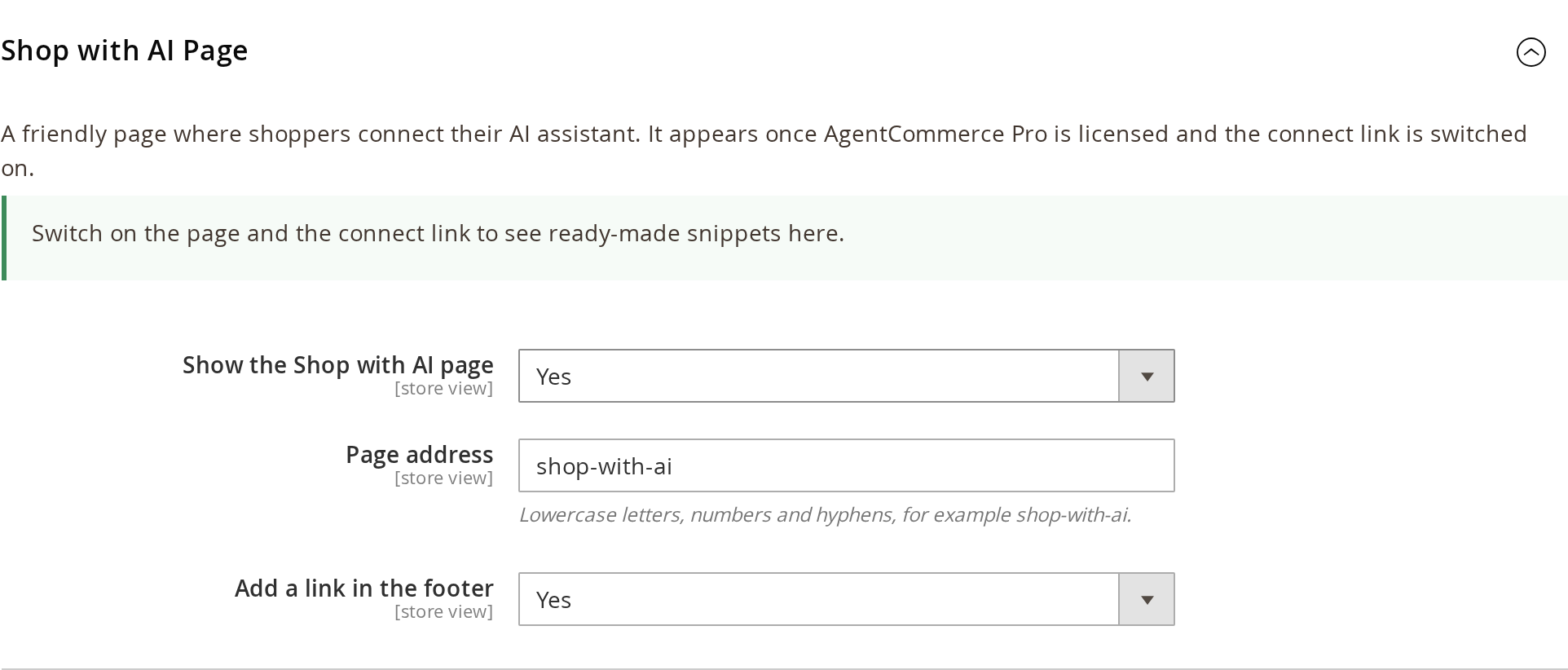
A storefront page at /shop-with-ai shows shoppers how to connect ChatGPT and Claude to your store, with the connector address, a copy button, a QR code for phones, example questions and a link to manage connected assistants.
- Go to Stores > Configuration > Moogento > AgentCommerce Pro > Shop with AI Page.
- Keep Show the Shop with AI page at Yes and change Page address if you want a different URL (lowercase letters, numbers and hyphens).
- Keep Add a link in the footer at Yes, or link the page yourself.
- Use the Copy and paste snippets to drop a Shop with AI widget into a CMS page, block or email.
Connected assistants (shoppers)
When your store is ready for shopper connections, signed-in shoppers get a Connected assistants link in My Account. The page lists each linked assistant, what it can do in plain words, when it was connected and last used, and a Disconnect button that takes effect straight away. Shoppers can also turn Product suggestions in assistant answers on or off here.
Assistants unused for 90 days are disconnected automatically. You can also revoke links from the command line:
php bin/magento agentcommerce:connections:links-purge --customer-id=123
php bin/magento agentcommerce:connections:links-purge --all
Store Admin Assistant
Let admins ask Claude or ChatGPT about the store. Each admin signs in with their own admin login and two-factor authentication, and sees only what their role allows.
- Set Let store admins connect an AI assistant to Yes under Stores > Configuration > Moogento > AgentCommerce Pro > Store Admin Assistant.
- Open AgentCommerce > Store assistant connections. The panel shows the connector address, the store address to sign in with, steps for Claude and ChatGPT, and a QR code.
- Add the connector in your assistant and sign in. Your active connections appear under Your connections, each with Revoke.
The assistant can answer with revenue, orders, average order value, units sold, refunds, sales trend, top products and shipping. Campaign figures need Pulse, profit needs ProfitEasy and the profit permission, delivery performance needs TrackEasy, recent exports need ExportEasy and pick-and-pack stats need PickNScan.
Daily report: ask the assistant to save the report sections and period you want, then ask it to run your report each morning. Without a saved choice, the report shows revenue for yesterday. The assistant does the scheduling; the store runs no cron for it.
Integrations
Under Stores > Configuration > Moogento > AgentCommerce Pro > Integrations, choose which Moogento extras assistants can use. All four are on by default and work only when the partner module is enabled, switched on and licensed; otherwise the setting is greyed out with the reason.
- Rank product search with SmartListings - assistant search puts in-stock, best-performing products first among the top matches.
- Suggest SmartCart add-ons in cart answers - cart answers can mention a few add-ons.
- Suggest TrackEasy products in delivery answers - delivery answers can suggest the products your tracking page recommends.
- Show the delivery timeline and tracking QR code in delivery answers - adds TrackEasy's delivery timeline image. Delivery answers do not include a QR code image yet.
Shoppers who turn suggestions off see none. Their choice never changes search ranking.
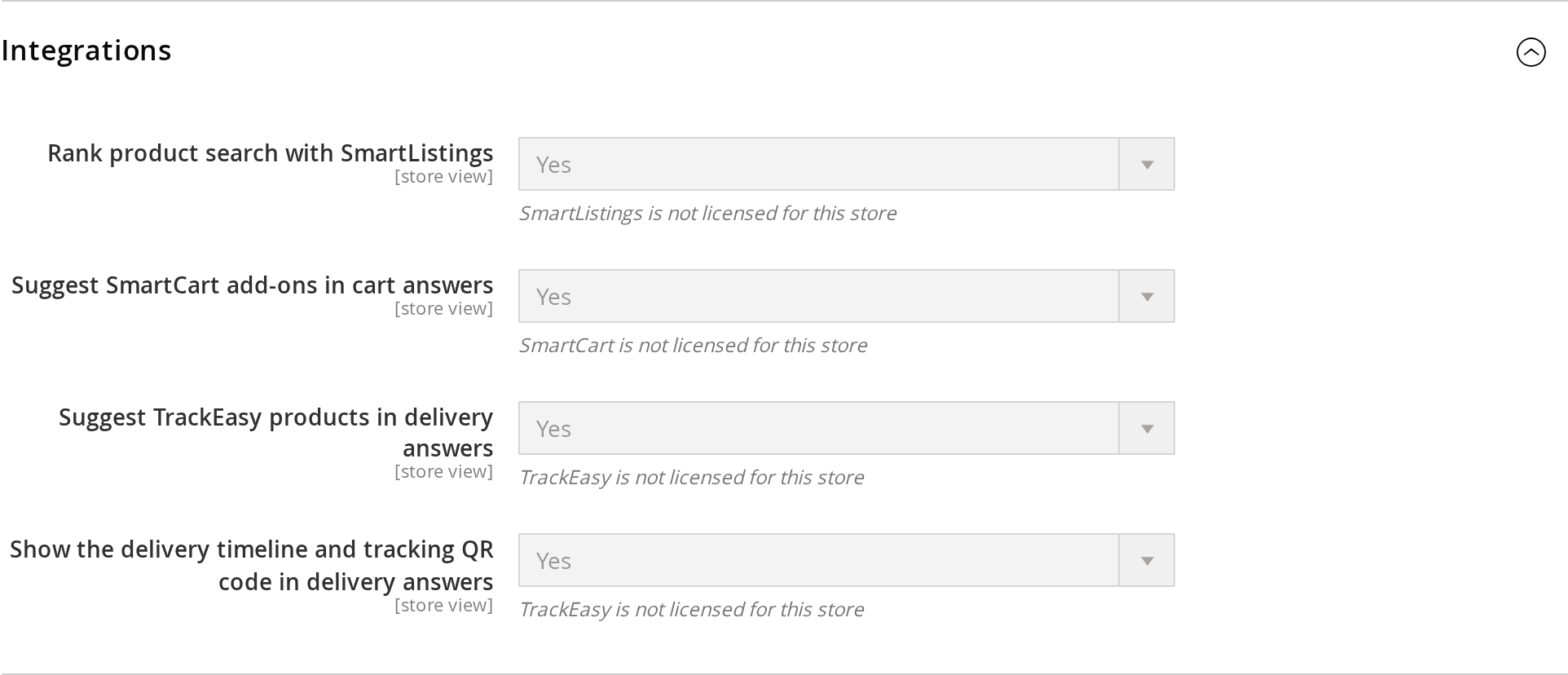
Delivery timeline and QR options depend on compatible released versions and the required TrackEasy licence.
ChatGPT Ads (Pro)
Send your product catalogue to your ChatGPT Ads account, measure the sales those ads bring, and create shopping campaigns from Magento. This is a Pro feature. Without an active Pro licence, nothing is sent and no pixel is added to your storefront.
Before you start: an approved ChatGPT Ads account in Ads Manager, an Ads API key from Ads Manager settings, and a Magento cron that runs (the ads jobs run in their own cron group).
Connect
- Go to Stores > Configuration > Moogento > AgentCommerce Pro > ChatGPT Ads.
- At default scope, set Enable ChatGPT Ads catalogue sync to Yes and save.
- Switch the scope to the store view you want to connect. The Ad account and Conversion tracking panels only appear at store view scope.
- Paste the key in API key and click Connect.
One ad account connects to one store view, and the same ad account cannot be connected to a second store view. The key is stored encrypted and is never shown again. To change it, click Replace key.
Sync your catalogue
- Sync now queues an upload. It runs on the next ads cron run, usually within a few minutes.
- Sync the catalogue nightly sends a full upload each night. Price and stock changes are sent every 15 minutes.
- Ad countries sets the countries your feed targets. Leave it empty to use the store default country.
- Remove products missing from a complete upload stays off unless OpenAI has enabled full feed replacement for your feed.
- Check progress under ChatGPT Ads uploads > Feed status, and click Refresh status to update it.
Measure sales (pixel and consent)
- Under Conversion tracking, choose the Pixel.
- Paste a Conversions API key and click Save and test. The panel shows whether a conversion event setting was found. Click Test connection to check again.
With Magento cookie restriction on, nothing is measured until the visitor accepts cookies. With restriction off, measurement is allowed unless the pixel consent cookie records a decline. Review the Magento cookie restriction setting and configure your consent tool before enabling measurement. A consent tool can call the pixel's consent hook. Orders are queued and sent in the background, so checkout does not wait for the provider.
Create a Conversions API key
In Ads Manager, open Conversions API keys, create a key for the pixel you use, and copy it. Paste it into Conversions API key in the Conversion tracking panel. Copy it once, because it is not shown again.
This key is separate from the Ads API key. Magento cannot list or revoke Conversions API keys, so revoke an old key in Ads Manager. Use a placeholder such as <your conversions key> in notes, and never paste a real key into a ticket or email.
Your first campaign
Go to AgentCommerce > Ads and click Campaigns. The wizard has four steps: 1. Products, 2. Budget and bid, 3. Ad and 4. Review. Choose an ad type: Product feed, Single product or Website.
- Create paused campaign saves the campaign paused, so nothing spends.
- Launch, then Confirm and start spending, starts it. Pause stops it.
- Maximum daily campaign budget (default 500, in your ad account currency) blocks any campaign above that amount.
See results
Go to AgentCommerce > Ads and click View performance. The Ads performance report shows Spend, Clicks, Conversions reported by ChatGPT Ads, Order-matched revenue (your orders) and Return on ad spend. Filter it by Store view and Period. The two revenue figures are labelled separately and are never added together. With Pulse installed, the same spend appears in Pulse's ad spend reports.
Checklist
The ChatGPT Ads checklist sits directly below Pro Readiness in Stores > Configuration > Moogento > AgentCommerce Pro. It shows at default scope only, with one card per store view that has an ad account (the first 50 are shown). A store view whose checklist fails to load shows a short notice instead of its steps. Connect the ad account from the store view's scope. Each card has six checks:
- Ad account connected
- Catalogue uploaded
- Pixel and server conversions configured
- Conversion event setting found
- First campaign started
- Results received
The later checks show "Connect your ad account first." until the account is saved. The checklist reads stored setup data only. It does not test live delivery, and stored results can be old.
Disconnect
Click Disconnect in the Ad account panel. You can also tick Also archive the feed in my ad account and Archive even if campaigns use the feed. Disconnecting does not pause campaigns, so pause them in Ads Manager first. Past reports and upload history stay.
Limitations
- Full feed replacement is gated: ask OpenAI to enable it before you turn on Remove products missing from a complete upload.
- The feed upload uses port 443, and its SSH key mode accepts RSA keys only.
- Variants are accepted but never appear in the product query, so the campaign product preview does not list them.
- Ad preview is unavailable until the feed has finished processing (about 8 to 15 minutes).
- Ad review takes about 20 to 35 minutes.
- OpenAI sets the daily budget minimum per ad account currency (15 EUR on the pilot account).
- Results lag to the last full hour in the ad account time zone.
- When the ad account currency and store currency differ, return on ad spend is hidden.
- Visitors who decline cookies are not measured.
- If landing pages and checkout are on different hosts, the click-attribution cookie is lost, so those orders are not attributed.
- In Pulse, spend from an ad account in a currency other than the store's base currency is left out of ROI and the paid leaderboard, never converted.
Register an agent
- Open AgentCommerce > Activity and the Agents tab. Choose a stable Agent ID and a descriptive Name, and add a Channel code if your integration uses one.
- Select Register Agent. Copy the MCP connector API key from the one-time display and save it in the assistant's credential settings as
Authorization: Bearer <key>. - For custom signed REST integrations or custom MCP integrations that write, copy the separate Signed REST request secret from the same display.
- To end access, use Revoke on the agent row. Register a replacement when a key needs to change.
The list never shows a saved credential again. Do not put either credential in a prompt or public URL.
Security, rate limits and retries
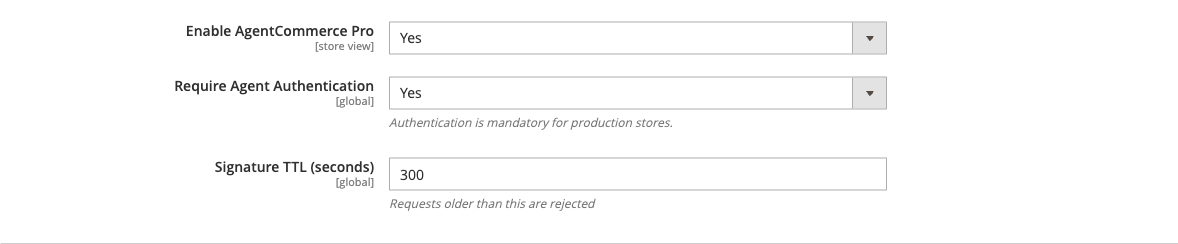
- Under Security, set Enable AgentCommerce Pro and Require Agent Authentication to Yes. Signature TTL (seconds) limits the age of signed REST and MCP requests.
- Under Rate Limiting, turn on Enable Rate Limiting and set Requests Per Minute (per agent). Give each integration its own agent so you can inspect and revoke it separately.
- Under Idempotency (retry protection), turn on Enable Idempotency Checking and set Idempotency Key TTL (hours). A caller can send
X-Idempotency-Keyon a retryable write; reusing a key with different arguments is a conflict.


Request logs, analytics and product scoring
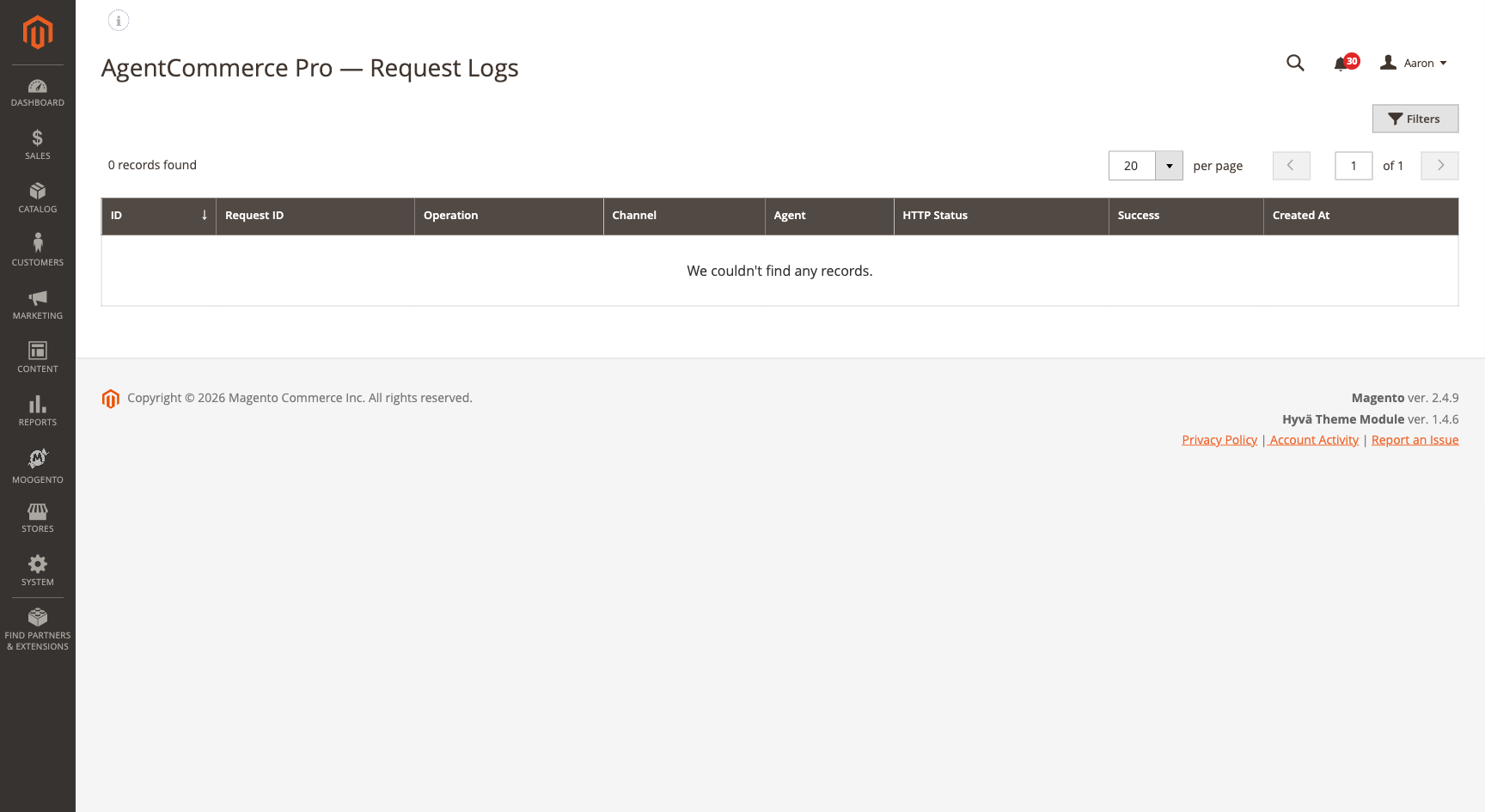
- AgentCommerce > Activity > Request logs lists REST request records. Replay needs the Replay requests role permission.
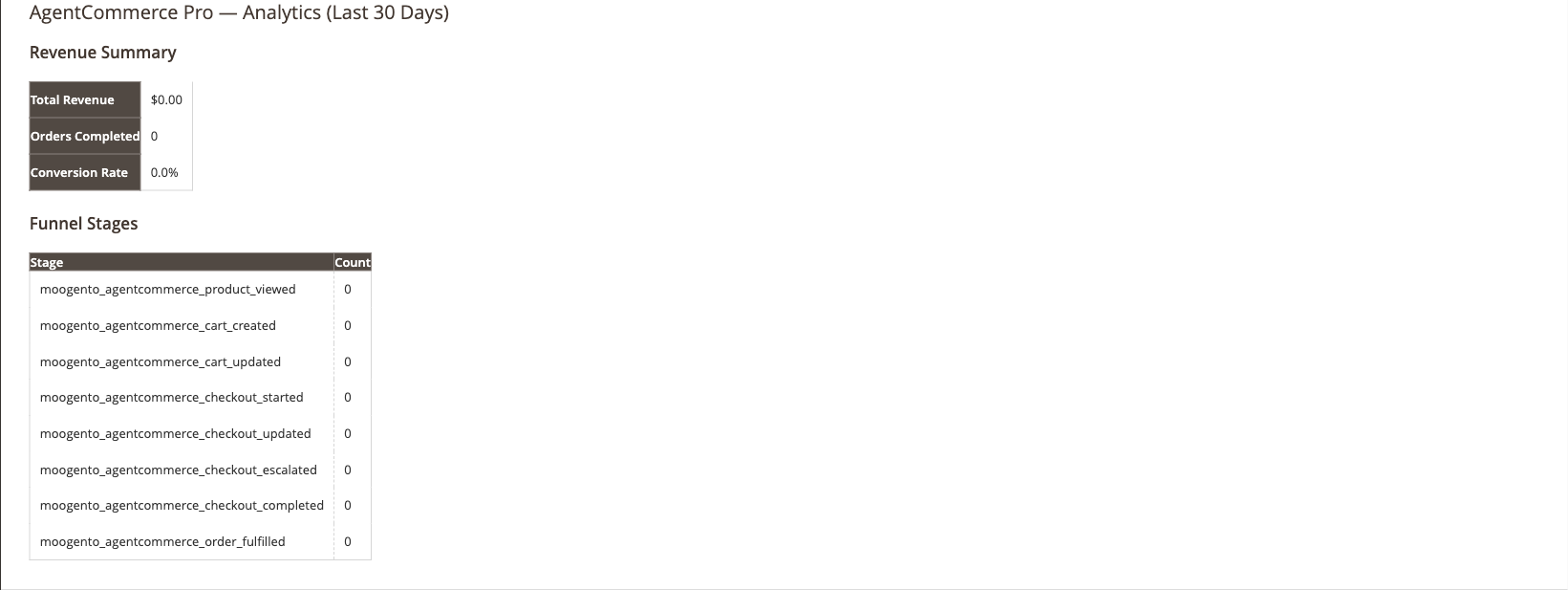
- AgentCommerce > Dashboard shows agent revenue, orders placed, conversion and a funnel. Turn on Enable Analytics Features, Enable Event Collection and Enable Aggregate Cron under Analytics; Magento cron must be running.
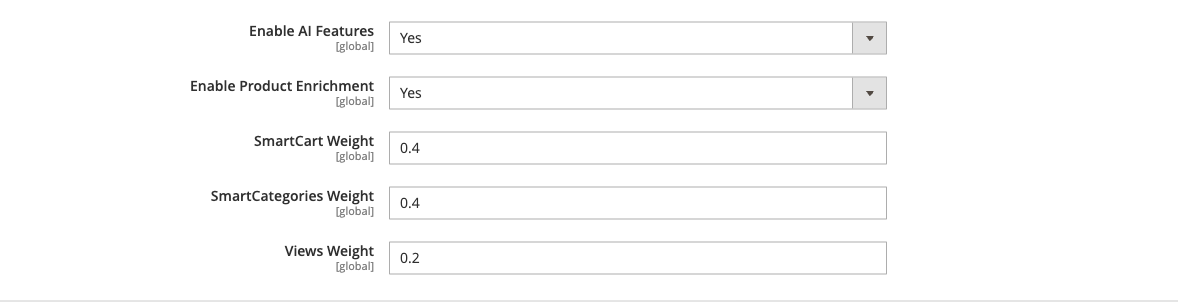
- Product Intelligence controls rule-based enrichment and scoring, including SmartCart, SmartListings and views weights. It does not call an AI model.

Advanced configuration
Signed REST integrations
What it does
The REST routes under /rest/V1/moogento/agentcommerce/ and /rest/V1/moogento/agentcommercepro/ accept signed requests from custom integrations, using the Signed REST request secret shown at agent registration. A fixed Bearer key on /mcp authenticates read-only requests. Commerce writes require version 2 signatures, including MCP writes from custom integrations.
Setup
Send these headers:
X-AgentCommerce-Agent-Id: your-agent-id
X-AgentCommerce-Timestamp: current-unix-time-in-seconds
X-AgentCommerce-Signature-Version: 2
X-AgentCommerce-Nonce: unique-16-to-128-character-nonce
X-AgentCommerce-Signature: lowercase-hex-hmac-sha256
X-Idempotency-Key: unique-retry-key-for-writes
For version 2, concatenate these six values in order: 2, uppercase HTTP method, signing path, timestamp, nonce and exact raw request body. Prefix each value with its decimal byte length and a colon, then calculate HMAC-SHA256 using the signed REST request secret and encode the result as lowercase hexadecimal. Include 0: for an empty body. The signing path is /store/<resolved-store-code> followed by the normalized API path and the exact query string, including ?, if present. For example, when the resolved store code is default, /rest/default/V1/... signs as /store/default/V1/...; /mcp signs as /store/<resolved-store-code>/mcp. Use an empty body for GET or HEAD.
Notes
- Legacy version 1 signatures remain available for reads: sign
timestamp + "." + raw_request_bodywith HMAC-SHA256. They cannot authenticate commerce writes. - A clock outside Signature TTL (seconds) is rejected. Keep server clocks synchronised. Use a fresh 16 to 128 character nonce containing ASCII letters, digits, underscores or hyphens for every version 2 request, including retries; a reused nonce is rejected. An idempotency key may be reused for the same write retry.
- The free module's partner JWT token exchange and Pro's opaque token callback (External Token Exchange) are custom integration paths, separate from shopper connections.
Logs and server setup
What it does
Audit logging records agent activity to var/log/moogento_agentcommerce.log and, with Pro, var/log/moogento_agentcommercepro.log.
Setup
- Turn on Enable: Audit logging and choose a Log masking mode in General.
- Keep the Developer: Debug payload and internal-message switches off on a public store, because raw payloads can include personal data.
- Route
/.well-known/agent-commerce,/llms.txt,/shop-with-aiand/mcpto Magento. A CDN must not cache MCP responses.
Notes
- If a reverse proxy sits in front of Magento, forward
Authorizationfor MCP Bearer connections, theX-AgentCommerce-*signing headers for signed REST and MCP calls, andX-Idempotency-Keyfor retries on either transport.
Tips & best practices
- Test with one known visible SKU before inviting shoppers to use an assistant.
- Give each integration its own registered agent so you can revoke it without touching the others.
- Keep payment on the storefront: leave Allow checkout completion via AgentCommerce at No.
- Label only the cart rules you want assistants to mention.
- Link the Shop with AI page from your order emails so shoppers find it after their first purchase.
- A green Live MCP Status badge checks configuration; confirm a real
tools/callfrom your assistant too.
Troubleshooting
The Live MCP Status panel checks registration, module enablement, public profile, MCP setting, audit logging, catalog availability, HTTPS base URL and cart session TTL. Pro adds a Pro Readiness panel. You can also run:
php bin/magento moogento:agentcommerce:status
php bin/magento moogento:agentcommercepro:status
/mcp does not connect
Your assistant cannot connect to the store's MCP address.
- Cause: Registration, the MCP transport setting, HTTPS reachability or server routing.
- Check: The Live MCP Status panel, Enable MCP transport, and that
https://yourstore.com/mcpis reachable from outside your network. - Resolution: Register the free module or activate Pro, route
/mcpto Magento and choose Streamable HTTP in the connector. AGET /mcpmay return 405 because MCP clients connect with POST. For browser-based clients, add the origin to Additional allowed browser origins.
Search returns no products
The assistant says it can't find products you know are on sale.
- Cause: Stock, visibility, store view or catalog exclusions.
- Check: Excluded category IDs, Excluded SKUs, Allowed product types and Expose out-of-stock products.
- Resolution: Remove the product from the exclusions or make it visible in the store view, then test one known SKU with
get_product.
Cart operations are denied
The assistant can search but cannot create or change a cart.
- Cause: A fixed Bearer key is read-only, or the connection lacks valid write authentication.
- Check: The Pro licence, the store connection or registered agent status, and whether the integration signs writes with version 2 authentication.
- Resolution: Use an available shopper connection or a custom client that signs each write. Direct checkout completion is a separate setting and stays off by default.
Checkout link opens an empty cart
The shopper opens the checkout link and the cart is empty.
- Cause: An expired or already used link, another store view, or blocked cookies.
- Check: That the link came from
start_checkout, was opened once, and was opened in the store view it was issued for. - Resolution: Ask the assistant for a new checkout link and open it in a browser that keeps Magento session cookies.
Shoppers don't see Connected assistants or the connect link
Signed-in shoppers have no Connected assistants link and the connect link is missing.
- Cause: Shopper connections aren't switched on, or Moogento hasn't registered the store yet.
- Check: Let shoppers connect from ChatGPT, the Pro licence, and the Setup Wizard Connect assistants step.
- Resolution: Turn the setting on and contact Moogento to register the store. Shoppers who already have a link keep the page so they can disconnect.
An Integrations switch is greyed out
A switch under Integrations cannot be changed.
- Cause: The partner module is missing, switched off or unlicensed.
- Check: The note under the switch, which names the reason.
- Resolution: Install, enable and license SmartListings, SmartCart or TrackEasy for that store.
/llms.txt shows unexpected content
/llms.txt shows content you didn't expect, or nothing.
- Cause: Another source answers the path first, or publishing is off.
- Check: For a physical file, URL rewrite, Site Map Pro file or CMS page with identifier
llms.txt, and the Publish llms.txt setting. - Resolution: Remove the other source or leave it in charge, and keep Publish llms.txt at Yes.
ChatGPT Ads: cannot connect or sync
- Cause: The key is not the Ads API key, it was revoked, or the ads cron jobs are not running.
- Check: The key came from Ads Manager settings (not a Conversions API key), and the Magento cron is running.
- Resolution: Click Replace key and paste the Ads API key. If Sync now still does nothing, fix the cron run and click Sync now again.
ChatGPT Ads: full feed replacement is not enabled
- Cause: OpenAI has not enabled full feed replacement for your feed.
- Check: Remove products missing from a complete upload is on, but uploads are not removing items.
- Resolution: Ask OpenAI to enable full feed replacement, then keep the setting on.
ChatGPT Ads: no return on ad spend
- Cause: The ad account currency and the store currency differ, so return on ad spend is hidden on purpose.
- Check: Ad account currency and Store currency in the Ad account panel.
- Resolution: Nothing is wrong. Return on ad spend is not converted between currencies.
FAQs
Does the free AgentCommerce module need a paid licence?
No, the free module needs only a free AC- registration key, checked locally and offline. A valid Pro licence also covers free registration, so Pro customers need one key. The registration key does not unlock Pro features.
How do shoppers use ChatGPT or Claude as an AI shopping assistant for my Magento 2 store?
Shoppers add the Connect My Agent connector in a supported assistant such as Claude where custom connectors are available, then link your store by signing in with their store account. The Connect My Agent app for ChatGPT is in private preview and requires access. The Pro Shop with AI page shows them the steps with a QR code. Moogento must register your store for shopper connections first.
Can an assistant take payment inside the chat?
No, AgentCommerce never takes card payment in chat, and by default the shopper pays on your Magento storefront. An assistant builds the cart and prepares checkout, then hands the shopper to your checkout payment step. If you set Allow checkout completion via AgentCommerce to Yes and Force escalation for payment step to No, complete_checkout can place eligible Check / Money Order orders directly.
What can a linked assistant do with a shopper's account?
With AgentCommerce Pro, a linked assistant can list the shopper's orders, follow deliveries, reorder past items, update their name and default addresses, and prepare checkout. The shopper approves each assistant on your store and can disconnect it from Connected assistants at any time.
Can I ask an assistant about my store's sales?
Yes, with AgentCommerce Pro admins can connect Claude or ChatGPT through Store assistant connections and ask about revenue, orders, top products and shipping. Each admin signs in with their own login and sees only what their role allows. See Store Admin Assistant.
Do Claude, ChatGPT and Perplexity find my store automatically?
No, the profile and llms.txt help assistants understand your store but don't register it anywhere. Add the public https://yourstore.com/mcp URL in each service's connector settings, or, with Pro and once Moogento registers your store, let shoppers use Connect My Agent when they have access.
What does upgrading to AgentCommerce Pro add?
Pro adds shopper account connections, the Shop with AI page, the Store Admin Assistant, SmartListings, SmartCart and TrackEasy integrations, agent keys, rate limits, retry protection, request logs, replay and analytics.
Does AgentCommerce work with Hyvä, Luma and Porto?
Yes, the MCP endpoint runs independently of the theme, and the Shop with AI and Connected assistants pages render on Hyvä, Luma and Porto. Test the checkout handoff against your own checkout customisations.
What happens when I disable AgentCommerce?
Assistants lose access to your catalog and cart tools, and new or existing checkout links stop working. Shoppers can still open Connected assistants to disconnect existing links.
Does ChatGPT Ads need AgentCommerce Pro?
Yes. ChatGPT Ads is a Pro feature. Without a valid Pro licence, nothing is sent and no pixel is added to your storefront.
Can AgentCommerce create a ChatGPT Ads account?
No. Create the account in Ads Manager, then connect it in ChatGPT Ads under AgentCommerce Pro.
Related guides
- SmartListings - ranks assistant search results by in-stock, best-performing products
- SmartCart - supplies add-on suggestions in cart answers
- TrackEasy - delivery timelines and product suggestions in delivery answers
- Pulse - campaign figures for the Store Admin Assistant, and ChatGPT Ads spend next to your other ad platforms
- ProfitEasy - profit figures for the Store Admin Assistant
- Site Map Pro - can publish your
/llms.txt
Need help?
- Moogento support desk - the fastest route, and it covers free modules too
- moo@moogento.com if you would rather email
- Include:
- Magento version
- Module name
- What you're trying to do
Do not send an agent API key or customer data in the message.