
Overview
SmartCategories is a Magento 2 category merchandising module that replaces the static category sort with a dynamic, data-driven ranking system. In-stock products always appear before out-of-stock ones, low-stock items are gently deprioritised, and on higher plan tiers the ranking blends in real customer signals and profit-based performance data.

This module helps you:
- Keep in-stock products at the top of every category without manual intervention
- Reduce customer frustration caused by dead-end out-of-stock pages
- Run time-limited promotional boosts for flash sales or featured collections
- Surface products each returning visitor is most likely to buy (Pro)
- Measure which category placements actually drive sales through built-in attribution
When to use this
Use SmartCategories when you want to:
- Stop manually reordering category products every time stock levels change
- Display a friendly message and sibling-category suggestions when a category sells out
- Run a campaign boost for a supplier range or seasonal collection with automatic expiry
- Surface browsing-history-based product suggestions for logged-in customers
- Connect ProfitEasy sales velocity and margin data to drive category ranking
Key capabilities
- Availability-aware ranking - in-stock products always lead; OOS products pushed to the bottom automatically
- OOS category messaging - custom per-category message with waterfall inheritance from parent categories
- Related collections - automatically shows sibling categories when a category is fully out of stock
- Menu visibility logic - hides fully out-of-stock leaf categories from navigation, restores when stock returns
- Admin product boosts - score-based boosts with optional date range, category scope, and CSV import/export (Growth+)
- Behaviour tracking - records views and purchases so Growth plans capture attribution; Pro uses this data for ranking
- Personalised results - per-visitor reordering via AJAX or server-side rendering (Pro)
- ProfitEasy performance integration - sales velocity, profit velocity, and conversion rate drive ranking (Pro)
- Debug overlay - add
?sc_debug=1to any category URL while logged in as admin to see per-product score breakdowns (Pro) - Hyvä, Luma, and Porto compatibility - dedicated compat module for Hyvä; tested on all three themes
Installation
SmartCategories installs via Composer, then activates with a license key from your Moogento.com account. The whole flow takes about 5 minutes.
Step 1: Get your Composer keys from Moogento.com
- Sign in at https://www.moogento.com and open My Plugins in your account menu.
- Find SmartCategories in the list of plugins you own.
- Generate (or reveal) the Composer access keys for that plugin - a public key and a private key.
- Add your install domain to the key. Each Composer key is tied to a specific domain - if you're installing on
yourstore.com, addyourstore.comto the key's allowed domains. The Composer download will be rejected on any other domain.
If you run staging and production on different domains, add both - separate keys per environment are fine too.
Step 2: Install the module with Composer
From your Magento 2 root directory:
composer require moogento/module-smartcategories
When Composer asks for credentials, paste the public key as the username and the private key as the password. They'll be cached in ~/.composer/auth.json for future runs.
Step 3: Enable the module in Magento
php bin/magento setup:upgrade
php bin/magento setup:di:compile
php bin/magento cache:clean
If you run php bin/magento module:status Moogento_Smartcategories you should see it listed as enabled.
Step 4: Add your license key in the Moogento admin
- Still on https://www.moogento.com > My Plugins, copy the license key for SmartCategories (separate from the Composer keys you used above).
- In your Magento admin, go to Stores > Configuration > Moogento > Licenses.
- Find the row for SmartCategories and paste the license key.
- Click Save Config, then run
php bin/magento cache:cleanonce.
The license validates within a few seconds. You should see the module's status flip to active. If it stays inactive, double-check the domain on the license matches where you've installed - domain mismatch is the most common cause.
Extra steps for SmartCategories
SmartCategories scores are computed on a cron schedule (every 4 hours). After installation, run one manual refresh so the first page loads show correct ordering:
php bin/magento smartcategories:score:refresh
php bin/magento cache:clean
If you use Hyvä theme, also enable the companion compat module Hyva_MoogentoSmartcategories - it ships in app/code/Hyva/MoogentoSmartcategories and handles Hyvä-specific layout, sidebar filter rendering, and AJAX personalisation.
Setup overview
Most setup happens in:
Stores > Configuration > Moogento > SmartCategories
You'll mainly work with:
- General - enable or disable the module, turn on score logging
- Availability Sorting - OOS handling, stock filter, menu visibility, related collections
- Behaviour-Based Merchandising - behaviour tracking, personalised results, activity inserts (Growth+)
- Performance Intelligence - ProfitEasy weights, optimisation modes (Pro)
- Analytics / Attribution - UTM parameters for attribution tracking (Growth+)
- Overview: Ranking Weights - live visual breakdown of the current scoring formula
Common setups
Push out-of-stock products to the bottom of every category
This is the core Seed feature. Once enabled, customers automatically see available products first on every category page.
How to set it up
-
Go to: Stores > Configuration > Moogento > SmartCategories > Availability Sorting
-
Set:
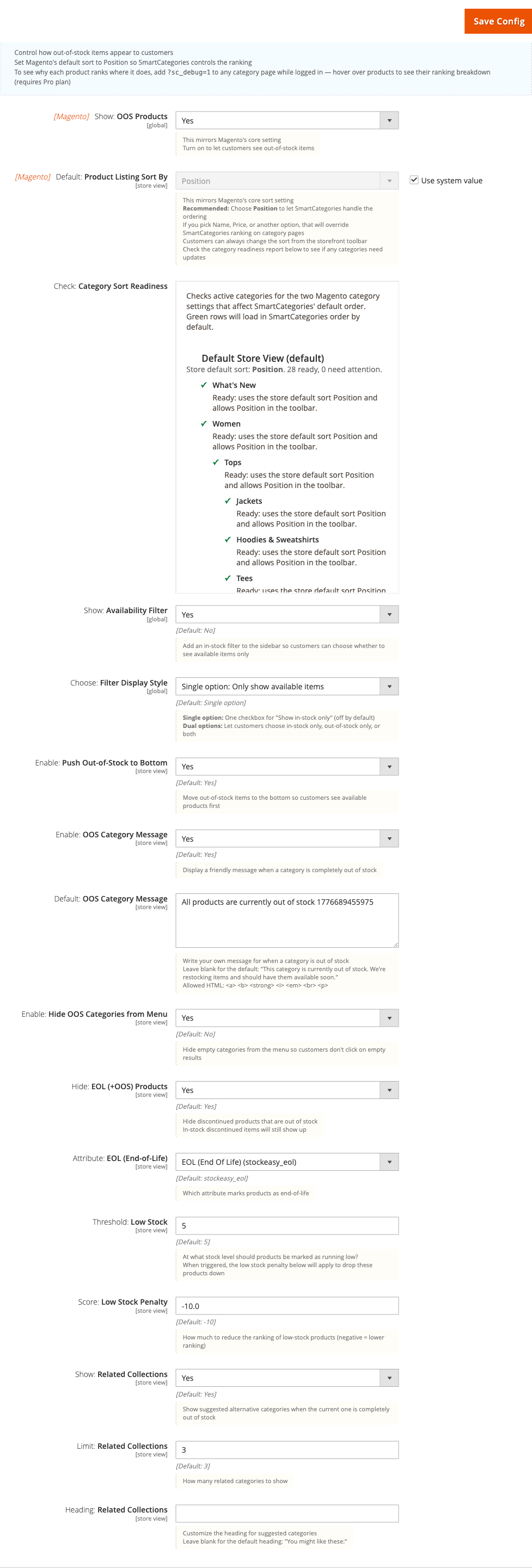
- [Magento] Show: OOS Products = Yes (customers can still see OOS items, just ranked lower)
- [Magento] Default: Product Listing Sort By = Position (lets SmartCategories control ranking)
- Enable: Push Out-of-Stock to Bottom = Yes
-
Save Config, then run:
php bin/magento smartcategories:score:refresh
php bin/magento cache:clean
Notes
- SmartCategories only controls ranking when the storefront sort is Position. If a shopper selects Name or Price, that overrides SmartCategories for their session.
- Check the Category Sort Readiness diagnostic in the same config section - it lists categories whose individual sort settings may override the global default.
Show a custom message and alternative categories when a category sells out
When a category has no in-stock products left, SmartCategories can show a tailored message and suggest sibling categories so the shopper has somewhere to go.
How to set it up
-
Go to: Stores > Configuration > Moogento > SmartCategories > Availability Sorting
-
Set:
- Enable: OOS Category Message = Yes
- Default: OOS Category Message = your message text (leave blank for the built-in default)
- Show: Related Collections = Yes
- Limit: Related Collections = 3 (or your preferred count)
- Heading: Related Collections = "You might also like" (or custom text)
-
Save Config and run
php bin/magento cache:clean.
To override the message for a specific category, go to Catalog > Categories > [your category] > SmartCategories tab and enter the per-category message. Leave blank to inherit from the parent or global config.
Notes
- The message inherits in waterfall order: category → parent → grandparent → global config → built-in default.
- Related collections only appears when the current category has a parent with at least one active sibling.
- Allowed HTML in the message:
<a>,<b>,<strong>,<i>,<em>,<br>,<p>.
Create a time-limited product boost for a promotion (Growth+)
Use Product Boosts to manually promote specific products in category rankings during a campaign. Boosts add a score value on top of normal ranking and expire automatically.
How to set it up
-
Go to: Moogento > SmartCategories > Product Boosts
-
Click Add New Boost and complete the form:
- Products - select one or more products using the product picker
- Boost Value - enter a value between -100 and +100 (positive = promote; negative = demote)
- Label - an admin-facing label such as "Summer Sale" or "VIP Range"
- Start Date / Expiry Date - set campaign dates; the boost activates and deactivates automatically
- Categories - leave blank to apply to all categories, or select specific ones
-
Click Save. The boost is active immediately; no score refresh is needed.
Notes
- A single boost rule can target multiple products - useful for promoting a full supplier range without creating separate rules.
- Manual boosts never override in-stock prioritisation: an OOS product with a high boost still appears below in-stock products when Push Out-of-Stock to Bottom is enabled.
- Use the CSV export/import commands (
smartcategories:boost:export/smartcategories:boost:import) for bulk operations.
Enable personalised category results for returning customers (Pro)
On the Pro plan, SmartCategories can reorder category products based on each visitor's browsing and purchase history.
How to set it up
-
Go to: Stores > Configuration > Moogento > SmartCategories > Behaviour-Based Merchandising
-
Set:
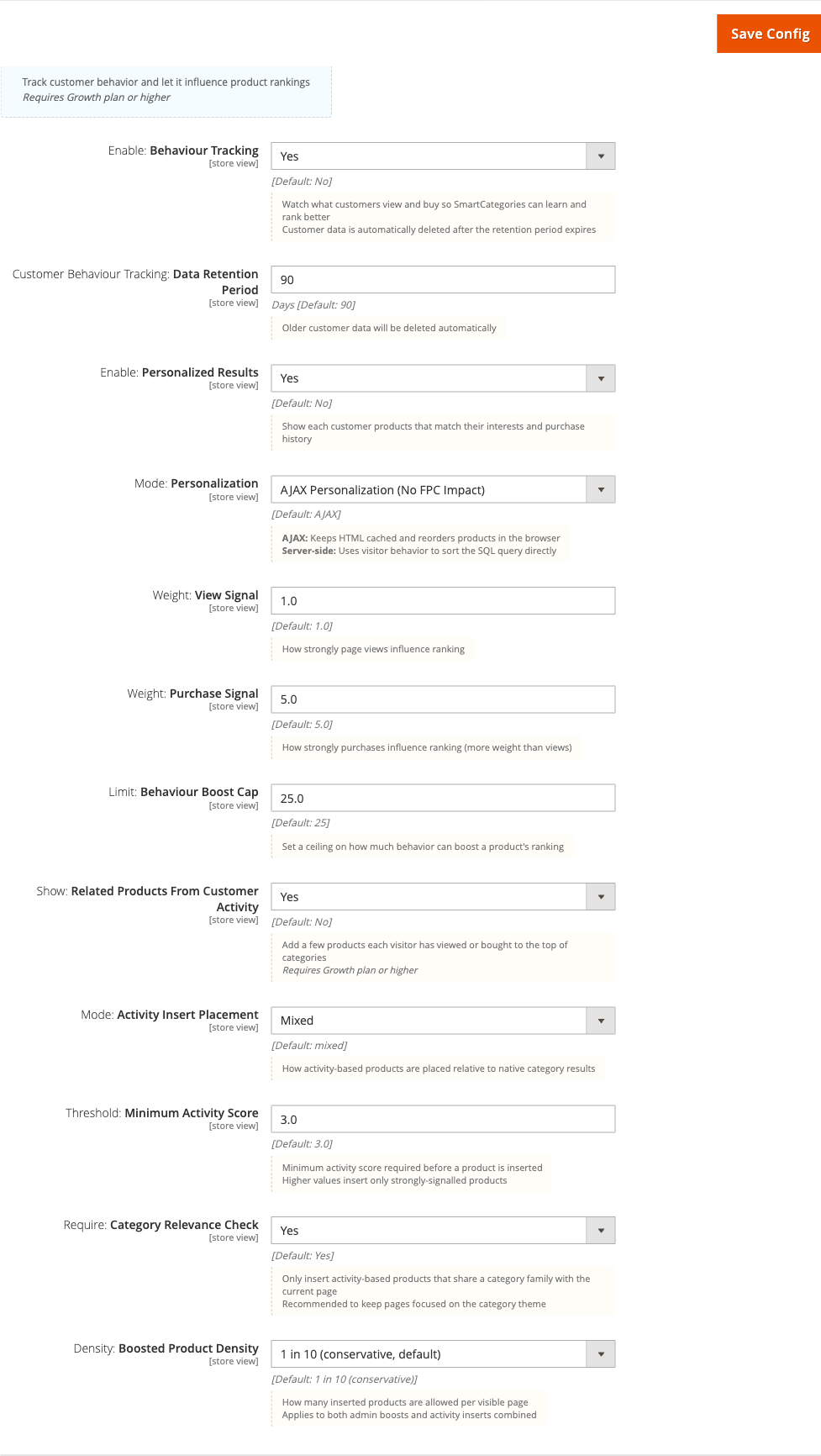
- Enable: Behaviour Tracking = Yes
- Enable: Personalized Results = Yes
- Mode: Personalization = AJAX (recommended; keeps HTML cached and reorders in the browser) or Server-side (ranks at the SQL level)
- Customer Behaviour Tracking: Data Retention Period = 90 (days; older signals are deleted automatically)
-
Save Config and run
php bin/magento cache:clean.
Notes
- Behaviour data starts accumulating from the moment tracking is enabled. Personalisation quality improves as signals build up.
- On Growth plan, tracking is enabled but behaviour signals are used for attribution only - not for reranking. Reranking requires Pro.
- AJAX mode is fully compatible with Magento's full-page cache because personalisation happens in the browser after the cached page is served.
Features reference
General
- What it does: Globally enables or disables SmartCategories and toggles score logging.
- When to use it: Disable during testing or maintenance; enable logging to write per-product score breakdowns to
var/log/moogento_smartcategories.log. - Config paths:
moogento_smartcategories/general/enabled,moogento_smartcategories/general/logging
Availability Sorting
Controls how out-of-stock and low-stock products are handled on category pages.
- Show: Availability Filter - adds an in-stock filter to the layered navigation sidebar so customers can choose to see only available items.
- Choose: Filter Display Style - single option ("Show in-stock only") or dual options ("In Stock" / "Out of Stock").
- Enable: Push Out-of-Stock to Bottom - forces OOS products to score 0 so they rank below all in-stock items. When disabled, OOS products receive a neutral score and can rank normally alongside in-stock products.
- Hide: EOL (+OOS) Products - hides products that are both end-of-life and out of stock. In-stock discontinued products still appear.
- Attribute: EOL (End-of-Life) - which boolean product attribute marks a product as discontinued (default:
stockeasy_eol). - Threshold: Low Stock - products with qty at or below this level receive the low-stock penalty (default: 5).
- Score: Low Stock Penalty - how much to reduce the ranking of low-stock products (default: -10).
- Enable: Hide OOS Categories from Menu - removes fully out-of-stock leaf categories from navigation. Parent categories with active subcategories remain visible.
Config paths: moogento_smartcategories/availability/push_oos_to_bottom, moogento_smartcategories/availability/stock_filter_enabled, moogento_smartcategories/availability/hide_oos_from_menu, moogento_smartcategories/availability/low_stock_threshold, moogento_smartcategories/availability/low_stock_penalty, moogento_smartcategories/availability/eol_enabled, moogento_smartcategories/availability/eol_attribute
Behaviour-Based Merchandising (Growth+)
Tracks customer activity and optionally uses it to reorder products per visitor.
- Enable: Behaviour Tracking - records page views and purchases so SmartCategories can identify which products attract the most interest.
- Customer Behaviour Tracking: Data Retention Period - behaviour data older than this (in days) is deleted automatically (default: 90).
- Enable: Personalized Results - reorders products per visitor based on their activity (Pro only).
- Mode: Personalization - AJAX (browser reorder after page load) or Server-side (SQL-level reorder on cache miss).
- Weight: View Signal - how much page views influence the per-visitor ranking score (default: 1.0).
- Weight: Purchase Signal - how much purchases influence the per-visitor ranking score (default: 5.0).
- Limit: Behaviour Boost Cap - maximum score contribution from behaviour signals (default: 25).
- Show: Related Products From Customer Activity - inserts products the visitor has viewed or bought in other categories into the top of the current category.
- Mode: Activity Insert Placement - where activity-based inserts appear: top, bottom, or mixed (default: mixed).
- Density: Boosted Product Density - controls how many inserted products are allowed per page relative to total page size (supported: 6, 8, 10; default: 10 = up to ~3 inserts on a 30-product page).
Config paths: moogento_smartcategories/behaviour/behaviour_tracking, moogento_smartcategories/behaviour/behaviour_retention_days, moogento_smartcategories/behaviour/personalized_results, moogento_smartcategories/behaviour/behaviour_personalization_mode, moogento_smartcategories/behaviour/view_signal_weight, moogento_smartcategories/behaviour/purchase_signal_weight, moogento_smartcategories/behaviour/boost_cap, moogento_smartcategories/behaviour/boosted_product_density
Performance Intelligence (Pro)
Blends ProfitEasy sales and profit data into the ranking formula.
- Weight: Sales Velocity - contribution of orders-per-day to the performance score (default: 0.3).
- Weight: Profit Velocity - contribution of profit-per-day to the performance score (default: 0.4).
- Weight: Conversion Rate - contribution of conversion rate to the performance score (default: 0.3).
- Threshold: Stale Data Days - ProfitEasy data older than this is not used in scoring (default: 7).
- Default: Optimisation Mode - how to weight the three signal types for new categories: Performance-First, Behaviour-First, or Balanced (default: Balanced).
Config paths: moogento_smartcategories/performance/velocity_weight, moogento_smartcategories/performance/profit_velocity_weight, moogento_smartcategories/performance/conversion_weight, moogento_smartcategories/performance/stale_data_days, moogento_smartcategories/performance/default_optimisation_mode
Analytics / Attribution (Growth+)
Customises UTM parameters appended to purchase attribution data sent to ProfitEasy and AnalyticsEasy Pro.
- UTM: Source - identifies SmartCategories traffic in your analytics platform (default:
smartcategories). - UTM: Medium - describes how traffic entered your site (default:
website). - UTM: Campaign - campaign name used for all SmartCategories attribution (default:
SC).
Config paths: moogento_smartcategories/analytics/utm_source, moogento_smartcategories/analytics/utm_medium, moogento_smartcategories/analytics/utm_campaign
Overview: Ranking Weights
A read-only visual display in config that shows how the current weights combine into the final ranking formula. The chart updates as you change weight settings in the Behaviour and Performance sections, giving you a preview before saving.
Config path: moogento_smartcategories/ranking_summary/ranking_chart (display only)
Advanced configuration
Category-level overrides
What it does
Every category has a SmartCategories tab in the category edit form (Catalog > Categories > [category] > SmartCategories tab). Settings here override global configuration for that category only.
Available per-category settings:
- Enable or disable SmartCategories for the category
- OOS message override (inherits from parent if left blank)
- Hide from menu when OOS
- Optimisation mode: Performance-First, Behaviour-First, or Balanced (Pro)
Setup
- Open Catalog > Categories and select a category.
- Click the SmartCategories tab.
- Change the settings and save the category.
Notes
- The OOS message resolves by walking up the category ancestor chain: current category → parent → grandparent → global config → built-in default.
- Category-level overrides are only available after the category has been saved at least once.
Priority Bands (Pro)
What it does
Priority Bands let you pin specific products permanently to the top or bottom of every category they belong to, regardless of stock, behaviour, or performance scores.
- Always Promote - product is forced to score 999,999 (appears first)
- Never Promote - product is forced to score -999,999 (appears last)
Setup
Set the Priority Band on a boost rule in Moogento > SmartCategories > Product Boosts.
Notes
- Always/Never Promote overrides all other scoring including manual boosts.
- Use sparingly: pinning too many products reduces the value of automated ranking.
Tips & best practices
- Set the Magento default product listing sort to Position at Stores > Configuration > Moogento > SmartCategories > Availability Sorting > [Magento] Default: Product Listing Sort By. SmartCategories only controls ranking when the sort is Position.
- Run the Category Sort Readiness diagnostic (visible in the Availability Sorting config section) to spot categories that have a category-level sort override preventing SmartCategories from taking effect.
- On Growth plan, enable behaviour tracking as soon as possible - the data accumulates over time. When you upgrade to Pro, the existing data is immediately available for ranking.
- Use time-limited boosts with expiry dates rather than indefinite boosts. Expired boosts are cleaned automatically and keep the boosts grid tidy.
- After changing the Low Stock Threshold, run
php bin/magento smartcategories:score:refreshANDphp bin/magento indexer:reindex catalogsearch_fulltext- the threshold affects both the score cache and an indexed OpenSearch field. - Use the debug overlay (
?sc_debug=1on any category URL, Pro plan) to verify a boost is taking effect before a campaign goes live. - On stores with large catalogues, the score cache refreshes every 4 hours automatically. If you make a manual stock change that needs to take effect immediately, run
php bin/magento smartcategories:score:refresh --category=<id>.
Troubleshooting
Products are not sorted by stock status
Products appear in the original Magento order rather than in-stock first.
- Cause: SmartCategories may be disabled, or Magento's default sort is set to something other than Position.
- Check: Verify
moogento_smartcategories/general/enabled = 1. Then go to Stores > Configuration > Moogento > SmartCategories > Availability Sorting and confirm the [Magento] Default: Product Listing Sort By is set to Position. Check the Category Sort Readiness report in the same section for per-category overrides. - Resolution: Enable the module, set sort to Position, and run
php bin/magento smartcategories:score:refreshfollowed byphp bin/magento cache:clean.
The availability filter doesn't appear in layered navigation
stock_filter_enabled = 1 but no availability filter shows in the sidebar.
- Cause: Theme layout renders filters outside
sidebar.main, or on Hyvä the compat module is not enabled. - Check: Confirm the effective store-view value of
moogento_smartcategories/availability/stock_filter_enabled. On Hyvä, verifyHyva_MoogentoSmartcategoriesis enabled. - Resolution: On Luma/Porto, verify the theme renders layered navigation in
sidebar.main. On Hyvä, enable the compat module - it moves the filter intosidebar.mainwith Hyvä-native markup.
OOS message or related collections are not showing
A fully sold-out category shows the standard Magento "no products" state rather than the SmartCategories message.
- Cause: The feature is disabled, or at least one product in the category is still in-stock or salable.
- Check: Confirm
moogento_smartcategories/availability/oos_message_enabled = 1andrelated_collections_enabled = 1. Verify the category is truly fully out of stock - even one salable product suppresses the OOS state. - Resolution: Enable the features in config, then verify the category has no in-stock, visible, enabled products. For Related Collections, also confirm the category has a parent with at least one active sibling.
Boosts are not changing product positions
A boost is active but the boosted product does not appear higher in the category.
- Cause: The boost may have expired, the Magento default sort may not be Position, or the score cache has not been refreshed.
- Check: In Moogento > SmartCategories > Product Boosts, confirm the boost status shows Active (not Expired or Disabled). Run
php bin/magento smartcategories:score:explain <product_id> --category=<category_id>to see the boost's contribution in the score breakdown. - Resolution: Check the boost dates, set Magento sort to Position, and run
php bin/magento smartcategories:score:refresh. Manual boosts never reorder an OOS product above in-stock products when Push OOS to Bottom is enabled.
Performance scores are not applied (Pro)
Products on a Pro plan are ordered by availability only - no performance differentiation.
- Cause: ProfitEasy is not installed, the store is not on the SmartCategories Pro plan, or ProfitEasy data is older than the stale-data threshold.
- Check: Confirm the store is licensed for the SmartCategories Pro plan (Stores > Configuration > Moogento > Licenses) and that ProfitEasy is installed and enabled. Query
SELECT performance_score FROM moogento_smartcategories_score_cache LIMIT 5- all-zero values mean ProfitEasy data is not reaching the scorer. - Resolution: Confirm the SmartCategories Pro licence at Stores > Configuration > Moogento > Licenses. Install and license ProfitEasy, run the ProfitEasy velocity cron, then run
php bin/magento smartcategories:score:refresh. Increasestale_data_daysif ProfitEasy data is valid but older than the threshold.
FAQs
How do I make sure SmartCategories is actually controlling the sort order?
SmartCategories takes effect only when Magento's default product listing sort is set to Position - go to Stores > Configuration > Moogento > SmartCategories > Availability Sorting, set the [Magento] Default: Product Listing Sort By field to Position, save, and run a score refresh. The Category Sort Readiness report in the same section lists any categories with per-category sort overrides that may be blocking SmartCategories.
Why are out-of-stock products still showing at the top of my category page?
Out-of-stock products remain visible but should be pushed to the bottom when Enable: Push Out-of-Stock to Bottom is Yes. If they appear at the top, the score cache may be stale - run php bin/magento smartcategories:score:refresh and then php bin/magento cache:clean. Also confirm the Magento default sort is set to Position, not Name or Price.
How do I show a custom message when a category runs out of stock?
Enable Enable: OOS Category Message in Stores > Configuration > Moogento > SmartCategories > Availability Sorting and type your message in the Default: OOS Category Message field. To customise the message for a specific category, open Catalog > Categories > [category] > SmartCategories tab and enter an override there - it inherits from parent categories if left blank. See the Common setups section for the full walkthrough.
What is the difference between Seed, Growth, and Pro plans?
The Seed plan covers availability-aware ordering, OOS messaging, related collections, and menu visibility. Growth adds manual product boosts with campaign scheduling, behaviour data collection for attribution, low-stock sensitivity, and boost CSV import/export. Pro adds behaviour-driven ranking and personalised results per visitor, ProfitEasy performance integration (sales velocity, profit velocity, conversion rate), priority bands, cross-category inserts, and the debug score overlay. Plan level is determined automatically by your licence key.
Does SmartCategories work with Hyvä, Luma, and Porto?
Yes, SmartCategories is compatible with all three themes. Luma and Porto are supported in the main module. Hyvä support is provided by the companion module Hyva_MoogentoSmartcategories (located in app/code/Hyva/MoogentoSmartcategories), which handles Hyvä-specific layout, sidebar filter rendering, and AJAX personalisation without modifying the main module's templates.
Will disabling SmartCategories remove the custom OOS messages and related collections?
When SmartCategories is disabled via moogento_smartcategories/general/enabled = No, all dynamic ranking, OOS messaging, related collections, and menu visibility logic stop immediately. Category pages revert to Magento's default sort order and no SmartCategories blocks are rendered. No data is deleted - re-enabling restores full functionality.
How do I promote a product during a sale without affecting it when the sale ends?
Create a boost in Moogento > SmartCategories > Product Boosts, set the desired Boost Value, and enter a Start Date and Expiry Date for the campaign. The boost activates and deactivates automatically at those times. See Create a time-limited product boost for a promotion for step-by-step instructions.
How does SmartCategories interact with ProfitEasy?
On the Pro plan, SmartCategories reads sales velocity, profit velocity, and conversion rate from ProfitEasy and incorporates them into the ranking formula. Without ProfitEasy, ranking falls back to availability-only (Seed/Growth) or uses native Magento conversion data for partial performance ranking (Pro). Attribution data from SmartCategories is also written back to ProfitEasy orders for campaign-level reporting. See the Performance Intelligence section for configuration details.
How often does the ranking update?
Scores are recalculated automatically every 4 hours via a background cron job. Stock changes trigger an immediate score update for affected products via Magento's stock save event. For instant updates after manual changes or config edits, run php bin/magento smartcategories:score:refresh from the command line.
How do I see why a product ranks where it does?
On the Pro plan, add ?sc_debug=1 to any category page URL while logged in as an admin with the View Score Breakdowns permission - hovering over a product shows its full score breakdown. Alternatively, run php bin/magento smartcategories:score:explain <product_id> --category=<category_id> from the CLI to get a detailed breakdown for any product/category combination.
Related guides
- Pulse - Pulse's category intelligence widget surfaces SmartCategories momentum and restock suggestions on the real-time admin dashboard.
- ProfitEasy - provides sales velocity, profit velocity, and conversion metrics that power Pro-plan performance ranking in SmartCategories.
- AnalyticsEasy Pro - receives SmartCategories attribution events via the Measurement Protocol for GA4 campaign reporting.
Need help?
- moo@moogento.com
- Include:
- Magento version
- SmartCategories plan (Seed / Growth / Pro)
- What you're trying to do
 HelloCustomer: Magento 2 Abandoned Cart Email Automation
  GiftEasy - Magento 2 Gift Cards & Store Credit
  ThanksEasy: Magento 2 Thank You Page Customisation