
Overview
Sitemap adds an interactive HTML sitemap page to your Magento 2 storefront. It builds a hierarchical view of your store's category tree, products, CMS pages, and any custom links you choose to include. A real-time search bar lets shoppers filter the sitemap as they type, and a responsive multi-column layout keeps the page usable on mobile.
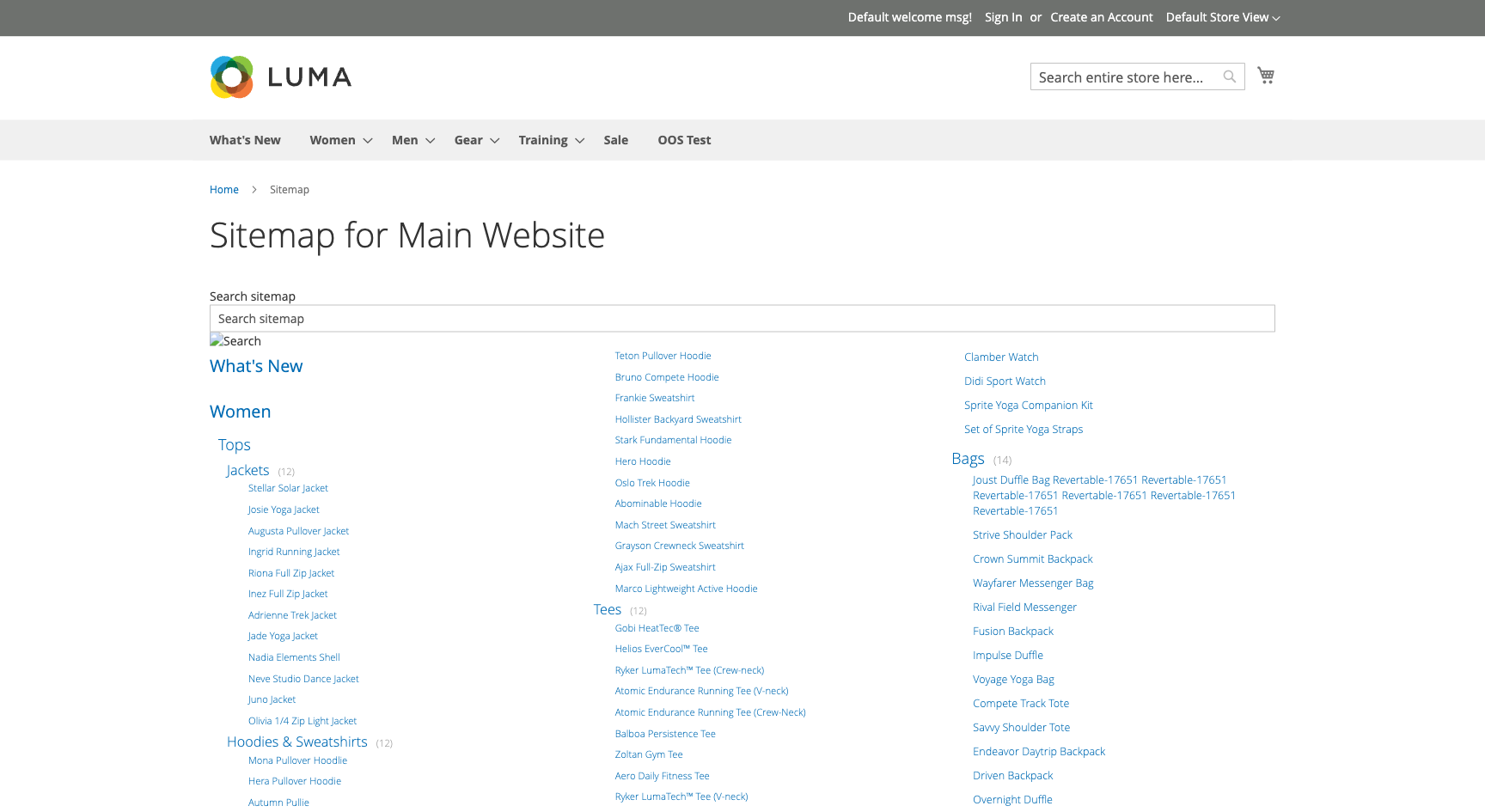
This module helps you:
- Give shoppers a single page where they can browse or search your entire store structure
- Surface CMS pages that would otherwise be hard to discover through normal navigation
- Add hand-curated internal or external links alongside your category tree
- Put a footer link to the sitemap on every page of your store
- Keep empty categories out of the sitemap so shoppers see only useful content
When to use a Magento 2 sitemap
Use Sitemap when you want to:
- Provide a fallback navigation aid for shoppers who can't find what they're looking for through menus
- Improve crawlability by giving search engines a single page that links to all major sections
- Showcase seasonal or promotional CMS landing pages alongside your category structure
- Include partner or reference links in an organised section of your store
- Reduce support queries from customers who ask "where do I find X?"
Key capabilities
- Category tree display - Renders your full category hierarchy as nested H2 headers and subcategory links, with optional product counts
- Product listings - Optionally shows products within each category so shoppers can jump straight to a product
- CMS page integration - Picks specific CMS pages from a multi-select list and includes them in the sitemap
- Custom links - Accepts a plain-text list of URLs and anchor labels, with optional
<em>styling and<h2>section headings - Real-time search - Filters category and product links as the shopper types, hiding non-matching items without a page reload
- Footer link - Optionally injects a "Sitemap" link into your store's footer on every page
- Empty-category suppression - Hides categories that have no products, keeping the sitemap clean
Installation
Sitemap installs via Composer, then activates with a license key from your Moogento.com account. The whole flow takes about 5 minutes.
Step 1: Get your Composer keys from Moogento.com
- Sign in at https://www.moogento.com and open My Plugins in your account menu.
- Find Sitemap (or Sitemap Pro for the Pro tier) in the list of plugins you own.
- Generate (or reveal) the Composer access keys for that plugin - a public key and a private key.
- Add your install domain to the key. Each Composer key is tied to a specific domain - if you're installing on
yourstore.com, addyourstore.comto the key's allowed domains. The Composer download will be rejected on any other domain.
If you run staging and production on different domains, add both - separate keys per environment are fine too.
Step 2: Install the module with Composer
From your Magento 2 root directory:
For Sitemap (free):
composer require moogento/module-sitemap
For Sitemap Pro (upgrade):
composer require moogento/module-sitemappro
When Composer asks for credentials, paste the public key as the username and the private key as the password. They'll be cached in ~/.composer/auth.json for future runs.
Step 3: Enable the module in Magento
php bin/magento setup:upgrade
php bin/magento setup:di:compile
php bin/magento cache:clean
If you run php bin/magento module:status Moogento_Sitemap (or Moogento_Sitemappro) you should see it listed as enabled.
Step 4: Add your license key in the Moogento admin
- Still on https://www.moogento.com > My Plugins, copy the license key for Sitemap or Sitemap Pro (separate from the Composer keys you used above).
- In your Magento admin, go to Stores > Configuration > Moogento > Licenses.
- Find the row for Sitemap (or Sitemap Pro) and paste the license key.
- Click Save Config, then run
php bin/magento cache:cleanonce.
The license validates within a few seconds. You should see the module's status flip to active. If it stays inactive, double-check the domain on the license matches where you've installed - domain mismatch is the most common cause.
Extra steps for Sitemap Pro
Ensure the sitemap output directory is writable before running the first XML generation:
mkdir -p pub/media/sitemap && chmod 775 pub/media/sitemap
Sitemap Pro uses two cron jobs (moogento_sitemappro_collect_data and moogento_sitemappro_export_xml) that run on the schedule you configure. Confirm your Magento cron is active (crontab -l or check the cron_schedule table) - without cron, XML sitemaps are only generated manually.
Setup overview
Most setup happens in:
Stores > Configuration > Moogento > Sitemap
You'll mainly work with:
- General - master enable/disable switch, footer link, category and product display, CMS pages, and custom links
All settings are available at the default, website, and store-view scopes.
Common setups
Turn on the sitemap and add a footer link
You've just installed Sitemap and want shoppers to be able to find it from every page.
How to set it up
-
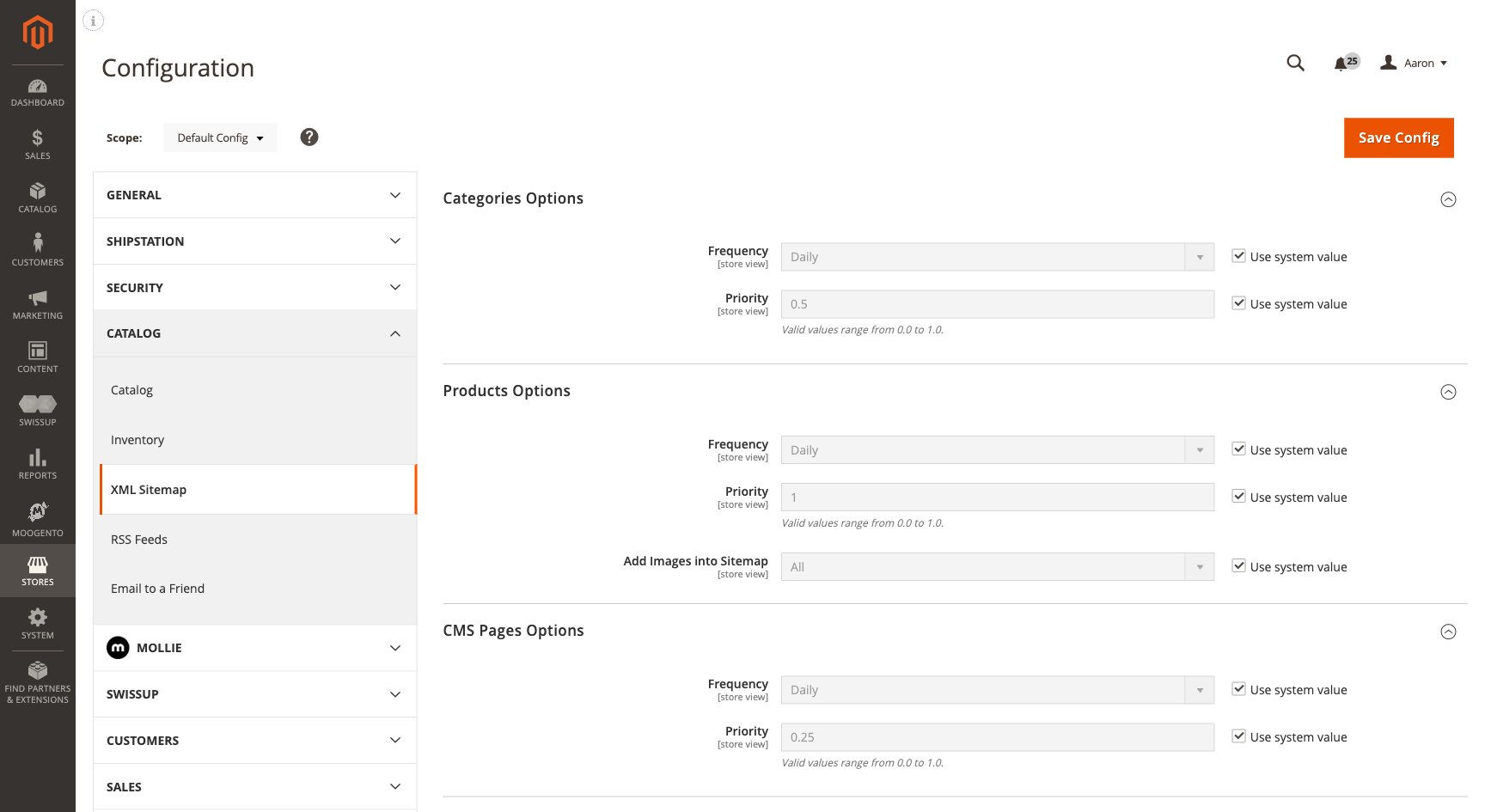
Go to: Stores > Configuration > Moogento > Sitemap > General
-
Set:
-
Click Save Config, then run:
php bin/magento cache:clean -
Visit your storefront. A "Sitemap" link should appear in the footer, and navigating to
/sitemap/index/indexshould show the category tree.
Notes
- The footer link respects the Add: Sitemap link to footer config value (
moositemap/sitemap/footer). If the link does not appear, verify the field is set to Yes at the correct store scope and that your theme's footer block is not overriding the layout. - On Hyvä storefronts the footer link is rendered by the
Hyva_MoogentoSitemapcompatibility module; no extra action is required as long as that module is enabled.
Add selected CMS pages to the sitemap
You have landing pages - a returns policy page, a brand story page - that you want shoppers to discover from the sitemap.
How to set it up
-
Go to: Stores > Configuration > Moogento > Sitemap > General
-
Set:
- Include: Specific CMS pages = Yes
-
The Filter: CMS pages multi-select becomes visible. Select each page you want to include. Only active pages are listed; 404 and cookie pages are excluded automatically.
-
Click Save Config, then run:
php bin/magento cache:clean
Notes
- The list shows pages valid for the current store scope. If a page is missing, confirm it is active and assigned to the current store view.
- Technical paths:
moositemap/sitemap/include_cms_ynandmoositemap/sitemap/include_cms_listing.
Add custom links and section headings
You want to include links to your social media profiles, a partner site, or a promotional microsite - with a clear "More resources" heading separating them from your categories.
How to set it up
-
Go to: Stores > Configuration > Moogento > Sitemap > General
-
Set:
- Include: Additional links = Yes
-
In the Links textarea that appears, enter one link per line using the format
{url},{anchor text}. Supported extras:- Wrap anchor text in
<em>…</em>to apply emphasis styling. - Use a bare
<h2>…</h2>line (no URL, no comma) to insert a section heading that starts a new block.
Example:
<h2>More resources</h2> https://www.instagram.com/yourstore/,Follow us on Instagram https://www.yourpartner.com/,Partner Site <em>Exclusive deals</em> - Wrap anchor text in
-
Click Save Config, then run:
php bin/magento cache:clean
Notes
- Only the following HTML tags are permitted in anchor text:
<em>,<b>,<span>,<br>,<h2>,<strong>,<ul>. Any other tags are stripped. - Technical path:
moositemap/sitemap/include_links_listing.
Features reference
Hide empty categories
Keeps the sitemap focused by omitting categories that contain no products. Useful for stores with seasonal or draft categories that you haven't populated yet.
- What it does: Checks each category's product count before rendering. Categories with zero visible products are skipped.
- When to use it: When your category tree includes placeholder categories that shoppers would find confusing or misleading.
- Config path: Stores > Configuration > Moogento > Sitemap > General > Hide: Empty categories (
moositemap/sitemap/hide_empty_categories_yn)
Show products within categories
Renders individual product links indented beneath each category in the sitemap, letting shoppers jump directly to a product page.
- What it does: Queries each category's product collection (active, visible, store-scoped) and outputs links beneath the category heading. Product count is shown in parentheses next to the category name when more than one product is present.
- When to use it: For smaller catalogs where surfacing products in the sitemap adds navigation value. For large catalogs this can make the page unwieldy - consider leaving it disabled and relying on the category links alone.
- Config path: Stores > Configuration > Moogento > Sitemap > General > Show: products (
moositemap/sitemap/show_products)
Real-time search
A search bar at the top of the sitemap page filters visible links as the shopper types, hiding non-matching category and product names without a page reload.
- What it does: Compares each category or product link label (case-insensitively) against the typed query and toggles a CSS class to hide non-matches. The product count badge is also hidden for filtered-out items.
- When to use it: Always active when the module is enabled - no separate configuration is required.
- Frontend URL:
/sitemap/index/index
Advanced configuration
Scope of hide-empty-categories and show-products
The Hide: Empty categories and Show: products fields are showInDefault="1" only - they are not available at website or store-view scope. Set them at the default configuration level and they apply globally. If you need per-store behaviour, consider using store-specific category visibility settings in the Magento catalog instead.
Notes
- Changing these values requires a cache flush:
php bin/magento cache:clean layout block_html full_page.
Performance on large catalogs
If your store has thousands of categories or products and the sitemap page is slow to load:
- Enable Hide: Empty categories to reduce the number of nodes rendered.
- Set Show: products = No - product queries run per-category and are the primary contributor to load time on large catalogs.
- Enable Magento's full-page cache (FPC). The sitemap block is marked
cacheable="false"because it is personalisation-free, but the page itself can be cached by Varnish or the built-in FPC. - If memory exhaustion occurs, increase
memory_limitin your PHP configuration and reindex:php bin/magento indexer:reindex catalog_category_flat catalog_product_flat.
Sitemap Pro (upgrade)
Sitemap Pro is the paid upgrade tier that adds XML sitemap generation, JSON-LD structured data, canonical URL management, and storefront SEO tweaks on top of the HTML sitemap provided by the free Sitemap module. Both modules can be installed together; when Sitemap Pro is active, the HTML sitemap footer link is automatically managed by Sitemap Pro to avoid duplication.
Sitemap Pro is configured separately under:
Stores > Configuration > Moogento > Sitemap Pro
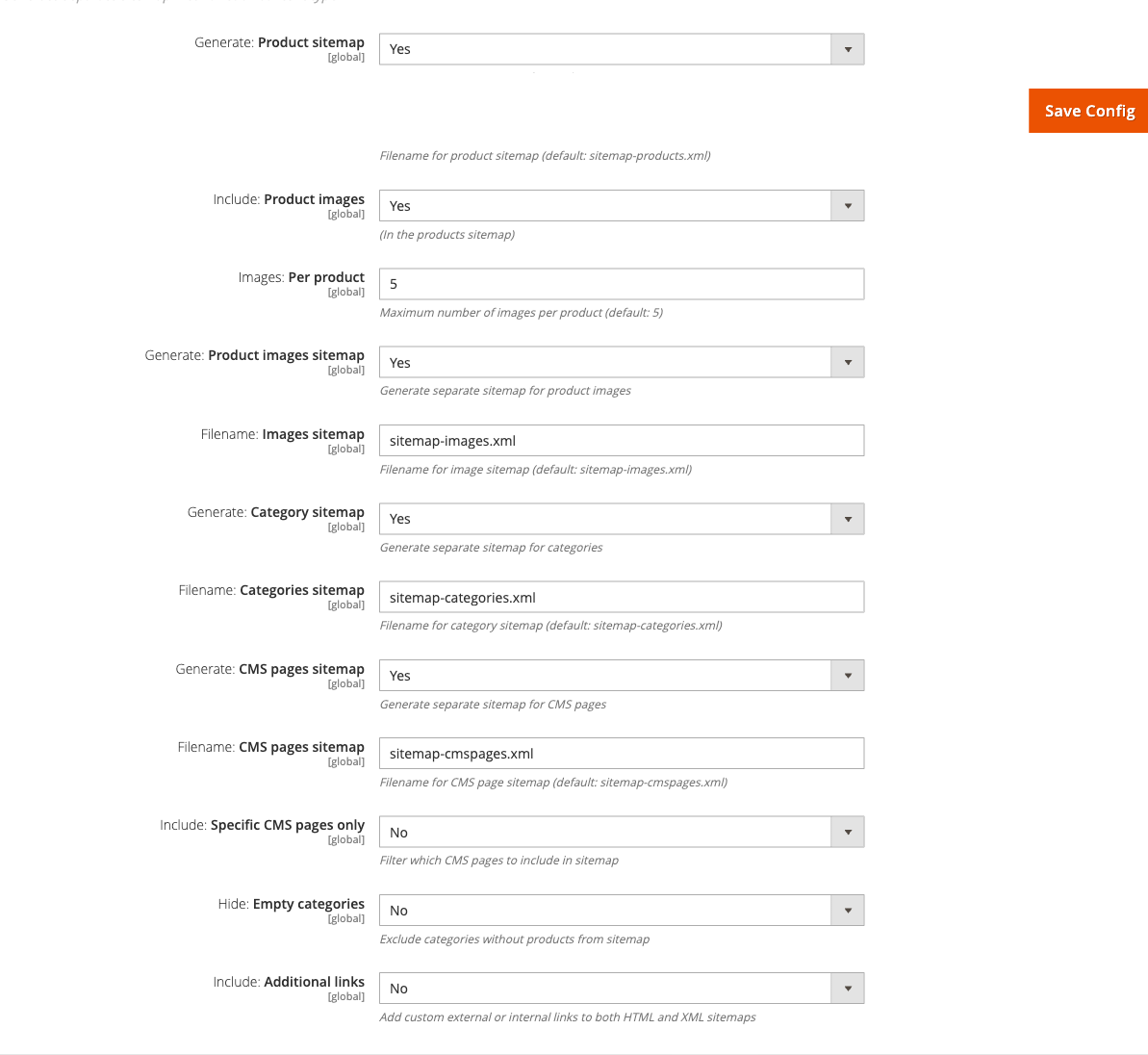
XML sitemap generation
Sitemap Pro generates standards-compliant XML sitemaps for products, categories, CMS pages, and product images. You can produce either a single combined sitemap.xml or separate per-type files.
Combined sitemap - a single file with all content types. Configure under Stores > Configuration > Moogento > Sitemap Pro > Sitemap: Combined (moogento_sitemappro/combined/enable). Options include per-type include/exclude toggles, custom filename, and optional product images. CMS page filtering mirrors the HTML sitemap's whitelist approach.
Separated sitemaps - individual files per content type: sitemap-products.xml, sitemap-categories.xml, sitemap-cmspages.xml, sitemap-images.xml. Enable under Stores > Configuration > Moogento > Sitemap Pro > Sitemap: Splitting > Generate: Separated sitemaps (moogento_sitemappro/splitting/granular_enable), then configure each file under Sitemap: Separated.
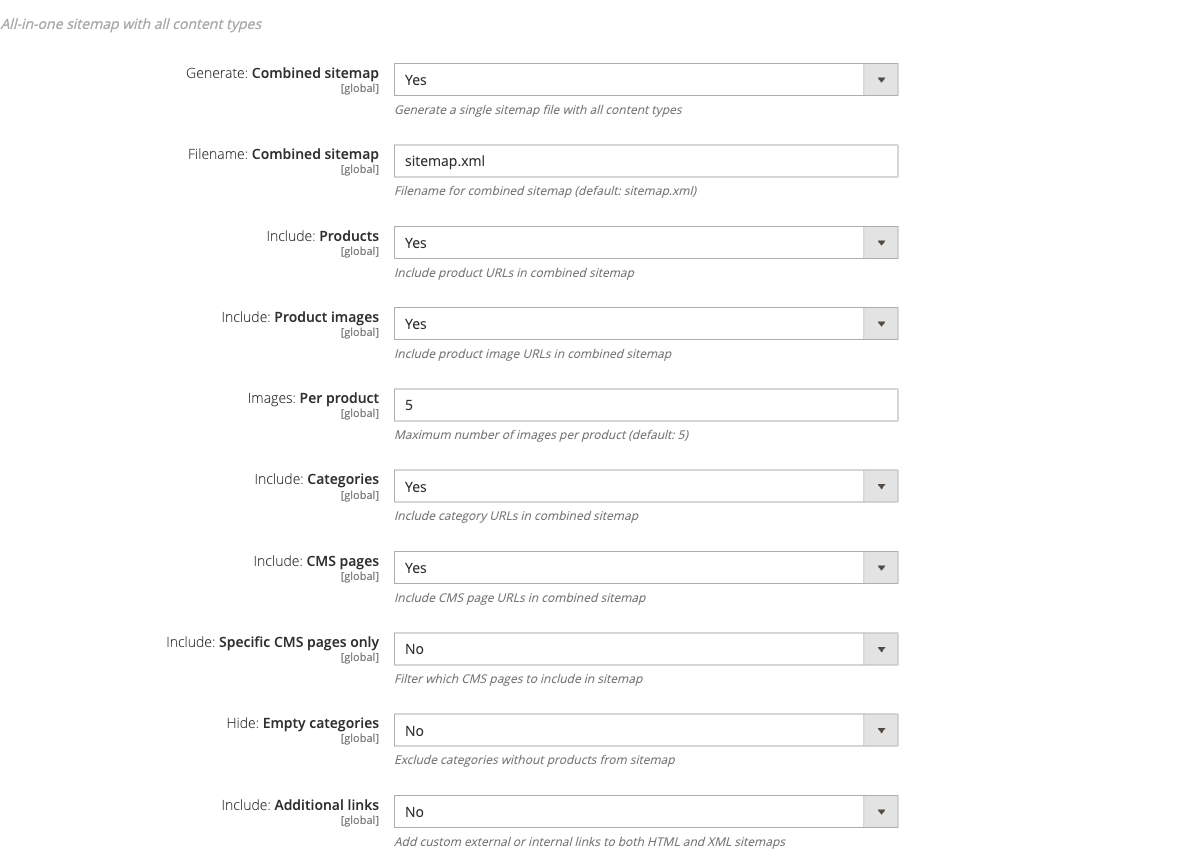
FishPig blog posts: when FishPig WordPress is installed, Sitemap Pro can include blog post URLs in both combined and separated modes.
Generate your first XML sitemap
- Go to Stores > Configuration > Moogento > Sitemap Pro > General and set Enable: Sitemap Pro = Yes.
- Go to Sitemap: Combined and set Generate: Combined sitemap = Yes with Include: Products, Include: Categories, and Include: CMS pages all Yes.
- Go to Sitemap: Management and click Regenerate.
- Copy the URL shown under Downloads: Links (typically
https://yourstore.com/pub/media/sitemap/sitemap_index.xml) and submit it to Google Search Console.
Sitemap splitting
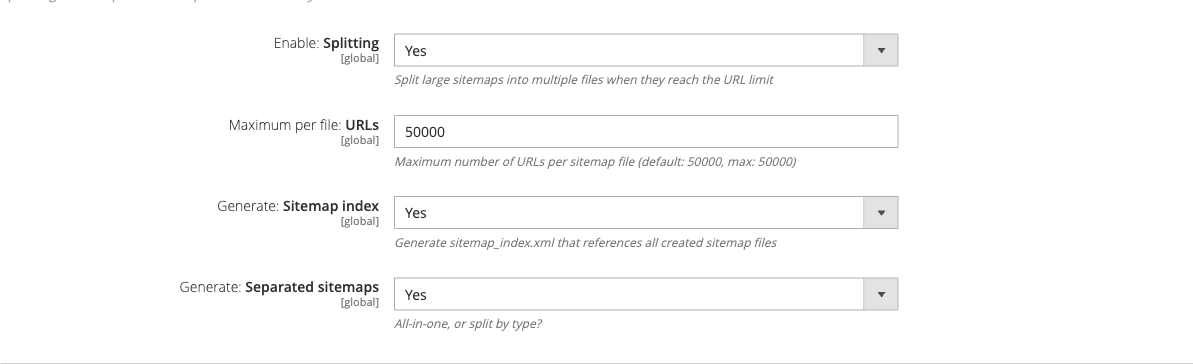
Splits large catalogs across numbered files when a file would exceed Google's 50,000-URL limit, and generates a sitemap_index.xml that references all child files.
Configure under Stores > Configuration > Moogento > Sitemap Pro > Sitemap: Splitting.
- Enable: Splitting (
moogento_sitemappro/splitting/enable) - turns splitting on - Maximum per file: URLs (
moogento_sitemappro/splitting/max_urls_per_file) - default 50,000; reduce on memory-constrained servers - Generate: Sitemap index (
moogento_sitemappro/splitting/generate_index) - produces the index file; submit this URL to Search Console, not individual child files
Separated (granular) sitemaps
Produces one XML file per content type rather than a single combined file. Each file gets a configurable filename. Useful for large stores where products change frequently but categories rarely, so you can submit each file to Search Console independently.
Enabled via Generate: Separated sitemaps (moogento_sitemappro/splitting/granular_enable) under Sitemap: Splitting. Individual file settings (filenames, include/exclude toggles, image counts) are in the Sitemap: Separated group.
Advanced lastmod and priority options
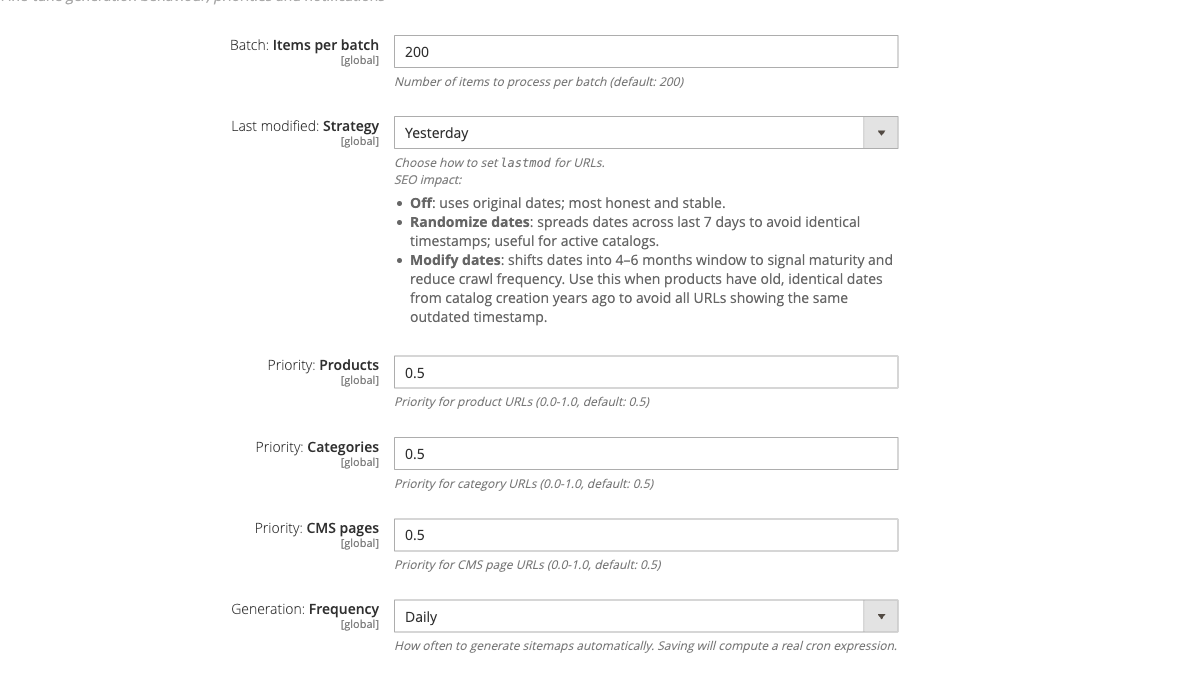
Configure under Stores > Configuration > Moogento > Sitemap Pro > Sitemap: Advanced Options.
- Last modified: Strategy (
moogento_sitemappro/advanced/lastmod_strategy) - choose how<lastmod>dates are set:- Off - uses actual product
updated_atdates (most honest signal) - Randomize - spreads dates across the last 7 days; useful for active catalogs
- Modify - shifts dates into a 4-6 month window; use when catalog was imported and all products share identical timestamps
- Off - uses actual product
- Priority - set per-type
<priority>values (0.0-1.0) for products, categories, CMS pages, and blog posts - Generation: Frequency (
moogento_sitemappro/advanced/frequency) - cron schedule (Daily / Weekly / Monthly) - Batch: Items per batch (
moogento_sitemappro/advanced/batch_size) - default 200; reduce to 50-100 on low-memory servers if generation times out
Structured data: Schema (JSON-LD)
Sitemap Pro injects JSON-LD structured data on product pages, category pages, and the home page, giving Google the rich signals it needs to show prices, ratings, and availability in search results. Configure under Stores > Configuration > Moogento > Sitemap Pro > Structured Data: Schema.
Enable: Product schema (moogento_sitemappro/schema/enable_product_schema) - emits a WebPage + Product + BreadcrumbList @graph block on product detail pages, including price, availability, GTIN, brand, aggregateRating (when reviews exist), and up to 3 individual reviews. Disable if your theme already injects its own Product JSON-LD.
Enable: Category schema (moogento_sitemappro/schema/enable_category_schema) - emits CollectionPage + BreadcrumbList + ItemList on category listing pages with lean offer summaries. Maximum products in the ItemList is configurable (moogento_sitemappro/schema/category_schema_max_products, default 20).
Enable: Business schema (moogento_sitemappro/schema/enable_business_schema) - generates an Organization or LocalBusiness node (configurable type) on the home page with address, contact points, social sameAs links, and optional return policy.
Enable: Website schema (moogento_sitemappro/schema/enable_website_schema) - adds the WebSite node on the home page; supports an optional alternate name (moogento_sitemappro/schema/website_alternate_name).
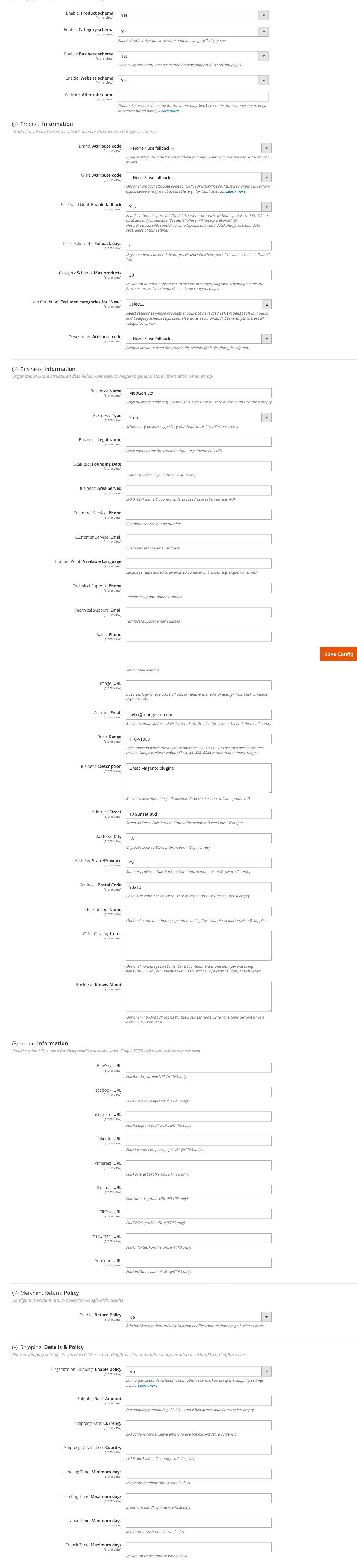
Product: Information sub-group (config paths stored under moogento_sitemappro/schema/):
| Field | Config path | Notes |
|---|---|---|
| Brand: Attribute code | moogento_sitemappro/schema/brand_attribute_code |
Falls back to store name if empty |
| GTIN: Attribute code | moogento_sitemappro/schema/gtin_attribute_code |
Optional UPC/EAN/ISBN; must be 8/12/13/14 digits |
| Description: Attribute code | moogento_sitemappro/schema/description_attribute_code |
short_description, smart_auto, or a custom attribute |
| Price Valid Until: Enable fallback | moogento_sitemappro/schema/price_valid_fallback_enable |
Enabled by default; all products get a price window |
| Price Valid Until: Fallback days | moogento_sitemappro/schema/price_valid_fallback_days |
Default 180 days from today |
| Category Schema: Max products | moogento_sitemappro/schema/category_schema_max_products |
Default 20; up to 100 |
| Item Condition: Excluded categories | moogento_sitemappro/schema/item_condition_excluded_categories |
Categories whose products skip "NewCondition" |
Merchant return policy schema
Adds a MerchantReturnPolicy node to product offers and the homepage business schema. Configure under Stores > Configuration > Moogento > Sitemap Pro > Structured Data: Schema > Merchant Return: Policy.
All return policy fields are stored under moogento_sitemappro/schema/ (note: these fields have <config_path> overrides placing them in the schema group, not in the merchant_return sub-group path):
- Enable: Return Policy -
moogento_sitemappro/schema/return_policy_enable - Policy: Category -
moogento_sitemappro/schema/return_policy_category - Return Window: Days -
moogento_sitemappro/schema/return_policy_days - Policy: URL -
moogento_sitemappro/schema/return_policy_url - Applicable: Country -
moogento_sitemappro/schema/return_policy_country - Return: Method -
moogento_sitemappro/schema/return_policy_method - Return: Fees -
moogento_sitemappro/schema/return_policy_fees
Shipping details schema
Emits Offer.shippingDetails on product pages and optional hasShippingService markup on the business node. Supports flat-rate, free-shipping-threshold, or tiered order-value shipping with handling and transit time ranges. Configure under Structured Data: Schema > Shipping: Details & Policy. All paths stored under moogento_sitemappro/schema/shipping_*.
Use the Organization Shipping: Order value tiers field (moogento_sitemappro/schema/shipping_service_conditions) for graduated rates - format Min|Max|Rate one per line; when filled, takes priority over the flat-rate fields.
Business and social information
Configure your Organization schema under Stores > Configuration > Moogento > Sitemap Pro > Structured Data: Schema > Business: Information. All fields stored under moogento_sitemappro/business/.
Fields left blank fall back to the equivalent Magento Store Information values. Add HTTPS URLs for each social profile under Social: Information (moogento_sitemappro/social/); these are emitted as sameAs links in the Organization node.
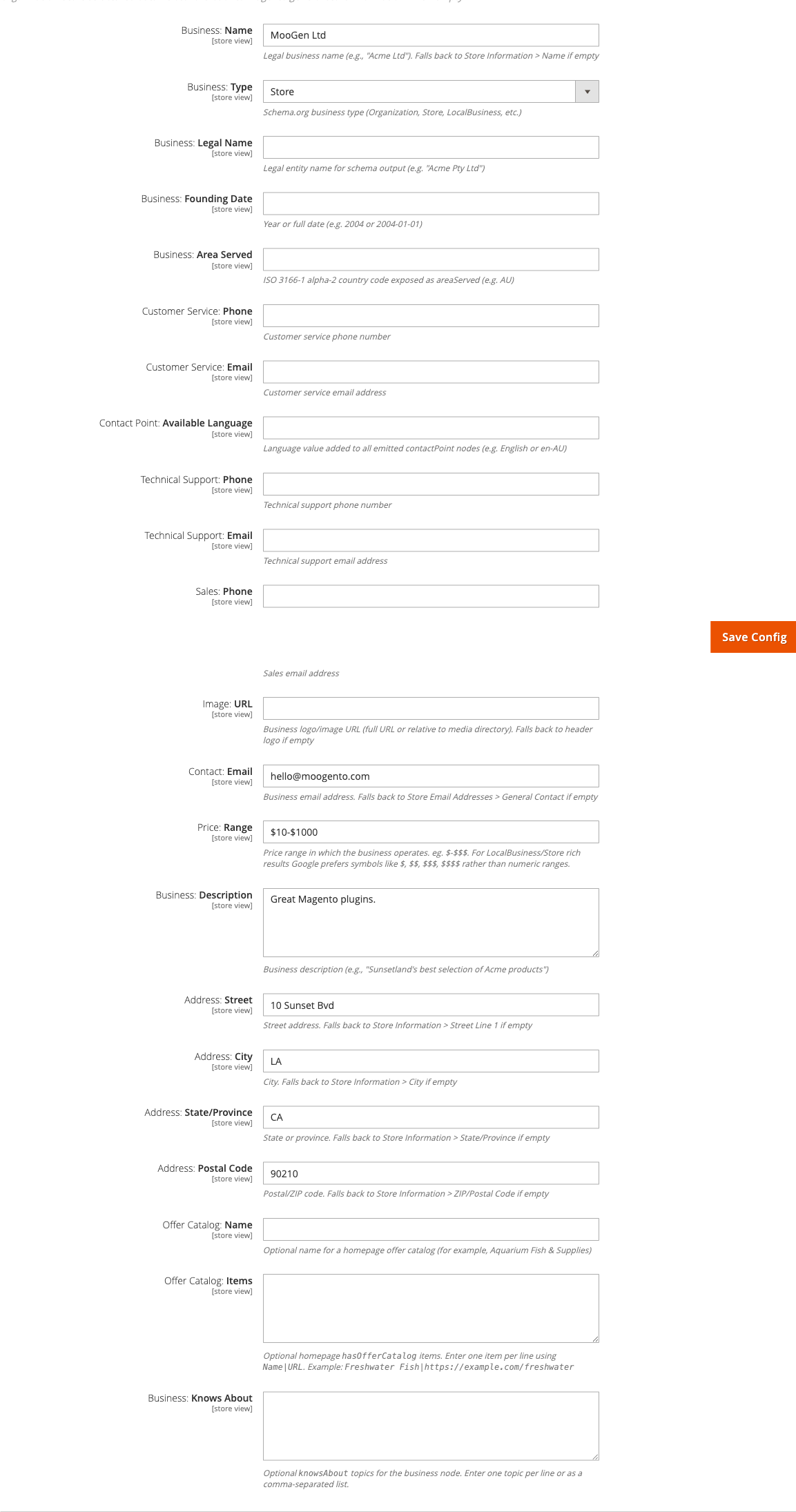
Optional enrichment fields (stored under moogento_sitemappro/business/): legal name, founding date, area served, contact point available language, offer catalog (name + Name|URL items per line), and knowsAbout topics.
Canonical URL management
Configure under Stores > Configuration > Moogento > Sitemap Pro > Canonical URL: Architecture.
- Categories: Normalise canonical URLs (
catalog/seo/category_canonical_tag) - strips query strings and fragments from category canonical URLs. Mirrors the core Magento setting; Sitemap Pro only normalises when the core tag is enabled. - CMS & other pages: Add canonical tags (
moogento_sitemappro/canonical/enable_cms_canonical) - injects a<link rel="canonical">on CMS and other non-product, non-category pages that Magento leaves without one.
Tweaks: SEO
Fine-grained SEO signals under Stores > Configuration > Moogento > Sitemap Pro > Tweaks: SEO.
Meta Tags & HTML sub-group:
- Remove Meta Keywords (
moogento_sitemappro/tweaks/remove_meta_keywords) - removes<meta name="keywords">from all pages; recommended for modern SEO - HTML Lang Attribute (
moogento_sitemappro/tweaks/html_lang_attribute) - overrides<html lang="…">(e.g.en-AU,fr-FR); leave blank to use Magento's default - Enable Auto Meta Generation (
moogento_sitemappro/tweaks/auto_meta_enable) - generates product meta titles and descriptions from templates when products lack them; uses{{Product Title}}placeholder - Auto title template (
moogento_sitemappro/tweaks/auto_meta_title_template) and override behaviour (moogento_sitemappro/tweaks/auto_meta_title_override) control precedence when a product already has a meta title - Auto description template (
moogento_sitemappro/tweaks/auto_meta_description_template) and override (moogento_sitemappro/tweaks/auto_meta_description_override) work identically for meta descriptions
Nofollow Links sub-group:
- Header login/create-account links (
moogento_sitemappro/tweaks/header_auth_nofollow) - Review form auth links (
moogento_sitemappro/tweaks/review_auth_nofollow) - Layered navigation filter links (
moogento_sitemappro/tweaks/layered_navigation_nofollow) - Notify Me buttons (
moogento_sitemappro/tweaks/notifyme_nofollow) - only applies when Moogento Notify Me is installed
Sitemap: Management
Provides a Refresh button (re-runs data collection without a full rebuild), a Regenerate button (full collect + export), and Downloads: Links showing direct URLs to every generated file. Available under Stores > Configuration > Moogento > Sitemap Pro > Sitemap: Management.
Use Regenerate after major catalog changes or after first enabling the module, without waiting for the next cron run. CLI equivalent: bin/magento moogento:sitemappro:generate.
HTML sitemap page (Pro)
When Sitemap Pro is active, the /sitemap HTML page gains an optional in-stock-only filter: Show in-stock products only (moogento_sitemappro/frontend/in_stock_products_only) under Stores > Configuration > Moogento > Sitemap Pro > Sitemap: HTML page (/sitemap). Out-of-stock product links, counts, and empty branches are hidden when this is enabled.
Tips & best practices
- Run
php bin/magento cache:cleanafter every config change - the sitemap page renders PHP blocks that pick up config values at page load time. - Set Hide: Empty categories = Yes on production stores so shoppers never land on a category with no products via the sitemap.
- Use
<h2>section headings in the custom links field to visually group external links and prevent a long flat list. - Keep the custom links list short - the sitemap search only filters category and product links, not custom links, so very long custom link sections are harder for shoppers to scan.
- On Hyvä storefronts, no additional compatibility steps are required beyond having the
Hyva_MoogentoSitemapmodule enabled. It replaces the Luma stylesheet automatically and uses Tailwind-scoped CSS. - Verify the sitemap renders at the correct store scope before going live - config values are scope-sensitive and a "Yes" at default level can be overridden to "No" at store-view level.
- (Pro) Submit
sitemap_index.xmlto Google Search Console, not individual child files - Google follows the index and processes children at its own pace. - (Pro) Enable splitting even on catalogs below 50,000 URLs. The index file gives you a clean overview of sitemap health in Search Console and makes future growth painless.
- (Pro) Validate structured data after first enabling schema with Google Rich Results Test and Schema.org Validator.
- (Pro) Set an error notification email (
moogento_sitemappro/general/error_email) so generation failures don't go unnoticed. - (Pro) Use lastmod strategy = Off unless you have a specific reason to shift dates. Honest, accurate dates give Googlebot the most useful crawl signal.
Troubleshooting
Sitemap page shows no content
The sitemap URL (/sitemap/index/index) loads but the page is blank or has no links.
- Cause: The module is disabled or Include: Categories & products is set to No with no CMS pages or custom links enabled either.
- Check: In the admin go to Stores > Configuration > Moogento > Sitemap > General and confirm Enable: Sitemap = Yes and at least one content type (categories, CMS pages, or custom links) is enabled.
- Resolution: Enable the module and at least one content source, save config, then run
php bin/magento cache:clean.
A category does not appear in the sitemap
One or more categories are missing from the sitemap even though they exist in the catalog.
- Cause: The category is inactive, not assigned to the current store, or is empty and Hide: Empty categories is set to Yes.
- Check: In the Magento catalog, confirm the category's Enable Category flag is Yes and it is included in the store's root category. Check that the category has at least one active, visible product if Hide: Empty categories is enabled.
- Resolution: Activate the category, assign it to the correct store view, or add at least one product. Clear cache after any change.
Footer link does not appear
The "Sitemap" link is not visible in the storefront footer despite Add: Sitemap link to footer being set to Yes.
- Cause: Layout cache is stale, or the theme's footer block is overriding the layout XML that inserts the link.
- Check: Run
php bin/magento cache:clean layout block_html full_pageand reload the storefront. If still missing, inspect the page source for themoo_sitemap_footer_linkblock - if absent, the theme may be replacing thefooter_linksblock entirely. - Resolution: Flush the layout cache. If the theme overrides
footer_links, add the sitemap link directly to the theme's footer template or use a layout override that references the correct parent block.
Search bar does not filter results
Typing in the sitemap search input has no effect - links remain visible regardless of what is typed.
- Cause: A JavaScript conflict is preventing the
filterable-listRequireJS component from initialising, or jQuery is not loaded. - Check: Open the browser console and look for JavaScript errors. Confirm that
Moogento_Sitemap::js/filterable-list.jsis included in the page source. - Resolution: Resolve any JS conflicts reported in the console. If running on a custom theme that does not load jQuery, add jQuery as a dependency. On Hyvä, the compat module handles the Alpine.js-based equivalent - ensure
Hyva_MoogentoSitemapis enabled.
(Pro) Sitemap XML files are not generated after cron runs
The sitemap files are not appearing in pub/media/sitemap/ even though the cron frequency is set.
- Cause: Cron is not running, or the
pub/media/sitemapdirectory is not writable. - Check: Run
php bin/magento cron:run --group=indexmanually, then inspectvar/log/moogento_sitemappro.log. Verifyls -la pub/media/sitemap/shows write permissions for the web server user. - Resolution: Ensure the Magento cron service is active. Run
chmod 775 pub/media/sitemapand confirm ownership matches the PHP process user. To generate immediately, use the Regenerate button or runbin/magento moogento:sitemappro:generate.
(Pro) aggregateRating warning in Rich Results Test
Google's Rich Results Test or Search Console shows a warning about missing aggregateRating on product pages.
- Cause: Products without customer reviews have no review data. The module correctly omits
aggregateRatingandreviewnodes for unreviewed products - adding placeholder ratings violates Google's guidelines. - Check: This warning is informational only. Products with
offersdata (price + currency) are already eligible for rich results even withoutaggregateRating. - Resolution: No configuration change needed. The warning disappears once products receive approved customer reviews with star ratings.
(Pro) Category canonical URLs still include query strings
Category canonical tags still show ?cat=3 or pagination parameters despite canonical normalisation being enabled.
- Cause: Magento's core "Use Canonical Link Meta Tag for Categories" setting (
catalog/seo/category_canonical_tag) may be disabled. Sitemap Pro's normalisation plugin only activates when the core canonical tag is enabled. - Check: Go to Stores > Configuration > Catalog > Catalog > Search Engine Optimization and verify "Use Canonical Link Meta Tag for Categories" is set to Yes.
- Resolution: Enable the core setting, save, and flush the cache.
FAQs
How do I add a sitemap link to my store's footer?
Go to Stores > Configuration > Moogento > Sitemap > General and set Add: Sitemap link to footer to Yes, then save and flush your cache. The link appears automatically in the footer on Luma, Porto, and Hyvä storefronts.
How do I include CMS pages in the sitemap?
Set Include: Specific CMS pages to Yes, then select the pages you want from the Filter: CMS pages multi-select that appears. Only active pages are listed, and pages like the 404 or cookie policy are excluded automatically.
Why are some categories missing from my sitemap?
The most common reason is that Hide: Empty categories is set to Yes and those categories have no active, visible products. Check your category status in the Magento catalog and either add products or set Hide: Empty categories to No if you want all categories displayed.
How do I add external links or partner URLs to the sitemap?
Enable Include: Additional links, then enter one link per line in the Links field using the format https://example.com/,Link label. Add a bare <h2>Section heading</h2> line above a group of links to create a labelled section. See Common setups - Add custom links for the full format.
What happens if I disable Sitemap?
Disabling the module (setting Enable: Sitemap to No) makes the sitemap page return a 404 and hides the footer link. No store data is deleted. Re-enabling it restores the page immediately after a cache flush.
Is Sitemap compatible with Hyvä, Luma, and Porto?
Yes. Luma and Porto use the standard layout and Luma stylesheet. Hyvä requires the companion Hyva_MoogentoSitemap compatibility module, which replaces the Luma CSS with Tailwind-scoped styles and provides an Alpine.js-aware footer link block.
Does the sitemap search slow down the page?
No. The search is entirely client-side JavaScript - it filters already-rendered links without making any server requests. The only performance consideration is the initial page load, which depends on the number of categories and products rendered. For large catalogs, disable Show: products to keep load times short.
How much does Sitemap cost and which plan do I need?
Sitemap is a standalone plugin purchased through https://www.moogento.com. Visit the pricing page on the site for current pricing - no subscription tier is required; it is a one-time purchase per domain.
Can I add styled text to custom link labels?
Yes. Wrap anchor text in <em>…</em> for italics or <b>…</b> for bold. Tags outside the allowed set (<em>, <b>, <span>, <br>, <h2>, <strong>, <ul>) are stripped automatically before rendering.
Where is the sitemap page URL?
The sitemap page is always at /sitemap/index/index relative to your store base URL. You can link to it from any CMS block, page, or menu using that path.
What does upgrading from the free Magento 2 sitemap module to Sitemap Pro add?
Sitemap Pro adds full XML sitemap generation (combined or per-type files, with automatic splitting for catalogs above 50,000 URLs), JSON-LD structured data for products, categories, business, and website schema (for Google Rich Results), canonical URL normalisation for categories and CMS pages, configurable <lastmod> strategies, nofollow link injection, auto product meta generation from templates, and a management interface with one-click regeneration. The free Sitemap module provides the HTML sitemap page only.
Related guides
- Notify Me - Sitemap Pro can add
rel="nofollow"to Notify Me buttons and links when both modules are installed; configure this under Tweaks: SEO > Nofollow Links - SmartListings - manages category display rules and sorting; pairs with Sitemap if you want the category tree in the sitemap to reflect SmartListings visibility rules
Need help?
- moo@moogento.com
- Include:
- Magento version
- Module name
- What you're trying to do
 HelloCustomer: Magento 2 Abandoned Cart Email Automation
  GiftEasy - Magento 2 Gift Cards & Store Credit
  ThanksEasy: Magento 2 Thank You Page Customisation