
Overview
NoMoreSpam protects your Magento 2 store's frontend forms from automated bot submissions. It works silently in the background - injecting hidden honeypot fields, recording timestamps to catch submissions that arrive too fast for a human, and checking content for spam link patterns. No captcha, no extra friction for real customers.
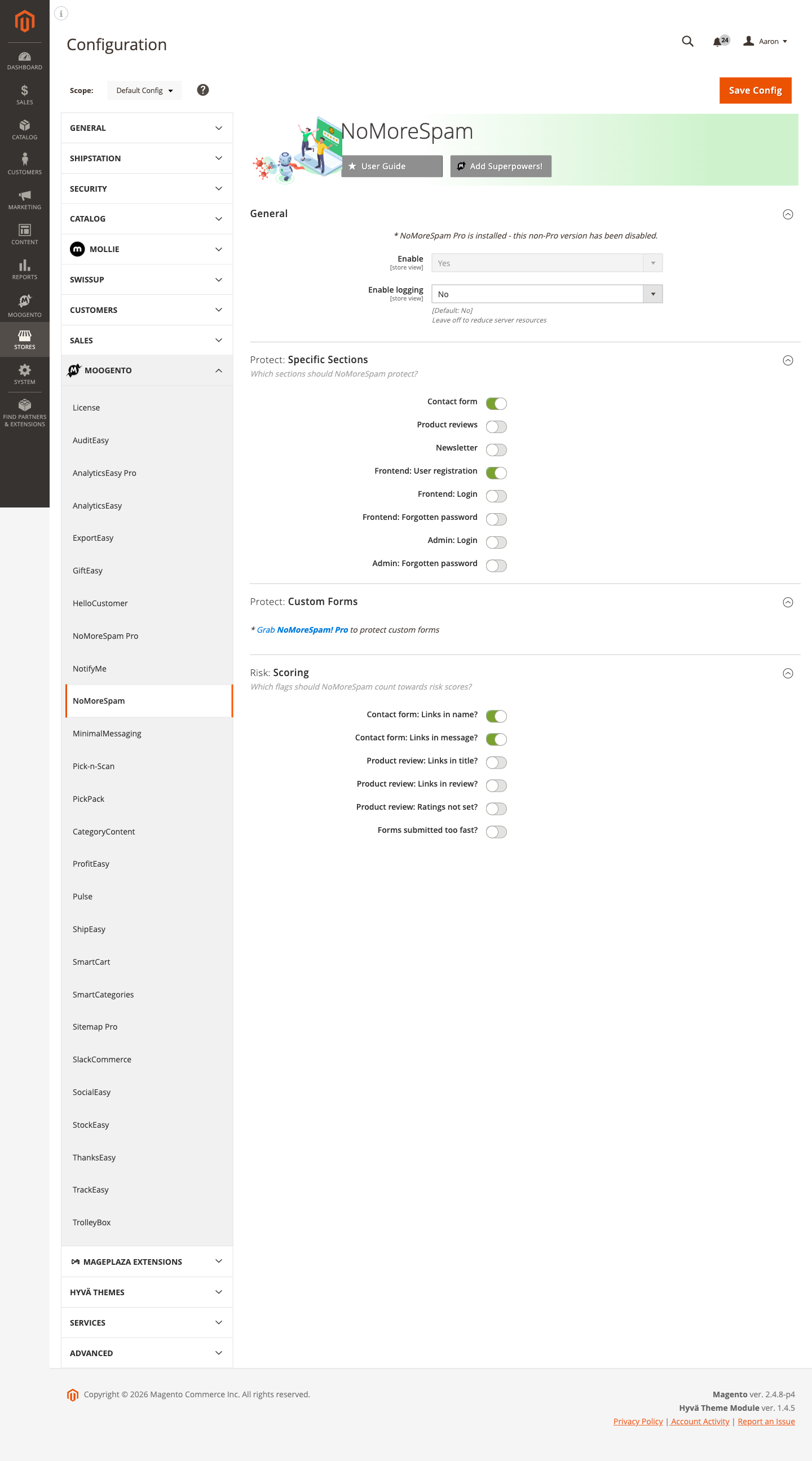
This module helps you:
- Block bot traffic on contact forms, product review forms, newsletter signups, user registration, login, and forgotten-password forms
- Catch submissions that arrive too quickly to have been typed by a human
- Detect spam links in contact name and message fields, and in review title and body
- Flag product reviews submitted without a star rating
- Keep a detailed spam detection log when you need to diagnose an issue
When to use spam protection for your Magento 2 forms
Use NoMoreSpam when you want to:
- Stop automated bots from submitting your contact form and generating support inbox noise
- Reduce fake product reviews or reviews stuffed with links to external sites
- Prevent bot accounts from signing up via the customer registration form
- Block bot newsletter signups that inflate your subscriber count without real intent
- Add a lightweight spam layer without asking customers to solve a captcha
Key capabilities
- Honeypot field injection - Adds invisible hidden fields to forms; bots that fill all fields are rejected, humans never see them
- Speed detection - Blocks submissions that arrive before a human could have typed them (under 1 second for most forms, under 0.2 seconds for login)
- Cryptographic hash validation - Each form load generates a SHA-256 hash pair; submissions missing or mismatching it are dropped
- Human interaction gate - The submit button stays disabled until mouse movement, touch, or keyboard input is detected
- Content link checks - Flags form submissions containing URLs or link patterns in the name, message, or review fields
- Review rating check - Marks reviews as spam when star ratings are absent and the check is enabled
- Per-form section toggles - Protect only the forms you care about; leave others unguarded
- Optional spam log - Records blocked submissions with IP, user agent, and form type to
var/log/moogento_nomorespam.log
Installation
NoMoreSpam installs via Composer, then activates with a license key from your Moogento.com account. The whole flow takes about 5 minutes.
Step 1: Get your Composer keys from Moogento.com
- Sign in at https://www.moogento.com and open My Plugins in your account menu.
- Find NoMoreSpam (or NoMoreSpam Pro if you have the Pro tier) in the list of plugins you own.
- Generate (or reveal) the Composer access keys for that plugin - a public key and a private key.
- Add your install domain to the key. Each Composer key is tied to a specific domain - if you're installing on
yourstore.com, addyourstore.comto the key's allowed domains. The Composer download will be rejected on any other domain.
If you run staging and production on different domains, add both - separate keys per environment are fine too.
Step 2: Install the module with Composer
From your Magento 2 root directory:
Free tier:
composer require moogento/module-nomorespam
Pro tier (installs both the free base and the Pro upgrade together):
composer require moogento/module-nomorespam moogento/module-nomorespampro
When Composer asks for credentials, paste the public key as the username and the private key as the password. They'll be cached in ~/.composer/auth.json for future runs.
Step 3: Enable the module in Magento
php bin/magento setup:upgrade
php bin/magento setup:di:compile
php bin/magento cache:clean
For the free tier, run php bin/magento module:status Moogento_Nomorespam to confirm it is listed as enabled. For Pro, also check php bin/magento module:status Moogento_Nomorespampro.
Step 4: Add your license key in the Moogento admin
- Still on https://www.moogento.com > My Plugins, copy the license key for NoMoreSpam (separate from the Composer keys you used above). Pro users will also have a separate Pro license key.
- In your Magento admin, go to Stores > Configuration > Moogento > Licenses.
- Find the row for NoMoreSpam (and NoMoreSpam Pro if applicable) and paste each license key.
- Click Save Config, then run
php bin/magento cache:cleanonce.
The license validates within a few seconds. You should see the module's status flip to active. If it stays inactive, double-check the domain on the license matches where you've installed - domain mismatch is the most common cause.
Setup overview
Most setup happens in:
Stores > Configuration > Moogento > NoMoreSpam
You'll mainly work with:
- General - enable/disable the module and turn logging on or off
- Protect: Specific Sections - choose which forms to guard
- Risk: Scoring - choose which signals count toward spam detection
NoMoreSpam Pro adds its own config section at Stores > Configuration > Moogento > NoMoreSpam Pro, covering all the sections above plus risk thresholds, allowlists, custom forms, payment method protection, and the analytics dashboard.
Common setups
Protect your contact form and product reviews
The most common starting point - cover the two forms bots target most often.
How to set it up
-
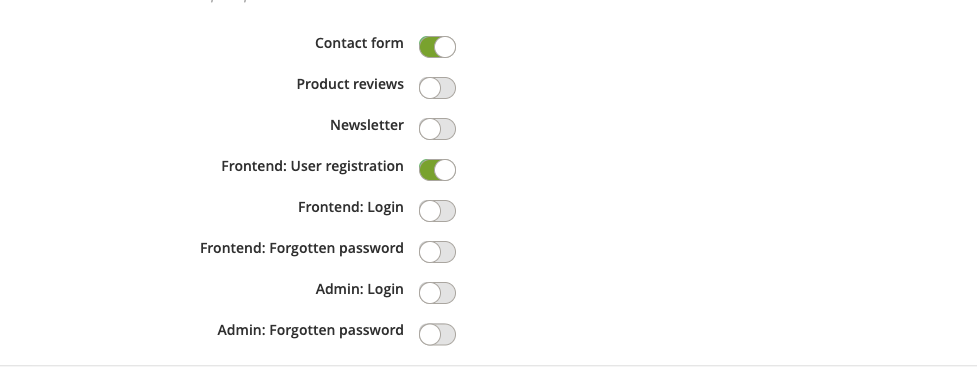
Go to: Stores > Configuration > Moogento > NoMoreSpam > Protect: Specific Sections
-
Set:
- Contact form = On
- Product reviews = On
-
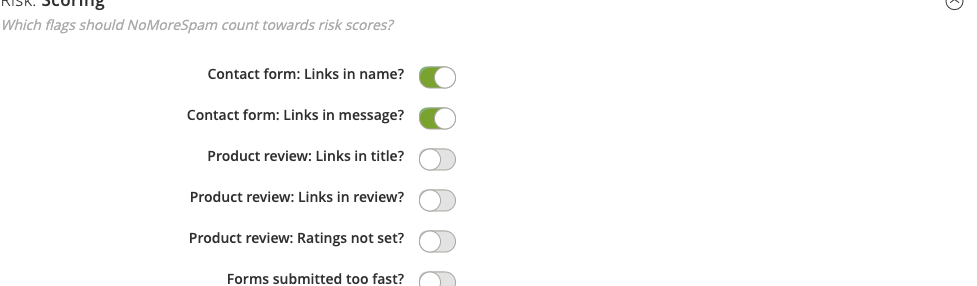
Go to: Stores > Configuration > Moogento > NoMoreSpam > Risk: Scoring
-
Set:
- Contact form: Links in name? = On
- Contact form: Links in message? = On
- Product review: Links in title? = On
- Product review: Links in review? = On
- Forms submitted too fast? = On
-
Save Config, then run
php bin/magento cache:clean.
Notes
- If real customers legitimately include URLs in their messages (e.g. a support request referencing a product page), turn off Contact form: Links in message? to avoid false rejections.
- The speed check uses a 1-second threshold for most forms. Password managers that auto-fill and submit login forms faster than that threshold are handled separately - the login speed threshold is 0.2 seconds, so password manager submissions pass.
Enable spam logging to diagnose blocked submissions
Turn on the log when you need to see exactly what NoMoreSpam is blocking before adjusting your settings.
How to set it up
-
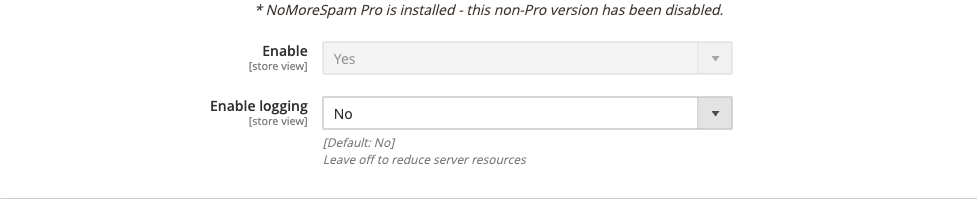
Go to: Stores > Configuration > Moogento > NoMoreSpam > General
-
Set:
- Enable logging = Yes
-
Save Config.
-
Inspect the log:
tail -f var/log/moogento_nomorespam.log
Each log entry records the form type, IP address, user agent, request URI, and referer so you can tell whether a real customer was blocked or a bot was caught correctly.
Notes
- Leave logging off in production once your settings are tuned - it adds a small write to disk for every blocked request.
- The Enable logging field is only shown when the module is enabled.
Protect newsletter and account forms
Add protection to newsletter subscriptions, user registration, login, and forgotten-password forms.
How to set it up
-
Go to: Stores > Configuration > Moogento > NoMoreSpam > Protect: Specific Sections
-
Set:
- Newsletter = On
- Frontend: User registration = On
- Frontend: Login = On
- Frontend: Forgotten password = On
-
Save Config.
Notes
- The Admin: Login and Admin: Forgotten password toggles require NoMoreSpam Pro - they are shown in the config panel but marked as Pro-only.
- All four frontend forms use the same honeypot + speed detection approach as the contact form.
Features reference
General
Switches the entire module on or off. When disabled, no hidden fields are injected into any form and no spam checks run - all form submissions pass through normally.
- When to use it: Disable temporarily if you suspect false positives are blocking real customers, while you investigate.
- Config path:
moogento_nomorespam/general/enable
Protect: Specific Sections
Individual on/off toggles for each protected form. Each toggle controls whether hidden fields are injected into that form and whether its submissions are checked.
- Contact form (
moogento_nomorespam/protect_sections/contact_form) - The standard Magento contact page. - Product reviews (
moogento_nomorespam/protect_sections/product_reviews) - The review submission form on product pages. - Newsletter (
moogento_nomorespam/protect_sections/newsletter) - The newsletter subscription form. - Frontend: User registration (
moogento_nomorespam/protect_sections/sign_up) - The customer account creation form. - Frontend: Login (
moogento_nomorespam/protect_sections/login) - The customer login form. - Frontend: Forgotten password (
moogento_nomorespam/protect_sections/forgotten_password) - The password reset request form. - Admin: Login and Admin: Forgotten password - Displayed but require NoMoreSpam Pro. See the NoMoreSpam Pro (upgrade) section.
Turn on only the forms you need. Unnecessary protection adds a tiny overhead to every page load.
Protect: Custom Forms
The Custom Forms section is a Pro feature. On the free version this panel shows an upgrade prompt and is not configurable. Upgrade to NoMoreSpam Pro (see NoMoreSpam Pro (upgrade)) to protect third-party or custom-built forms beyond the standard Magento set.
Risk: Scoring
Six toggles that control which signals are used in spam detection. Each counts independently - any one failing signal is enough to block a submission.
| Signal | Config path | What it catches |
|---|---|---|
| Contact form: Links in name? | moogento_nomorespam/behaviours/contact_enable_link_title |
URLs/link syntax in the sender name field |
| Contact form: Links in message? | moogento_nomorespam/behaviours/contact_enable_link_content |
URLs/link syntax in the message body |
| Product review: Links in title? | moogento_nomorespam/behaviours/review_enable_link_title |
URLs/link syntax in the review headline |
| Product review: Links in review? | moogento_nomorespam/behaviours/review_enable_link_content |
URLs/link syntax in the review body |
| Product review: Ratings not set? | moogento_nomorespam/behaviours/review_enable_rating |
Reviews submitted without a star rating |
| Forms submitted too fast? | moogento_nomorespam/behaviours/check_too_fast |
Submissions arriving under the timing threshold |
Spam link patterns checked: a href, [url, http, ://, [link, www.
Advanced configuration
Hidden field rotation (automatic)
NoMoreSpam auto-generates the names for its hidden fields on first use and stores them in core_config_data under moogento_nomorespam/secret/. You never need to set these manually. The paths are:
moogento_nomorespam/secret/field_1- SHA-256 hash field namemoogento_nomorespam/secret/field_2- Honeypot field name (must stay empty on submit)moogento_nomorespam/secret/nms_id- Protection container div IDmoogento_nomorespam/secret/nms_toofast- Timestamp field namemoogento_nomorespam/secret/nms_form_action- Original form action storage
Notes
- If you ever need to force regeneration (e.g. after a suspected key leak), delete the
moogento_nomorespam/secret/*rows fromcore_config_dataand runphp bin/magento cache:clean config. New keys are generated on next page load. - Do not manually set values in these paths - the generator always produces cryptographically secure tokens.
NoMoreSpam Pro co-existence
When NoMoreSpam Pro is installed alongside the free version, the free module defers entirely to Pro. The Enable field in General config displays a notice ("NoMoreSpam Pro is installed - this non-Pro version has been disabled") and the free module's spam checks return false for every submission. There is no double-processing.
To revert to the free version, uninstall Pro (composer remove moogento/module-nomorespampro) and clear cache.
NoMoreSpam Pro (upgrade)
NoMoreSpam Pro is the paid upgrade that adds advanced spam and payment-fraud protection. It supplements the free module's honeypot and timing checks with a 50+ factor risk-scoring engine, payment gateway protection, IP/email/customer allowlists and blocklists, custom form support, admin login protection, and a full analytics dashboard.
When Pro is installed it takes over from the free module completely - no duplicate checks run.
What Pro adds over the free version
| Capability | Free | Pro |
|---|---|---|
| Honeypot field injection | Yes | Yes |
| Speed and hash checks | Yes | Yes |
| Contact, review, newsletter, registration, login, forgotten-password protection | Yes | Yes |
| Admin login and admin forgotten-password protection | - | Yes |
| Custom form CSS-selector protection | - | Yes |
| IP/email/customer-group allowlist | - | Yes |
| Configurable risk scoring (50+ signals) | - | Yes |
| Configurable risk threshold (global block score) | - | Yes |
| IP blocklist management with CIDR subnet escalation | - | Yes |
| Checkout and payment pre-auth protection | - | Yes |
| Payflow, Braintree, Stripe, and PayPal integration | - | Yes |
| Payments log grid | - | Yes |
| Stats dashboard | - | Yes |
| Daily attack summary email | - | Yes |
| Customer restriction management | - | Yes |
| Admin Security Checklist (one-glance hardening review) | - | Yes |
| Admin 2FA enhancements (trusted devices, per-user exemptions, setup email) | - | Yes |
Admin login and forgotten-password protection (Pro)
Once NoMoreSpam Pro is installed and enabled, the Admin: Login and Admin: Forgotten password toggles in Stores > Configuration > Moogento > NoMoreSpam Pro > Protect: Specific Sections become active. These inject the same honeypot and timing fields into the Magento admin authentication forms.
The Admin: Block login until spam checks load setting (moogento_nomorespampro/protect_sections/admin_login_submit_gate, default: on) holds the admin login submit button until the hidden fields have loaded - preventing fast-autofill bots from submitting before protection is active. Disable it only for CI automation via bin/magento config:set moogento_nomorespampro/protect_sections/admin_login_submit_gate 0.
Config paths: moogento_nomorespampro/protect_sections/admin_login, moogento_nomorespampro/protect_sections/admin_forgotten_password.
Custom form protection (Pro)
Extends honeypot and timing protection to any form on your store - third-party checkout steps, quote request forms, B2B registration, and so on.
Go to Stores > Configuration > Moogento > NoMoreSpam Pro > Protect: Custom Forms and add either the Magento URL path (e.g. customer/account/createpost) or a CSS selector (e.g. form[action*="createpost"]), one per line.
Config paths: moogento_nomorespampro/custom_form/request_url, moogento_nomorespampro/custom_form/css_selector.
IP allowlist, email allowlist, and customer group allowlist (Pro)
Trusted IPs, customer emails, and customer groups can be exempted from all spam checks so that legitimate automated traffic (office IPs, B2B partners, test suites) never accumulates violation counts.
Go to Stores > Configuration > Moogento > NoMoreSpam Pro > Protect: Allowlists.
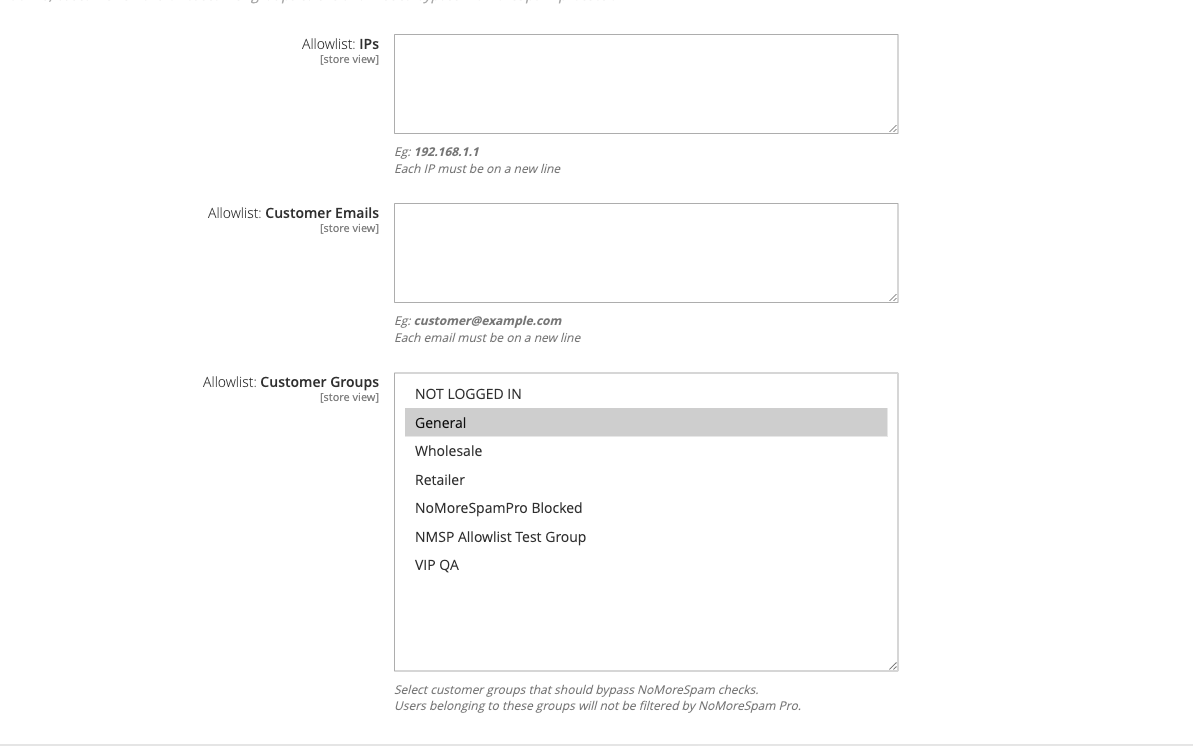
- Allowlist: IPs (
moogento_nomorespampro/allowlist/allowlist_ips) - One IP per line. - Allowlist: Customer Emails (
moogento_nomorespampro/allowlist/allowlist_customer_emails) - One email per line. - Allowlist: Customer Groups (
moogento_nomorespampro/allowlist/allowlist_customer_groups) - Multiselect of customer groups.
The Allowlist: Bypass Mode setting under Advanced: Bot & IP Protection controls how much protection still runs for allowlisted IPs: Permissive (skip all checks), Soft (skip risk scoring, keep pre-auth), or Strict (skip only auto-blocking).
Configurable risk threshold (Pro)
The global risk threshold sets the score at which NoMoreSpam Pro blocks a request. Individual signal weights are configured in Risk: Scoring; the threshold controls the cut-off point.
Go to Stores > Configuration > Moogento > NoMoreSpam Pro > Risk: Threshold.
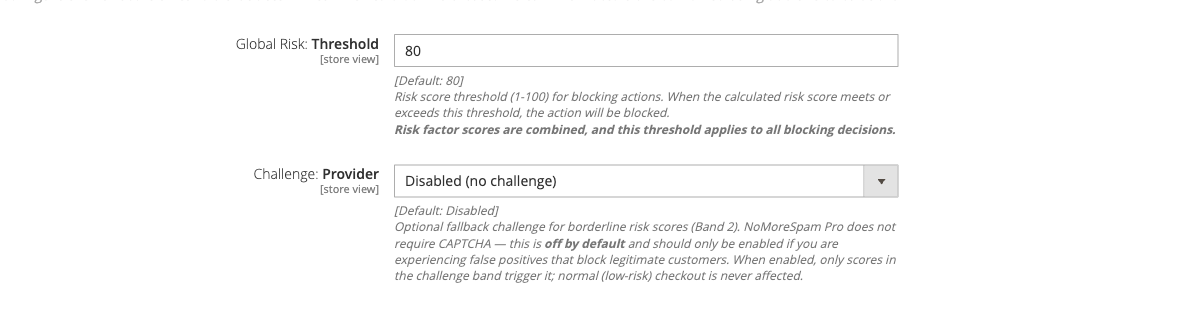
- Global Risk: Threshold (
moogento_nomorespampro/risk_threshold/global_risk_threshold, default 80) - Lower toward 60 for stricter protection; raise toward 95 to reduce false positives. - Challenge: Provider - Optional reCAPTCHA v3 fallback for borderline scores. Off by default; activate only if false-positive blocks are affecting real customers.
Payment method protection (Pro)
Pre-auth validation and gateway-level rate caps for Payflow, Braintree, Stripe, and PayPal. NoMoreSpam Pro intercepts payment attempts before they reach the processor and scores them using the same risk engine as form protection.
Go to Stores > Configuration > Moogento > NoMoreSpam Pro > Advanced: Payment Method Protection.
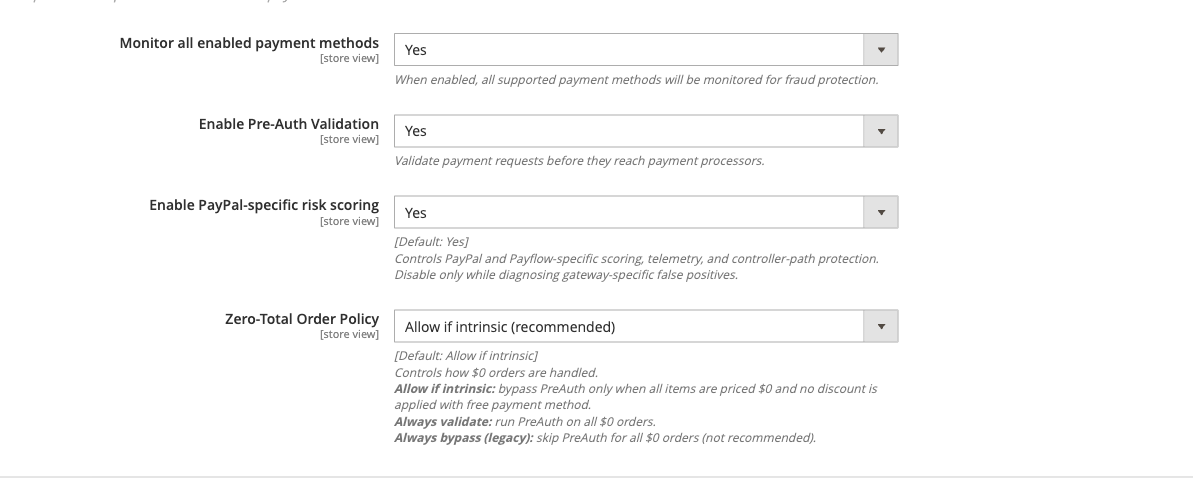
- Monitor all enabled payment methods - Turn on to protect all active payment methods.
- Enable Pre-Auth Validation - Runs risk scoring before each payment authorisation.
- Enable PayPal-specific risk scoring / Enable Payflow-specific risk scoring / Enable Stripe-specific risk scoring / Braintree Protection - Per-gateway toggles.
Payflow-specific incident controls (guest direct-card policy, store-wide token cap, TRXTYPE integrity gate) are in Payflow: Carding Controls (moogento_nomorespampro/payflow_hardening/).
Stripe controls (per-surface guest policies, intent cap) are in Stripe: Carding Controls (moogento_nomorespampro/stripe_hardening/).
Braintree controls (per-surface guest policies, client-token cap) are in Braintree Hardening (moogento_nomorespampro/braintree_hardening/).
Payments grid (Pro)
The Payments log at Moogento > NoMoreSpam Pro > Payments shows all payment attempts grouped by checkout session. Rows with STATUS_BLOCKED are attempts NoMoreSpam Pro declined before they reached the gateway. The Gateway column includes risk score, AVS/CVV results, and card or PaymentIntent reference.
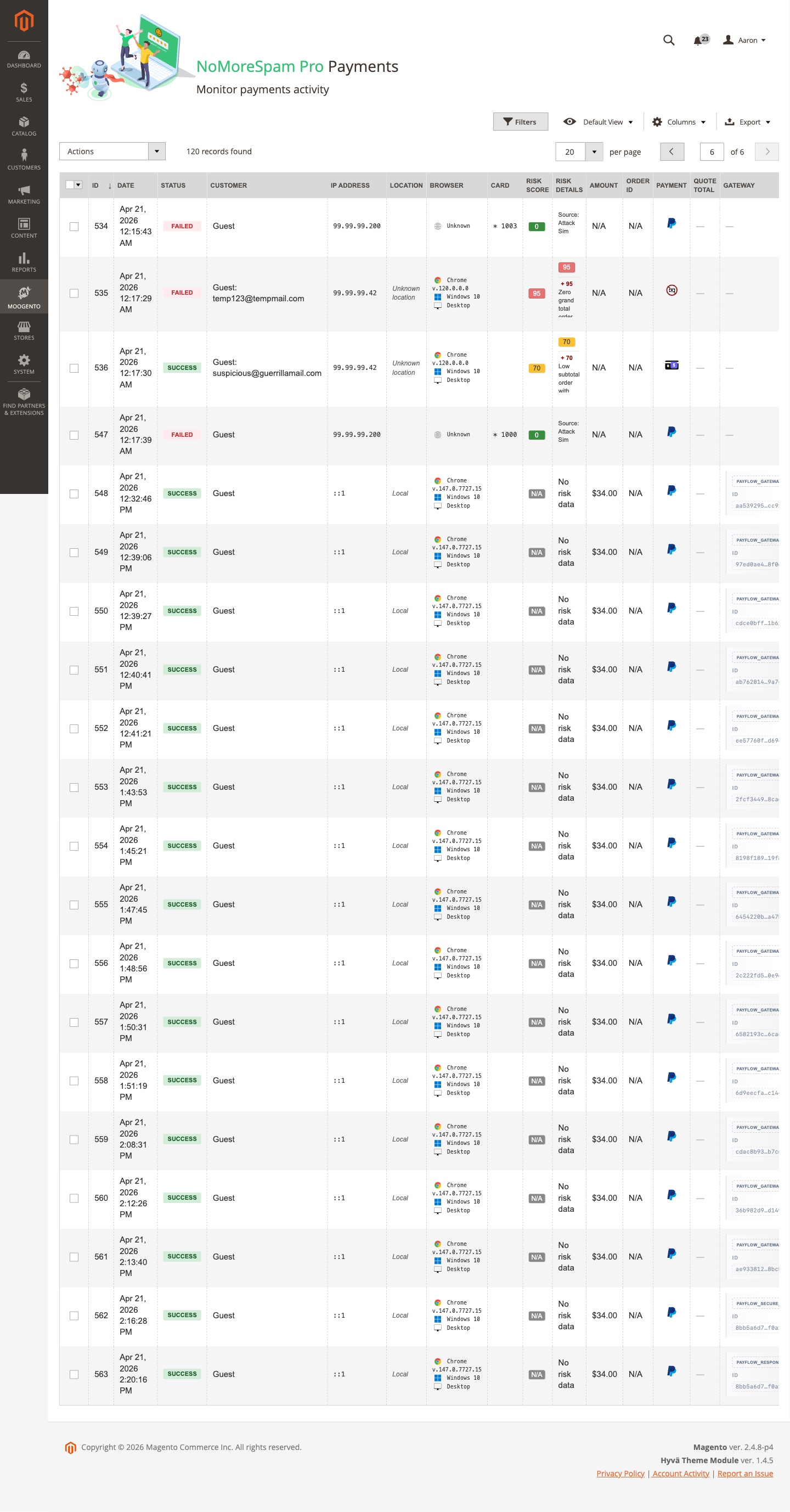
Use this grid to investigate a customer reporting a declined payment, or to confirm that blocked card-testing attempts are being recorded correctly.
Config path for log retention: moogento_nomorespampro/general/payment_data_retention (days).
Blocklist grid (Pro)
The Blocklist at Moogento > NoMoreSpam Pro > Blocklist shows all blocked IPs, their expiry, and the block reason. You can manually add, remove, or mass-unblock IPs here.
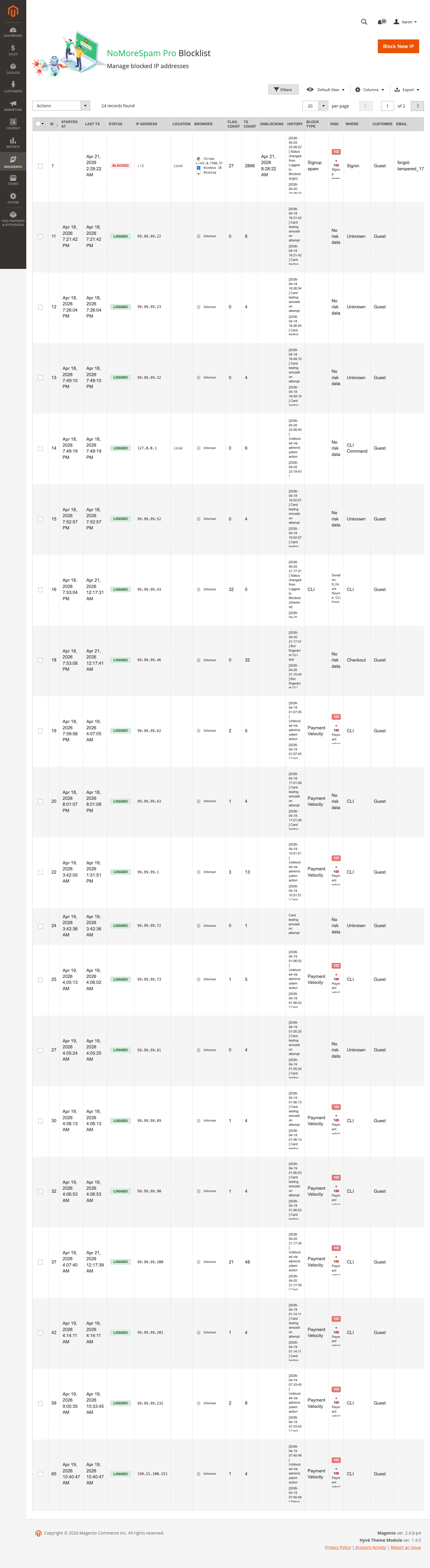
Velocity-sticky-block entries (added automatically when attack-velocity scoring fires) show the reason velocity_sticky_block and expire on their own. CIDR subnet escalation entries appear when multiple IPs from the same subnet are blocked within the escalation window.
Stats dashboard (Pro)
The Stats page at Moogento > NoMoreSpam Pro > Stats shows blocked attempts over time, top attacking IPs, a block-reason distribution chart (20 categories), an attack-pattern heatmap by day and hour, and an estimated savings counter.
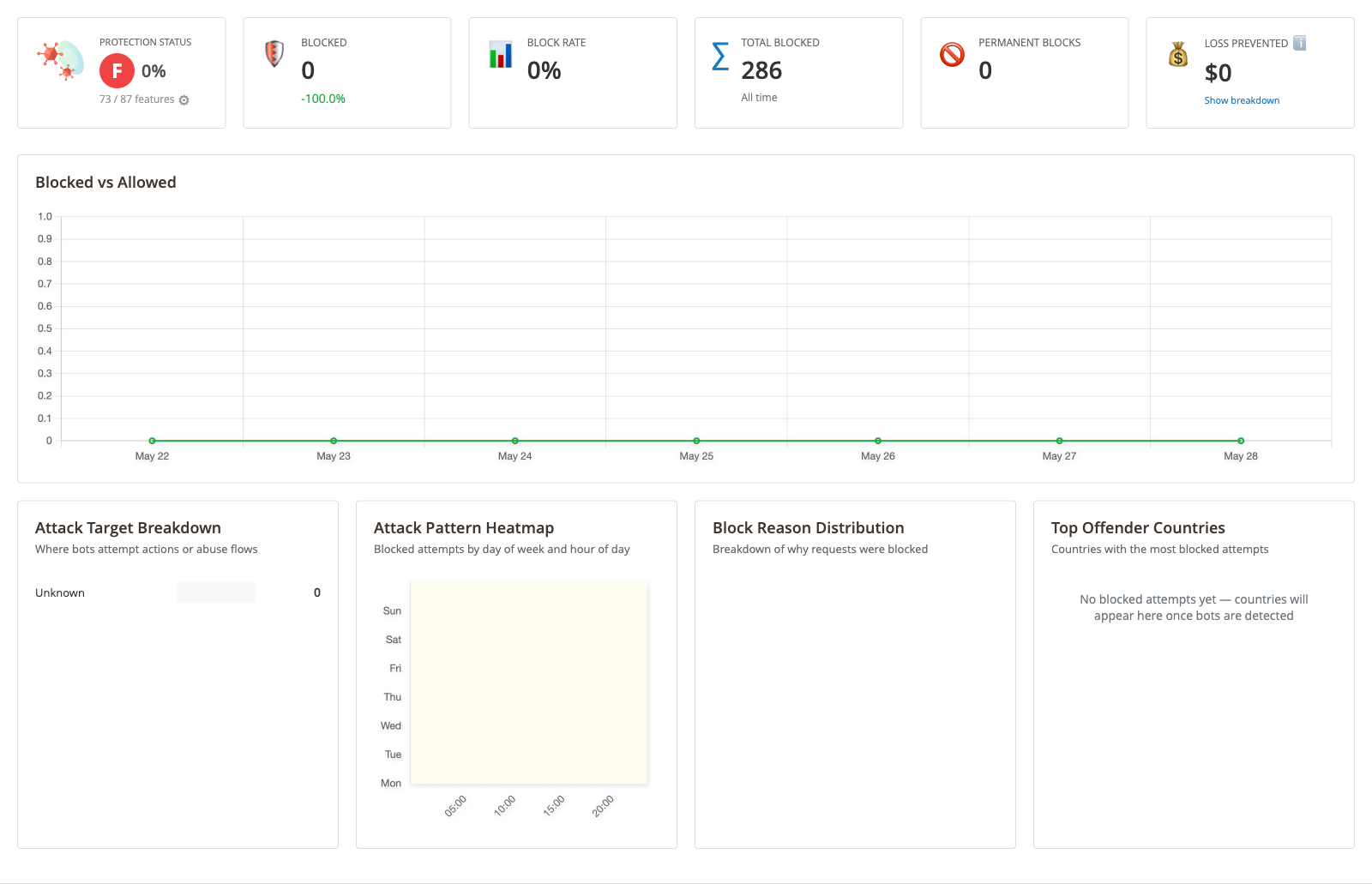
The cost-per-spam field (moogento_nomorespampro/analytics_dashboard/cost_per_spam) sets the per-blocked-attempt value used to calculate estimated savings.
Admin Security Checklist (Pro)
The Security Checklist is a one-glance hardening review of your store's admin security posture. It lives at Stores > Configuration > Moogento > NoMoreSpam Pro, just below the Protection Level panel.
Each row shows a coloured badge:
- Pass - meets the recommended baseline
- Needs attention - below the baseline but not immediately dangerous
- Action needed - warrants prompt review
Rows with a relevant config page include a direct link so you can jump straight to the setting.
What the checklist reviews:
| Area | What is checked |
|---|---|
| HTTPS | Whether HTTPS is enforced in Magento config |
| Admin 2FA | Whether Magento's built-in two-factor authentication is enabled and whether all admin users have completed enrolment |
| Admin account sharing | Lockout settings, session lifetime, and form-key enforcement |
| Admin username | Whether the default "admin" username is still in use |
| Admin path | Whether the admin URL has been changed from the default |
| Database table prefix | Whether a non-default table prefix is set |
| Deployment mode | Whether Magento is running in production mode |
| Magento version | Whether the installed version is current and supported |
| Upload extension denylist | Whether the allowed upload extensions list excludes executable file types |
| Media directory script guard | Whether the media directory has an .htaccess that blocks PHP execution |
| Media executable scan | A bounded scan of the media directory for uploaded executable files |
The checklist is advice-only, with one exception: a Restore secure upload-extension list button appears when the denylist row shows action-needed and restores the recommended extension set in one click.
CLI equivalent (SSH-safe / headless use):
The full checklist is available from the command line for incident response and automated auditing:
bin/magento moogento:nomorespampro:security-checklist
bin/magento moogento:nomorespampro:security-checklist --format=json
bin/magento moogento:nomorespampro:security-checklist --only=critical
Exit codes: 0 = all checks pass, 1 = warnings present, 2 = failures present.
Two companion commands cover targeted hardening tasks:
bin/magento moogento:nomorespampro:security:scan-media
bin/magento moogento:nomorespampro:security:harden-extensions
scan-media scans the media directory for executable script files and reports findings without making any changes. harden-extensions runs in dry-run mode by default; add --apply to write the hardened denylist.
Admin two-factor authentication, made friendlier (Pro)
NoMoreSpam Pro augments Magento's built-in admin 2FA - it does not replace it. The aim is to make 2FA easier to live with day-to-day so your team keeps it enabled rather than working around it.
Configuration is at Stores > Configuration > Moogento > NoMoreSpam Pro > Admin Two-Factor Authentication (group moogento_nomorespampro/admin_2fa, global scope).
Remember this device
When Enable Remember This Device (moogento_nomorespampro/admin_2fa/enable_trusted_device, default: No) is on, an admin who completes a 2FA challenge can mark their current device as trusted. They will not be asked for a second factor again on that device for the number of days set in Trust Duration (Days) (moogento_nomorespampro/admin_2fa/trusted_device_days, default: 14, range 1-90).
Trusted devices are listed and individually revocable at Moogento > NoMoreSpam Pro > 2FA Devices. Trust is removed automatically on password change and on explicit logout. Expired records are pruned daily at 04:00 (server time).
CLI commands for device management:
bin/magento moogento:nomorespampro:2fa:trusted-list
bin/magento moogento:nomorespampro:2fa:trusted-revoke --user=<username>
bin/magento moogento:nomorespampro:2fa:trusted-revoke --all --force
Per-user and IP exemptions
Enable Per-User 2FA Skip (moogento_nomorespampro/admin_2fa/enable_per_user_skip, default: No) lets you designate specific admin users who bypass the 2FA prompt entirely. When enabled, two additional fields appear:
- Users Exempt from 2FA (
moogento_nomorespampro/admin_2fa/skip_users) - multiselect of admin accounts. - IP Allowlist for Exempt Users (
moogento_nomorespampro/admin_2fa/skip_ip_allowlist) - one IP or CIDR per line. When this field is populated, the exemption only applies when the admin logs in from a listed IP - logins from any other IP still require 2FA. Leave the field empty to allow exempt users to skip 2FA from any IP.
The feature is fail-safe: when there is any uncertainty about whether an exemption applies, 2FA is still required.
CLI commands for exemption management:
bin/magento moogento:nomorespampro:2fa:status
bin/magento moogento:nomorespampro:2fa:exempt-add <username>
bin/magento moogento:nomorespampro:2fa:exempt-remove <username>
Setup email orchestration
Auto-Send Setup Email to New Admins (moogento_nomorespampro/admin_2fa/setup_email_auto_new_admin, default: Yes) sends a 2FA setup invitation automatically when a new admin account is created, removing the manual tracking step.
For existing admins not yet enrolled, a bulk send is available from the CLI:
bin/magento moogento:nomorespampro:2fa:setup-email
bin/magento moogento:nomorespampro:2fa:setup-email --apply
Running without --apply performs a dry run and lists which admins would receive the email.
Tips & best practices
- Start with the contact form and product reviews enabled, plus all scoring signals on. Monitor the spam log for a week before expanding to login and registration.
- Turn off Contact form: Links in message? if your customers regularly include support URLs or order tracking links in messages - it's the most common source of false positives.
- Enable Product review: Ratings not set? only if your review form marks the star rating as required - otherwise genuine no-rating reviews will be blocked.
- Keep logging off in production; enable it only for diagnostics and then switch it back off. Each blocked request writes to disk.
- If you need to protect admin login or custom forms, or want IP allowlisting, configurable thresholds, and payment fraud protection, see the NoMoreSpam Pro (upgrade) section.
- After any config change, run
php bin/magento cache:cleanto ensure the updated settings are read. - Pro: Before going live with Pro, open the Protection Level panel at the top of the NoMoreSpam Pro config page and confirm every row shows a green tick for the protections you intend to use.
- Pro: Run
php bin/magento moogento:nomorespampro:status --format=jsonafter any significant config change to confirmoverall.statusis healthy before traffic hits the new settings. - Pro: After installing Pro for the first time, open the Security Checklist (Stores > Configuration > Moogento > NoMoreSpam Pro) and work through any action-needed rows before going live.
- Pro: Enable Remember This Device under Admin Two-Factor Authentication to reduce daily 2FA friction for your team - keep Trust Duration (Days) at 14 or lower for shared-device environments.
Troubleshooting
Hidden fields not appearing in forms
Customers submit spam despite having NoMoreSpam enabled.
- Cause: The module is enabled in config but the hidden fields never reached the page HTML, so the spam check always fails open.
- Check: View the source of your contact or review page and search for the hidden field container div. If it's absent, check whether NoMoreSpam Pro is also installed - Pro suppresses free-version field injection.
- Resolution: Confirm
moogento_nomorespam/general/enable = 1in Stores > Configuration > Moogento > NoMoreSpam > General. If Pro is installed and you want the free version to run instead, disable or uninstall Pro and clear cache.
Real customers are being blocked on the contact form
Legitimate contact form submissions are rejected with a generic error.
- Cause: A scoring signal is too aggressive for your customers - most often Links in message? when customers paste URLs, or Forms submitted too fast? when the page pre-populates fields.
- Check: Enable logging (
moogento_nomorespam/general/enable_log = Yes) and inspectvar/log/moogento_nomorespam.logto see which check is triggering. - Resolution: In Stores > Configuration > Moogento > NoMoreSpam > Risk: Scoring, switch off the offending signal. If the speed check is the cause, note that the threshold is 1 second and cannot be adjusted in the free version - NoMoreSpam Pro exposes a configurable threshold.
Spam is getting through despite protection being on
Bot submissions are still reaching your inbox or review queue.
- Cause: The bot is slow enough to pass the speed check, is not including link patterns, and fills all fields including the honeypot - or it targets a form that isn't in the protected set.
- Check: Enable logging and inspect
var/log/moogento_nomorespam.logto confirm which form type is leaking through. Also inspect the page source to verify hidden fields are present on that form. - Resolution: Enable every available scoring signal in Risk: Scoring. For persistent evasion or to protect admin forms and custom forms, upgrade to NoMoreSpam Pro (see NoMoreSpam Pro (upgrade)), which adds IP blocking, custom selector support, and more detection layers.
Config cache holds stale secret keys
Hidden fields appear in the HTML but validation always fails.
- Cause: The secret key values in
core_config_dataand the fields rendered on the page are out of sync after a cache flush or manual edit. - Check: Look for JS console errors on the form page - a JavaScript load failure would prevent field injection entirely. Also check that the
moogento_nomorespam/secret/rows exist incore_config_data. - Resolution: Run
php bin/magento cache:clean config. On the next page load, the helper reads the stored keys and regenerates them if missing. If the problem persists, delete themoogento_nomorespam/secret/*rows fromcore_config_datato force a full key regeneration.
Legitimate customers blocked at checkout (Pro)
Payment attempts are declined with no clear reason.
- Cause: Risk threshold may be too low, a high-weight signal is firing on real shoppers, or attack-velocity scoring placed a short-lived automatic block on the customer's IP after rapid retry attempts.
- Check: Open Moogento > NoMoreSpam Pro > Payments and locate the blocked attempt. The risk_details column shows which signals contributed. Check the Blocklist grid for a
velocity_sticky_blockentry - those expire automatically within 15 minutes. - Resolution: Lower the offending signal weight in Risk: Scoring rather than raising the global threshold. Add the customer's IP or email to the allowlist for immediate unblocking.
Customer reports a server error and cannot reach the payment step (Pro)
A shopper says they get a server error at checkout and cannot select or enter a payment method, often after retrying over a day or two.
- Cause: Payment method protection runs pre-auth validation before the payment reaches the gateway. When a real shopper scores above the risk threshold, or attack-velocity scoring has placed a short-lived automatic block on their IP after repeated retries, the payment step is stopped and can surface to the shopper as a generic server error rather than a clear decline message.
- Check: Open Moogento > NoMoreSpam Pro > Payments and find the STATUS_BLOCKED rows for that checkout session, matching on time, email, or IP. The risk score and risk_details columns show which signals fired. Check the Blocklist grid for a
velocity_sticky_blockentry on the shopper's IP (those expire on their own within 15 minutes), and confirm protection is active under Advanced: Payment Method Protection. - Resolution: For an immediate fix for a known-good customer, add their IP or email under Stores > Configuration > Moogento > NoMoreSpam Pro > Protect: Allowlists and choose a Bypass Mode (Permissive skips all checks). To reduce false positives more broadly, lower the weight of the signal that is firing in Risk: Scoring, or raise the Global Risk: Threshold toward 95, or enable the reCAPTCHA v3 challenge fallback for borderline scores instead of hard blocking. To confirm the cause quickly, temporarily disable pre-auth validation, retry the order, then turn it back on.
FAQs
How do I stop bots from spamming my Magento 2 contact form?
Install NoMoreSpam, go to Stores > Configuration > Moogento > NoMoreSpam > Protect: Specific Sections, and turn on Contact form. Then enable the scoring signals in Risk: Scoring - especially Links in message? and Forms submitted too fast? - and save. The module injects hidden honeypot and timestamp fields automatically; no code changes are needed.
Why are real customers getting blocked when they submit the contact form?
The most common cause is the Links in message? signal blocking customers who paste URLs into their message, or the speed check triggering when a browser auto-fills the form faster than 1 second. Enable logging under Stores > Configuration > Moogento > NoMoreSpam > General to see exactly which check is firing, then switch off that signal in Risk: Scoring.
Does NoMoreSpam work with Hyvä, Luma, and Porto themes?
NoMoreSpam's hidden field injection targets standard Magento form CSS selectors (form.form.contact, form.review-form, etc.) that are present in Luma and Porto. Hyvä themes use different markup and may require NoMoreSpam Pro, which supports custom form selectors, to match the correct form elements.
What happens if I install NoMoreSpam Pro alongside the free version?
When NoMoreSpam Pro is active, the free version disables itself completely - it shows a notice in the General config panel and skips all spam checks. There is no double-processing. If you want to revert to the free module, uninstall Pro and clear cache.
How do I protect my admin login page from bots?
Admin login protection requires NoMoreSpam Pro. In the free version, the Admin: Login and Admin: Forgotten password toggles are visible in Protect: Specific Sections but marked as requiring an upgrade. See NoMoreSpam Pro (upgrade) for details on enabling admin login protection and the submit-gate setting.
Can I protect custom or third-party forms with NoMoreSpam?
The free version only protects the standard Magento forms (contact, reviews, newsletter, registration, login, forgotten password). The Protect: Custom Forms section is shown in config but is a Pro-only feature. Upgrade to NoMoreSpam Pro (see NoMoreSpam Pro (upgrade)) to add protection to any form on your store by specifying its CSS selector.
What does "Forms submitted too fast?" actually check?
It compares the timestamp embedded in the form when it loaded against the submission time. If the gap is under 1 second for most forms (or under 0.2 seconds for the login form), the submission is treated as a bot. Real users typing a message always take longer; fast password-manager logins are allowed because the login threshold is set much lower.
How do I see what NoMoreSpam is blocking?
Go to Stores > Configuration > Moogento > NoMoreSpam > General and set Enable logging to Yes, then save. Open var/log/moogento_nomorespam.log on your server - each blocked request is logged with the form type, IP address, user agent, and request details. Turn logging off again once you've finished diagnosing.
What is a honeypot field?
A honeypot is a hidden form field that is invisible to real users but visible to bots that parse HTML. Bots fill in every field they find; if the honeypot field contains any value on submission, NoMoreSpam rejects the request. Real users never see or fill the field, so there is no impact on the customer experience.
What does upgrading to NoMoreSpam Pro add?
NoMoreSpam Pro adds admin login and forgotten-password protection, custom form CSS-selector support, IP/email/customer-group allowlists, a 50+ factor configurable risk-scoring engine with an adjustable global threshold, checkout and payment pre-auth validation, gateway-level protection for Payflow, Braintree, Stripe, and PayPal, an IP blocklist with CIDR subnet escalation, a Payments log grid, a Stats analytics dashboard, customer restriction management, and a daily attack-summary email. See NoMoreSpam Pro (upgrade) for the full feature breakdown and setup steps.
How do I check whether my store's admin security settings are correctly configured?
NoMoreSpam Pro includes a Security Checklist panel at the top of Stores > Configuration > Moogento > NoMoreSpam Pro. It reviews HTTPS enforcement, admin 2FA enrolment, admin account settings, the upload extension denylist, and more - showing a pass, needs-attention, or action-needed badge for each item with a direct link to the relevant setting. You can also run bin/magento moogento:nomorespampro:security-checklist from the command line for a headless audit.
Can my team avoid entering a 2FA code on every login without weakening security?
Yes - NoMoreSpam Pro's trusted-device feature (Stores > Configuration > Moogento > NoMoreSpam Pro > Admin Two-Factor Authentication, Enable Remember This Device) lets each admin mark a device as trusted after a successful 2FA challenge. They will not be prompted again on that device for the configured number of days (default 14). Trust is revoked automatically on password change and logout. Each admin can review and revoke their own trusted devices at Moogento > NoMoreSpam Pro > 2FA Devices.
How much does NoMoreSpam cost?
The free version of NoMoreSpam is included with Moogento. For Pro features - admin login protection, custom form selectors, IP allowlisting, payment fraud protection, and the analytics dashboard - visit https://www.moogento.com and check the NoMoreSpam Pro listing under My Plugins.
Related guides
- Pulse - Real-time admin dashboard; shows a NoMoreSpam Pro widget when Pro is active
Need help?
- moo@moogento.com
- Include:
- Magento version
- Module name
- What you're trying to do
 ThanksEasy: Magento 2 Thank You Page Customisation
  TrackEasy: Magento 2 shipment tracking and delivery timeline
  NotifyMe: Magento 2 back in stock alerts