

Magento Performance: 10 Checks to Run Before Calling a Developer

You can check most of what makes a Magento store slow yourself, from the admin panel and a browser, before spending a penny on a developer. The safe checks are the ones that only observe: is the store in production mode, is full page cache on, are indexers up to date, how many third-party scripts load, and what does a Lighthouse test say. The moment a fix needs SSH, the command line, or a config file edit, that's the developer's job - and this guide draws that line clearly.
What can a merchant safely check without a developer?
Anything that only reads the state of the store is safe. You're looking, not changing. The Magento admin exposes most of the health signals that matter, and a free browser tool covers the rest. None of the ten checks below can break your store, because none of them alter code, configuration, or data. The rule is simple: observe freely, change nothing that needs the command line.
The value in doing this first is that you walk into a developer conversation with evidence instead of "the site feels slow". A developer who's handed "indexers show Reindex Required, and there are 14 marketing scripts on the homepage" starts an hour ahead.
The 10 Magento performance checks you can run yourself
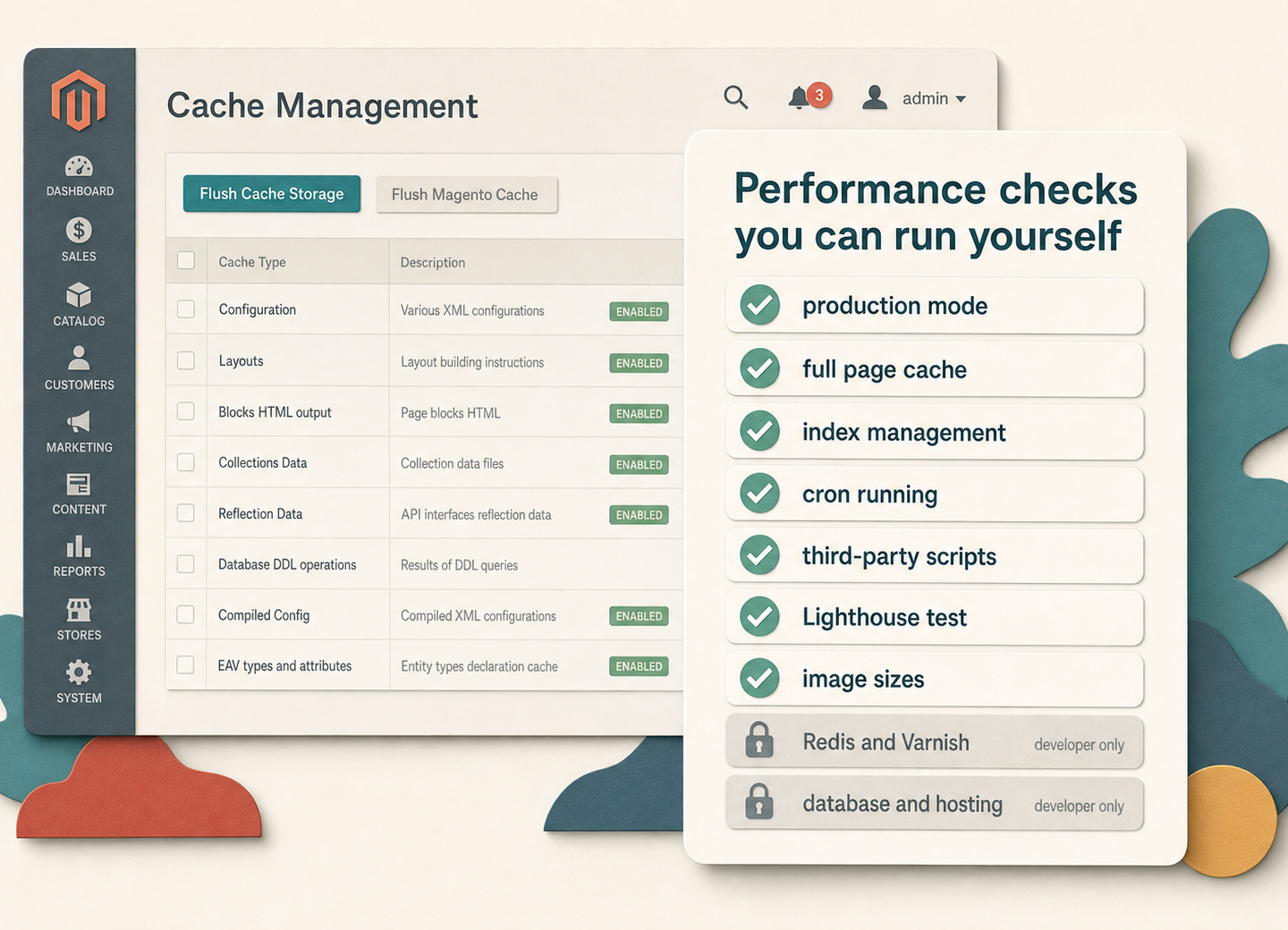
Work through these in order. Each is observe-only and takes a few minutes:
- Confirm production mode. Developer mode is far slower and should never run on a live store. Your developer can confirm the mode, or you can ask - it's the single biggest and most common misconfiguration.
- Check Full Page Cache is on and enabled. Stores > Configuration > Advanced > System shows the cache application; System > Cache Management lists cache types. If types show as Invalidated (amber), the cache is working harder than it should.
- Look at Index Management. System > Index Management. Any indexer stuck on "Reindex Required" means shoppers may be served stale or slow data. This is a strong, visible signal.
- Confirm cron is actually running. If order confirmation emails lag, indexers never clear, or scheduled tasks pile up, cron may be dead. That single failure slows and breaks a surprising amount.
- Count third-party scripts on your key pages. Analytics, chat widgets, marketing pixels, A/B tools - each one is JavaScript the browser must fetch and run. This is usually the biggest slice a merchant directly controls.
- Run a Lighthouse or PageSpeed test. Test the homepage, a category, and a product page. Note the Largest Contentful Paint and Total Blocking Time, and read which resources it flags.
- Check your image sizes. Open a product page, right-click a main image, and check its dimensions and file size. A 3000px, 2MB JPEG served into a 600px slot is pure waste - and something you can fix in the catalog.
- Review your installed extensions. More extensions means more code on every request. List what you actually use versus what's installed "just in case".
- Test on a real phone on mobile data. Not office wifi. Most of your traffic is mobile, and the gap between the two is where lost sales hide.
- Note when it's slow. Always, or only at peak? Only the admin, or the storefront too? Only after a deploy? The pattern tells a developer where to look.
Why do PageSpeed scores and Magento reality disagree?
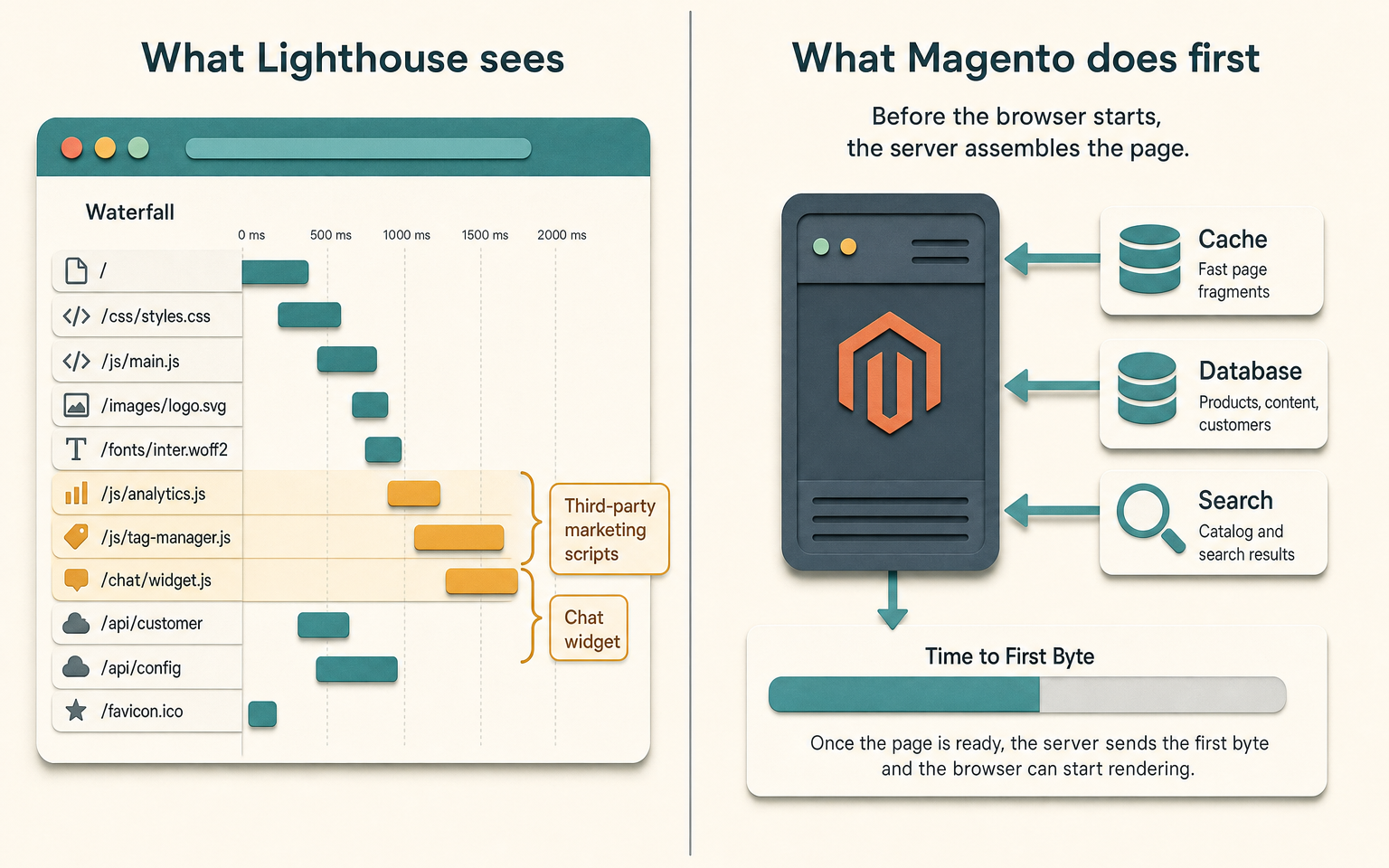
Lighthouse and PageSpeed Insights measure the browser's experience: how fast pixels appear, how much JavaScript blocks the main thread. That's real and worth improving, but it isn't the whole Magento story. A big part of Magento performance is server-side - how quickly the server assembles the page before the browser sees anything (Time to First Byte), which depends on cache, database, search and hosting. A store can score badly on Lighthouse purely because of front-end scripts you added, while the Magento backend is healthy. The reverse is true too.
So read PageSpeed as one instrument, not the verdict. If it flags "reduce unused JavaScript" and "third-party code blocked the main thread", that's usually your marketing tags, and you can act on it. If your server response time is high but the front end is light, the problem is backend - cache, hosting, or database - and that's the developer's territory. Adobe's own performance best-practices treat the two as separate systems, and so should you.
How this applies to Magento 2
Magento 2 gives merchants a fair amount of visibility without touching the command line, and that's what these checks lean on. System > Cache Management and System > Index Management are admin screens anyone with access can read. Deploy mode, Redis for sessions and cache, Varnish, OpenSearch tuning and static content deployment are all real and important, but they live on the server and in configuration files - as of Magento 2.4.9 there's no safe admin button for them. That's the natural boundary. This maps cleanly onto what's safe versus what isn't:
| Layer | What to check | Safe for a merchant? |
|---|---|---|
| Cache status | System > Cache Management for invalidated types | Yes - observe only |
| Indexers | System > Index Management for "Reindex Required" | Yes - observe only |
| Third-party scripts | Count tags on key pages, run Lighthouse | Yes |
| Images | Oversized catalog images | Yes - fixable in the catalog |
| Extensions | Installed versus actually used | List yourself; removal is a developer job |
| Deploy mode | Production versus developer mode | Confirm only; changing it is a developer job |
| Redis / Varnish / OpenSearch | Cache and search backends | No - server and config, developer only |
| Database and hosting | Slow queries, server response time | No - developer or host |
If you want the deeper technical picture behind that table, our Magento performance optimisation guide covers the backend levers - cache application, CDN, queues and database - that a developer would work through.
When should you actually call a developer?
Call one when the fix crosses into the command line or a config file, or when the evidence points at the backend. Concretely: your server response time is high but the front end is light; indexers or cron are failing and won't clear from the admin; the store needs Varnish, Redis or OpenSearch set up or tuned; an extension needs removing cleanly rather than just disabling; or you've done the safe checks and the store is still slow. Bring the evidence from the ten checks - it turns an open-ended (expensive) investigation into a targeted fix.
One caveat on extensions: adding more of them is the most common way merchants slow their own store, so vet the next one before it goes on. Our guide to choosing Magento extensions is the pre-purchase filter for that.
Where Moogento helps
Performance monitoring and business monitoring are different jobs, and it's worth being precise about which one Pulse does. Pulse is not a page-speed profiler or an APM tool - it won't tell you your Time to First Byte or which query is slow. What it watches is the commercial side: revenue, orders, refunds and campaign performance, with threshold alerts for a revenue drop, an order slowdown or a spell of zero-revenue hours. So its role in a performance conversation is the "is this actually costing us sales" layer. If the store slows during a sale, a page-speed tool tells you it's slow; Pulse's order-slowdown alert tells you whether shoppers are giving up because of it. Use the ten checks and Lighthouse for the technical read, and treat Pulse as the early warning that a slowdown has started to bite.
FAQ
Can I speed up my Magento store without a developer?
Partly. You can safely reduce oversized images, remove unnecessary third-party scripts and marketing tags, and cut extensions you don't use - those are merchant-controllable and often the biggest front-end wins. The backend levers (cache application, Redis, Varnish, OpenSearch, hosting, database) need a developer. The split is roughly: front-end bloat you added, you can trim; server-side architecture, you can't safely touch.
Why is my Magento admin slow but the storefront fine?
Admin-only slowness usually points at indexers, cron, or the database rather than the storefront cache, because the admin isn't served from full page cache the way storefront pages are. Check System > Index Management for stuck indexers first. If they're clearing but the admin is still sluggish, it's likely a backend or hosting issue for a developer.
Is a low PageSpeed score always a real problem?
Not always. PageSpeed measures the browser experience, which is heavily influenced by scripts you can control. A low score driven by marketing tags is fixable by you. A low score with a light front end but slow server response points at the backend. Read what the tool flags, not just the number, and test more than one page type.
How many extensions is too many?
There's no fixed number - it's about what each one costs versus delivers. Every extension adds code to requests, and several doing similar jobs tend to conflict. The practical test is whether you can name the business outcome each one produces. If you can't, it's a candidate for removal, which is a developer task done carefully rather than a simple disable.
Run the ten checks first. Most stores find at least one clear win they can act on without help, and the ones they can't become a short, evidenced brief for a developer rather than a blank cheque.