

Magento 2 Bulk Invoice and Ship: A Faster Order Workflow

Magento 2 can create an invoice and shipment together for one order, but doing that across many orders still means repeating the same admin flow. A bulk invoice-and-ship action moves the work to Sales > Orders: filter the eligible orders, select them, choose one action, and let Magento create the individual invoice and shipment records.
This guide focuses on configuring and running that batch safely. If you are deciding whether the workflow change is worth it, start with the hidden cost of slow Magento order processing.
How do you bulk invoice and ship Magento 2 orders?
ShipEasy adds an sE: Invoice & Ship action to the Magento 2 orders grid. It processes the selected orders up to the plan limit and lets the operator choose whether Magento sends invoice and shipment emails.
- Go to Stores > Configuration > Moogento > ShipEasy > Orders Page: Action Menu Options.
- Set Show: Invoice & Ship to Yes, then save the configuration.
- Go to Sales > Orders and filter the grid to orders that are paid and ready to fulfil.
- Select the orders, open Actions, and choose sE: Invoice & Ship.
- Choose whether to email the invoice and shipment copies, then run the action.
- Read the completion and error messages before moving to printing, tracking import, or the next batch.
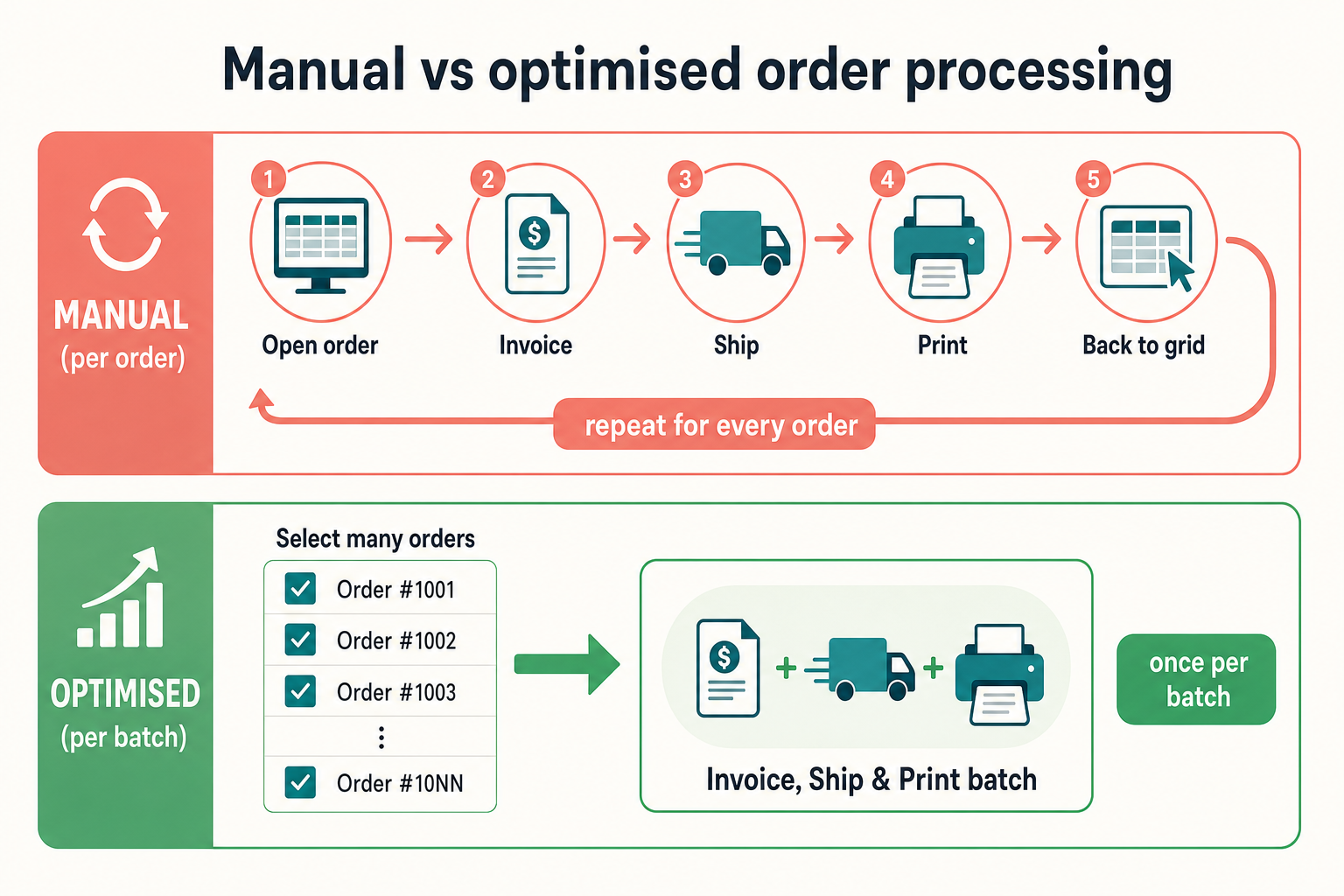
What can native Magento do without an extension?
Magento's invoice screen has a Create Shipment option, so an operator can create both records while processing one order. Adobe's invoice documentation also covers printing invoices individually or as a batch.
The missing step is creation across a selected group. The native Sales > Orders grid does not provide one action that creates invoice and shipment records for every selected order. That distinction matters: batch printing existing documents is not the same as bulk-creating the underlying records.
Which orders belong in the same batch?
A good batch is easy to describe in one sentence, such as “paid UK orders leaving warehouse A before today's DPD cutoff.” That makes the selection easier to inspect before it changes order state.
- Start with paid orders that are genuinely ready to fulfil.
- Separate orders that are on hold, cancelled, already invoiced, or already shipped.
- Group by warehouse, carrier, cutoff, or another operational rule your team can verify.
- Keep partial fulfilments and unusual payment workflows in a smaller review batch.
- Confirm that any tracking workflow is ready before customer shipment emails are sent.
The orders grid is part of the control surface. Useful columns and saved filters reduce the chance of selecting an order that looks similar but is not ready. See the guide to improving the Magento orders grid if operators still open orders just to inspect basic fulfilment details.
How large can a bulk invoice-and-ship batch be?
ShipEasy applies a plan limit to the selected collection: 50 orders on Seed, 200 on Growth, and 500 on Pro. These are maximums, not targets. A smaller group is often easier to verify and repeat if one order cannot be processed.
| Plan | Maximum selected orders | Practical use |
|---|---|---|
| Seed | 50 | Small daily batches or one carrier run |
| Growth | 200 | Several filtered fulfilment waves |
| Pro | 500 | High-volume operations with established checks |
If your team normally processes 70 orders at once, do not jump to a 200-order selection simply because the plan allows it. Keep the batch aligned with a real warehouse decision.
What should you check before running the action?
- Selection: the grid count matches the physical fulfilment wave.
- Payment: the selected orders are eligible for invoicing under your payment workflow.
- Stock: the items are available and allocated to the correct warehouse.
- Email: the operator knows whether invoice and shipment messages should be sent now.
- Tracking: carrier and tracking data will be available at the right point in the process.
- Exceptions: partial shipments, holds, and unusual orders are separated for manual review.
Run the first production test with a handful of ordinary orders. Confirm the records, emails, status changes, and printed documents before increasing the batch size.
How should you handle failures in a batch?
Treat the result as a list of individual order outcomes, not one all-or-nothing event. Review the messages after every run, isolate the orders that could not be processed, and fix their specific condition before retrying them. Do not immediately rerun the full original selection because the successful orders may already have invoice and shipment records.
For repeatable operations, write down the common exception paths. An order that needs a partial shipment should not follow the same route as a normal paid order. A held order should leave the batch before an operator presses the action.
What happens to invoice emails and shipment emails?
The action lets the operator choose whether to send the invoice and shipment copies. Make that choice part of the written warehouse procedure. Sending too early can notify the customer before tracking is useful; sending too late creates avoidable “where is my order?” questions.
The batch action does not turn many orders into one Magento record. Each order keeps its own invoice and shipment history, which preserves the customer account view and the normal admin audit trail.
How do you finish the paperwork after the batch?
Creating the records is only one part of dispatch. PickPack can generate picking and packing documents for the selected orders, including a combined picklist that groups the same SKU across the selection. The PickPack guide explains how to assign the document templates and expose the relevant mass actions.
That creates a practical sequence: filter the fulfilment wave, run invoice and ship, review exceptions, then produce the documents for the successful orders. The ShipEasy setup guide covers the surrounding grid and action-menu configuration.
A low-risk rollout checklist
- Enable the action in a non-production environment first.
- Use ordinary paid orders with no partial fulfilment or unusual payment state.
- Start with two or three orders and keep customer emails off for the first check.
- Confirm each invoice, shipment, status, and order comment.
- Test the notification choice with internal or controlled customer addresses.
- Document the filters and exception rules your operators should use.
- Increase the batch size gradually while reviewing every result.
FAQ
Can Magento 2 invoice and ship multiple orders in one action?
Not from one native Sales > Orders grid action. Native Magento can create a shipment while processing one invoice. ShipEasy adds sE: Invoice & Ship for a selected group of orders.
Does bulk invoice and ship merge the orders?
No. Magento still creates and stores the invoice and shipment records against each individual order. The action removes repeated admin navigation; it does not combine order histories.
Can I send customer emails from the bulk action?
Yes. The operator can choose whether Magento sends the invoice and shipment copies. Decide how that choice fits your tracking and dispatch process before running a large batch.
What happens if one selected order is not eligible?
Review the action messages and handle that order as an exception. Before retrying, remove orders that were already processed successfully so you do not repeat work against them.
Should I always process the maximum number of orders?
No. Use the smallest batch that matches a real operational group, such as one carrier cutoff or warehouse wave. The plan limit is a ceiling, not the recommended batch size.
Start by enabling the action, defining one reliable grid filter, and processing a small controlled group. Once the records and notifications match your workflow, increase the batch size without changing the checks.


